Teleport your device anywhere instantly with one click.


 100% Security Verified | No Subscription Required | No Malware

 :

 ChatGPT
 Perplexity
 Gemini
 Claude
 Grok
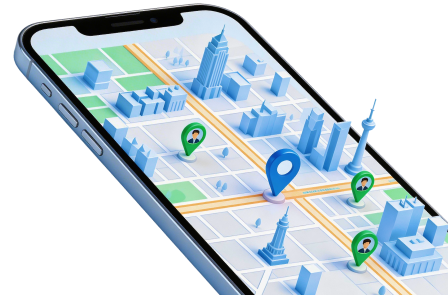
The best apps like Zenly depend on whether you want a family map, a short-lived location link or a more configurable GPS tracker. Zenly's closure left a gap for people who enjoyed seeing friends and familiar places on one map. Installing an old package from an unofficial website does not restore a discontinued service, and it introduces avoidable security risks.
The ten options below keep the original comparison's range: everyday mapping, family circles, parental tools and an open-source platform. This is a feature-based selection, not a claim that we independently tested thirty applications. Location sharing should always be voluntary; none of these services gives you a right to locate someone who has not agreed to share.

In this article
The second directory label is retained from the source article. It does not mean Zenly still operates or that an older iOS reference guarantees compatibility with your current phone. Check current requirements before installing any location utility.
Part 1. Ten Zenly alternatives and what each does best
A useful replacement should solve a specific sharing problem rather than simply resemble Zenly's map. Ask whether both people use the same phone platform, whether sharing should expire automatically and whether you need arrival alerts or location history. GPS accuracy, background permissions, reception and battery settings affect every option. A missing map update is not reliable proof of someone's movements.
1. Life360: family circles and arrival alerts

Life360 suits households that want an ongoing shared map rather than occasional messages about where everyone is. Members join a circle and share from their own devices; place notifications can make routine arrivals and departures easier to follow. The service also offers driving-related features, although access varies with membership, region and device.
Choose it when family coordination is the main goal. Review what the available plan actually includes before relying on alerts or history, and make sure each person understands the circle's settings. A displayed position is an estimate from a phone, not guaranteed proof that a person is at that exact point.
2. Find My Friends: use Apple's current Find My app

The older name Find My Friends refers to functionality now found in Apple's Find My app. For an Apple-device household, use the People tab to choose a contact and decide how long to share. Both the sharing device and Location Services need appropriate settings; it is not a matter of installing an obsolete standalone application.
Its strength is integration with the Apple ecosystem. You can manage or stop your own sharing in Find My instead of assuming that hiding a map marker requires a spoofing tool. The screenshot above is inherited from the earlier article and should not be treated as the current interface or a promise of specific language availability.
3. GeoZilla: location sharing with safety features

GeoZilla is another cross-platform family-location option. Its appeal is combining a shared map with safety-oriented features, so it is worth considering when checking in with relatives matters more than recreating Zenly's social feed.
The original article highlighted driving reports, emergency notifications and battery management. Treat these as features to verify for the selected subscription and supported device, not assurances that every incident will be detected or a contact will always be reached. Background limits and connectivity can delay updates even when a family member has enabled sharing.
4. Google Maps: sharing alongside navigation

Google Maps is a practical starting point if you already use it for directions. You can share your position with selected people without first adopting a dedicated family-circle service. That makes it useful for meeting friends, coordinating a journey or helping a relative follow your progress.
Navigation, traffic information and rerouting belong to the same mapping app, but location-sharing availability is not identical to worldwide map coverage. Check your account and region rather than interpreting the source's country count as a guarantee. When the arrangement ends, review the sharing list and stop any update stream you no longer want active.
5. Glympse: temporary whereabouts updates

Glympse is worth evaluating when a timed update is preferable to a permanent family map. Typical use cases include an arrival estimate, a meeting point or a journey that someone wants to follow only for a limited period. Check the current app's sharing and recipient requirements before sending a link.
Do not interpret the source's references to Facebook or Twitter as permission to view followers' locations. A social connection does not automatically grant GPS access. Similarly, confirm current account requirements and any paid features rather than assuming every edition works without registration or cost.
6. Family360: group coordination and history

Family360 takes the family-group approach: invite the relevant people, configure sharing and use the map to coordinate everyday travel. Location history and safety features may be useful for households that need more context than a single current marker.
The source mentions SOS, Watch Over Me and traffic-related functions. Verify their current names and plan conditions in the installed app. A locator may help identify a phone's last reported position, but it does not guarantee recovery of a lost or stolen device. Use the platform's official lost-device tools as well.
7. Traccar: a configurable open-source tracking platform

Traccar differs from the consumer social apps on this list. It is an open-source GPS tracking platform with a web interface and mapping options. It is more appropriate for someone prepared to configure clients, devices or a server than for a group expecting an immediate Zenly-style social experience.
Open-source software can be free to obtain without making an entire deployment free of cost or maintenance. Hosting, setup and compatible tracking equipment may still be necessary. Choose Traccar for control over an authorized tracking system, not on the assumption that a download alone locates any phone.
8. FamilyTracker: verify the exact app and subscription

FamilyTracker is included for its family-location and messaging approach. Because several similarly named products exist, confirm the developer, supported platforms and privacy policy on the store listing before installing. Every participating device needs the appropriate app and permissions.
The earlier article describes messaging and a two-week trial followed by a subscription. These are not dependable current pricing terms, so check the offer shown to your account, renewal period and cancellation process. Compare the actual ongoing cost rather than treating a trial as a free Zenly alternative.
9. FamilyTime: parental tools as well as a locator

FamilyTime is aimed more directly at parental oversight. Its location functions sit alongside device-management or screen-time tools, which makes the decision different from simply choosing a shared map for adult friends. A map marker and a usage report are separate types of information.
Review the child's device requirements, permitted controls and any panic-alert setup. Explain the arrangement in an age-appropriate way and configure it with the lawful authority required in your location. An alert can assist a family's response but should never replace emergency services or a dependable contact plan.
10. T Mobile Family: check the relevant carrier service

The original T Mobile Family entry refers broadly to carrier-linked family-location services, rather than one universally available Zenly replacement. Confirm which T-Mobile family product is offered for your account, which lines it can locate and whether its platform requirements match your household.
A carrier service may be convenient when eligible relatives already share an account. It is less suitable if your group spans networks or countries and expects everyone to join on equal terms. Do not assume the old screenshot, texting description or subscription conditions apply to the current service.
Part 2. Test an alternative GPS position with Dr.Fone - Virtual Location
 Set your map route to simulate GPS movement.
- Set your wanted movement speed.
- HD and large map view to check location.
- Fake GPS location to anywhere.
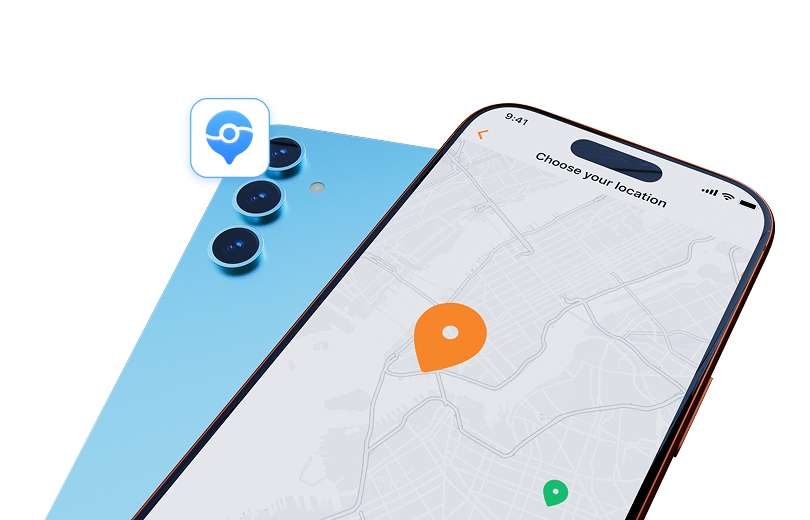
Dr.Fone - Virtual Location provides a desktop map for selecting a simulated device position and planning GPS movement with a chosen speed. This can be relevant when testing how a location-aware app handles a different point. It is a location utility, not a replacement for a working sharing service or an account's privacy controls.
If you simply want less continuous sharing, first use the app's own controls and tell affected contacts. GPS simulation does not guarantee that Life360, Find My or another service will show a particular result, remove location history or conceal that sharing changed. Check current phone and OS support before connecting; the source's iOS 17 wording is not an unlimited compatibility promise.
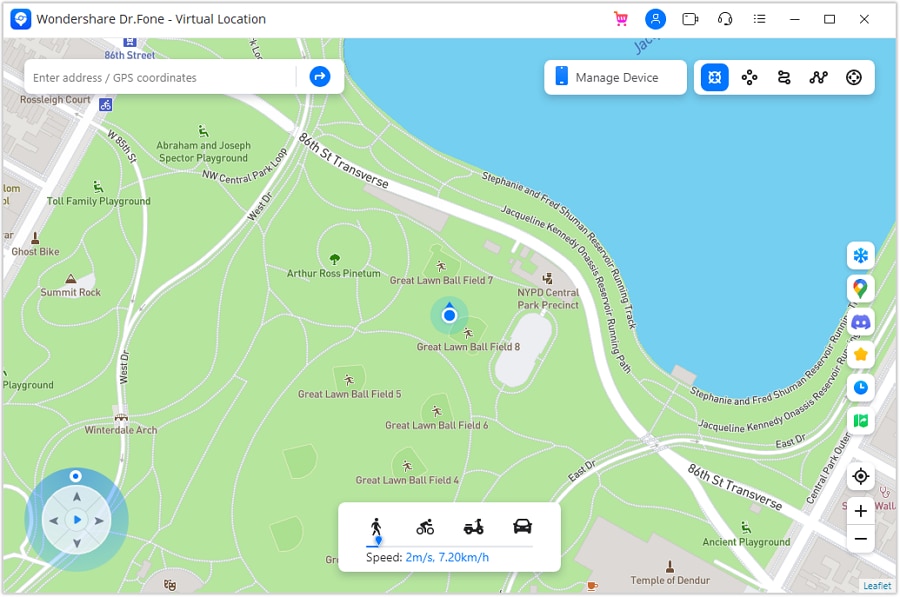
Step 1 Connect the phone and open the map
Install the desktop application on your Windows PC or Mac and launch Virtual Location. Connect your own iPhone or iPad by USB, following the on-screen authorization prompts. Use a wireless connection only when the installed version and initial setup support it. Confirm that the connected device and map position are the ones you intend to test.
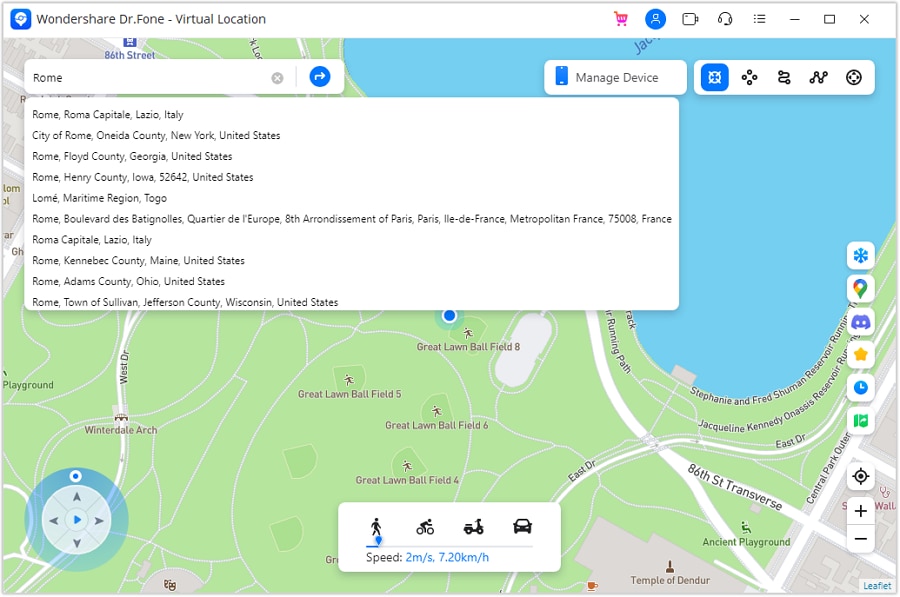
Step 2 Search for the intended test point
Activate Teleport Mode in the map controls. Enter the destination in the search field and submit it. Inspect the returned point before proceeding, since places with similar names can produce an unintended result. This chooses a coordinate; it does not move your physical device or restore Zenly.
Step 3 Confirm and verify on the phone
Review the destination and select Move Here. Open a maps app on the connected phone to check what position it reports, then evaluate the particular sharing app separately. If the result is stale, unsupported or unsuitable, stop the test rather than assuming every contact sees the desktop marker.
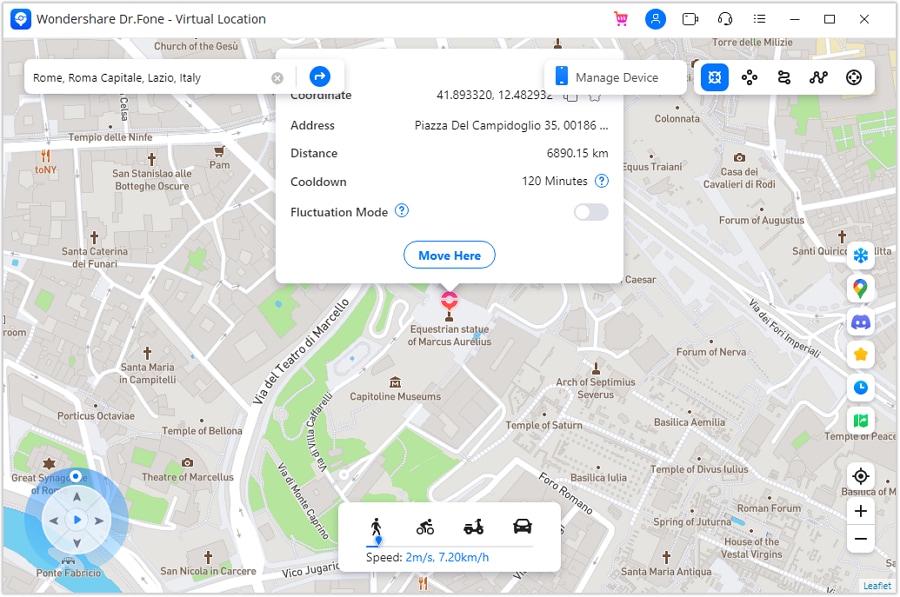
When testing is finished, follow the application's restoration prompt; the official guide describes restarting the device to recover its real position. Verify the phone's map again before relying on navigation, safety notifications or location sharing.




Conclusion
Start with the sharing pattern you need: Life360 for a family circle, Apple's Find My for compatible Apple users, Google Maps for sharing alongside directions, or Traccar for a more configurable deployment. Compare the remaining services against platform support, consent, current pricing and the alerts that matter to your household. No locator guarantees another person's safety or perfect live accuracy.
Dr.Fone - Virtual Location adds a separate GPS-testing workflow where supported. It is not necessary for ordinary family sharing, and it should not be presented as a way to make tracking services unknowingly trust a false position. Use native sharing controls when privacy, rather than testing, is the real goal.
FAQ
1. Can an unofficial Zenly download bring the service back?
No. Possessing an old installer does not restore the closed online service. Choose an actively maintained alternative and install it through an official source.2. Which free apps like Zenly should I consider first?
Check the location-sharing tools already available in Google Maps or Apple's Find My, depending on your devices. For any other service, distinguish an ongoing free tier from a trial or paid safety package.3. Can I locate a friend without their agreement?
These recommendations are for authorized sharing. Invite the person through the service and let them decide what to share; an account name or social-media connection does not grant access to GPS data.4. Does a virtual location guarantee that a family app stops tracking me?
No. An app can use its own update logic, cached information and permissions. To stop sharing, change that service's privacy settings rather than relying on a simulated coordinate.
 Add Wondershare Dr.Fone as a preferred source on Google