 How to Downgrade iOS 27 to iOS 26: Check Your Options
Can you downgrade iOS 27 to iOS 26 now? No standard rollback is available for the iPhone 11–17 series, iPhone Air or iPhone SE (2nd/3rd generation) in the October 22, 2026 firmware check: their iOS 26 builds are unsigned. The listed signed release is iOS 27.0.1. See the model results, or use the beta-exit and startup-repair steps. Neither is a rollback to iOS 26.
Desktop download | A computer is required for firmware changes
Choose an iOS Downgrade Method
Current result — October 22, 2026: No signed iOS 26 IPSW is listed for any of the 31 iPhone variants checked: the iPhone 11–17 families, iPhone Air and iPhone SE (2nd/3rd generation). Each lists iOS 27.0.1 (24A446) as signed. For example, see the iPhone 11, iPhone 16 and iPhone 17 Pro catalogs. Find your device group below. On these models, buying a tool or downloading an old IPSW will not restore iOS 26.
For the checked iPhones, choose by your actual goal: stop beta updates or restore the current public release, or repair an iPhone that will not start. The Dr.Fone and manual workflows remain below for installing signed firmware; neither can deliver the closed iOS 26 or iOS 18 rollback.
| Your situation | Best-fit path | What to expect |
|---|---|---|
| You want guided firmware selection on a computer | Dr.Fone | Helps you select and install eligible firmware. Downgrading erases data. The software is free to download; premium functions require a license. This is not a currently available iOS 26 or iOS 18 rollback on the checked iPhones. |
| You can choose the exact compatible signed IPSW | Finder / Apple Devices / iTunes | No paid Dr.Fone license needed. You select the file and accept an erasing restore. This is not a currently available iOS 26 or iOS 18 rollback on the checked iPhones. |
| You want to stop receiving betas without erasing now | Beta Updates Off and wait | No immediate rollback. For immediate beta removal, use the erasing current-public-release restore. |
| Your desired firmware is unsigned or not made for the device | Stop the standard downgrade | No normal tool can make an ineligible build eligible. Keep the current OS or install an authorized release. |
Computer and license: You need a Mac or Windows PC to downgrade iOS. A Dr.Fone mobile app is not a replacement for this desktop firmware workflow. Windows and Mac licenses are separate; check the current terms at checkout. Allow time for the firmware download, verification, installation, and data restoration; the total depends on your connection, computer, and backup size.
iOS 27 Downgrade: 3 Risks You Must Know Before Rolling Back
Before you roll back an iPhone update, answer three questions: Is the destination firmware authorized for this device? What will be erased? Do you have a backup the destination iOS can restore? These checks matter whether you use Dr.Fone, Finder, Apple Devices, or iTunes.
Will your data return after the downgrade?
- Compatible pre-update backup: Locate it before erasing. On a Mac, connect the device and open Finder > your device > General > Manage Backups to inspect saved backups. Keep an archived copy separate from the new backup. After the restore, select the compatible backup during setup or in the computer's Restore Backup workflow.
- Only a newer-iOS backup: Preserve it for recovery on that newer OS, but do not assume it will restore to the older target. If all current app data is essential and no compatible backup exists, do not erase merely to test a downgrade.
- Separately synced iCloud content: Check that important photos, contacts, and files have finished syncing, and export irreplaceable items. Signing back in can bring back content synced with iCloud, but it will not restore every app's local data. Keep a separate device backup as well.
- No compatible backup: If you accept the loss, set up as new after a successful restore and resync what is available. Otherwise keep the current system, fix the underlying problem, or wait for an appropriate update.
A backup created before restoring but after installing newer iOS is still a newer-iOS backup. Apple's beta-removal guidance and backup compatibility instructions explain this limit. For selective data backup/export, see the Dr.Fone backup guide; which items you can restore depends on the data type and destination iOS version.
Potential Data Loss
Restoring an older iOS version will erase the device. Backing up today protects your current data, but does not make a newer-iOS backup compatible with older iOS. A compatible pre-update backup and separately synced data serve different recovery needs.
What to do:
Back up your current iPhone data and keep any older compatible backup separate. Review the backup decision checklist before erasing.
Device Instability
An IPSW must match the exact device model and a version that model supports. An incompatible or unsigned file can be rejected even if it is a genuine Apple download. Do not select firmware based only on a similar device name.
Solution:
Use the firmware eligibility checks below. If your phone will not start afterward, follow the recovery and restore troubleshooting path rather than repeatedly flashing different files.
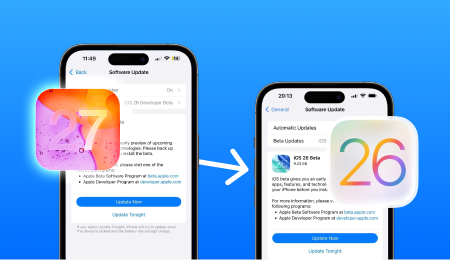
Apple's Restrictions on Downgrading
Apple must authorize the requested build during a standard restore. Its signing window is not a guaranteed number of days, and availability varies by build and device. A previously downloaded IPSW is not permission to install it later. Read the difference between signed and unsigned firmware.
Advice:
Check the exact device and build on IPSW.me immediately before restoring. Apple makes the final authorization decision; if the target is unsigned, stop the normal downgrade workflow.
How to Downgrade From iOS 27 to iOS 26?
The current iOS 27-to-26 rollback is closed for the iPhones in the model table. The first two workflows explain how signed-firmware installation works with Dr.Fone or Apple’s computer tools; they do not make iOS 26 available again. The third removes beta software by installing the current public release. For a frozen or unbootable phone, go directly to Update-first recovery rather than erasing it to try an unavailable version.
1. Downgrade iOS 27 to a Version That Apple Still Signs
Before starting: signing, model, and backup checks
As of October 22, 2026, the iPhone groups below have no signed iOS 26 restore build. Their listed signed release is iOS 27.0.1. An ordinary Restore therefore reinstalls the current release; it does not return these phones to iOS 26. Keep your data on the phone while choosing a beta-exit or repair path.
iPhone & iPad Firmware Eligibility Checks
These are current restore results, not a list of models that merely support iOS 26. Match your phone using Settings > General > About > Model Name. The iPhone results include every variant in the groups shown. iPadOS is a separate firmware line and is not included in this iPhone signing check.
| Device family | Before attempting iOS 27 to iOS 26 | Next step |
|---|---|---|
| iPhone 17 / 17 Pro / 17 Pro Max / 17e / iPhone Air | Not available: all listed iOS 26 IPSWs are unsigned; iOS 27.0.1 is signed. | Leave a beta for the current public release |
| iPhone 16 series / iPhone 16e | Not available: all listed iOS 26 IPSWs are unsigned; iOS 27.0.1 is signed. | Repair the current iOS instead |
| iPhone 15 series | Not available: all listed iOS 26 IPSWs are unsigned; iOS 27.0.1 is signed. | Leave a beta for the current public release |
| iPhone 14 series / iPhone SE (3rd generation) | Not available: all listed iOS 26 IPSWs are unsigned; iOS 27.0.1 is signed. | Repair the current iOS instead |
| iPhone 13 / 12 series | Not available: all listed iOS 26 IPSWs are unsigned; iOS 27.0.1 is signed. | Leave a beta for the current public release |
| iPhone 11 series / iPhone SE (2nd generation) | Not available: all listed iOS 26 IPSWs are unsigned; iOS 27.0.1 is signed. | Repair the current iOS instead |
| iPad models | Separate iPadOS check required; the iPhone signing results above do not apply. | Public-release restore or eligible signed iPadOS build |
Signing status: October 22, 2026, IPSW.me. Apple authorizes installation during the restore. For a restore on a later date, refresh your model’s catalog because signing status can change. How Apple authorizes installation.
Solution 1 — Recommended:
Downgrade iOS 27 with Dr.Fone: Guided Firmware Installation
Dr.Fone - System Repair (iOS) guides you through choosing, downloading and installing firmware. It cannot currently return the checked iPhones to iOS 26 or iOS 18. Use the four steps below for an available signed version, not to bypass the model table. This restore-based workflow erases the phone; preserve your backups before starting.
Dr.Fone - System Repair (iOS)
Buy Now is for the desktop System Repair license and requires a computer. The mobile app download is separate and does not downgrade iOS firmware.
Steps to Downgrade iOS with Dr.Fone
1. Choose Downgrade
2. Back up and connect
3. Download eligible firmware
4. Install and finish setup
1. Choose Downgrade. Open Toolbox > System Repair > iPhone > iOS Upgrade/Downgrade in the desktop app, then choose Downgrade. On a Mac, the labels and layout may differ from the screens shown below.

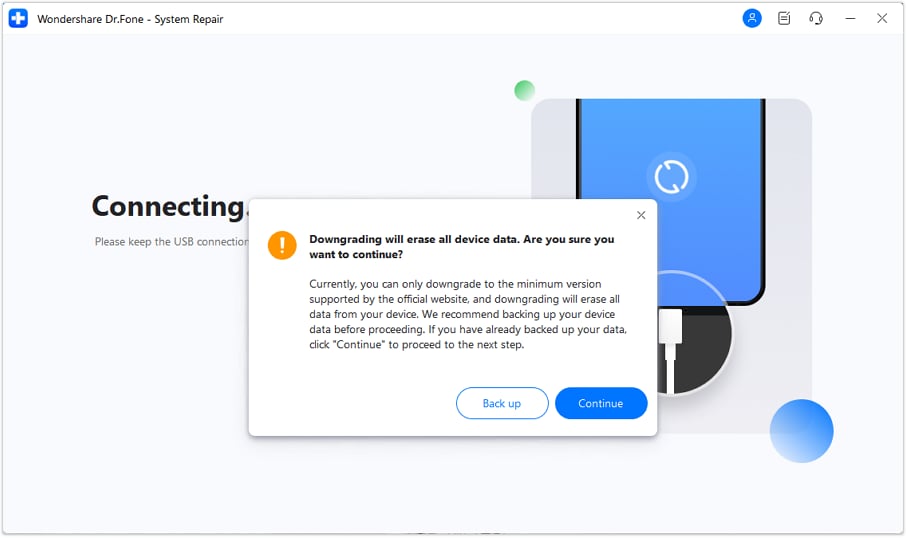
2. Back up and connect. Read the erasure warning. Choose Back up and complete the backup, or continue only if you accept erasing the device. Connect the iPhone with a suitable USB cable when prompted. A backup made on the newer iOS may require that newer version to restore.
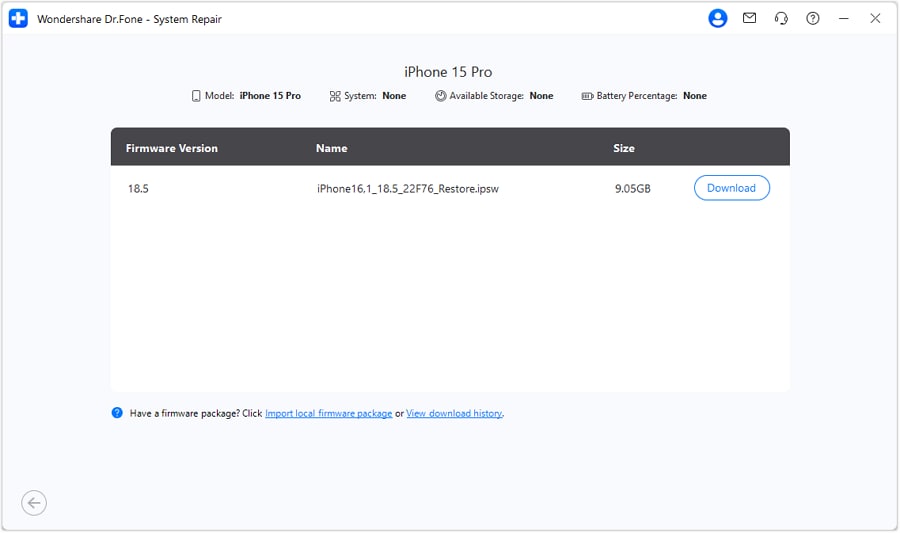
3. Download eligible firmware. Review the firmware offered for the detected device. Choose the eligible destination version and click Download. Let the download and verification finish. If the desired version is unavailable or fails authorization, stop; do not substitute another model's firmware.
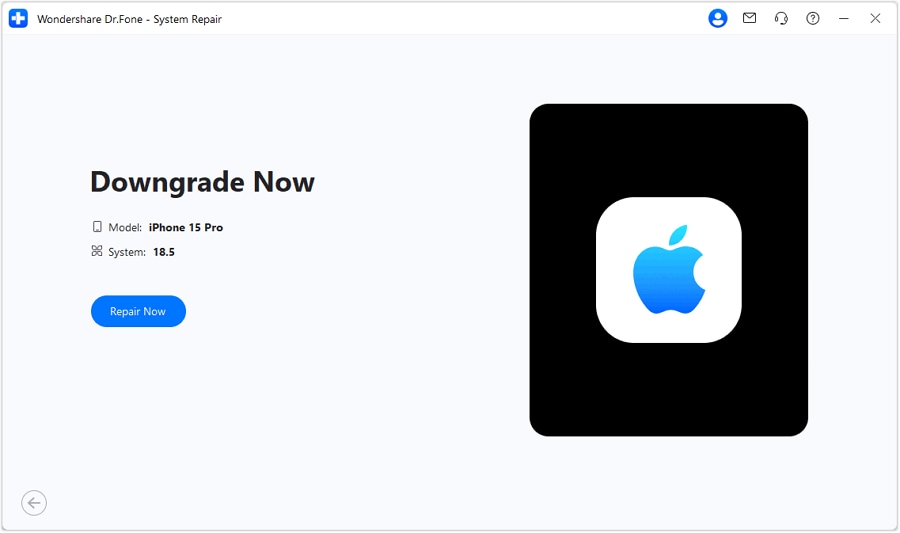
4. Install and finish setup. After verification, click Repair Now. Keep the device connected until the process finishes, then click Done. Complete device setup and restore only from a compatible backup, or set up as new and sign in to resync supported data.
Solution 2:
Use Finder, Apple Devices, or iTunes to Downgrade iOS
Use Finder on macOS Catalina or later, or Apple Devices on Windows. iTunes remains the path on older supported setups. This route does not require a paid Dr.Fone license, but you choose the exact signed IPSW yourself. Restore erases the device. A fresh backup made on the newer OS is not a substitute for a backup compatible with the destination OS.
What You Need:
Step 1: Preserve your current backup and any older compatible backup. In Settings, open your name > Find My > Find My iPhone and turn it off using your Apple Account credentials when required.
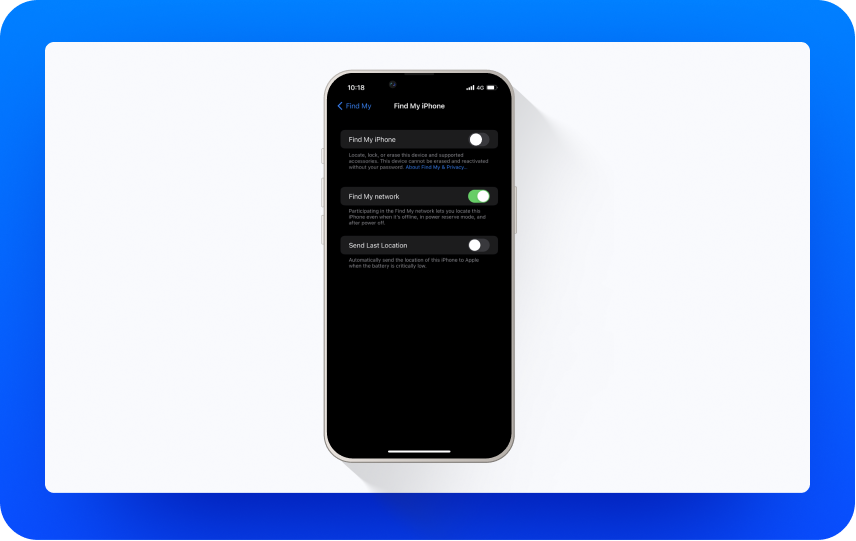
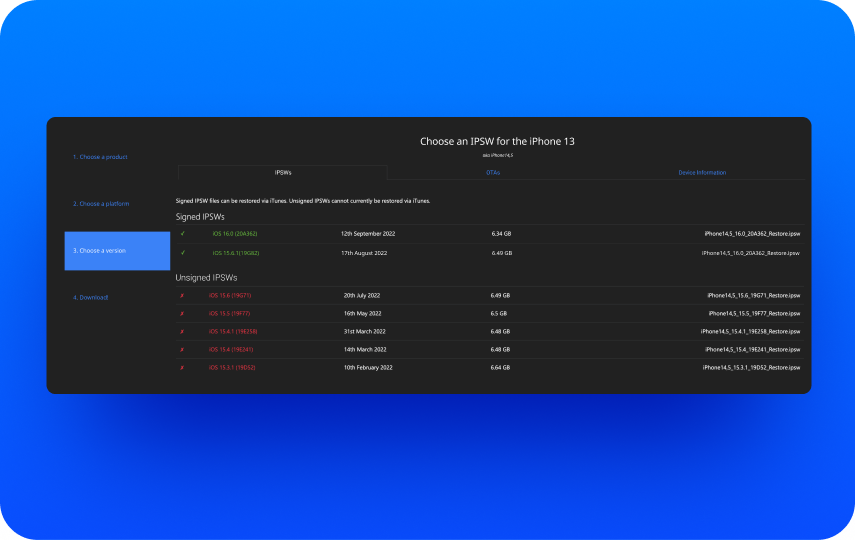
Step 2: On IPSW.me, select the exact iPhone model and inspect the target build's signing status. Download its IPSW only if it is compatible and signed; a saved file will not remain installable after authorization closes.
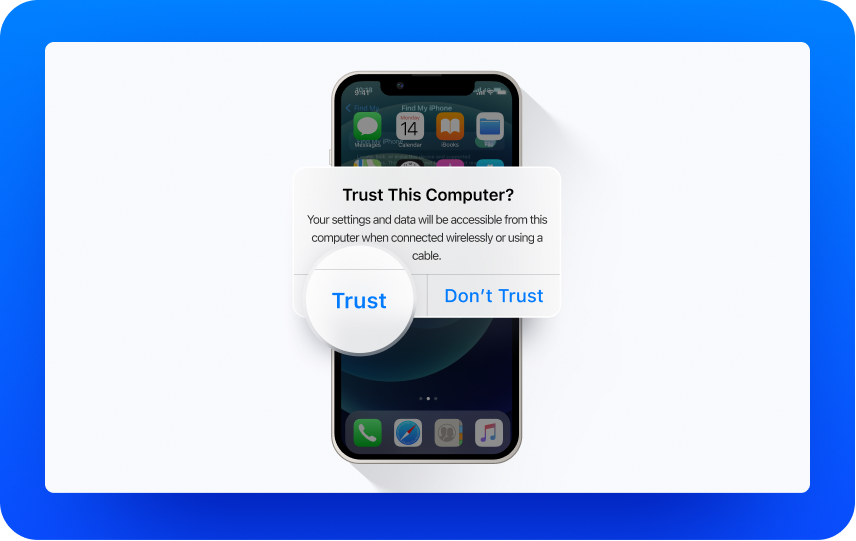
Step 3: Connect the iPhone with a USB-C or Lightning cable as appropriate. Open Finder on a current Mac, Apple Devices on Windows, or iTunes on an older supported setup. Select the device and approve Trust prompts.
Step 4: In Finder, select General and hold Option while clicking Restore iPhone. In Apple Devices, select General and hold Shift while clicking Restore; in iTunes use Summary and Shift on Windows or Option on Mac.
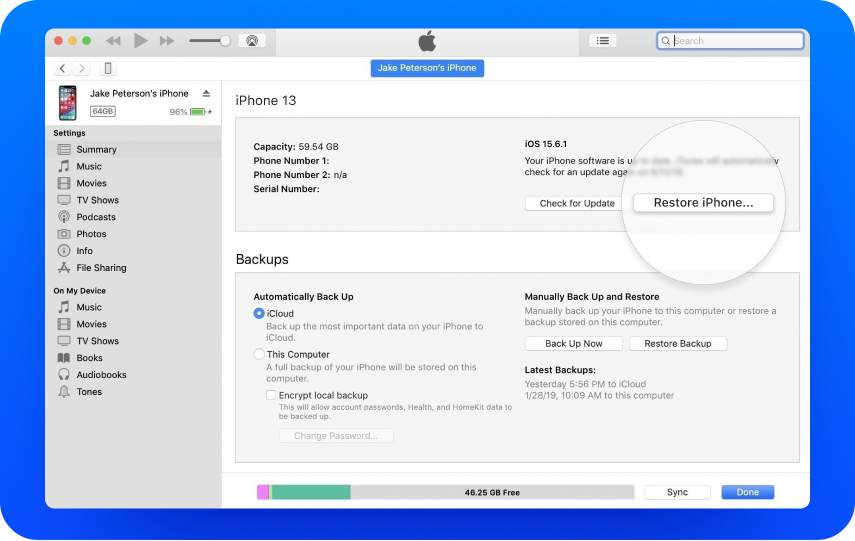
Step 5: Select the matching signed IPSW file and confirm the Restore warning. This erases the device. Use Restore for this signed-IPSW workflow, not Check for Update; you will need to restore compatible data afterward.
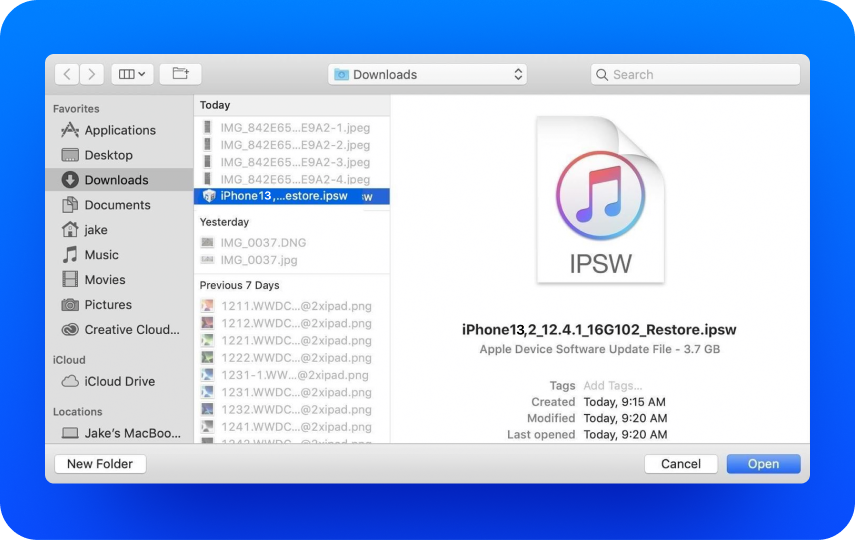
Step 6: Leave the device connected until the Hello screen appears. Set it up using a backup compatible with the destination iOS, or set it up as new. Sign in to iCloud for separately synced content and check what actually returns.
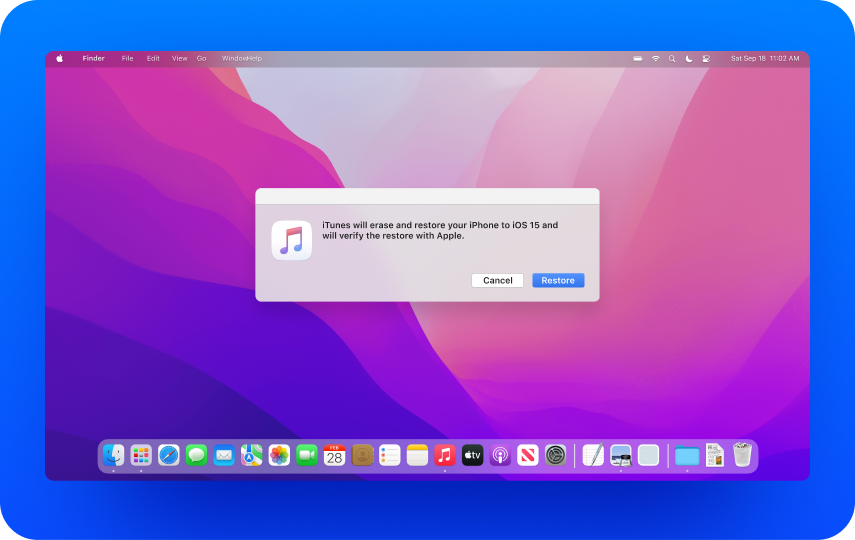
Steps to Restore a Signed IPSW
1. Back up and prepare Find My
2. Check and download signed IPSW
3. Connect and trust the computer
4. Choose Restore with the modifier key
5. Select IPSW and accept erasure
6. Finish setup and restore compatible data
If you click Restore without selecting a specific IPSW, the tool normally installs the current public version. If the phone is not recognized, use the Recovery Mode instructions in troubleshooting. The screenshots illustrate legacy iTunes screens; Finder and Apple Devices labels differ.
Solution 3: Remove an iOS Beta
Stop Beta Updates or Restore the Current Public Release
The screenshots show older iTunes screens. On a current Mac or Windows PC, follow the Finder or Apple Devices steps below. Choose firmware by your device's current signing status, not by the version shown in a screenshot.
To stop future betas without erasing now, open Settings > General > Software Update > Beta Updates > Off on iOS 16.4 or later. Keep using the installed system until a public update is offered. To remove the beta immediately, use the five-step erase-and-restore workflow below. For the iPhones in the table, the catalog lists iOS 27.0.1 as signed—not iOS 26. See Apple’s beta removal instructions.
1. Preserve backups and connect
2. Open the computer restore app
3. Enter Recovery Mode
4. Restore the current public release
5. Complete setup
Step 1: Preserve an archived backup from before the beta, and separately save current data you may need later. Connect the iPhone or iPad to a computer using a suitable USB-C or Lightning cable.
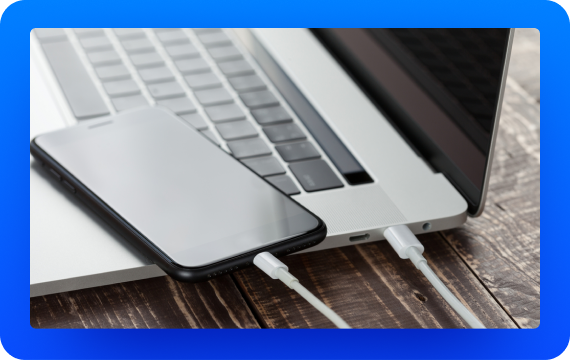
Step 2: Open Finder on your Mac or Apple Devices on Windows; use iTunes only on an older supported setup. Keep the device connected.
Step 3: For iPhone 8 or later, including iPhone SE (2nd generation or later), quickly press and release Volume Up, then Volume Down, then hold Side until the Connect to computer screen appears. Keep holding past the Apple logo. For older iPhones use the model-specific Recovery instructions below; for iPads use Apple's linked beta-removal guide.
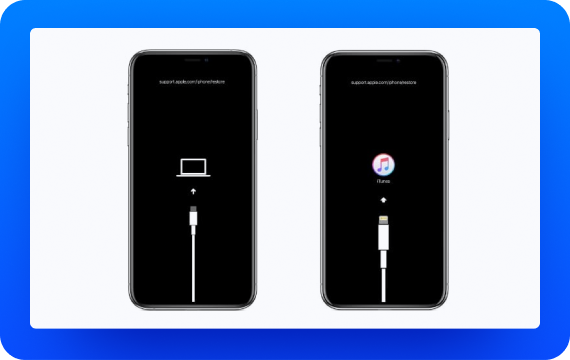
Step 4: Choose Restore when prompted. It erases the device and installs the current non-beta version. If the download takes more than 15 minutes and recovery mode exits, let the download finish, then re-enter recovery mode.
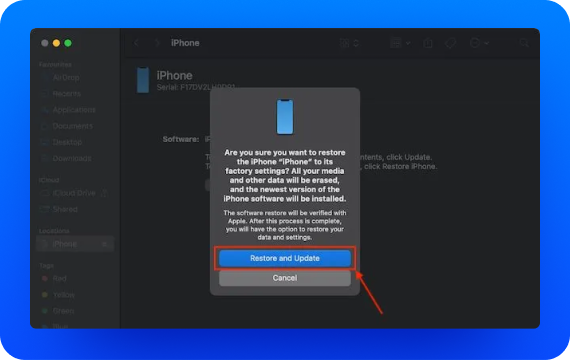
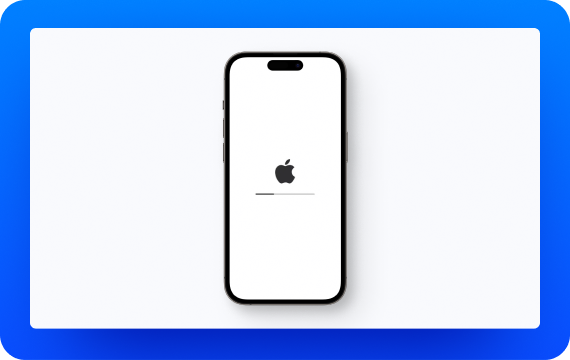
Step 5: Wait for completion, sign in with the Apple Account if asked, and finish setup. Restore the compatible pre-beta backup or set up as new; a backup made on the newer beta may require a newer OS.
2. Can You Downgrade to an Unsigned iOS Version?
You cannot use a normal Finder, Apple Devices, iTunes, or Dr.Fone downgrade workflow to authorize a build Apple no longer signs. An IPSW file is only the firmware package. Downloading it, having an older backup, or buying an iOS downgrade tool does not reopen signing.
Specialized projects such as FutureRestore depend on saved device-specific signing tickets and additional nonce, SEP, and baseband compatibility conditions. A saved SHSH blob alone does not prove a downgrade is possible on a modern device. Do not use these specialized methods as a fallback when a standard downgrade is unavailable; they cannot create a new Apple signing authorization for an unsigned build.
Can You Downgrade iOS 26 to iOS 18?
No—not through a standard restore as of October 22, 2026. The iPhone 11–16 families and iPhone SE (2nd/3rd generation) have no signed iOS 18 IPSW. The iPhone 17 family and iPhone Air have no iOS 18 restore firmware in the catalog at all. The same device limits prevent a direct iOS 27-to-18 rollback. Here is what the distinction means for your phone:
| Your iPhone | iOS 18 result | What it means |
|---|---|---|
| iPhone 11–16 families, including 16e; SE (2nd/3rd generation) | iOS 18 IPSWs exist, but every listed build is unsigned. | You cannot return from iOS 26 or 27 with Finder, Apple Devices, iTunes or Dr.Fone. Examples: iPhone 11 and iPhone 16. |
| iPhone 17 / 17 Pro / 17 Pro Max / 17e / iPhone Air | No device-specific iOS 18 IPSW is listed. | An iOS 18 file for an older iPhone cannot install on these models. See the iPhone 17 Pro catalog. |
| iPhone XS (iPhone11,2), XS Max (iPhone11,6) and XR (iPhone11,8) | iOS 18.7.10 (22H374) is listed as signed. | Their catalogs list neither iOS 26 nor iOS 27. Their signed iOS 18 files belong to these older models, not to newer iPhones. See the XR catalog. |
Dr.Fone: No iOS 18 Rollback Available
Do not buy or download Dr.Fone expecting it to restore iOS 18 on an iPhone running iOS 26 or 27. Its firmware installer cannot replace the missing Apple authorization or supply an iOS 18 build for an unsupported model. For a phone that will not boot, follow the Update-first recovery steps. The separate Dr.Fone firmware workflow remains available for signed versions, but it is not an iOS 18 fallback.
This mobile app link does not perform an iOS firmware downgrade. Use the Windows or Mac desktop workflow for eligible firmware.
Desktop firmware workflow | Read data-erasure and license terms before continuing
Apple Tools: Reinstall the Current iOS
Finder, Apple Devices and iTunes cannot restore the unsigned iOS 18 files listed above. If the goal is to fix a phone that will not start, try Recovery Mode > Update first to reinstall iOS without choosing Restore. If you want to remove a beta immediately, use the current-public-release restore; that erases the device and installs the available public release, not iOS 18.
Learn about SHSH blobs →iOS 27 Downgrade Troubleshooting
 Quick Fixes
Quick Fixes
Quick Fixes
Quick Fixes
Quick Fixes
Quick Fixes
Quick Fixes
Quick Fixes
Quick Fixes
Quick Fixes
Quick Fixes
Quick Fixes
Quick Fixes
Quick Fixes
Quick Fixes
Quick Fixes
Quick Fixes
Quick Fixes
Quick Fixes
Quick Fixes
Quick Fixes
Quick Fixes
Quick Fixes
Quick Fixes
Quick Fixes
Quick Fixes
Quick Fixes
Quick Fixes
Quick Fixes
Quick Fixes
Quick Fixes
Still Stuck After Trying These Fixes?
If a compatible signed restore still fails, Dr.Fone - System Repair (iOS) offers separate system-repair and Recovery Mode tools. Choose a function that matches the symptom and read its data-erasure warning. They cannot reopen signing. To restore data after an erasing restore, you need a compatible backup or content that was synced separately. Downloading the desktop software is free; premium functions may require a license.