Teleport your device anywhere instantly with one click.


 100% Security Verified | No Subscription Required | No Malware

 :

 ChatGPT
 Perplexity
 Gemini
 Claude
 Grok
Nox Player Pokémon GO guides can make desktop play sound straightforward, but an Android emulator is not the same as a supported phone. Installing the game inside Nox does not establish that it will launch, receive an accepted location, or remain usable after an update. Rooting or falsifying GPS can also conflict with the game's requirements and fairness rules.
If you want a larger screen or less travel, first separate three ideas: running Android in a desktop emulator, controlling a real phone's simulated location, and playing Pokémon GO through supported features. This guide keeps the Windows, Mac, location-tool, and comparison sections while explaining why neither egg hatching nor account safety can be guaranteed by a desktop setup.
In this article
Part 1: Nox Player on Windows and the limits of Pokémon GO desktop play
Nox Player creates an Android environment on a computer. That can provide a larger display and keyboard controls for applications that support the environment. It does not mean every recent or older game will work, nor does it mean a laptop always provides longer battery life than a phone. Performance depends on hardware, configuration, and the software being run.
Potential advantages of an emulator:
- A desktop display can make compatible Android applications easier to inspect.
- Keyboard controls and location-testing features can be useful for supported, authorized tests.
Important limitations:
- Pokémon GO compatibility is not established by successful Nox installation or by an old screenshot.
- The official device requirements do not support rooted Android devices, making the old advice to enable root particularly unsuitable as a general solution.
- Falsifying location can lead to gameplay restrictions, suspension, or termination; realistic-looking movement is not protection.
The original Windows procedure had three stages. They are explained below so you can recognize the historical workflow and its failure points, not as a verified way to make the current game work safely.
-
Step 1 Install and inspect the emulator
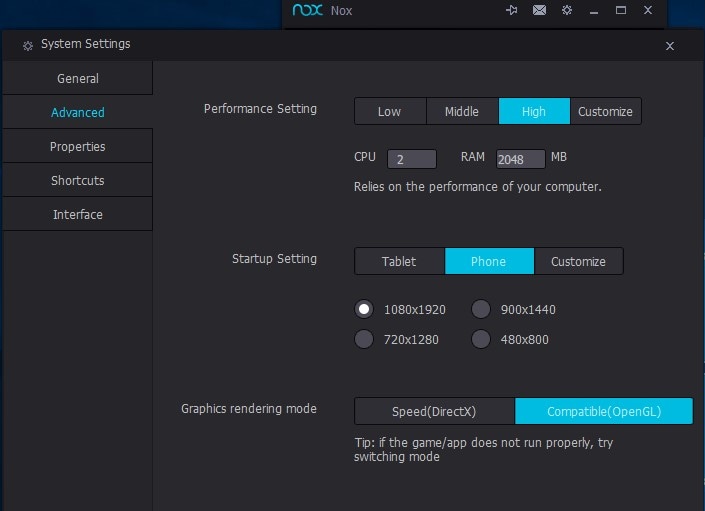
If you need Nox for compatible Android applications, obtain it from its official source and review the current system requirements. After installation, open the settings gear and inspect System Settings. Configure only the options appropriate to your computer; a successful desktop Android session is not proof of Pokémon GO support.
-
Step 2 Understand the historical root setting
The old guide used the settings gear > System Settings > General Settings, selected a root checkbox, saved, and restarted Nox. That describes an emulator configuration, not an official game requirement. Do not enable root to solve Pokémon GO compatibility: its published requirements explicitly say rooted devices are unsupported.
Some emulator releases place this setting elsewhere or omit it. If you are carrying out an authorized test for another application, follow that application's requirements. Do not interpret the availability of a root toggle as permission to use a protected game in an unsupported environment.

-
Step 3 Check distribution and location claims
The original procedure installed Pokémon GO, opened Nox's GPS map, selected a point, confirmed it, and used keyboard arrows for movement. Those emulator controls do not establish that the current game accepts the resulting environment or location data. Use official distribution channels; do not install a modified APK from an arbitrary search result to bypass a launch failure.
If the game is unavailable or refuses to run, stop and check its supported-device guidance. A map pin can represent an emulator's test location without representing a valid game position. An old screenshot is not evidence that present-day encounters, distance tracking, or account checks will behave the same way.

Part 2: What changes when you use a Mac?
A Mac does not become an iPhone simply because both come from Apple. An Android emulator on macOS and a desktop program connected to an iPhone are separate architectures. You must check the Mac's processor, operating-system version, and the current desktop software requirements instead of assuming Windows instructions transfer directly.
For Pokémon GO itself, use the official supported-device information rather than a blanket statement that a Mac can run the game. The published requirements describe iOS and Android devices, GPS, Location Services, connectivity, and other conditions. They do not turn an arbitrary desktop environment into a supported gaming device.
A desktop location program can instead communicate with a supported real phone. The game still runs on that phone; the desktop program is not an emulator or a native macOS version of Pokémon GO. This distinction matters when comparing software, troubleshooting, or deciding whether a larger desktop map meets your needs.
Part 3: Dr.Fone - Virtual Location on a connected phone
Movement simulation and teleporting can supply test coordinates, but they do not guarantee egg-hatching distance, unlimited eggs, remote encounters, or accepted gameplay. Pokémon GO applies its own distance and eligibility checks. Very high simulated speeds should not be presented as a reliable way to increase walking-based progress.
GPS simulation is not an account-safety or history-erasure feature
A location utility also cannot guarantee that Google Maps stops retaining your true location history or that every service sees only the simulated point. Account settings, previously recorded data, and other location sources remain relevant. Manage a service's own history controls when that is your goal.
 Set your map route to simulate GPS movement.
- Set your wanted movement speed.
- HD and large map view to check location.
- Fake GPS location to anywhere.
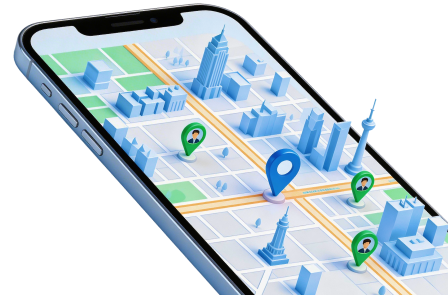
Dr.Fone - Virtual Location: map-based GPS controls
The desktop product offers teleport and movement controls for supported connected devices. You can select a position on a map, define routes, and adjust simulated speed where the installed release supports those features. This is different from Nox, which supplies an Android environment rather than controlling the location of the same physical phone.
The source describes a no-jailbreak iPhone workflow, but that should not be extended to every phone or OS version. Check the current device and desktop requirements and follow the connection prompts for your configuration. A simulator can function correctly as a location tool while still being unsuitable for a particular game.
The source also referenced related guides for Pokemon Go, Snapchat, Instagram, and Facebook. These are further reading, not a guarantee that every app or feature accepts altered coordinates.
For a permitted location test on your own supported phone, the original three-stage guide can be followed as a desktop connection, destination selection, and movement check. It should not be represented as a guarantee of safe Pokémon GO play.
-
Step 1 Install the desktop tool and connect the phone
Install the appropriate desktop edition and open the Virtual Location module. Check the current requirements before connecting the phone. Starting the desktop application does not launch a native Mac version of the game.
Connect the phone with a compatible USB data cable and complete its trust prompts. Where wireless reconnection is supported, follow the version-specific pairing instructions; merely placing a Mac and phone on the same Wi-Fi is not a universal setup procedure. Continue with Get Started if it appears.
-
Step 2 Search for and confirm a test destination
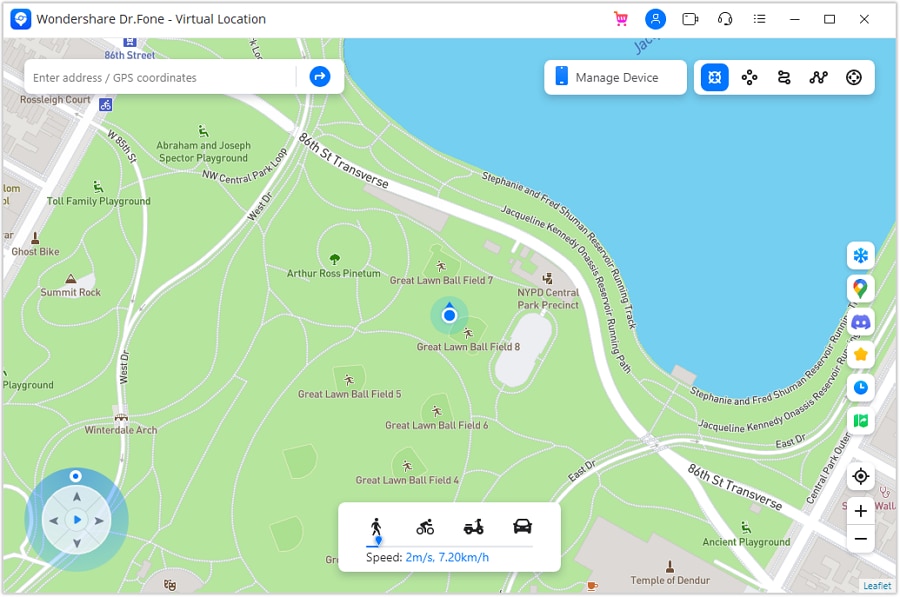
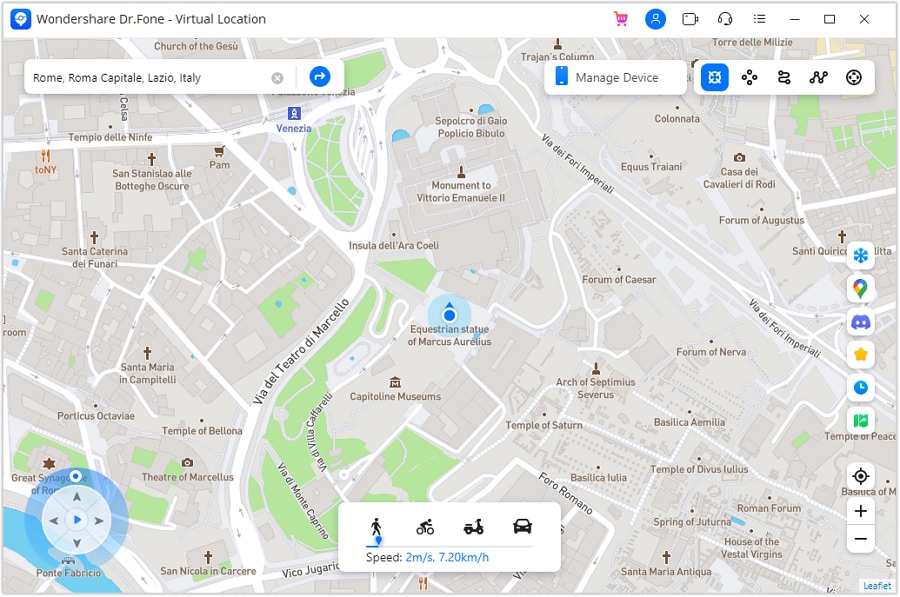
When the map loads, choose Teleport Mode and search for an address or coordinates. Review the selected pin and use Move Here to apply it. Confirm the result in an appropriate map on the connected phone, rather than assuming a changed desktop map proves game compatibility.
-
Step 3 Review movement controls and restore the location
Where supported, select two points or several stops, choose a simulated speed, and use the movement-start control. The original interface called this March; newer releases may use another label. Joystick controls can adjust direction in supported modes, but they do not make a falsified game route legitimate.
Observe the test result, then stop movement. Do not use flight-like simulation as a promise of egg progress. After testing, follow the restoration prompt; the official teleport guide describes restarting the device to restore the actual position.
Verify the phone's real position before relying on navigation. If setup is unsupported or an app rejects simulated data, do not treat additional teleporting, root changes, or a more realistic route as an account-protection solution.




Part 4: Dr.Fone - Virtual Location versus Nox Player
The key comparison is architecture, not a promise that one tool avoids detection. Nox runs an Android environment on a desktop. Dr.Fone - Virtual Location controls location simulation for a supported connected phone. Both can involve artificial coordinates, and neither is granted an exception to Pokémon GO's rule against location falsification.
| Question | Nox Player | Dr.Fone - Virtual Location |
|---|---|---|
| What is the core role? | Desktop Android emulation for compatible applications. | GPS position and movement simulation on supported connected phones. |
| Where would the mobile app run? | Inside the emulated Android environment if compatible. | On the connected physical phone, not as a desktop game client. |
| What must be checked? | Computer requirements, emulator configuration, and the app's environment support. | Desktop edition, phone model, OS version, and connection requirements. |
| Does it guarantee Pokémon GO access? | No verified current access is established here. | No; accepted location data and game access are separate questions. |
| Does it guarantee account safety? | No. | No. |
The original article first described movement controls in Nox, then claimed Nox had no movement simulation. That contradiction cannot support a reliable comparison. Compare the features documented for the specific versions instead of treating all emulators as static GPS apps or all route simulators as undetectable.
Likewise, there is no evidence here for a general claim that professional gamers recommend one category, that Nox is always better than BlueStacks, or that a route will necessarily look natural to a game. Choose tools for authorized compatibility testing, and keep entertainment preferences separate from technical and policy claims.
Conclusion
There is no verified, universally safe Nox Player Pokémon GO workflow in this guide. Old installation, root, and GPS instructions do not establish current compatibility, and rooted Android devices conflict with the game's published supported-device requirements. Use a supported phone and permitted gameplay when your goal is collecting Pokémon or hatching Eggs.
Dr.Fone - Virtual Location is a different kind of tool: it provides location simulation for supported connected devices rather than a desktop Pokémon GO client. Understand its connection requirements and limitations, and never interpret movement controls as guaranteed account safety or distance credit.
FAQ
-
1. Does installing Nox prove Pokémon GO will work on my PC?
No. Emulator installation, game installation, accepted GPS data, and current game support are separate conditions. Historical screenshots do not prove present-day compatibility. -
2. Should I enable root to make Pokémon GO work?
No. The game's official device requirements state that rooted Android devices are unsupported. An emulator root checkbox does not override that restriction. -
3. Does Dr.Fone - Virtual Location run Pokémon GO on macOS?
No. It supplies location controls for a supported connected phone. The phone runs its mobile applications; the desktop tool is not a native macOS game client. -
4. Can simulated movement guarantee egg hatching without penalties?
No. Distance and eligibility are evaluated by the game, and location falsification can lead to account penalties. Route and speed settings do not guarantee progress or protection.
 Add Wondershare Dr.Fone as a preferred source on Google