A Complete Guide on Resetting and Accessing Your Gmail Password

Daisy Raines
Daisy Raines Originally published Jul 27, 2026, updated Aug 13, 2026
clock :
robot TL;DR:

Regaining access to your Google account is straightforward if you know where to look. Depending on your situation, you can quickly retrieve or reset your Gmail password using built-in browser features or specialized software.

  • Retrieve from Browser Autofill: Modern web browsers like Google Chrome and Safari securely keep your saved Gmail passwords. You can bypass the login screen by navigating to your browser's password manager settings and extracting your credentials.
  • Extract Using Dedicated Software: If your account details are buried in an iOS device, connecting your iPhone to a desktop application like Dr.Fone - Password Manager allows you to safely scan and retrieve all Gmail saved passwords without causing any data loss.
  • Official Reset Process: When you cannot find your stored passwords, utilize the official Google account recovery page. Having a linked phone number or backup email address is crucial for receiving the verification code to establish a new password.

Ask AI for a summary

douhao

I recently got a new device and realized I completely forgot my Google login details. How can I safely access my saved Gmail passwords or reset them without losing my account data?

Recent User Inquiry

With well over a billion active users worldwide, Gmail remains the undisputed leader in email communication for both personal and professional use. Over the years, Google has significantly enhanced its security protocols, implementing stricter authentication measures. While these advancements effectively block unauthorized access, they can also make it quite challenging to retrieve a forgotten Gmail password. I recently found myself locked out of my own account, prompting me to explore every possible recovery method available in 2026.

Whether you need to extract saved Gmail passwords from a secondary device or completely reset your credentials, the process does not have to be frustrating. To assist users facing similar login hurdles, I have compiled this comprehensive, step-by-step guide outlining the most reliable ways to regain control of your Google account.
recover gmail password
In this article
  1. Part 1: How to Check Your Saved Gmail Password on a Web Browser?
  2. Part 2: How to Recover a Lost Gmail Password from an iPhone?
  3. Part 3: Resetting the Password of Your Gmail Account from its App/Website
  4. Part 4: How to Change Your Gmail Password When You Can Access Your Account?

Part 1: How to Check Your Saved Gmail Password on a Web Browser?

If you have previously logged into your account on a personal computer, there is a high probability that your browser has cached your credentials. Modern web browsers—such as Google Chrome, Mozilla Firefox, Microsoft Edge, and Safari—are equipped with highly capable native password managers. These utilities allow you to instantly sync, view, and retrieve your Gmail saved passwords without navigating through Google's reset wizard.

To illustrate how this works, we will use Google Chrome as our primary example. Chrome natively synchronizes your autofill data, placing all your hidden passwords in a single, secure vault. Follow these straightforward instructions to reveal your login details.

  1. Step 1 Access Google Chrome Settings

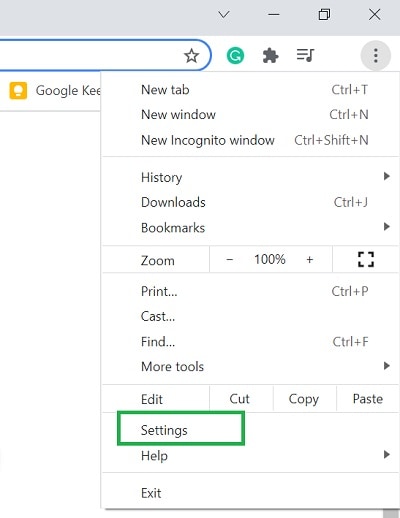
    Begin by launching Google Chrome on your desktop or laptop. Navigate to the top-right corner of the window and click the three-dot (hamburger) menu icon. From the resulting drop-down menu, select the 'Settings' option to open your browser configurations.
    google chrome settings
  2. Step 2 Navigate to the Autofill and Passwords Section

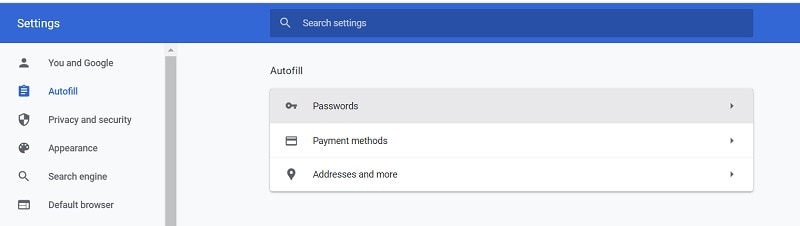
    Once the Chrome Settings tab opens, look at the left-hand sidebar menu and click on 'Autofill and passwords'. From the expanded options, select 'Google Password Manager' (or just 'Passwords' depending on your Chrome version) to access your securely stored credentials.
    chrome autofill settings
  3. Step 3 Locate and Reveal Your Saved Gmail Password

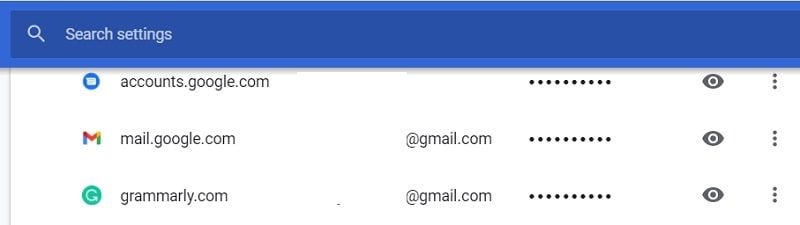
    You will now see a comprehensive list of websites where Chrome has saved your login information. Utilize the search bar at the top to type in 'Google' or 'Gmail'.
    chrome saved passwords

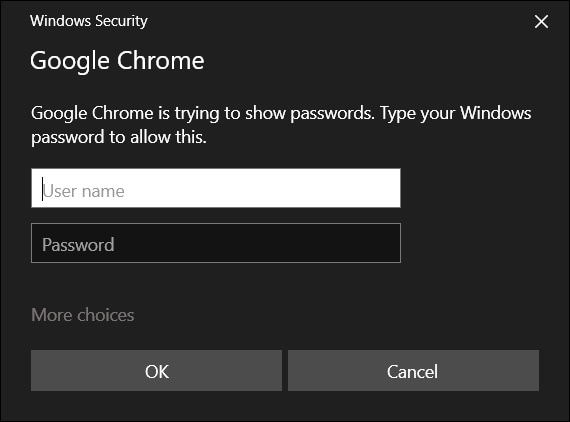
    Once you locate the specific Google account entry, click on it. You will need to press the 'eye' icon next to the hidden password field. For security purposes, Chrome will prompt you to enter your computer's master PIN or password before it displays the requested Gmail credentials.
    chrome security check
shou
Important Limitations: This method exclusively works if you had previously opted to save your password when logging in. Additionally, you must possess the administrator password or PIN for your operating system to bypass the browser's security prompt.

Part 2: How to Recover a Lost Gmail Password from an iPhone?

If you primarily use an iPhone to check your emails and you cannot locate your credentials in a desktop browser, a third-party recovery tool might be necessary. For iOS users, leveraging specialized software like Dr.Fone - Password Manager provides a remarkably efficient way to uncover hidden login details. This desktop application is designed to deeply scan your iOS device and safely extract various inaccessible account records.

Beyond just retrieving saved Gmail passwords, the software is capable of surfacing forgotten Wi-Fi network passwords, Apple ID logins, screen time passcodes, and app-specific credentials. Crucially, Dr.Fone operates entirely locally on your computer, meaning your extracted information is never uploaded to any cloud servers, ensuring maximum privacy. Here is how you can use it to regain your account access:

  1. Step 1 Launch the Password Manager and Connect Your iPhone

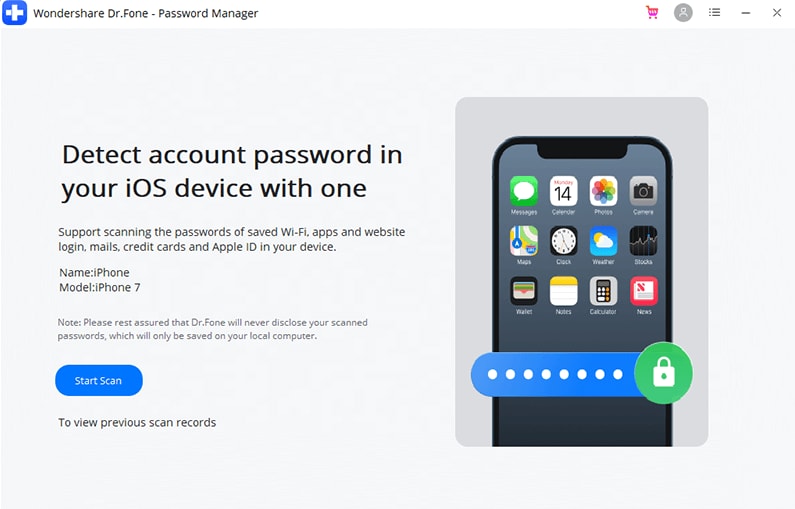
    Start by downloading and installing the Dr.Fone toolkit onto your Mac or Windows computer. From the primary welcome interface, select the 'Password Manager' module.

    forgot wifi password

    Use an MFi-certified lightning or USB-C cable to establish a secure connection between your iPhone and your computer. Ensure your device is unlocked and 'Trust' the computer if prompted.

    forgot wifi password 1
  2. Step 2 Initiate the Scanning and Extraction Process

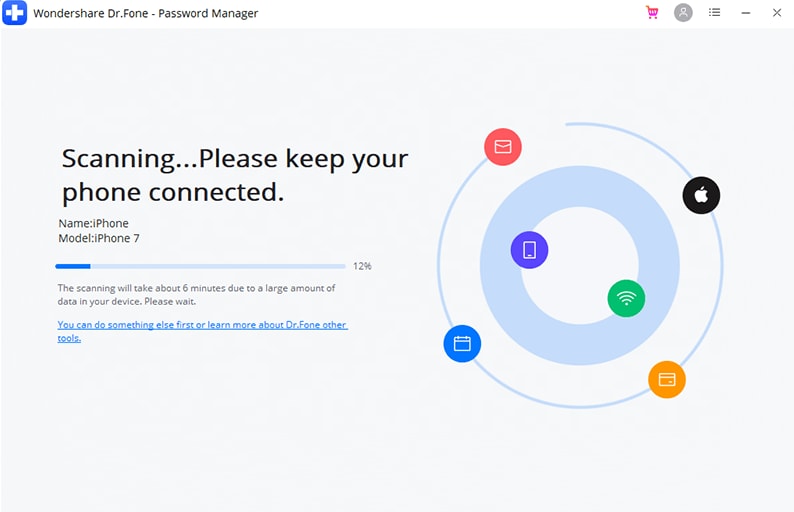
    Once Dr.Fone successfully detects your iPhone, your device details will appear on the dashboard. Proceed by clicking the 'Start Scan' button situated on the screen.

    forgot wifi password 2

    Allow the software a few minutes to deeply analyze your iOS system architecture. During this phase, it actively extracts cached login tokens and saved passwords, including your Google credentials.

    forgot wifi password 3
  3. Step 3 Preview and Export Your Gmail Account Password

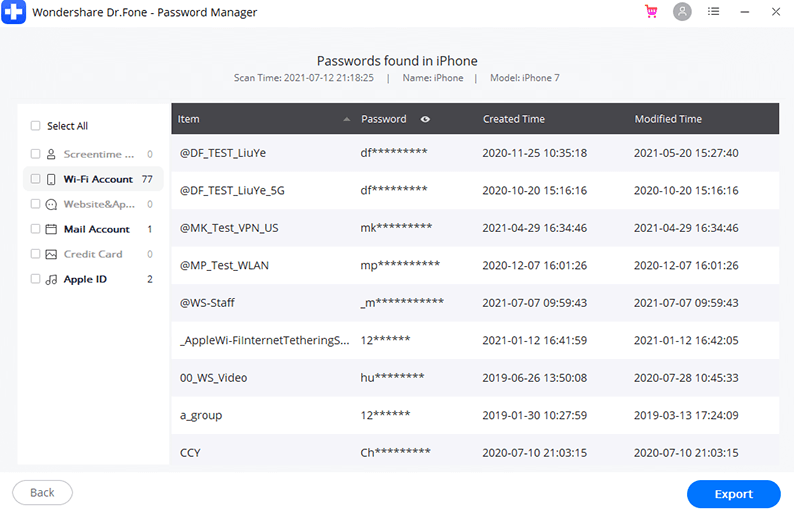
    Upon completion of the scan, Dr.Fone will categorize all discovered data in the left-hand sidebar. Navigate specifically to the 'Website & App Login Passwords' category. Scroll through the list to find your Gmail account, and simply click the 'eye' icon to reveal the password in plain text.

    forgot wifi password 4

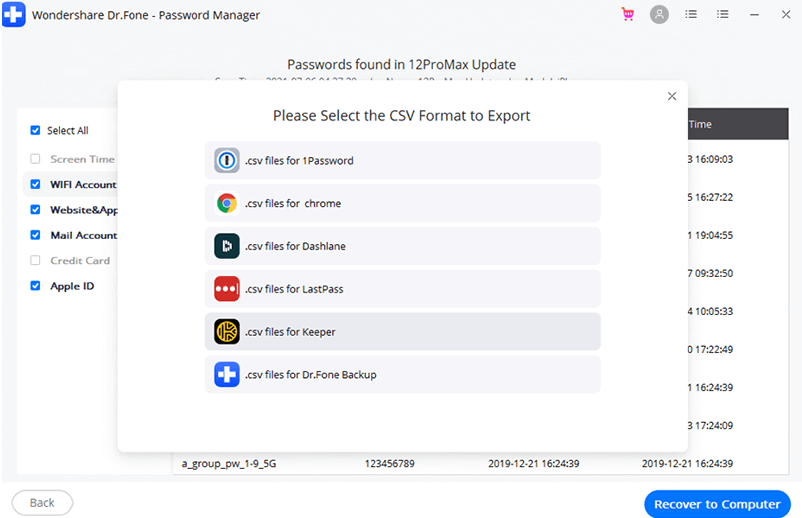
    For safekeeping, you can click the 'Export' button located at the bottom right corner. This feature allows you to compile and save all recovered passwords securely into a CSV file format directly onto your desktop.

    forgot wifi password 5
google play button app store button

Part 3: Resetting the Password of Your Gmail Account from its App/Website

There are instances where local browsers or third-party extraction tools yield no results. In such scenarios, your best recourse is to utilize Google's official password recovery infrastructure. This built-in protocol requires you to authenticate your identity using either a pre-configured secondary email address or a linked mobile phone number.

If you have these recovery mechanisms in place, follow these steps to securely reset your Google account directly from the official portal.

  1. Step 1 Initiate the Forgot Password Wizard

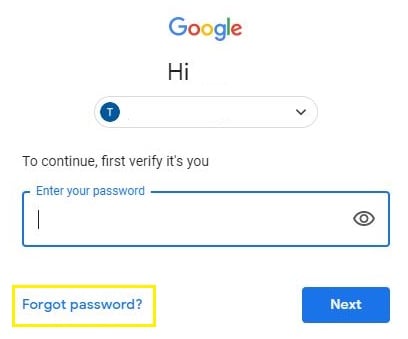
    Open the Gmail app on your smartphone or visit the standard Google sign-in page on any web browser. Enter your email address and hit 'Next'. When prompted for the password, click on the 'Forgot password?' link located just below the text field.

    gmail forgot password
  2. Step 2 Choose Your Preferred Recovery Option

    Google will instantly evaluate the security parameters linked to your account and present recovery avenues. You will typically be asked to send a prompt to a logged-in mobile device, receive a code via your backup email, or receive an SMS text on your registered phone number.

    gmail password recovery options

    If the first proposed method is unavailable to you, simply click 'Try another way' until you find a method you can currently access (like your recovery phone number).

  3. Step 3 Authenticate and Establish a New Password

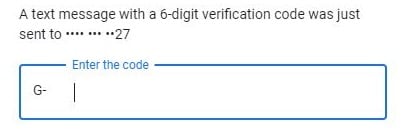
    Once you select an accessible recovery method, Google will dispatch a one-time verification code (OTP). Enter this exact code into the security check screen to confirm your identity.

    enter gmail recovery code

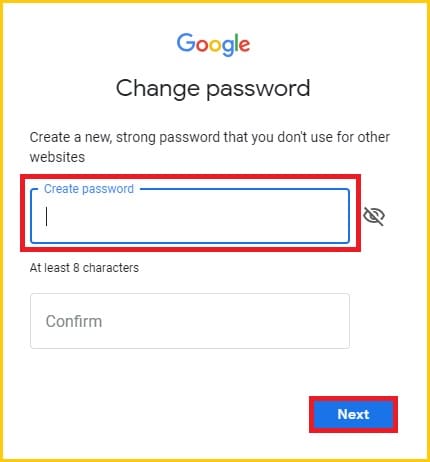
    Upon successful verification, Google will immediately prompt you to create a new password. Enter a robust new password and confirm it. This action instantaneously updates your Google credentials across all platforms.

    change gmail password
shou
Note: This official pathway absolutely mandates that you have active access to the backup email or phone number registered to your Google account. Without them, bypassing Google's strict authentication is virtually impossible.

Part 4: How to Change Your Gmail Password When You Can Access Your Account?

Proactive security is always the best approach. If you currently remember your Gmail password or have successfully bypassed a login screen using a stored device, you might want to manually change your password to something stronger. Updating your credentials regularly protects against potential data breaches. Here is how to efficiently change your active password from within your Google account settings.

  1. Step 1 Access the Google Account Security Center

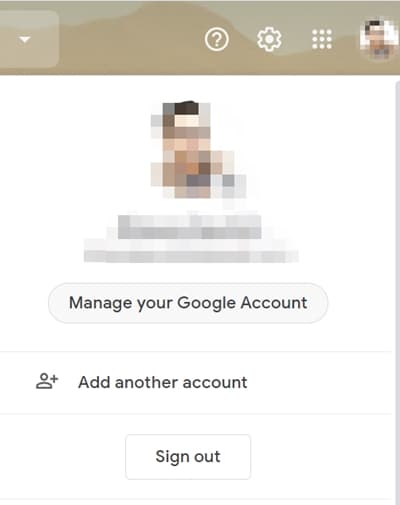
    Ensure you are logged into your Gmail inbox. Look to the top-right corner of the interface and click on your circular profile avatar. From the popup menu, select 'Manage your Google Account'.

    manage google account

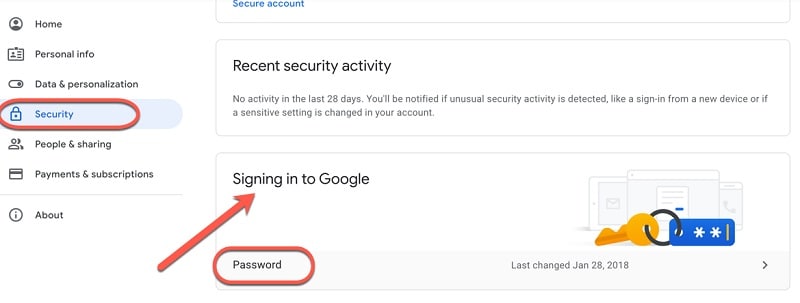
    You will be directed to your centralized Google dashboard. Using the left-hand navigation menu, click on the 'Security' tab. Scroll down this page until you locate the 'Signing in to Google' panel, and select 'Password'.

    google account password settings
  2. Step 2 Input and Save the New Credential

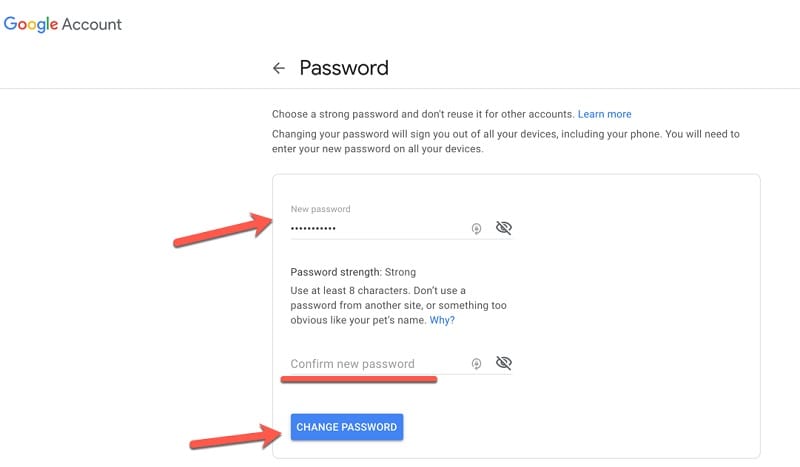
    To authorize this sensitive change, Google will first require you to input your current password. Once validated, you will be taken to a new screen where you must type in your new, highly secure Gmail password twice for confirmation.

    reset gmail password

    Finally, click the 'Change Password' button. This will overwrite your existing credentials and simultaneously log out any other unrecognized devices connected to your Google account.

Bonus Tip: Beware of Online Gmail Password Finder Tools

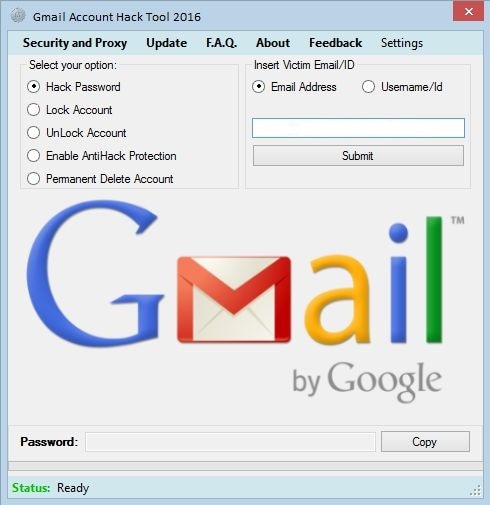
During my extensive search for rapid password recovery solutions, I encountered numerous web portals boasting the ability to remotely "hack" or "recover" any Gmail account with merely an email address. I strongly advise against engaging with these deceptive platforms. The vast majority of online Gmail password finders are malicious phishing tools or outright scams. They operate by harvesting user data, coercing users into completing endless surveys, or tricking them into downloading malware-ridden software. For your digital safety, stick exclusively to official Google recovery channels or proven desktop utilities like Dr.Fone.

online gmail password finder

Conclusion

As outlined in this guide, forgetting your Google credentials does not mean you have permanently lost your account. Finding your saved Gmail passwords can often be as simple as checking your trusted browser's autofill settings. However, if those local records are unavailable, utilizing Google's official recovery steps via phone or backup email remains highly effective. Furthermore, if your passwords are stuck on an iOS device, turning to specialized software like Dr.Fone - Password Manager can swiftly extract your login details without compromising your existing phone data.

google play button app store button

FAQ

  • 1. What happens if I don't have a recovery email or phone number for my Gmail account?
    If you have not set up a recovery phone number or alternate email, recovering a forgotten password becomes exceedingly difficult. Google relies on these backup methods to verify your identity. You may attempt the account recovery form, but you will need to answer precise security questions or provide details about account creation dates. Using device-based password managers like Dr.Fone might be your only reliable fallback in this scenario.
  • 2. Can I view my saved Gmail password on my Android phone?
    Yes. Similar to Chrome on a desktop, Android smartphones sync credentials via your Google account. You can navigate to 'Settings' on your Android device, scroll down to 'Google', select 'Autofill', and tap on 'Autofill with Google'. From there, tap 'Passwords' to open the Google Password Manager and view your saved credentials.
  • 3. Will changing my Gmail password log me out of other devices?
    Yes, resetting or changing your Gmail password will automatically terminate active sessions on most other devices. You will be prompted to re-enter the new password on your smartphones, tablets, and secondary computers to regain synchronization and access to Google services.
  • 4. Are online password cracker tools safe to use?
    No. Under no circumstances should you trust online password cracking services. They are invariably scams designed to harvest your personal information, steal your active login sessions, or compromise your network with malware. Always rely on official recovery methods or trusted offline software.
OUR EXPERT
Daisy Raines

Daisy Raines

staff editor

Daisy is an iOS-focused editor with a deep interest in the Apple ecosystem, creating practical, easy-to-follow content that helps users navigate everyday device challenges.

Try It Free Try It Free