 Recover photos, messages, WhatsApp, and more — no backup
needed.
Recover photos, messages, WhatsApp, and more — no backup
needed.

 100% Security Verified | No Subscription Required | No Malware

 :
: 
 ChatGPT
 Perplexity
 Gemini
 Claude
 Grok
Grok

I cannot seem to remember my Facebook password since my phone usually logs me in automatically. Now I need to log in on a new device. What is the most reliable Facebook password finder to get my login back?
Anonymous Facebook User
Facebook remains one of the world's most popular social networking sites, serving as a primary platform to connect with friends, family, and communities. Because our smartphones usually keep us logged in automatically, it has become incredibly common for users to forget their actual login credentials over time.
If you find yourself logged out or need to access your profile from a new device but cannot recall your login details, you might feel stuck. You cannot view your current password within the Facebook app settings, and changing it usually requires entering the old one. So, how do you retrieve it? Fortunately, there are several straightforward and secure Facebook password finder techniques you can apply in 2026 to recover or reset your account without losing your data.

Do not worry if you have hit a roadblock. Whether you use an Android or an iOS device, this guide will walk you through the most effective ways to locate your saved passwords or securely reset them.
In this article
Method 1: Check Your Google Account for a Saved Facebook Password on Android
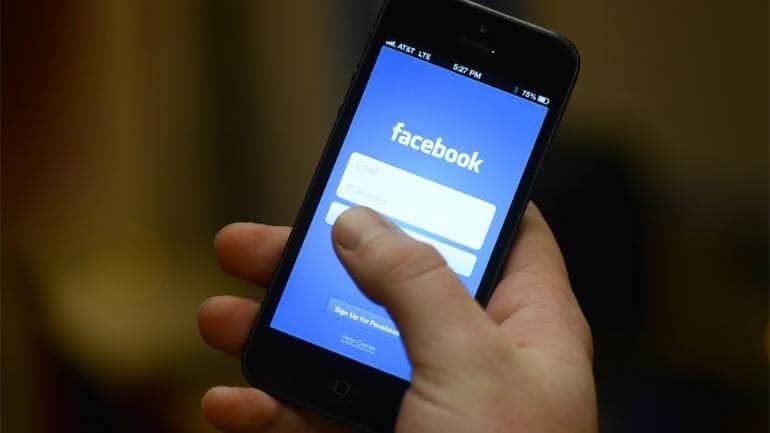
If you are an Android user, there is a very high probability that your Facebook login credentials have been securely backed up by Google's built-in autofill services. Android devices seamlessly integrate with your primary Google account to manage your digital credentials. By exploring your Google settings, you can effortlessly locate your saved information without having to reset anything.
-
Step 1 Open Device Settings
Navigate to the home screen or app drawer on your Android phone and tap the "Settings" gear icon.
-
Step 2 Access Google Services
Scroll down through the system options until you find the menu labeled "Google" and click on it.
-
Step 3 Manage Your Account
Right under your profile picture and email address, tap on the "Manage your Google Account" button to access deeper security configurations.
-
Step 4 Navigate to Security
Swipe horizontally to the "Security" tab, then scroll down to the very bottom where you will find the "Password Manager" option.
-
Step 5 Search for Saved Credentials
Inside the Password Manager section, you will see a list of all apps and websites where Google has remembered your passwords. You can use the search bar to locate "Facebook" quickly.
-
Step 6 Verify Your Identity
Tap on the Facebook entry. At this stage, your Android phone will require you to verify your identity by entering your screen lock PIN, pattern, or biometric fingerprint to ensure unauthorized users cannot view your data.
-
Step 7 Reveal the Password
Finally, tap the "eye" (unmask) icon next to the hidden password field. Your Facebook password will immediately appear on the screen, allowing you to copy and use it to log in.
This method proves that your Android phone acts as a brilliant native password finder, keeping your information accessible yet heavily protected.
Method 2: Check for a Saved Facebook Password on iOS
Managing several online accounts across different services makes our digital lives convenient, but it also increases the likelihood of misplacing sensitive credentials. In today's fast-paced environment, forgetting a critical password can disrupt your workflow and social connections significantly.
However, you do not need to memorize every single login detail. If you are an iPhone or iPad user who cannot find your Facebook details within the native iCloud Keychain, a professional password management platform like Dr.Fone - Password Manager (iOS) can be your ultimate savior. This data recovery and management application scans deeply into your iOS system to retrieve hidden or forgotten account details safely.
Here is how Dr.Fone acts as an efficient Facebook password finder on iOS devices:
-
Step 1 Install the Software
To begin, download and install Dr.Fone on your Windows or Mac computer. Launch the program to access its main toolkit menu.

-
Step 2 Connect Your iOS Device
Use a certified lightning cable to connect your iPhone or iPad to your PC. If prompted on your device, ensure you tap "Trust This Computer" to establish a secure connection with the software.

-
Step 3 Initiate the Scanning Process
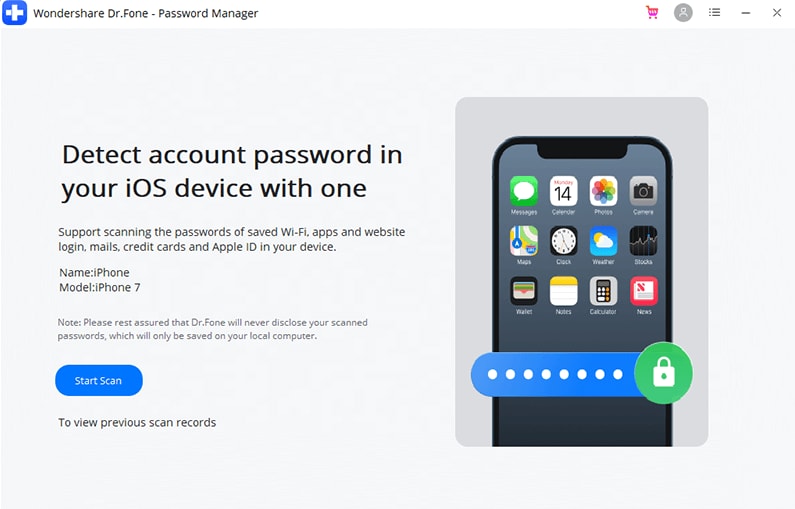
Once the device is detected, click on "Start Scan". You will need to wait a few moments while Dr.Fone safely analyzes your iOS file system to extract hidden app data and saved account passwords.
-
Step 4 Preview and Recover Your Passwords
As soon as the scanning procedure wraps up, all the recovered credentials—including your Facebook account information—will be systematically displayed on your screen. You can preview, manage, or export them to a secure file format.
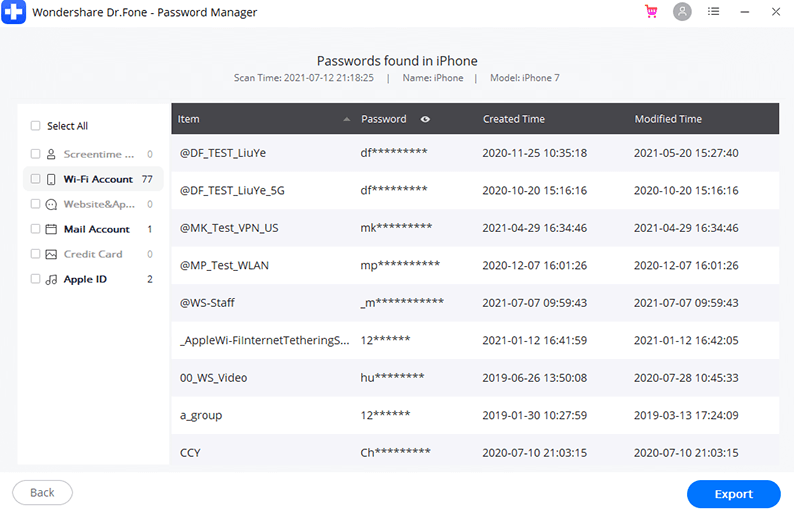




In a nutshell, utilizing a professional utility not only helps you regain access to your social media but offers comprehensive security benefits. Dr.Fone - Password Manager (iOS) empowers you to:
- View your primary mail accounts and associated Apple ID instantly after the scan.
- Recover login credentials for apps like Facebook and various stored websites.
- Quickly track down saved WiFi network passwords that you've connected to in the past.
- Bypass or recover screen time passcodes securely.
Method 3: Use Facebook's Forgot Password Option
If you prefer not to look through device settings or if the password simply wasn't saved, utilizing Facebook's native recovery mechanism is the next logical step. By navigating to the Facebook login page, the system will often attempt to identify you automatically. If you had checked "Remember Password" previously, Facebook might just display your profile picture—allowing you to click and log in instantly.
However, if you are attempting to log in on an entirely new device or an unrecognized browser, you will need to actively reset your login information using these structured steps:
-
Step 1 Select Forgotten Password
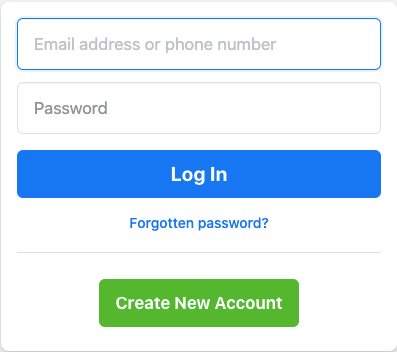
Open the Facebook application or head to the web login page. Tap on the "Forgotten Password?" link located directly underneath the traditional login fields.
-
Step 2 Identify Your Profile
You will be prompted to enter your registered email address or mobile phone number. If you cannot remember either, you can alternatively type your full name or unique username. Facebook's database will pull up matching accounts. When you spot yours, select "This is my account". If it isn't listed, choose "I am not in this list" and provide a friend's name to narrow down the search.
-
Step 3 Choose the Recovery Method
Once the system locks onto your profile, you will be given options on how to receive your security code. You can opt to get it via a text message to your linked phone number or via an email to your registered address. Select your preferred method and tap "Continue".
-
Step 4 Enter the Security Code
Check your inbox or messages for a multi-digit security code sent by Facebook. Type this exact code into the verification box on your screen and hit "Continue". Note: If you no longer have access to the email or phone number you originally registered with, Facebook may halt the verification process here.
-
Step 5 Create a Secure New Password
After successfully verifying your identity, Facebook will prompt you to type in a brand new password. Make sure it is strong yet memorable. Enter it and tap "Continue".
-
Step 6 Secure Other Devices
Finally, Facebook will offer you the choice to log out of any other devices currently accessing your account. It is highly advisable to choose this option for maximum security. Once done, you are successfully back into your account.

Method 4: Contact Facebook Support
When automated password finders and native recovery codes fail to work—perhaps due to a hacked account or entirely lost recovery details—your final resort is to escalate the issue directly to Facebook's official support channels.
If you cannot log in, you can ask a trusted friend or family member to visit your profile from their account. Have them click the menu on your profile page and navigate to the "Help & Support" section or use the "Report Profile" feature to signal that the account owner has lost access and requires intervention.
Additionally, you can attempt to contact Facebook via alternative social networking platforms. Many companies monitor channels like Twitter (X). Sending a direct message to their official support handle detailing your situation might help you get a verified support link tailored to account recovery.
Conclusion
Forgetting your login credentials does not mean you have permanently lost your social media identity. As explored above, you have multiple robust options ranging from checking your Android Google Account's password manager, utilizing powerful third-party iOS tools like Dr.Fone, to employing Facebook's built-in reset mechanics. Try out these Facebook password finder methods to see which one perfectly resolves your login hurdle.
Have any of these techniques successfully restored your account? Are there other creative ways you have managed to find your lost credentials? Feel free to share your experiences so others navigating the same frustrating situation can benefit from your insights!
FAQ
-
1. Can I find my Facebook password without resetting or changing it?
Yes. If you previously allowed your device or web browser to save your login details, you can find your exact password without resetting it. Android users can check their Google Account's Password Manager, iOS users can look into iCloud Keychain or use Dr.Fone Password Manager, and PC users can check their Chrome or Edge browser settings under saved passwords. -
2. Will Facebook notify me if someone else tries to reset my password?
Yes, Facebook takes security seriously. If someone initiates the "Forgotten Password" protocol using your username, Facebook will immediately send a verification code to your registered email address or mobile phone. As long as you do not share that code, they cannot access or change your password. -
3. What can I do if I no longer have access to my recovery email or phone number?
If your registered email and phone number are inaccessible, recovering the account becomes significantly harder. You can select "No longer have access to these?" during the reset process. Facebook will then ask you to provide an alternate email and may require you to submit an official ID (like a driver's license or passport) to verify your identity manually. -
4. Are third-party Facebook password finder apps safe to use?
It depends on the software. Reputable, offline recovery tools like Dr.Fone - Password Manager (iOS) are entirely safe because they scan your local device securely without transmitting your personal credentials to external servers. However, you should strictly avoid random, unverified online "hacking" tools, as they are typically phishing scams designed to steal your data.
 Add Wondershare Dr.Fone as a preferred source on Google



