 Effortlessly manage data through preview, delete, export, etc.

 100% Security Verified | No Subscription Required | No Malware

 :
: 
 ChatGPT
 Perplexity
 Gemini
 Claude
 Grok
Grok

My iPhone 5 is completely frozen and occasionally I forget my screen passcode. How can I easily reset it to make it responsive again or bypass the lock?
Anonymous Apple User
Apple devices are known for their reliability, but like any electronic gadget, your iPhone 5 might occasionally malfunction, freeze, or get locked out due to multiple incorrect passcode attempts. When the touchscreen becomes unresponsive or you completely forget your lock screen password, accessing your daily apps becomes impossible.
Beyond troubleshooting severe software glitches, learning how to reset iPhone 5 is also a mandatory step if you are planning to sell, recycle, or give away your secondhand device. A proper reset thoroughly wipes your personal data, ensuring your private photos, messages, and accounts do not fall into the wrong hands. In this comprehensive 2026 guide, we will provide you with top-tier tips to reset iPhone 5 under various scenarios.
In this article
Essential Preparation: Backup Your Data First
Before you implement any tips to reset iPhone 5, it is crucial to understand that most reset methods (like a factory reset) will permanently wipe all your data, customized settings, and downloaded apps. Your smartphone will return to its original, out-of-the-box state. Therefore, creating a secure backup beforehand is highly recommended so you can easily restore your digital life later.
While you can use Apple's native solutions like iCloud or iTunes, these official routes can sometimes be exceptionally slow or fail to back up specific app data. For a faster and more flexible solution, many users prefer dedicated management tools to securely back up various file types in just a few clicks. These tools also allow you to selectively restore files without overwriting the entire device.
 Effortlessly manage data through preview, delete, export, etc.
- Transfer all data between devices.
- Robust backup solutions for reliable data protection.
- Mirror screens to PC for meetings, teaching, and control.

Part 1. How to Reset iPhone 5 to Factory Settings
If your device is functioning normally and you know your lock screen passcode, the most straightforward method is performing a factory reset directly from the built-in Settings app. This is the optimal route to take if you are preparing the phone for a new owner.
-
Step 1 Open the Settings App
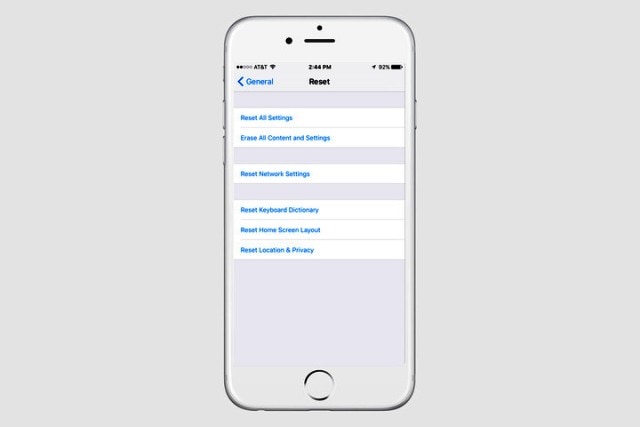
Unlock your device, navigate to the home screen, and tap on the Settings icon. Scroll down and choose the General option from the menu. From there, navigate to the very bottom of the screen and select the Reset (or Transfer or Reset iPhone in newer iOS versions) option.
-
Step 2 Erase All Content and Settings
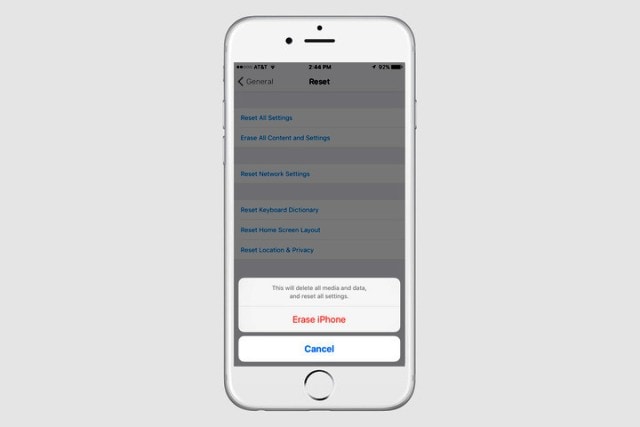
On the Reset screen, choose the option labeled Erase All Content and Settings. Your iPhone will immediately prompt you to confirm this drastic action. You will need to enter your passcode, and then tap on the red Erase iPhone button to finalize the command.
-
Step 3 Complete the Setup Process
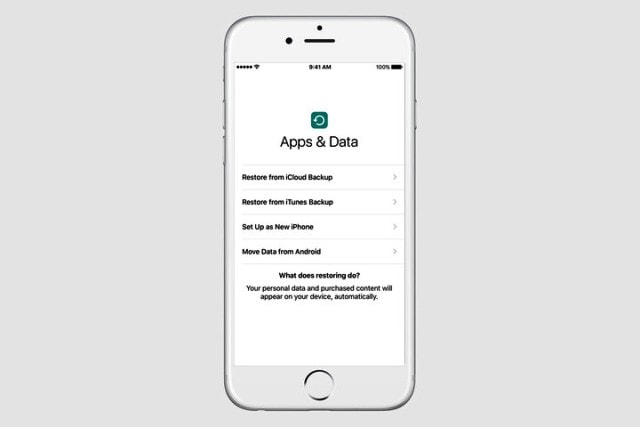
The system restoring process will take a few minutes to complete as it thoroughly deletes the encrypted data. After your phone successfully reboots, you will be greeted by the classic "Hello" screen and the iOS Setup Assistant. You can now set it up as a brand-new device or restore it from a previous backup.

Part 2. How to Reset iPhone 5 Without Password
Forgetting your passcode can be incredibly frustrating. If you type the wrong passcode too many times, the device will display an "iPhone is disabled" message. Fortunately, you can still reset iPhone 5 by forcing the device into Recovery Mode and using a computer. If iTunes fails, specialized iOS screen unlock software can also instantly bypass the security lock.
- Unlock iPhone/iPad passcode in minutes.
- Remove Face ID, Touch ID, and screen lock.
- Bypass iCloud Activation Lock easily.
- Support all iOS versions and devices.
- Simple steps, no technical skills needed.

-
Step 1 Prepare the USB Connection
Start by plugging your USB charging cable into your computer's port, but leave the phone end disconnected for now. Next, completely power off your iPhone 5 by holding down the Power button and sliding the screen toggle to turn it off.
-
Step 2 Trigger Recovery Mode
Press and hold down the physical Home button of your iPhone 5. While keeping the Home button pressed, connect the free end of the USB cable to your phone. The Apple device will automatically switch on. Continue holding the Home button until you see the "Connect to iTunes" screen. A message will subsequently appear on your computer's iTunes indicating that an iPhone has been detected in recovery mode.

-
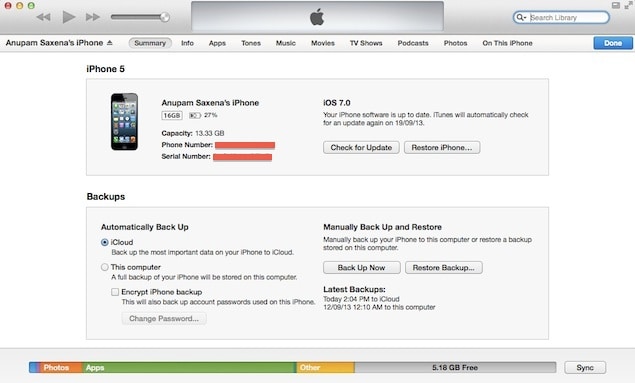
Step 3 Restore iPhone to Remove Password
Click OK on the command box prompt and navigate to the main iTunes interface. Open the Summary tab and press the Restore option. iTunes will download the necessary software and completely erase your iPhone 5, simultaneously wiping out the forgotten passcode and giving you a clean slate.
Part 3. How to Reset iPhone 5 with iTunes
If you prefer using a desktop application and have previously synced your smartphone with a trusted computer, you can effortlessly reset it via iTunes (or Finder on newer macOS systems). This method is highly reliable for installing a fresh copy of iOS.
-
Step 1 Launch iTunes and Connect
Launch the latest version of iTunes on your Windows computer or Mac. Use a certified USB cable to establish a connection between your iPhone 5 and the desktop. Follow the on-screen instructions and provide your device passcode if prompted to "Trust This Computer". Your iPhone 5 will soon appear as a small phone icon in the upper-left corner of iTunes.
-
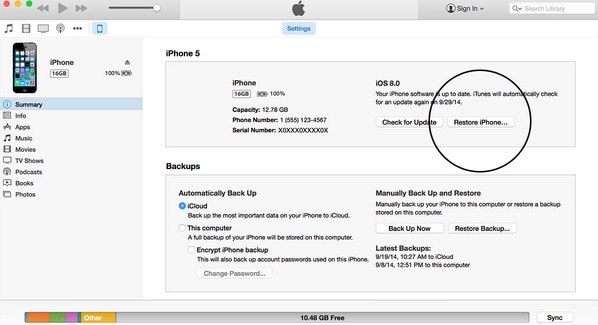
Step 2 Initialize the Restore Process
Click on the device icon and navigate to the Summary tab located on the left-side panel. In the main right-side window, click the Restore iPhone... button. iTunes will ask you to reconfirm this decision via a pop-up dialogue box; simply click Restore again. The software will securely erase the memory banks and install the latest compatible iOS version. Once completed, you can either set the phone up as new or apply an older backup.
Part 4. How to Hard Reset iPhone 5
Sometimes, your iPhone 5 may freeze entirely, becoming unresponsive to touches or swipes. In such cases, standard menu-based resets are impossible. A hard reset (also known as a force restart) is the best immediate fix. It simply cuts the power temporarily and reboots the hardware without requiring a computer, iTunes, or any data backups. Most importantly, a hard reset will not delete any of your photos, messages, or apps.
-
Step 1 Force the Device to Reboot
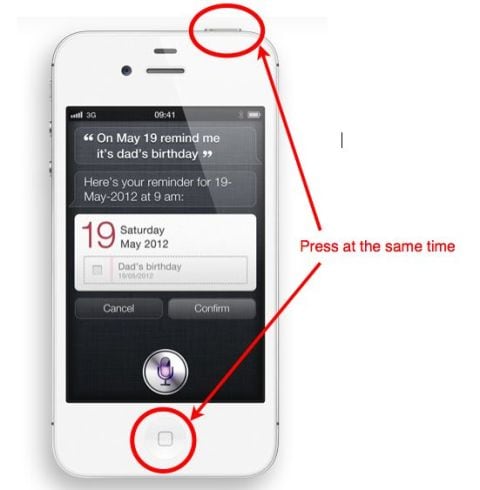
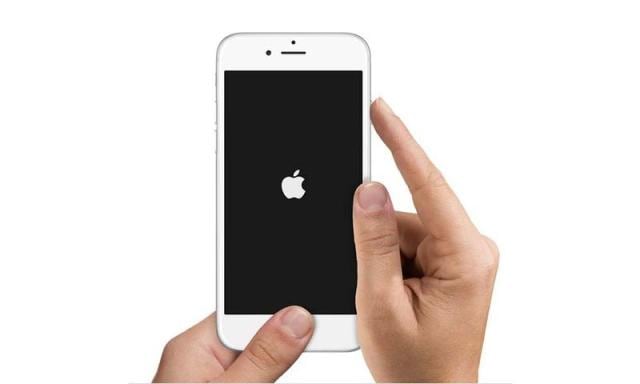
Locate the Power (Sleep/Wake) button on the top edge of the iPhone 5 and the Home button directly under the display. Press and hold both buttons simultaneously. Ignore the "slide to power off" prompt if it appears. Keep holding the buttons firmly until the screen goes completely black and the white Apple logo emerges. This usually takes around 15 to 20 seconds.
-
Step 2 Wait for the Boot Sequence
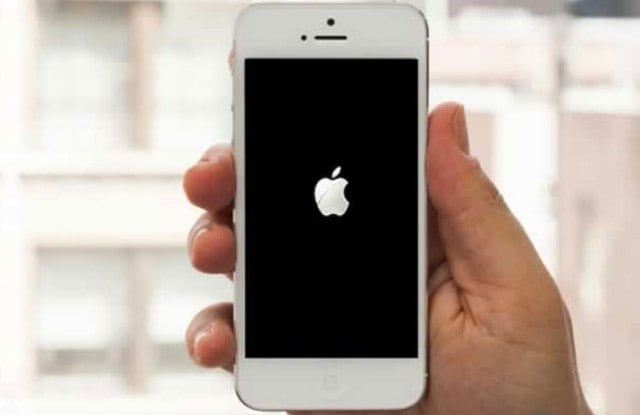
Once the Apple logo appears, let go of both buttons. Your phone is now executing a fresh boot cycle. It may take up to a full minute for the operating system to load completely. Once the standard lock screen appears, your iPhone 5 should be responsive and fully functional again.
Part 5. Video Tutorial for Resetting iPhone 5
We have explored a comprehensive guide covering multiple strategies to reset your iPhone 5. However, some users prefer visual instructions. To make the entire process super easy and intuitively understandable, we have provided an excellent tutorial video below. Check it out to observe the step-by-step physical actions required to reset iPhone 5 seamlessly. Keep in mind that the factory reset techniques demonstrated will wipe out all data and remove any disabled passcodes.
Conclusion
Mastering how to reset iPhone 5 equips you with the necessary tools to handle practically any software hurdle, from clearing out storage before a resale to bypassing a restrictive passcode. Whether you opt for a standard factory wipe via the iOS settings, a deep system wipe utilizing iTunes Recovery Mode, or a swift hard reset to unfreeze a stuck display, these solutions remain highly effective. Always ensure your essential files are thoroughly backed up before initiating any process that involves data erasure, ensuring your digital transition is as smooth as possible.
FAQ
-
1. Will a factory reset permanently delete all my photos and apps?
Yes, performing a factory reset via the Settings menu or iTunes will completely erase all internal data on the iPhone 5. This includes photos, downloaded apps, saved passwords, and customized settings. Always make a backup using iCloud or third-party software before proceeding. -
2. Can I reset my iPhone 5 if the Power or Home button is physically broken?
If the physical buttons are unresponsive, performing a manual hard reset or entering Recovery Mode is difficult. In this scenario, you can try using assistive desktop software to reset the device, or navigate to Settings > General > Reset if you can still interact with the touchscreen. -
3. Is a hard reset the same as a factory reset?
No, they serve completely different purposes. A hard reset is simply a forced restart that reboots the hardware to fix a frozen screen without deleting any personal files. A factory reset wipes the entire operating system clean, permanently deleting all user data and returning the phone to its original default state. -
4. What should I do if iTunes doesn't recognize my iPhone 5 in Recovery Mode?
If iTunes fails to detect your device, ensure you are using an official Apple MFi-certified USB cable and that your computer's USB port is functioning. Additionally, make sure your iTunes software is updated to the latest available version. If the issue persists, specialized third-party system repair or unlocking tools might be required to bypass the iTunes dependency.
 Add Wondershare Dr.Fone as a preferred source on Google



