Teleport your device anywhere instantly with one click.


 100% Security Verified | No Subscription Required | No Malware

 :

 ChatGPT
 Perplexity
 Gemini
 Claude
 Grok
A Pokémon Go joystick on Android without root is a GPS-simulation setup, not an official game control. It may let a compatible phone report a selected position or a moving route while the device stays still. That does not mean Pokémon Go accepts the supplied coordinates, and it does not make spoofing permitted under the game's rules.
If you are comparing a Pokémon Go GPS joystick for Android with an ordinary location changer, start with three separate questions: does the tool offer directional controls, does your Android version support its setup, and what account risks follow? This 2026 guide retains the original no-root workflow and screenshots while identifying older instructions, unreliable recovery advice, and the difference between changing GPS and protecting an account.
In this article
For a broader comparison of Android location utilities, see Top 10 Fake GPS Location Apps for Android! Evaluate the current store listing rather than treating an old app name or screenshot as a compatibility guarantee.
Part 1. What Does a Pokémon Go Joystick on Android Do?
A GPS joystick provides on-screen directional input for a location-simulation application. Instead of carrying the handset to the next street, a user moves a control that changes the coordinates the tool attempts to supply. A route feature may automate a sequence of positions, whereas a joystick generally allows manual direction changes.
These controls belong to third-party software, not Pokémon Go itself. The game combines its own location checks and account rules with the position supplied by the device. Consequently, a joystick can work in a mapping application yet fail in the game. A no-root label describes the installation approach; it does not certify reliability, concealment, or exemption from penalties.
Part 2. How Does the No-Root Android Joystick Setup Work?
The original Android approach uses a geo-spoofing app with directional controls. Its examples are Fake GPS GO Location Spoofer Free and Fake GPS Joystick & Routes Go. Their names are preserved as references, not evidence that every present-day listing includes the same features or still works with Pokémon Go.
Check the developer's current requirements before installing. Android security changes, location permissions, and game updates can invalidate older no-root methods. Avoid assuming that an APK described as a Pokémon Go joystick is an official release, and do not disable device protection merely to reproduce an old screenshot.
Step 1 Install a compatible app and locate developer settings
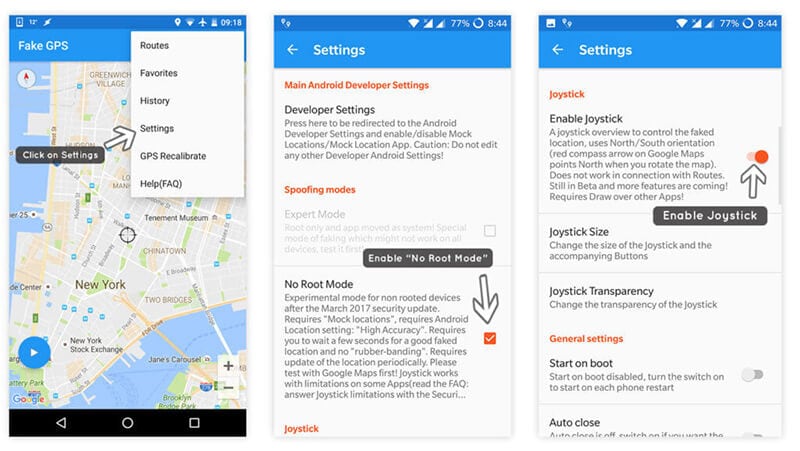
Obtain the selected utility from its legitimate distribution page. On many Android phones, opening Settings > About phone and tapping Build number seven times exposes Developer options. The exact menu path varies by manufacturer, and enabling this menu alone does not activate a mock position.
Step 2 Review location access and the mock-location selector
Turn on device location and give the utility the permissions its instructions require. Older Android releases offered a High accuracy switch, shown in the inherited image below. Newer devices may instead expose location-accuracy services and a Select mock location app control under Developer options. Choose the installed utility where that supported selector is available.

The original instructions refer to Android 6.0 and older security-patch behavior. Treat that as a legacy compatibility condition, not a reason to downgrade security or a promise that every Android 6.0-or-later handset has an identical menu.
Step 3 Choose a location in the utility
Open the app's map or route screen, confirm that location services are enabled, and position the map marker at the intended test point. Verify the city and nearby roads before applying it; selecting a marker and starting the simulation are often separate actions.
Step 4 Look for supported no-root and joystick options
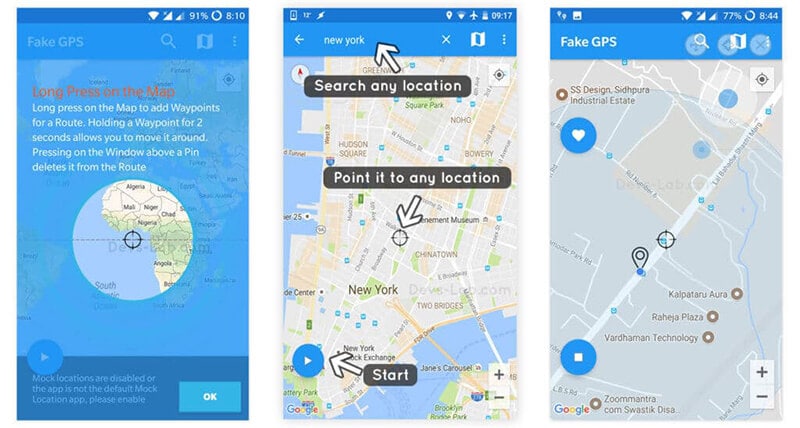
If your installed version offers Non-Root Mode and Joystick, review their requirements and switch them on as instructed by that developer. The historical screen illustrates those labels; their absence on another release is not a fault you should try to bypass with unknown add-ons.
Step 5 Start the simulation and check a map
Place the red marker at the selected point and use Play or the equivalent start control. Open Google Maps to inspect the phone's reported position. This is a useful diagnostic check, but map agreement establishes only that the mapping app sees that position; it does not establish game compatibility or account safety.

Step 6 Understand what the game may display
The original workflow next opens Pokémon Go and uses the joystick to move the reported position. The source image depicts the expected avatar movement, not a verified result on current software. Pokémon Go may reject mock locations, display a location error, or apply enforcement. Stop if the setup is unsupported rather than repeatedly changing permissions or installing modified game clients.

Completing these six stages cannot guarantee catches, unrestricted travel, or continued access to the game. The important outcome is understanding how the location tool is configured and why technical success and permission to use it are different questions.
Dr.Fone App - Change Location on Android
The source also introduces the separate mobile Dr.Fone App - Change Location (Android). Its relevant purpose is adjusting a supported phone's GPS position without relying on the desktop workflow described later. Saved places can make repeated location selection more convenient when the installed version supports them.
Keep this feature in proportion: supplying another GPS coordinate does not encrypt network traffic, remove account identifiers, or prevent every form of tracking. Social applications can use permissions and other signals alongside GPS. Verify the mobile app's current requirements and available functions instead of assuming that Android and iPhone editions, or the mobile and desktop products, behave identically.
Part 3. Can You Prevent a Ban When Using a Joystick?
No joystick configuration guarantees protection from a Pokémon Go ban. The official Gameplay Fairness Policy identifies GPS location spoofing as cheating. It describes escalating enforcement and notes that some conduct can lead to immediate termination without all three strikes.
The four topics below explain the original risk discussion without presenting anti-detection tricks as safe practice. For rule-compliant play, use the unmodified game with your actual location and follow the current player guidelines.
1. Simulated Movement Is Not a Safety Guarantee
Large jumps and implausible travel speeds create an obvious mismatch between the reported route and real walking. However, reducing speed or moving only a short distance does not turn GPS spoofing into authorized play. The source's example of travelling at 40 miles per hour illustrates implausibility, not a published threshold below which enforcement cannot happen.
Closing the location app, clearing Pokémon Go from recent apps, or restarting a session also does not erase server-side account activity. Use movement controls only where you have permission to simulate a location; do not describe them as a reliable way to conceal spoofing from the game.
2. Frequent Location Changes Increase Uncertainty
Repeatedly selecting distant destinations can produce inconsistent position data. The original article connects this with temporary gameplay restrictions, but there is no universal safe number of moves or waiting interval established here. An absence of an immediate warning is not evidence that a session complied with the rules.
If you encounter errors, stop the simulation and restore the phone's real location before diagnosing connectivity and permissions. Continuing to jump between locations makes it harder to distinguish a device problem from a game restriction.
3. Avoid Bots and Unauthorized Clients
Automation and modified clients are separate risks, not the only behaviors capable of causing a permanent ban. The policy also covers unauthorized software and falsified positions. A joystick tool should never be represented as safe merely because it does not automate catching.
Do not supply game credentials to a bot, untrusted account service, or unknown client. Removing such software is a sensible account-security step, but it does not reverse disciplinary action already applied to the account.
4. Multiple Accounts Do Not Resolve the Risk
The source warns about switching accounts on one phone, including during Gym or Raid activity. Changing accounts is not a remedy for a warning, and operating additional accounts can introduce its own rule violations. Judge the behavior against the player guidelines rather than assuming a second login protects the first.
Likewise, a clean installation, another device, or a fresh account does not establish that the original account has been restored. Any enforcement decision remains a matter for the game's support team.
Part 4. What Should You Do After a Joystick-Related Restriction?
First stop using the unsupported location setup. Then identify the message Pokémon Go actually shows. Players sometimes use 'soft ban' to describe several different symptoms, but a community label is not a diagnosis and does not establish how long a restriction will last.
3.1. Recognizing Warnings and Access Problems
The source lists PokéStops that do not provide items, unsuccessful catches, and location errors. These can be warning signs worth investigating, but GPS permissions, network trouble, and other technical conditions can also disrupt those actions. Do not conclude that every failed throw or unresponsive map proves a ban.
- Temporary interaction problems: inspect the displayed message and return to normal location settings. A few hours of unsuccessful play is not an official, fixed penalty category.
- Warning-related restrictions: the current fairness policy describes a first warning lasting approximately seven days, with reduced gameplay features. The term 'shadow ban' is less precise than that published explanation.
- Suspension or termination: the published second strike is approximately 30 days; termination is permanent. Serious cases may skip earlier warnings, so neither the original one-to-two-week estimate nor a promise of an email is sufficient to determine the account's status.
3.2. Account Recovery: Reinstallation Versus an Appeal
The earlier two-step suggestion was to sign out, create another account, uninstall the app, wait several hours, and reinstall before trying the original login. That sequence should not be treated as an account-recovery method: it changes local app state, not the service's disciplinary record. Creating another account is unnecessary for ordinary troubleshooting and may conflict with the rules.
Step 1 Record the problem and remove the unsupported setup
Save the exact warning or suspension wording. Sign out if needed, stop the mock-location tool, and return the device to its real position. If you reinstall the official game to investigate a local technical fault, do so without creating an additional account or assuming that uninstalling removes enforcement.
Step 2 Follow the stated restriction or request review
Use your existing account and the official support route. A temporary restriction follows its applicable duration; a termination you believe is mistaken can be submitted through the Help Center's Ban Appeal form. Waiting a couple of hours or reinstalling is not a guaranteed alternative to that review.
This keeps the source's sign-out, waiting, reinstallation, and original-login discussion intact while separating local troubleshooting from genuine account reinstatement. Support, not a location changer, decides whether an appeal succeeds.
Bonus Tip: Changing GPS on a Supported iPhone
 Set your map route to simulate GPS movement.
- Set your wanted movement speed.
- HD and large map view to check location.
- Fake GPS location to anywhere.
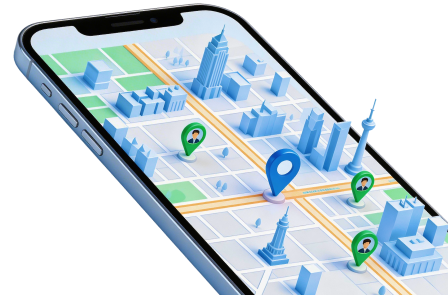
For supported iOS and Android devices, Dr.Fone - Virtual Location offers a desktop map for selecting a different reported position. Its relevant tools include teleporting to a chosen point and simulating movement along a route with adjustable speed. Those are GPS functions, not a promise of Pokémon Go compatibility or immunity from enforcement.
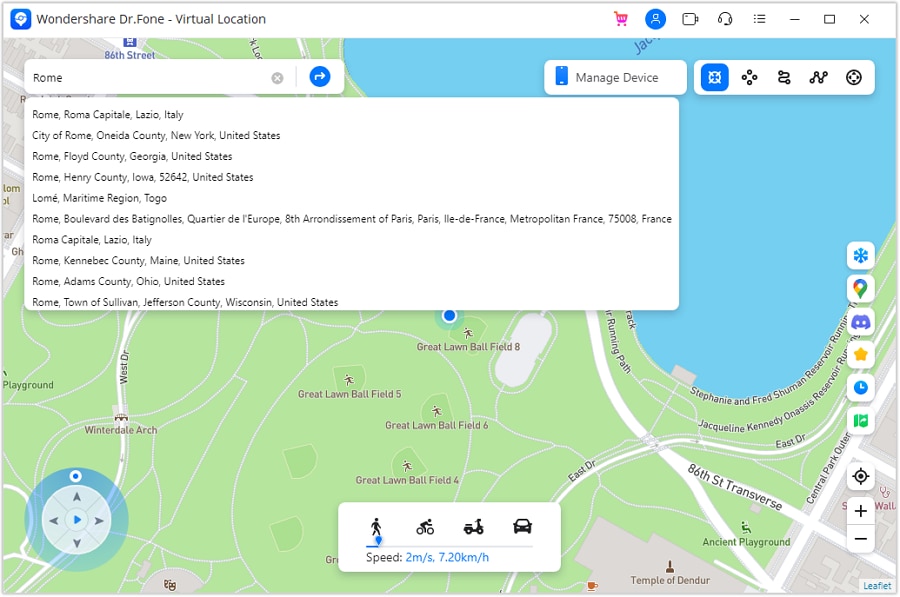
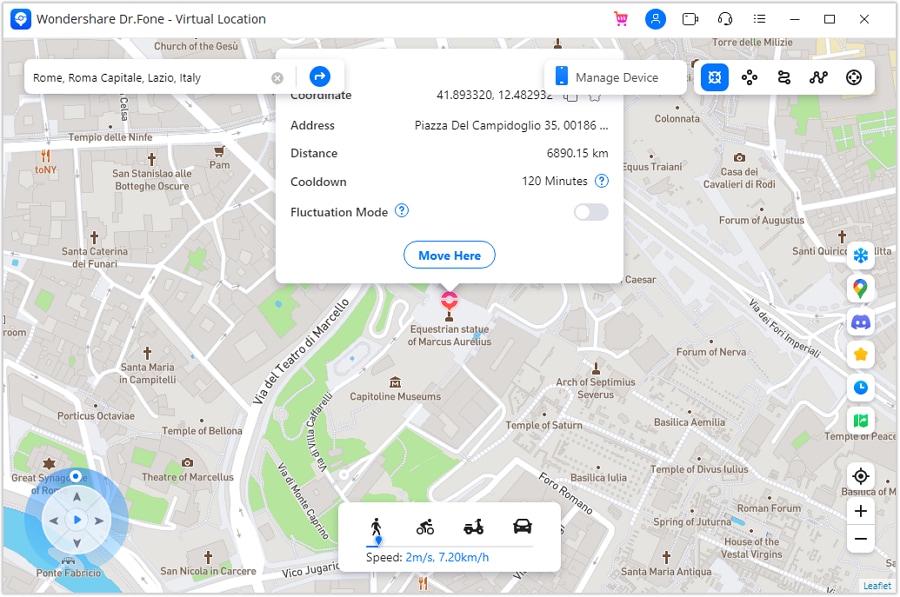
Check the supported device and operating-system requirements before connecting the phone. For an authorized location test, connect the device, complete any trust or permission prompts, choose Teleport Mode, search for the destination, confirm the map point with Move Here, and verify the resulting position in the phone's maps app. The official guide notes that restarting the device restores the real location. Interface placement can differ between desktop versions.
Video: The iPhone GPS Teleport Workflow
The retained demonstration provides a visual reference for selecting and applying an iPhone location. Use it alongside the current product instructions rather than assuming that each older button label remains unchanged. Route controls and joystick features should be evaluated separately from the game's rules.




Download only the intended official installer and review its device requirements.
Conclusion
A Pokémon Go joystick Android no-root setup depends on both the location utility and the phone's software. The six-stage process explains the older Android workflow, but Android 8.0 or any other version number alone does not guarantee success. Treat the screenshots as references, distinguish GPS simulation from accepted gameplay, and do not rely on slow movement or reinstallation to protect or recover an account. Dr.Fone - Virtual Location is a separate option for supported GPS-testing tasks; Pokémon Go's rules still apply.
FAQ
1. Does a no-root Pokémon Go joystick avoid bans?
No. No-root describes how a utility is configured, not whether the game permits it. The fairness policy expressly includes GPS spoofing among cheating behaviors.2. Why does Google Maps show my fake location while Pokémon Go does not?
Different applications can apply different location checks. A successful map test does not prove that the game accepts the same coordinates or supports your utility.3. Can reinstalling Pokémon Go remove a suspension?
Reinstalling may address a local app fault, but it does not delete a service-side suspension. Follow the in-game notice and use official support when you believe enforcement is mistaken.4. Is the Android mobile app the same as the desktop Virtual Location tool?
No. The original article discusses a mobile Android app and a desktop location workflow separately. Confirm the requirements and controls of the edition you intend to use.
 Add Wondershare Dr.Fone as a preferred source on Google