Resolve common problems and system crashes on both iPhone and Android devices.

 100% Security Verified | No Subscription Required | No Malware

 :
: 
 ChatGPT
 Perplexity
 Gemini
 Claude
 Grok
Grok
An iPhone black screen does not always mean the phone is dead. If the iPhone still rings, vibrates, or is detected by a computer, the display or iOS may be the problem. If it shows no signs of power, start with charging and a force restart. If the black screen followed a drop or liquid exposure, hardware service is the safer path.
The safest troubleshooting order is to try a force restart, rule out a drained battery, use Apple's recovery options if iOS is not starting correctly, and only then move to deeper system repair or a full restore. A full restore can erase data, so it should not be your first step.
In this article
- Part 1: Diagnose an iPhone black screen
- Part 2: Force restart your iPhone
- Part 3: Charge the iPhone and check power
- Part 4: Use Recovery Mode and choose Update first
- Part 5: Repair iOS with Dr.Fone - System Repair
- Part 6: Restore the iPhone if other software fixes fail
- Part 7: When the black screen is probably hardware-related
- Part 8: Reduce the risk of another black screen
- FAQs
Part 1: Diagnose an iPhone black screen
Before choosing an iPhone black screen repair method, check what the phone is still able to do. The same black display can come from a temporary iOS freeze, a drained battery, a failed startup, or a damaged screen.
| What you notice | What it suggests | Best next step |
|---|---|---|
| The iPhone rings, vibrates, plays sounds, or is detected by a computer, but the display is black | The phone may still be running; the problem can be a frozen system or display hardware | Force restart, then evaluate for screen service if the display stays black |
| No screen, vibration, sound, or charging response | The battery may be deeply discharged, or there may be a power/hardware fault | Charge and check power |
| The black screen started after an iOS update, restore, or repeated startup crash | A software or firmware problem is more likely | Try Recovery Mode or system repair |
| The iPhone was dropped, bent, overheated, or exposed to liquid | Display, connector, battery, or board damage becomes more likely | Use professional hardware service |

Part 2: Force restart your iPhone
Apple recommends a force restart when an iPhone screen is black or the device is unresponsive. This does not erase your data. See Apple's current unresponsive iPhone instructions for the official model-specific sequence.
iPhone 8 or later, including Face ID models
- Press and quickly release Volume Up.
- Press and quickly release Volume Down.
- Press and hold the Side button until the Apple logo appears. Keep holding even if the screen remains black for several seconds.
iPhone 7 or iPhone 7 Plus
Press and hold the Side button and Volume Down together until the Apple logo appears.
iPhone 6s, iPhone SE (1st generation), or earlier
Press and hold the Home button and the Side/Top button together until the Apple logo appears.
If the iPhone starts normally, you can stop here. If the screen remains black, continue to the charging check.
Part 3: Charge the iPhone and check power
A deeply discharged battery can make an iPhone look completely dead. Connect it to a known-good power adapter and cable, leave it charging for about an hour, and then repeat the force restart.
- Try another known-good cable, adapter, and wall outlet if there is no charging response.
- Inspect the charging port for visible debris or damage. Do not insert metal objects into the port.
- If the iPhone becomes unusually hot, smells abnormal, or has a swollen battery, disconnect power and seek service instead of continuing.
If the phone responds to a computer but the display stays black, the screen itself may need repair even if iOS is running.
Part 4: Use Recovery Mode and choose Update first
If the iPhone screen is black because iOS cannot start normally, Recovery Mode can reinstall the system. On a Mac, use Finder. On a current Windows PC, use the Apple Devices app; older setups may still use iTunes.
Choose Update first when it is offered. Update attempts to reinstall iOS without erasing your data. Use Restore only if Update fails or the computer specifically requires a restore, because Restore erases the iPhone.
- Connect the iPhone to the computer and open Finder, Apple Devices, or iTunes as applicable.
- Use the force-restart button sequence for your model, but keep holding the final button until the Recovery Mode screen appears. If you want to enter recovery mode in one-click for free, download and use Dr.Fone.
- When the computer offers Update or Restore, choose Update first.
- Keep the iPhone connected while the software downloads and installs. If the download takes long enough that the iPhone exits Recovery Mode, repeat the entry steps.
Part 5: Repair iOS with Dr.Fone - System Repair
If there is no obvious physical damage and the black screen appears to be caused by an iOS problem, Dr.Fone - System Repair (iOS) provides another guided repair path. Its Standard Repair mode is designed to retain user data; Advanced Repair is a deeper option that erases device data.
 Fix iOS issues, no data loss.
- One-click repair for all iOS problems.
- Solve recovery mode, Apple logo, black screen, etc.
- Upgrade or downgrade iOS without iTunes

How to use Standard Repair for a software-related iPhone black screen:
-
Step 1 Open System Repair
Launch Dr.Fone on your computer, open Toolbox, and select System Repair.

-
Step 2 Choose iPhone and iOS Repair
Connect the iPhone, choose iPhone as the device type, and then select iOS Repair.

-
Step 3 Select Standard Repair
Choose Standard Repair when you want to attempt a repair that retains device data.

-
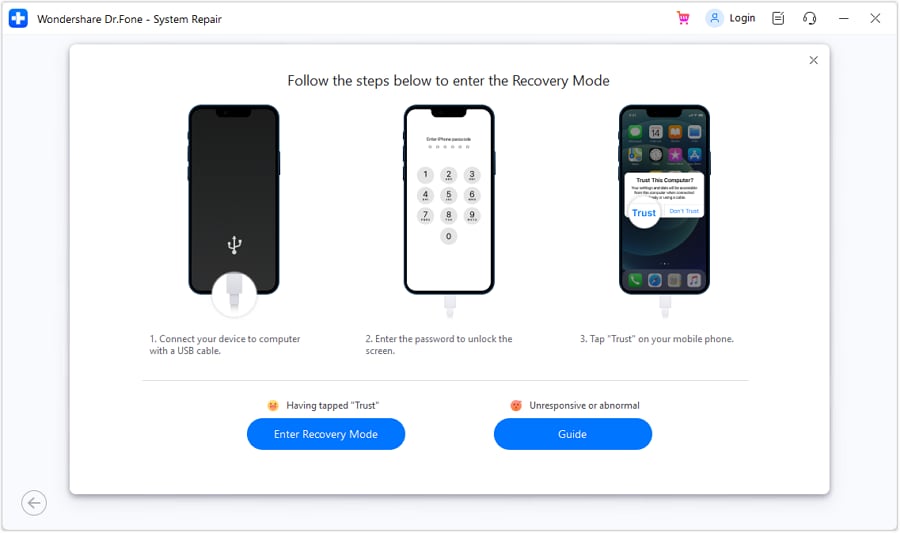
Step 4 Put the iPhone in Recovery Mode
Follow the on-screen instructions to enter Recovery Mode. If the iPhone is unresponsive, use the built-in guide for the correct button sequence.
-
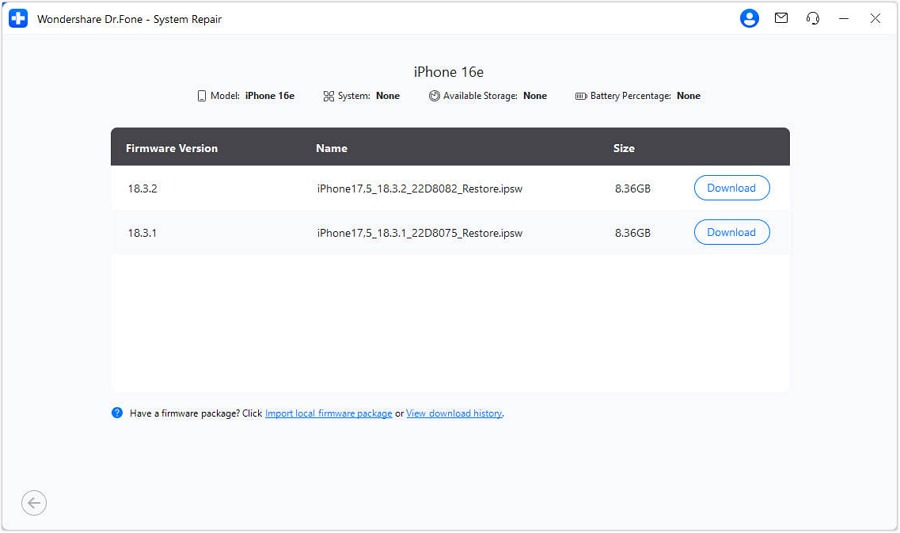
Step 5 Download and verify iOS firmware
Select a compatible iOS firmware package and click Download. Dr.Fone downloads and verifies the package before repair.
-
Step 6 Start the repair
Click Repair Now, keep the iPhone connected, and wait for the process to complete.

-
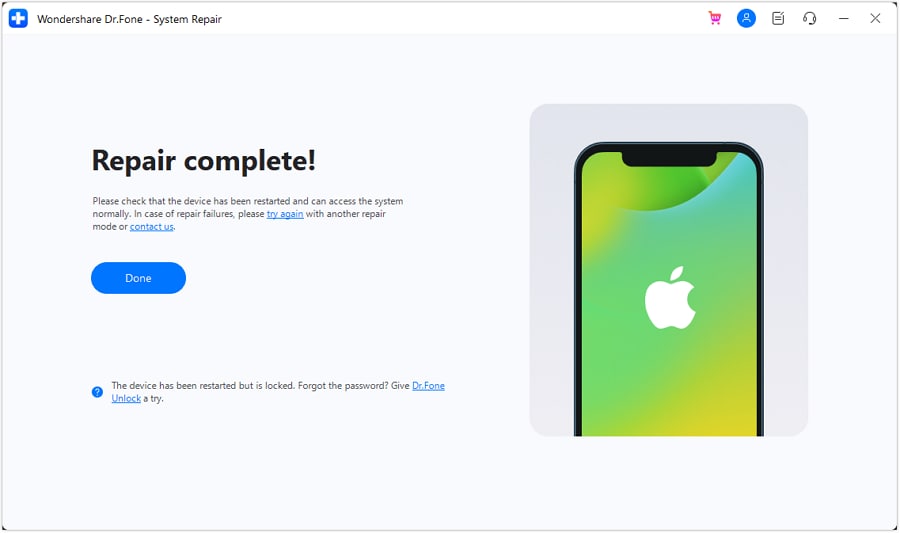
Step 7 Confirm the result
When the completion screen appears, click Done and check whether the iPhone displays and starts normally.




 safe & secure
Part 6: Restore the iPhone if other software fixes fail
A full restore can resolve deeper iOS corruption, but it erases the iPhone. Use this only after data-preserving options have failed or when you already have a usable backup.
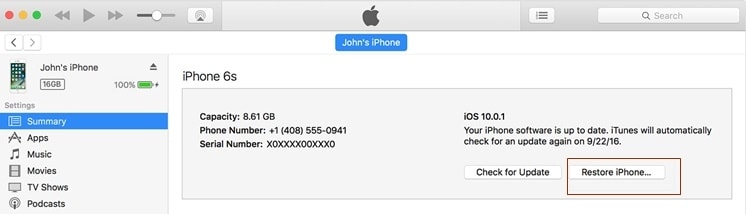
Connect the iPhone to Finder, Apple Devices, or iTunes, place it in Recovery Mode, and choose Restore. The computer will erase the device and reinstall iOS. Afterward, you can set up the iPhone again and restore a backup if one is available.
Part 7: When the black screen is probably hardware-related
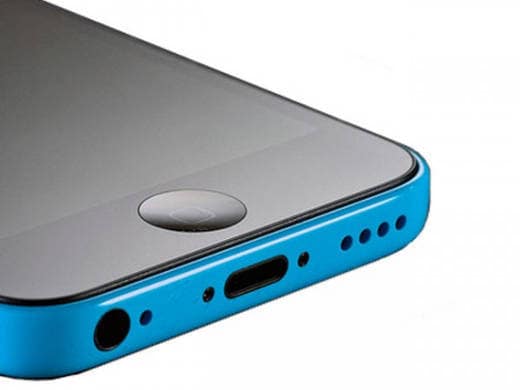
Move to hardware service when the iPhone was dropped or exposed to liquid, the display is cracked or flickered before going dark, the phone still rings but never shows an image after software troubleshooting, or charging/power behavior is abnormal.
- Do not repeatedly restore the iPhone if the phone is clearly running but the display is dead; a display repair may preserve more of your data.
- Do not open the iPhone unless you have appropriate repair experience and equipment.
- For swelling, unusual heat, smoke, or liquid-related damage, stop charging and seek service promptly.
Part 8: Reduce the risk of another iPhone black screen
- Keep iOS updated after checking that you have enough battery and storage for the update.
- Use certified charging accessories and replace damaged cables.
- Keep a current iCloud or computer backup so a future restore does not put important data at risk.
- Avoid unsupported system modifications that can make future iOS updates or restores less predictable.
- Use a protective case and address repeated overheating, battery swelling, or display flicker before the screen fails completely.
You may also be interested in:
Conclusion
An iPhone black screen can come from a temporary iOS freeze, a deeply discharged battery, a failed startup, corrupted system software, or display and power hardware damage. Start with the least destructive fixes: force restart the iPhone, charge it with known-good accessories, and use Recovery Mode with Update before considering a full restore.
If there is no obvious physical damage and the problem appears to be software-related, Dr.Fone iOS system repair tool provides another guided repair option designed to retain user data. A full Restore or deeper repair that erases the device should be reserved for cases where data-preserving methods do not work. If the iPhone still rings or vibrates but the display remains black after software troubleshooting, or the problem followed a drop, liquid exposure, or overheating, professional hardware service is the safer next step.
safe & secure4,624,541 people have downloaded it
FAQs about an iPhone black screen
-
1. Why is my iPhone screen black but the phone is still on?
If the iPhone still rings, vibrates, or connects to a computer, it may be running while the display is frozen or damaged. Start with a force restart. If the phone clearly remains active but the screen stays black, have the display hardware inspected. -
2. Can I fix an iPhone black screen without losing data?
Often, yes. A force restart does not erase data. Apple's Recovery Mode Update option attempts to reinstall iOS without erasing the device, and Dr.Fone Standard Repair is designed to retain data. A full Restore and Dr.Fone Advanced Repair erase device data. -
3. How long should I charge an iPhone with a black screen?
If the iPhone shows no response, leave it connected to a known-good charger for about an hour, then try the force-restart sequence again. If there is still no sign of power, service may be required. -
4. Should I Restore or Update an iPhone in Recovery Mode?
Choose Update first when it is available because it attempts to reinstall iOS without erasing your data. Use Restore if Update fails or the device cannot be recovered another way, because Restore erases the iPhone.
 Add Wondershare Dr.Fone as a preferred source on Google