Resolve common problems and system crashes on both iPhone and Android devices.

 100% Security Verified | No Subscription Required | No Malware

 :
: 
 ChatGPT
 Perplexity
 Gemini
 Claude
 Grok
Grok
An iPhone blue screen can mean different things: a temporary iOS crash, a problem that appeared after an update or app change, or a hardware/display fault after a drop, liquid exposure, or repair. If the phone is completely unresponsive or keeps restarting after a blue screen, start with the least destructive fixes first: force restart, update iOS, then use computer-based recovery. If the display is only tinted blue while the phone still works normally, check display settings and possible screen damage instead of treating it as a full system crash.
| What you see | Likely direction | Best first step |
|---|---|---|
| Blue screen, frozen or rebooting | Software crash or startup failure | Force restart |
| Blue tint, streaks, or color shift but phone still works | Display setting or screen hardware | Check the symptom type |
| Problem started after an iOS update or app change | Software/update conflict | Update or remove the suspected app and update iOS |
| Problem started after a drop, liquid exposure, or screen repair | Possible hardware/display fault | Consider hardware service |
In this article
- Part 1: What does an iPhone blue screen mean?
- Part 2: Is the iPhone blue screen of death normal?
- Part 3: Fix iPhone blue screen without data loss with Dr.Fone
- Part 4: Force restart an iPhone with a blue screen
- Part 5: Update or remove apps that may trigger crashes
- Part 6: Can iWork apps cause an iPhone blue screen?
- Part 7: Update iOS or use Recovery Mode
- Part 8: Restore the iPhone only when safer options fail
- Part 9: When an iPhone blue screen may be a hardware problem
- Conclusion
Part 1: What does an iPhone blue screen mean?
An iPhone screen turning blue does not always mean the same failure. A phone that freezes on a solid blue screen or flashes blue and repeatedly restarts points toward a startup, iOS, app, or hardware fault. A phone that remains usable but has a blue tint, streaks, or color distortion can instead indicate display settings or physical screen damage.
This distinction matters because software repair can help a crash or failed startup, but it cannot repair a damaged display connector, panel, or logic-board component. If the problem began immediately after a drop, liquid exposure, or screen replacement, treat hardware damage as a stronger possibility.
Part 2: Is the iPhone blue screen of death normal?
No. A persistent iPhone blue screen of death, a blue-screen boot loop, or a screen that becomes unresponsive is not normal iPhone behavior. A one-time crash may clear after a restart, but repeated blue screens should be investigated rather than ignored.
Start with non-destructive troubleshooting. If the phone can boot, back it up before trying deeper recovery steps. If the phone cannot boot, work from force restart to software update or Recovery Mode before using any option that erases the device.
Part 3: Fix iPhone blue screen without data loss with Dr.Fone
If the blue screen appears to be software-related and you want to avoid an erase-first workflow, Dr.Fone - System Repair (iOS) provides a guided repair path. Its Standard Repair mode is designed for supported iOS system issues while preserving personal data; more advanced repair or reset modes can erase data, so choose the least destructive option that matches the problem.
 Fix iOS issues, no data loss.
- One-click repair for all iOS problems.
- Solve recovery mode, Apple logo, black screen, etc.
- Upgrade or downgrade iOS without iTunes
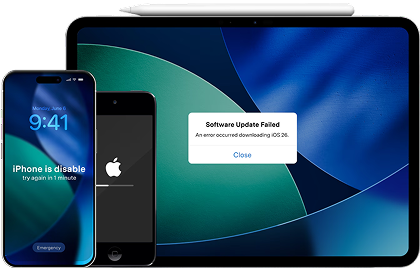
A part of the Dr.Fone toolkit, it is available for Windows and Mac and has full compatibility with every leading iOS version. You can simply use this application to fix iPhone blue screen while retaining your data. All you got to do is launch the application, connect your phone to the system, and follow the on-screen instructions to reboot your phone in the normal mode.
How to Fix iPhone Blue Screen With Dr.Fone - System Repair (iOS)
If the iPhone blue screen of death is caused by an iOS system issue, you can start with Standard Repair in Dr.Fone - System Repair (iOS). This mode is designed to repair common iOS system problems while preserving the data on the device.

-
Step 1: Open System Repair in Dr.Fone
Launch Dr.Fone on your computer. From the main interface, open Toolbox and select System Repair.

-
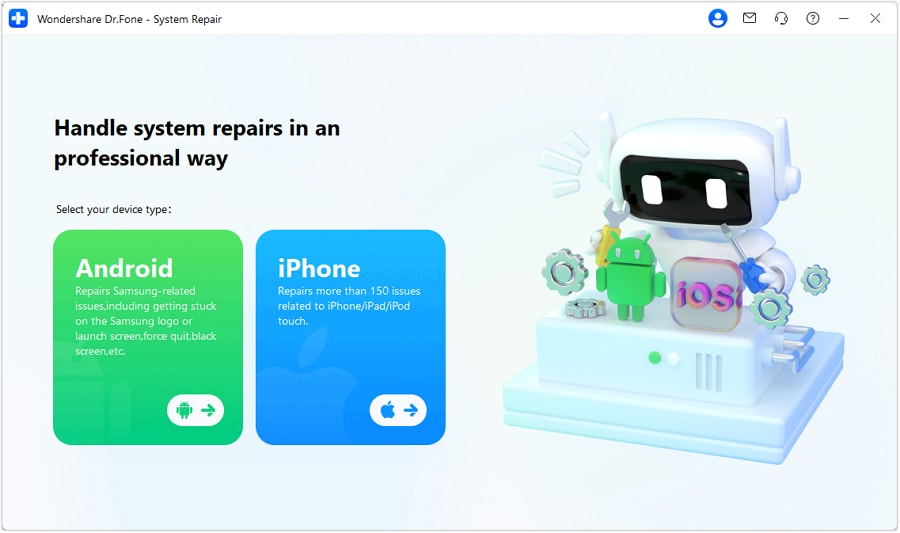
Step 2: Select iPhone as the device type
Connect the iPhone to the computer with a USB cable. When Dr.Fone asks which type of device you want to repair, select iPhone.
-
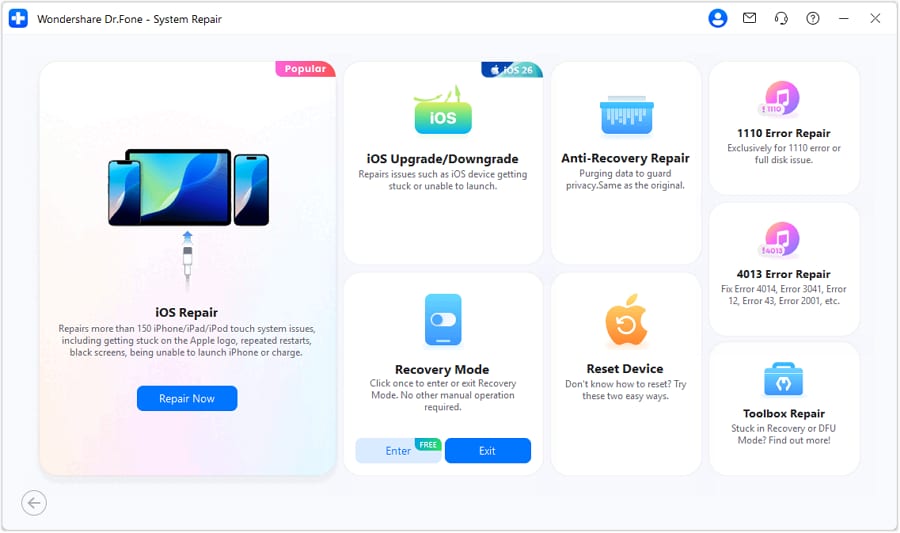
Step 3: Choose iOS Repair
On the next screen, select iOS Repair to open the repair options for the connected iPhone.
-
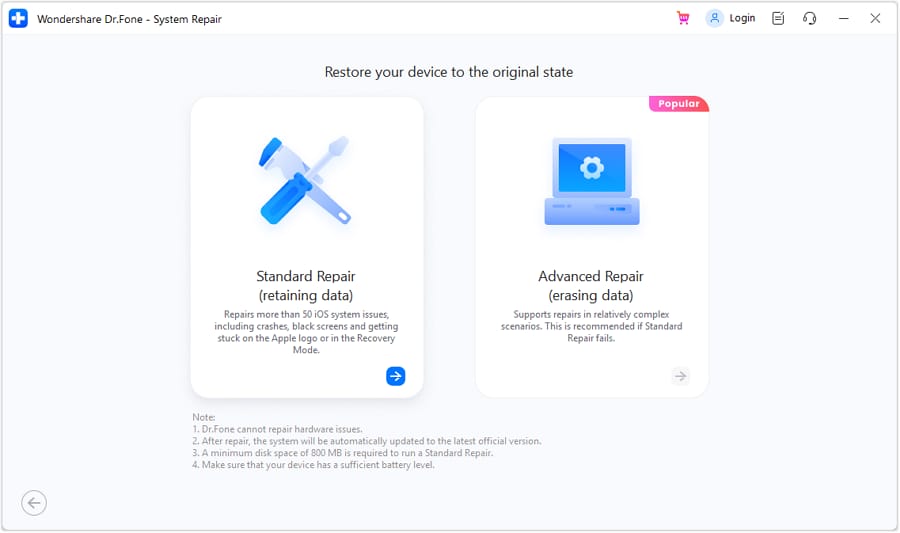
Step 4: Select Standard Repair
Dr.Fone provides different repair modes. Choose Standard Repair first because it is designed to repair iOS system issues without deleting the data stored on the iPhone.
-
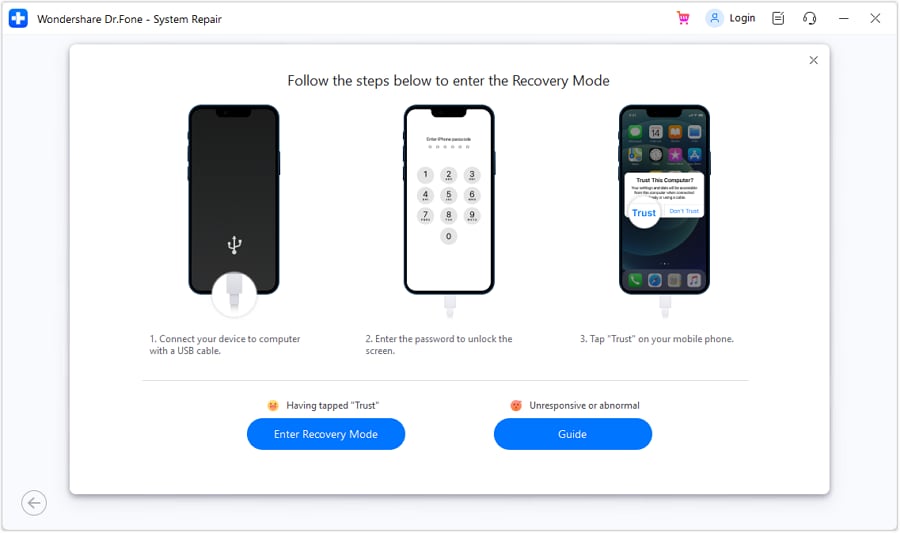
Step 5: Put the iPhone into Recovery Mode
Follow the on-screen instructions to place the iPhone in Recovery Mode. Once the device enters Recovery Mode successfully, click Enter Recovery Mode to continue. If the iPhone is unresponsive or you cannot enter Recovery Mode normally, select Guide for the model-specific instructions.
-
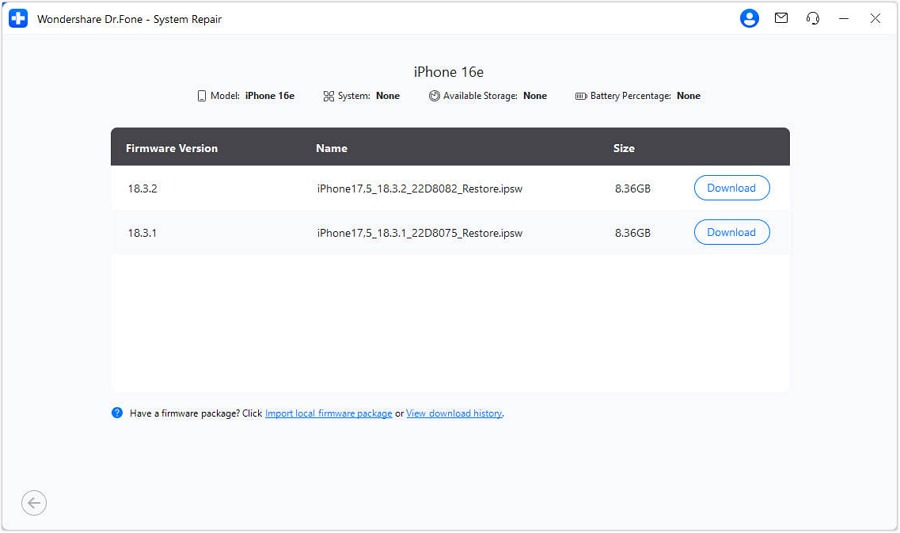
Step 6: Select and download the iOS firmware
After the iPhone is detected in Recovery Mode, Dr.Fone will display the available iOS firmware for the device. Choose the appropriate firmware package and click Download.
-
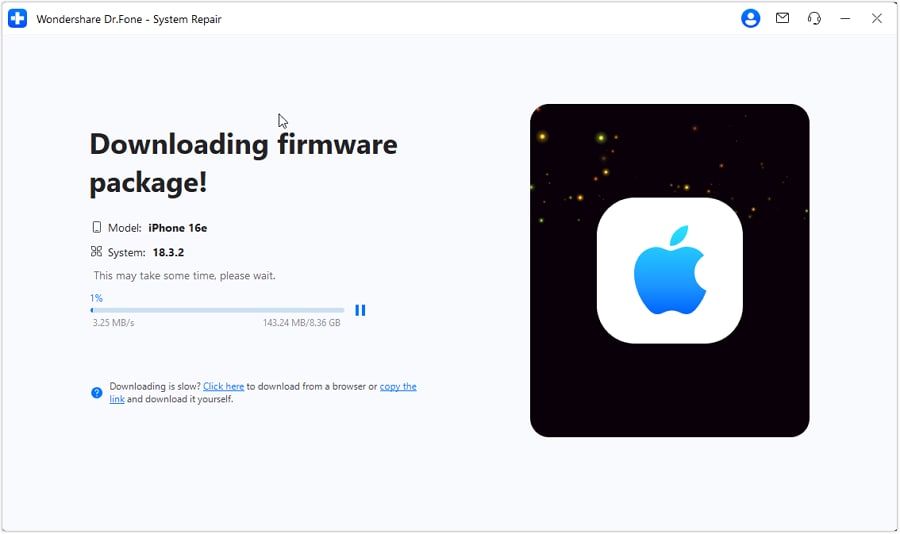
Step 7: Wait for the firmware to download and verify
Dr.Fone will download the selected firmware package. Keep the computer connected to a stable network while the download is in progress. After the download finishes, the program verifies the firmware before it can be used for the repair.
-
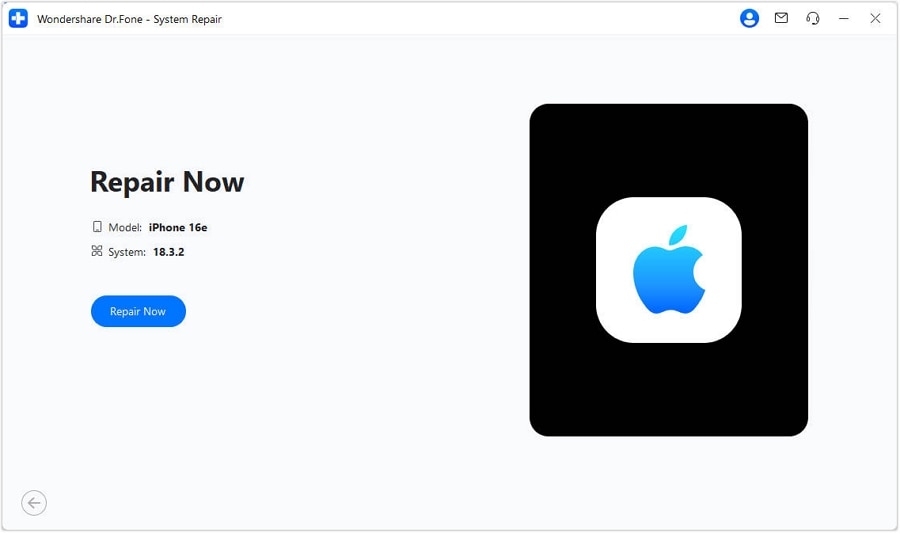
Step 8: Start repairing the iPhone
Once the firmware package is ready, click Repair Now. Dr.Fone will begin installing the firmware and repairing the iOS system issue that may be causing the blue screen.
-
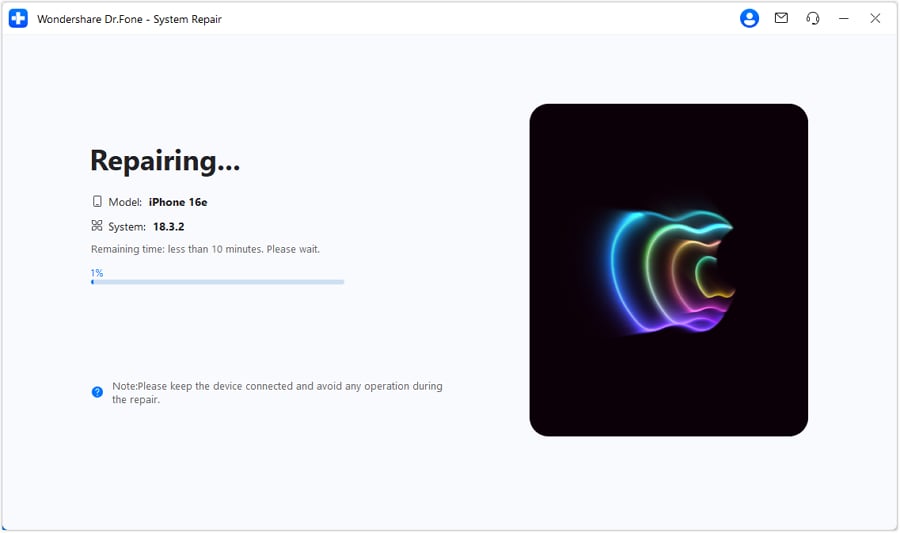
Step 9: Keep the iPhone connected during the repair
Wait while Dr.Fone repairs the iOS system. You can monitor the process from the progress indicator. Do not disconnect the USB cable or close Dr.Fone until the repair has finished.
-
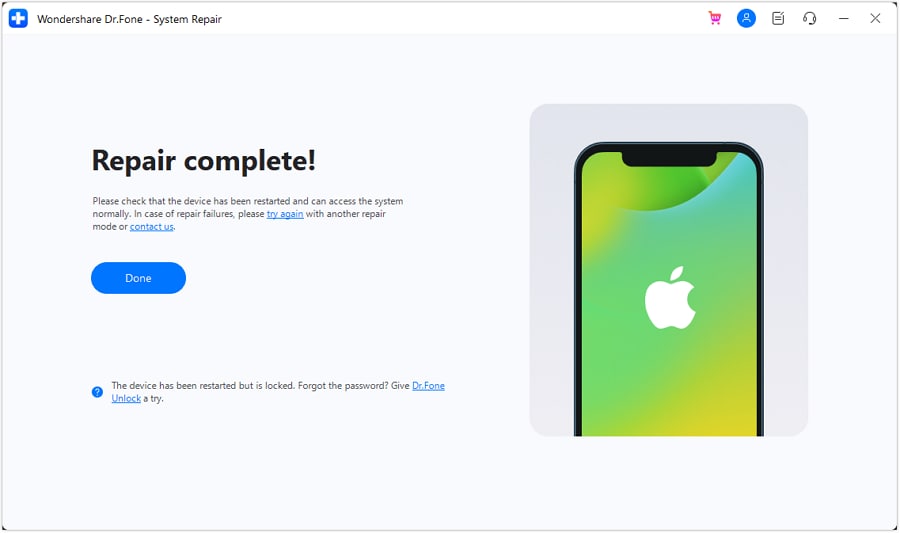
Step 10: Finish the repair and check the iPhone
When Dr.Fone confirms that the repair is complete, click Done. Let the iPhone restart, then check whether the blue screen, repeated restart, or startup problem has disappeared.
If Standard Repair does not resolve the problem, Dr.Fone also provides Advanced Repair for more serious iOS system failures. However, Advanced Repair erases the data on the device, so back up the iPhone first whenever possible.




 safe & secure
Part 4: Force restart an iPhone with a blue screen
A force restart is the safest first fix when an iPhone is frozen on a blue screen or repeatedly restarting. It does not erase your data. Use the button sequence for your iPhone model below and keep holding the final button until the Apple logo appears.
1. For iPhone 8 and newer models
1. Quickly press and release the Volume Up button.
2. Quickly press and release the Volume Down button.
3. Press and hold the Side (or Power) button until the Apple logo appears on the screen. Keep holding the button until you see the logo on the screen.

2. For iPhone 7 & iPhone 7 Plus
1. Press the Volume Down and Power (wake/sleep) button simultaneously.
2. Keep holding the buttons for at least 10 seconds till the phone’s screen will go black.
3. As your phone would be restarted in normal mode, let go of the buttons.

3. For iPhone 6s and older generation devices
1. Long press the Home and Power (wake/sleep) button at the same time.
2. Ideally, after holding the button for ten seconds, the screen will go black and your phone would be restarted.
3. Let go of the buttons when the Apple logo would appear.

Part 5: Update or remove apps that may trigger crashes
If the blue screen started after installing or updating an app, update that app first. If crashes continue and the timing clearly points to one app, remove it temporarily and test whether the iPhone becomes stable. App troubleshooting is most useful when the phone can still boot normally between crashes.
1. Update related apps
To update a single app, just visit the App Store on your phone and tap on the “ Profile” icon. This will display a list of all the apps that are available for an update. Tap on the app you wish to update and select the “Update” button.
You can also update all the apps at the same time as well. To do this, just tap on the “Update All” option (located at the top). This will update all the apps to a stable version.

2. Delete apps
If you think there are a few faulty apps on your device that are causing the iPhone 13 blue screen, then it is better to get rid of these apps. Deleting an app from your phone is pretty easy. Just tap and hold the icon of the app you wish to uninstall. Afterward, tap on the “Delete App” to delete it. This will generate a pop-up message. Confirm your choice by selecting the “Delete” button.

Part 6: Can iWork apps cause an iPhone blue screen?
Older reports—especially around the iPhone 5s era—linked some blue-screen crashes with iWork apps such as Pages, Numbers, or Keynote. That history is useful for diagnosing an old device, but it should not be treated as a primary cause on current iPhones.

On a current device, use the broader app-crash approach instead: update iOS and the affected app, restart the iPhone, and remove the suspected app temporarily if the blue screen consistently appears while using it. If the problem continues outside that app, move on to system recovery or hardware checks.
Part 7: Update iOS or use Recovery Mode
If the iPhone can start normally, install the latest compatible iOS update from Settings > General > Software Update. Keeping iOS current can resolve known system bugs and is less destructive than a restore.

If the iPhone will not boot, use a computer. On a Mac, open Finder. On a Windows PC, use the Apple Devices app. Connect the iPhone by USB, then enter Recovery Mode for your model:
- iPhone 8 or later, including newer SE models: Press and quickly release Volume Up, press and quickly release Volume Down, then hold the Side button until the Connect to Computer screen appears.
- iPhone 7 or 7 Plus: Hold the Side (or top) button and Volume Down together until the Connect to Computer screen appears.
- iPhone 6s or earlier: Hold the Home button and the Side (or top) button together until the Connect to Computer screen appears.

When the computer offers Update or Restore, try Update first if you have not already done so. Update attempts to reinstall iOS without erasing the device. If Update fails and you choose Restore, the iPhone will be erased.

Part 8: Restore the iPhone only when safer options fail
A full Restore is an escalation step, not the first fix for an iPhone blue screen. Use it when force restart, normal updating, and Recovery Mode Update do not resolve a software-related startup problem.
- Connect the iPhone to your Mac or Windows PC.
- Open Finder on Mac or the Apple Devices app on Windows.
- Put the iPhone into Recovery Mode using the model-specific sequence in Part 7.
- Choose Restore only after you understand that it reinstalls iOS and erases the device.
- After restoration, set up the iPhone and restore a backup if you have one.
If the computer cannot detect the iPhone, Recovery Mode repeatedly fails, or the blue screen returns immediately after a clean restore, move to hardware diagnosis rather than repeating erase-and-restore cycles.
Part 9: When an iPhone blue screen may be a hardware problem
Software troubleshooting is less likely to help when the blue screen began after a drop, liquid exposure, a screen replacement, or another physical repair. A blue screen accompanied by flickering, colored lines, touch problems, overheating, or repeated failure after a clean software restore also increases the likelihood of a display, connector, or board-level problem.
In those cases, stop repeated restores and have the device inspected by Apple or a qualified repair provider. Software repair tools cannot fix physical damage.
FAQs About iPhone Blue Screen of Death
-
1. What does a blue screen on an iPhone mean?
An iPhone blue screen usually means the device has experienced a serious software crash or a hardware-related problem. Possible causes include an iOS system error, an app conflict, a failed update, or physical damage such as a loose display connection, drop damage, or liquid exposure. -
2. Can the iPhone blue screen of death be fixed?
Yes, an iPhone blue screen of death can often be fixed when the cause is software-related. Start with a force restart, update problematic apps and iOS, or use a system repair solution such as Dr.Fone - System Repair (iOS). If these methods and a Recovery Mode restore do not work, the problem may be hardware-related and require professional repair. -
3. Why did my iPhone screen suddenly turn blue?
An iPhone screen may suddenly turn blue because of an iOS crash, an unstable software update, an app conflict, or a hardware problem. If the blue screen appeared after the iPhone was dropped, exposed to water, or physically damaged, the issue is more likely to involve the display, internal connectors, or other hardware components. -
4. Will restoring an iPhone fix the blue screen of death?
A restore can fix an iPhone blue screen when the problem is caused by damaged or corrupted iOS system files. However, restoring the iPhone erases the data on the device, so it should normally be used only after lower-risk options such as a force restart, iOS update, or Standard Repair have failed. Back up the iPhone first whenever possible. -
5. When does an iPhone blue screen indicate a hardware problem?
A hardware problem is more likely if the blue screen started after a drop or liquid exposure, the display shows persistent blue lines or abnormal colors, the iPhone repeatedly returns to the blue screen after a system restore, or a computer cannot reliably recognize the device. In these cases, further software troubleshooting may not solve the issue, and the iPhone should be inspected by Apple or a qualified repair provider.
Conclusion
An iPhone blue screen is fixable in many software-related cases, but the right solution depends on whether the phone is actually crashing or simply showing a blue-tinted/damaged display. Start with a force restart, then update iOS and suspicious apps. If the iPhone cannot boot, use Recovery Mode and choose Update before Restore when available. Dr.Fone - System Repair (iOS) can provide a guided Standard Repair path for supported software-related problems when preserving data is the priority. If the issue follows physical damage or survives software recovery, arrange hardware service.
safe & secure Add Wondershare Dr.Fone as a preferred source on Google