Effortlessly manage data through preview, delete, export, etc.

 100% Security Verified | No Subscription Required | No Malware

 :
: 
 ChatGPT
 Perplexity
 Gemini
 Claude
 Grok
Grok
Having an iOS device like an iPhone or iPad offers incredible multimedia capabilities, but sometimes the built-in screen just isn't large enough. Whether you want to deliver an engaging presentation, showcase mobile gaming skills, or simply stream a movie for your family, relying on a dedicated screen mirroring app is the optimal solution. Today, we are going to introduce you to the top 7 iOS mirror applications available in 2026, which you can use to wirelessly stream your iPhone or iPad display to a larger monitor.
By wirelessly streaming your iPhone, you are essentially utilizing your device as a powerful remote control. You can seamlessly cast whatever is on your iOS device directly onto your Apple TV, high-definition television, or PC screen. Below, we will detail each of the seven exceptional an ipad screen mirroring app options in a clear, straightforward manner to help you choose the best mirror app for your specific needs.
In this article
1. Wondershare Dr.Fone
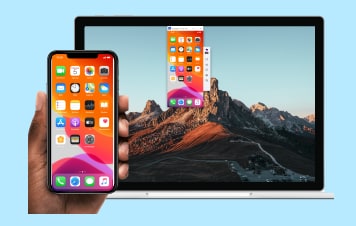
Wondershare Dr.Fone stands out as a highly versatile software suite that includes an exceptional screen mirroring feature designed to enhance your digital workflow. Often, viewing important documents, presentations, or media on a small phone display can be severely limiting. With this software, whatever is happening on your mobile phone can easily be shown on a large-screen PC.
Beyond merely casting your display, this powerful platform allows you to control the phone reversely directly from your computer keyboard and mouse. You can quickly take high-quality screenshots of the device, save them directly to local files on your PC, and handle those screenshots flexibly for tutorials or guides. It proves to be an indispensable utility for professionals and content creators. If you need robust capabilities, Wondershare Dr.Fone is highly recommended. You can effortlessly Start Download to experience its seamless features firsthand.
 Effortlessly manage data through preview, delete, export, etc.
- Transfer all data between devices.
- Robust backup solutions for reliable data protection.
- Mirror screens to PC for meetings, teaching, and control.

Compatibility
This powerful mirror app is Available on: Windows and other platforms including:
- Android 6.0 and higher
- iOS 14, iOS 13, iOS 12/12.3, iOS 11, iOS 10.3, iOS 10, iOS 9 and former [for screen mirror feature]
- iOS 14, iOS 13 [for reverse control feature]
- Windows 10/8.1/8/7/Vista/XP
- Highly intuitive and very easy to operate.
- Allows reverse control of smart phones after mirroring to a PC.
- The core screen mirroring feature in MirrorGo is completely free.
- Maintains exceptionally good video quality for recording sessions.
- Requires payment to unlock the reverse control functionality.
- The iPhone screen mirroring capability is restricted via Wi-Fi only.
Want to know more drfone creative video? check community Wondershare Video Community
2. Reflector 2 and Reflector 3
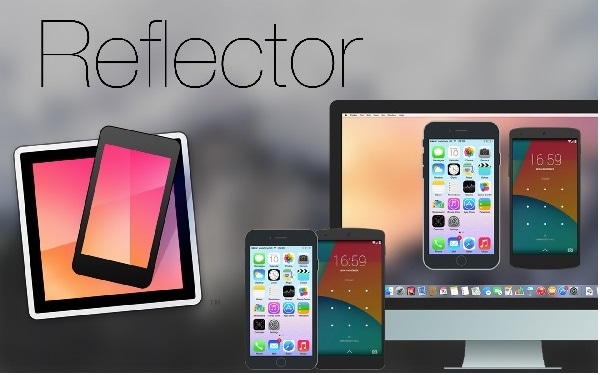
Reflector has evolved into a prominent wireless screen mirroring app that helps users seamlessly stream data, video, and visual content directly to a large monitor without the hassle of tangled wires. Whether you want to play action-packed mobile games, watch high-definition movies, or present professional demos, Reflector allows you to do so directly from your palm.
Developed by Squirrel LLC, you can buy this smart screen mirroring application for just $14.99 from the store. One of its standout features is Smart Layouts, an intuitive tool that automatically selects the optimal display arrangement when multiple devices are connected. Another remarkable feature lets you spotlight one specific screen that matters most during a multi-device connection. You can effortlessly hide and show devices without disrupting their connection. Furthermore, its most impressive capability is allowing users to broadcast the mirrored screen directly to YouTube.
The official website from where you can download it is http://www.airsquirrels.com/reflector/download/. It is a very user-friendly app that involves just a few straightforward steps to set up and use.
Compatibility
- Reflector 2: Android 4.1 and up
- Reflector 3: Windows 7, Windows 8, or Windows 10
- Reflector 3: macOS 10.10 or newer
- Reflector 2 can display your iPad or iPhone on any Android device wirelessly.
- Reflector 3 effectively records the mirrored devices with synced video and audio.
- Available with a full-featured free trial for 7 days.
- Reflector 2 is known for occasional program crashes and has a low score in the Google Play store.
- Reflector 3's user interface is not entirely intuitive for beginners.
- Many of its premium features are readily available in some free alternative applications.
3. Mirroring360
Mirroring 360 is an amazing application that allows you not only to record your device but also to facilitate seamless mirroring and sharing with any other computer and large screen. You can easily share your device screen with a standard computer or a large-scale projector without using any cables. It boasts many great features designed for smooth and flawless mirroring across various environments.
Mirroring 360 is widely used everywhere: in schools, college campuses, corporate homes, executive offices, and by anyone—whether a dedicated student, an academic teacher, a busy businessman, or a housewife. It is widely considered the best alternative when it comes to mirroring your crucial presentations, sharing and recording academic class lectures, watching full-length movies, or engaging in intense games. Though you have to buy a premium license for using it fully, you can thoroughly test it through a 7 DAY FREE TRIAL. It is versatile software that can be used on both MAC and Windows. It is available in different versions tailored for different devices. While using Mirroring 360, always keep in mind that your target computer and the mirroring device, such as your iPhone or iPad, must be actively connected to the exact same internet network.
You can download it from its official website: http://www.mirroring360.com/.

Compatibility
- iPhone (4s or newer models)
- Android Lollipop (Android 5) or later devices.
- Windows Vista, 7, 8, 8.1, or 10
- Mac OS X Mavericks (10.9), OS X Yosemite (10.10), OS X El Capitan (10.11), macOS Sierra (10.12), or macOS High Sierra (10.13)
- Mirroring360 can simultaneously mirror up to 4 devices.
- The tool is very responsive and reliable.
- It won't lag however long you use it.
- Licenses must be purchased individually for every receiving computer.
4. AirServer
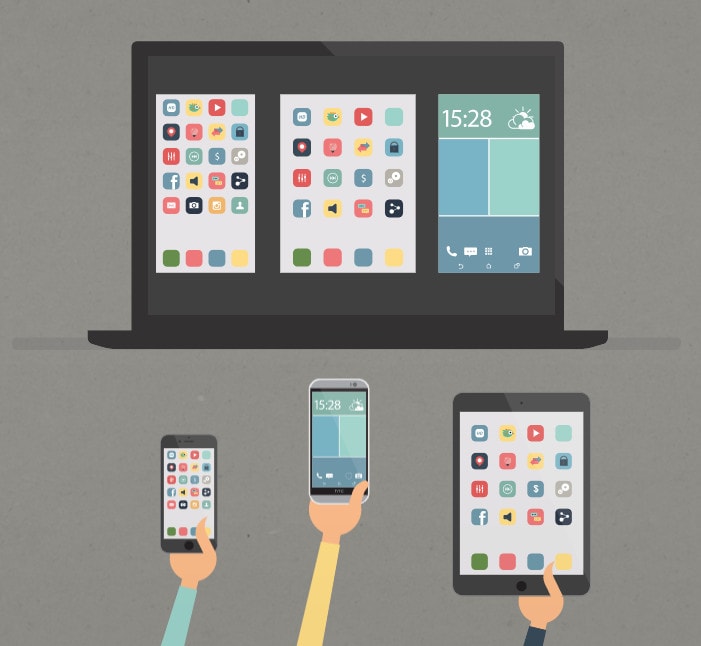
Airserver is an amazing screen mirroring app that allows you to share your iPhone or iPad screen with your PC in almost no time by following just a few easy steps. AirServer has incorporated many innovative features aimed at enhancing our digital world. Whatever your primary purpose is behind using a screen mirroring application, AirServer is built to make you feel confident and proud of using it. Note that both the iPhone/iPad and the receiving PC should be tightly connected via the exact same networking protocol.
You can turn your ordinary computer into a very powerful and reliable mirroring receiver through the AirServer platform. Being expertly developed for multiple platforms, it boasts robust compatibility with Windows, Chromebook, Android, Mac, and others. Its unique built-in feature natively lets you enjoy live streaming straight to YouTube. You can use it for multipurpose applications, including immersive Education, Entertainment, corporate Business presentations, fast-paced Gaming, Streaming Live Video, etc.
You can seamlessly buy and download it from this link: https://www.airserver.com/Download.
Compatibility
- iPhone 4s to iPhone X and newer models
- Windows 7/8/8.1/10
- Extremely smooth and easy setup process.
- It's available for a generous free 7 day trial.
- It fully supports the ability to mirror multiple iOS devices simultaneously to your PC screen.
- It absolutely requires a strong, fast Internet connection to function smoothly.
- Sometimes there is an unavoidable freezing issue during intense streams.
5. X-Mirage
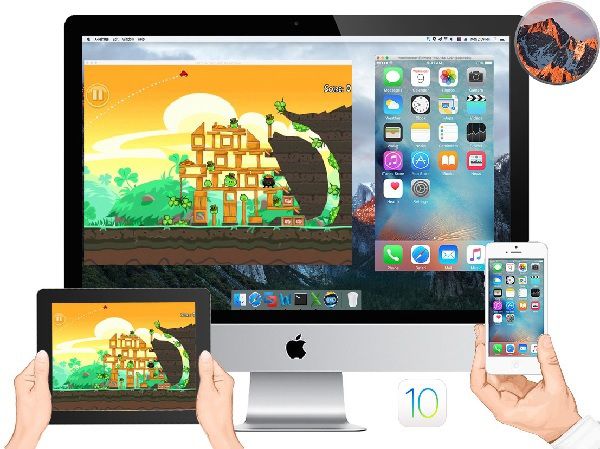
X-Mirage is widely regarded as the best application for wirelessly mirroring absolutely everything from your iPhone or iPad directly to a MAC or Windows computer. Being labeled the most professional Airplay server for both MAC and Windows environments, X-Mirage helps you effectively stream content from your iPhone or iPad to any other computer entirely wirelessly. Using X-Mirage, you can effortlessly record the screen, video, and audio outputs of any iOS device with just a single click.
It lets you reliably mirror multiple devices to a single computer or MAC concurrently and even allows you to custom name your computer to identify it among multiple Airplay receivers easily. Recording, mirroring, and sharing have truly never been so easy as X-Mirage has made it. Turning your everyday MAC and PC into a fully functional Airplay receiver, X-Mirage makes you comfortably mirror complex apps, high-speed games, high-res photos, 4K videos, business presentations, and much more right onto the big screen. X-Mirage is such a fundamentally user-friendly application that you can easily install it and start using it immediately without having any technical issues.
Either you visit its official website or directly use this specific download link for both MAC and Windows: https://x-mirage.com/download.html for downloading it quickly.
Compatibility
- iPhone 4s to iPhone X and above
- Windows 10, 8.1, 8, 7, Vista, XP
- MacOS X Snow Leopard – MacOS Mojave and newer versions
- It has a highly intuitive and easy-to-use interface.
- It seamlessly records videos with consistently good quality.
- You absolutely have to pay a premium fee to use all completed features.
6. LonelyScreen
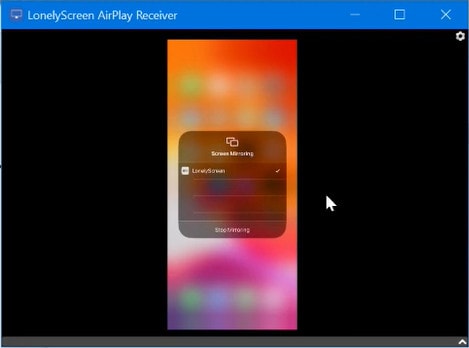
LonelyScreen is an incredibly lightweight AirPlay Receiver built explicitly for PC/MAC. It is a very simple and straightforward application designed for mirroring and casting your iPhone or iPad seamlessly to Windows or Mac OS computers. This reliable tool provides immense efficiency during academic lectures, corporate presentations, interactive gameplay, etc. All mirroring and media streaming happens easily, either wired or entirely wirelessly. You can accurately record a screen specifically for a tutorial or create professional educational videos. The only real thing you need to do is to properly install the LonelyScreen application on the receiving PC. Then make sure both devices actively connect to the same localized home network.
Here is the exact link for its official download: https://www.lonelyscreen.com/download.html.
Compatibility
- iPhone 4S or newer iterations.
- Win10, Win8/8.1, Win7, Vista, Windows 2000, Windows Server 2003.
- It's remarkably easy and fast to configure out of the box.
- It functions significantly better when strictly connected via WLAN.
- It's notoriously slow to receive a helpful email reply from customer support.
- It completely lacks a direct telephone support option.
7. iPhone/iPad Recorder
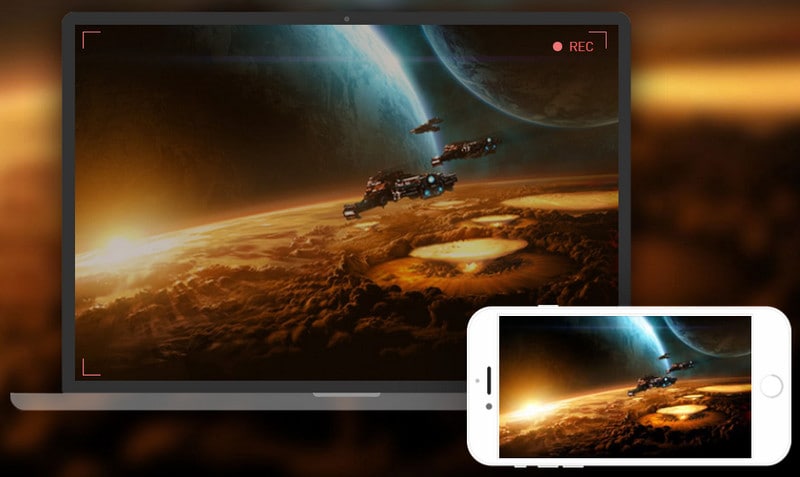
Now we are going to introduce you to a wonderful and highly capable screen recording application that is known as Apowersoft iPad/iPhone Recorder. It gives you an amazing and streamlined way to flawlessly record and mirror your iPhone or iPad screen in real-time. You absolutely need to connect both your casting devices to the same stable network for optimal screen mirroring. You thankfully don't need any complex Java Applet for using it; you merely need a small launcher to install it properly. Apowersoft is expertly developed for both Android and the latest iOS devices. You can effortlessly download it for free directly from its official developer website. It has made it easiest to beautifully mirror your iPhone/iPad to your desktop computer as it has incorporated many killing features that you would undeniably love to use daily.
Here is the direct link you can visit securely: http://www.apowersoft.com/.
Compatibility
- iOS 8.0 or later. Fully compatible with iPhone, iPad, and modern iPod touch iterations.
- It works reliably on both standard Windows and Mac OS computer environments.
- The resulting exported video is of exceptionally good quality.
- It sometimes mysteriously fails to capture and hear audio in the resulting video when you mirror extensively via airplay.
Conclusion
After carefully reading through this comprehensive article, we learned in-depth about the different high-quality applications specifically developed for seamless screen mirroring for both the iPhone and iPad. Using these robust mirror apps, we can confidently stream high-definition content from our iPhone/iPad completely wirelessly, making everyday presentations, entertainment, and media management significantly easier.
FAQ
-
1. Is screen mirror typically free to use?
Screen mirroring functionality is broadly available in the entirely free version of Wondershare Dr.Fone. Furthermore, in several other leading applications available on the market, they typically offer a generous 7-day free trial period to let users test features, just like Reflector 3, Airserver, and others do before committing to a purchase. -
2. Where is the mirror function located on the phone?
On modern Android phones, you simply go directly to the top notification panel and look closely to find the built-in option labeled 'Screen Sharing', 'Smart View', or something similar. On an Apple iPhone, the native 'Screen Mirroring' function is conveniently located right under the main Control Center menu. -
3. How can I reliably control my Android phone directly from a PC?
It's remarkably easy to completely control an Android phone right after you successfully mirror your Android screen directly to the PC by using software like MirrorGo or Dr.Fone. First, correctly install the application on the host computer. Second, connect the Android device securely to the program using a reliable data cable. Third, carefully enable the USB debugging option found deep within the Android settings. Done. You now can clearly see the phone screen and intuitively use your desktop mouse and keyboard to control it fully from your PC. -
4. Does an ipad screen mirroring app require a fast Wi-Fi connection?
Yes, the vast majority of wireless iOS screen mirroring applications heavily rely on a very stable and fast local Wi-Fi connection. Both your casting iPad/iPhone and your receiving monitor or PC must strictly be connected to the exact same Wi-Fi network in order for the devices to effectively discover each other and stream data without immense lag.
 Add Wondershare Dr.Fone as a preferred source on Google