Bypass iCloud Activation Lock and Android FRP without password.

 100% Security Verified | No Subscription Required | No Malware

 :
: 
 ChatGPT
 Perplexity
 Gemini
 Claude
 Grok
Grok

I bought a second-hand iPhone running iOS 14, but it's stuck on a "Remote Management" screen and I can't set it up. How can I bypass this MDM lock?
A concerned user on Apple Community
Mobile Device Management (MDM) is a powerful framework used by organizations to configure and secure devices like iPhones and iPads. While essential for corporate and educational environments, an MDM profile can be a significant roadblock if you've acquired a used device or wish to remove outdated restrictions. The lock prevents you from using the device freely, restricting app installations, settings changes, and more.
If you're facing this issue on an iOS 14 device, you're in the right place. This guide will explore the core functions of device management in iOS 14 and provide clear, step-by-step instructions on how to perform an MDM bypass on iOS 14, giving you full control over your device.
In this article
Part 1. Key MDM Features and Capabilities in iOS 14
The iOS 14 update introduced several enhancements to the MDM framework, giving administrators more granular control over managed devices. Understanding these features helps clarify what an MDM profile can control. Here are some of the notable capabilities:
- Encrypted DNS Settings: Administrators gained the ability to enforce encrypted DNS settings, securing the traffic between a device and the DNS server without needing a VPN. This enhances user privacy and data security on the network.
- App Clips Management: MDM solutions can prevent users from using App Clips, which are small parts of an app for quick functionality. This gives organizations control over which applications, even in trial form, can run on a device.
- Managed Apps and Books Location: This feature allows admins to preset device locations during setup, which is particularly useful for schools and governments to distribute region-specific apps and books from the App Store.
- Shared iPad for Business: Originally for education, the Shared iPad feature was expanded for business use. It enables multiple users to securely share a single device with their own managed Apple IDs, keeping data separate and secure. A temporary guest session is also available.
- Time Zone Management: For global organizations, admins can now set and lock the time zone on managed devices, ensuring consistency across a distributed workforce without relying on location services.
- Non-Removable Apps: Instead of blocking all app removal, iOS 14 allows admins to mark specific essential apps as "non-removable" on supervised devices, while still permitting users to delete other, non-critical applications.
- VPN and Account Association: MDM can now associate specific app data (like from Mail, Contacts, or Calendars) with a particular VPN configuration, ensuring that sensitive information is always transmitted securely.
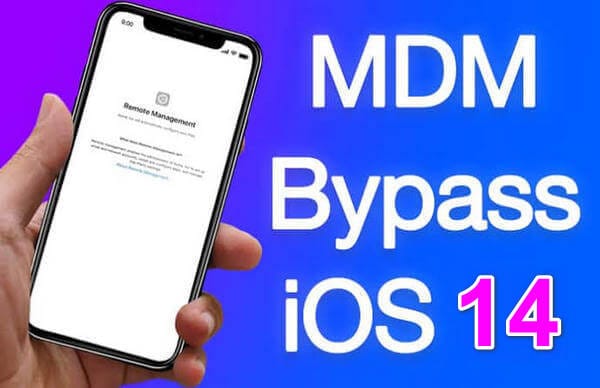
Part 2. How to Effortlessly Bypass MDM on iOS 14
While MDM is beneficial for organizations, it can be a major hurdle if you're the end-user of a locked device. To regain full access, you need a reliable method to bypass the MDM activation screen. Standard methods are often complex or require credentials you don't have. This is where a specialized tool becomes invaluable.
For a straightforward and effective MDM iOS 14 bypass, we recommend Dr.Fone - Screen Unlock (iOS). This software is engineered to handle various iOS lock scenarios, including MDM. It removes the restrictions imposed by a remote management profile without requiring a password, allowing you to use your iPhone or iPad freely. The process is safe, intuitive, and protects your existing data.
 Unlock iPhone/iPad passcode in minutes.
- Remove Face ID, Touch ID, and screen lock.
- Bypass iCloud Activation Lock easily.
- Support all iOS versions and devices.
- Simple steps, no technical skills needed.
Follow these simple steps to bypass the MDM profile on your iOS 14 device:
-
Step 1 Connect Your Device and Launch Dr.Fone
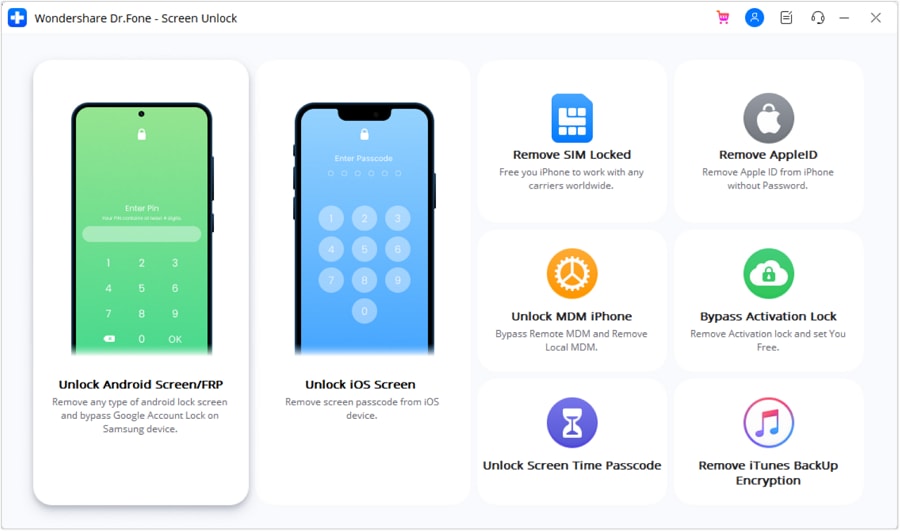
First, download and install Dr.Fone on your computer. Launch the application and select "Screen Unlock" from the main dashboard. Connect your iPhone or iPad to the computer using a USB cable.

-
Step 2 Select the MDM Unlock Option
On the next screen, choose "Unlock MDM iPhone" to proceed. You will then be presented with two choices. Select "Bypass MDM" to continue.
-
Step 3 Initiate the Bypass Process
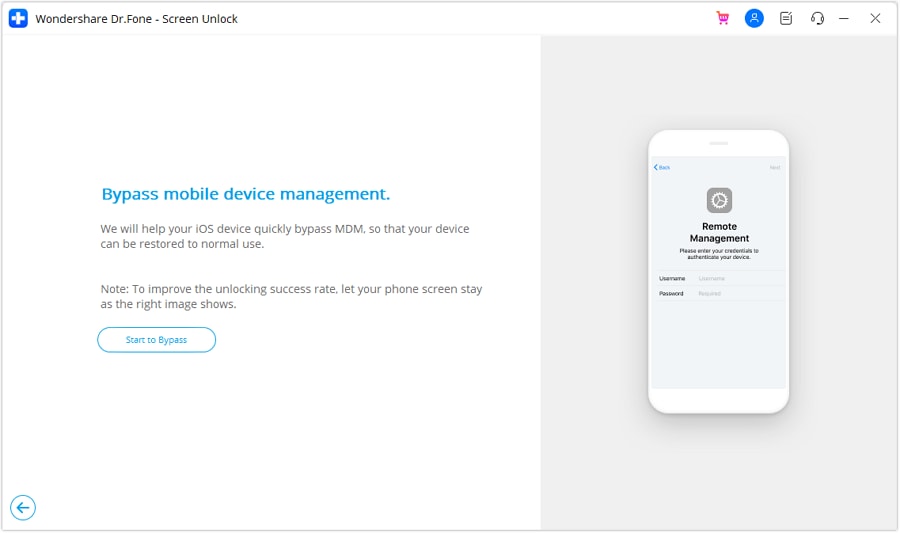
Review the on-screen information and click "Start to Bypass." The software will begin working immediately. The process is quick and typically completes within a few moments. Once finished, your device will restart, and the MDM lock screen will be gone, giving you unrestricted access.
Part 3. How to Permanently Remove the MDM Profile from an iOS 14 Device
Bypassing MDM is an excellent solution for getting past the activation lock. However, in some cases, you may want to remove the MDM profile from your iPhone on iOS 14 entirely. This ensures the device is no longer linked to the organization's management system, preventing any future configurations or restrictions from being pushed to it. Dr.Fone - Screen Unlock also offers a feature to permanently remove the profile.
Here’s how to completely remove the MDM profile using the Dr.Fone toolkit:
-
Step 1 Navigate to the MDM Removal Tool
Connect your iOS 14 device to your computer and launch Dr.Fone. Click on "Screen Unlock," then select "Unlock MDM iPhone" from the available tools.
-
Step 2 Choose to Remove MDM
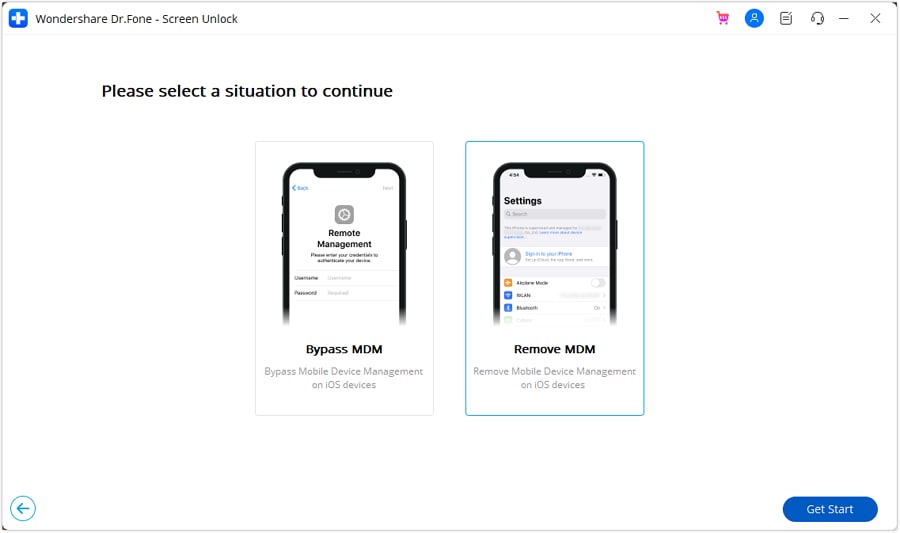
On the following screen, instead of choosing the bypass option, select "Remove MDM." This will initiate the permanent removal process.
-
Step 3 Start the Removal and Complete the Process
Click the "Start to Remove" button. The program will begin analyzing your device. You may be prompted to turn off the "Find My iPhone" feature if it is enabled. Follow the on-screen instructions. Once the process is complete, your iPhone will reboot, and the MDM profile will be permanently erased from your device.
Conclusion
Mobile Device Management is a crucial tool for organizations, but it becomes a significant obstacle for individuals with MDM-locked devices. The features introduced in iOS 14 gave administrators even more control, making it harder to use these devices freely. Fortunately, solutions are available to regain your autonomy.
Whether you need to perform a quick MDM bypass on iOS 14 to get past the lock screen or want to completely remove the profile for a fresh start, Dr.Fone - Screen Unlock offers a reliable and user-friendly solution. By following the steps outlined above, you can safely and efficiently unlock your device without data loss or technical complications.




FAQ
-
1. What is an MDM profile on an iOS 14 device?
An MDM profile is a configuration file installed on an iPhone or iPad that allows an administrator (like a company or school) to remotely manage the device. It can enforce security policies, install or restrict apps, configure network settings, and even wipe the device's data. -
2. Is it legal to perform an MDM bypass on iOS 14?
Bypassing MDM on a device you own, such as a second-hand iPhone, is generally considered acceptable. However, if the device is owned by an organization (e.g., your employer or school), removing the MDM profile may violate their terms of service. Always ensure you have the right to modify the device. -
3. Will bypassing the MDM lock on iOS 14 erase my data?
When using a professional tool like Dr.Fone - Screen Unlock, the MDM bypass and removal processes are designed to be non-destructive. Your personal data, including photos, contacts, and apps, will remain intact on the device. -
4. Can I remove the MDM profile on iOS 14 without a computer?
No, removing an MDM profile without the administrator's credentials typically requires specialized software that runs on a Windows or Mac computer. The process involves connecting the device to the computer via a USB cable to execute the necessary commands to bypass or remove the lock.
 Add Wondershare Dr.Fone as a preferred source on Google