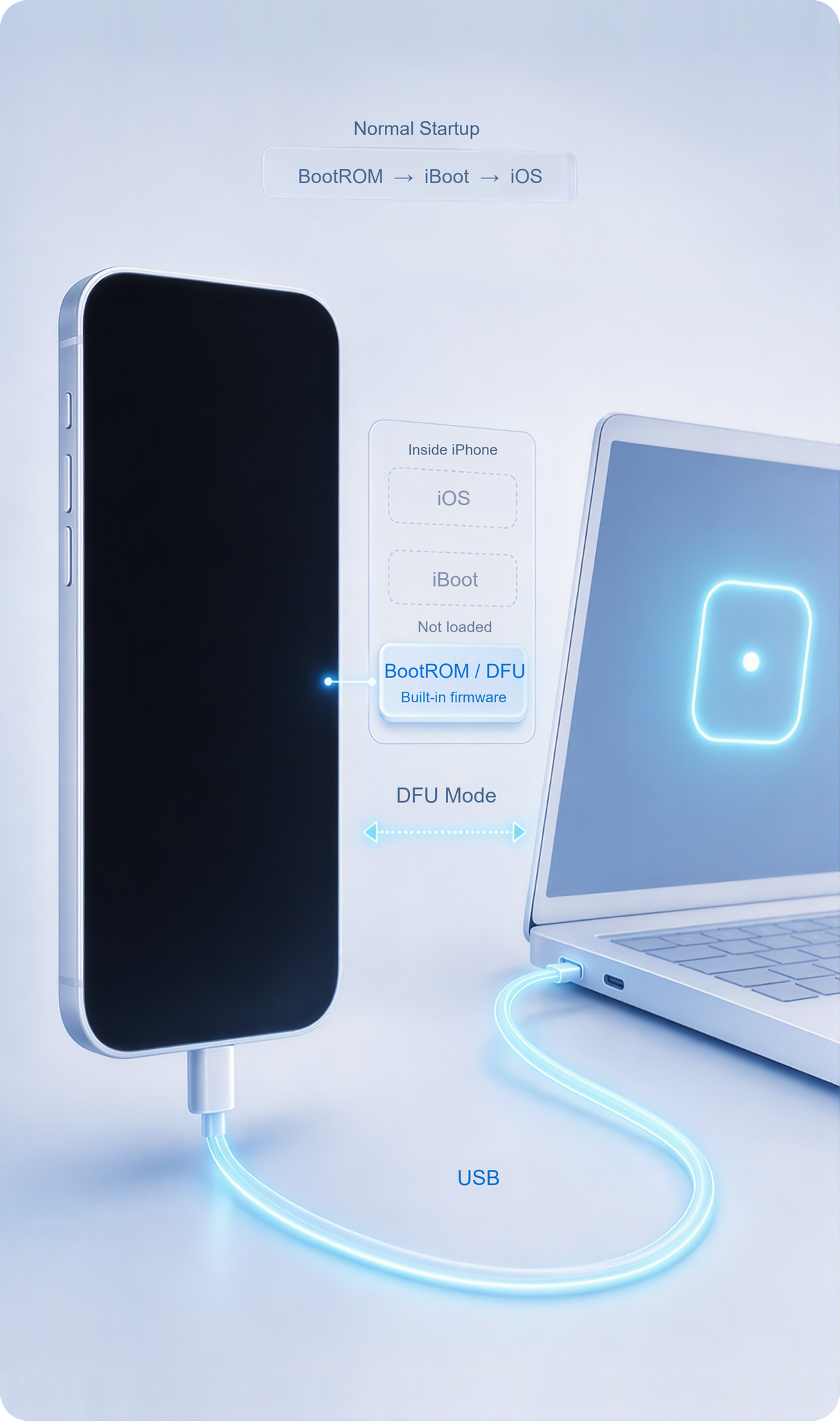
What Is DFU Mode?

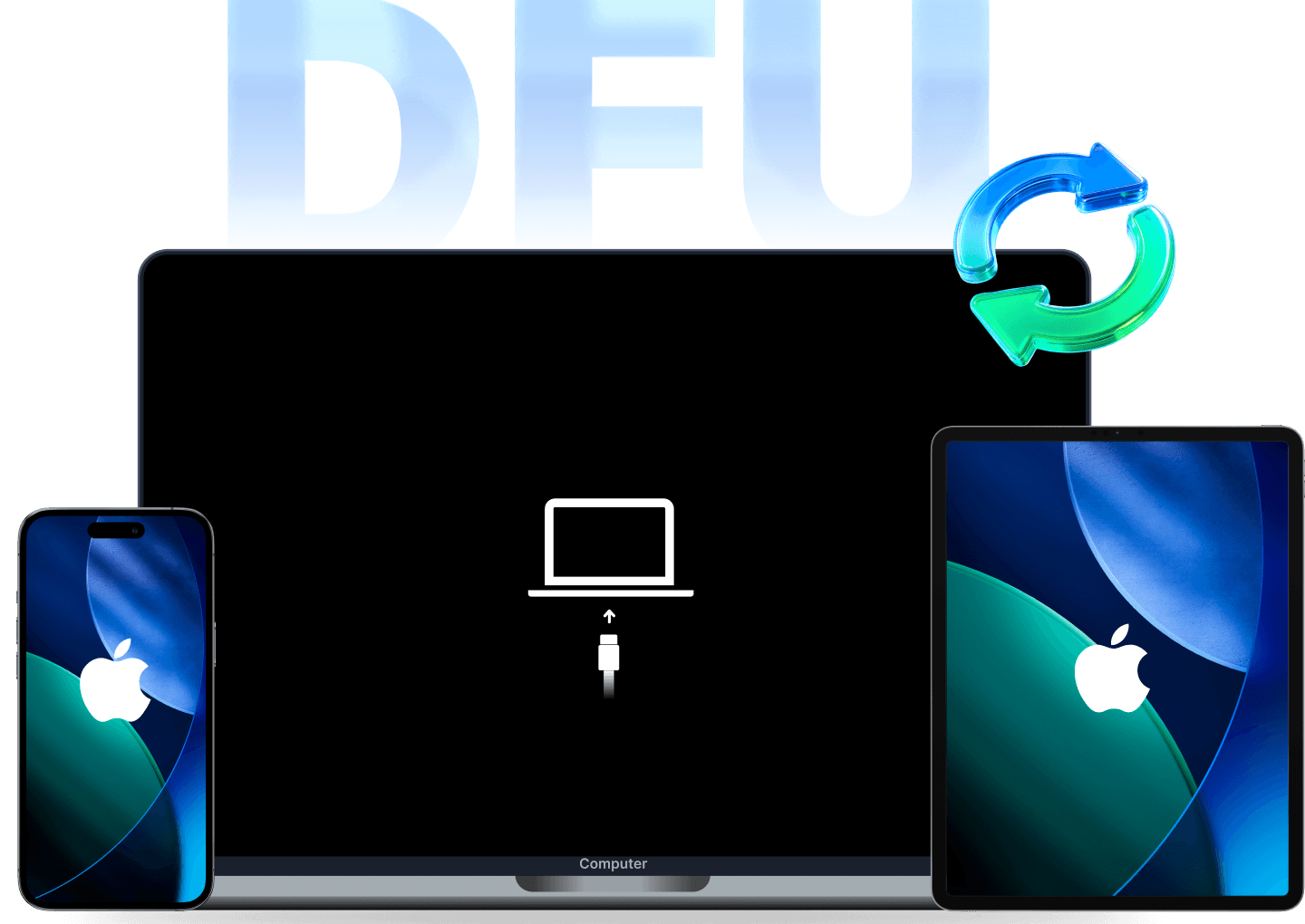
DFU Mode stands for Device Firmware Update Mode. It is the deepest restore state available on an iPhone, iPad, or iPod touch — deeper than Recovery Mode — because it allows your device to communicate with iTunes, Finder, or the Apple Devices app without loading the iOS bootloader (iBoot) or the operating system itself.

Here's what that means in practice: when your iPhone is in DFU Mode, the firmware can be reloaded from scratch, even if the software on the device is severely corrupted. That's why a DFU restore can rescue devices that Recovery Mode cannot.

Key characteristics of Apple DFU Mode:

  • The screen stays completely black. This is the defining visual sign of DFU Mode. If you see the "Connect to iTunes" or cable-and-computer icon, your device is in Recovery Mode, not DFU Mode.

  • It operates at the hardware level. DFU Mode is built into the SecureROM/BootROM burned into the device's chip, so it cannot be removed or disabled by software.

  • Your computer will detect the device as being "in recovery mode" and offer to restore it — this is normal and expected.

What DFU Mode Can Do:

  • Reload the firmware and restore an iPhone that won't boot

  • Fix a bricked iPhone or iPad stuck in a boot loop

  • Downgrade iOS to an earlier version (while Apple is still signing it)

  • Perform a DFU restore when a standard restore in Recovery Mode fails

What DFU Mode Cannot Do:

  • Bypass iCloud Activation Lock

  • Install unsigned or custom iOS versions

  • Fix hardware failures (broken screens, water damage, faulty batteries)

iPhone DFU firmware communication

DFU Mode vs Recovery Mode: What's the Difference?

Many users confuse DFU Mode with Recovery Mode because both connect your device to a computer for restoring. However, they work at different levels of your iPhone's startup chain.

Recovery Mode loads the iBoot bootloader and displays a "Connect to computer" screen. It's designed for routine restores and updates. DFU Mode bypasses iBoot entirely and talks directly to the hardware — the screen stays black, and the restore happens at the firmware level.

DFU Mode and Recovery Mode comparison for iPhone and iPad
Comparison DFU Mode Recovery Mode
Bootloader Bypasses iBoot Loads iBoot
Screen display Completely black "Connect to iTunes/computer" icon
Restore level Firmware/hardware-level Software-level
iOS downgrade Supported (signed versions only) Not supported
Difficulty to enter Harder (precise button timing) Easier
Data risk High (typically full erase) Medium (Update option may keep data)
Best used for When Recovery Mode fails Routine restore, update failures
Apple official support No (undocumented) Yes

Which one should you use? Always try Recovery Mode first — it's easier to enter, officially supported by Apple, and offers an "Update" option that may preserve your data. Only move to DFU Mode if Recovery Mode fails to restore your device, your iPhone is stuck in a boot loop, or you need to downgrade iOS.

Having trouble with Recovery Mode instead? See our guide: Enter/Exit iPhone Recovery Mode

When Should You Use DFU Mode?

How to Put Your iPhone in DFU Mode

The exact button combination depends on your iPhone model. Apple has changed the button layout three times, so find your model group below and follow the steps carefully — timing is everything when entering DFU Mode.

Before You Begin: Checklist

  • Back up your iPhone. A DFU restore erases everything. If your device still works, back up to iCloud or your computer first.

  • Charge to at least 20%. An interrupted restore can cause bigger problems.

  • Use an original or MFi-certified cable. Cheap cables are the #1 cause of "DFU Mode not working" complaints.

  • Open the right software. On macOS Catalina or later, open Finder. On Windows or older macOS, open iTunes or the Apple Devices app.

  • Stay connected to the internet — restore files are several gigabytes.

How to Enter DFU Mode on iPhone 8 and Later

Applies to: iPhone 8, 8 Plus, X, XR, XS, XS Max, 11, 11 Pro, 11 Pro Max, 12 series, 13 series, 14 series, 15 series, 16 series, and iPhone SE (2nd/3rd generation). Whether you're looking for iPhone 11 DFU Mode, iPhone 13 DFU Mode, iPhone 14 DFU Mode, or the latest iPhone 16 DFU Mode — the steps are identical.

  1. Connect your iPhone to your computer with a Lightning or USB-C cable.

  2. Quick-press and release the Volume Up button.

  3. Quick-press and release the Volume Down button.

  4. Press and hold the Side button until the screen goes completely black.

  5. As soon as the screen turns black, press and hold the Volume Down button while still holding the Side button. Hold both for 5 seconds.

  6. Release the Side button but keep holding Volume Down for about 10 more seconds.

  7. If the screen stays black and your computer shows a message like "iTunes/Finder has detected an iPhone in recovery mode" — you're in DFU Mode. ✅

  8. If the Apple logo appears, you held the Side button too long. If the "Connect to computer" screen appears, you entered Recovery Mode instead. ❌ Start over from Step 1.

How to Put Your iPad in DFU Mode

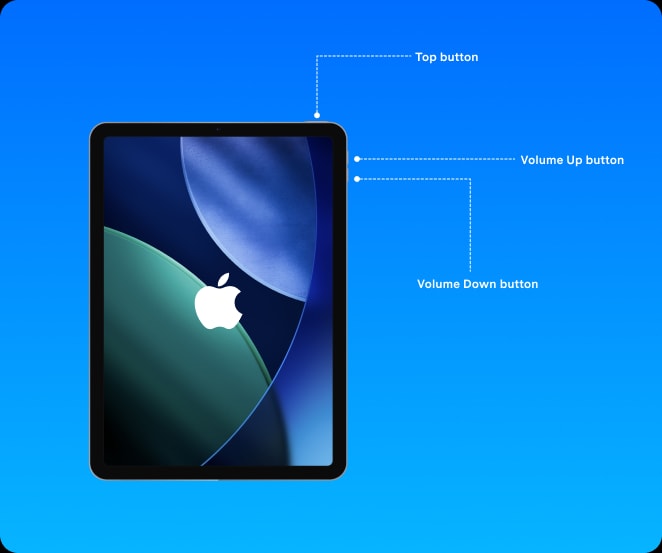
iPad DFU Mode follows the same logic as iPhone, but the button layout differs depending on whether your iPad has a Home button.

iPad with a Home Button

Applies to: standard iPad models, iPad mini (1st–5th gen), iPad Air (1st–3rd gen), iPad Pro 9.7"/10.5"/12.9" (1st & 2nd gen).

  1. Connect the iPad to your computer.

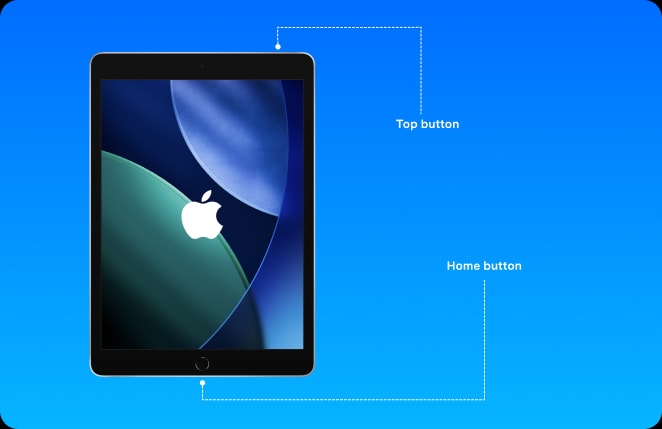
  2. Press and hold the Home button and the Top button simultaneously for 8 seconds.

  3. Release the Top button but keep holding the Home button until your computer detects the iPad.

  4. The screen remains black in DFU Mode.

iPad Home and Top buttons

How to Exit DFU Mode on iPhone and iPad

Accidentally entered DFU Mode? Or is your iPhone stuck in DFU Mode and you simply want out — without restoring? There are two ways to exit DFU Mode safely.

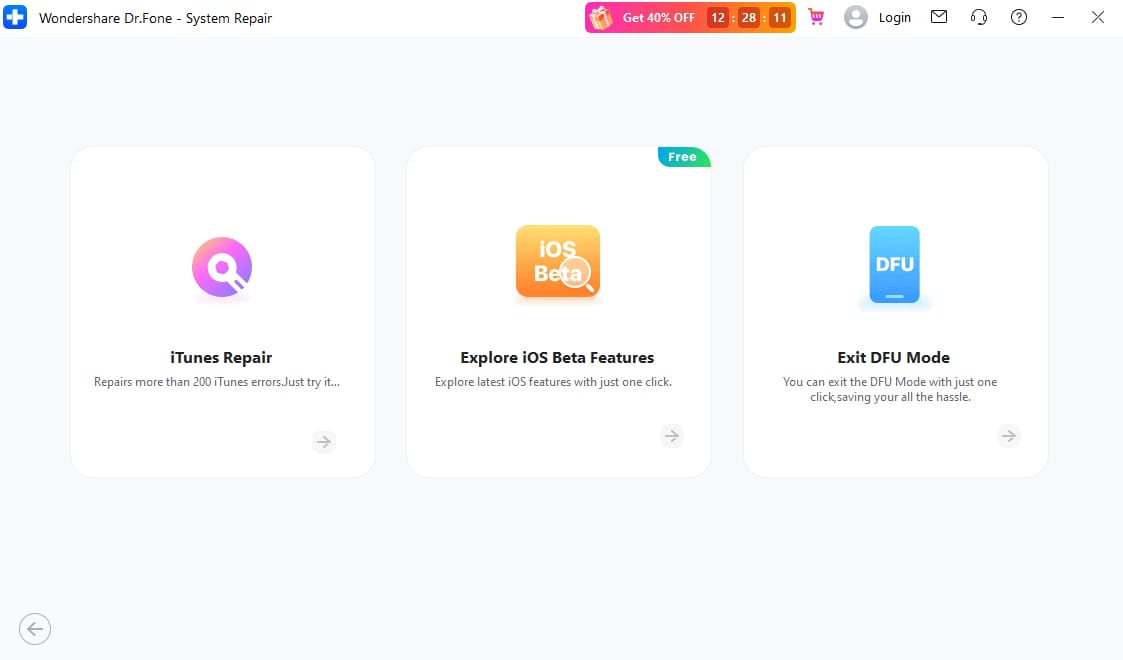
The fastest way to get out of DFU Mode is the free Exit DFU Mode tool built into Dr.Fone – System Repair. No button combinations, no timing pressure, no risk of accidentally triggering a restore.

Dr.Fone Exit DFU tool
  1. Download and launch Dr.Fone – System Repair on your Mac or PC.

  2. Navigate to Toolbox Repair.

  3. Select Exit DFU Mode.

  4. Follow on-screen instructions to exit.

The tool supports every model — from iPhone 6 DFU Mode issues to the latest iPhone 17 — and exiting DFU Mode this way does not erase any data.

DFU Mode Not Working? Common Problems & Fixes

DFU Mode has a reputation for being tricky — most failures come down to timing, cables, or software. Here's how to fix the most common issues.

The Apple Logo Appears Instead of a Black Screen

Cause: You held the Side button too long before adding the Volume Down button.

Fix: Start over, and press Volume Down the instant the screen goes black. The 5-second dual-button window is the step most people get wrong.

The "Connect to iTunes" Screen Appears (Recovery Mode Instead)

Cause: Your timing triggered Recovery Mode rather than DFU Mode — usually because the final Volume Down hold was too short.

Fix: Don't worry, no harm done. Exit Recovery Mode (force restart) and try the DFU steps again, watching the timing carefully.

The Screen Is Black but the Computer Doesn't Detect the Device

Cause: Usually a cable, USB port, or driver issue — not the DFU Mode itself.

Fix: Try an original Apple cable, connect directly to the computer (no USB hubs), switch USB ports, and make sure iTunes or the Apple Devices app is fully updated.

iTunes or Finder Won't Recognize the Device in DFU Mode

Cause: Outdated software or driver conflicts, especially on Windows.

Fix: Update iTunes to the latest version (or install the Apple Devices app on Windows 10/11), restart your computer, and try a different machine if the problem persists./p>

iPhone Stuck in DFU Mode and Won't Exit

Cause: A failed restore or deeper system corruption is preventing a normal reboot.

Fix: First try a force restart. If that fails, use Dr.Fone's free Exit DFU Mode tool — it forces the device out of the DFU state at the system level. If the device still won't boot, a full system repair is needed.

iPhone Keeps Exiting DFU Mode on Its Own

Cause: A loose cable connection or accidental button presses interrupt the DFU state.

Fix: Lay the phone flat, use a snug-fitting cable, and don't touch any buttons once connected.

What to Do After DFU Mode

DFU Restore — Reinstalling iOS

Once your computer detects your device in DFU Mode, click Restore in iTunes or Finder. The computer will download the latest signed iOS version and perform a full firmware reinstall. Keep the device connected and don't unplug it until the process finishes.

Will DFU Mode Erase My Data?

This depends on what you do:

  • Entering DFU Mode alone — no data loss. Your data stays intact.

  • Exiting DFU Mode — no data loss.

  • Performing a DFU restore — erases everything and returns the iPhone to factory condition.

Recovering Data After a DFU Restore

If you backed up beforehand, restore from your iCloud or computer backup during setup. If you didn't have a backup, tools like Dr.Fone – Data Recovery can scan your device and backups to retrieve photos, messages, and other files where possible.

DFU Mode FAQs & Hot Topics

  • DFU (Device Firmware Update) Mode is the deepest restore state on an iPhone. It lets the device communicate with a computer without loading the iOS bootloader, so firmware can be reloaded even when the system is severely corrupted. The screen stays completely black while in DFU Mode.

  • It depends on your model. iPhone 8 and later: Volume Up → Volume Down → hold Side until the screen goes black → hold Side + Volume Down for 5 seconds → release Side, keep holding Volume Down. iPhone 7/7 Plus: hold Side + Volume Down for 8 seconds, release Side, keep holding Volume Down. iPhone 6s and earlier: hold Home + Lock for 8 seconds, release Lock, keep holding Home.

  • Force restart your device: iPhone 8 and later — Volume Up, Volume Down, then hold the Side button until the Apple logo appears. Or use Dr.Fone's free Exit DFU Mode tool to exit in one click without any buttons.

  • Recovery Mode loads the iBoot bootloader and shows a "Connect to computer" screen; DFU Mode bypasses iBoot entirely and shows a black screen. DFU Mode is deeper, supports iOS downgrades, and is used when Recovery Mode fails.

  • Entering or exiting DFU Mode does not erase data. However, performing a DFU restore erases everything on the device — always back up first.

Why users choose Dr.Fone for DFU Mode issues:

  • Free Exit DFU Mode feature — no purchase required

  • Supports every model — iPhone 6 through iPhone 17, all iPads, iPod touch

  • No data loss — exiting DFU Mode never touches your files

  • 150+ system issues covered — boot loops, Apple logo stuck, black screen, update failures

  • 24/7 technical support

Wondershare Dr.Fone

All in One & One for All

Dr.Fone takes over all your phone management problems with a one-stop solution.