Android Recovery Mode: Enter, Exit & Fix Common Issues
Android Recovery Mode is a built-in maintenance environment that runs outside normal Android. You can use it to reboot the device, apply supported updates, access recovery options, or factory-reset a phone. Entering Recovery Mode by itself does not erase your personal data; choosing Wipe data/factory reset can. If you prefer not to use brand-specific hardware-button combinations, Dr.Fone also provides a free one-click way to enter or exit Recovery Mode.
-
Enter Android Recovery Mode without memorizing brand-specific key combinations.
-
Exit Android Recovery Mode when your phone is stuck on the recovery screen.
-
Helpful when the Power or Volume buttons are not working.
-
Supports common recovery scenarios on Samsung, OPPO, Xiaomi, Vivo, Pixel, and more.
-
Avoid risky options like Wipe data/factory reset unless you understand the data loss risk.



What Is Android Recovery Mode?
Android Recovery Mode is a built-in maintenance mode on Android phones and tablets. It helps you reboot the device, apply updates, clear cache files, or reset the phone when Android cannot start or work properly.
A Recovery Screen That Runs Outside Normal Android
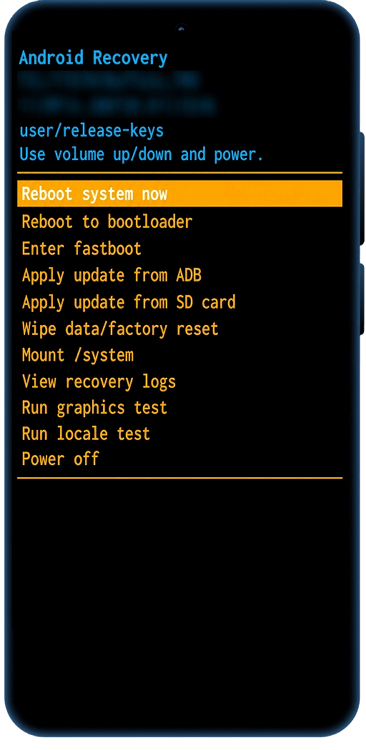
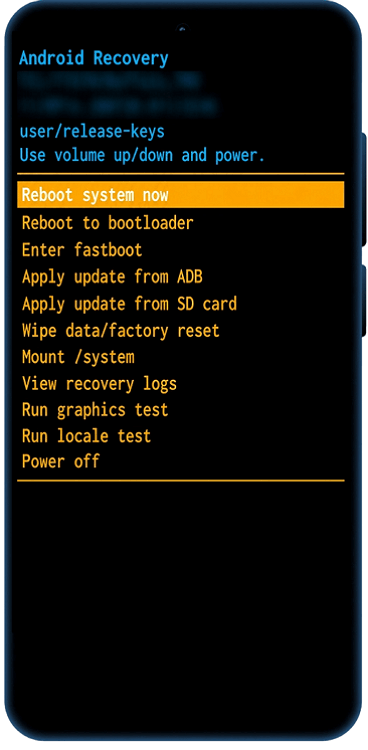
Recovery Mode runs before the normal Android system loads, so you can access recovery options even when the phone cannot boot correctly. On most devices, the menu is controlled by the Power and Volume buttons. From this menu, you can reboot the phone, clear cache, apply updates, or reset the device. The screen name and available options may vary by brand.
Also Shown As:
- Android Recovery — many Android phones
- System Recovery — Samsung, Pixel, Motorola
- MIUI Recovery — Xiaomi, Redmi, POCO
- ColorOS Recovery — OPPO, realme
- eRecovery — HUAWEI, HONOR
- Recovery Menu — general recovery screen
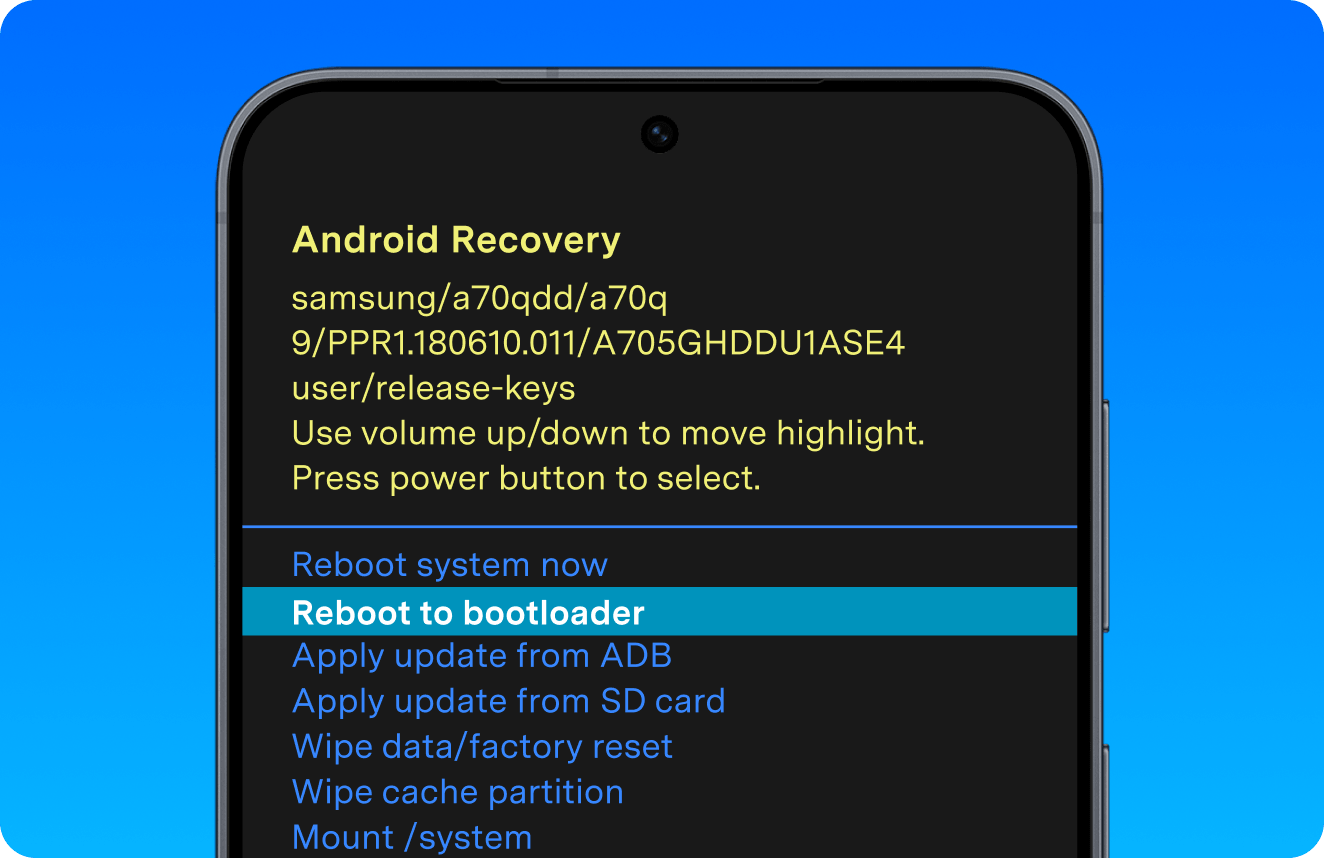
Use Recovery Mode When Android Cannot Start or Work Normally
Recovery Mode is useful when your phone needs a system-level troubleshooting step. Many users enter it to fix boot problems, recover from failed updates, or return the phone to normal Android when it is stuck on a recovery screen.
Common situations include:
- Your phone is stuck on the Android boot screen or Android logo.
- The device keeps restarting or enters an Android boot loop.
- A system update failed or was interrupted.
- You need to wipe cache on a supported device.
- You need to apply an update manually.
- Your phone is stuck in Recovery Mode and needs to exit.

Recovery Mode Is Safe to Open, But Some Options Can Erase Data
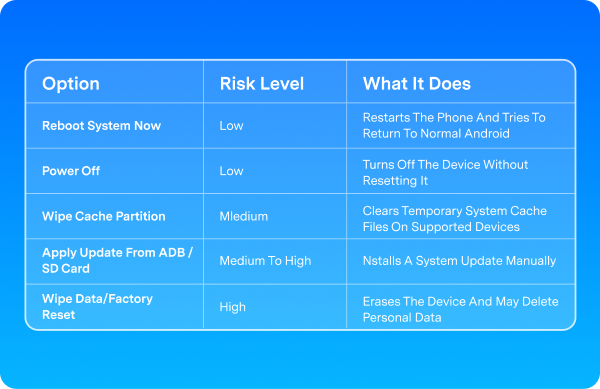
Opening Android Recovery Mode does not delete your files, apps, photos, or messages by itself. Safe options like Reboot system now or Power off only restart or turn off the phone. The risk depends on which option you choose inside the recovery menu.
Warning Note:
Do not choose Wipe data/factory reset unless you are ready to erase the device. This option may delete personal data.
| Option | Risk Level | What It Does |
|---|---|---|
| Reboot System Now | Low | Restarts The Phone And Tries To Return To Normal Android |
| Power Off | Low | Turns Off The Device Without Resetting It |
| Wipe Cache Partition | Medium | Clears Temporary System Cache Files On Supported Devices |
| Apply Update From ADB / SD Card | Medium To High | Installs A System Update Manually |
| Wipe Data/Factory Reset | High | Erases The Device And May Delete Personal Data |
Recovery Mode Is Different from Fastboot, Safe Mode, and Download Mode
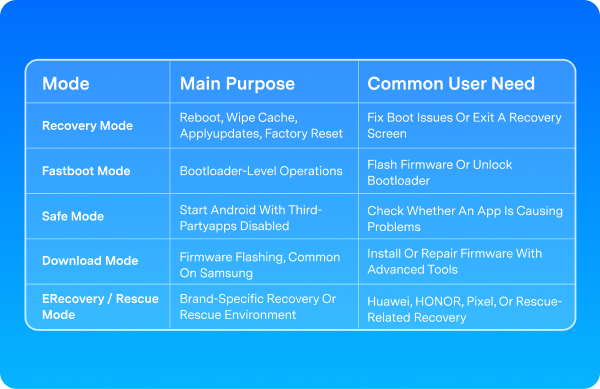
Android devices can show several system modes, and they are easy to confuse. Recovery Mode is mainly used to reboot the device, wipe cache, apply updates, or reset the phone. Fastboot, Safe Mode, Download Mode, and eRecovery are designed for different repair or diagnostic tasks.
Short Tip:
If you only want to enter or exit Android Recovery Mode, you usually do not need Fastboot Mode, Download Mode, or advanced flashing steps.
| Mode | Main Purpose | Common User Need |
|---|---|---|
| Recovery Mode | Reboot, Wipe Cache, Apply Updates, Factory Reset | Fix Boot Issues Or Exit A Recovery Screen |
| Fastboot Mode | Bootloader-Level Operations | Flash Firmware Or Unlock Bootloader |
| Safe Mode | Start Android With Third-Party Apps Disabled | Check Whether An App Is Causing Problems |
| Download Mode | Firmware Flashing, Common On Samsung | Install Or Repair Firmware With Advanced Tools |
| ERecovery / Rescue Mode | Brand-Specific Recovery Or Rescue Environment | Huawei, HONOR, Pixel, Or Rescue-Related Recovery |
The Easier Way: Enter or Exit Android Recovery
Mode in One Click
Skip brand-specific button combinations. With Dr.Fone - System Repair (Android), you can enter or exit Android Recovery Mode for free in one click. This is also useful when the Power or Volume buttons are not working reliably.

Dr.Fone - System
Repair (Android)
A simple Android system repair toolkit with a free one-click Recovery Mode feature. Enter or exit Android Recovery Mode without complex Power and Volume button combinations.
Also Includes:
- Repair Android System
- Enter / Exit Recovery Mode for Free
- Enter / Exit Fastboot Mode for Free
- Enter / Exit Download Mode for Free
- Clean System Cache


Download the latest version | Secure & verified
How to Enter or Exit Android Recovery Mode with Dr.Fone

Download and Connect

Find Recovery Mode

Click Enter or Exit
How to Enter Android Recovery Mode Manually
To enter Android Recovery Mode, power off your phone and use the Power and Volume button combination for your specific model. The exact sequence varies by brand, and some devices require a USB connection or bootloader step. Choose your phone brand below for the correct entry path.
How to Enter Android Recovery Mode on Most Android Devices
Use this general method for Android phones and tablets when you are not sure which brand-specific button combination to use.
Entry Path:
Power + Volume Up or Power + Volume Down
Variation note:
The exact button combination varies by brand and model. If this method does not work, choose your device brand below or use the one-click method above.
Steps:
- Power off your Android device.
- Press and hold the required Power + Volume button combination.
- Release the buttons when the brand logo, boot menu, or Recovery Mode screen appears.
- Select Recovery Mode if a boot menu is shown.
- Wait for the Android Recovery menu.


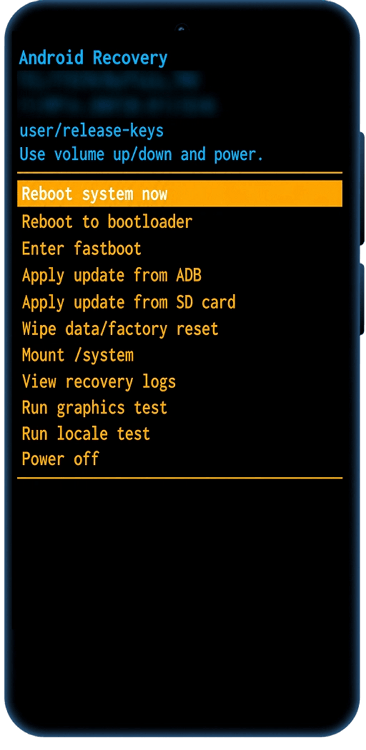
How to Enter Recovery Mode on Newer Samsung Galaxy Models Without a Bixby or Home Button
Use this guide for newer Galaxy S, Note, Fold, Flip, A series, and related models that do not have a physical Home button or a dedicated Bixby button.
Entry Path:
Volume Up + Side Key
Variation Note:
On some newer Galaxy models, connecting the phone to a computer with a USB cable may be required before the Recovery menu can open.
If your goal is to reset the device instead of only entering Recovery Mode, read the guide to hard reset Samsung phone first.
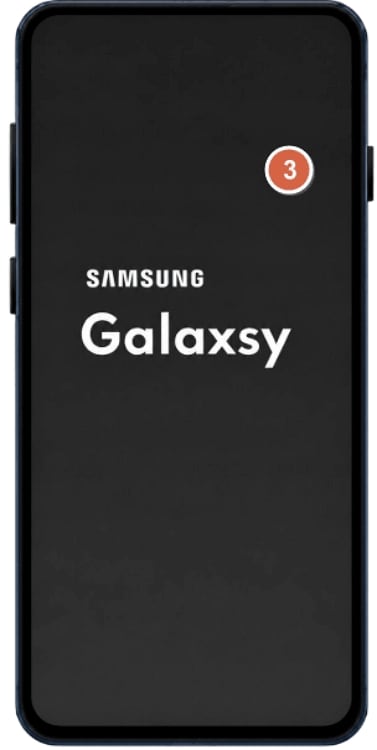
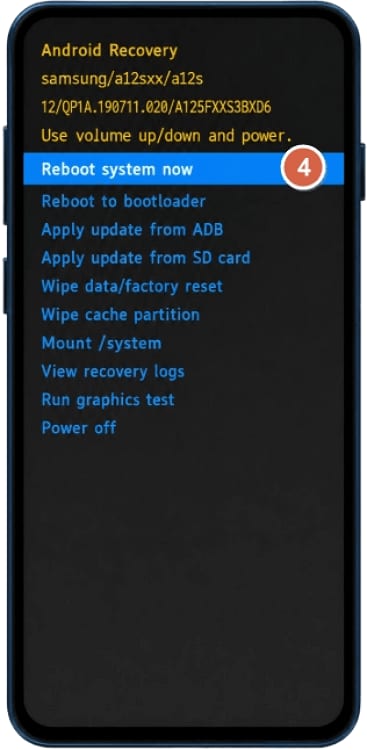
Steps:
- Power off your Samsung Galaxy phone.
- Press and hold Volume Up + Side Key at the same time.
- Release the buttons when the Samsung logo appears or when the device vibrates.
- Wait for the Samsung Recovery menu to appear.


How to Enter Recovery Mode on Samsung Galaxy Models with a Bixby Button
Use this guide for Galaxy S, Note, and related models with a dedicated Bixby button, such as Galaxy S8, S9, S10, Note8, and Note9 series.
Entry Path:
Bixby + Volume Up + Power
Variation Note:
If the device does not enter Recovery Mode, connect it to a computer with a USB cable, power it off, and try the same key combination again.
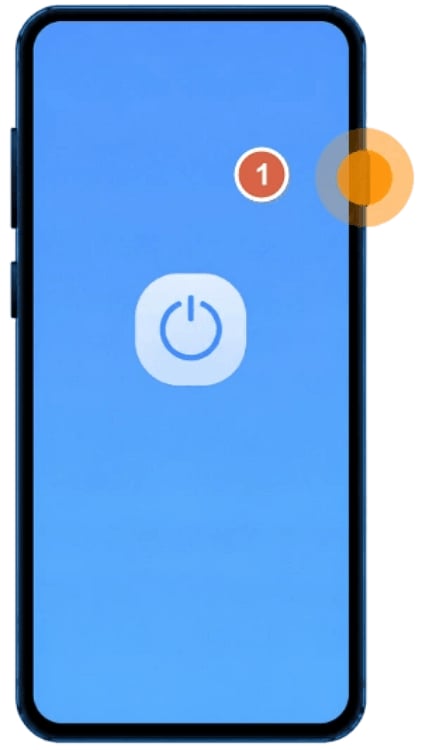
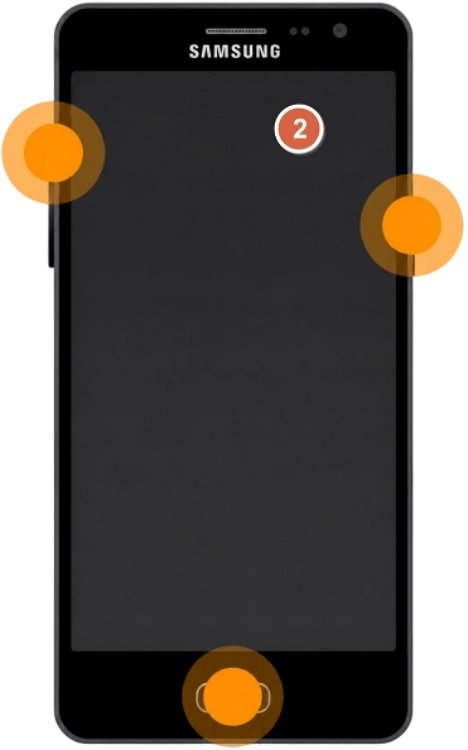
Steps:
- Power off your Samsung Galaxy phone
- Press and hold Bixby + Volume Up + Power at the same time.
- Release all buttons when the Samsung logo appears or when the device vibrates.
- Wait for the Android Recovery menu to appear.
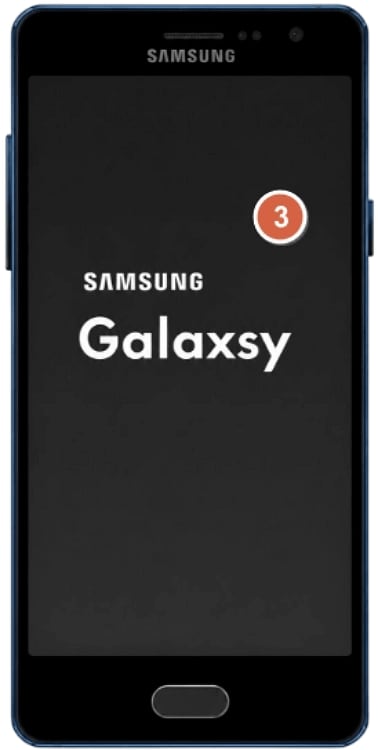
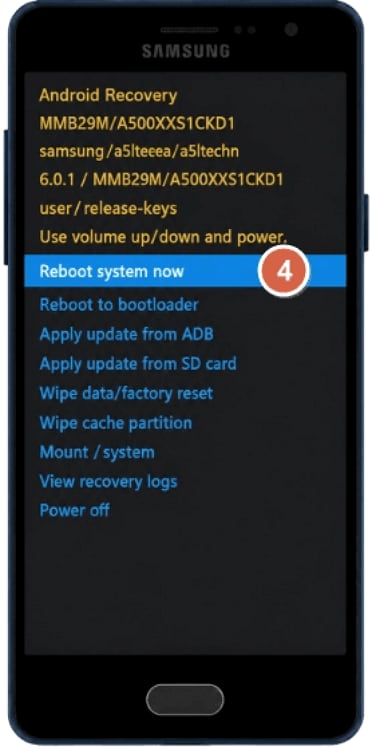
How to Enter Recovery Mode on Older Samsung Galaxy Models with a Home Button
Use this guide for older Galaxy S, Note, J series, and other models with a physical Home button.
Entry Path:
Home + Volume Up + Power
Variation Note:
Use this method only if your Samsung device has a physical Home button.
Steps:
- Power off your Samsung Galaxy phone.
- Press and hold Home + Volume Up + Power.
- When the device vibrates or the Samsung logo appears, release the Power button first.
- Keep holding Home + Volume Up until the Recovery menu appears.
- Release the remaining buttons.
How to Enter Recovery Mode on Xiaomi, Redmi, and POCO Phones
Use this guide for most Xiaomi, Redmi, and POCO phones running MIUI or HyperOS.
Entry Path:
Power + Volume Up
Variation Note:
The Recovery menu name may appear as Mi Recovery, MIUI Recovery, HyperOS Recovery, or simply Recovery, depending on your device model and system version.
If your phone enters Fastboot Mode instead, you may have pressed Volume Down by mistake. Hold the Power button for more than 10 seconds to restart the phone, then power it off and try Volume Up + Power again. If the device stays there, see how to fix Xiaomi stuck on Fastboot.
Steps:
- Power off your Xiaomi, Redmi, or POCO phone.
- Press and hold Volume Up + Power at the same time.
- Release the buttons when the Mi, Redmi, or POCO logo appears or when the Recovery menu starts loading.
- Wait for the Recovery menu to appear.


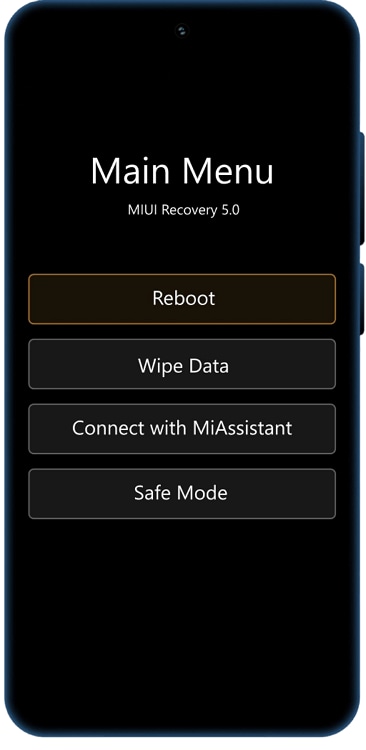
How to Enter Recovery Mode on Realme Phones
Use this guide for most realme phones that use realme UI or ColorOS-based recovery menus.
Entry Path:
Power + Volume Down
Variation Note:
Some realme models may show ColorOS Recovery instead of a standard Android Recovery screen.
Steps:
- Power off your realme phone.
- Press and hold Power + Volume Down at the same time.
- Release the buttons when the phone vibrates, the realme logo appears, or the Recovery screen starts loading.
- Select a language if prompted.
- Wait for the ColorOS / realme UI Recovery menu to appear.



How to Enter ColorOS Recovery Mode on OPPO Phones
Use this guide for most OPPO phones with ColorOS Recovery.
Entry Path:
Power + Volume Down
Variation Note:
ColorOS Recovery may include options such as Reboot, Wipe data, Format data, Check disk, or Install from storage, depending on your ColorOS / Android version. Some newer ColorOS versions may not include the Install from storage option.
Steps:
- Power off your OPPO phone.
- Press and hold Power + Volume Down at the same time.
- Keep holding the buttons until the ColorOS Recovery or language selection screen appears.
- Choose your language if the option appears.
- Wait for the ColorOS Recovery menu to appear.




How to Enter Recovery Mode on OnePlus Phones
Use this guide for most OnePlus phones that open Recovery Mode with a Power and Volume button combination.
Entry Path:
Power + Volume Down
Variation Note:
ome OnePlus models may ask for a screen lock password before showing recovery options or before allowing certain recovery actions.
Steps:
- Power off your OnePlus phone.
- Press and hold Power + Volume Down at the same time.
- Release the buttons when the OnePlus logo appears or when the Recovery screen starts loading.
- Enter your PIN, password, or screen lock if prompted.
- Choose your language if prompted.
- Wait for the Recovery menu to appear.




How to Enter Recovery Mode on vivo and iQOO Phones
Use this guide for most vivo and iQOO phones. Steps may vary slightly by model, system version, and release year.
Entry Path:
Power + Volume Up > FASTBOOT > Recovery Mode
Variation Note:
Some vivo and iQOO phones may show Fastboot Mode or System Repair Mode first. Confirm the screen title before selecting any reset option.
Steps:
- Power off your vivo or iQOO phone.
- Press and hold Power + Volume Up at the same time.
- Release the buttons when the FASTBOOT screen appears.
- Use the Volume buttons to select Recovery Mode or Enter RECOVERY.
- Press the Power button to confirm.
- Wait for the recovery menu.


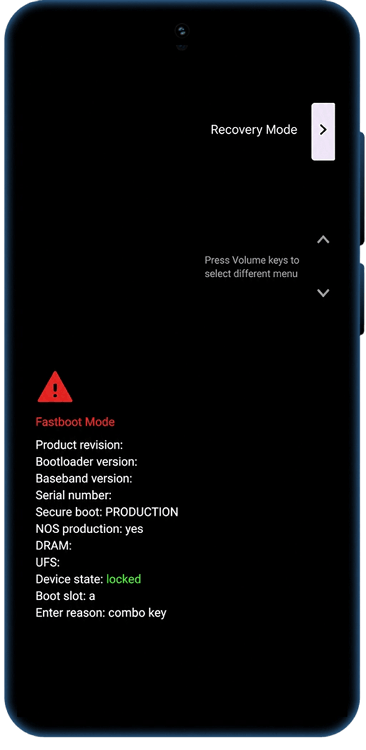
How to Enter Recovery Mode or eRecovery on HUAWEI Phones
Use this guide for most HUAWEI phones that show Recovery Mode, eRecovery, or a similar system recovery screen.
Entry Path:
Power + Volume Up
Variation Note:
On some HUAWEI models, eRecovery or system restoration mode may require the phone to be connected to a charger or computer via USB before pressing Power + Volume Up.
If your phone enters eRecovery, eUpdate, Fastboot & Rescue Mode, or another rescue screen, read the screen title and options carefully before choosing update, wipe, reset, or restore actions.
Some HUAWEI models without physical volume buttons may use a different recovery entry method, such as pressing the Power button several times after the device vibrates.
Steps:
- Power off your HUAWEI phone.
- Remove any USB cable from the phone if you want to enter standard Recovery Mode.
- Press and hold Power + Volume Up at the same time.
- Release the buttons when Recovery Mode appears, or when the HUAWEI logo appears and the Recovery screen starts loading.
- Wait for the Recovery Mode screen to appear.



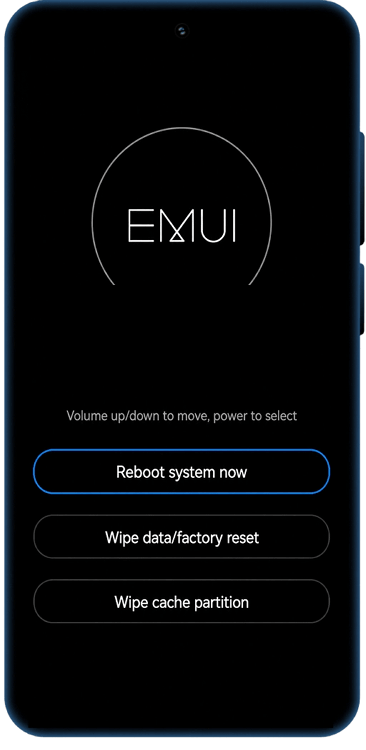
How to Enter Recovery Mode or eRecovery on HONOR Phones
Use this guide for most HONOR phones that use Recovery Mode, eRecovery, or similar system recovery menus.
Entry Path:
Power + Volume Up
Variation Note:
On some HONOR models, connecting the phone to a charger or computer with a USB cable before pressing Power + Volume Up may open eRecovery instead of standard Recovery Mode.
HONOR recovery screens may vary by model and system version. You may see options such as Recovery Mode, eRecovery, Wipe cache partition, Wipe data/factory reset, Restart, or system restore options.
Steps:
- Power off your HONOR phone.
- Remove any USB cable from the phone if you want to enter standard Recovery Mode.
- Press and hold Power + Volume Up at the same time.
- Release the buttons when the HONOR logo appears or when the Recovery screen starts loading.
- Wait for the Recovery Mode screen to appear.



How to Enter Recovery Mode on Google Pixel Phones
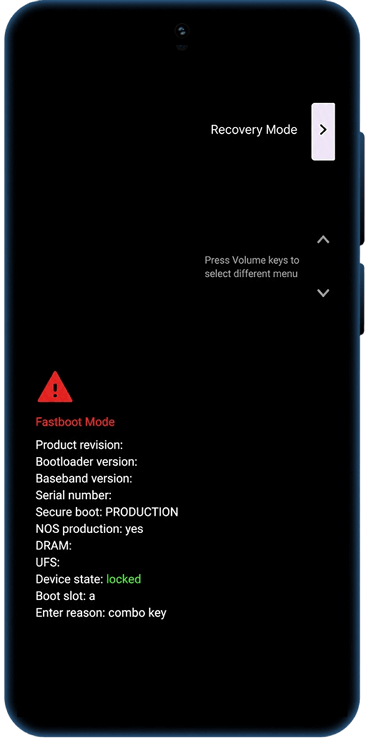
Use this guide for Google Pixel phones that enter Recovery Mode through Fastboot Mode. Button combinations may vary by Pixel generation.
Entry Path:
*Pixel 6 and later: Volume Down + Power > Fastboot Mode > Recovery Mode
*Earlier Pixel devices: Volume Up + Power > Fastboot Mode > Recovery Mode
Variation Note:
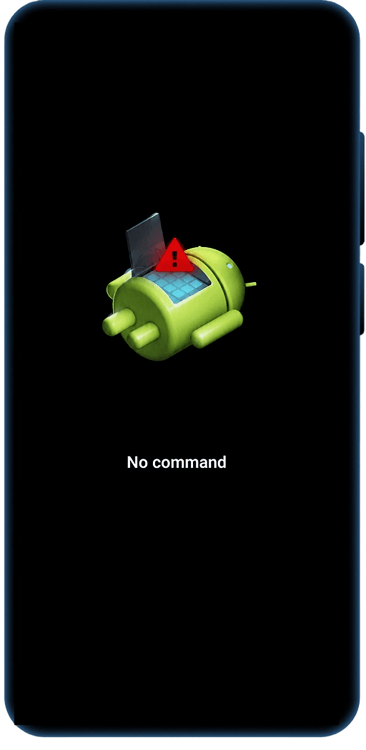
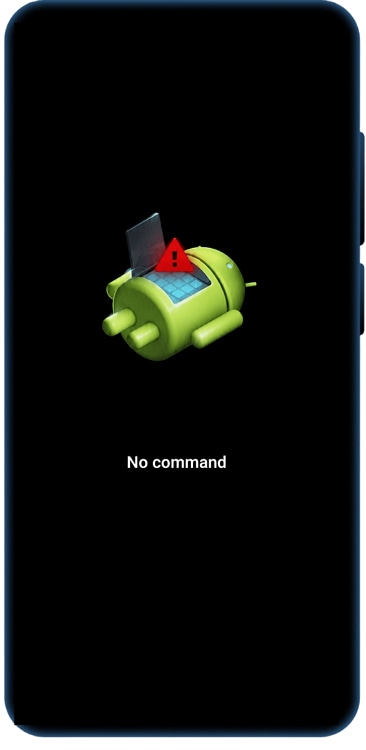
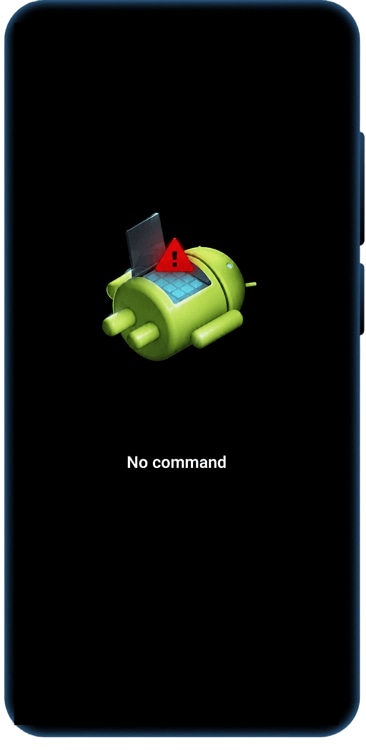
The No command screen is common on Pixel devices and does not always mean your phone is broken. It is often an intermediate screen before the Android Recovery menu.
If the phone restarts instead of opening Fastboot Mode, you may have held the buttons for too long. Power off the phone and try again.
Steps:
- Power off your Google Pixel phone.
- For Pixel 6 and later, press and hold Volume Down + Power at the same time until the Fastboot Mode screen appears.
- For earlier Pixel devices, press and hold Volume Up + Power at the same time until the Fastboot Mode screen appears.
- Use the Volume buttons to scroll through the Fastboot menu until Recovery Mode is displayed.
- Press the Power button to confirm.
- If you see the No command screen, press and hold the Power button. While holding Power, press Volume Up once, then quickly release both buttons.
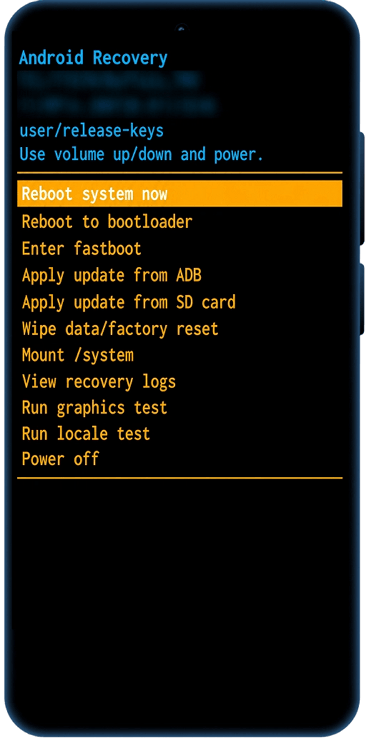
- Wait for the Android Recovery menu to appear.


How to Enter Recovery Mode on Infinix and TECNO Phones
Use this guide for most Infinix and TECNO phones with a standard Android Recovery menu. Button timing and screen names may vary by model.
Entry Path:
Power + Volume Up
Variation Note:
Infinix and TECNO steps are often similar, but screen names and button timing may vary by model. Some TECNO models may show a boot options screen first. Use the Volume buttons to navigate and the Power button to confirm.
Steps:
- Power off your Infinix or TECNO phone.
- Press and hold Power + Volume Up at the same time.
- Release the buttons when the Infinix or TECNO logo appears, or when the Android robot / Recovery screen starts loading.
- If you see the Android robot or No command screen, press Power + Volume Up once to open the Recovery menu.
- Wait for the Android Recovery menu to appear.


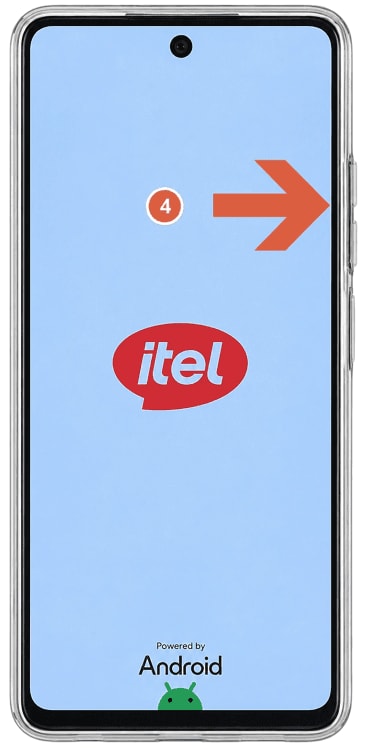
How to Enter Recovery Mode on itel Phones
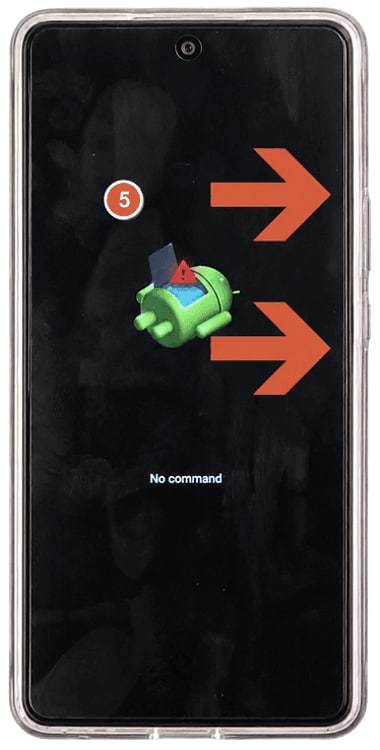
Use this guide for most itel phones that enter Recovery Mode through a hardware key combination, Factory Mode, or an Android robot / No command screen.
Entry Path:
Power + Volume Down > Android robot / Factory Mode > Recovery Mode
Variation Note:
Some itel models may use Power + Volume Up instead, or may show a different boot menu before Recovery Mode. If the screen does not match, check the exact model-specific guide.
Steps:
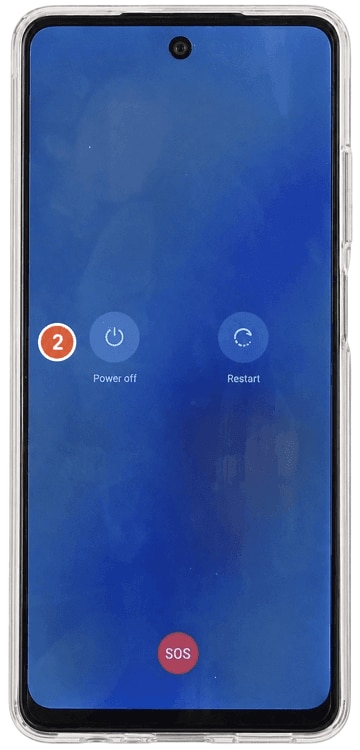
- Power off your itel phone.
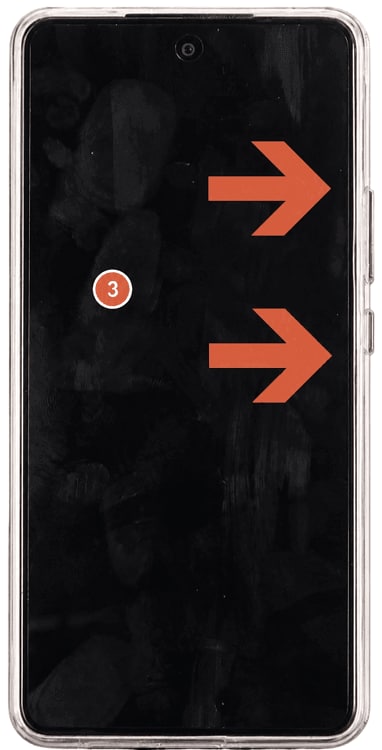
- Press and hold Power + Volume Down at the same time.
- Release the Power button when the itel logo appears, but keep holding Volume Down until the Android robot, Factory Mode, or recovery-related screen appears.
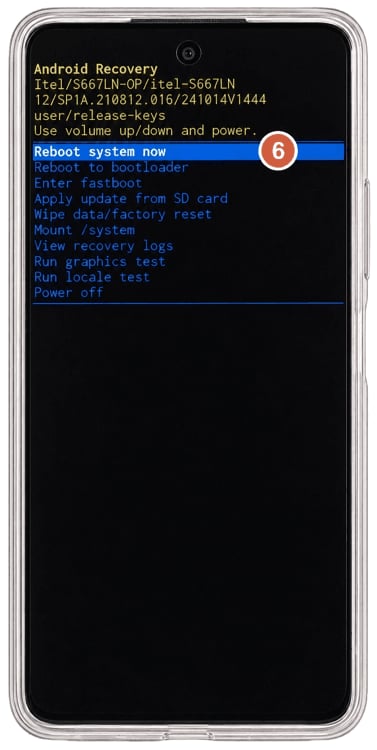
- If you see the Android robot or No command screen, press Power + Volume Up once to open the Recovery menu.
- If a boot menu or Factory Mode screen appears, use the Volume buttons to select Recovery Mode, then press Power to confirm.
- Wait for the Android Recovery menu to appear.

How to Enter Recovery Mode on Motorola Phones
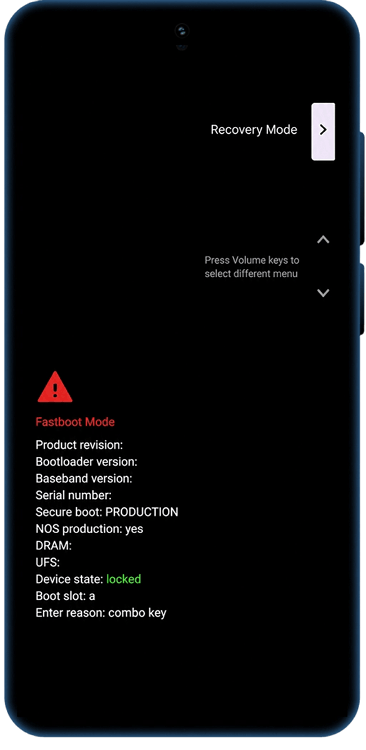
Use this guide for most Motorola phones that enter Recovery Mode through the bootloader or Fastboot-style menu.
Entry Path:
Volume Down + Power > Bootloader / Fastboot > Recovery Mode
Variation Note:
Motorola devices often show a Bootloader, Fastboot, or boot options screen before Recovery Mode. This is normal for many models.
If your Motorola phone cannot boot normally, see this guide for a Motorola phone stuck on boot.
Steps:
- Make sure the battery is charged to at least 30%.
- Power off your Motorola phone.
- Press and hold Volume Down + Power at the same time until the phone turns on.
- Use the Volume buttons to scroll to Recovery Mode.
- Press the Power button to confirm.
- If you see the Android robot or No command screen, press and hold the Power button, then press and release Volume Up once.
- Wait for the Android Recovery menu to appear.


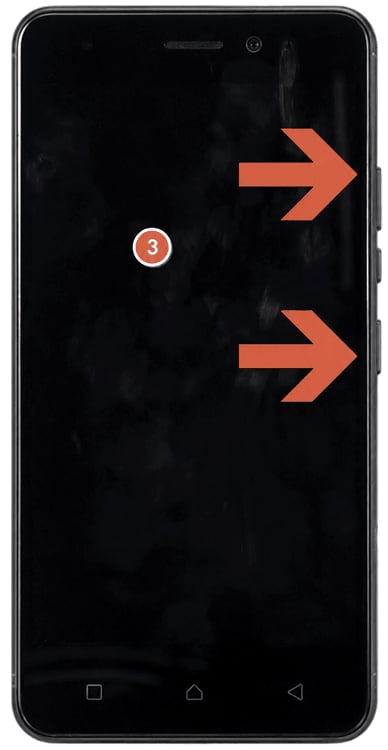
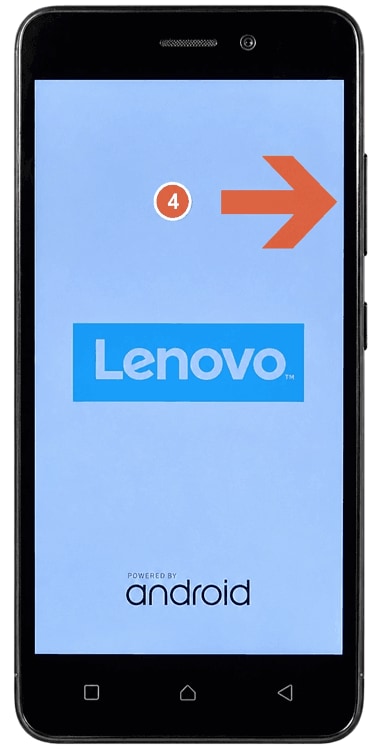
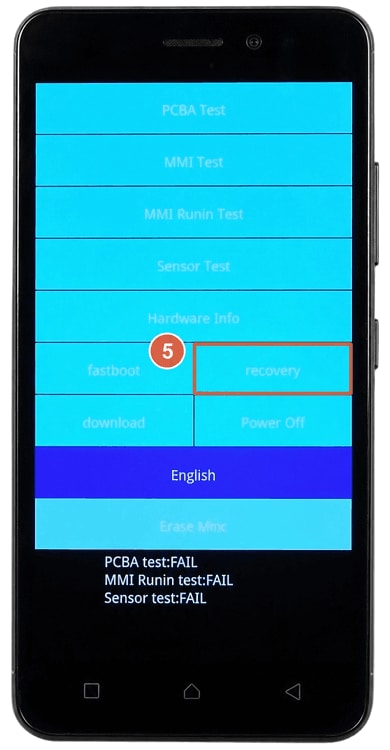
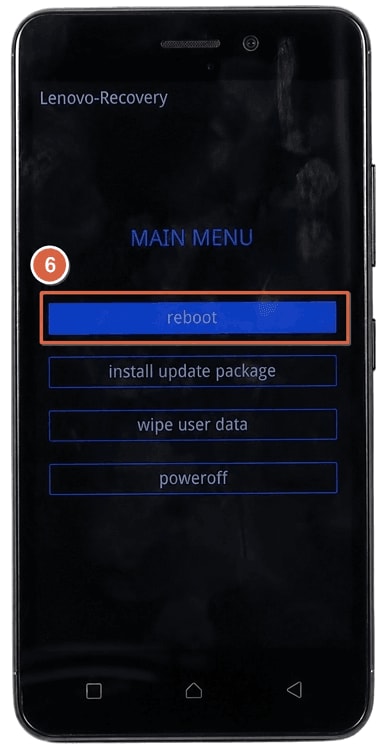
How to Enter Recovery Mode on Lenovo Phones or Tablets
Use this guide for Lenovo Android phones and tablets. Button combinations vary by model, so check the device type and screen shown during startup.
Entry Path:
*Lenovo K6 / some Lenovo phones: Volume Up + Power > Recovery
*Some Lenovo phones: Volume Down + Power > Recovery
*Many Lenovo tablets: Volume Up + Volume Down + Power > Recovery Mode
Variation Note:
Lenovo recovery key combinations vary by model. Common combinations include Volume Up + Power, Volume Down + Power, and Volume Up + Volume Down + Power. If one combination does not work, power off the device completely and try the model-specific combination.
Steps:
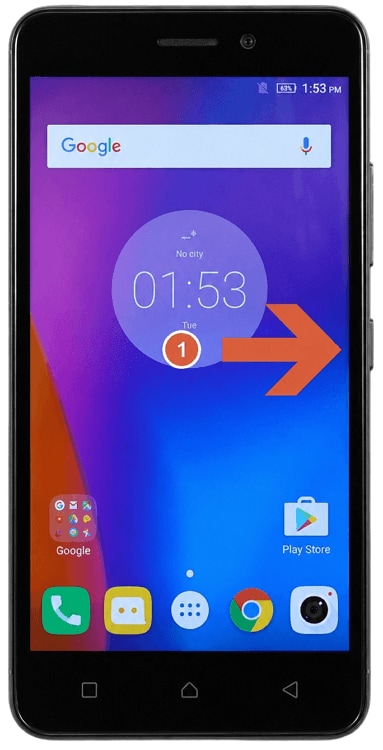
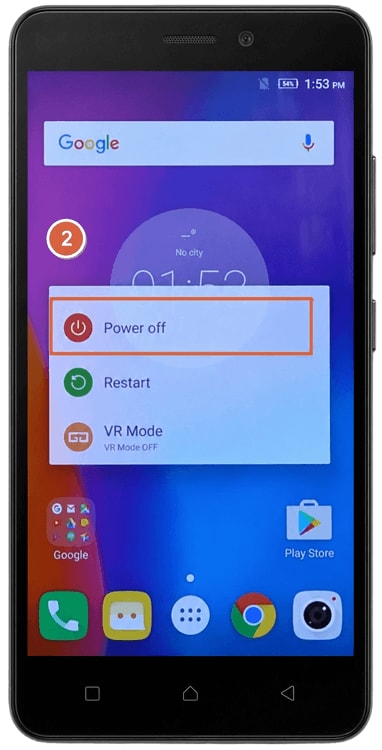
- Power off your Lenovo device.
- Press and hold Volume Up + Power at the same time.
- Release the buttons when the Lenovo logo or boot menu appears.
- Select Recovery if a boot menu appears.
- Choose your language if prompted.
- Wait for the Recovery menu to appear.
How to Enter Recovery Mode on Nokia or HMD Phones
Use this guide for most Nokia or HMD Android smartphones. Some models may require the phone to be connected to a power source before the recovery menu appears.
Entry Path:
Power + Volume Up
Variation Note:
On some Nokia or HMD models, the recovery screen may appear as a root menu, Android Recovery menu, or a similar system menu. If the menu does not appear, power off the phone completely, connect it to a charger or powered USB source, and try Volume Up + Power again.
If you see a No command screen, press and hold Power, press Volume Up once, then release the buttons to open the Android Recovery menu.
Steps:
- Power off your Nokia or HMD Android phone.
- Connect the phone to a charger or power source.
- Make sure the battery is charged to at least 50% if possible.
- Press and hold Volume Up + Power at the same time.
- Keep holding the buttons for about 30 seconds, or until the root menu / Android Recovery menu appears.
- Use the Volume buttons to select the recovery action you need.
- Press the Power button to confirm.


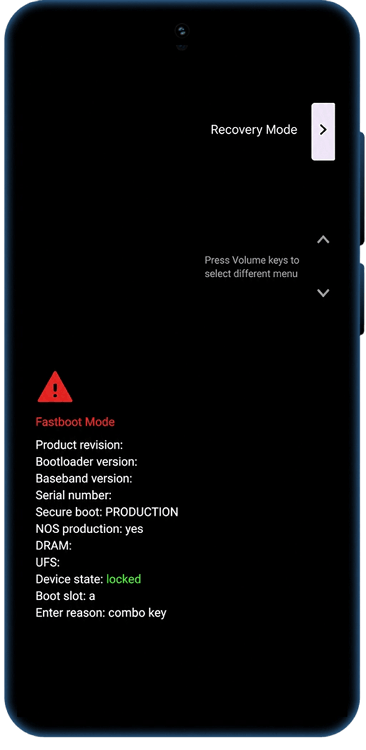
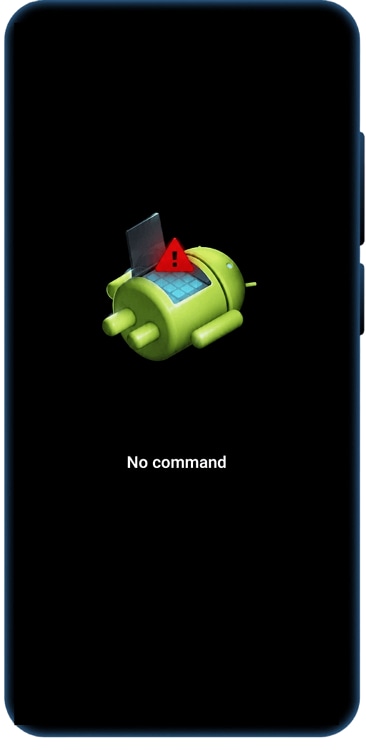
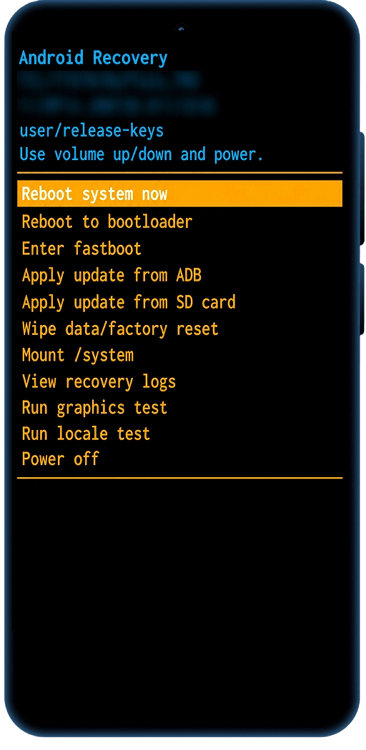
How to Enter Recovery or Factory Reset Mode on LG Phones
Use this guide for many older LG Android phones. Recovery and factory reset key timing may vary by model.
Entry Path:
Volume Down + Power
Variation Note:
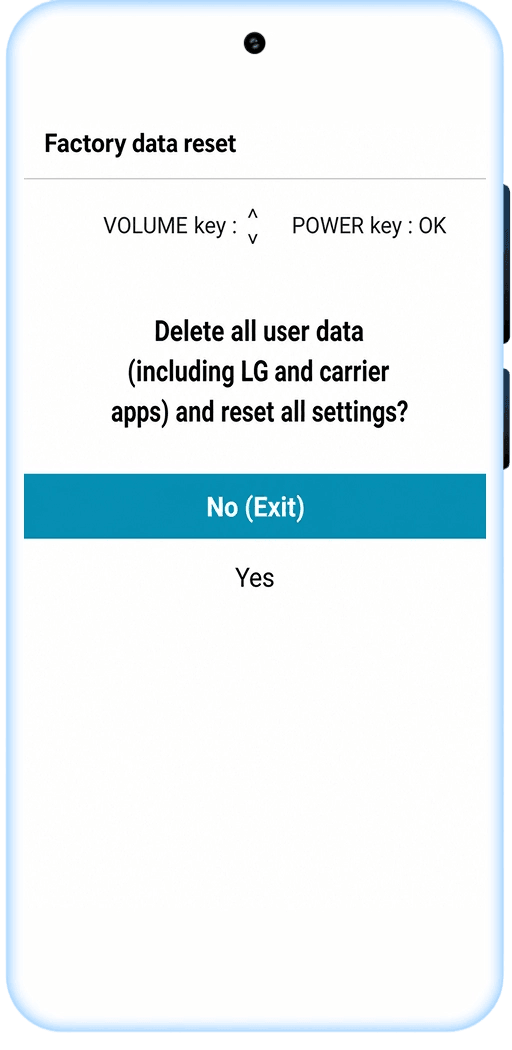
LG recovery steps vary by model. Some models open a System Recovery menu, while others show a Factory Hard Reset screen first. Read the screen carefully before confirming any reset option.
Steps:
- Power off your LG phone.
- Press and hold Volume Down + Power at the same time.
- If the System Recovery screen appears, release both buttons.
- On some older LG models, when the LG logo appears, briefly release the Power button and immediately press and hold it again while still holding Volume Down.
- Release all buttons when the System Recovery or Factory Hard Reset screen appears.
- Follow the on-screen recovery or reset menu.



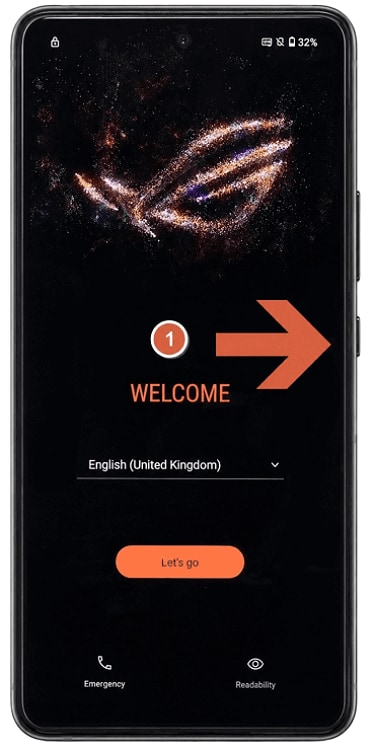
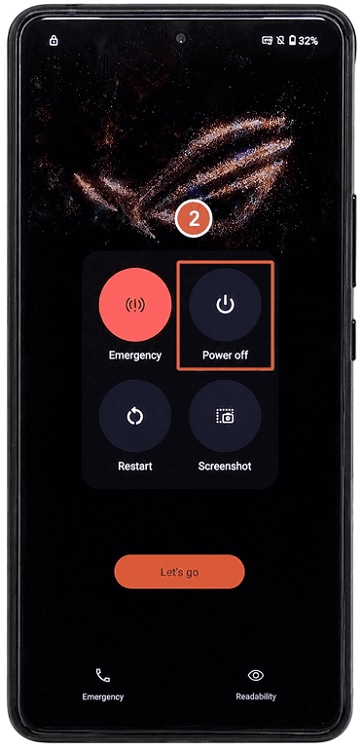
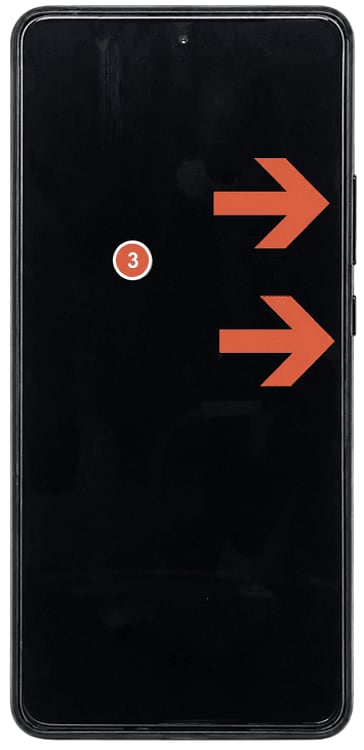
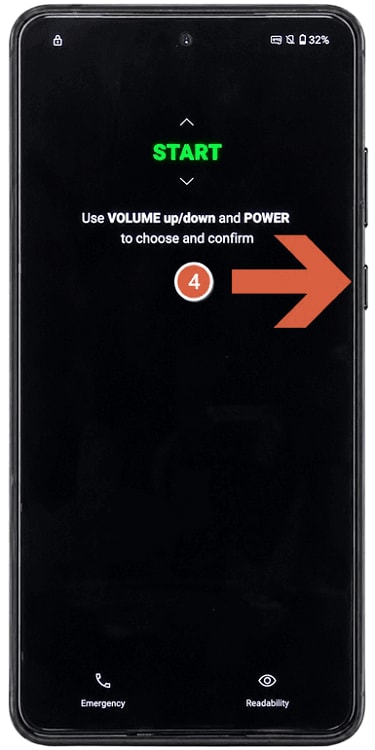
How to Enter Recovery Mode on ASUS Zenfone and ROG Phone
Use this guide for many ASUS Zenfone and ROG Phone models that enter Recovery Mode through Fastboot or Bootloader Mode.
Entry Path:
*Newer ASUS / ROG models: Volume Up + Power > Fastboot Mode > Recovery Mode
*Some older Zenfone models: Volume Down + Power > Recovery Mode
Variation Note:
ASUS Zenfone and ROG Phone models may use different key combinations. If Volume Up + Power does not work, power off the phone completely and try Volume Down + Power.
Steps:
- Power off your ASUS phone.
- Press and hold Volume Up + Power at the same time.
- When the phone vibrates, release the Power button but keep holding Volume Up.
- Wait for Fastboot Mode or Bootloader Mode to appear.
- Use the Volume buttons to select Recovery Mode.
- Press the Power button to confirm.
- If you see an Android robot or No command screen, press and hold Power, press Volume Up once, then release the buttons.
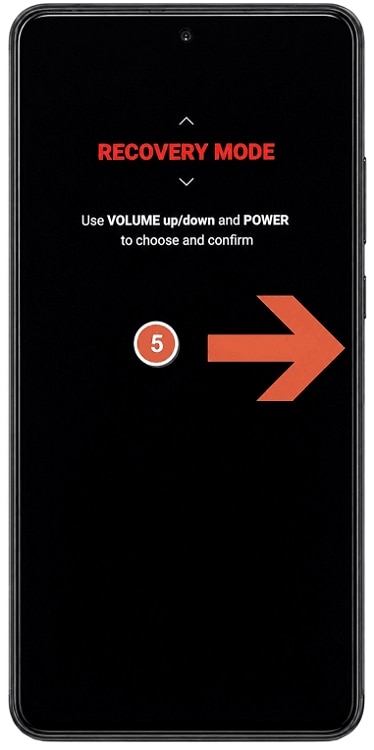
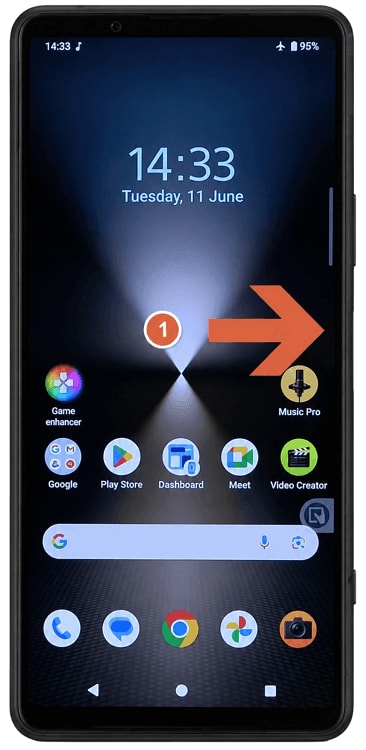
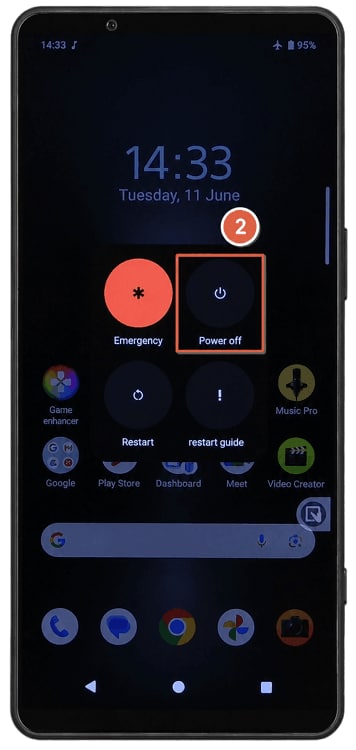
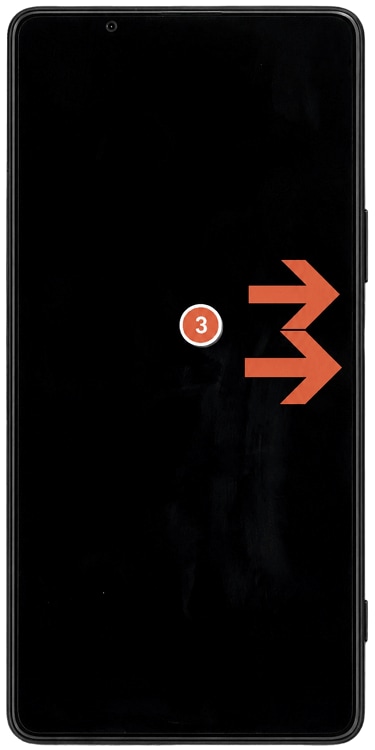
How to Enter Recovery or Repair Mode on Sony Xperia Phones
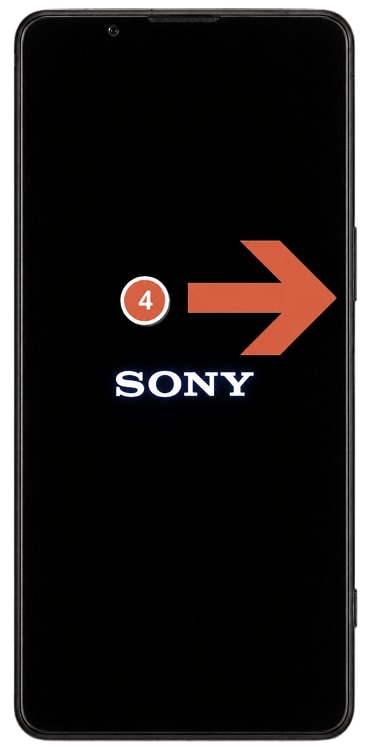
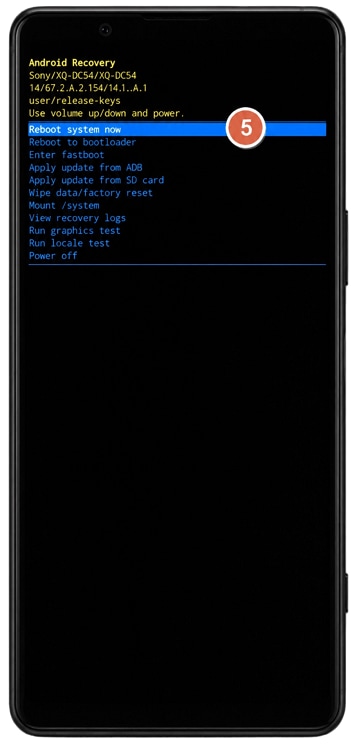
Use this guide for Sony Xperia phones. Recovery access varies widely by model, and some Xperia devices may not support a standard hardware-button Recovery Mode shortcut.
Entry Path:
Model-specific Power + Volume button combination, or Xperia Companion software repair
Variation Note:
Sony Xperia devices do not have one universal official Recovery Mode shortcut across all models. Some devices may require Xperia Companion or model-specific repair instructions instead of a standard hardware button method.
Steps:
- Power off your Sony Xperia phone.
- Try the model-specific Power + Volume button combination only if your model guide confirms it.
- Release the buttons when the Sony or Xperia logo appears, or when the recovery-related screen starts loading.
- If a standard Recovery Mode screen does not appear, use Sony Xperia Companion on a computer for software repair.
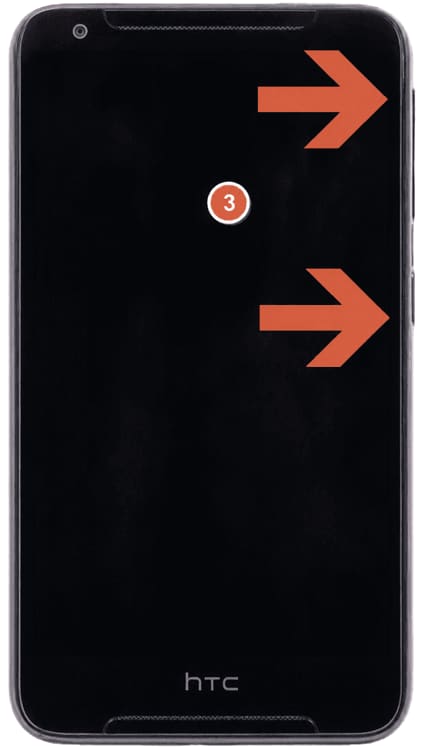
How to Enter Recovery Mode on TCL or Other Android Phones
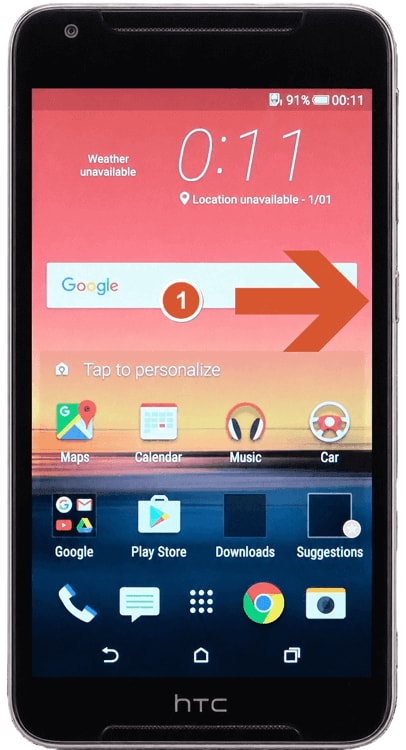
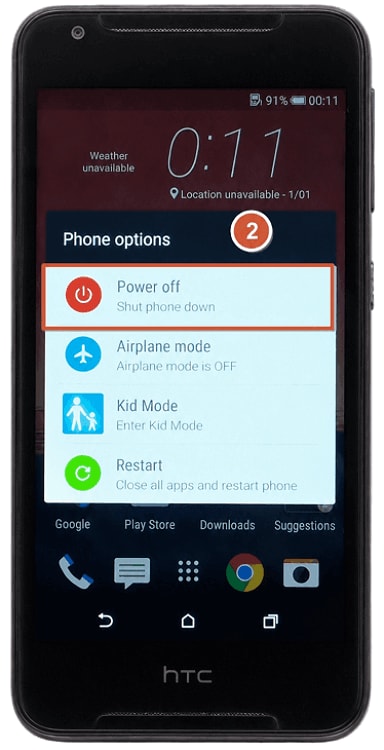
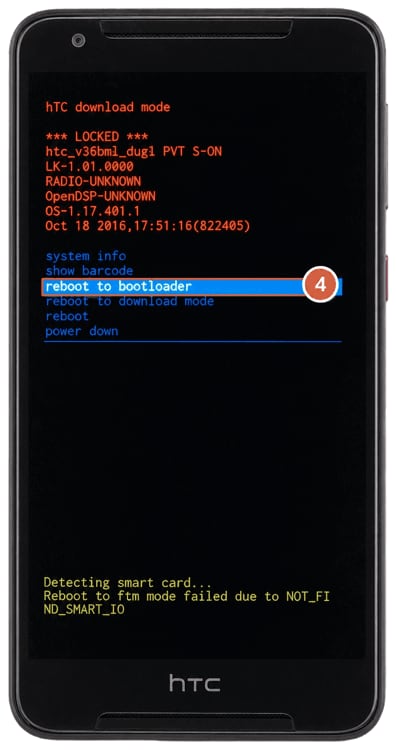
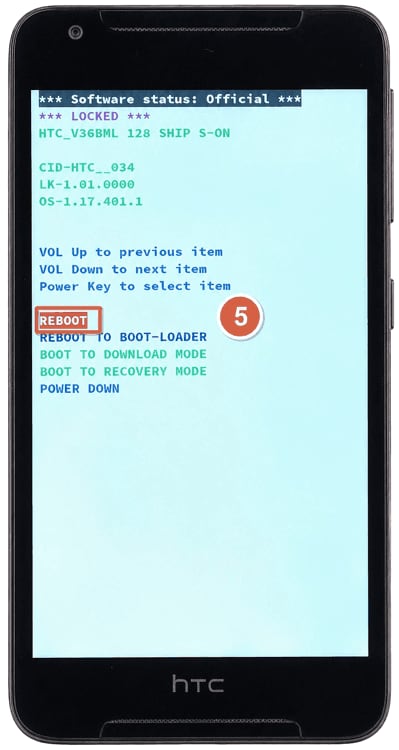
Use this guide for other Android brands such as HTC, ZTE, TCL, Alcatel, Nothing, and similar devices.
Entry Path:
Volume Up + Power
Variation Note:
Button combinations vary by brand and model. If this method does not work, check the device manual or use the one-click method above.
Steps:
- Power off your TCL phone.
- Press and hold Volume Up + Power at the same time.
- Release the buttons when the brand logo or boot menu appears.
- Use the Volume buttons to navigate.
- Press the Power button to confirm.
- Wait for the Android Recovery screen.
Can’t Find Your Brand?
Android Recovery Mode steps can vary by model, even within the same brand. If the manual method does not match your phone, Dr.Fone - System Repair (Android) can help you enter Recovery Mode in one click.
How to Exit Android Recovery Mode Manually
To exit Android Recovery Mode, select Reboot system now or the equivalent reboot option and confirm it with the Power button. The exact label may vary by brand. Use the guide below based on the recovery screen you see, and avoid reset or wipe options unless you understand the data-loss risk.
How to Exit Android Recovery Mode with Reboot System
This method works for many Android recovery screens, including Samsung, Google Pixel, Motorola, Nokia, LG, ASUS, Sony, and other phones that show Reboot system now.
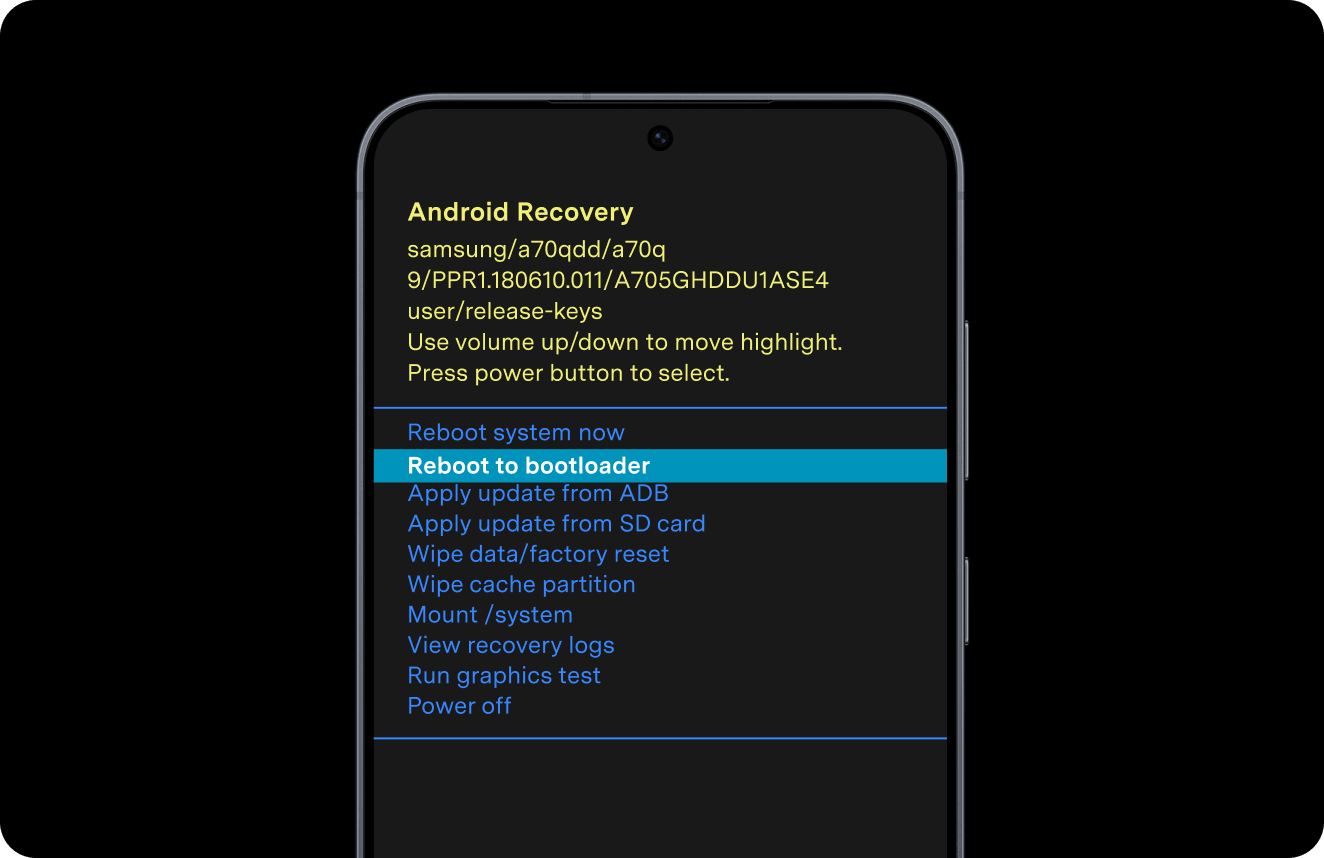
Select:
Reboot system now
Steps:
- Use the Volume buttons to highlight Reboot system now.
- Press the Power button to select it.
- Wait for your phone to restart into normal Android.
Warning Note:
How to Exit MIUI / HyperOS Recovery Mode
Use this method if your Xiaomi, Redmi, or POCO phone shows the MIUI Recovery or HyperOS Recovery menu.
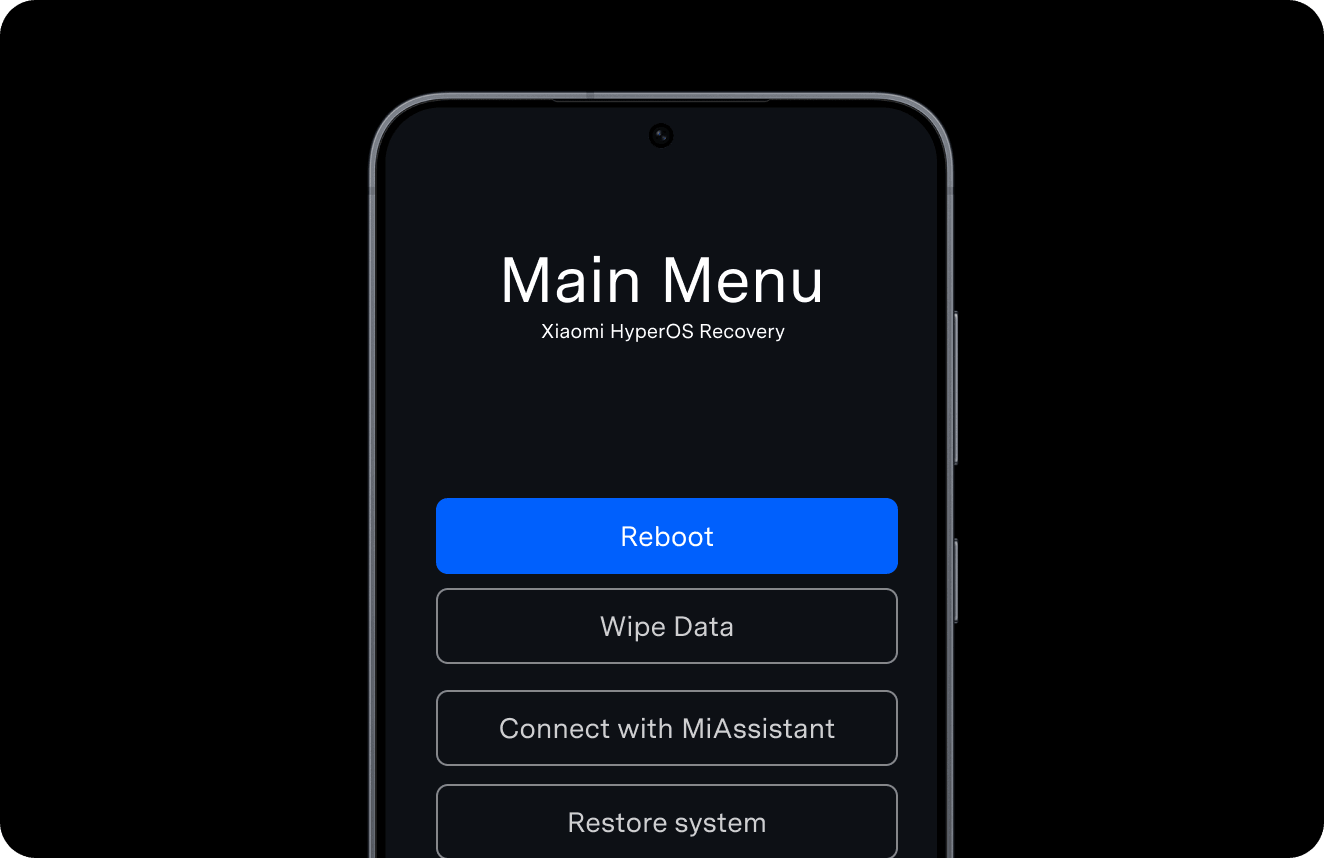
Select:
Reboot > Reboot to System
Steps:
- Select Reboot from the recovery menu.
- Choose Reboot to System.
- Wait for your phone to restart into normal Android.
Warning Note:
How to Exit ColorOS Recovery Mode on realme and OPPO
Use this method if your realme or OPPO phone shows the ColorOS Recovery menu.
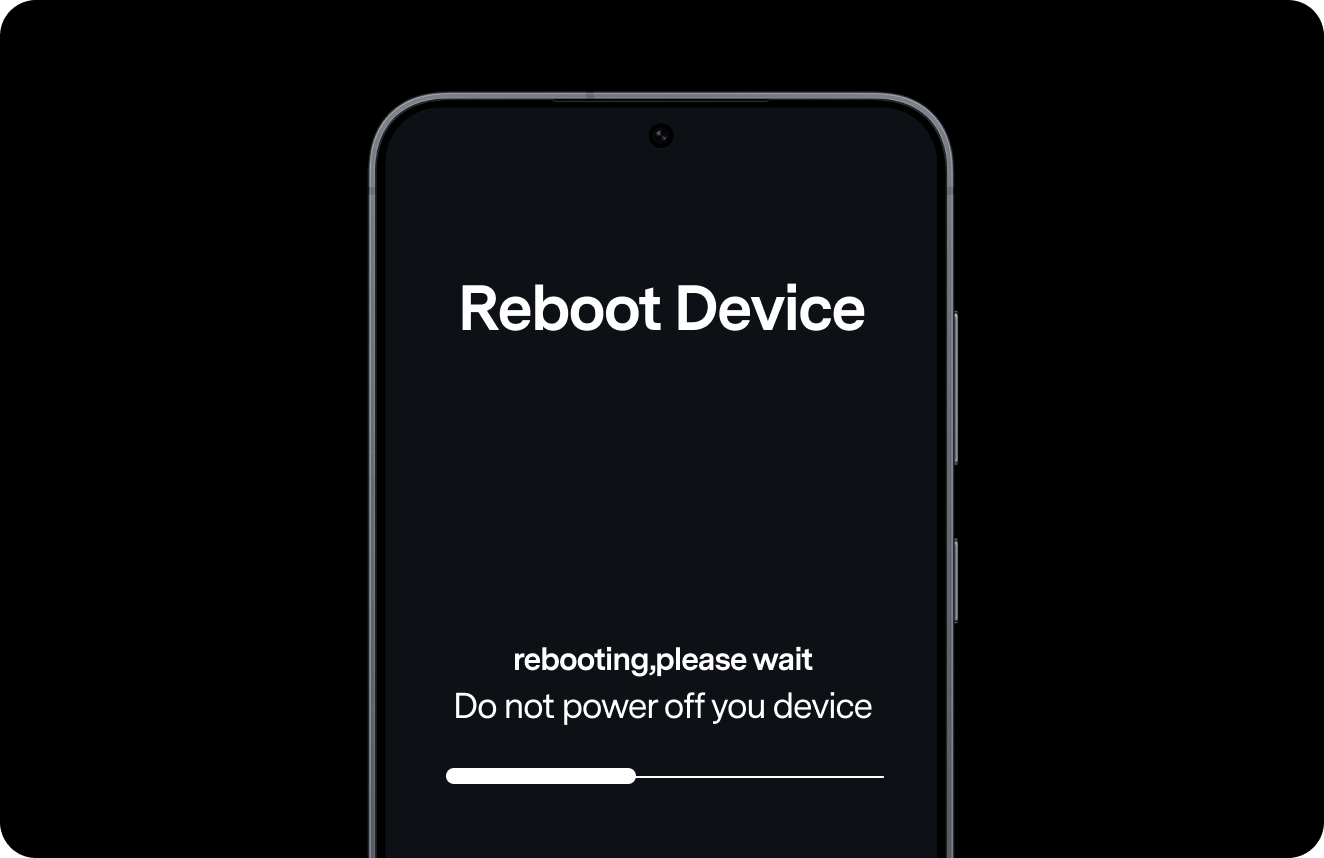
Select:
Reboot
Steps:
- Select Reboot from the ColorOS Recovery menu.
- Confirm the action if prompted.
- Wait for your phone to restart.
Warning Note:
How to Exit HUAWEI / HONOR Recovery Mode or eRecovery
Use this method if your HUAWEI or HONOR phone shows Recovery Mode, eRecovery, or a similar rescue screen.
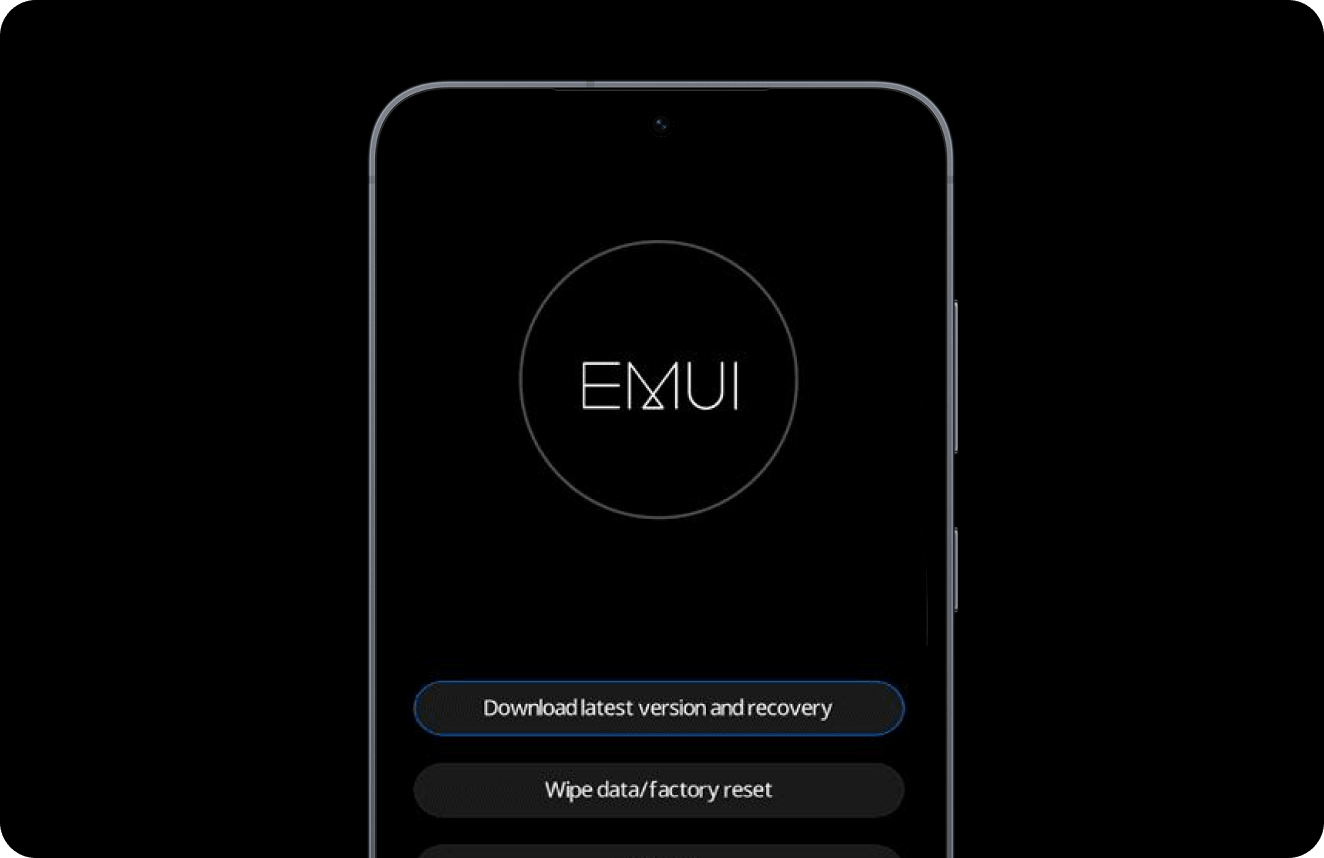
Select:
Restart, Reboot, or Reboot system now
Steps:
- Look for Restart, Reboot, or Reboot system now on the recovery screen.
- Select the reboot option.
- Wait for your phone to return to normal Android.
Warning Note:
Android Recovery Mode Menu Explained
The Recovery Mode menu can look intimidating, but most users only need one or two options.
| Menu option | What It Means | Should You Use It? |
|---|---|---|
| Reboot system now | Restarts your phone and returns to Android | Yes, if you want to exit Recovery Mode |
| Wipe data/factory reset | Erases the phone and resets it to factory settings | Use only if you have backed up data or accept data loss. |
| Wipe cache partition | Clears temporary system cache files | Safer than factory reset, but not available on all devices |
| Apply update from ADB | Installs an update from a computer using ADB | Advanced users only |
| Apply update from SD card | Installs an update package from storage | Advanced users only |
| Power off | Turns the phone off | Useful if you want to stop and restart later |
| Repair apps | Re-optimizes apps after updates on some devices | Usually safe, but model-dependent |
| Rescue Mode / eRecovery | Brand-specific rescue or repair environment | Use carefully and follow on-screen instructions |
Warning
If your goal is only to exit Recovery Mode, choose Reboot system now first. Do not choose Wipe data/factory reset unless you understand that it may delete your phone data.
Troubleshooting Android Recovery Mode Problems
If your phone is stuck in Recovery Mode, start with Reboot system now. If it immediately returns to Recovery Mode, check for a stuck Power/Volume button and try a force restart; a recurring recovery loop can point to a deeper system problem. If you see No command, use the model-specific key sequence in the troubleshooting guidance below. Avoid reset or wipe options unless you understand the data-loss risk.
- Android phone stuck in Recovery Mode
- Phone Keeps Booting into Recovery Mode
- Recovery Mode Not Working or Won’t Open
- Android “No Command” Screen
- Cannot Select Recovery Mode Options
- Power or Volume Buttons Not Working
- Can’t Load Android System” Screen
- Recovery Mode vs Fastboot Mode Confusion
FAQ About Android Recovery Mode
 Android Data Recovery
Recover deleted files, WhatsApp, and data from any Android device, even if broken.
 Android Screen Unlock
Instantly remove screen locks and bypass Google FRP on Samsung, Xiaomi, OnePlus, Motorola & more.
 Android System Repair
Easily fix black screens, boot loops, and system crashes to restore your phone to normal.

 Phone to Phone Transfer
Transfer data from Android to Android, iPhone to Android, or Android to iPhone.
 Dr.Fone Support Center
Get help when your Android phone is not detected or USB debugging does not work.

All in One & One for All
Dr.Fone takes over all your phone management problems with a one-stop solution.