iOS WhatsApp Recovery Supports iOS/iPadOS 26

Recover Deleted WhatsApp Messages on iPhone

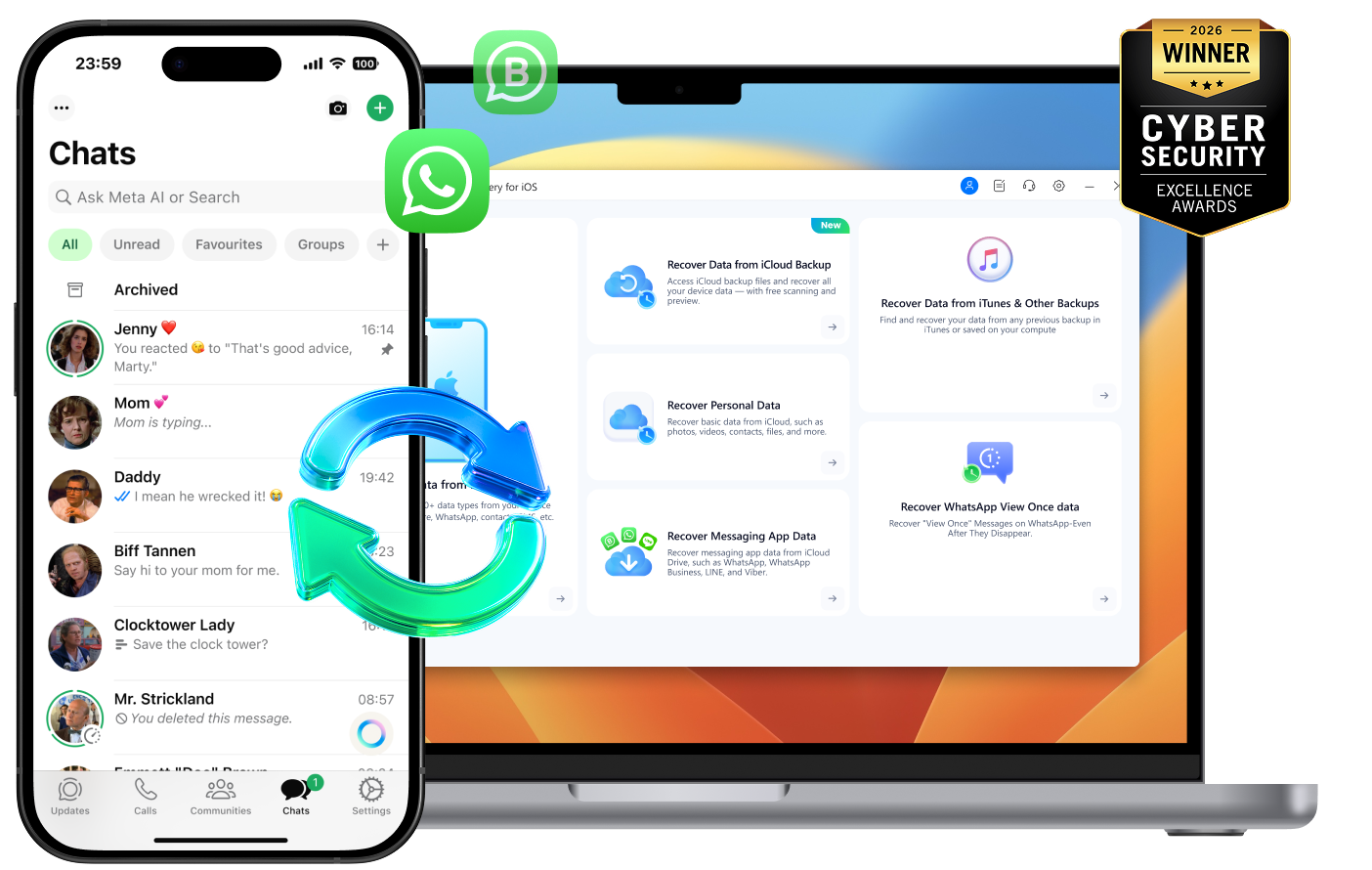
Recover deleted WhatsApp and WhatsApp Business data from iPhone, iPad, iCloud, iTunes, or local backups — without replacing current device data.
  • Free scan and preview first — see what may still be recoverable.
  • Recover deleted WhatsApp chats, photos, videos, documents, and attachments.
  • Recover selected WhatsApp data without replacing current device data.
  • Read-only scanning helps protect existing data during recovery.
  • Recover WhatsApp Business and View Once content, and find saved WhatsApp passwords.
Watch how iPhone WhatsApp recovery works
rate stars
Trusted by millions of users worldwide
150M+Downloads
FREEScan & Preview First
148.5M+Satisfied Customers
Trusted by Leading Tech Media

Try These 5 Free Checks Before Recovering WhatsApp on iPhone

Before recovery, check where your WhatsApp data may still be available.

Best first move after deletion

Stop Using Your iPhone or iPad Immediately

After WhatsApp data is deleted, avoid sending messages, taking photos, installing apps, or updating the device. New activity may overwrite WhatsApp data that is still recoverable.
No software needed

Check WhatsApp and Apple Recovery Locations

Check common built-in places first, such as Recently Deleted in Photos and Files, archived WhatsApp chats, and any exported media that may still be stored locally.
The backup date matters

Check WhatsApp Chat Backup and iPhone Backups

In WhatsApp, go to Settings > Chats > Chat Backup to see whether a recent chat backup exists. Also check Settings > [your name] > iCloud > iCloud Backup, and any iTunes or local backups on your computer.
Choose the source first

Identify the Most Likely Recovery Source

Decide whether the missing WhatsApp data is most likely on the original device, in iCloud, or in an iTunes/local backup. Choosing the right source helps avoid unnecessary restore steps.
Only if access is blocked

Check Saved WhatsApp Passwords Only If Access Is Blocked

On iPhone or iPad, check whether the WhatsApp password was saved on the device. On iOS 18 or later, open Passwords; on earlier versions, go to Settings > Passwords. Search for WhatsApp or the related account to see if the saved password is still available.

If these checks do not solve the problem, choose the recovery method below based on where the remaining WhatsApp data may still be available.

Where WhatsApp Data May Still Exist on iPhone

On iPhone, WhatsApp data may still remain on the device, in iCloud, or in a local backup. The right recovery path depends on which source still contains it.

On the iPhone or iPad

Recently deleted WhatsApp data may still remain detectable on the original device before later activity overwrites it.

In iCloud

WhatsApp-related data may still exist in iCloud Sync, iCloud Drive, or iCloud Backup, depending on how it was stored and backed up.

In a local backup

An iTunes or local backup may still contain an earlier WhatsApp state that can be previewed and selectively recovered without replacing the current iPhone data.

Find the Right Fix for Your WhatsApp Data Loss

Not every WhatsApp loss happens the same way. Choose the situation that matches yours — deleted chats, failed iCloud restore, older backup, View Once content, or saved account passwords.

Deleted Chats
iCloud Recovery
iTunes Recovery
Recover View Once
Find Saved Password
Best for: Deleted chats or media with no backup

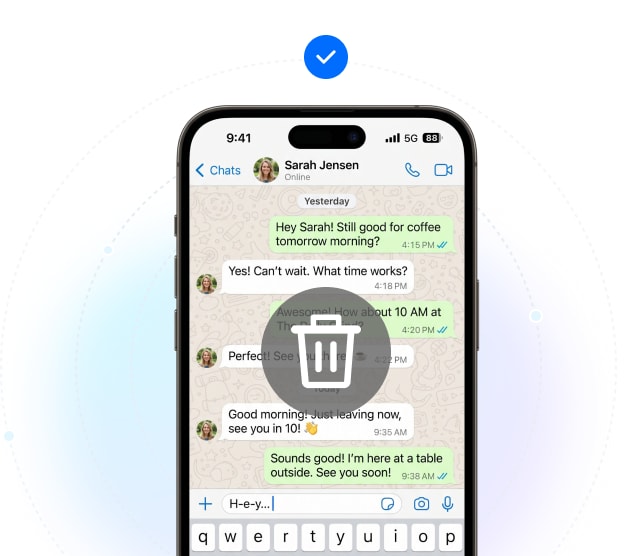
Accidentally Deleted WhatsApp Messages with No Backup?

If important WhatsApp chats, photos, videos, or documents were deleted without a recent backup, the original iPhone or iPad is usually the first place to check. Starting early helps protect what may still be recoverable.

How Dr.Fone helps

Dr.Fone scans the original device in read-only mode and lets you preview deleted WhatsApp data, so you can check whether your chats, media, or attachments are still available.
Key Things to Know
  • Stop using the device as soon as possible after deletion.
  • Recovery without a backup depends on whether the data has been overwritten.
  • Free scan and preview help check results before recovery.
Free scan first — preview deleted WhatsApp data before recovery
how to restore deleted whatsapp messages on iphone
Best for: WhatsApp data missing from your current iPhone

Recover WhatsApp from iCloud Without Resetting iPhone

If WhatsApp chats, photos, videos, or documents are no longer on the current iPhone or iPad, they may still exist in iCloud — in an iCloud Backup snapshot, iCloud-synced data, or iCloud Drive files.

How Dr.Fone helps

Dr.Fone checks iCloud Backup snapshots, iCloud-synced data, and iCloud Drive files. Preview WhatsApp data first, then recover only what you need — no iPhone reset required.
Key things to know
  • iCloud-synced data, iCloud Drive files, and iCloud backups are different recovery sources.
  • The best recovery path depends on where the WhatsApp data was stored or backed up.
  • Preview helps confirm recoverable chats and media before recovery.
Preview WhatsApp data from iCloud before resetting your iPhone
recover whatsapp from icloud
Best for: Chats saved in an older computer backup

Need WhatsApp Chats from an Older Backup?

An older iTunes or local backup may still contain WhatsApp chats, photos, videos, or documents that are missing from the current device. Restoring the whole backup through Apple may replace current iPhone data.

How Dr.Fone helps

Dr.Fone scans the backup file, previews the WhatsApp data inside it, and extracts only the chats or media you choose — without restoring the entire backup to your iPhone.
Key things to know
  • Current iPhone data does not need to be replaced first.
  • Preview is available before recovery.
  • Encrypted backups require the backup password.
Preview backup content before extracting selected WhatsApp data
iTunes backup WhatsApp recovery preview
Best for: View Once photos, videos, audio, or text

Need to Access a WhatsApp View Once Item Again?

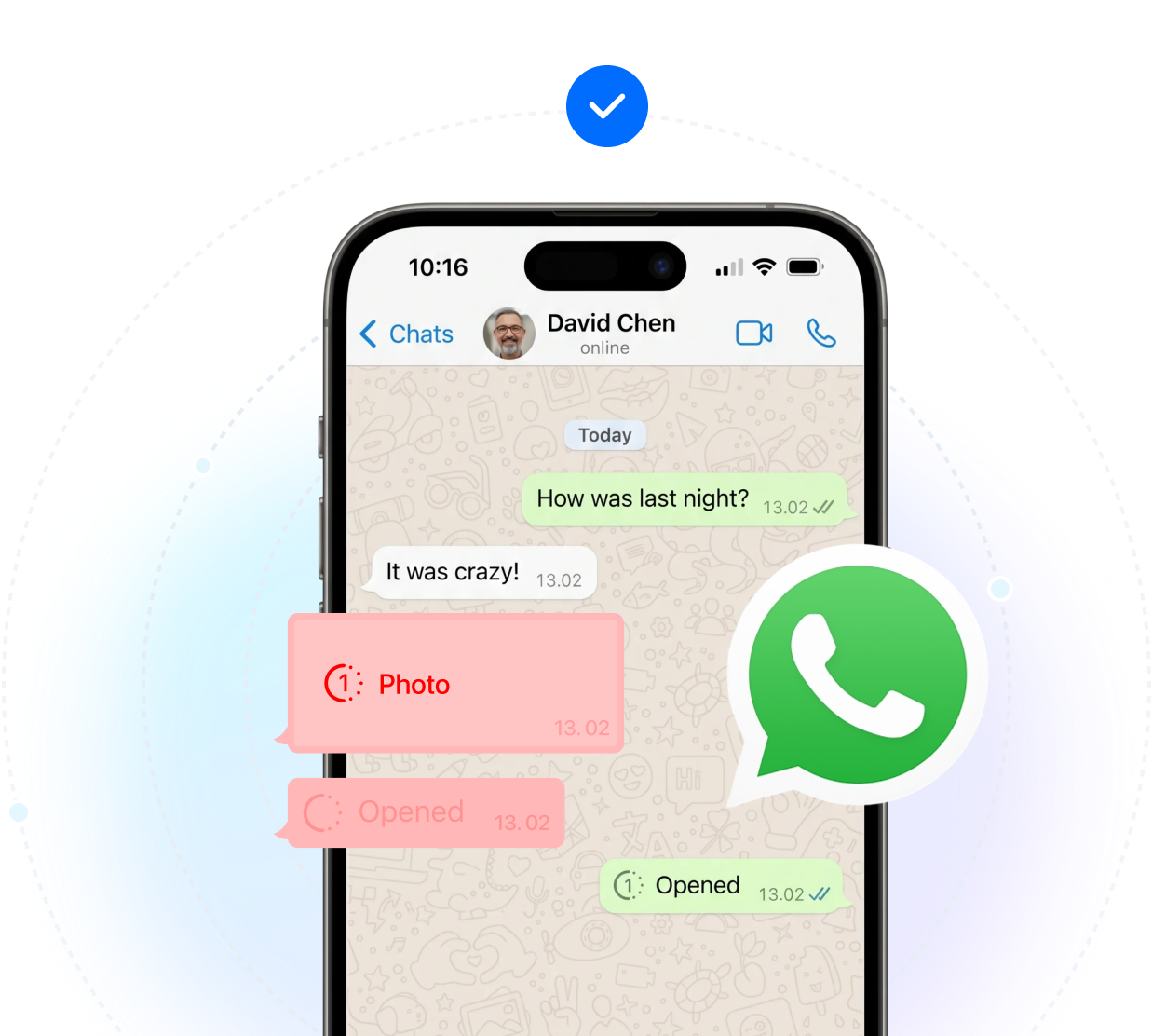
A View Once photo, video, audio message, or text may no longer be visible in chat, but it may still be accessible through a supported WhatsApp session.

How Dr.Fone helps

Dr.Fone uses a Linked Devices workflow with a QR-based session to sync and export View Once content that is still accessible.
Key things to know
  • This is not a standard backup-restore workflow.
  • Availability depends on whether the View Once content is still accessible during the session.
  • This workflow is intended for personal recovery, not monitoring.
View Once WhatsApp recovery preview
Best for: Access blocked but a password may be saved

Need to Check a Saved App or Account Password?

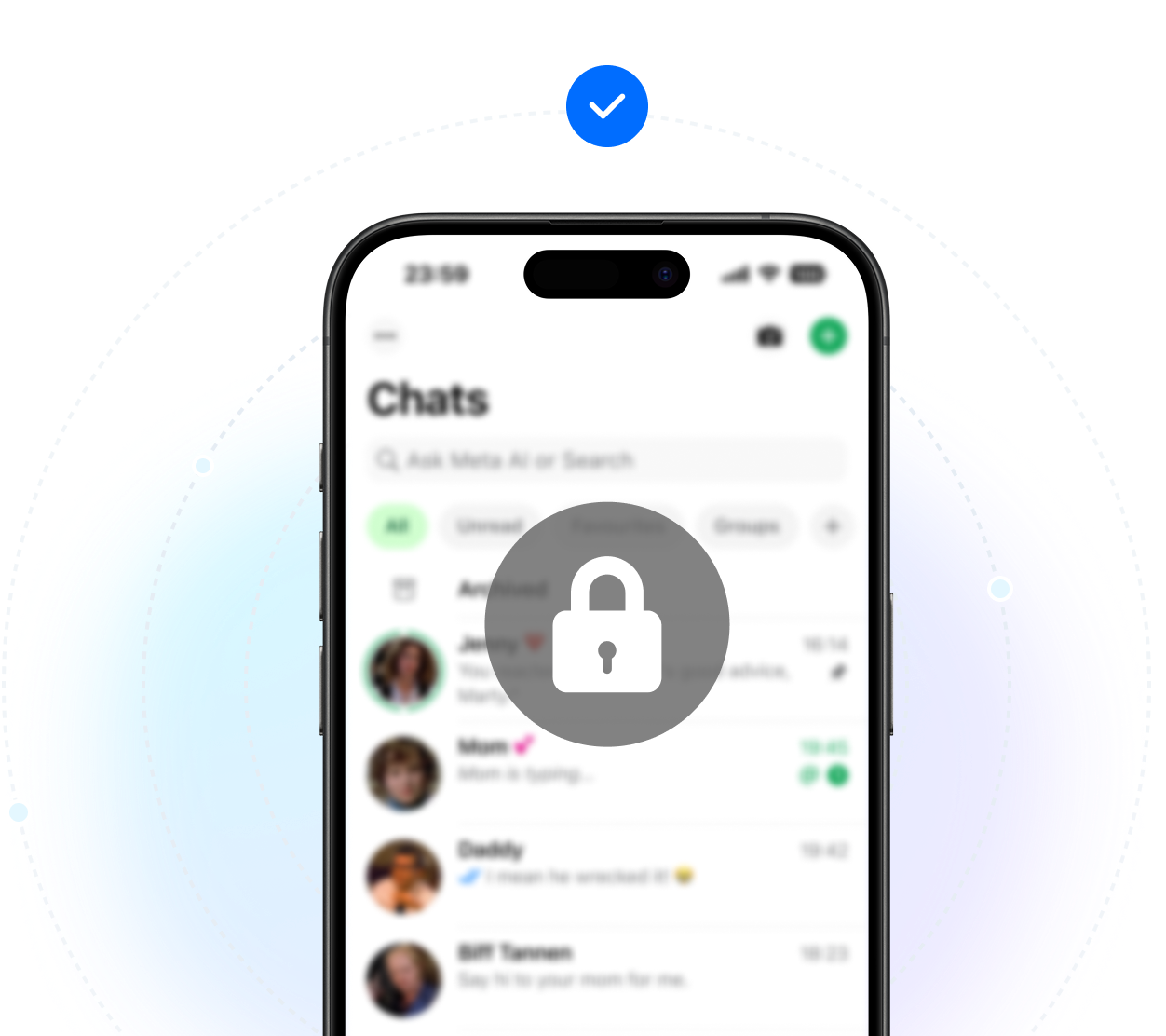
If access to WhatsApp or a related account is blocked and the app or account password was previously saved on your iPhone or iPad, it may still be stored on the device.

How Dr.Fone helps

Dr.Fone Password Manager scans the iPhone or iPad and displays saved app and website passwords stored on the device.
Key things to know
  • This is not a password-cracking feature.
  • The password must have been saved on the device before it was lost.
  • If it was never saved, it cannot be found through device scanning.
Saved WhatsApp password recovery preview

How iPhone WhatsApp Recovery Works

A simple workflow helps identify the right recovery path, start with a free scan, and preview available WhatsApp data before recovery.

Download and Connect

Download Dr.Fone - Data Recovery (iOS) on your computer and connect your iPhone or iPad to begin the recovery workflow.

Choose the Right Recovery Path

Open Recover WhatsApp Data in Dr.Fone, then choose the path that matches the source or scenario.

Preview and Recover

Preview recoverable chats and media first, then selectively recover only the data you need without unnecessary full-device restore.

No technical knowledge required
View the step-by-step guide
Free Scan & Preview First

Which WhatsApp Data Can Be Recovered on iPhone?

Supported items vary by recovery source, encryption status, and device state. The list below reflects the main WhatsApp and WhatsApp Business data types that may be available for preview before recovery.

16+ WhatsApp data types
WhatsApp Data Types
  • Individual & Group Chats
  • WhatsApp Business chats
  • Photos & Videos
  • Voice messages
  • Audio files
  • Documents & Links
  • Contacts
  • Call history
  • Stickers
  • Status
  • Starred messages
  • Broadcast messages
  • View Once photos, videos, audio messages, and text
Other iOS Data Types
  • Photos & Videos
  • Contacts
  • Messages
  • Call History
  • Notes
  • Voice Memos
  • Calendar & Reminders
  • Safari Bookmarks & History
  • Pages, Numbers, Keynote
  • App Files
  • And More

Privacy & Data Security During Recovery

Recover WhatsApp data on iPhone or iPad without starting with a full-device restore. Preview supported data first, then recover only what you choose.

No Device Data Overwrite

Recover selected WhatsApp data without replacing the data currently on your iPhone or iPad.

Encrypted Data Handling

Data transferred during recovery is protected through encryption.

Selective Recovery

Preview chats, media, and other recoverable items first, then export only what is chosen.

FAQs - iPhone WhatsApp Data Recovery

  • In many cases, deleted WhatsApp messages can only be seen again if the data is still available on the iPhone, in iCloud, or in an iTunes or local backup. Dr.Fone - Data Recovery (iOS) can scan supported iPhone, iCloud, and backup sources, preview recoverable chats and media, and help check what is still available before recovery.
  • Yes — in some cases. Dr.Fone can scan the original iPhone directly to check whether supported WhatsApp data is still detectable without a backup. Recovery without a backup is less predictable than recovery from iCloud or a local backup, and results depend on how much the device has been used after deletion.
  • Yes. For supported iCloud recovery paths, Dr.Fone can access and preview WhatsApp-related data from iCloud sources without starting with a full reset of the current iPhone. For details, see how to recover WhatsApp from iCloud without resetting iPhone.
  • The most common reasons are that the expected iCloud backup is not the one currently available, the restore process did not bring back the data you needed, or the remaining WhatsApp data is stored in a different source such as the device itself or a computer backup.
  • In many cases, this means the expected iCloud backup was not restored, the available backup did not contain the chats you needed, or the restore flow did not bring back the correct WhatsApp data. Dr.Fone can help recover supported WhatsApp data from the iPhone, iCloud, or a computer backup, depending on which source still contains the chats.
  • They are not the same recovery source. iCloud Sync keeps supported data updated across devices, iCloud Drive stores files and app documents, and iCloud Backup stores device data that is not already being regularly synced. The right recovery path depends on which layer still contains the data.
  • No — not when using Dr.Fone’s selective recovery workflow. A full Apple restore replaces the current device state, but Dr.Fone can scan the backup file, preview the WhatsApp data inside it, and export only the selected items. Learn more about selective recovery from an iTunes backup.
  • Yes. Dr.Fone’s iPhone WhatsApp recovery guide explicitly covers both WhatsApp and WhatsApp Business on iPhone. What can actually be recovered still depends on the selected source and what appears in preview.
  • Yes — if that password was previously saved on the device. Dr.Fone - Data Recovery (iOS) can scan an iPhone or iPad and display saved passwords that remain stored on it, including app and website login credentials. If the relevant WhatsApp password was never saved, it may not be retrievable through scanning. It does not crack, reset, or bypass passwords that were never saved.
  • Yes — through Dr.Fone’s current View Once workflow. The official method uses WhatsApp Linked Devices and a QR-based session on the computer to access supported View Once content. Availability still depends on whether that content remains accessible at the time of scanning.
  • There is no single fixed time. Recovery speed depends on the source being used, the amount of data involved, network speed for iCloud-based methods, and computer performance. Smaller local jobs usually finish faster than larger iCloud-based ones.
  • Google Drive is not a native iPhone WhatsApp backup source. This iPhone recovery page focuses on WhatsApp data from iPhone or iPad, iCloud, and iTunes/local backups. If your WhatsApp backup is stored in Google Drive, choose a recovery or transfer workflow designed for Google Drive-to-iPhone cases.

Technical Specifications

Desktop OS
Supported

  • Windows

    Windows 11/10/8.1/8/7

  • macOS

    macOS 10.13 or later

Apple Devices
Supported

  • Supports iPhone, iPad, and iPod touch
  • Including iOS / iPadOS 26 and the latest Apple devices

iPhone Recovery
Support

  • Recover from iPhone or iPad
  • Recover from iCloud sources
  • Recover from iTunes and local backups
  • Selective recovery without unnecessary full-device restore
Important Notice
Recovery results may vary by device model, iOS version, backup status, and data source. Check Tech Specs first to confirm compatibility, then choose the right recovery path: iPhone/iPad, iCloud, or iTunes/local backup.

Explore More Dr.Fone Tools

Dr.Fone - Data Recovery (iOS)

Dr.Fone helps recover lost data from iPhone, iPad, and iPod touch, including WhatsApp, photos, videos, contacts, documents, and more.
Recover Data from iOS Device
WhatsApp & Business Data Supported
Recover from iTunes & Local Backups
Free Scan & Preview
Recover Data from iCloud
No Tech Knowledge is Required
Recover WhatsApp View Once Content
24/7 Free Technical Support
data safe and secure
safe & secure
150M+
Downloads
148.5M+
Satisfied Customers
22+ Years
Experience
95+
Countries Served
100%
Data Security
99%
Success Rate