iPhone Recovery Mode: Enter for Free. Exit with Dr.Fone.
Skip complicated button combinations with Dr.Fone - System Repair (iOS). Enter iPhone Recovery Mode for free or use the one-click Exit tool to leave the recovery screen, all from your Windows PC or Mac. Connect your iPhone and enter or exit Recovery Mode with one click.
Use Dr.Fone · Enter with buttons · Exit with a restart · Update or Restore?
-
Free one-click entry, without model-specific button combinations.
-
One-click exit to get your iPhone out of Recovery Mode.
-
Enter or exit the mode without selecting a device-erasing Restore.
-
Three simple steps to access the one-click recovery tools.
-
Available for Windows and Mac, with iOS repair tools in the same app.
What Is iPhone Recovery Mode?
A clear guide to what iPhone Recovery Mode is, what it does, when to use it, whether it is safe, and how it compares with DFU Mode.
A Built-In Recovery State for iPhone and iPad
iPhone Recovery Mode is a built-in state that lets
Finder on a Mac or the Apple Devices app on Windows detect an iPhone that
cannot start normally. You can then update or restore iOS. Compatible older
setups use iTunes.
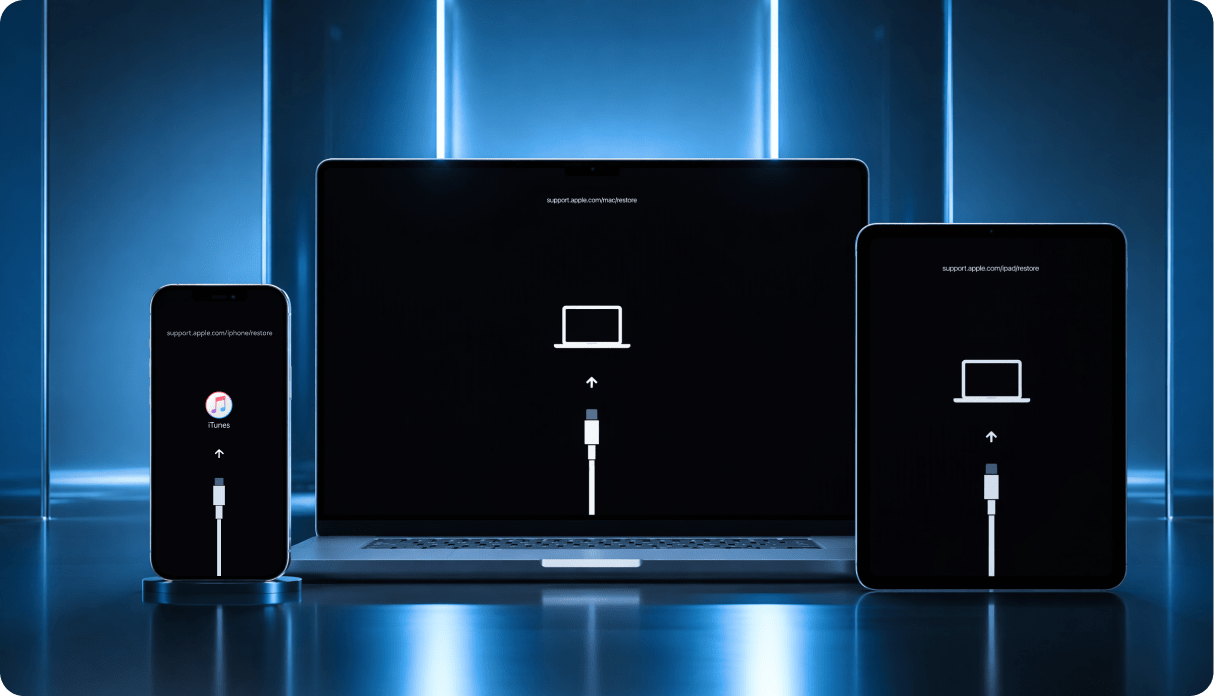
Often called iPhone restore mode, it shows a
cable and computer icon or support.apple.com/iphone/restore. iPad has
a similar recovery state, but its button sequence differs.
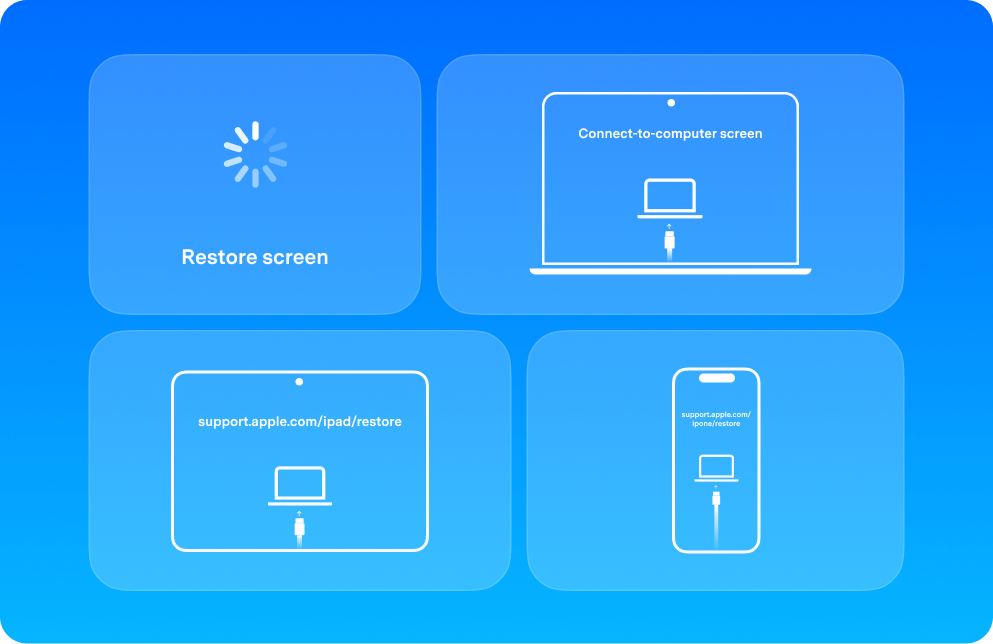
Common On-Screen Signs:
- Restore screen
- Connect-to-computer screen
- support.apple.com/iphone/restore
- support.apple.com/ipad/restore
Use Recovery Mode When Your iPhone Won’t Start or Update Normally
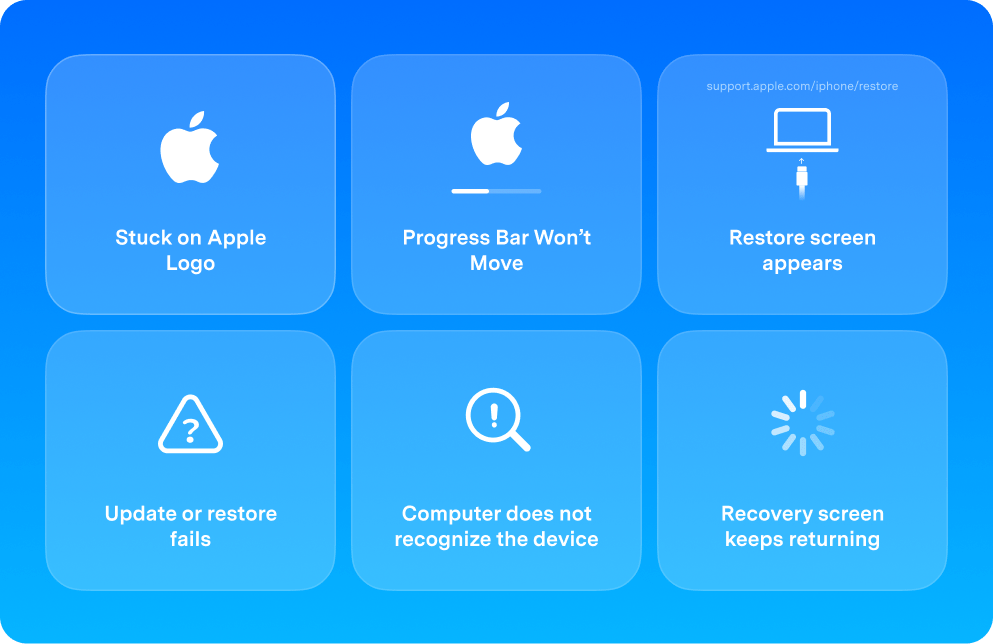
Try a force restart first for a frozen phone. Use Recovery Mode if the iPhone stays on the Apple logo for several minutes without a progress bar, shows the Connect to computer screen, or cannot finish updating or restoring normally.
If a progress bar is visible, a slow update is not the same as a frozen Apple logo. Do not interrupt an update that is still progressing. A repeated recovery screen can follow an unsuccessful startup or update, but the screen alone does not identify the cause.
The same idea applies when you need to put an iPad in Recovery Mode because iPadOS will not boot, update, or restore properly.
Apple recovery instructions · Apple logo with a progress bar
Common situations:
- iPhone Stuck on Apple Logo
- Progress Bar Stops Advancing
- Restore Screen Appears
- iPhone Update or Restore Fails
- Computer Does Not Recognize the Device
- Recovery Screen Keeps Returning
Recovery Mode Itself Is Usually Safe
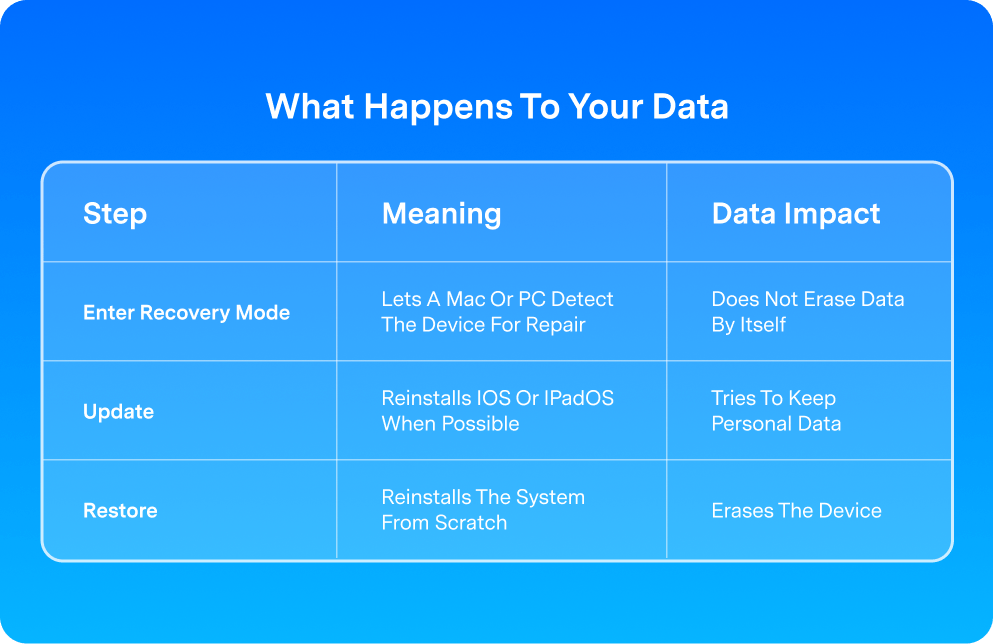
Entering iPhone Recovery Mode does not erase your data by itself. In most cases, iPhone Recovery Mode is simply a built-in repair state used when iOS cannot start or update normally. The same is true for iPad Recovery Mode.
What matters more is the recovery action you choose after your device is detected. If you see Update and Restore, Update tries to reinstall iOS or iPadOS while keeping personal data when possible, while Restore erases the device and installs a fresh system copy.
Quick Note:
If keeping data is your priority, choose Update first when that option is available. Use Restore only when updating does not work or a full erase is necessary.
| Action | What happens | Choose it when |
|---|---|---|
| Update | Reinstalls iOS while trying to keep personal data. | You have not tried updating yet and the option is available. |
| Restore | Erases the iPhone and reinstalls iOS. | Update has failed and you accept the erase. Restore data afterward from an available backup. |
If the iPhone still starts normally, make a backup before troubleshooting. If it will not start and you have no backup, a successful data-preserving recovery is not guaranteed. Continue with the recovery steps.
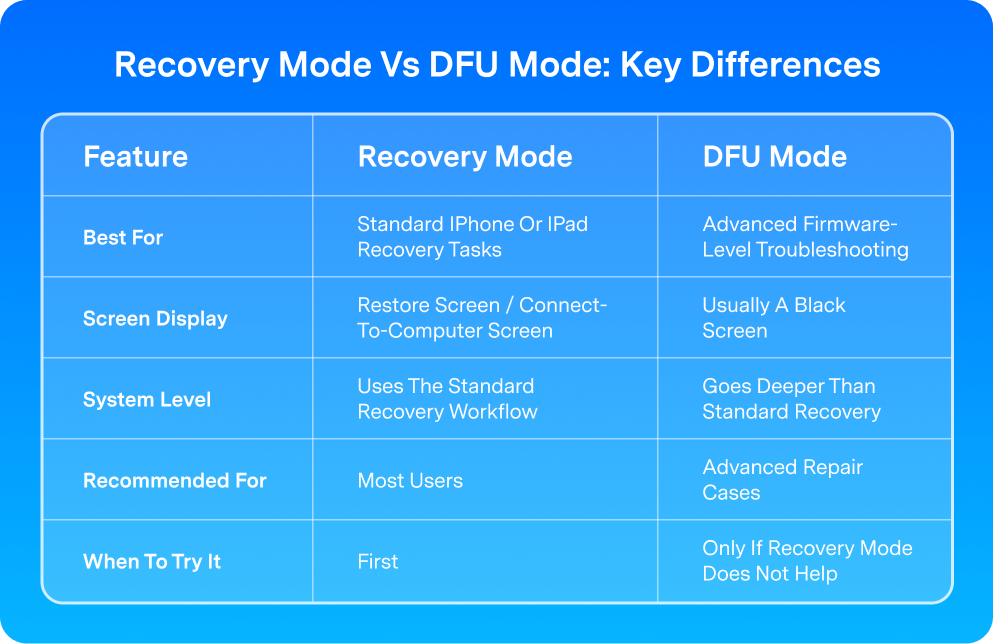
Recovery Mode Is the Better First Step — DFU Mode Is More Advanced
Recovery Mode is the usual starting point for Apple's computer-based Update or Restore workflow. DFU Mode is a different, lower-level recovery state; it is not a way to recover erased files or avoid the data loss of a restore.
If standard recovery fails, check the connection and consider Apple service before attempting more advanced recovery. For a closer comparison, read Recovery Mode vs DFU Mode comparison .
1-Click Solution for Entering or Exiting iPhone Recovery Mode
Take control of Recovery Mode with Dr.Fone. Use free one-click entry instead of timing button presses, or choose the one-click Exit tool to leave the recovery screen. One desktop app brings the mode controls and iOS system-repair tools together, so you can move from the immediate task to further repair when needed.
Access and compatibility: Entry is free; Exit access depends on your Dr.Fone license. Full iOS system repair requires a paid plan. Available for Windows 7, 8, 8.1, 10 and 11, and macOS 10.13 or later; Mac screens may differ.
| Your goal | Recommended route | What to know |
|---|---|---|
| Enter without button combinations | Dr.Fone Enter | Free one-click entry. Connect the iPhone to a computer with a USB data cable; Dr.Fone must detect it. |
| Leave the recovery screen | Dr.Fone Exit, or a manual force restart | Choose the desktop Exit control or the free button method. If the screen returns, continue with the repair options below. |
| Address a recurring recovery screen | Dr.Fone Standard Mode repair path or Apple Update-first steps | Exiting the mode and repairing the underlying iOS issue are separate tasks. Apple recovery tools are free; full Dr.Fone repair requires a paid plan. Restore erases data. |
| Enter using physical buttons | Manual steps for your model | Free alternative with working buttons; a computer is needed for the Update/Restore workflow. |
Enter Recovery Mode for Free
Put your iPhone in Recovery Mode with a click, not a complicated button sequence. Connect it to Dr.Fone and choose Enter to get started for free. Follow the Enter/Exit steps.
Download the latest version | Secure & verified
Exit Recovery Mode with One Click
Exit iPhone Recovery Mode with one click in Dr.Fone, without repeating your model's force-restart sequence. If the recovery screen returns, explore the system-repair options below. Follow the Enter/Exit steps.
Download the latest version | Secure & verified
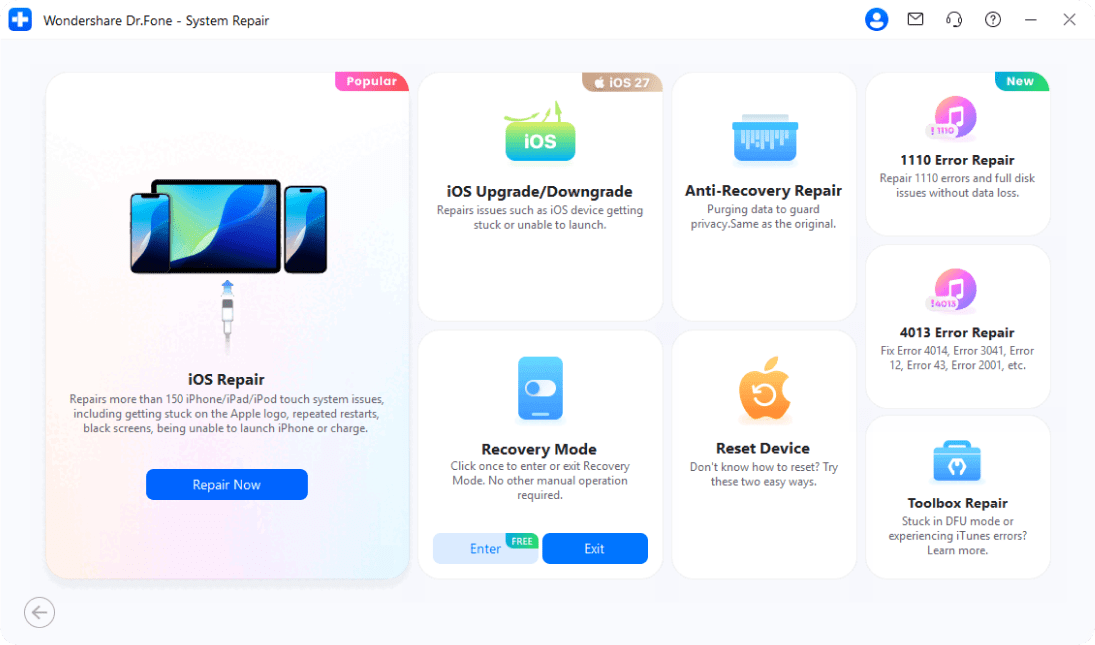
How to Enter or Exit iPhone Recovery Mode with Dr.Fone
Connect your iPhone to a Windows PC or Mac with a USB data cable and let Dr.Fone detect it. Do not interrupt an update or restore already in progress.
Connect and Open System Repair
Step 1:
Open Dr.Fone and choose Toolbox > System Repair > iPhone.
Select Enter/Exit Recovery Mode
Step 2:
Choose Enter/Exit Recovery Mode to open the one-click tools.
Enter or Exit with One Click
Step 3:
Click Enter or Exit. Dr.Fone handles the mode change automatically; wait for completion, then check your iPhone.
If the recovery screen returns, explore Dr.Fone Standard Mode for a separate system repair or use the Update-first steps. Restore and Advanced Repair can erase data.
How to Enter iPhone Recovery Mode Manually
Use the correct button combination for your iPhone model to enter Recovery Mode and connect your device to a computer for troubleshooting or repair. For iPhone XR Recovery Mode, use the first card. For iPhone SE Recovery Mode, select the correct generation, not just the presence of a Home button.
Before you start: Connect your iPhone to a computer, then open Finder on Mac or the Apple Devices app on Windows. If you still use a compatible legacy Windows setup, iTunes can provide the older recovery workflow.
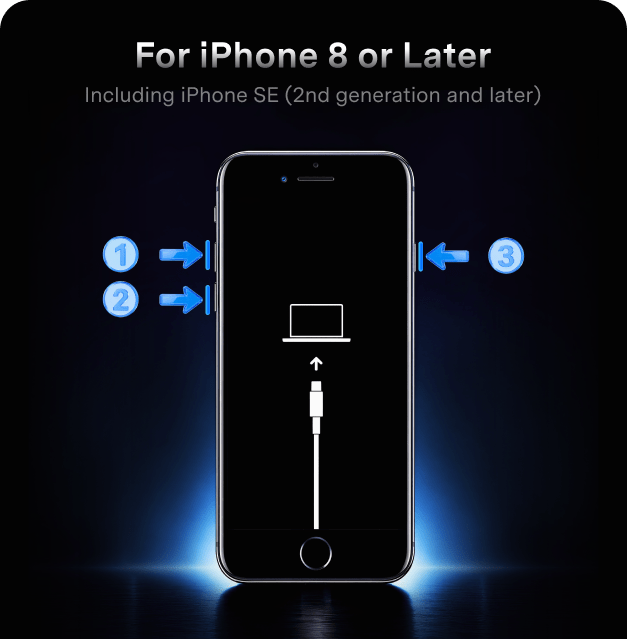
iPhone 8 or later, including X, XR and iPhone SE (2nd/3rd generation)
Step
1: Press and quickly release the Volume Up button.
Step 2: Press and quickly release
the Volume Down button.
Step 3: Press and hold the Side
button until the Connect to computer screen appears. Keep holding past the
Apple logo; release only at the Connect to computer screen.
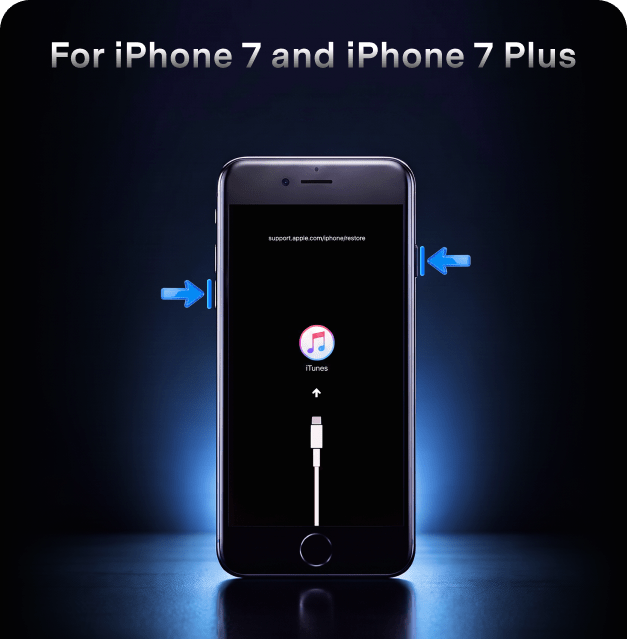
iPhone 7 and iPhone 7 Plus
Step
1: Press and hold the Side button and the Volume Down button at the same
time.
Step 2: Keep holding both buttons
until the Connect to computer screen appears.
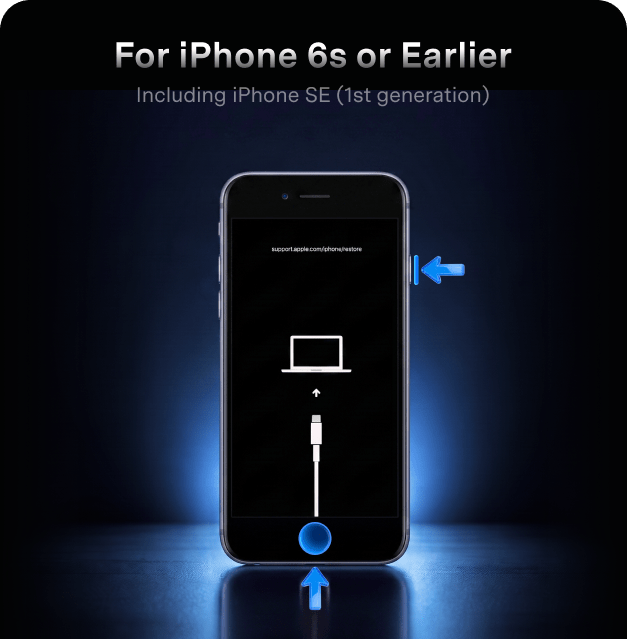
iPhone 6s or earlier, including iPhone SE (1st generation)
Step
1: Press and hold the Home button and the Top or Side button at the same
time.
Step 2: Keep holding both buttons
until the Connect to computer screen appears.
After You Enter Recovery Mode:
Once the Connect to computer screen appears, your iPhone is in Recovery Mode. On your computer, you can then choose Update or Restore. If you want to reinstall iOS while trying to keep your personal data, Update is usually the better first option when available. If the software download takes more than 15 minutes and the iPhone leaves the Connect to computer screen, let the download finish, then repeat the Recovery Mode button sequence. Recovery time depends on the software download and installation; entering the mode alone does not start a repair. Restore erases the iPhone. If Update fails, stop and consider whether you have a backup before choosing Restore. If a required button is broken, or recovery cannot update or restore the phone, arrange Apple service.
How to Exit iPhone Recovery Mode Manually
Use the correct force restart steps for your iPhone model to exit Recovery Mode and return to normal startup.
Before you start: If an Update or Restore is running, let it finish. For an iPhone showing the restore screen with no operation running, keep the USB connection to the computer and use the restart steps below. Release at the Apple logo, rather than holding for the Connect to computer screen.
iPhone 8 or later, including X, XR and iPhone SE (2nd/3rd generation)
Step
1: Press and quickly release the Volume Up button.
Step 2: Press and quickly
release the Volume Down button.
Step 3: Press and hold the Side
button until the Apple logo appears.
iPhone 7 and iPhone 7 Plus
Step
1: Press and hold the Side button and the Volume Down button at the
same time.
Step 2: Keep holding both
buttons until the Apple logo appears.
iPhone 6s or earlier, including iPhone SE (1st generation)
Step
1: Press and hold the Home button and the Top or Side button at the
same time.
Step 2: Keep holding both
buttons until the Apple logo appears.
If the Restore Screen Still Appears:
If your iPhone still shows the Restore screen after you restart it, reconnect it to Finder, Apple Devices, or iTunes and choose Update first when that option appears. Update reinstalls iOS while trying to keep your personal data. If the screen keeps returning, follow these additional steps to fix an iPhone stuck in Recovery Mode .
Troubleshooting iPhone Recovery Mode Problems
If iPhone Recovery Mode is not working as expected, use the matching fix below to get your iPhone back to normal or continue recovery the right way.

Stuck on the Restore Screen
Still showing the restore screen after restart

Update or Restore Error
Error 9, 4005, 4013, or 4014 appears

iPhone Not Recognized
Finder, Apple Devices, or iTunes cannot detect it

Recovery Mode Loop
The same recovery screen keeps coming back
Other Apple Recovery Options You May See
Recovery Assistant: If this screen appears, connect to Wi-Fi, tap Continue and wait for the recovery process. Restart the iPhone when it finishes. If startup still fails, use the computer-based recovery path or get service.
Recover with a nearby iPhone or iPad: This is a separate option for supported devices, including iPhone 15 Pro and iPhone 16 models; it is not available on every iPhone. You need another unlocked device running iOS 18 or iPadOS 18 or later, connected to Wi-Fi. Plug the affected iPhone into power, place it nearby, tap Continue on the other device and enter the six-digit code shown on the affected phone. Follow the restoring prompt until completion. If only the Connect to computer screen appears, use Finder or Apple Devices instead.
Learn more about Recovery Assistant from Apple · Supported nearby-recovery devices and steps
FAQ About iPhone Recovery Mode
 iOS Data Recovery
Recover deleted photos, messages and other iPhone files with Dr.Fone iOS Data Recovery.
 iPhone Screen Unlock
Remove supported iPhone screen locks with Dr.Fone Screen Unlock. Check the device requirements and data-erasure conditions before starting.
 iOS System Repair
Easily fix black screens, boot loops, and system crashes to restore your iPhone to normal.

 Phone to Phone Transfer
Transfer data from iPhone to iPhone, iPhone to Android, or Android to iPhone.


All in One & One for All
Bring iOS repair, data recovery and phone management together with Dr.Fone. Start with free Recovery Mode entry, then choose the tools you need for your next task.