iCloud Backup Recovery: Recover iPhone Data Selectively Without Reset
Need to recover data from an iCloud backup? Use the official Apple method for full-device restore, or choose Dr.Fone to preview and recover selected files without erasing your current iPhone data.
- Recover data from iCloud backups with ease
- Extract files directly from iPhone without full device restore
- Preview backup content before selecting what to restore
- Restore only the files you need — no data overwrite required

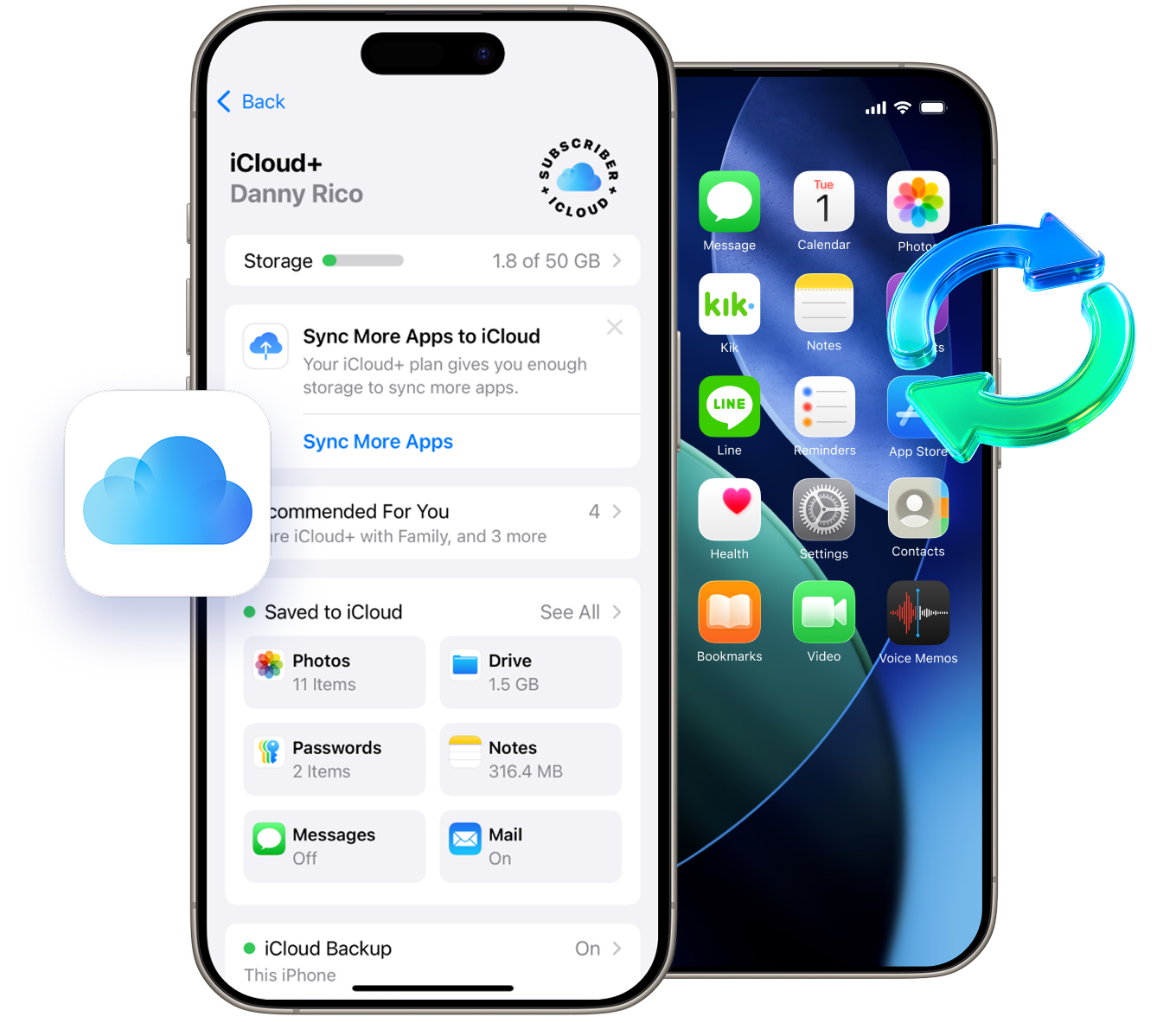

Can you recover data from iCloud backup without resetting your iPhone?
Yes—Apple's official restore usually requires erasing the device and restoring the entire backup during setup. If you only need specific data, Dr.Fone lets you preview supported backup content and recover selected files without a full device reset.
Apple Restore vs. iCloud.com Recovery vs.
Dr.Fone Selective Recovery
Not every “iCloud recovery” method does the same thing. Some options restore an entire device, while others only recover recently deleted files or allow selective access to supported backup content. Understanding the difference helps you choose the fastest and safest method for your situation.
| Method | Best For | Reset Required |
Recover Specific Files |
Preview Before Recovery |
|---|---|---|---|---|
| Apple iCloud Restore | Full device restore | Yes | No | No |
| iCloud.com Data Recovery | Recently deleted supported files | No | Limited | Limited |
| Dr.Fone - Data Recovery (iOS) | Selective data recovery | No | Yes | Yes |
← Swipe to see all columns →
What Is iCloud Backup Recovery
iCloud backup recovery refers to retrieving data stored in an iCloud backup created from your iPhone or iPad. Depending on your goal, this can mean either restoring the entire backup to a device or accessing selected data from backup content. The biggest difference is control: a full-device restore replaces your current device state with the backup version, while selective recovery focuses on helping you get back only the data that matters most.
For many users, a full restore is more than they need. If you only want a few photos, messages, notes, or contacts, restoring an entire backup can feel excessive—especially when your current iPhone already contains newer data that you do not want to lose. That is why selective iCloud backup recovery is such a common need.
What Is iCloud Backup Recovery
iCloud backup recovery refers to retrieving data stored in an iCloud backup created from your iPhone or iPad. Depending on your goal, this can mean either restoring the entire backup to a device or accessing selected data from backup content. The biggest difference is control: a full-device restore replaces your current device state with the backup version, while selective recovery focuses on helping you get back only the data that matters most.
For many users, a full restore is more than they need. If you only want a few photos, messages, notes, or contacts, restoring an entire backup can feel excessive—especially when your current iPhone already contains newer data that you do not want to lose. That is why selective iCloud backup recovery is such a common need.
Which Method Should You Use

Use Apple’s Official Restore If…
You are setting up a new iPhone, replacing a damaged device, or want to restore the entire backup exactly as it was. Apple’s full restore workflow is useful when your goal is to bring back the whole device environment, including apps, settings, and backed-up data

Use Dr.Fone Selective Recovery If…
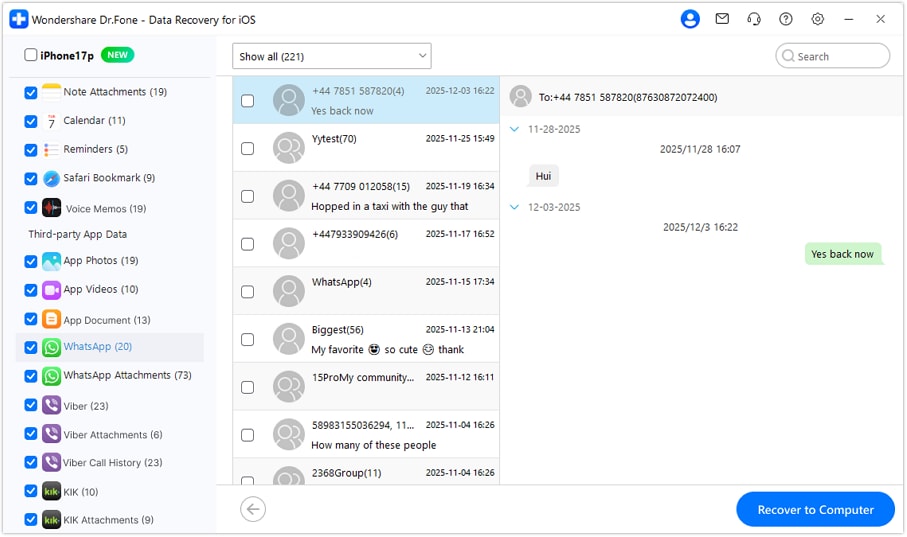
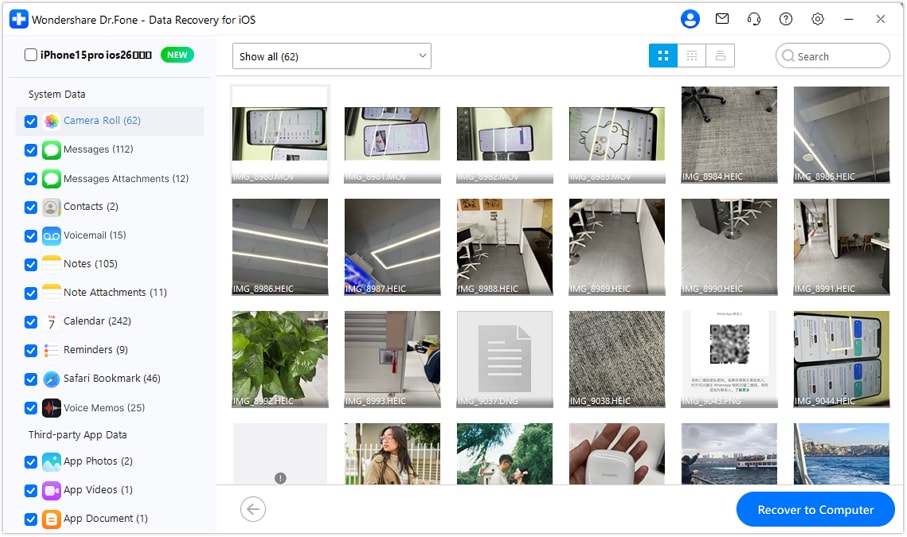
You only need certain files from iCloud backup, want to keep the current data on your iPhone, or prefer to preview supported backup content before recovering anything. This is the better choice when you want more control and less risk.

Use iCloud.com Recovery If…
You are trying to recover certain recently deleted files from supported iCloud services, rather than restore a full iPhone backup. Apple notes that some deleted files can be recovered within a limited time window, but this is not the same as full iCloud backup restoration.
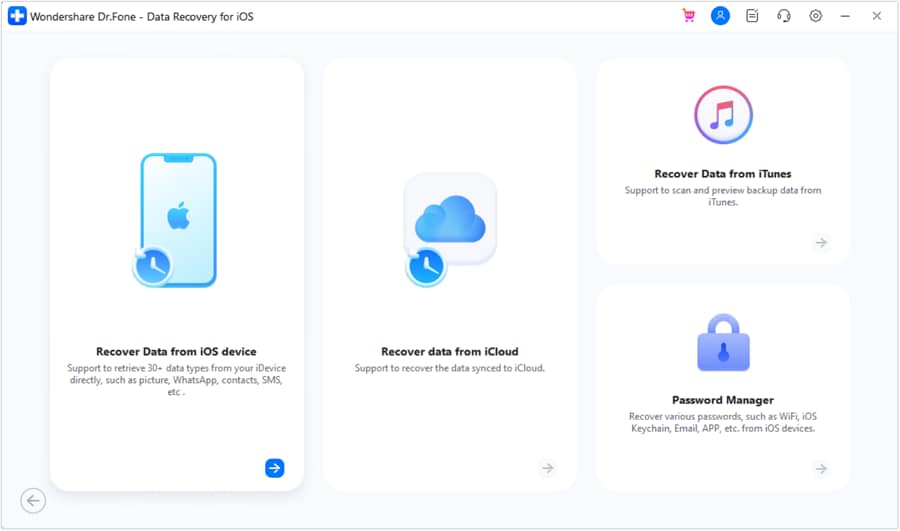
Dr.Fone Recoverable Data Types
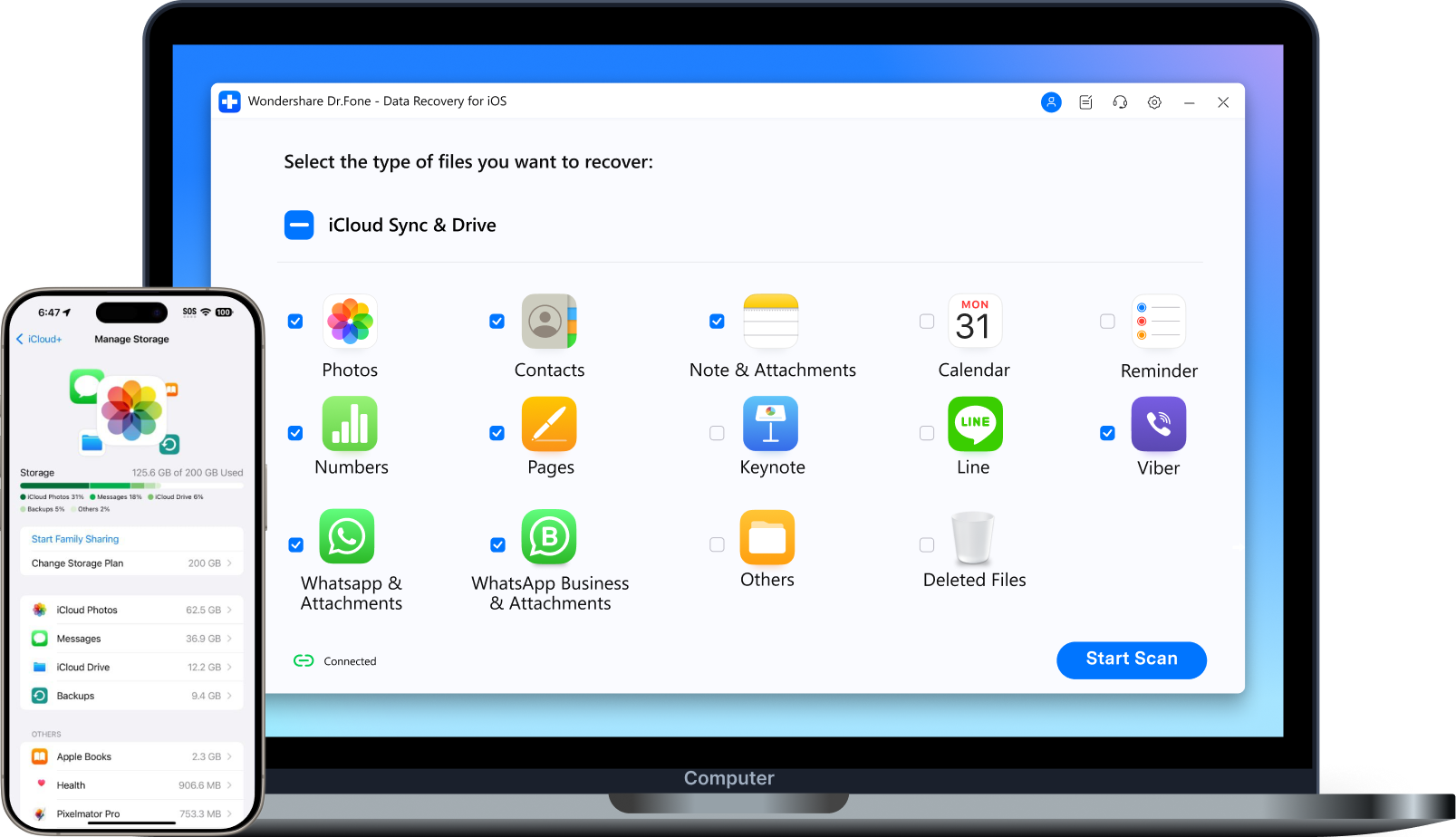
Preview supported categories and recover only what matters most
Media


Personal Info


Messages & Notes


Chat Apps


App Data


Why Selective Recovery Matters
If your backup contains valuable memories, important business contacts, or essential conversations, being able to preview and recover specific files can make the process much more practical. Instead of replacing your whole device with an older backup, you can focus on recovering what you actually need.
Why Selective Recovery Matters
If your backup contains valuable memories, important business contacts, or essential conversations, being able to preview and recover specific files can make the process much more practical. Instead of replacing your whole device with an older backup, you can focus on recovering what you actually need.
How to Recover Data from iCloud Backup with Dr.Fone
Why Users Search for iCloud Backup Recovery Without Reset?
Many users do not realize they need older backup data until after they have already started using their current iPhone again. By then, the device may already contain new photos, messages, app data, and settings. A full restore can create a difficult choice: recover old data or keep new data.
That is exactly why “restore from iCloud backup without reset” has become such a strong search intent. Users want a way to recover certain files from backup content without wiping the device and starting over. A selective recovery workflow is often the most practical answer when the goal is to retrieve specific information—not to roll the whole iPhone back in time.
How to Restore an iPhone from iCloud
Backup
with Apple’s
Official Method?
Apple provides an official way to restore your iPhone from iCloud backup during device setup. In general, you turn on the device, go through the setup flow, choose From iCloud Backup on the Apps & Data screen, sign in with your Apple account, and select the backup you want to restore.
If the iPhone has already been set up, Apple indicates that you generally need to erase the device before using the full iCloud restore process. This is why the official restore method is best suited for full-device recovery, new-device setup, or situations where replacing the entire current device state is acceptable.
When Apple’s Official Method Makes Sense
When Apple’s Official Method May Not Be Ideal
- You want to restore the entire backup
- You are setting up a new iPhone
- Your current device has been erased or needs a complete restore
- You want apps, settings, and backed-up content restored together
When Apple’s Official Method May Not Be Ideal

When Apple’s Official Method May Not Be Ideal
- You only need a few files
- Your current iPhone already contains new data
- You do not want to overwrite your current device state
- You want to preview data before recovery
Why Choose Dr.Fone for iCloud Backup Recovery?
Recover Only What
You Need
Skip the all-or-nothing workflow when your goal is to retrieve only part of a backup.
Preview Before You
Recover
Check supported backup content first so you can make a more informed decision.
Keep Your Current iPhone Workflow Intact
Avoid the inconvenience of wiping your device just to retrieve a few important files.
Use a More Flexible Recovery Workflow
Whether recovering photos, messages, contacts, or notes, selective recovery gives you more control.
Recover Only What You Need
Skip the all-or-nothing workflow when your goal is to retrieve only part of a backup.
Preview Before You Recover
Keep Your Current iPhone Workflow Intact
Use a More Flexible Recovery Workflow
iCloud Backup Recovery FAQs & Hot Topics
Apple’s standard full-device restore workflow does not focus on selective preview-based recovery. If you want to check supported backup content before recovering anything, a selective recovery workflow is more suitable.