
Fix 150+ iOS System Issues Without Data Loss
Repair software-related iPhone and iPad issues at home with guided firmware repair. Standard Repair is designed to preserve your personal data; data-erasing modes are clearly labeled before you start.
-
Compatible with iOS 27, iPadOS 27, iOS 26, and iPhone 18 Series.
-
Upgrade or downgrade your iPhone or iPad system without jailbreak or iTunes.
-
Repair 150+ iOS system issues like Apple logo, boot loop, white screen, etc.
-
Factory reset your iPhone without passcode/iTunes/Finder.
-
Enter Recovery Mode in one click for FREE.
-
Fix 200+ iTunes errors like 4013 and 1110 without data loss.
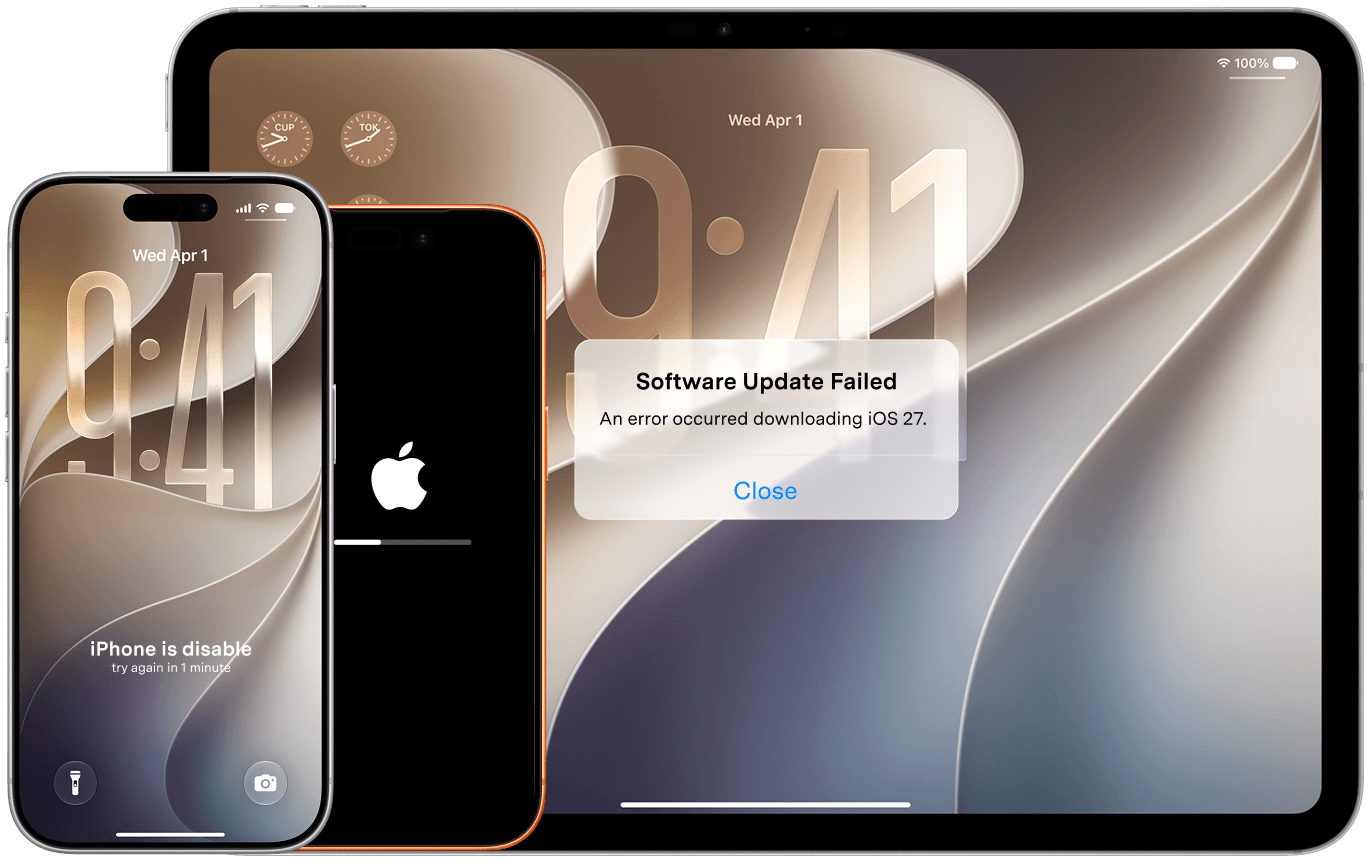

Fix Common iPhone and iPad System Issues
Dr.Fone - System Repair (iOS) is an iOS system repair tool for fixing software-related iPhone and iPad problems such as a black screen, boot loop, Apple logo stuck, recovery mode, and failed iOS updates. Standard Repair is designed to resolve supported system issues without erasing your data, while Advanced Repair is available for more serious problems and may erase device data.
Dr.Fone can fix 150+ software-related iOS problems, including:
- Stuck screens: Apple logo freeze, black screen, white screen, frozen screen, or spinning wheel.
- Boot problems: boot loop, iPhone won’t turn on, or being stuck on restart.
- Recovery & DFU: stuck in Recovery Mode or DFU Mode, or unable to exit.
- Update & restore issues: a failed or stuck iOS update, “Preparing Update”, or update verification failed.
- iTunes/Finder errors: common errors such as 4013, 1110, and 9.
- Unresponsive device: a screen that will not respond, or the system and apps freezing.
Quickly escape recovery mode without losing your data.
Fix the Apple logo freeze and revive your iPhone.
Stop endless restarts—restore your iPhone’s stability.
Troubleshoot software-related startup failures and restore normal booting.
Resolve update failures and smoothly upgrade your iPhone.
Reset or repair a disabled iPhone without relying on iTunes; some workflows erase data.
Repair software-related black or white screen issues and restore normal startup.
Repair software-related freezes with Standard Repair designed to preserve personal data.
Resolve software-related restore-screen loops and return to normal startup.
Troubleshoot battery drain caused by iOS software issues.
Upgrade and Downgrade iOS Without iTunes or Jailbreak
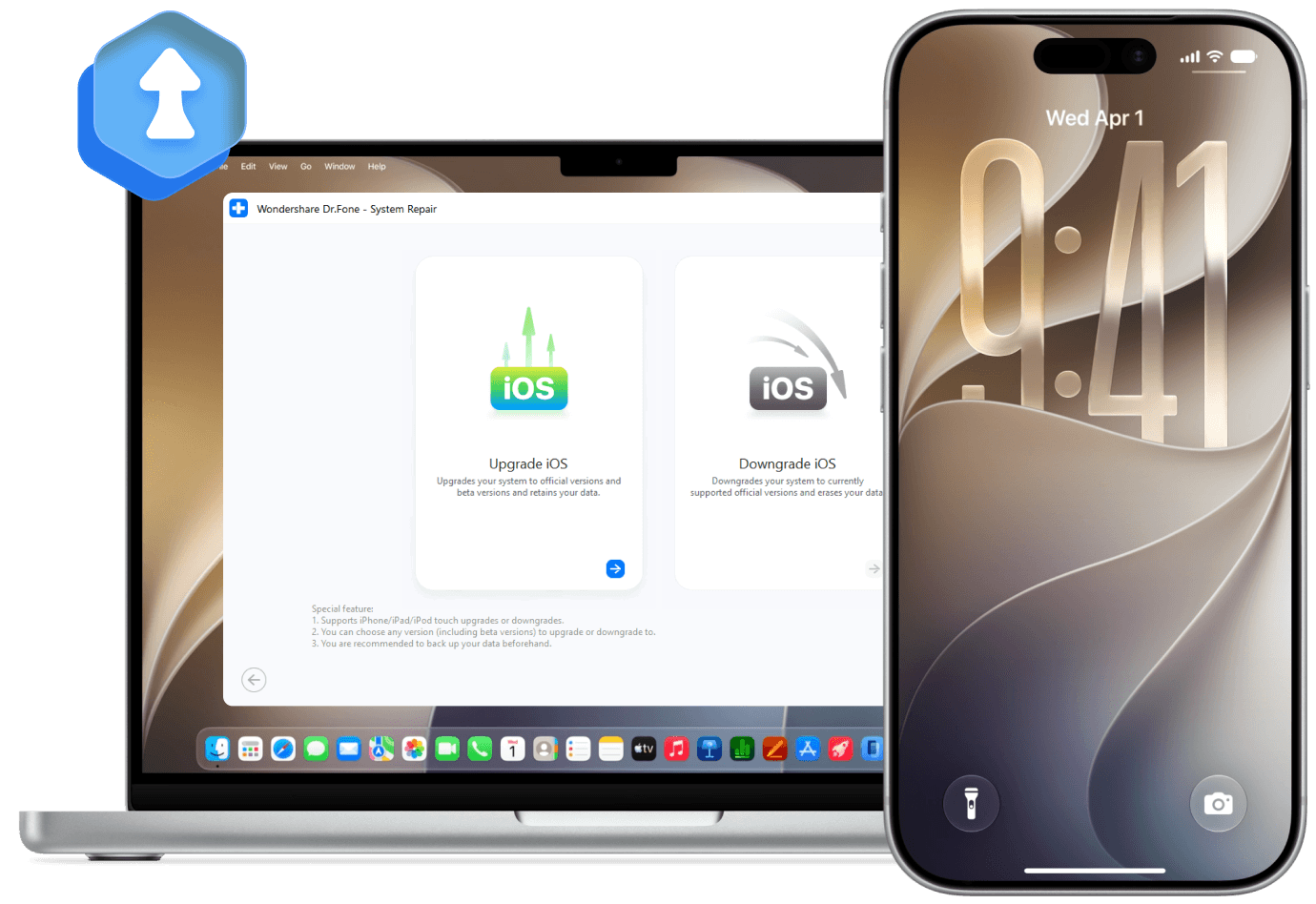
Seamlessly manage your iOS/iPadOS versions with Dr.Fone — upgrade, downgrade, or explore iOS Beta without iTunes, jailbreak, or technical skills.

iPhone

iPad

iPod touch


Upgrade to the Latest Supported iOS Version
Dr.Fone lets you install supported iOS and iPadOS firmware, including iOS 27 and iPadOS 27 builds when available, through a guided workflow without relying on the normal over-the-air update process.
-

Upgrade to supported iOS/iPadOS versions, including iOS 27 when available.
-
Preserve your data during the upgrade process.
-
Avoid common iOS update issues, such as stuck preparing update, update failed, or frozen progress bar.
-
User-friendly iOS upgrade tool for beginners and advanced users.
Download the latest version | Secure & verified
iPhone
iPad
iPod touch
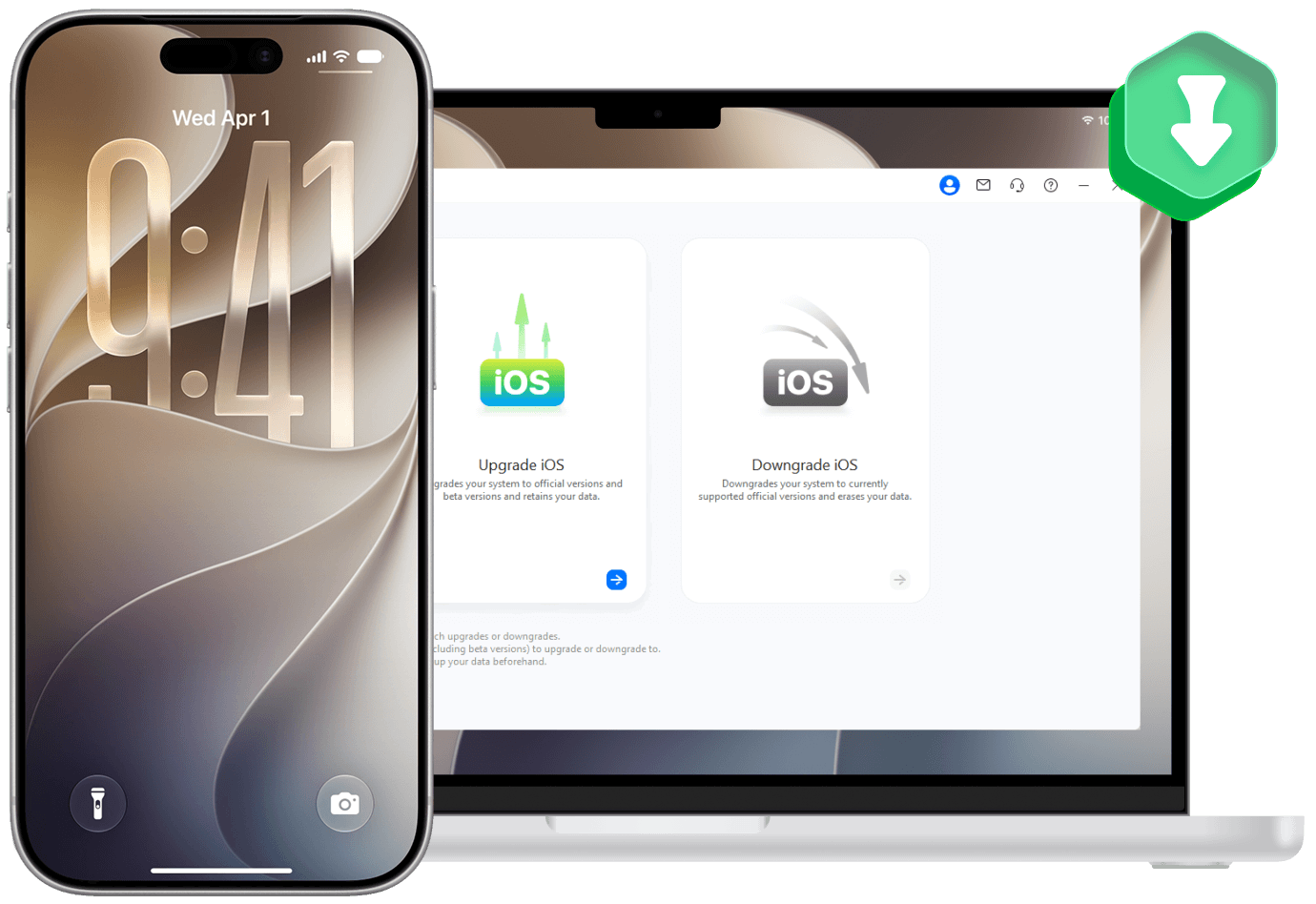
Downgrade to a Previous iOS Version
If your iPhone has bugs, battery drain, app crashes, or update failures after installing the latest iOS version, Dr.Fone helps you downgrade to a stable signed iOS version without iTunes.
-
Downgrade iOS 27 to signed versions without iTunes.
-
Keep your data safe during supported downgrade scenarios.
-
Fix post-update issues such as boot loop, frozen screen, or iOS system instability.
-
Simple step-by-step process with no jailbreak required.
Download the latest version | Secure & verified
iPhone
iPad
iPod touch

Explore the Latest iOS Beta
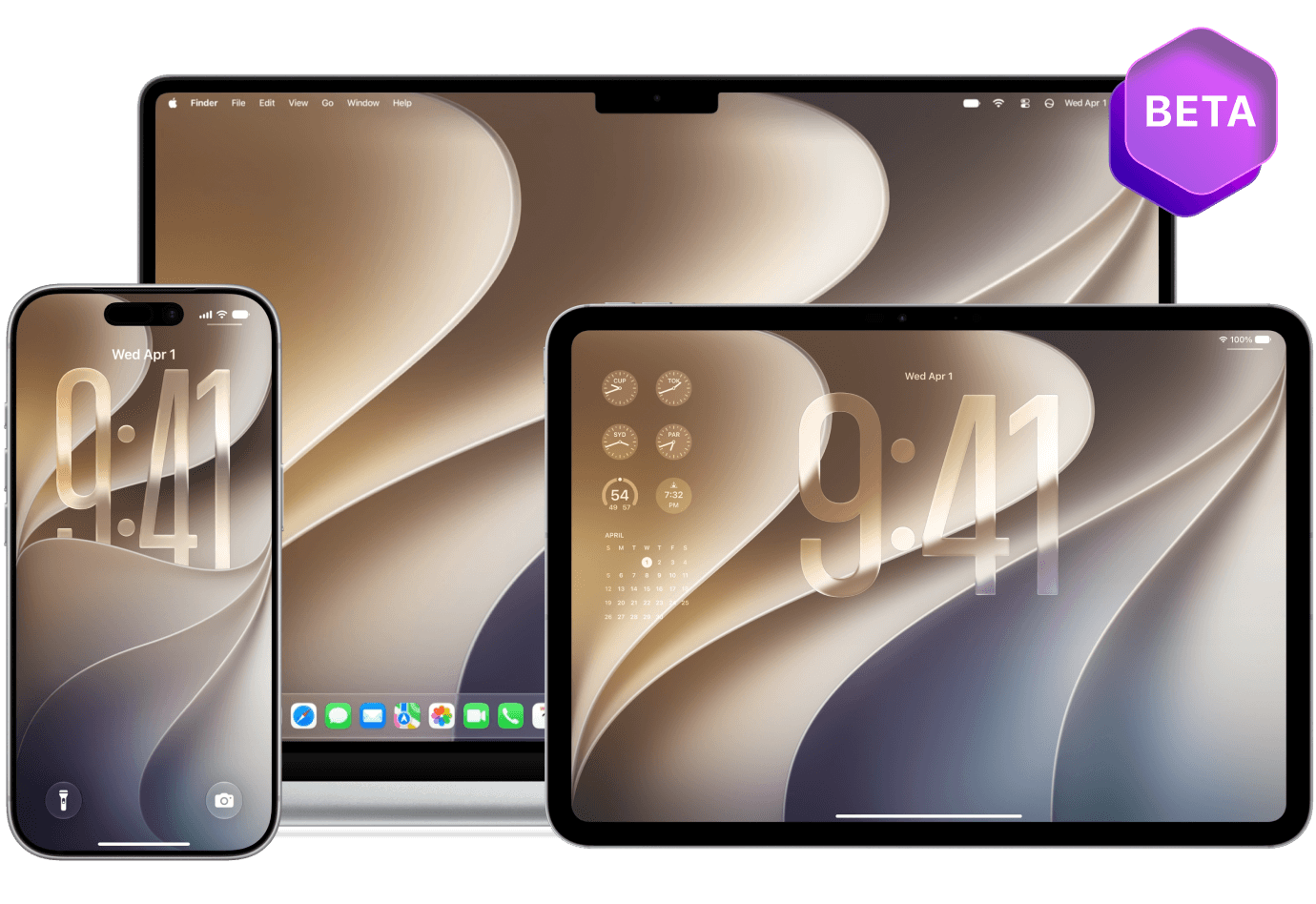
Explore upcoming iOS Beta features for free. With Dr.Fone, you can download and install the latest iOS Beta in one click — no Apple developer account or complicated setup required.
-
Try the newest iOS features before the official release.
-
Install iOS Beta for free with your data preserved.
-
One-click upgrade with simple step-by-step guidance.
-
No Apple developer account required.
Download the latest version | Secure & verified
Reset iOS Devices Without Apple ID – Two Ways to
Refresh Your iPhone
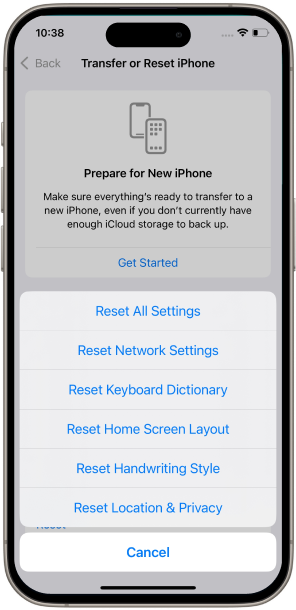
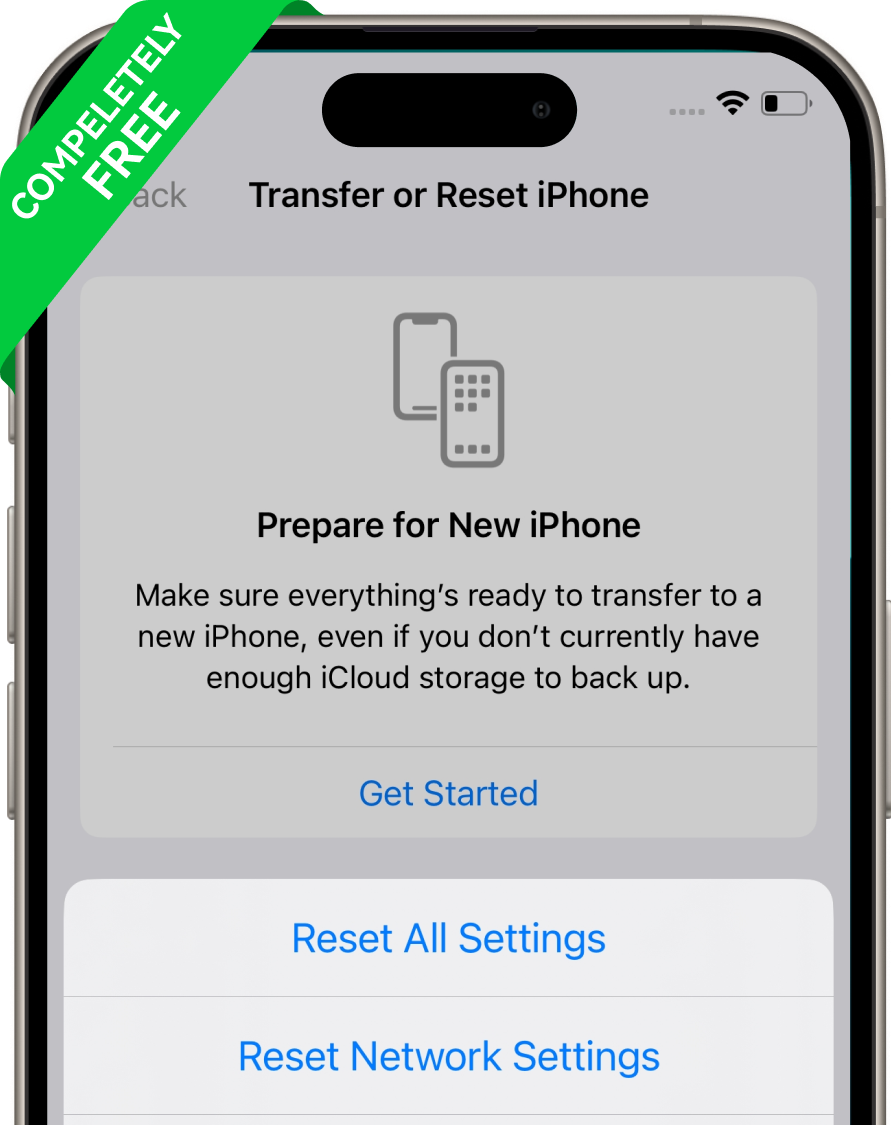
General Reset
Refresh your iPhone or iPad settings without erasing personal data. General Reset restores system settings to default and helps fix minor iOS glitches such as network issues, notification problems, abnormal battery drain, or unstable system behavior.

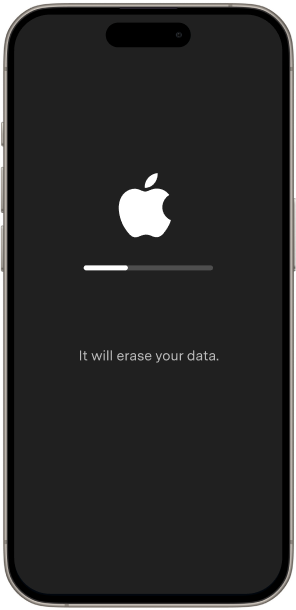
Factory Reset
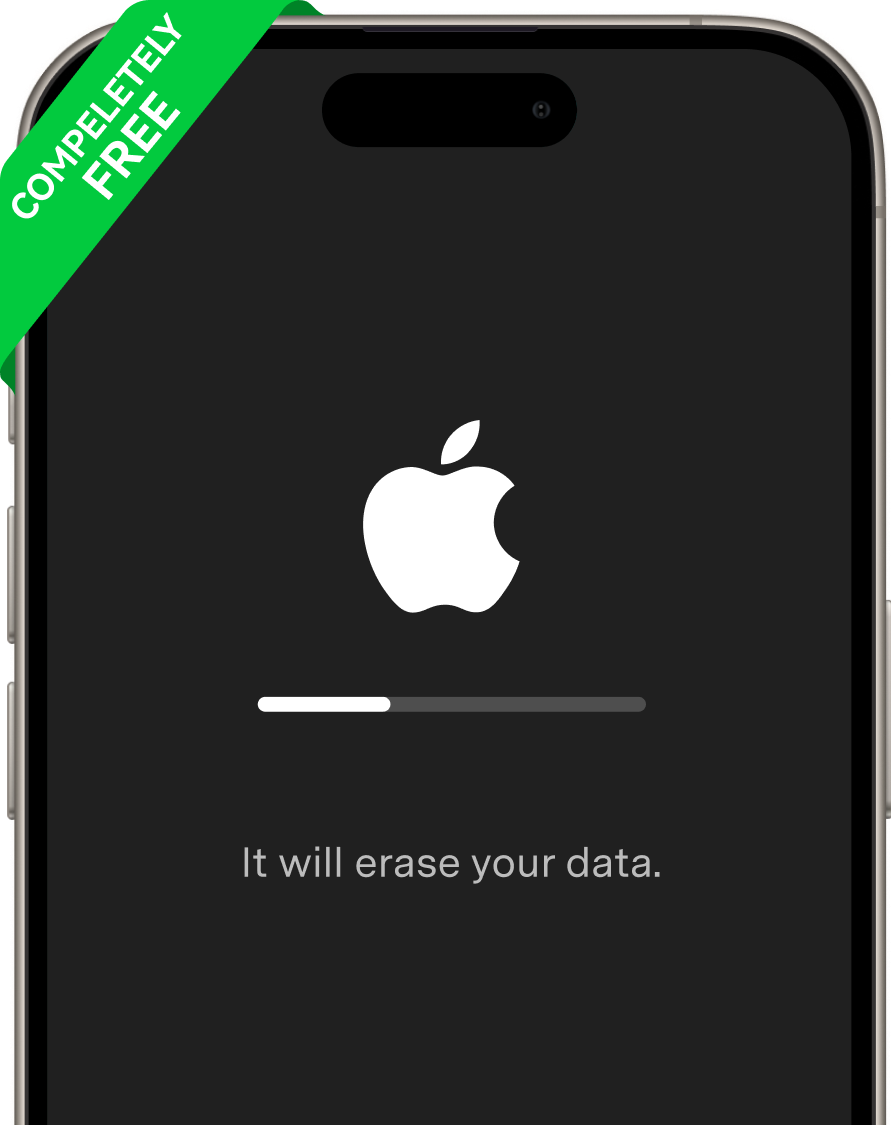
Reinstall iOS and wipe your iPhone/iPad when you need to remove a passcode, fix severe crashes, resolve persistent boot loop, or prepare a device for resale. Please note: Factory Reset erases all data. Back up your iPhone before continuing.
General Reset
Refresh your iPhone or iPad settings without erasing personal data. General Reset restores system settings to default and helps fix minor iOS glitches such as network issues, notification problems, abnormal battery drain, or unstable system behavior.
Factory Reset
Reinstall iOS and wipe your iPhone/iPad when you need to remove a passcode, fix severe crashes, resolve persistent boot loop, or prepare a device for resale. Please note: Factory Reset erases all data. Back up your iPhone before continuing.
Repair iPhone/iTunes Errors Effortlessly


One‑Click Recovery Mode & DFU Mode Tools
Dr.Fone - System Repair provides guided one-click tools for Recovery Mode and DFU Mode workflows on iPhone and iPad. Entering Recovery Mode is free; check your current Dr.Fone license access before using exit or advanced repair actions.

Enter/Exit iPhone Recovery Mode
Enter iPhone Recovery Mode in one click for troubleshooting, or exit Recovery Mode if your device is stuck on the “Connect to iTunes” or support.apple.com/iphone/restore screen. No data loss, no button tricks, no iTunes required.
Exit DFU Mode
If your device is stuck in DFU mode, this system repair tool provides a guided one-click way to exit DFU mode without repeating manual button combinations.
Top 3 Modes to Repair iOS System
Dr.Fone offers three iOS system repair modes for different repair needs, from common iPhone issues to severe system failures and secure data erasure.
Standard Mode
Fix common iOS/iPadOS problems without data loss, including iPhone stuck on Apple logo, boot loop, black screen, white screen, frozen screen, system crashes, update failed, and recovery mode stuck.
Advanced Mode
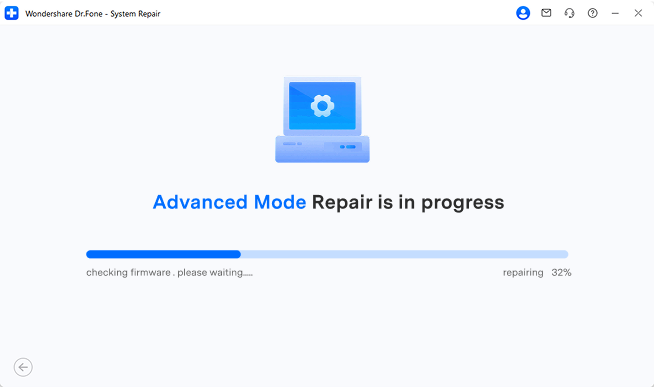
When Standard Mode isn't sufficient, Advanced Mode performs a deep scan to repair more complex issues by resetting your iDevice to factory settings. Please note: this will erase all data after recovery. To prevent data loss, we recommend backing up your iPhone/iPad/iPod before using this feature.
Anti-Recovery Mode
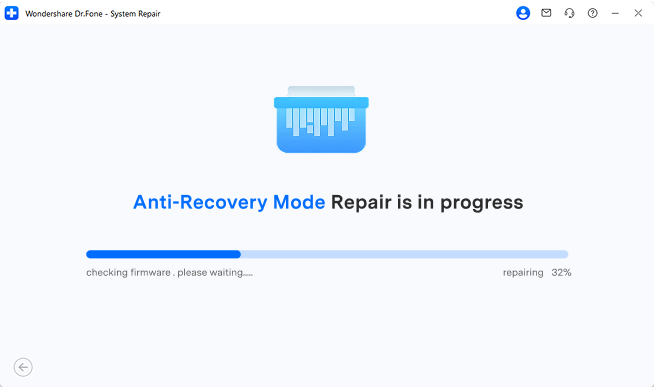
Use Anti-Recovery Mode before selling, trading in, or disposing of your iPhone/iPad. This mode repairs complex iOS system issues and performs deep data erasure to help prevent data recovery.
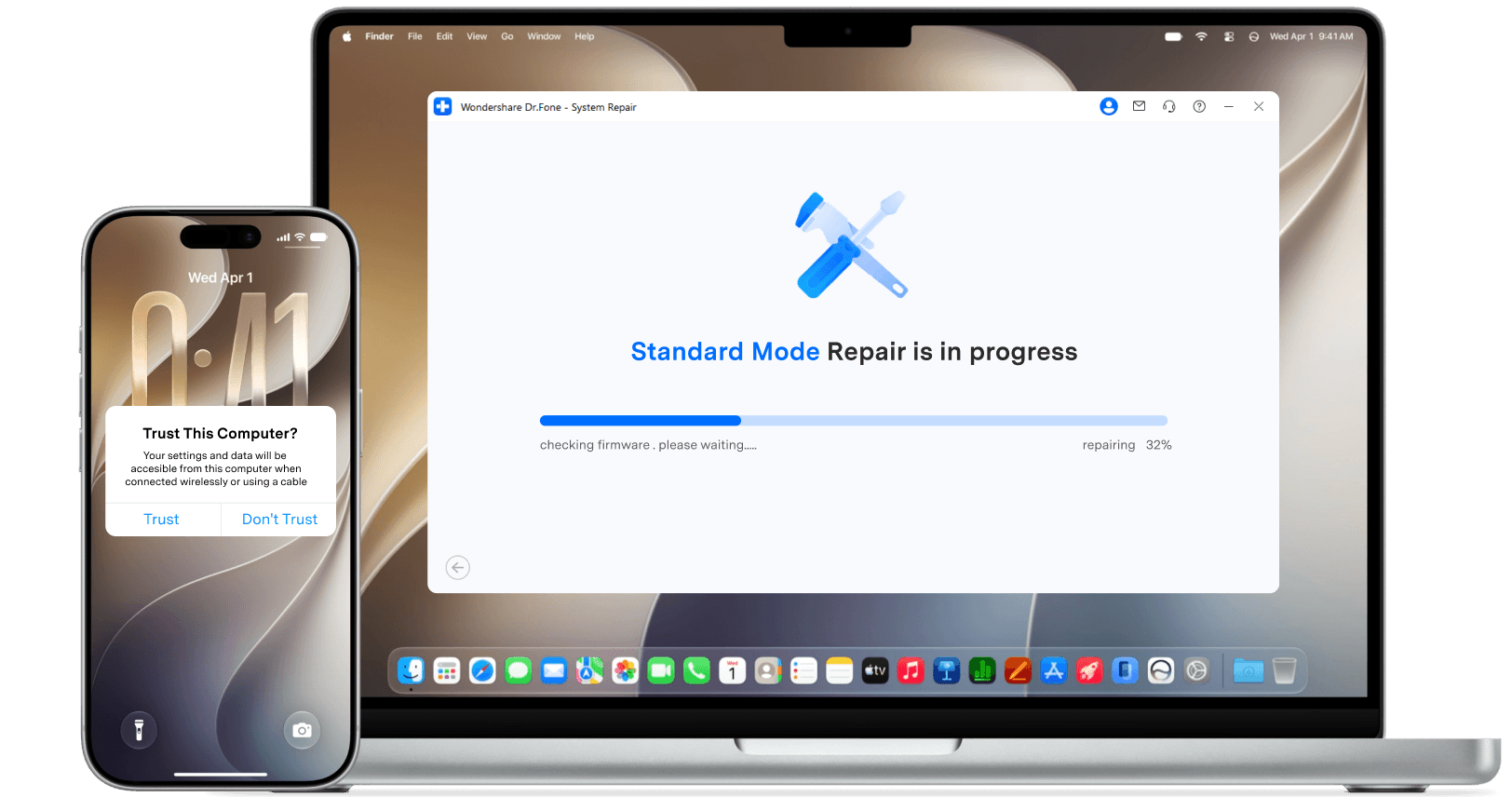
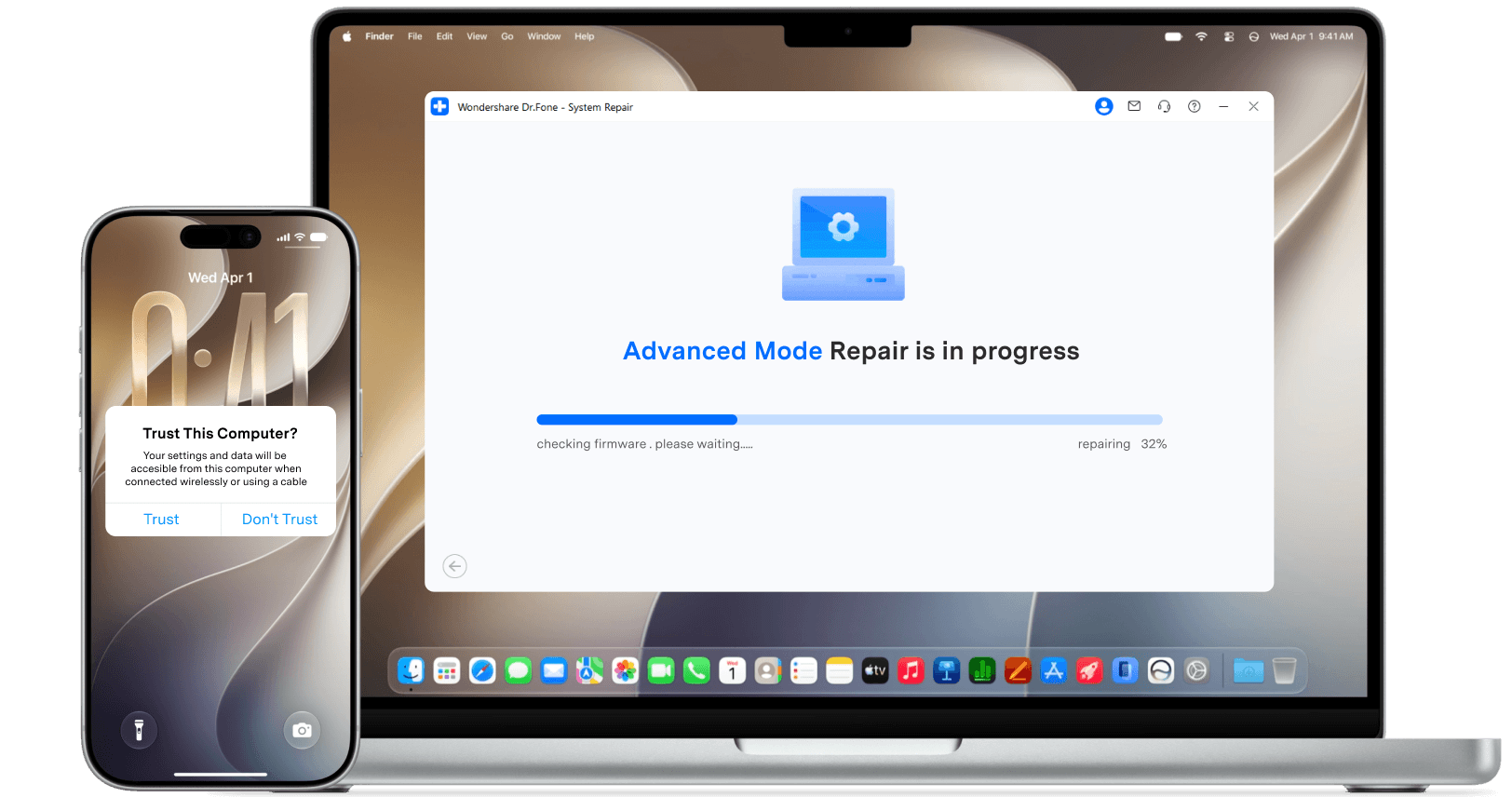
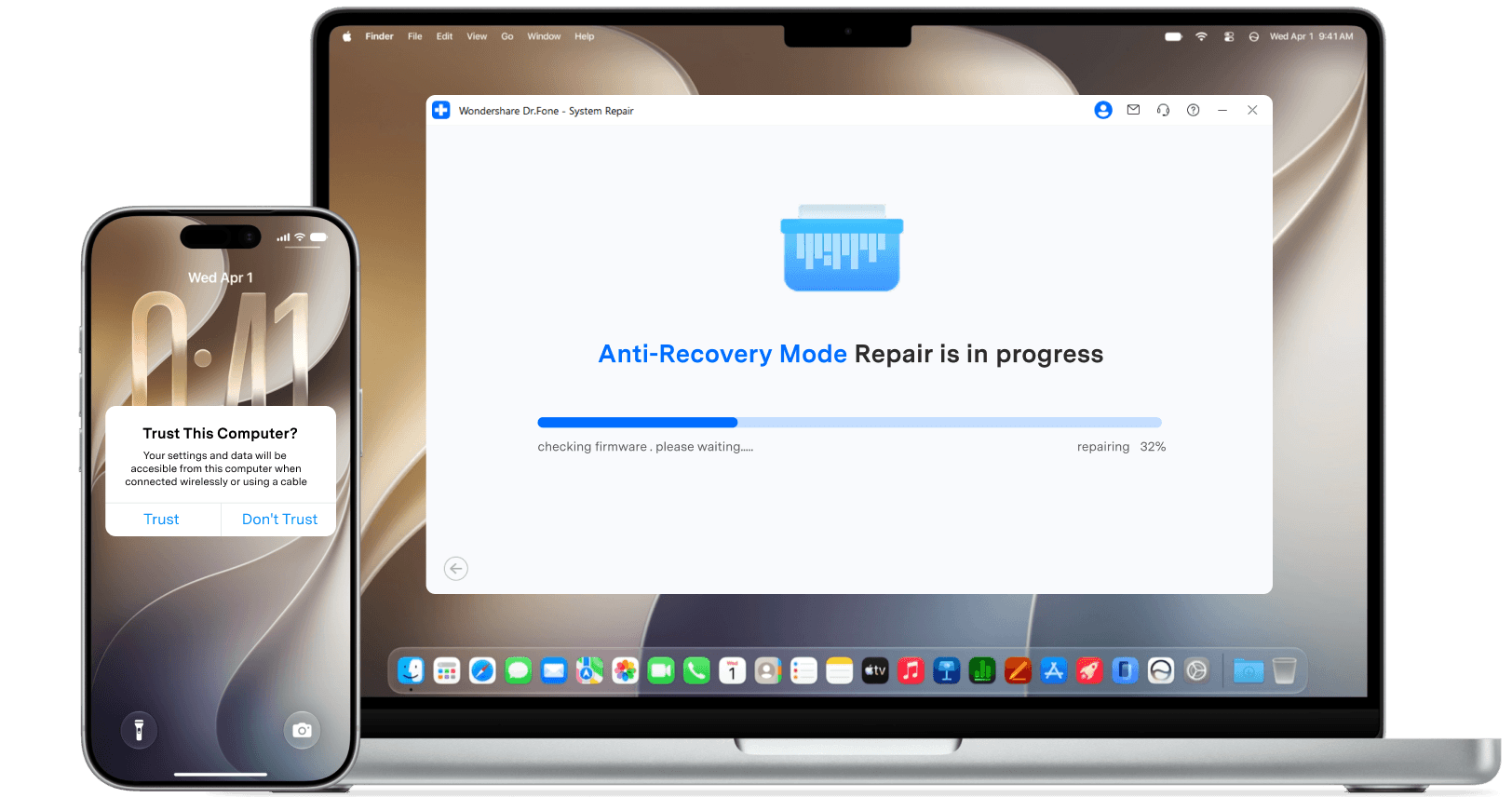
Dr.Fone offers three iOS system repair modes for different repair needs, from common iPhone issues to severe system failures and secure data erasure.

Dr.Fone vs Offline Repair Shops: Compare the Repair Experience
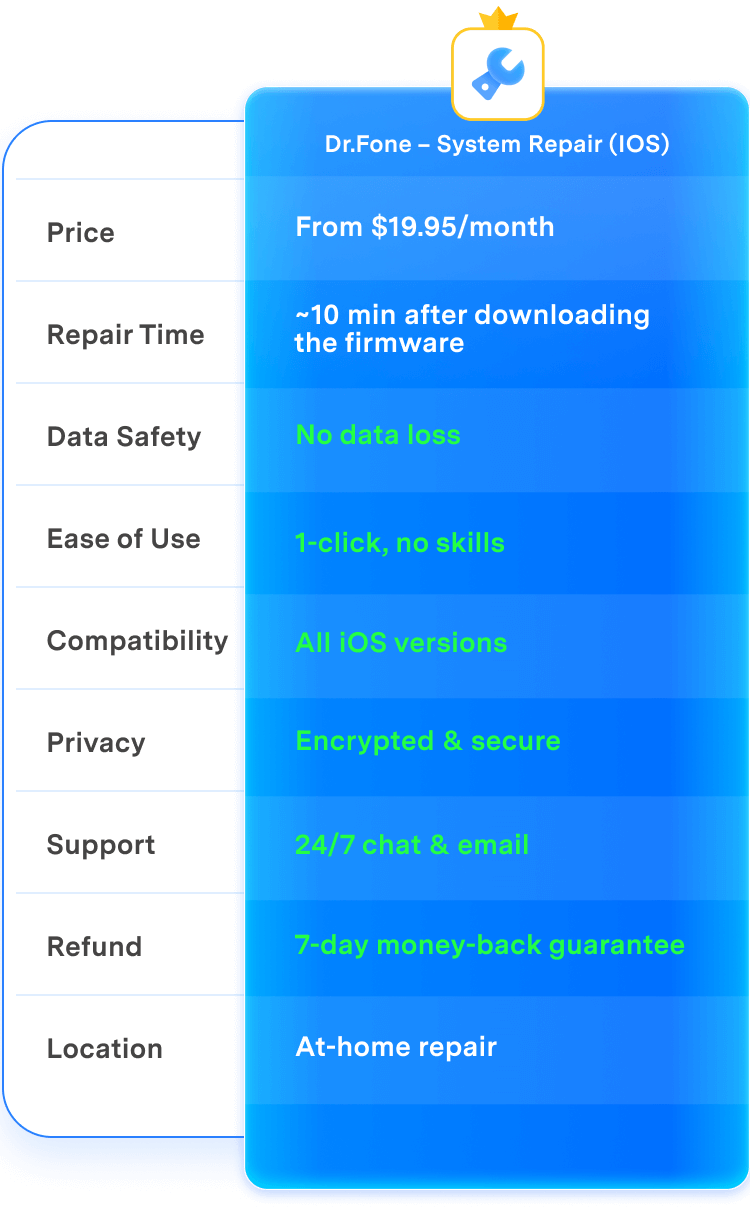
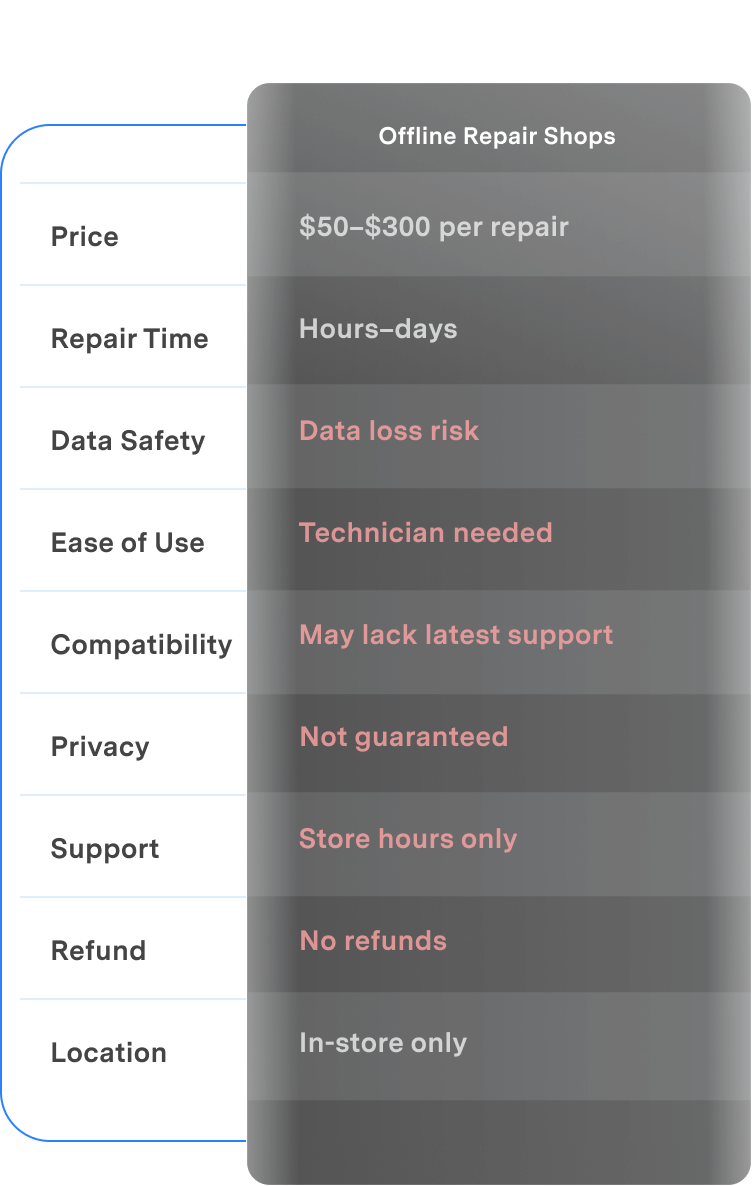
Compare a guided at-home software repair workflow with an in-person repair shop. The right option depends on whether your problem is software-related or caused by physical hardware damage.
| Feature | Dr.Fone – System Repair (iOS) | Offline Repair Shops |
|---|---|---|
| Price |
From $19.95/month
|
$50–$300 per repair
|
| Repair Time |
~10 min after downloading the firmware
|
Hours–days
|
| Data Safety |
 No data loss No data loss |
Data loss risk
|
| Ease of Use |
1-click, no skills
|
Technician needed
|
| Compatibility |
All iOS versions
|
May lack latest support
|
| Privacy |
Encrypted & secure
|
Not guaranteed
|
| Support |
24/7 chat & email
|
Store hours only
|
| Refund |
7-day money-back guarantee
|
No refunds
|
| Location |
At-home repair
|
In-store only
|

| Dr.Fone – System Repair (iOS) |
|---|
|
From $19.95/month
|
|
~10 min after downloading the firmware
|
|
No data loss
|
|
1-click, no skills
|
|
All iOS versions
|
|
Encrypted & secure
|
|
24/7 chat & email
|
|
7-day money-back guarantee
|
|
At-home repair
|
Why Choose Dr.Fone?


System Repair by Wondershare Dr.Fone is an excellent alternative to iTunes for fixing iOS issues. It resolves many problems by re-installing the latest package, which doesn't wipe out your iPhone's data.

With its new powerful desktop and online solution, Wondershare Dr. Fone offers a complete mobile device solution for Android and iOS devices, with useful how-to guides and technical fixes for a wide variety of mobile issues.

Dr.Fone offers iPhone and iPad users a full software suite that goes beyond the iOS management that's possible with iTunes/Finder in macOS. Features include data recovery, system repair, getting around your device's lock screen, and more.

If your iPhone is not responding or turning on, then this is probably one of the best tools to fix it. The tool guarantees that during the recovery process, none of your data will be lost.

Dr.Fone can help you with your smartphone in many ways. It can recover deleted data, back up and transfer files, unlock screens, repair your OS, switch between different types of smartphones, transfer WhatsApp chats between iOS and Android, and more.

Dr.Fone is a comprehensive software suite developed by Wondershare that addresses a wide range of needs for smartphone and computer users. When transferring data between Android devices, Dr.Fone offers a mix of ease, efficiency, and security, making it a preferred choice for many.
System Repair by Wondershare Dr.Fone is an excellent alternative to iTunes for fixing iOS issues. It resolves many problems by re-installing the latest package, which doesn't wipe out your iPhone's data.
With its new powerful desktop and online solution, Wondershare Dr. Fone offers a complete mobile device solution for Android and iOS devices, with useful how-to guides and technical fixes for a wide variety of mobile issues.
Dr.Fone offers iPhone and iPad users a full software suite that goes beyond the iOS management that's possible with iTunes/Finder in macOS. Features include data recovery, system repair, getting around your device's lock screen, and more.
If your iPhone is not responding or turning on, then this is probably one of the best tools to fix it. The tool guarantees that during the recovery process, none of your data will be lost.
Dr.Fone can help you with your smartphone in many ways. It can recover deleted data, back up and transfer files, unlock screens, repair your OS, switch between different types of smartphones, transfer WhatsApp chats between iOS and Android, and more.
Dr.Fone is a comprehensive software suite developed by Wondershare that addresses a wide range of needs for smartphone and computer users. When transferring data between Android devices, Dr.Fone offers a mix of ease, efficiency, and security, making it a preferred choice for many.


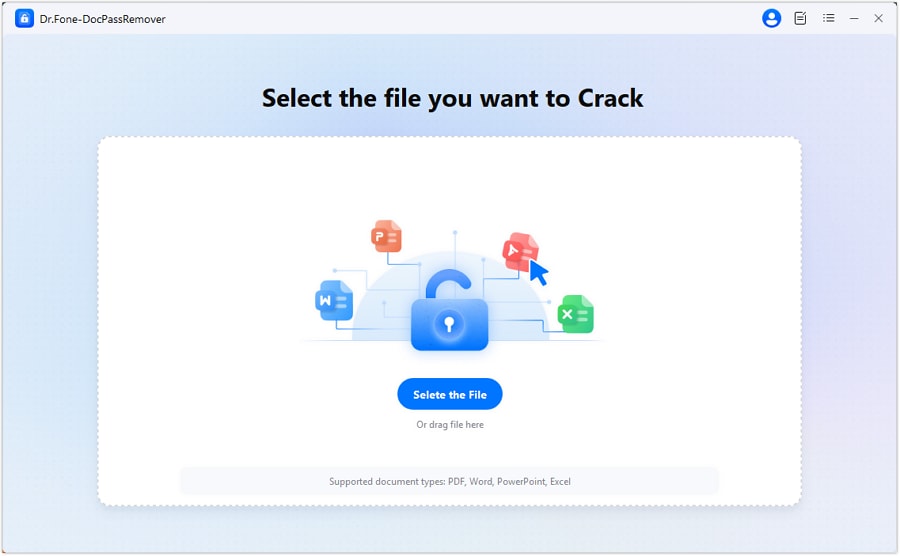
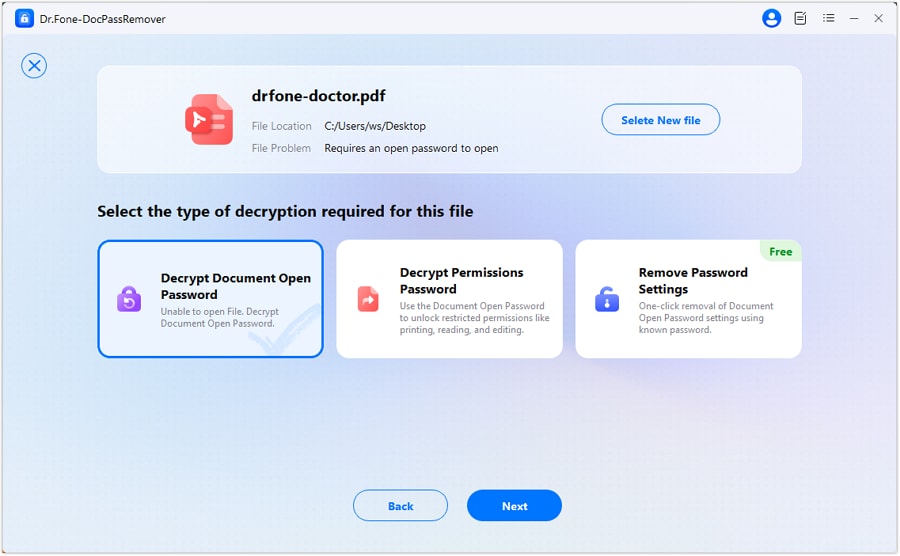
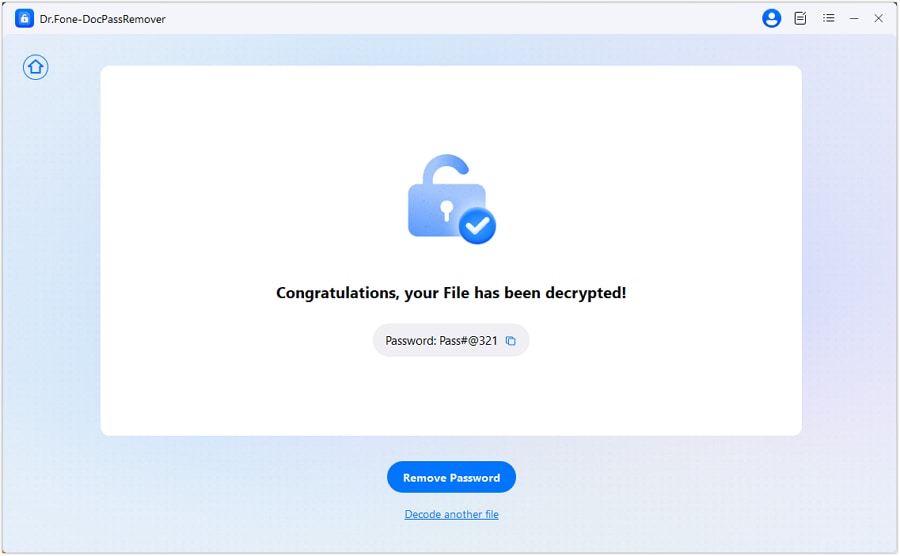
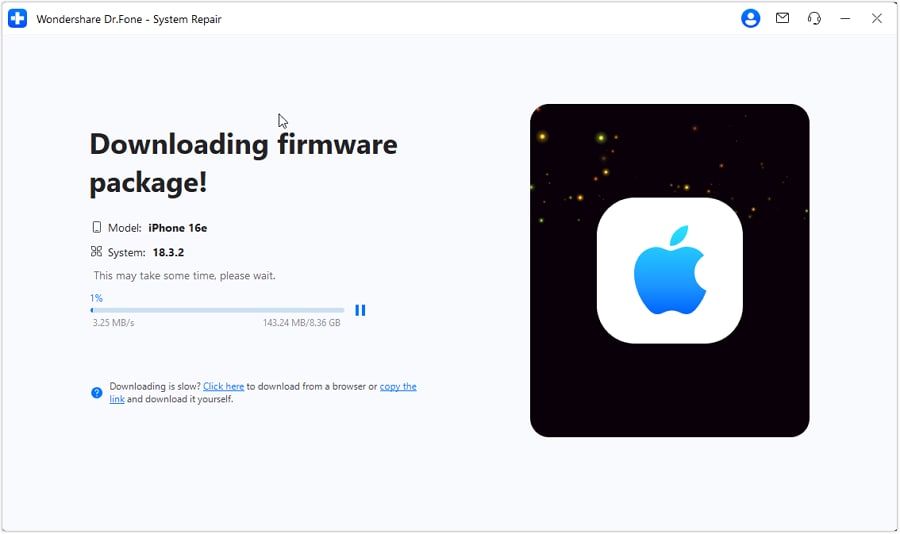
3 Steps for Using iOS System Repair Easily
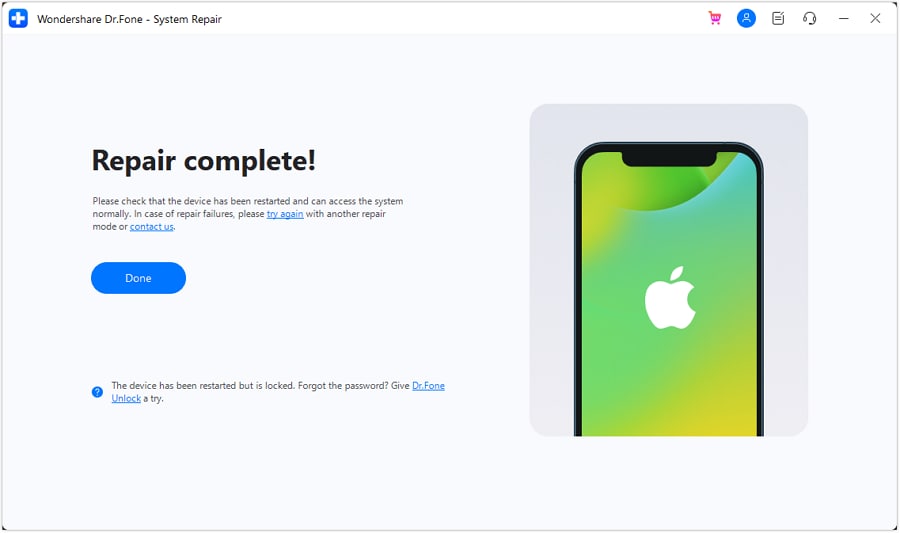
Fix iPhone and iPad software issues in a few guided steps. Start with Standard Repair when you want a non-destructive repair path. Before you begin, keep the device connected, use a stable internet connection for the firmware download, and back up important data before choosing any mode that erases the device. A repair may install a currently supported iOS firmware, and jailbreak status can be removed during the repair process.

Dr.Fone - System Repair (iOS) Technical Specifications

Processor
1 GHz or faster (Intel or AMD)

Hard Disk Space
7 GB of available hard disk space

RAM
1 GB of free RAM (2 GB or higher recommended)

iOS Compatibility
iOS 5.0 and later

Operating System
- Windows 11, 10, 8.1, 8, 7
- macOS 10.13 or later
Processor
Hard Disk Space
RAM
iOS Compatibility
Operating System
- macOS 10.13 or later
iOS System Repair – FAQs
Hot Topics

Regain Control of Your iOS System
Fix any iOS system issue and restore your device—fast and easy