What Is Samsung Download Mode?

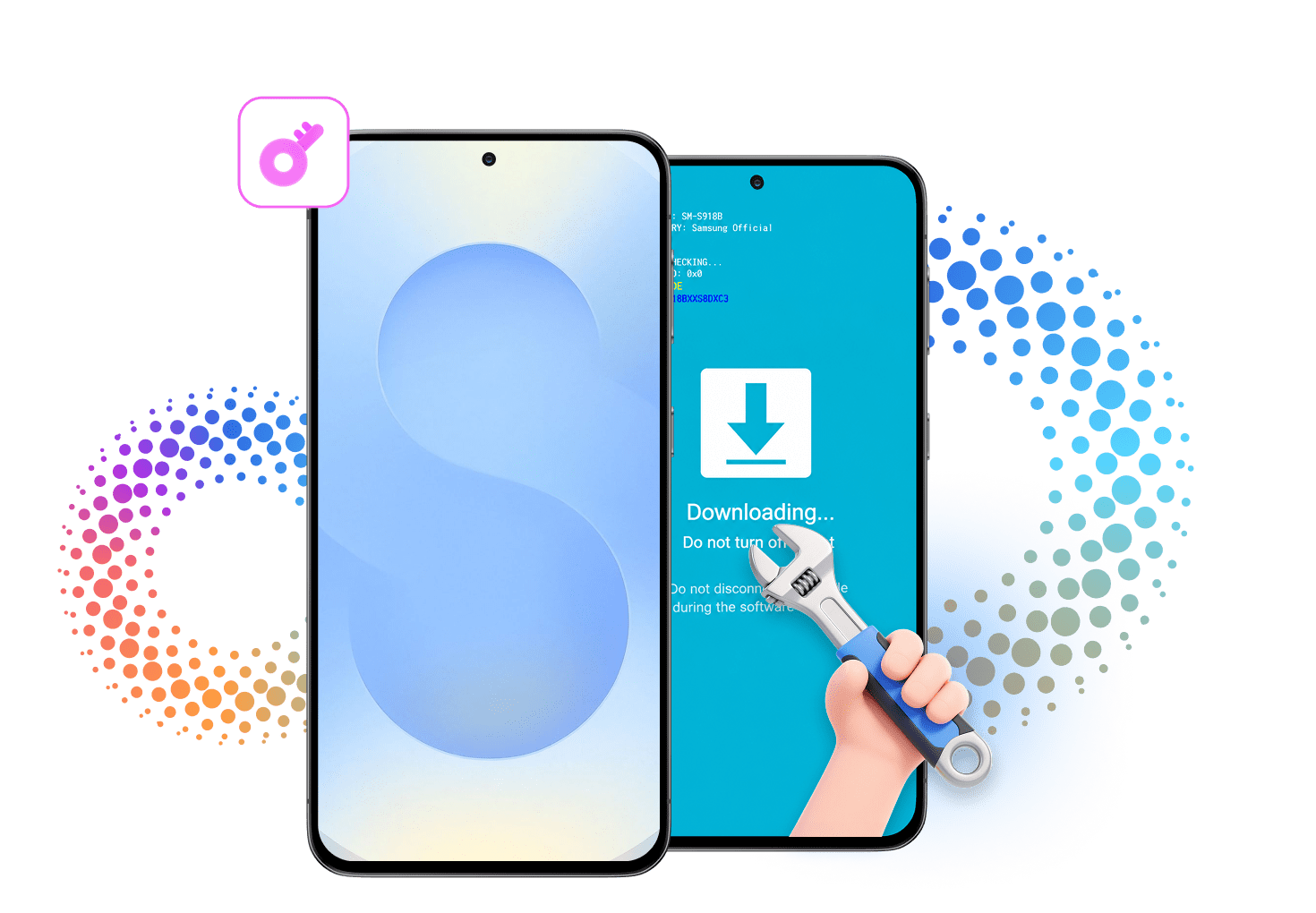
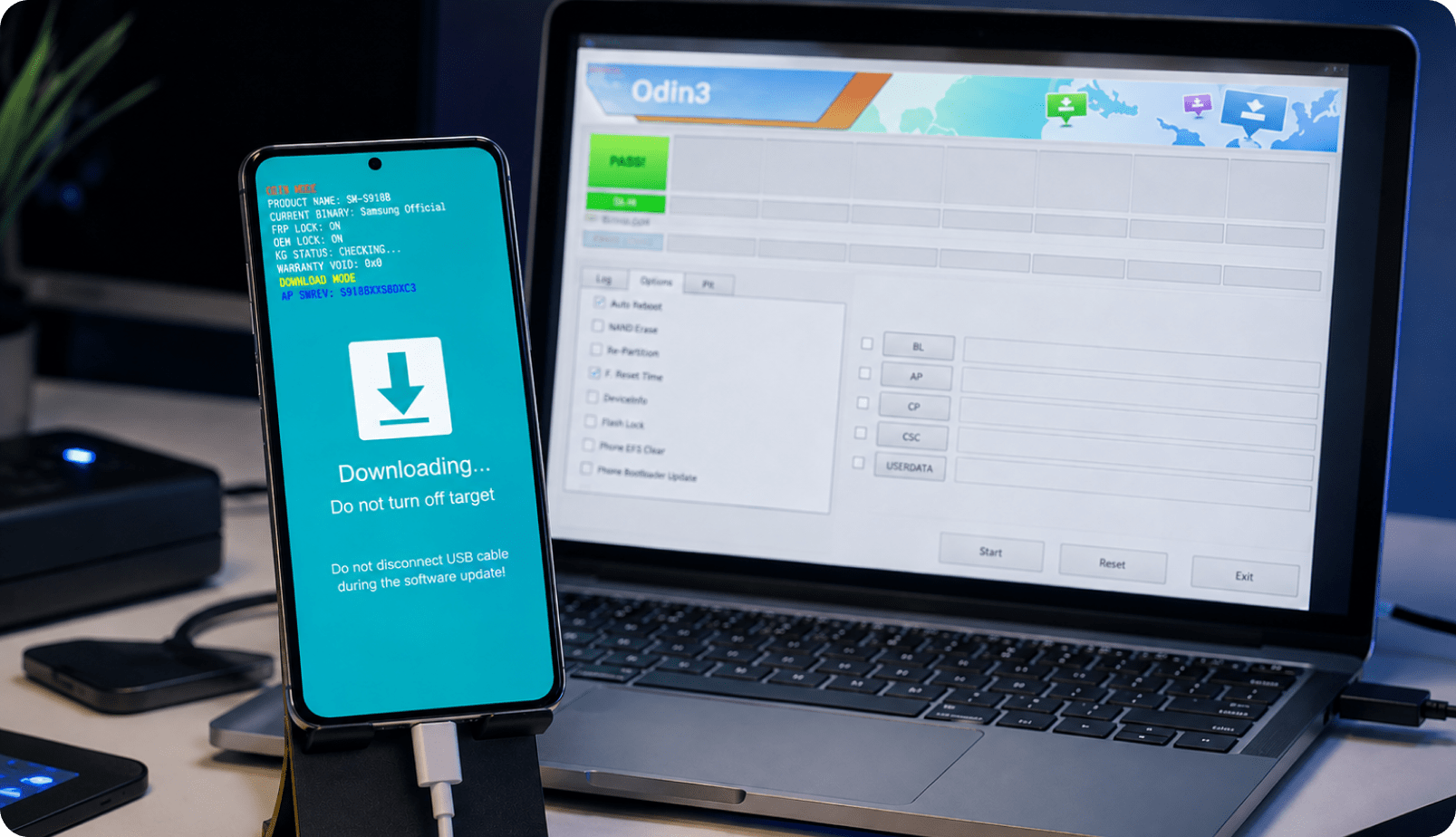
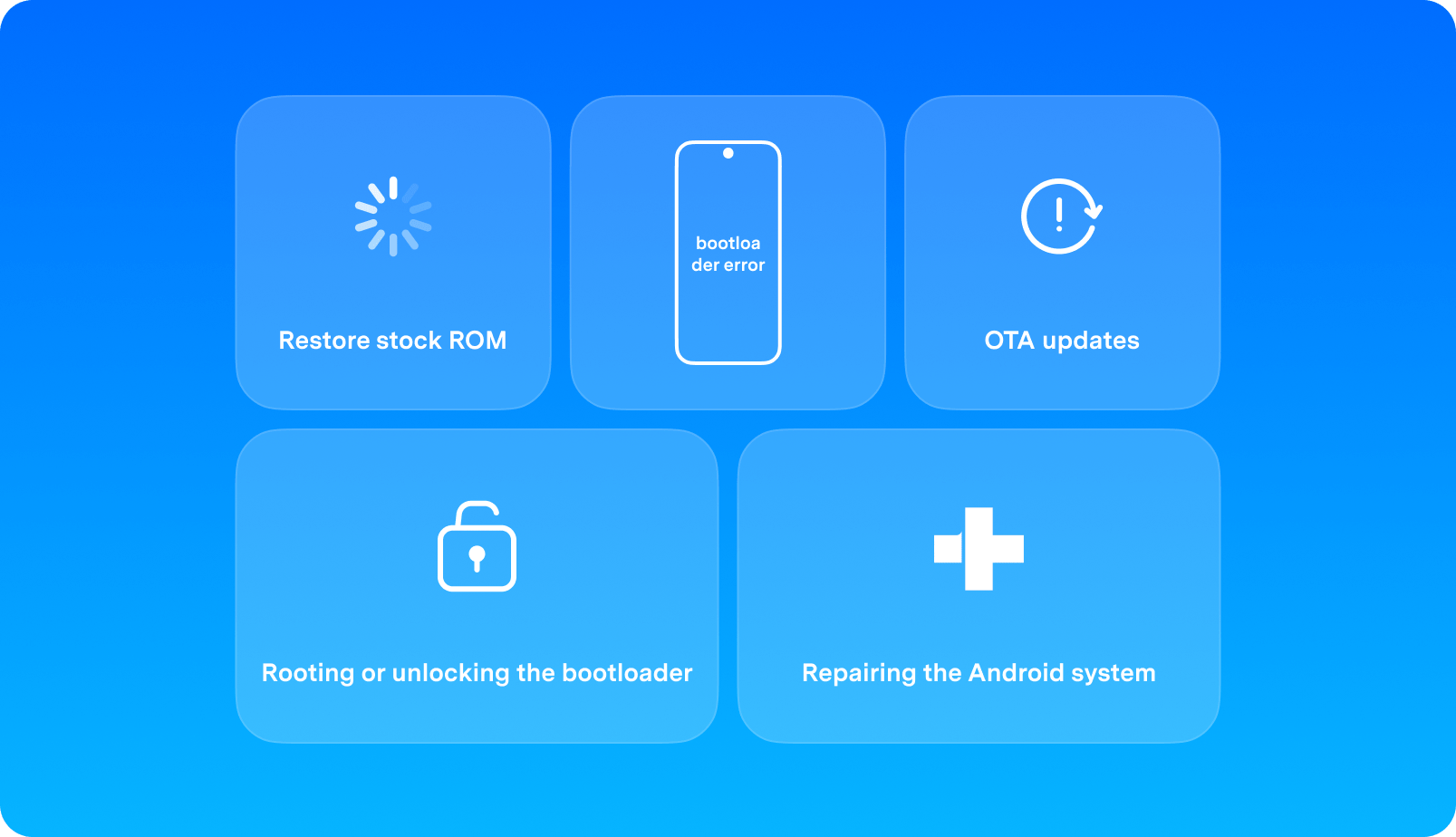
Samsung Download Mode is a firmware-flashing state built into every Galaxy device. It displays a blue screen with a warning triangle and the message "Downloading… Do not turn off target," signaling that your device is ready to receive firmware from a PC — usually via the Odin flash tool — to install official Samsung firmware, downgrade the OS, or recover a bricked handset. Unlike Android's normal boot process, Download Mode doesn't load the OS, apps, or user data. It's a low-level interface built specifically for Samsung's proprietary flashing protocol.

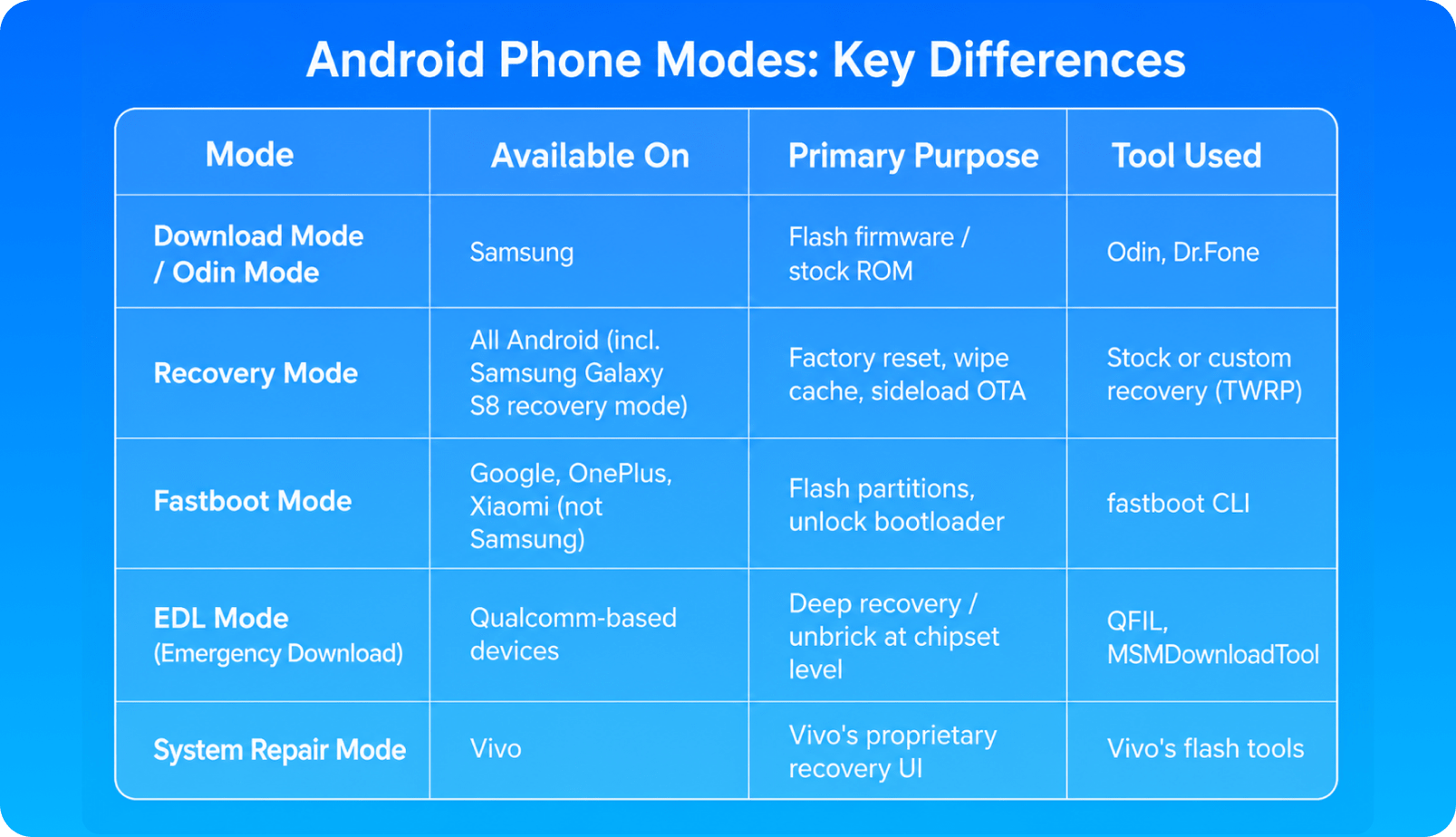
Download Mode vs. Odin Mode What It Means When You Need It vs. Other Modes

Download Mode vs. Odin Mode — Same or Different?

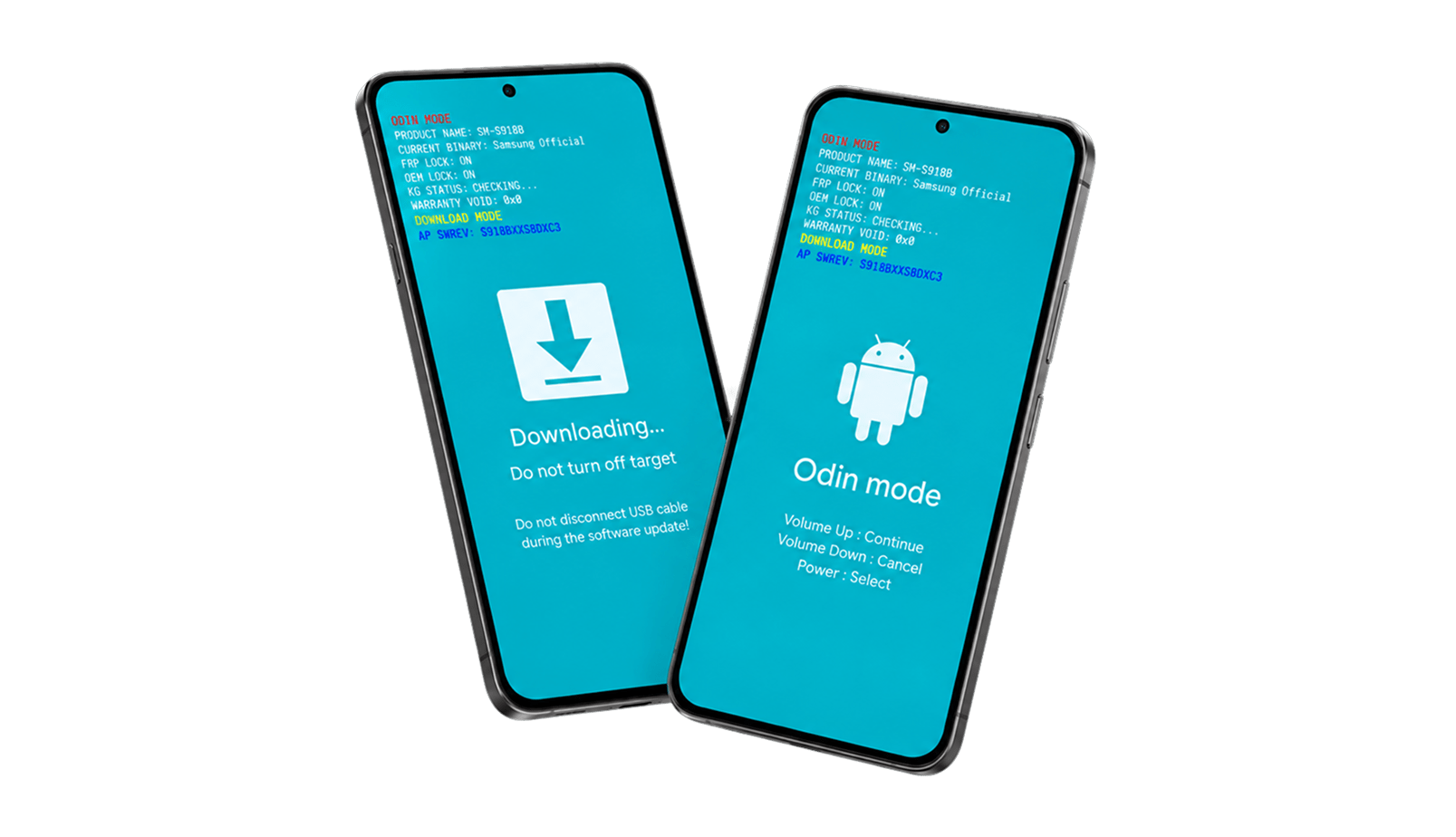
The terms Download Mode and Odin Mode are used interchangeably, and they refer to the exact same boot state on Samsung devices. The name "Odin Mode" comes from Odin, Samsung's internal (and unofficially leaked) firmware-flashing software for Windows PCs. When a Samsung phone is in Download Mode, Odin is the tool that communicates with it — hence the alternative name.

Some newer Samsung models label the screen simply as "Downloading" rather than "Odin Mode," but functionally they are identical.

Samsung phones showing the Downloading and Odin Mode screens

How to Enter Download Mode on Samsung (All Models)

The exact button combination to enter Download Mode depends on your Samsung model. Below are the tested methods for every popular Galaxy device, from the S8 to the S24, plus Note, A-series, and Tab models.

Method 1 — Enter via Key Combinations

Galaxy S24 / S23 / S22 / S21 / S20 2020–2024 flagships
  • Power off the device completely.
  • Connect one end of the USB cable to your PC.
  • Press and hold Volume Up + Volume Down simultaneously.
  • While holding both keys, plug the USB cable into your Samsung device.
  • Release the keys when the Download Mode warning screen appears.
  • Press Volume Up to confirm and continue into Odin Mode.

Modern flagships without a Home button share the same procedure. To boot S10+ Download Mode, S9 Plus Download Mode, or Galaxy S8 Download Mode:

  • Power off the phone.
  • Hold Volume Down + Bixby + Power together.
  • Release when the Downloading screen shows.
  • Press Volume Up to enter.

The same combination works for Samsung S9 Download Mode, Galaxy S9 Download Mode, S8 Download Mode, and Samsung Galaxy S8 Download Mode.

For Note 8 Download Mode and Note 10 Plus Download Mode:

  • Fully power off the Note device.
  • Hold Volume Down + Bixby + Power simultaneously.
  • When the warning screen appears, press Volume Up to confirm entering Download Mode.

For Samsung A10s Download Mode, A51 Download Mode, and Samsung A70 Download Mode:

  • Turn the phone off.
  • Press and hold Volume Up + Volume Down together.
  • Plug the USB cable in while holding the keys.
  • Release when the blue Download Mode screen appears.

To enter Odin Mode Samsung tablet:

  • Fully power off the tablet.
  • Hold Volume Down + Power until the tablet vibrates.
  • When you see the Download screen, press Volume Up to confirm.
  • Power the device off.
  • Hold Volume Down + Home + Power simultaneously.
  • Release when the warning triangle appears, then press Volume Up.
Method 2

Enter Download Mode via ADB Command

If USB debugging is already enabled on your Samsung, you can put it into Download Mode from your computer without any button combination:

adb reboot download

This is especially useful when your device's physical buttons are damaged or unresponsive.
Method 3

One UI 8.5 Hidden Path

Starting with One UI 8.5, Samsung has hidden the traditional key-combination entry to Download Mode on select flagship models. On these devices, you now enter Download Mode through the software:

  1. Open Settings → Battery and Device Care → Maintenance Mode.
  2. Tap Turn On and follow the on-screen prompt.
  3. When the device reboots, the Download interface becomes accessible.

If Maintenance Mode is unavailable on your firmware, use ADB (Method 2) or Dr.Fone (Method 4) instead.

Why choose Dr.Fone to enter Download Mode:

  • Works on Galaxy S8 through S24, all Note, A, M, and Tab models
  • No button combinations to memorize
  • Fully compatible with One UI 8.5 hidden Download Mode
  • Ideal when your Volume, Power, or Bixby key is broken.
  • Release the keys when the Download Mode warning screen appears.
  • Guided on-screen instructions — beginner-friendly
Free Download Dr.Fone

Enter Download Mode on your Samsung in seconds.

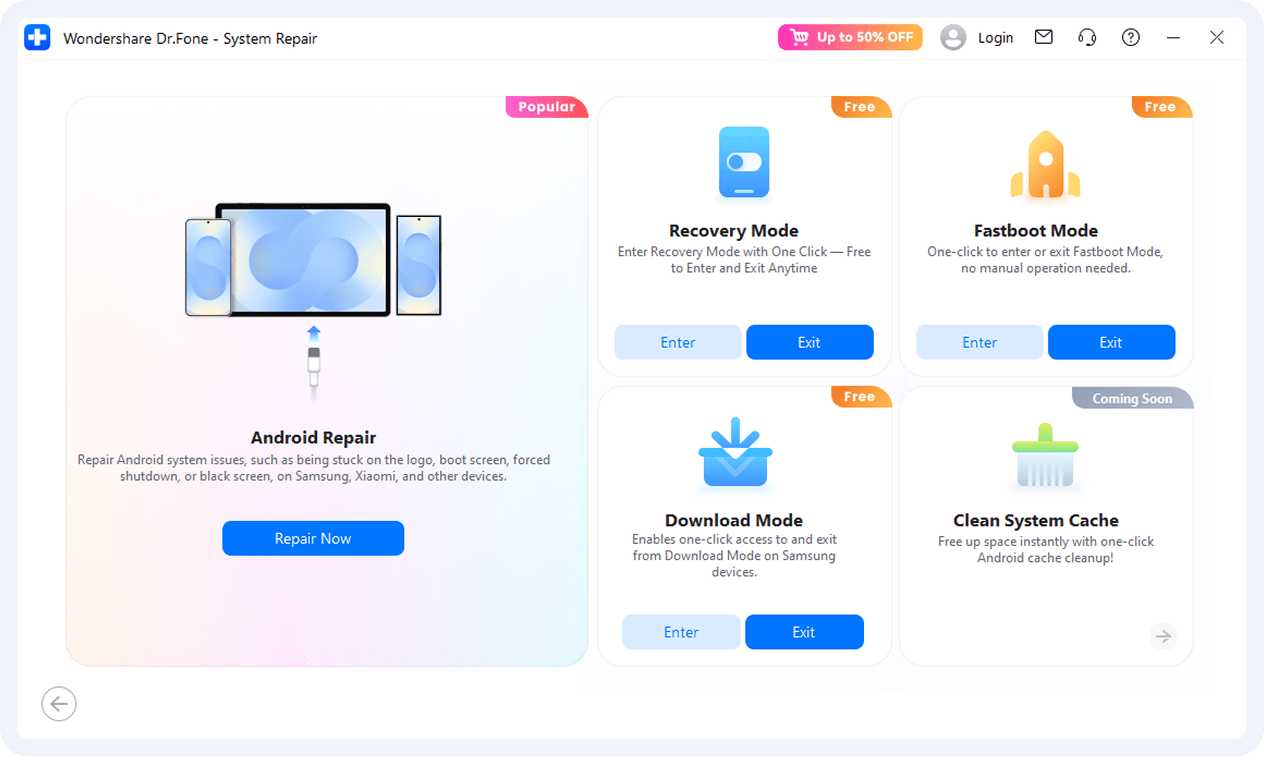
Dr.Fone System Repair interface with the Download Mode option

How to Exit Download Mode Safely

Once you're done flashing — or if you entered Download Mode by mistake — you need to exit cleanly to return to normal Android. Here are the safe methods, in order of ease.

Method 1

Force Restart (Volume Down + Power, 7–10 seconds)

The universal exit method for a Samsung in Download Mode:

  • Unplug the USB cable from the device.
  • Press and hold Volume Down + Power together for 7 to 10 seconds.
  • The device will vibrate and reboot into normal Android.

This method works on nearly all Galaxy models from the S6 onward.

Method 2

Remove the Battery (Older Models Only)

On legacy Galaxy models with a removable battery, simply pop the back cover, remove the battery for 10 seconds, reinsert it, and power on normally. This is a guaranteed way to exit Odin Mode when a force restart fails.

Method 3

Wait for USB Timeout

If you cannot press the buttons for any reason, disconnect the USB cable and leave the device alone. Most Samsung phones will automatically time out of Download Mode and either reboot or fully discharge within a few hours.

3.4 Recommended

starOne-Click Exit with Dr.Fone
If the standard force-restart doesn't work — or if your device keeps looping back into Download Mode — Dr.Fone – System Repair can force-exit Download Mode with a single click, without erasing your photos, contacts, or messages.

Try Dr.Fone Free
Try Dr.Fone Free
Try Dr.Fone Free
Try Dr.Fone Free
Try Dr.Fone Free
Try Dr.Fone Free

Get out of Download Mode in under 60 seconds.

Use Dr.Fone's one-click exit when:

Force restart doesn't respond

Volume Down or Power button is physically damaged
OTA failed

OTA failed

Volume Down or Power button is physically damaged

Volume Down or Power button is physically damaged

You want to avoid the risk of a factory reset

You want to avoid the risk of a factory reset

Fix "Samsung Stuck in Download Mode"

If your Samsung is in Download Mode against your will — the blue screen won't go away and force restart isn't working — you're dealing with a stuck Download Mode issue. Here are the most common symptoms and how Dr.Fone resolves each.

Blue Screen "Downloading… Do Not Turn Off Target"

Your Samsung has entered Download Mode and is waiting for a firmware flashing process to begin. This often happens after entering Download Mode accidentally or when an Odin flashing session is interrupted.

Try This First

If no firmware is currently being flashed:

  1. Disconnect the USB cable.
  2. Press and hold Volume Down + Power for about 7–10 seconds until the phone restarts.
  3. If your device has a Bixby button or newer button layout, follow the appropriate force restart key combination for your model.

Many Samsung devices will exit Download Mode successfully after a force restart.

If That Doesn't Work

If your phone remains stuck in Download Mode or immediately returns to the same screen, try Dr.Fone's free One-click Exit Download Mode feature. It exits Download Mode automatically without requiring button combinations.

If the phone still cannot boot into Android afterward, continue with Dr.Fone – Android System Repair, which repairs damaged system files and restores normal startup.

Warning Triangle / Yellow Triangle Screen

The bootloader has detected abnormal, incomplete, or unofficial firmware.

Try This First

If you recently attempted an update or flash:

  1. Restart the device.
  2. Re-enter Recovery Mode and wipe the cache partition (if available).
  3. If you intentionally flashed firmware, verify that the firmware version matches your exact Samsung model before flashing again.

If That Doesn't Work

If the warning screen keeps appearing or Android cannot boot normally, use Dr.Fone – Android System Repair. It automatically identifies your device model, downloads compatible firmware when necessary, and repairs the Android system without requiring manual firmware selection.

Phone Keeps Returning to Download Mode

The boot partition or critical Android system files are corrupted, causing the device to automatically enter Download Mode after every reboot.

Try This First

Before performing a system repair:

  1. Try entering Recovery Mode.
  2. If Recovery Mode is available, choose Reboot System Now.
  3. If the problem began after a recent OTA update, wiping the cache partition may also help.

If the phone still boots directly into Download Mode, the system itself is likely damaged.

If That Doesn't Work

Use Dr.Fone – Android System Repair to repair the corrupted boot environment and restore Android without manually searching for firmware packages.

Samsung Won't Boot After a Failed Odin Flash

An interrupted Odin flash left the device without a complete bootable Android system.

Try This First

If the flashing process failed:

  1. Make sure you downloaded the correct firmware for your exact device model.
  2. Use the latest version of Odin.
  3. Try another USB cable or USB port.
  4. Repeat the flashing process only after verifying that the firmware package is complete and not corrupted.

If That Doesn't Work

If Odin continues to fail or the phone remains soft-bricked, use Dr.Fone – Android System Repair. It automatically downloads the correct repair package, repairs the Android system, and guides you through the recovery process without requiring advanced flashing knowledge.

Download Mode on Other Devices

Samsung isn't the only brand with a firmware-flashing mode. Here's a quick tour of the equivalents.

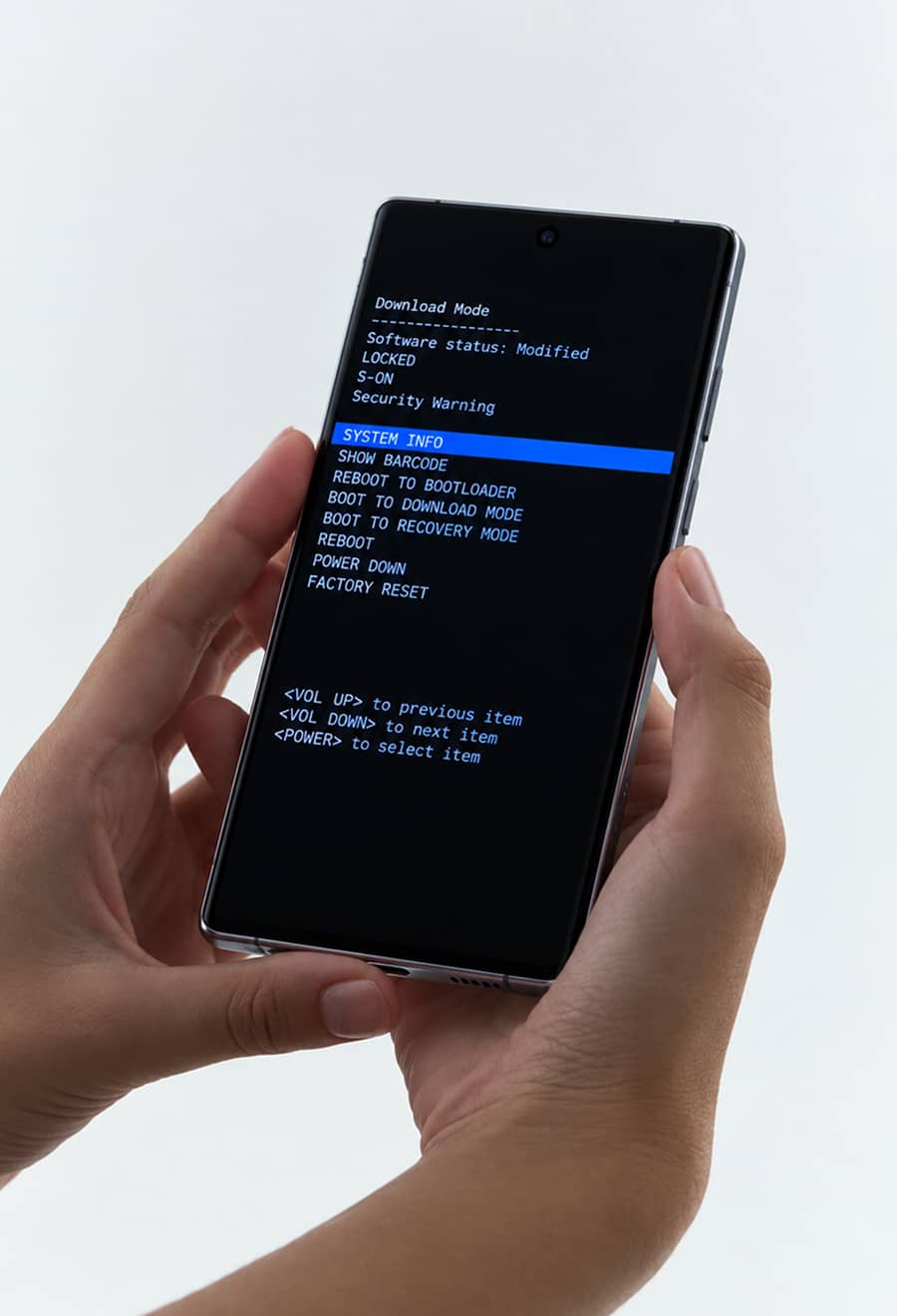
HTC phone showing the bootloader Download Mode menu

HTC Download Mode

HTC download mode is HTC's version of a firmware-flash state. To enter, power off the phone, then hold Volume Down + Power and select "Download Mode" from the bootloader menu using the volume keys.

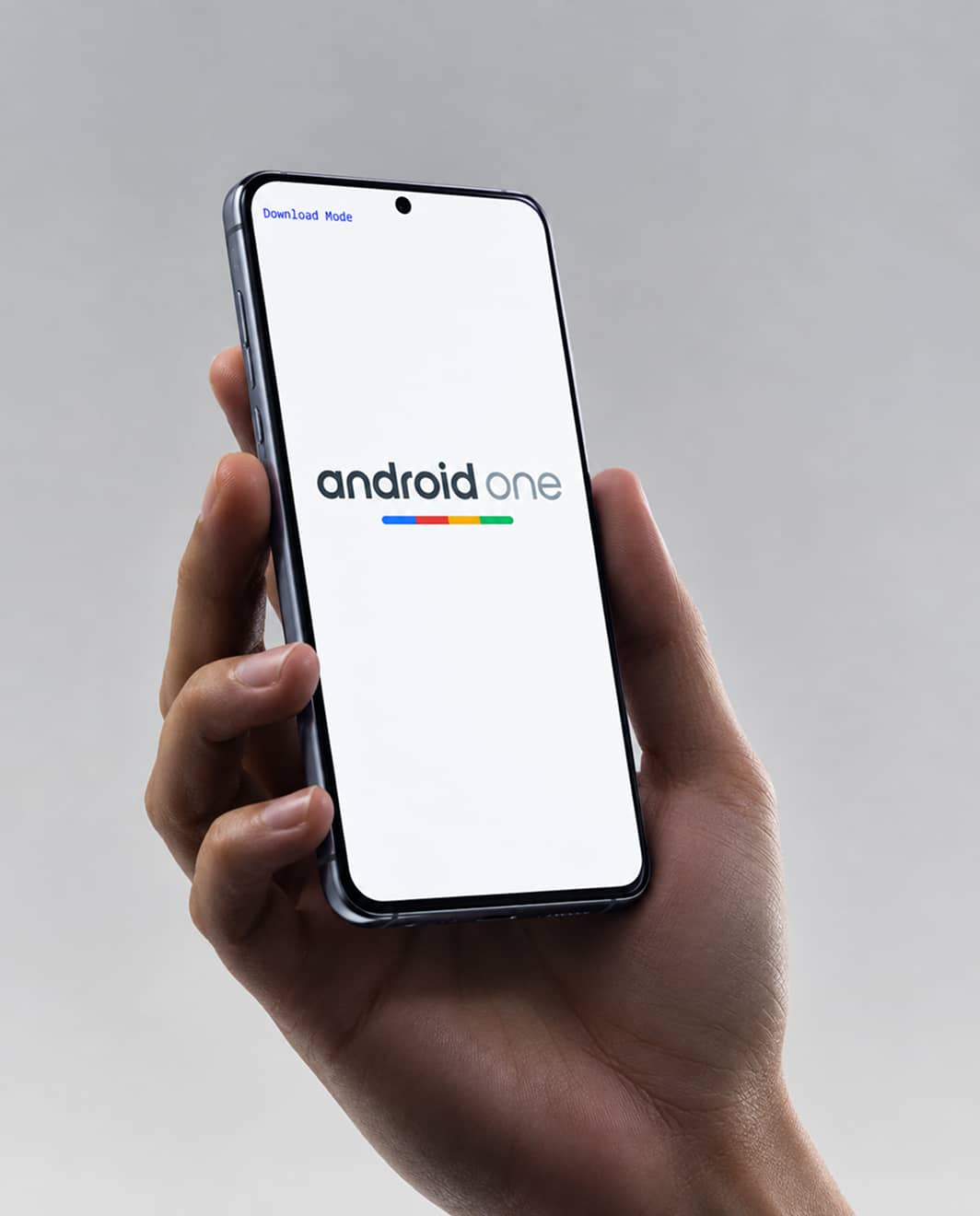
Android One phone showing the Download Mode screen

Android One Download Mode

Android one download mode varies by manufacturer (Nokia, Xiaomi Mi A series, etc.) because Android One devices follow a stock-Android bootloader. Most support Fastboot instead of a dedicated Download Mode, entered with Volume Down + Power.

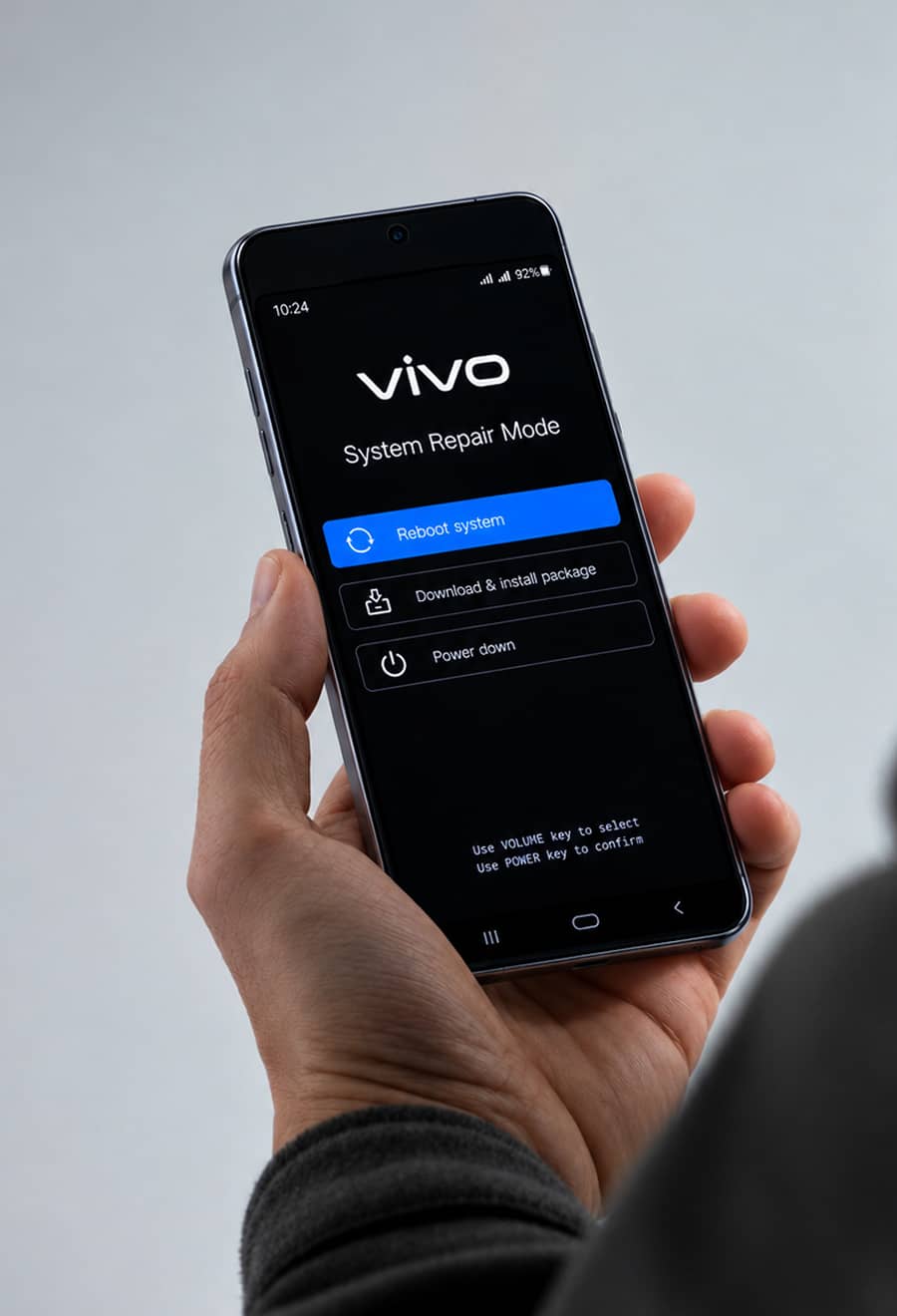
Vivo phone showing System Repair Mode

System Repair Mode on Vivo

System repair mode vivo is Vivo's proprietary recovery-and-flash UI. Enter it by holding Volume Up + Power while powering on, then use the on-screen options to reboot, wipe, or flash firmware provided by Vivo's aftercare tools.

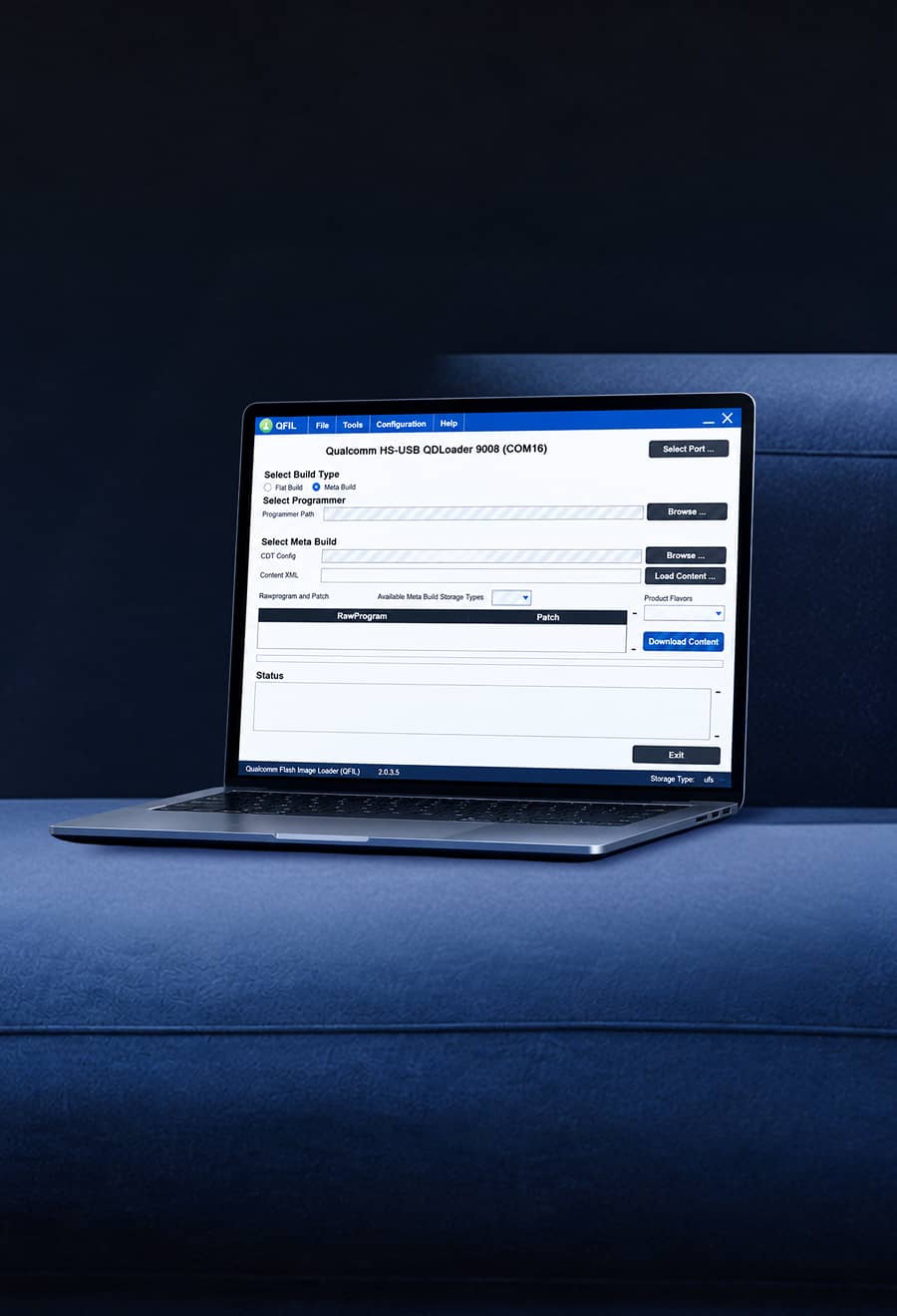
Laptop running the Qualcomm QFIL tool

Qualcomm EDL Mode — What It Is and When It's Used

EDL mode (Emergency Download Mode) is a deep-recovery state built into every Qualcomm-powered Android phone at the chipset level. It's used when Download Mode itself fails — typically to recover hard-bricked devices via Qualcomm's QFIL or MSMDownloadTool. EDL is powerful but risky, and requires authorized firehose loaders for most modern devices.

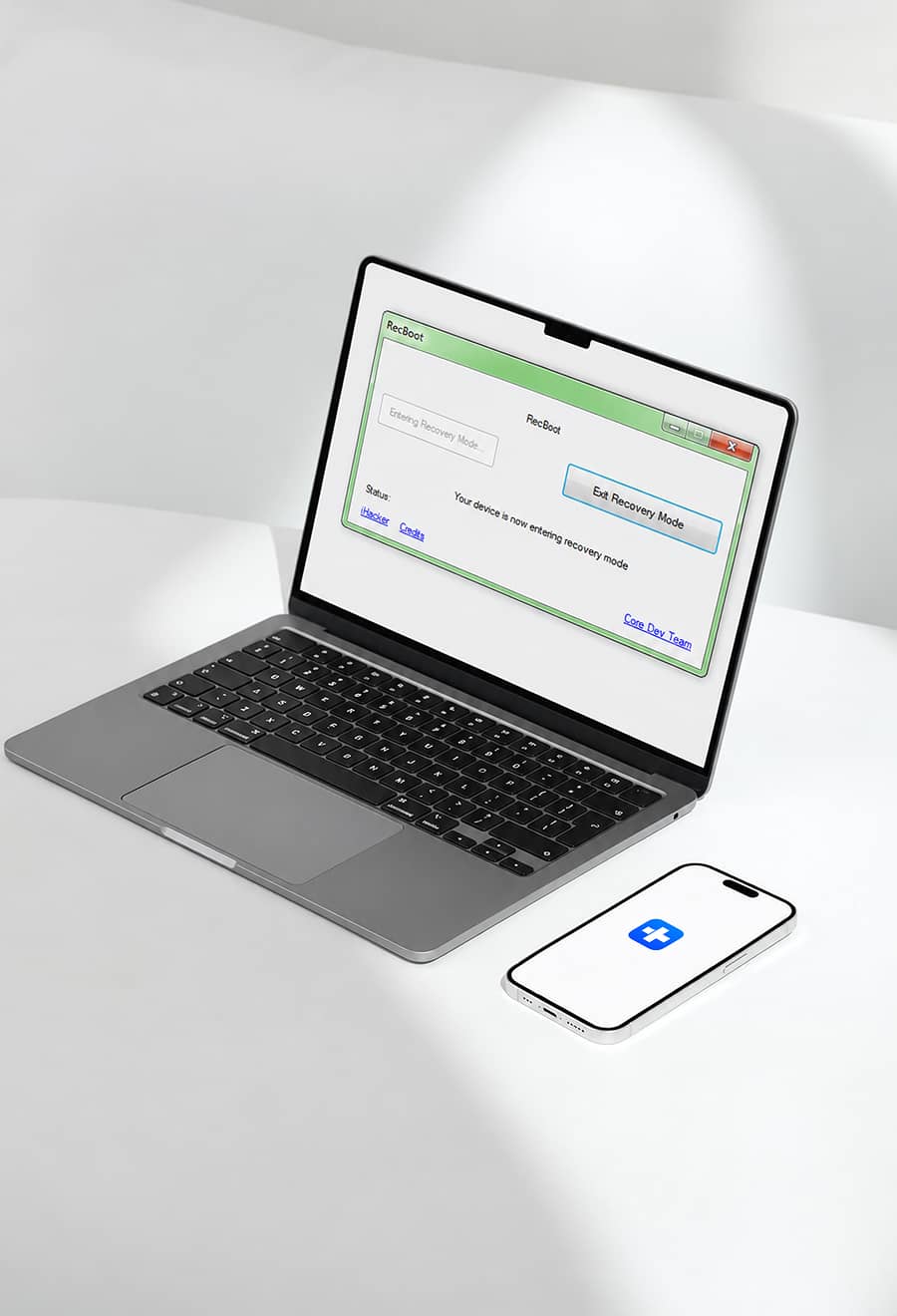
Laptop running RecBoot next to an iPhone

iOS Users: RecBoot Explained

RecBoot is a legacy Windows utility that put iPhones and iPads into and out of iOS Recovery Mode with one click — essentially the iOS counterpart to what Dr.Fone does for Samsung Download Mode. For modern iPhones, Dr.Fone – System Repair (iOS) is the up-to-date successor to RecBoot.

Dr.Fone vs. Odin vs. Samsung 300K Tool

If you're deciding which tool to use with Samsung Download Mode, here's how the three most popular options stack up:

Feature Dr.Fone – System Repair Odin (Samsung) Samsung 300K Tool
Ease of use star 1-click, no skills star Manual firmware setupsatr Requires driver install
Success rate 99%~70% (user-dependent) Varies
Data safety Preserves user data on standard repair Full wipe likelyFull wipe likely
Supported models Galaxy S6 → S24, Note, A, M, Tab All SamsungOlder Samsung only
One UI 8.5 support star Yes star Limited star No
Automatic firmware download star library star Manual (SamMobile, etc.) star Manual
Price Free to enter/exit Download Mode Free (unofficial)Free (unofficial)
Customer support 24/7 chat & email NoneNone

For most users — especially anyone who isn't a professional technician — Dr.Fone offers a dramatically safer and faster path than manually operating Odin or the 300K tool.

Step-by-Step: Use Dr.Fone to Enter and Exit Download Mode

Here's exactly how easy it is to control Samsung Download Mode with Dr.Fone – System Repair (Android).

Install and Launch Dr.Fone

Step 1

Step 1: Install and Launch Dr.Fone

Download Dr.Fone from the official Wondershare site and install it on your Windows PC or Mac. Open Dr.Fone and select the Toolbox → System Repair → Android module.

Connect Your Samsung via USB

Step 2

Step 2: Connect Your Samsung via USB

Plug your Samsung device into the computer using an original USB cable. Make sure the device is unlocked (or on the lock screen — no password entry needed for Download Mode).

Click "Enter Download Mode" or "Exit Download Mode"

Step 3

Step 3: Click "Enter Download Mode" or "Exit Download Mode"

Choose the action you need:

Enter Download Mode

Dr.Fone puts your Samsung into Odin Mode in under 30 seconds, ready for firmware flashing or system repair.

Exit Download Mode

Dr.Fone puts your Samsung into Odin Mode in under 30 seconds, ready for firmware flashing or system repair.

Free Download
Free Download
Free Download
Free Download
Free Download

That's it. No key combinations, no firmware hunting, no risk of a mistimed button press bricking your device.

Download Mode FAQs & Hot Topics

Q1. Is Samsung Download Mode the same as Odin Mode?

Yes. Download Mode and Odin Mode are two names for the same firmware-flashing state on Samsung Galaxy devices. Odin refers to the PC software that communicates with a phone while it is in Download Mode.

No. Simply entering Download Mode does not wipe your data. Data is only erased if you actually flash firmware that includes a full user-data reset (via Odin's "Nand Erase" or a wipe-included firmware package).

Samsung has restricted key-combination entry on some One UI 8.5 devices. Use Settings → Battery and Device Care → Maintenance Mode, the adb reboot download command, or Dr.Fone's one-click Enter Download Mode feature instead.

Indefinitely, as long as the battery holds charge. However, staying in Download Mode does not harm the device — it simply idles, waiting for a PC command.

Download Mode itself is safe. The risk comes from what you flash while in Download Mode. Flashing incorrect firmware, interrupting the process, or using unverified files can brick a Samsung device — which is why one-click tools like Dr.Fone are safer than manual Odin operation.

Yes — three ways: (1) adb reboot download if USB debugging is enabled; (2) Maintenance Mode on One UI 8.5; (3) Dr.Fone – System Repair's one-click Enter Download Mode.

This typically indicates a corrupted boot partition or a failed OTA update. Re-flashing stock firmware fixes it permanently — Dr.Fone – System Repair handles the download and flash automatically.

EDL (Emergency Download Mode) is a Qualcomm chipset-level recovery state used to unbrick devices when normal Download Mode is inaccessible. Samsung Download Mode operates at the Android bootloader level; EDL operates below it, at the SoC level.

No. Download Mode is accessible on locked, stock Samsung devices. Bootloader unlocking is only required for flashing custom (non-Samsung) firmware.

Yes. Dr.Fone's Exit Download Mode function reboots your device into normal Android while preserving user data. A full firmware re-flash may reset user data depending on the firmware package.

drfone iOS Data Recovery software iOS Data Recovery

Recover deleted photos, messages, and data from any iPhone, even if broken.

drfone iPhone Screen unlocker iPhone Screen Unlock

Instantly remove screen locks and bypass Screen Time/Apple ID restrictions.

drfone iOS System Repair iOS System Repair

Easily fix black screens, boot loops, and system crashes to restore your iPhone to normal.

drfone iOS Phone Manager iOS Phone Manager

Manage iPhone files, photos, contacts, and apps from your computer.

drfone phone transfer Phone to Phone Transfer

Transfer data from iPhone to iPhone, iPhone to Android, or Android to iPhone.

drfone Support Center Dr.Fone Support Center

Get help when your iPhone is not detected or iTunes/Finder does not work.