How to Enter and Exit Download Mode on Samsung Devices For Free?
If you need to repair a Samsung phone or tablet, you may first need to put the device enter Download Mode. Many users do not remember the button combinations, and manual steps can feel confusing, especially when they only need a quick and reliable way to proceed.
Wondershare Dr.Fone - System Repair (Android) helps you enter and exit Download Mode on Samsung devices in a more direct way. Instead of relying on complicated hardware operations, you can use the built-in Download Mode function to complete the process on your computer.
Follow the guide below to enter or exit Download Mode step by step. Before you begin, make sure you are using the latest Dr.Fone version, connect your Samsung device to the computer, and keep the device unlocked before clicking the action button.
Supported Devices:
- Samsung: Compatible with all major Samsung devices, including both phones and tablets, such as the Samsung Galaxy S26 and S25 series.
Manage Your Phone Wherever You Go
Part 1: Step-by-Step Guide to Enter Download Mode
Launch Wondershare Dr.Fone on your computer and open the Toolbox section from the left panel. Connect the phone or tablet that needs repair, then choose System Repair from the available tools.

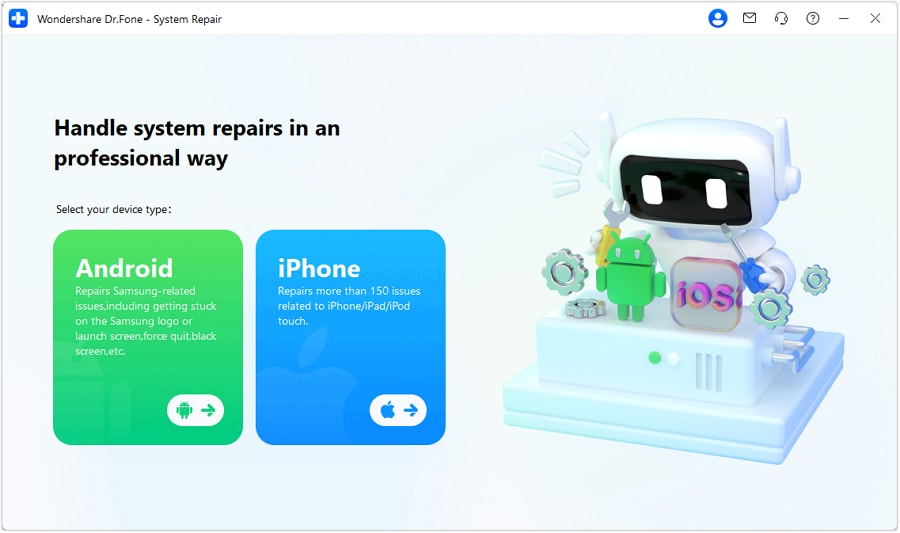
When Dr.Fone moves to the next screen, choose Android to continue with the repair workflow for your device.
On the feature screen, select Download Mode and click Enter to start putting the device into Download Mode.
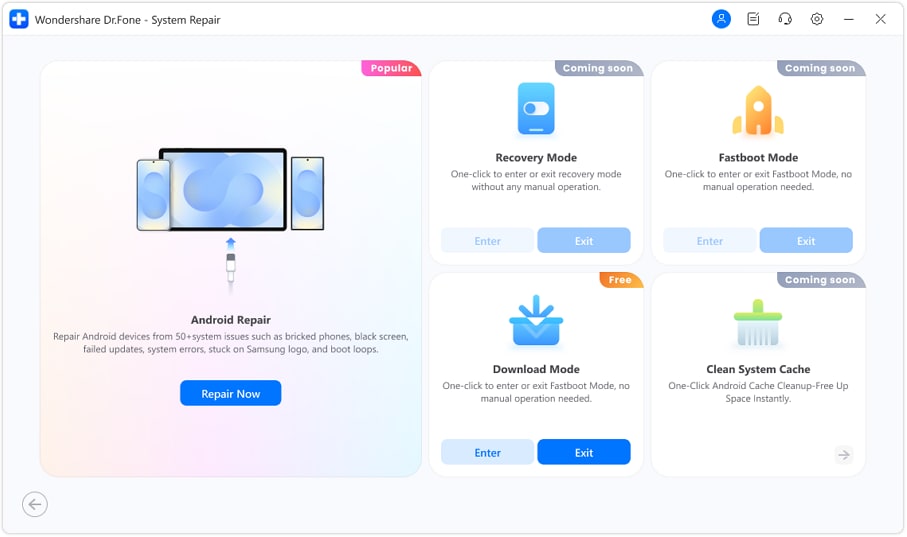
Note: Before clicking Enter, make sure the device is connected to the computer and already unlocked.
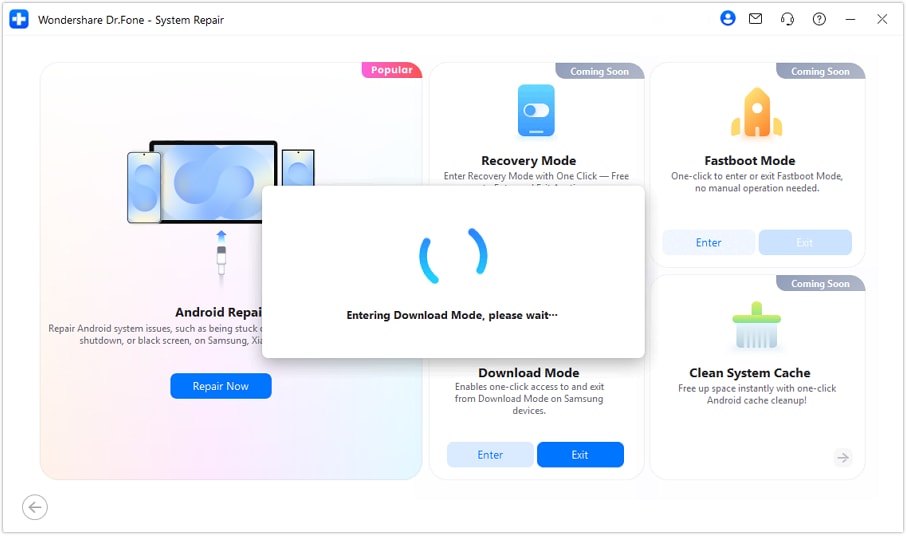
Dr.Fone will begin the Download Mode process automatically. Keep the device connected and wait for the process to finish.
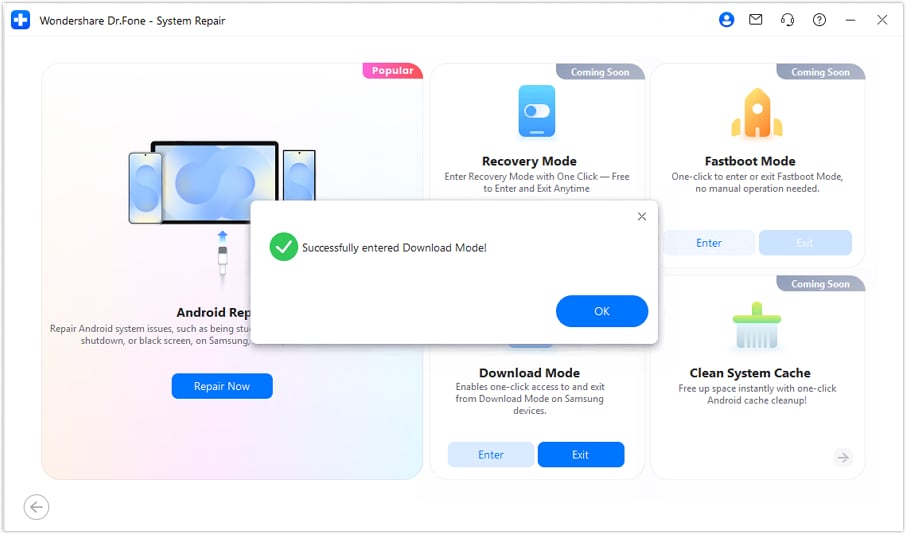
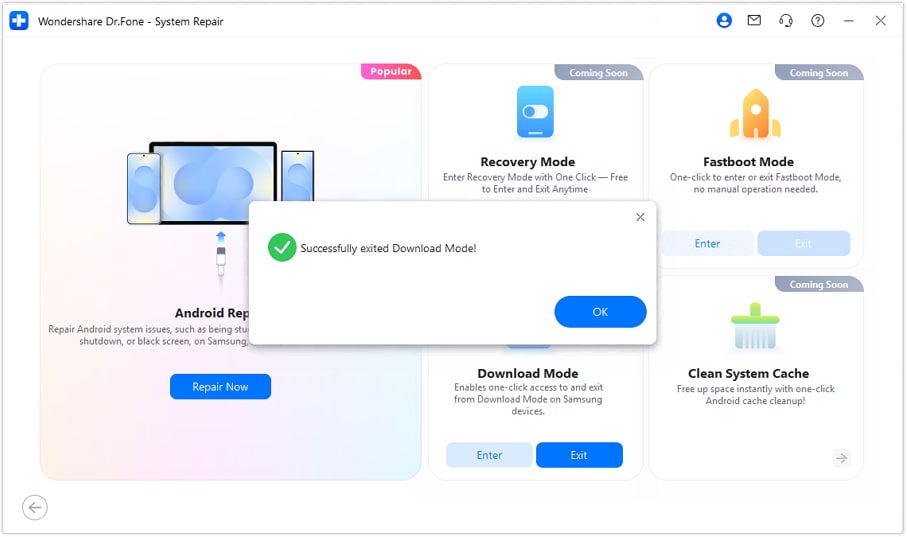
When the success pop-up appears, it means your device has entered Download Mode successfully and is ready for the next operation.
Part 2: Step-by-Step Guide to Exit Download Mode
On the feature screen, select Download Mode and click Exit to start exitting the device from Download Mode.
Tips: If you need help reaching this screen, refer to the internal step guide for the Download Mode function.
Follow the on-screen prompt to begin exiting Download Mode. Dr.Fone will handle the process automatically.
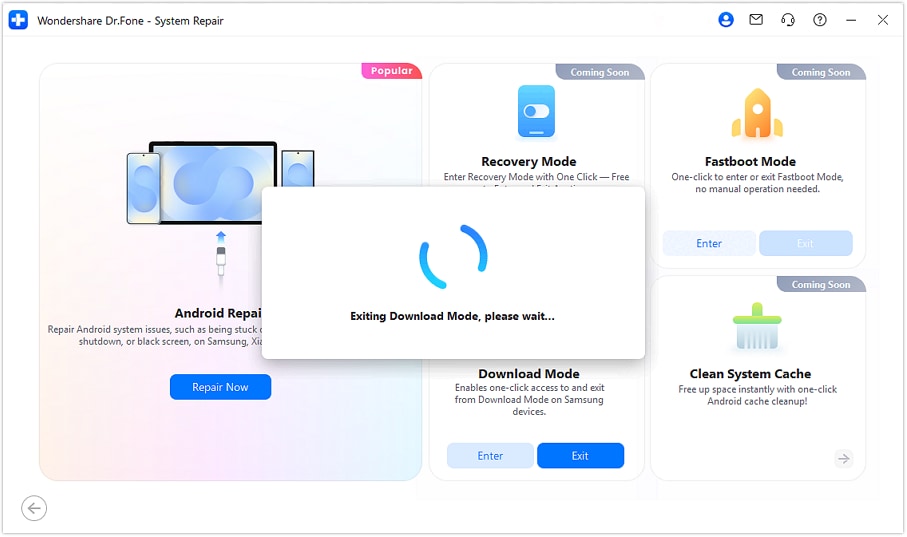
When the success pop-up appears, it means the device has exited Download Mode successfully.
WHAT YOU'LL NEED
Dr.Fone provides a complete set of tools for solving all iOS/Android phone problems.
Need help?
You might find the answer to your question in the FAQ or additional information below:
FAQs
 What is Download Mode on a Samsung device?Can I enter Download Mode on Samsung without using button combinations?Do I need to unlock my Samsung device before entering Download Mode?Will exiting Download Mode erase my data?What should I do if my Samsung device seems stuck in Download Mode?