How To Remove SIM Lock Online?
If your phone is tied to a specific carrier, you may not be able to use another SIM card until the carrier lock is removed. In this case, users usually want two things first: confirm whether the device is carrier locked, and find a clear online process to submit an unlock request.
Dr.Fone SIM Unlock provides a guided way to do both. You can first check your phone’s Carrier Lock information with an IMEI-based lookup, then submit a SIM unlock request online with the required device details.
Follow the guide below to check your lock status and start the SIM unlock process. Before submitting any request, make sure your IMEI number, country, and carrier information are correct.
Supported Devices:
- Carriers: AT&T (more carriers will be supported soon)
- Phone Brands: All phone brands
- Phone Operate System: All iOS and Android versions
Regain Your Device Anytime, Anywhere
Part 1: Free Pre-Unlock Carrier Lock Check
Use your phone’s IMEI number to check Carrier Lock information for free on the Dr.Fone IMEI Check Online platform.
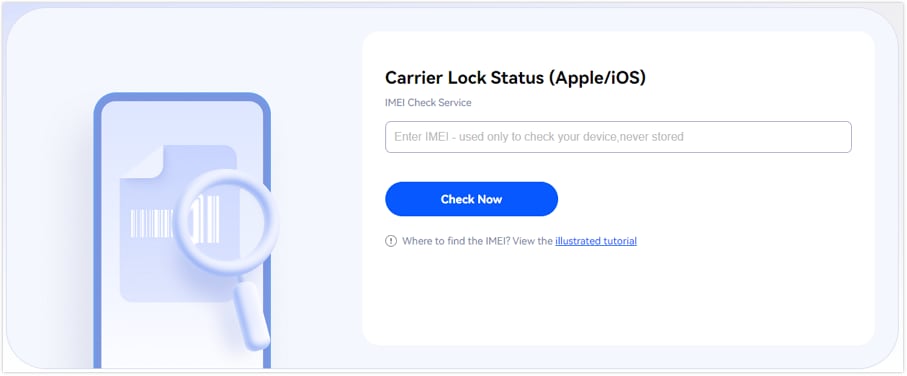
🎉 Bonus: You can perform your first IMEI check for free—no login required! Just enter your IMEI on the dashboard and view your report instantly.
💡 Tips: You can find steps to check your device’s IMEI number in the [IMEI Check Online guide].
Part 2: Step-by-Step Guide to Remove SIM Lock
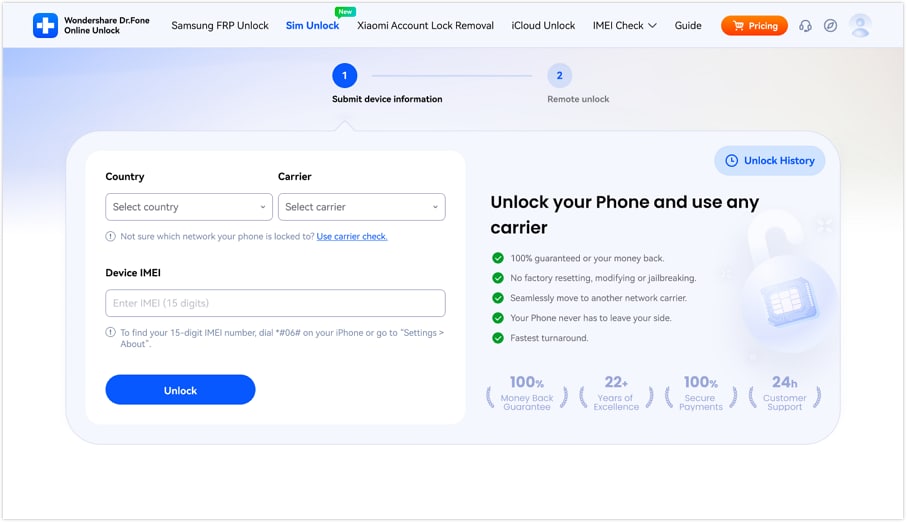
Open your browser and go to the official Dr.Fone SIM Unlock website page.
In the Country field and Carrier field, select the options that match your device information from the drop-down menus. Then enter your device IMEI number in the Device IMEI field and click Unlock to submit the request.
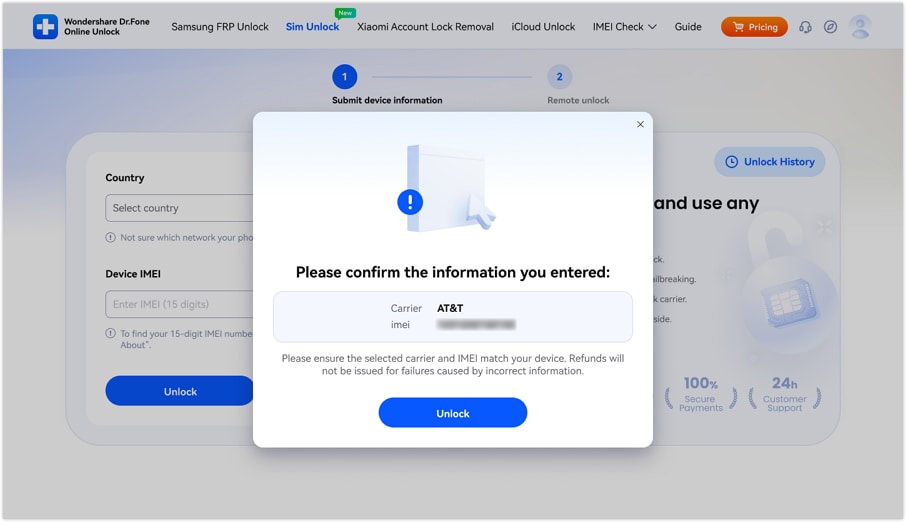
Carefully review the Carrier and IMEI details shown in the pop-up window. This step is very important, because correct information is required for the unlock request to proceed properly.
After the information is confirmed and submitted, your unlock request will be sent to the cloud successfully. The unlock process may take 0–24 hours, so please wait patiently for the result.
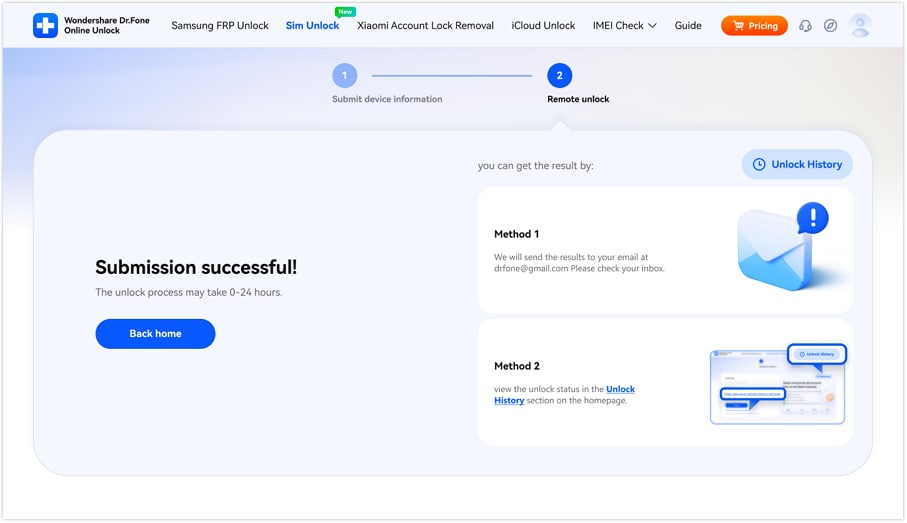
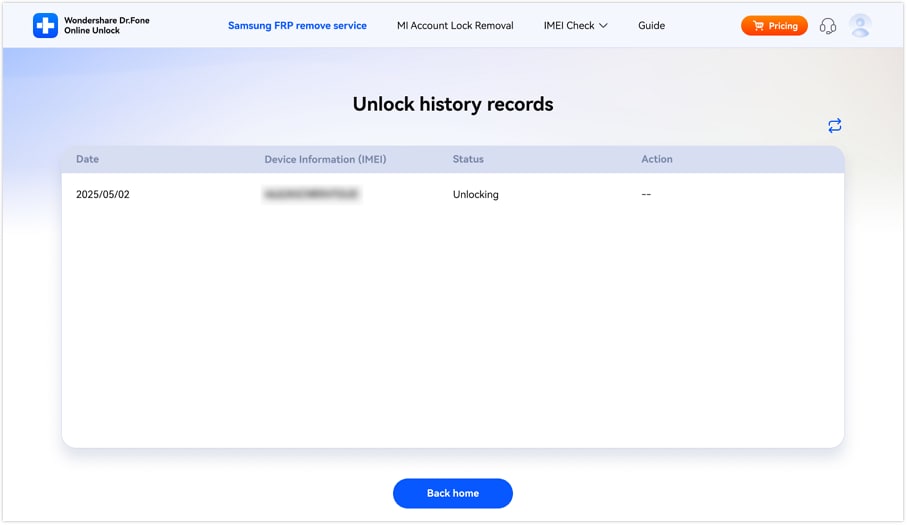
Once the unlock is completed, you will receive a notification through the email address used when submitting the request. You can also check the unlock status directly from the Unlock History page.
WHAT YOU'LL NEED
Dr.Fone provides a complete set of tools for solving all iOS/Android phone problems.
Need help?
You might find the answer to your question in the FAQ or additional information below:
FAQs
 What is the difference between Carrier Lock and SIM Lock?Do I need my IMEI number to check Carrier Lock status?Why do I need to confirm the Carrier and IMEI information before submission?How long does the SIM unlock process take after submission?How can I check whether my SIM unlock request is completed?