
How to Fix iOS 26 Beta Developer Mode Not Showing on iPhone/iPad

Oct 24, 2026 • Filed to: Phone Repair Solutions • Proven solutions
 TL;DR:
To restore a missing iOS 26 Beta Developer Mode menu on your iPhone or iPad, you must trigger the system prompt by associating your Apple ID with a developer profile, connecting the device to Xcode, or resolving firmware bugs.
● Registering a free account on the official Apple Developer website prepares your Apple ID for development workflows, which is frequently required before the device will unhide the setting.
● Connecting your iPhone or iPad to a Mac running Xcode and accessing the Devices and Simulators tab serves as an official trigger to force the Developer Mode toggle to appear under Privacy & Security.
● When unstable beta builds prevent the prompt from loading, performing a force restart or using the Standard Mode in Dr.Fone - System Repair (iOS) can repair the system environment without erasing personal data.
Ask AI for a summary
 ChatGPT
 Perplexity
 Gemini
 Claude
 Grok
Grok
If iOS 26 Developer Mode is not showing on your iPhone or iPad, it usually means your device has not fully triggered Apple's development environment, your Apple ID is not ready for developer-related workflows, or the beta system is affected by temporary bugs. The good news is that this issue is often fixable with a few clear steps, including checking account readiness, restarting the device, updating iOS, or using Xcode to force the prompt to appear.
This issue matters because Developer Mode is required for important development tasks such as running test builds, installing apps outside the App Store in supported workflows, and accessing debugging features. When the option is missing, many users assume the beta update failed, but in most cases the cause is related to setup, device compatibility, or a temporary iOS beta glitch. In this guide, you will learn what iOS 26 Developer Mode is, why it may not appear, how to enable it, and what to do when the setting still does not show up.

Part 1. What is iOS 26 Beta Developer Mode?
iOS 26 Beta Developer Mode is a security-controlled setting that allows an iPhone or iPad to support development-related actions on the device. In simple terms, it gives developers and testers permission to run, verify, and troubleshoot apps in a deeper way than normal users need.
Once enabled, this mode can support workflows such as app testing, debugging, viewing logs, and using development tools that are restricted by default. It is especially useful for developers, QA testers, and advanced users who need to validate app behavior before public release.
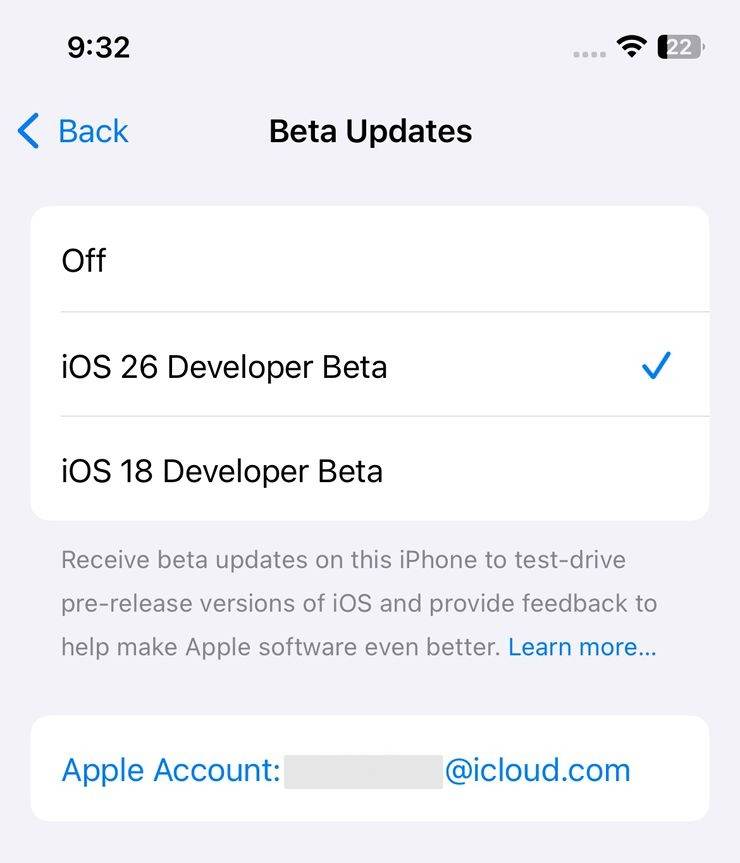
For many users, Developer Mode appears after the device has gone through a supported development setup, such as being recognized in Xcode or being prepared for testing workflows. However, some people install the beta and still find that the setting is missing. When that happens, the problem is usually not the feature itself, but a missing trigger, an incomplete setup step, or a temporary system problem.
- What it does: unlocks development-related permissions on the device.
- Who needs it: app developers, beta testers, and users testing builds directly on iPhone or iPad.
- Why it matters: without it, some testing, installation, and debugging actions cannot proceed normally.
Part 2. Why is iOS 26 Beta Developer Mode Not Showing on my iPhone/iPad?
If iPhone Developer Mode is not showing, the cause is usually related to account status, device support, beta instability, or the fact that iOS has not yet triggered the Developer Mode prompt. Below are the most common reasons users face this issue on iPhone and iPad.
1. Unlinked Apple ID
Your Apple ID should be ready for Apple’s developer-related workflow, or the Developer Mode option may remain hidden. If the device has not been associated with a developer environment or testing setup, iOS may not expose the setting yet. This is one of the most common reasons users search for developer mode ios 26 but cannot find the option inside Settings.
2. Beta Bugs
Beta systems are not always stable. Minor bugs, delayed background activation, or incomplete system indexing can stop certain features from appearing as expected. In many cases, users update successfully but still experience the iOS 26 Developer Mode not showing issue because the beta firmware has not fully applied the required system prompt.
3. Unsupported Devices
Not every Apple device can run the required beta build or support the full development workflow equally. Older iPhone and iPad models may not be eligible for newer beta versions or may run into compatibility limits. If your device is outdated, the missing Developer Mode option may be a symptom of broader compatibility issues rather than a settings problem alone.
4. System Prompt Has Not Been Triggered Yet
In some situations, the feature is available internally but does not appear in Settings until your device completes a supported action, such as being restarted after setup or being detected in Xcode. This means the issue is not always that Developer Mode is unavailable; sometimes the system simply has not surfaced the option yet.
- Account-related cause: your Apple ID is not fully prepared for development workflows.
- System-related cause: beta bugs or incomplete post-update activation are blocking the setting.
- Compatibility-related cause: the device or installed version is not fully supported.
- Trigger-related cause: the prompt has not appeared because the device has not completed the required setup path.
Part 3. How to Enable Developer Mode iOS 26
If the option is already visible, enabling it is straightforward. In most cases, you only need to turn on the setting, restart the device, and confirm the prompt after reboot. This is the standard answer for users searching how to enable developer mode on iOS 26 or how to turn on developer mode iOS 26.
Before you begin, make sure your iPhone or iPad is running a supported version and that the Developer Mode option is visible under the security settings. If it is missing, move to the fix methods in Part 4 first.
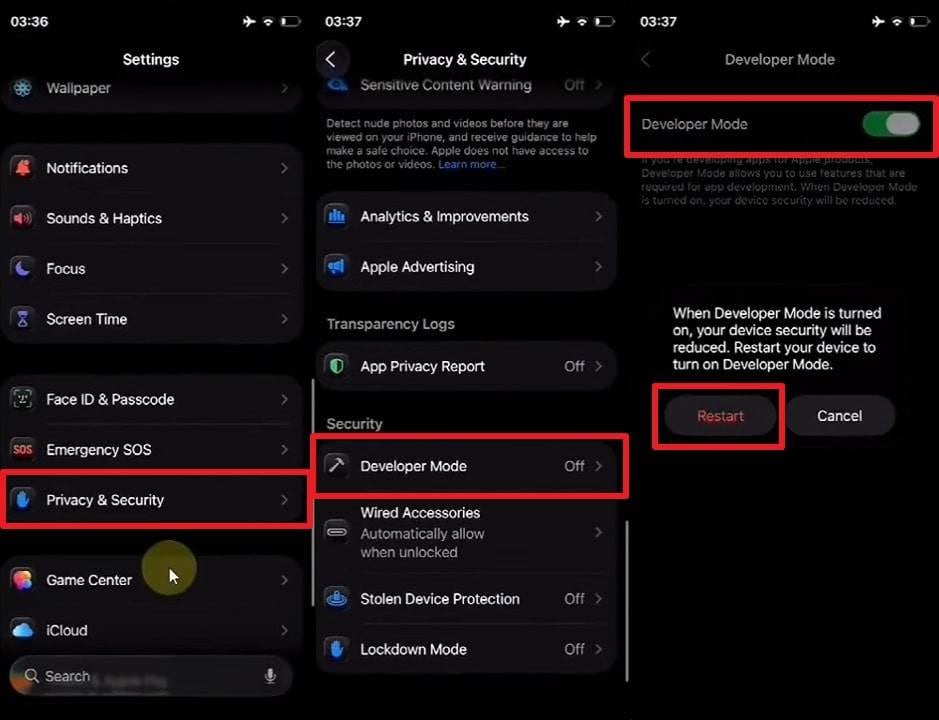
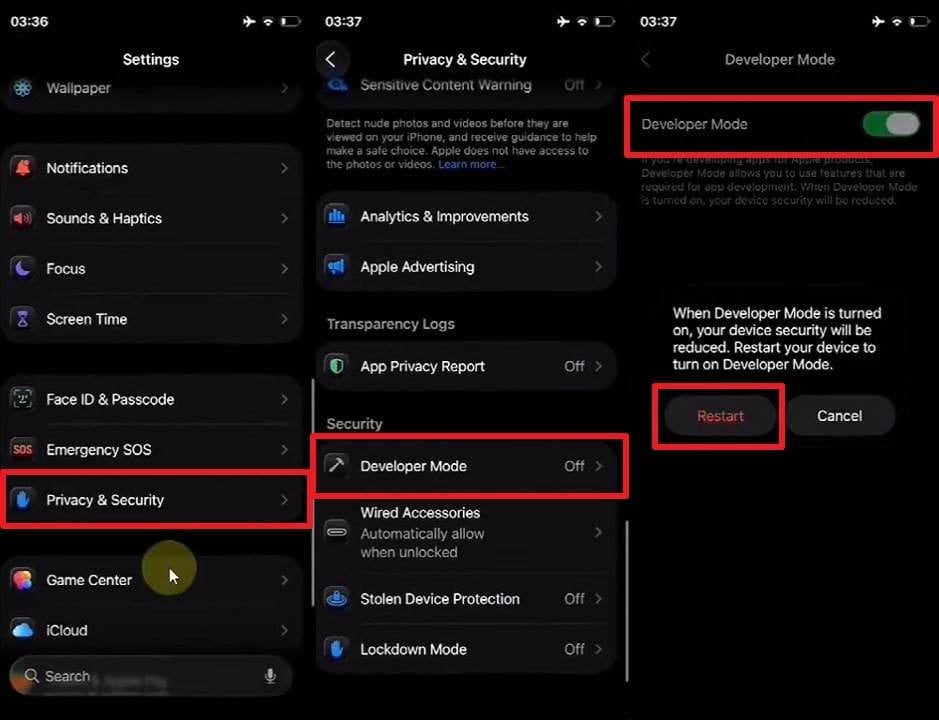
Step 1. As you reach your device's settings, head to the "Privacy & Security" section and opt for the "Developer Mode" option. Afterward, enable the "Developer Mode" toggle and tap the "Restart" option to reboot your phone.
Step 2. While restarting, tap the "Swipe Up to Continue" on the "Ready to Enable Developer Mode" screen and select the "Enable" option.
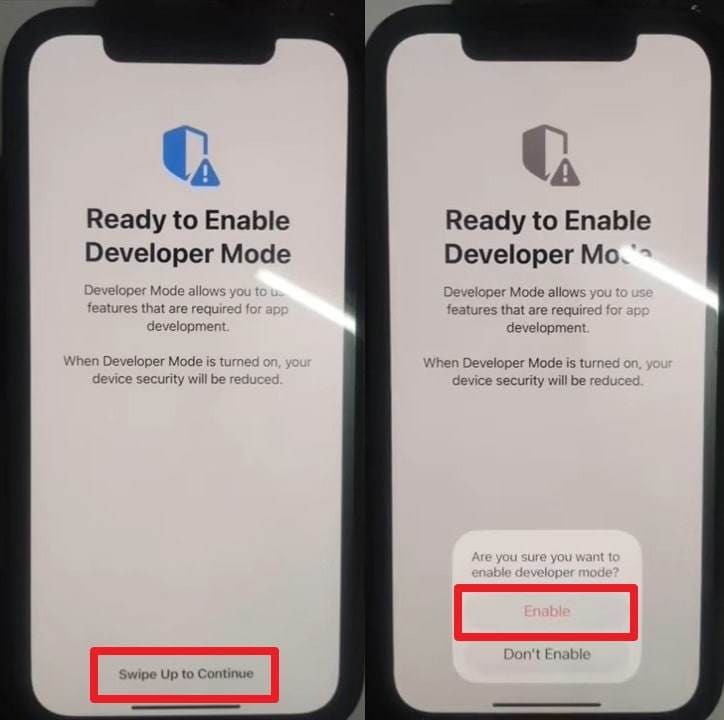
After the reboot confirmation, Developer Mode should remain active unless the system resets the security state. If the setting still does not appear at all, the issue is likely related to account setup, system glitches, or device recognition, which the next section covers in detail.
- Open Settings.
- Go to Privacy & Security.
- Tap Developer Mode if available.
- Turn it on and allow the device to restart.
- Confirm the final prompt after reboot.
Part 4. 5 Ways to Fix iOS 26 Beta Developer Mode Not Showing on iPhone/iPad
If you still cannot find the setting, the most effective approach is to fix the likely cause one by one. The methods below are arranged from the simplest checks to more advanced solutions, so you can restore iOS 26 Developer Mode not showing with less guesswork.
Way 1. Register Your Apple Developer Account [Free]
The first thing to check is whether your Apple ID has been used in Apple’s developer ecosystem. If it has not, your iPhone or iPad may not expose the necessary development controls. That is why many users experiencing developer mode not showing on iPhone resolve the problem by preparing their account properly.
Apple allows users to create an Apple Developer account for free, which is often enough for account-level recognition and access to developer-related tools and resources. This does not always mean you need a paid membership, but your account should still be signed in and correctly enrolled where required.
Step 1. First, access the official "Apple Developer" website and navigate to the "Account" tab. After that, sign in with your Apple ID in order to move further.

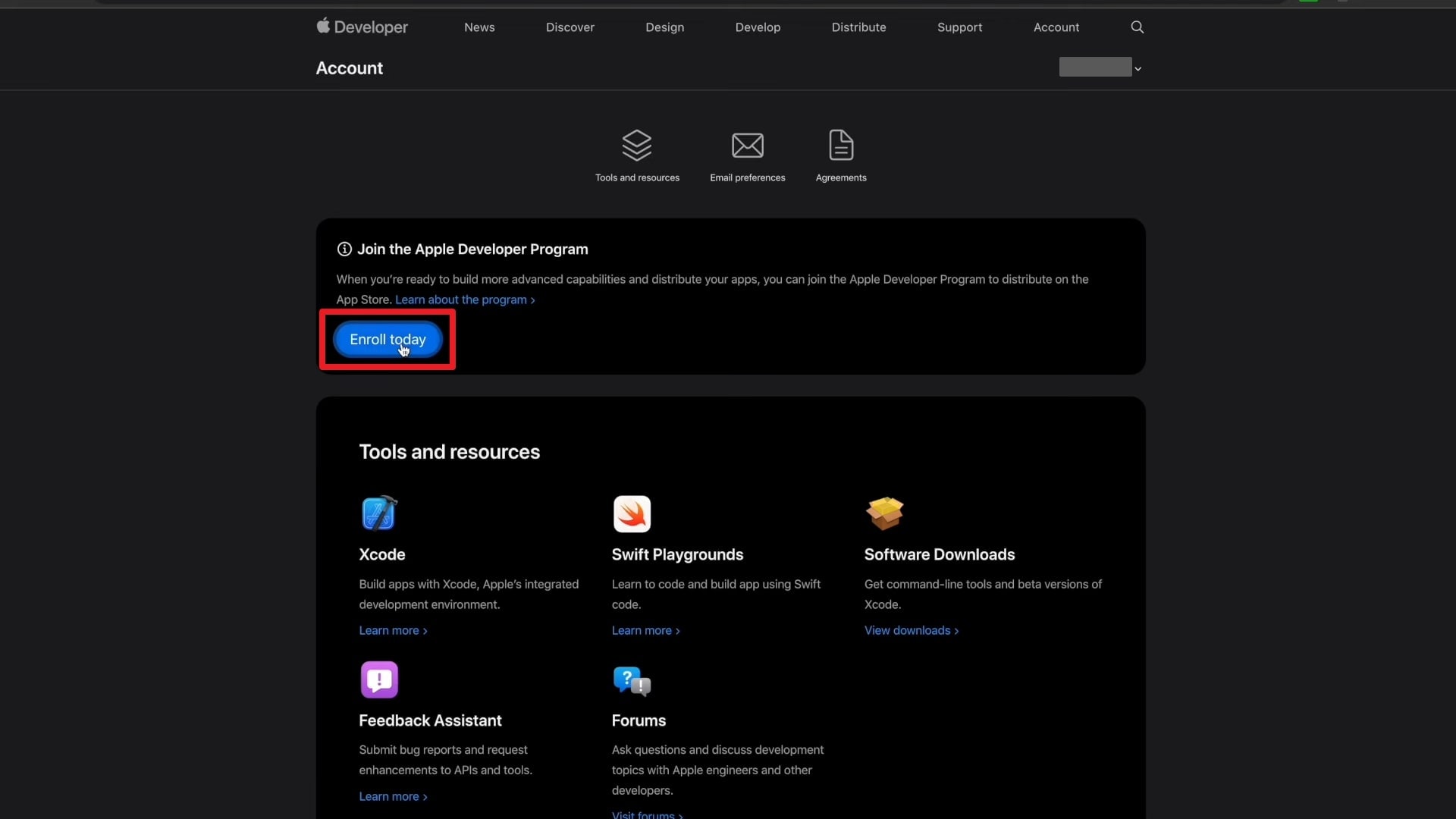
Step 2. Moving ahead, press the "Enroll Today" button from the new display and click the "Download on the App Store" option.
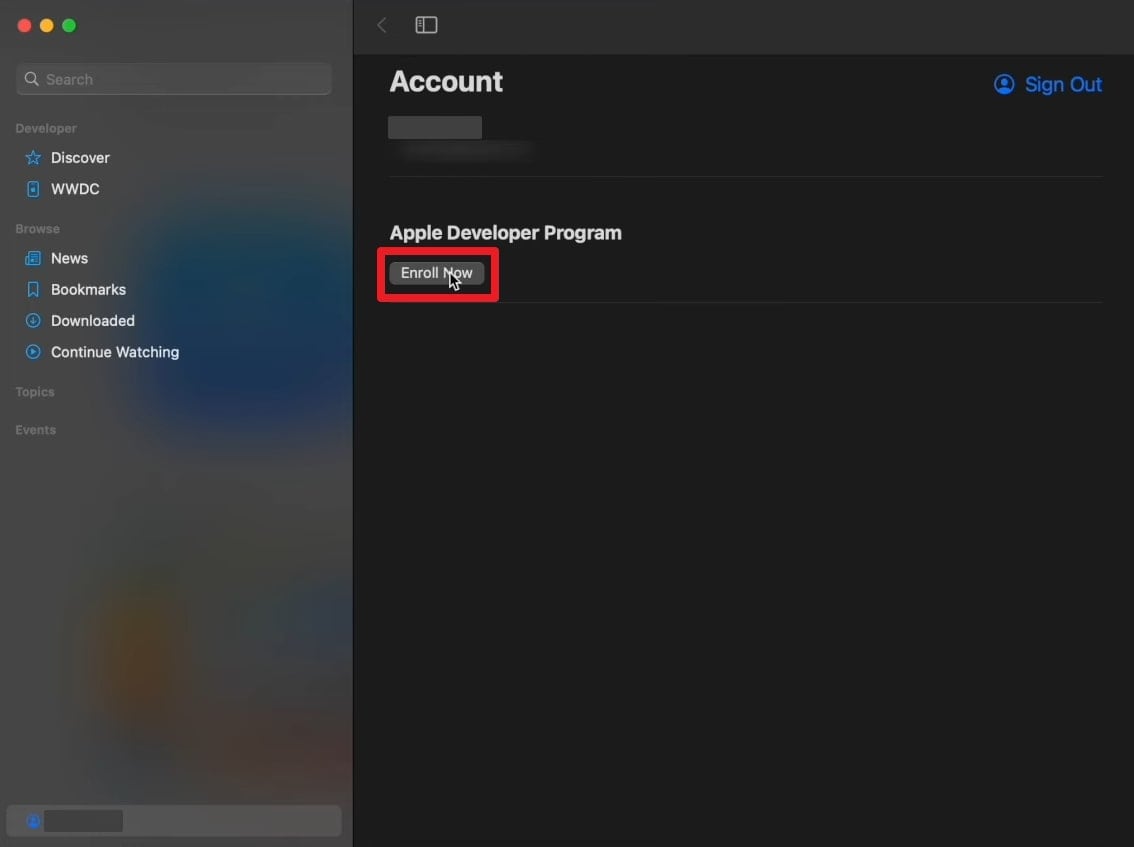
Step 3. As the Apple Developer app is installed, hit both the "Enroll Now" and the "Continue" buttons, and add your personal information.
Why this works: it helps ensure your Apple ID is recognized in a developer-related environment, which can make the hidden Developer Mode setting appear after the next trigger or restart.
Way 2. Force Restart Your iPhone/iPad
A force restart is one of the easiest ways to fix temporary beta glitches. It refreshes the system state, reloads background processes, and can help the missing settings panel appear if the issue is caused by a short-term software delay. This method is safe and does not erase your personal data.
Instruction: Initially, press the "Volume Up" button and release it, and perform this same action with the "Volume Down" button. Then, press the "Power" button for a moment until you see the Apple logo on your screen.
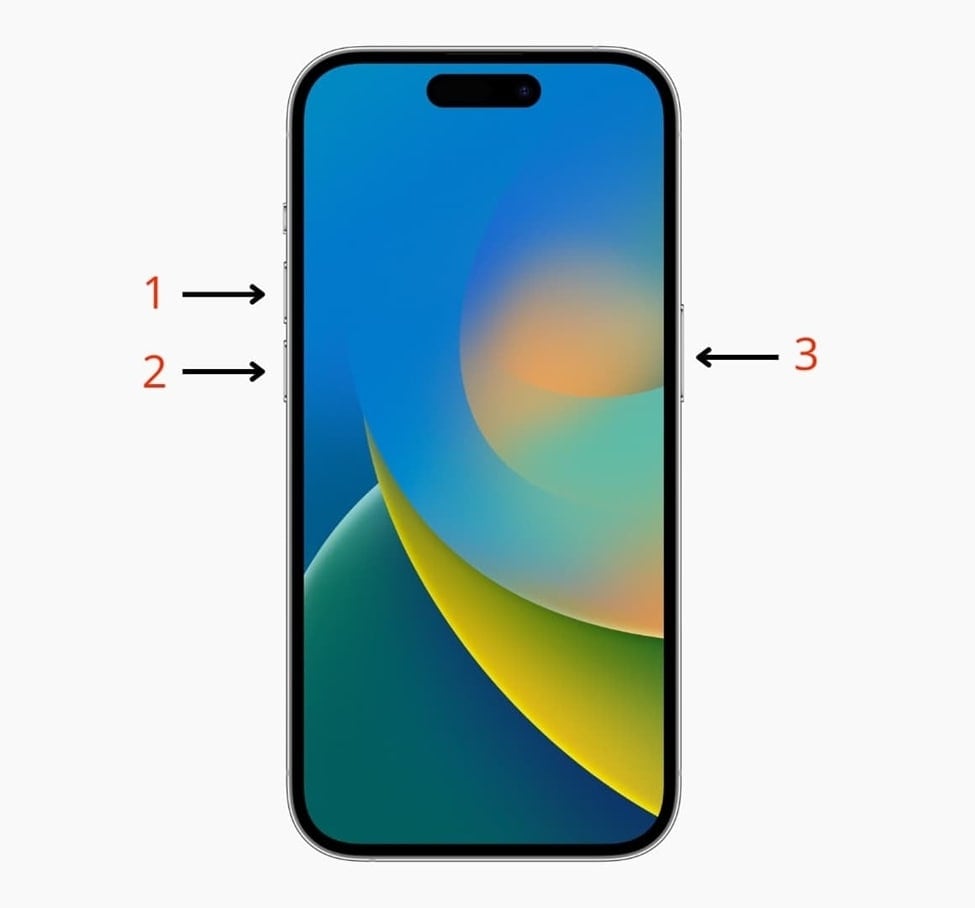
Best for: users who installed the beta recently and suspect the device has not refreshed properly since the update.
Way 3. Update Your iPhone/iPad iOS Version
If your device is on an outdated, incomplete, or unstable build, the Developer Mode menu may fail to appear. Apple’s Developer Mode requires a supported system environment, so version-related issues are a practical reason behind the iOS 26 developer mode not appearing problem.
In that case, you can upgrade your iOS device to a more suitable version by using a tool known as Dr.Fone - System Repair (iOS). This is especially useful when the issue is caused by system irregularities, failed beta behavior, or firmware instability rather than a simple settings mistake.
This high-end software will allow you to update your favorite version of iOS without losing data. Plus, the tool is fully compatible with all iPhones or iPads, including the latest release. Dr.Fone - System Repair (iOS) can also repair over 150 common iOS issues, such as boot loops and black screens. Its Standard Mode repairs common issues without deleting your files, while the Advanced Mode handles deeper problems if needed.

Dr.Fone - System Repair (iOS)
Repair iOS System Errors Without data loss.
- Only fix your iOS to normal, no data loss at all.
- Fix various iOS system issues stuck in recovery mode, white Apple logo, black screen, looping on start, etc.
- Upgrade and Downgrade iOS without iTunes at all.
- Work for all iPhone/iPad/iPod Touch, running on all iOS versions


Guide to Upgrade Your iPhone/iPad to iOS 26 Beta Using Dr.Fone
After finding the best tool to access Developer Mode, take guidance from the steps below to upgrade your iOS version effortlessly:
Step 1. Launch the Program to Upgrade Your iPhone/iPad iOS Version
Once you access the "Toolbox" section of this tool, opt for the "System Repair" feature and click the "iPhone" device.

Step 2. Head to the iOS Upgrade Feature
Following this, choose the "iOS Upgrade/Downgrade" feature and press the "Upgrade iOS" option on the next display. After that, connect your iPhone to the PC via a USB cable to move further.
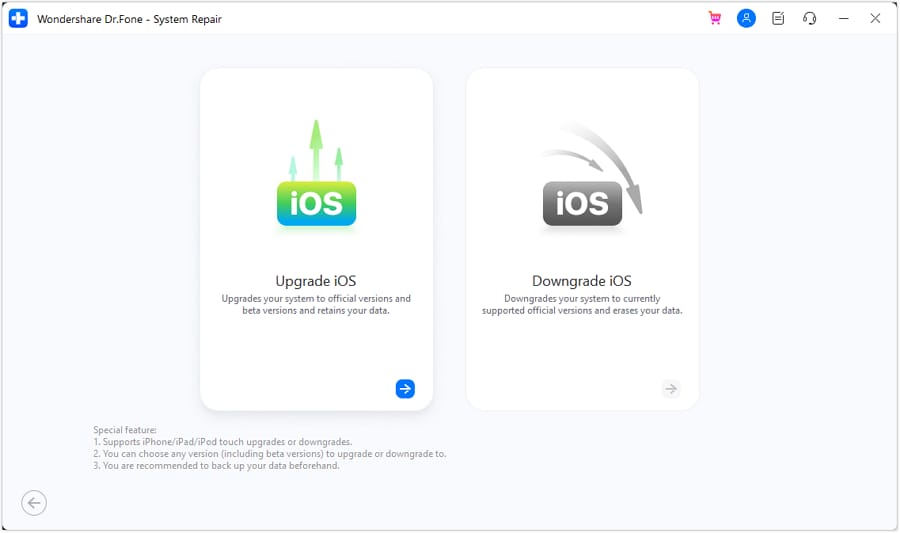
Step 3. Download Your Preferred iOS 26 Firmware
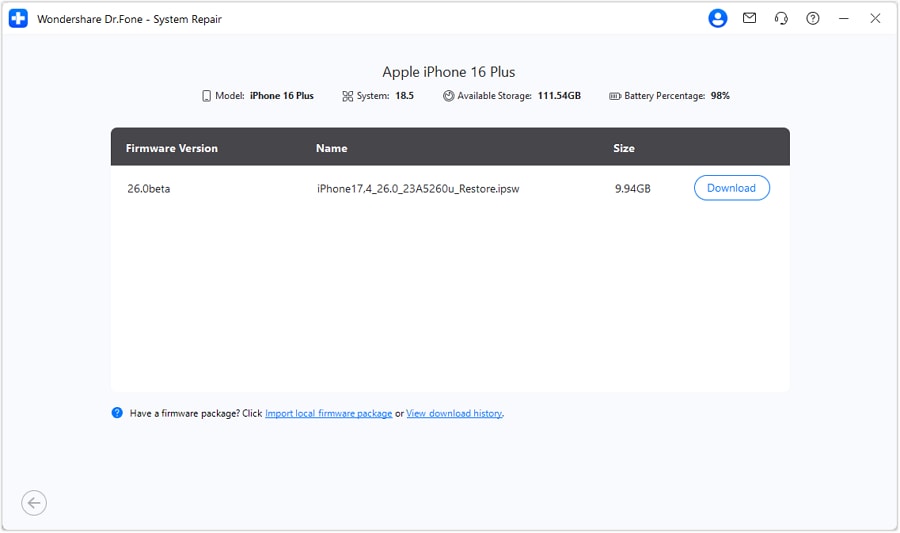
As the platform displays all the updated iOS 26 firmware, opt for your desired one by pressing the "Download" button.
Step 4. Upgrade your iPhone/iPad to the Latest iOS version
Moving ahead, hit the "Repair Now" button when the firmware is downloaded to start upgrading your device.

 safe & secure
4,624,541 people have downloaded it
Why this works: if the missing Developer Mode option is related to firmware instability, incomplete beta installation, or hidden system issues, repairing or upgrading iOS can restore the environment needed for the setting to appear.
Way 4. Enable Developer Mode iOS Using Xcode
If the setting does not appear directly on your iPhone or iPad, Xcode is one of the most reliable ways to trigger it. Since Xcode is Apple’s official development platform for macOS, connecting your device to it can make iOS recognize that the device is entering a real development workflow.
This is one of the most practical solutions for users searching enable developer mode iOS 26 or how to enable developer mode on iPhone iOS 26 when the standard settings path fails.
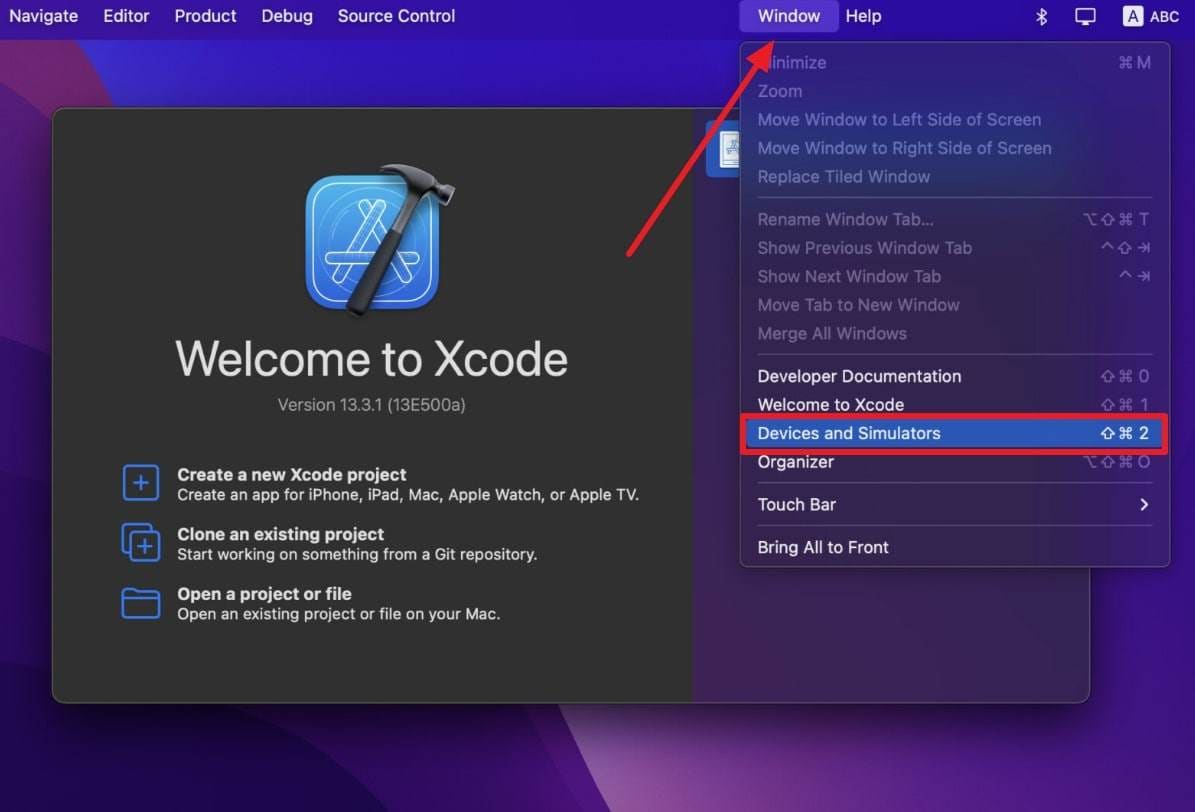
Step 1. Upon installing and running the Xcode app, link your iPhone to the Mac and click the "Windows" tab to select the "Devices and Simulators" option.
Step 2. When you see a prompt, restart your iPhone/iPad and head to the "Settings > Privacy & Security > Developer Mode" and enable the toggle. Afterward, you have to follow the same instructions in Part 3 to activate it properly.
Best for: users whose device is eligible, but the Developer Mode prompt has never appeared automatically.
Way 5. Contact the Apple Support Team
If none of the above solutions work, the remaining cause may involve deeper account verification issues, beta-specific bugs, or device-level restrictions that require official review. In that case, contacting Apple Support is the safest next step.
The support team can inspect your device condition, confirm whether your account is recognized correctly, and identify whether a beta issue or compatibility limitation is blocking the setting. This is the best option when the problem persists even after restarts, updates, and Xcode-based activation attempts.
- Use this option if the setting never appears after all fixes.
- It is also recommended when you suspect account or device eligibility issues.
- Official support helps avoid risky workarounds that may create new system problems.
Conclusion
In summary, the iOS 26 Developer Mode not showing issue is usually caused by one of four factors: account setup, beta bugs, unsupported devices, or the fact that the Developer Mode prompt has not been triggered yet. Once you identify which situation applies to your iPhone or iPad, the fix becomes much easier.
If the setting is already visible, you can enable it directly from Settings > Privacy & Security. If it is missing, start with account registration, force restart the device, and Xcode-based detection. When the problem is tied to firmware instability or an outdated system environment, Dr.Fone - System Repair offers a practical way to upgrade your iOS version and repair deeper iOS issues without putting your data at unnecessary risk.
safe & secure4,624,541 people have downloaded it
FAQs
 Q1. How do I enable Developer Mode on iOS 26?Q2. Why is Developer Mode not showing on my iPhone?Q3. How do I turn on Developer Mode on iPadOS 26 if it is missing?Q4. Can I fix iOS 26 Developer Mode not showing without losing data?


iOS 26 Topics
- iOS 26 Downgrade/Upgrade
- iOS 26 Bugs/Issues
- 1. iOS 26 Beta Bugs List
- 2. Fix iOS 26 Glitches
- 3. Unable to Verify Update iOS 26
- 4. Hey Siri Not Responding on iOS 26
- 5. RCS Messaging Not Working in iOS 26
- 6. iOS 26 Beta Battery Drain
- 7. iOS 26 Stuck on Install Now
- 8. iOS 26 Update Not Showing Up
- 9. iOS 26 Unable to Check for Update
- 10. iOS 26 Update Failed
- 11. iOS26 Developer Mode Not Showing
- 12. iOS26 Beta Frozen
- 13. iOS 26 Camera Not Working
- 14. iOS 26 Beta Control Center Bugs
- 15. iOS 26 Stuck on Apple Logo
- 16. iOS 26 Widget Not Working
- 17. iOS 26 Face ID Not Working
- 18. Mail Notifications Not Working
- 19. Taking Forever to Update iOS 26
- 20. iOS 26 Beta Laggy
- iOS 26 Features
- ● Manage/transfer/recover data
- ● Unlock screen/activate/FRP lock
- ● Fix most iOS and Android issues
- Free Download Free Download


 > How-to > Phone Repair Solutions > How to Fix iOS 26 Beta Developer Mode Not Showing on iPhone/iPad
Selena Lee
chief Editor
Generally rated4.5(105participated)