Resolve common problems and system crashes on both iPhone and Android devices.

 100% Security Verified | No Subscription Required | No Malware

 :
: 
 ChatGPT
 Perplexity
 Gemini
 Claude
 Grok
Grok
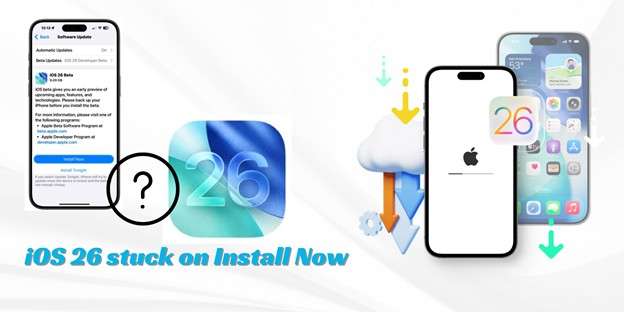
If your iPhone is stuck on Install Now during an iOS 26 update, first leave it connected to reliable Wi-Fi and power while checking available storage. If it remains unchanged, restart the iPhone and try downloading the update again; use Finder or iTunes to choose Update before considering Restore, because Restore may erase the device. For supported software-related problems and failed updates, Dr.Fone Standard Repair is an optional data-preserving repair path.
In this article

Part 1. Why an iPhone Can Get Stuck on Install Now
The Install Now screen can remain unchanged for several reasons. The update may be waiting for a stable connection, preparing a downloaded update file, checking available storage, or completing work in the background. A problem with the iPhone’s current system state can also interrupt the process. A new iPhone still in initial setup needs separate handling because you may not have full access to Settings.
- Network or service conditions: An unstable Wi-Fi connection can interrupt communication needed to prepare or install the update. A busy service period can also make an update take longer.
- Update-file problems: A partially downloaded or damaged update file may prevent the Install Now action from completing.
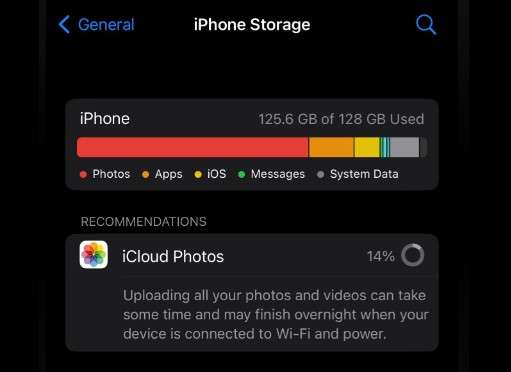
- Available storage: iOS needs enough working space to prepare and install an update. Check Settings > General > iPhone Storage if the phone opens normally.
- Power or connection: A low battery, disconnected charger, or interrupted connection can stop an update from progressing.
- System state: Temporary software activity or an earlier failed update can leave the iPhone unresponsive at one stage of the process.
- Initial setup: A new iPhone stuck on Install Now during setup is different from an iPhone that is already operating normally. The available controls and recovery choices may not be the same.
The screen you see helps determine the next step. Install Now usually calls for connection, storage, restart, and update-file checks. Preparing or Verifying may need more time or a fresh update file. An Apple logo that does not clear may require recovery-mode troubleshooting.
Part 2. Fixes for an iPhone Stuck on Install Now
Work through these methods from lowest risk to higher-risk recovery. If the iPhone is still usable, protect your important data before making major changes.
Fix 1. Check your internet connection
Use a reliable Wi-Fi connection and keep the iPhone close to the router. Restart the router if other devices are also having connection problems. If possible, switch to another trusted network and try the update again. Turn off a VPN temporarily because it can interfere with the update connection.
You can also review fixes for common iOS errors if the update changes from a loading screen to a specific error message.
Fix 2. Restart your iPhone
A restart can clear a temporary software state that is preventing the update from responding.
- Step 1. Turn off the iPhone if the normal power controls are available.
- Step 2. Wait briefly, then turn the iPhone on again.
- Step 3. Reconnect to Wi-Fi and power, then check whether Install Now responds.
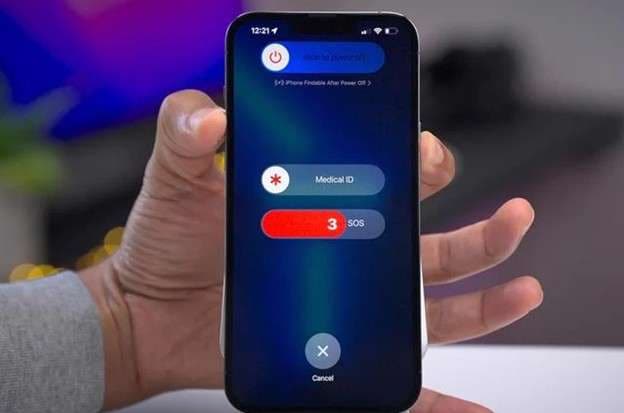
If the iPhone is frozen, use the force-restart method for its model. A restart may not be enough when a new iPhone is stuck outside the device interface during initial setup; use the new iPhone setup section instead.
Fix 3. Delete and download the update again
If the iPhone opens normally, remove the downloaded update file and let Software Update download a fresh copy.
- Step 1. Open Settings > General > iPhone Storage.
- Step 2. Find the iOS update in the list and open it.
- Step 3. Tap Delete Update, then confirm.
- Step 4. Return to Settings > General > Software Update and download the update again.
Fix 4. Check storage, power, and connection
Keep the iPhone connected to its charger and a reliable Wi-Fi network while the update prepares and installs. To check space, open Settings > General > iPhone Storage. If storage is nearly full, remove or move unneeded photos, videos, or apps before trying again.
Avoid disconnecting the iPhone or repeatedly pressing buttons while the update is actively progressing. If the screen has not changed for an extended period and the phone does not respond, continue with the restart or computer-based method below.
Fix 5. Reset All Settings
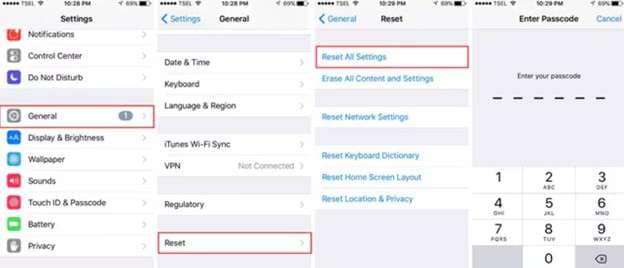
Reset All Settings does not erase personal data such as photos, messages, or apps, but it returns system settings to their defaults. You may need to set up preferences and reconnect to networks afterward.
- Step 1. Open Settings, select General, and scroll to Transfer or Reset iPhone.
- Step 2. Select Reset > Reset All Settings.
- Step 3. Enter the passcode if prompted and confirm the reset.
- Step 4. After the iPhone restarts, reconnect to Wi-Fi and check the update again.
Fix 6. Know when to wait and when to continue troubleshooting
An update can take longer while the iPhone downloads, prepares, verifies, or installs system files. During a new iOS release, service demand can also affect how quickly the update becomes available or completes. Keep the iPhone connected to power and reliable Wi-Fi for a reasonable period instead of interrupting it immediately.
If the iPhone remains on the same screen, becomes unresponsive, repeatedly returns to Install Now, or shows an error, continue with the restart, update-file, or Finder/iTunes steps. Do not assume that waiting alone will resolve a persistent loop.
Fix 7. Use Finder or iTunes: Update before Restore
When the iPhone cannot complete the update through Settings, a computer can provide another Apple recovery path. Use Finder on a Mac with a supported newer version of macOS, or iTunes on a supported Windows PC or Mac that uses iTunes.
For an iPhone 8 or later, use recovery mode as follows:
- Step 1. Connect the iPhone to the computer with a compatible USB cable.
- Step 2. Press and quickly release the Volume Up button.
- Step 3. Press and quickly release the Volume Down button.
- Step 4. Press and hold the Side button until the recovery mode screen appears.
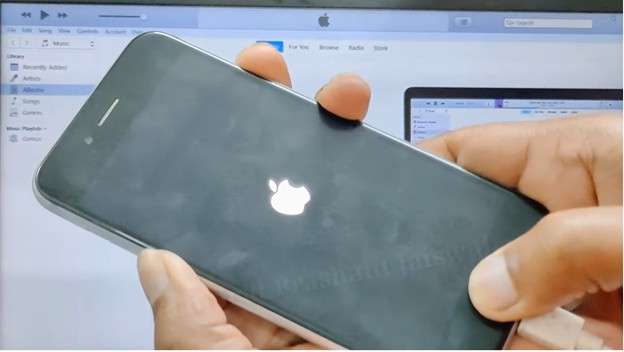
- Step 5. Open Finder or iTunes. When the message says there is a problem with the iPhone that requires it to be updated or restored, choose Update first.
- Step 6. Let the computer download and install the iPhone software. Keep the iPhone connected during the process.
- Step 7. If Update fails and recovery mode is still required, repeat the process and choose Restore only after understanding the data consequences.
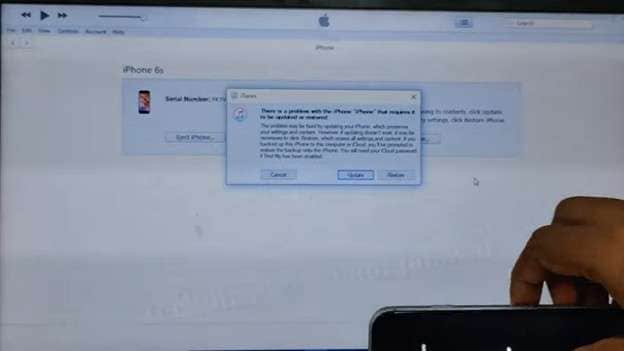
Warning: Restore erases the iPhone’s content and settings. Use it only when other options have failed and you have a backup or accept the risk of losing the device data. For more recovery-mode guidance, see what to do when an iPhone is stuck in recovery mode.
New iPhone Stuck on Install Now During Setup
A new iPhone stuck on Install Now during initial setup is different from an iPhone that is already operating normally. You may not be able to open Settings or delete an update, so begin with the least disruptive options.
- Keep the iPhone connected to power and a reliable Wi-Fi network while the setup process has time to continue.
- If the screen remains unresponsive, use the recovery-mode and computer-based Update process in Fix 7.
- Choose Restore only after considering that it can erase the device and after confirming whether the iPhone contains any data you need.
- If setup still cannot continue, contact Apple Support for device-specific assistance.
Do not treat an optional repair mode intended for more serious system problems as a required solution for every new iPhone setup issue.
Part 3. Optional Dr.Fone Standard Repair Path
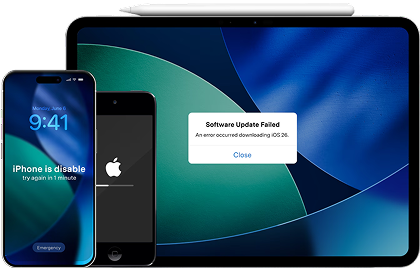
Dr.Fone - System Repair (iOS) is an optional desktop software path for supported software-related iPhone and iPad problems, including failed iOS updates. Its Standard Repair mode is designed to repair supported issues without erasing personal data, but compatibility is limited to supported devices and versions.
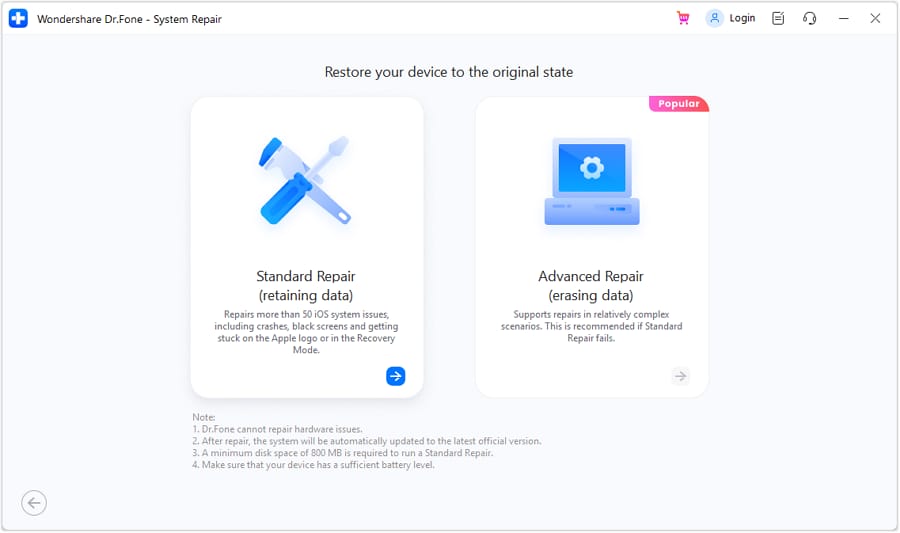
Dr.Fone - System Repair (iOS) supports iOS 26 and allows upgrade and downgrade workflows for supported iOS and iPadOS versions. Advanced Repair is intended for more serious iOS system problems and may erase device data; it is not a required recommendation for a brand-new iPhone stuck during initial setup.
- Supported device coverage includes supported iPhone and iPad devices, not every model.
- Available desktop systems include Windows 7, Windows 8, Windows 8.1, Windows 10, and Windows 11, plus macOS 10.13 or later.
- The Windows monthly plan is USD 24.95, and the Mac monthly plan is USD 19.95.
- Entering Recovery Mode is free; full repair and other repair, reset, upgrade, downgrade, or advanced actions may require a paid license.
 Fix iOS issues, no data loss.
- One-click repair for all iOS problems.
- Solve recovery mode, Apple logo, black screen, etc.
- Upgrade or downgrade iOS without iTunes
Steps to use Dr.Fone Standard Repair
Download and install Dr.Fone, connect the iPhone to the computer, and use Standard Repair for a supported software issue.
-
Step 1.
Launch Dr.Fone and select the Toolbox tab. Click System Repair.

-
Step 2.
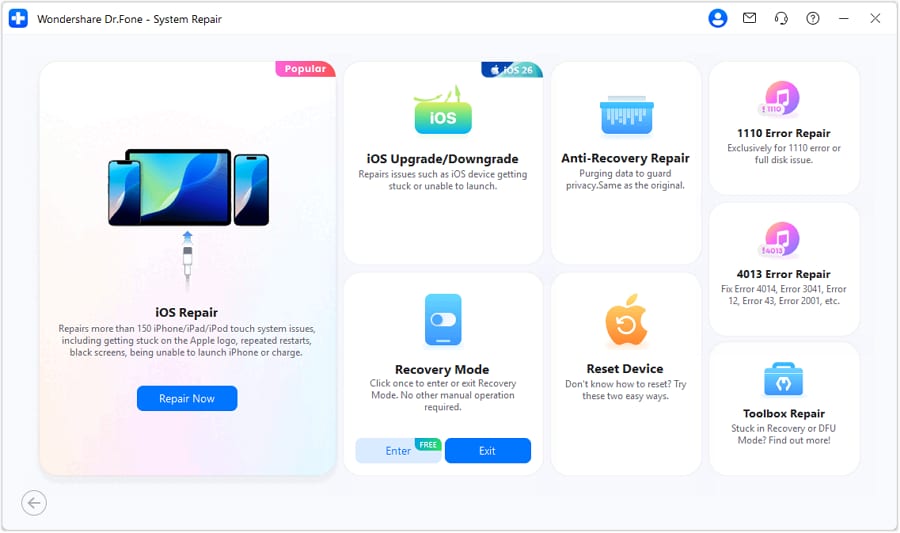
Select iOS and then choose iOS Repair.
-
Step 3.
Select Standard Repair when you want the data-preserving repair mode.
-
Step 4.
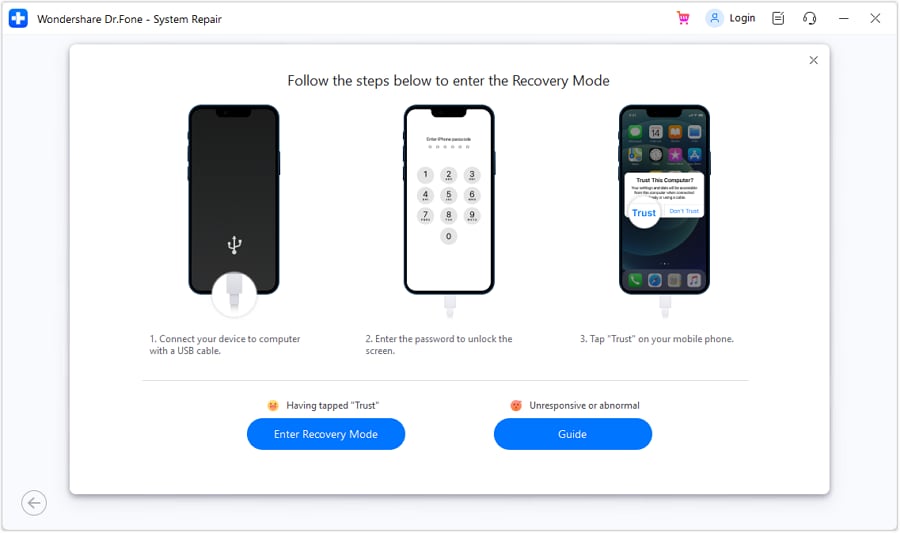
Follow the on-screen instructions to put the iPhone into recovery mode.
-
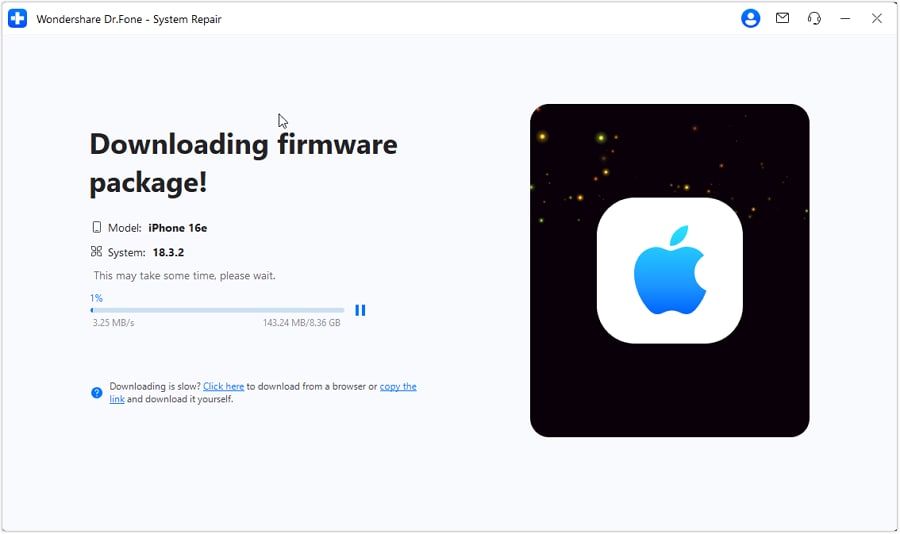
Step 5.
Choose the available iOS firmware package for the connected device and download it.
-
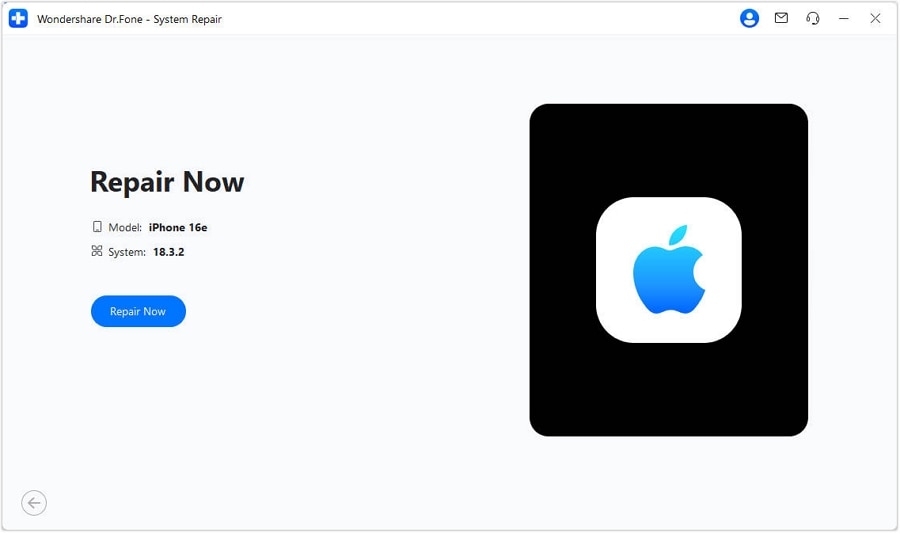
Step 6.
Click Repair Now to begin the repair.
-
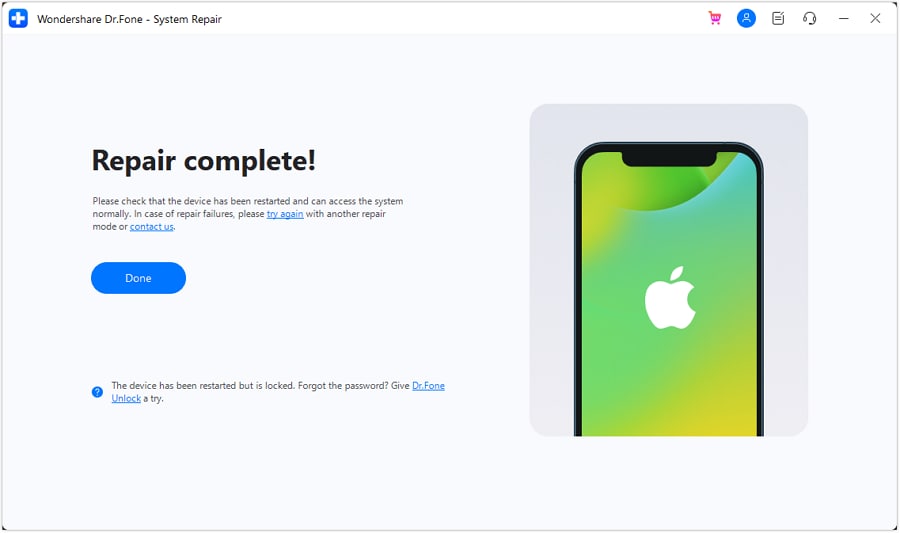
Step 7.
Dr.Fone updates the device firmware and completes the repair. A Repair Complete message appears when the process finishes.
For related upgrade and downgrade information, see the iOS upgrade and downgrade guide.
Part 4. When to Contact Apple Support
Contact Apple Support when the iPhone cannot start, the update repeatedly fails, recovery mode does not complete, or the risk of Restore erasing important content is unacceptable. Apple Support can help determine the appropriate next step for the specific device.
Conclusion
When an iPhone is stuck on Install Now during an iOS 26 update, begin with a reliable connection, power, storage, a short wait, and a restart. If the update file is the problem, delete it and download it again. If the iPhone still cannot update, use Finder or iTunes and choose Update before Restore.
Back up the iPhone before major recovery steps whenever possible, and remember that Restore can erase the device. If you prefer an optional software-repair path, Dr.Fone Standard Repair is designed for supported iPhone and iPad software issues and failed updates without erasing personal data. Its compatibility and license requirements apply.




 safe & secure
4,624,541 people have downloaded it
FAQs
-
Q1. Is it safe to install iOS 26?
Installing iOS 26 can be reasonable when your iPhone is supported and you are prepared for possible software changes. Back up important data first, keep the iPhone connected to power, and use a reliable network. If you are installing a beta or test release, expect that some features or apps may not work as they do on a stable release. -
Q2. Can I downgrade from iOS 26?
Downgrading from iOS 26 may be possible for supported device and software combinations. The available path depends on the iOS version and whether Apple accepts that version for installation. You can review the iOS upgrade and downgrade guide for related options. -
Q3. Why does the iOS 26 update take so long to install?
An iOS update may take a long time while it downloads, prepares, verifies, or installs files. Slow Wi-Fi, limited storage, low power, high service demand, or an update file that needs to be downloaded again can extend the process. If the screen remains unchanged for an extended period, continue with the troubleshooting steps in this guide. -
Q4. Why is my iPhone software update stuck on Install Now?
The update may be waiting for a stable network or power connection, preparing an update file, or checking available storage. A temporary system problem or an issue with the downloaded file can also leave the iPhone on Install Now. Check the connection and storage, restart the iPhone if possible, and download the update again when the option is available. -
Q5. How do I fix an iPhone stuck on Install Now?
Keep the iPhone on reliable Wi-Fi and power, check Settings > General > iPhone Storage, restart it, and delete and download the update again if the iPhone opens normally. If that does not help, connect the iPhone to Finder or iTunes, enter recovery mode, and choose Update before considering Restore. Restore may erase the iPhone’s data. -
Q6. Can I cancel an iPhone update while installing?
Do not disconnect or force off the iPhone while it is actively installing unless the device is frozen and the applicable recovery instructions require it. If the update has only been downloaded and the iPhone still opens normally, you may be able to remove it from Settings > General > iPhone Storage by selecting the update and tapping Delete Update. -
Q7. What should I do if a new iPhone is stuck on Install Now during setup?
Keep the new iPhone connected to power and reliable Wi-Fi while setup has time to continue. If it stays frozen, use a computer to place the iPhone in recovery mode and choose Update in Finder or iTunes. Choose Restore only after understanding that it can erase the device. If setup still cannot continue, contact Apple Support. -
Q8. Does using Finder or iTunes to restore an iPhone erase its data?
Yes. Restore erases the iPhone’s content and settings. In Finder or iTunes, try Update first because it is the lower-risk computer option. Use Restore only when Update fails and you have a backup or accept the possibility of losing the device data. -
Q9. Can Dr.Fone Standard Repair fix a failed iPhone update without erasing personal data?
Dr.Fone Standard Repair is designed to fix supported software-related iPhone and iPad issues, including failed iOS updates, without erasing personal data. It supports supported iPhone and iPad devices and supports iOS 26; compatibility with every device or iOS 26 beta is not confirmed.
 Add Wondershare Dr.Fone as a preferred source on Google