Resolve common problems and system crashes on both iPhone and Android devices.

 100% Security Verified | No Subscription Required | No Malware

 :
: 
 ChatGPT
 Perplexity
 Gemini
 Claude
 Grok
Grok
When Apple introduces a new feature, users are eager to try it out. However, excitement can quickly turn to frustration when it doesn't work as expected. Many who have updated to iOS 26 are reporting that the iOS 26 call screening feature is unresponsive. This leaves them unable to effectively block or manage the increasing number of spam and robocalls.
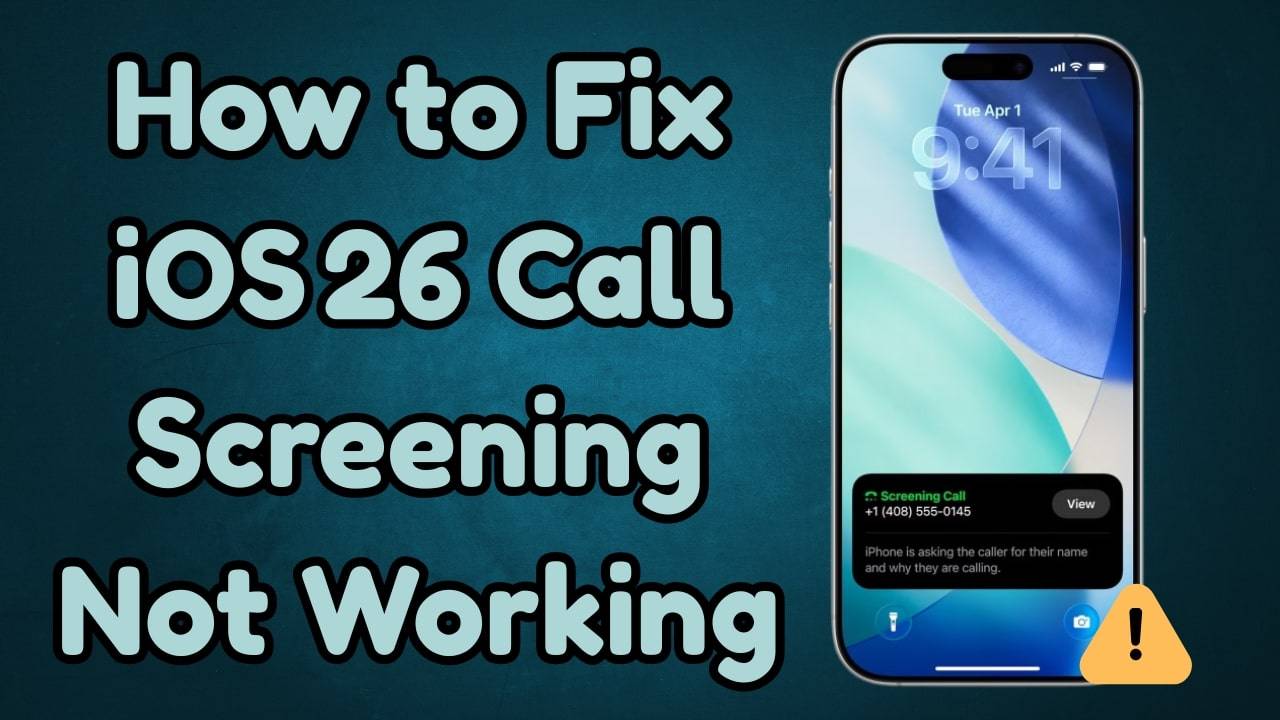
If you're facing this problem, you're not alone. This guide will explore the common reasons why the Apple call screening feature might fail and provide seven detailed solutions to get it working again. We'll also introduce a comprehensive tool to resolve any underlying system issues on your iPhone. Let's dive in and regain control over your incoming calls.
In this article
- Part 1. What is the iOS 26 Call Screening Feature?
- Part 2. Common Reasons Why iOS 26 Call Screening Fails
- Part 3. How to Fix the iOS 26 Call Screening Issue: 7 Proven Methods
- Fix 1. The Ultimate Solution for All iPhone System Issues: Dr.Fone - System Repair (iOS)
- Fix 2. Ensure Call Screening is Enabled in Settings
- Fix 3. Verify Your iPhone's Region and Language Settings
- Fix 4. Uninstall Conflicting Third-Party Call-Blocking Apps
- Fix 5. Test the Feature Exclusively with Unknown Callers
- Fix 6. Force Quit and Relaunch the Phone App
- Fix 7. Update to the Latest iOS 26 Beta Version
- Bonus Tip: Exploring New Communication Features in iOS 26
Part 1. What is the iOS 26 Call Screening Feature?
The iOS 26 Call Screening feature is a powerful tool designed to help you manage calls from unknown or potential spam numbers. When enabled, it acts as a personal assistant for your incoming calls. Instead of you answering directly, a built-in AI requests the caller's name and the purpose of their call. This interaction is transcribed in real-time directly on your call screen iPhone, allowing you to read the caller's response and decide whether to answer, decline, or send the call to voicemail without ever speaking to them.
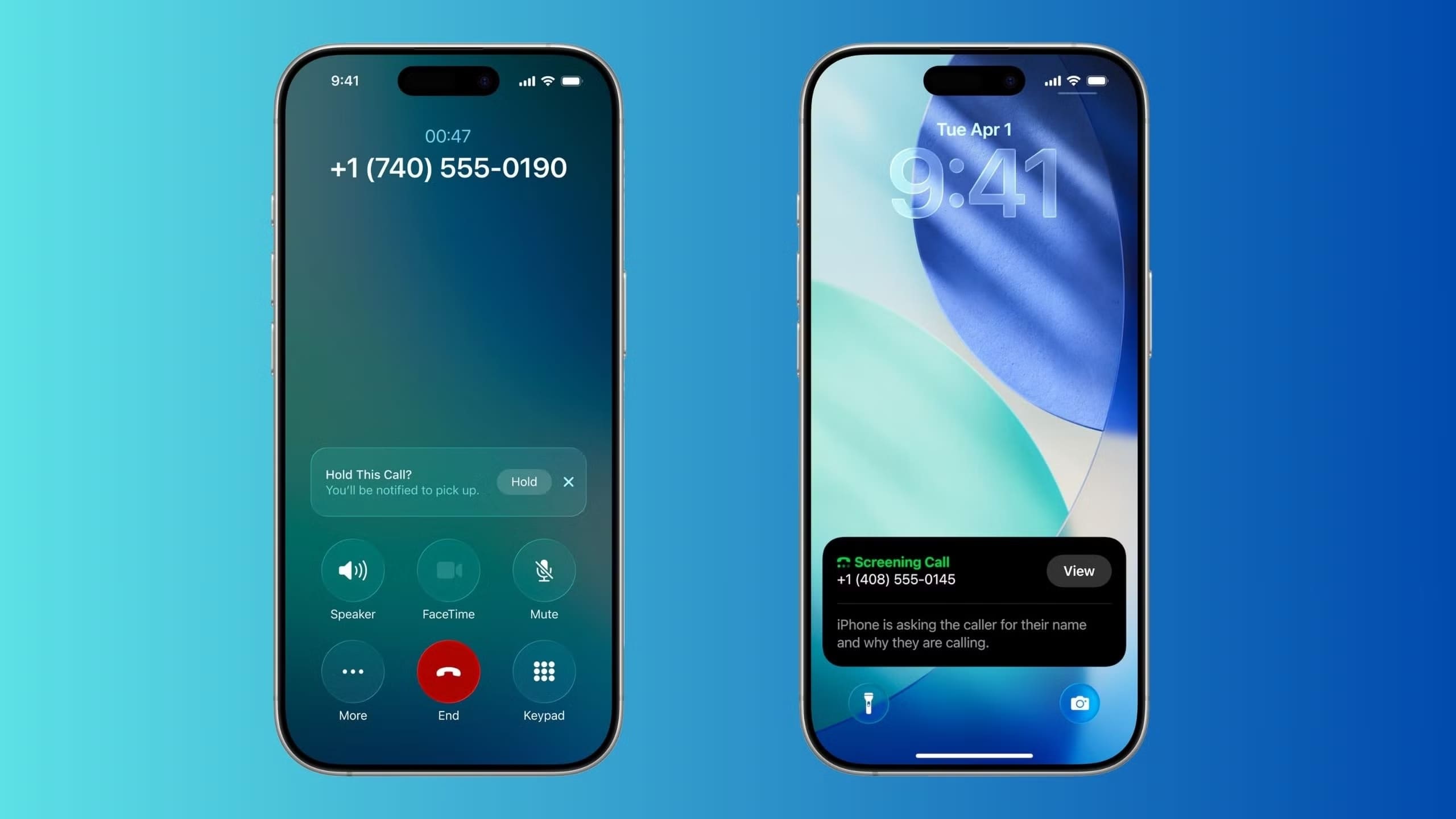
Additionally, this functionality is complemented by the new Hold Assist feature, which can wait on hold for you during customer service calls and alert you as soon as a live agent joins the line. Together, these features significantly enhance call management, saving you time and protecting you from unwanted interruptions.
Part 2. Common Reasons Why iOS 26 Call Screening Fails
If you're experiencing a call screening issue on iOS 26, several factors could be the culprit. Understanding these potential causes can help you diagnose the problem more effectively. Here are the most common reasons:
- Geographical Limitations: The call screening feature is not globally available. If you are in a country or region where it has not been rolled out, it simply will not function, regardless of your software version.
- Beta Software Bugs: As iOS 26 is still in a beta phase, it's prone to bugs and glitches. These software imperfections can directly impact the performance and reliability of new features like call screening.
- Third-Party App Conflicts: Call-blocking or spam-filtering apps from the App Store can interfere with Apple's native call management system, causing the call screening not work issue.
- Network Connectivity Problems: The feature requires a stable internet connection (Wi-Fi or cellular) for its real-time transcription to work correctly. Poor connectivity can disrupt its performance.
- Underlying System Glitches: Sometimes, minor corruption or temporary errors within the iOS system can prevent features from operating as intended.
Part 3. How to Fix the iOS 26 Call Screening Issue: 7 Proven Methods
To resolve the frustrating problem of the iOS 26 call screening feature not working, we've compiled seven effective fixes. Start with the simplest solutions and work your way down to more advanced methods.
Fix 1. The Ultimate Solution for All iPhone System Issues: Dr.Fone - System Repair (iOS)
When basic troubleshooting fails, the problem often lies deeper within the operating system. For persistent issues caused by system glitches or corrupted files, Dr.Fone - System Repair (iOS) is the most reliable solution. This powerful tool is engineered to fix over 150 different iOS system problems, including boot loops, the Apple logo screen, and feature malfunctions, all while ensuring your data remains safe.
Dr.Fone offers two distinct repair modes. The Standard Mode is designed to resolve most common system issues without any data loss, making it the ideal first choice. For more severe problems, the Advanced Mode performs a deeper system repair. You can also use this software to effortlessly upgrade to the latest iOS version or even downgrade from iOS 26 if needed, without relying on iTunes.
 Fix iOS issues, no data loss.
- One-click repair for all iOS problems.
- Solve recovery mode, Apple logo, black screen, etc.
- Upgrade or downgrade iOS without iTunes

Step-by-Step Guide to Resolve the Call Screening Problem with Dr.Fone
Follow these simple steps to fix the Apple call screening feature issue in just a few clicks:
-
Step 1 Launch Dr.Fone and Select System Repair
After installing Dr.Fone on your computer, open the application. From the main "Toolbox," select the "System Repair" module and specify that you are repairing an "iPhone."

-
Step 2 Choose Standard Repair and Connect Your iPhone
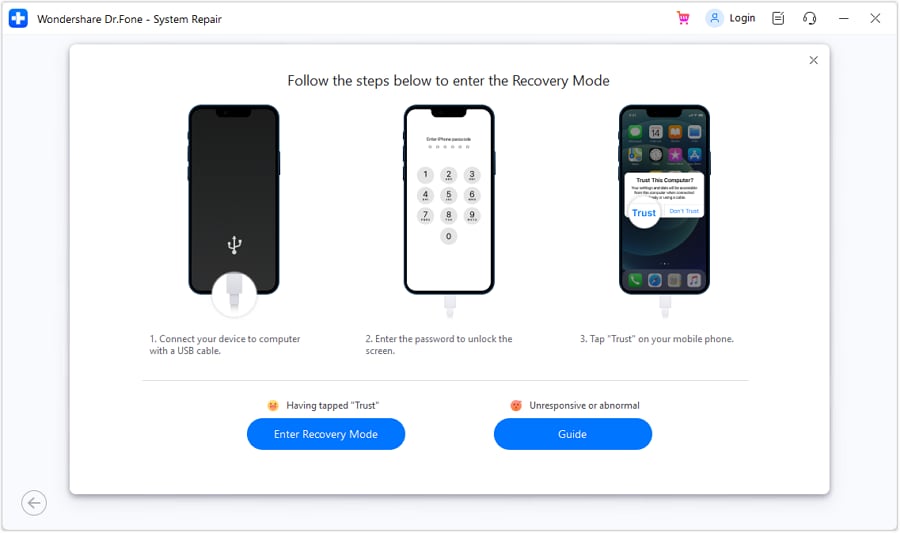
Click "iOS Repair" and then choose the "Standard Repair" option to ensure no data is lost. Connect your iPhone to the computer with a USB cable and follow the on-screen instructions to put your device into Recovery Mode.
-
Step 3 Download Firmware and Complete the Repair
Dr.Fone will automatically detect your iPhone model and display the correct iOS 26 firmware. Click the "Download" button to get the firmware package. Once downloaded, click "Repair Now" to begin the repair process. Your iPhone will restart with the call screening issue resolved.

Fix 2. Ensure Call Screening is Enabled in Settings
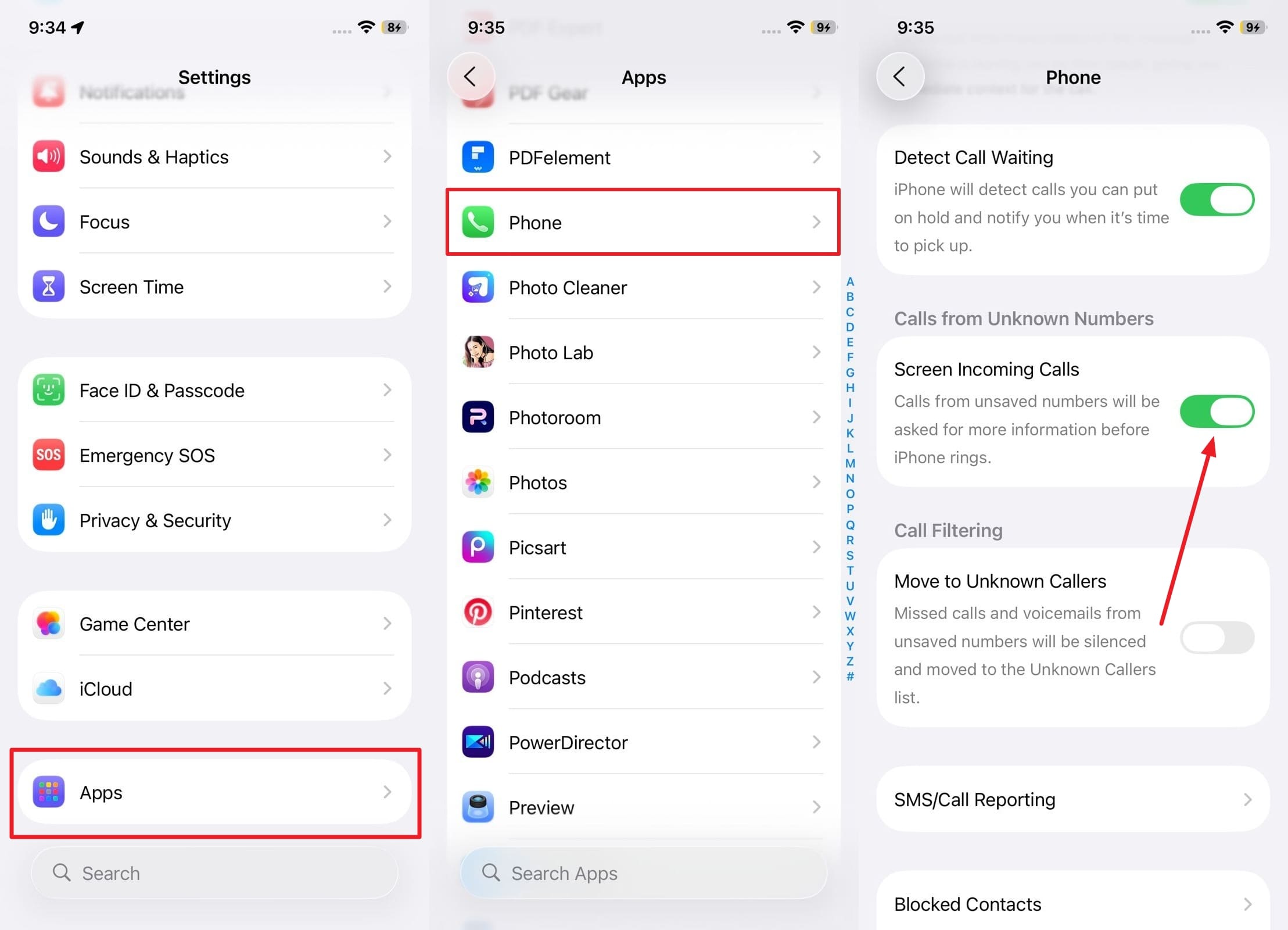
The most common reason for the call screening not working issue is that the feature is simply turned off. It might have been disabled by default after the update or toggled off accidentally. Enabling it is the first and most crucial step.
Instructions:
- Navigate to the "Settings" app on your iPhone.
- Scroll down and tap on "Phone."
- Look for the "Screen Incoming Calls" option and ensure the toggle switch is turned on (green).
Fix 3. Verify Your iPhone's Region and Language Settings
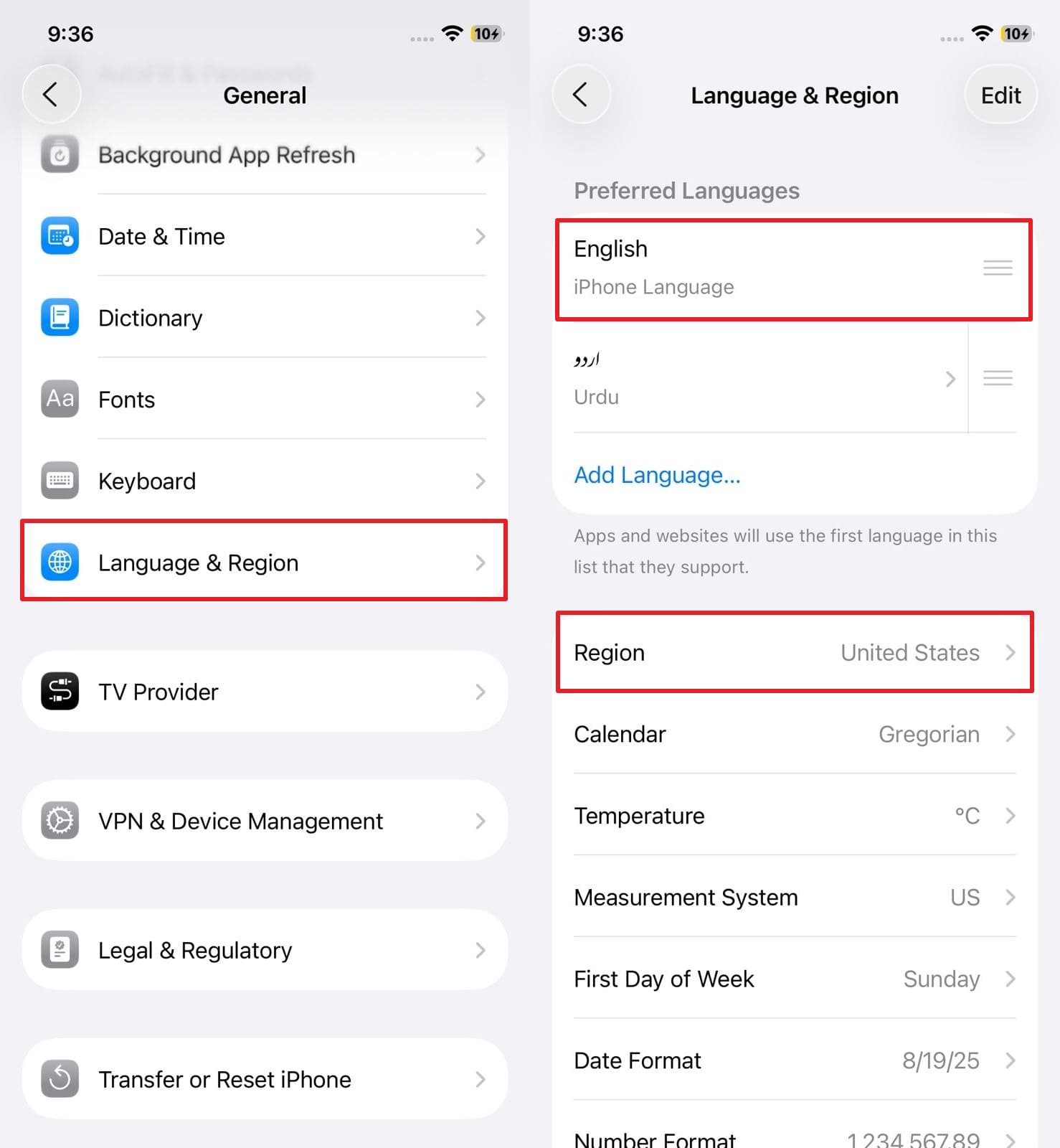
As mentioned, the iOS 26 call screening feature is geographically restricted. If your device's region is set to a country where the feature is unsupported, it will not work. Your language settings must also be compatible.
Instructions:
- Go to "Settings" > "General."
- Tap on "Language & Region."
- Ensure your "Region" is set to a supported country, such as the United States, and that your "iPhone Language" is set to English.
Fix 4. Uninstall Conflicting Third-Party Call-Blocking Apps
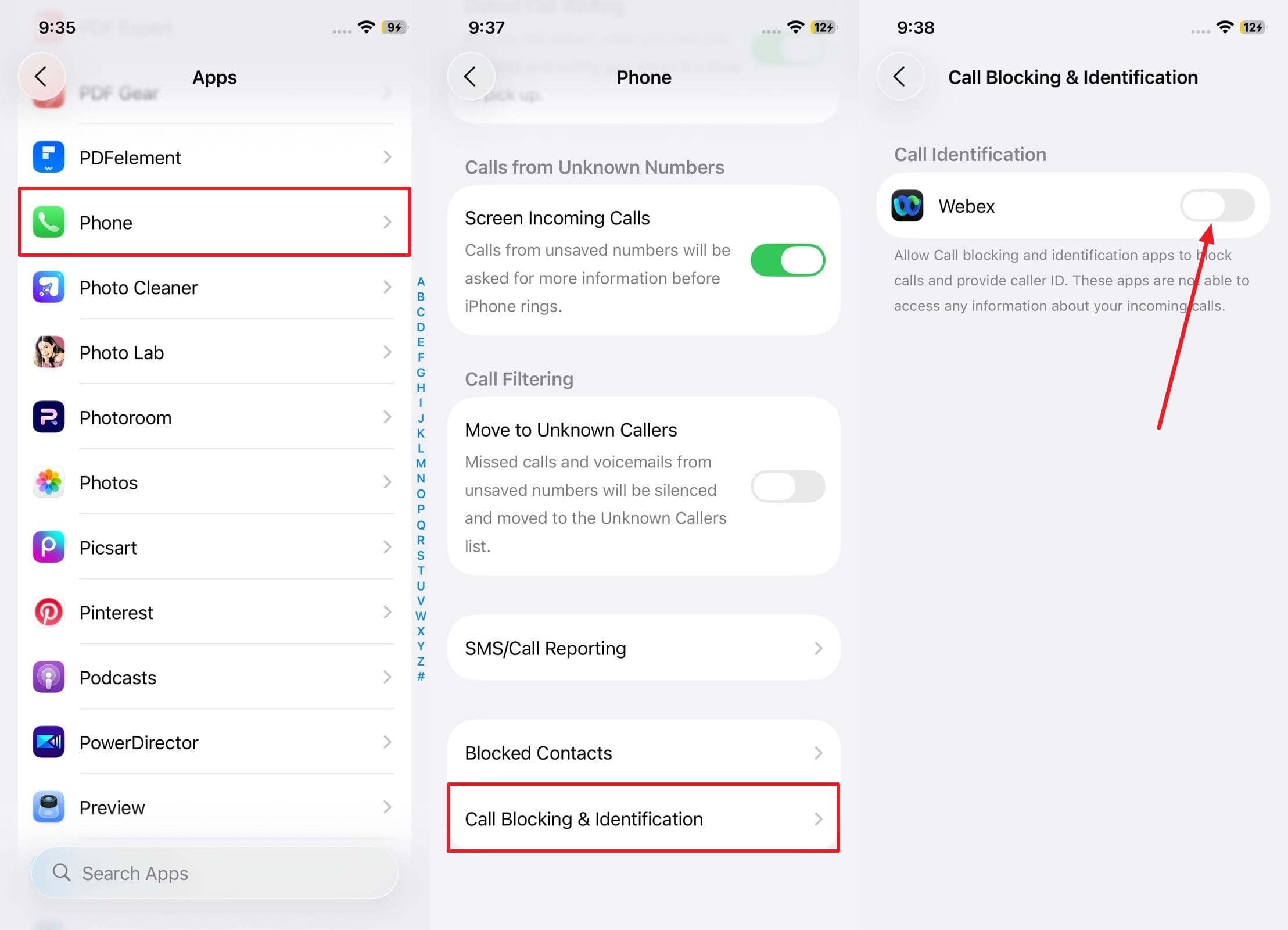
Third-party call identification and spam filtering apps can interfere with Apple's native calling screen functions. These apps might override the system-level controls needed for call screening to operate correctly.
Instructions:
- Open "Settings" and go to "Phone."
- Tap on "Call Blocking & Identification."
- Disable the toggles for any third-party call-blocking apps you have installed. For a more permanent fix, consider uninstalling these apps entirely.
Fix 5. Test the Feature Exclusively with Unknown Callers
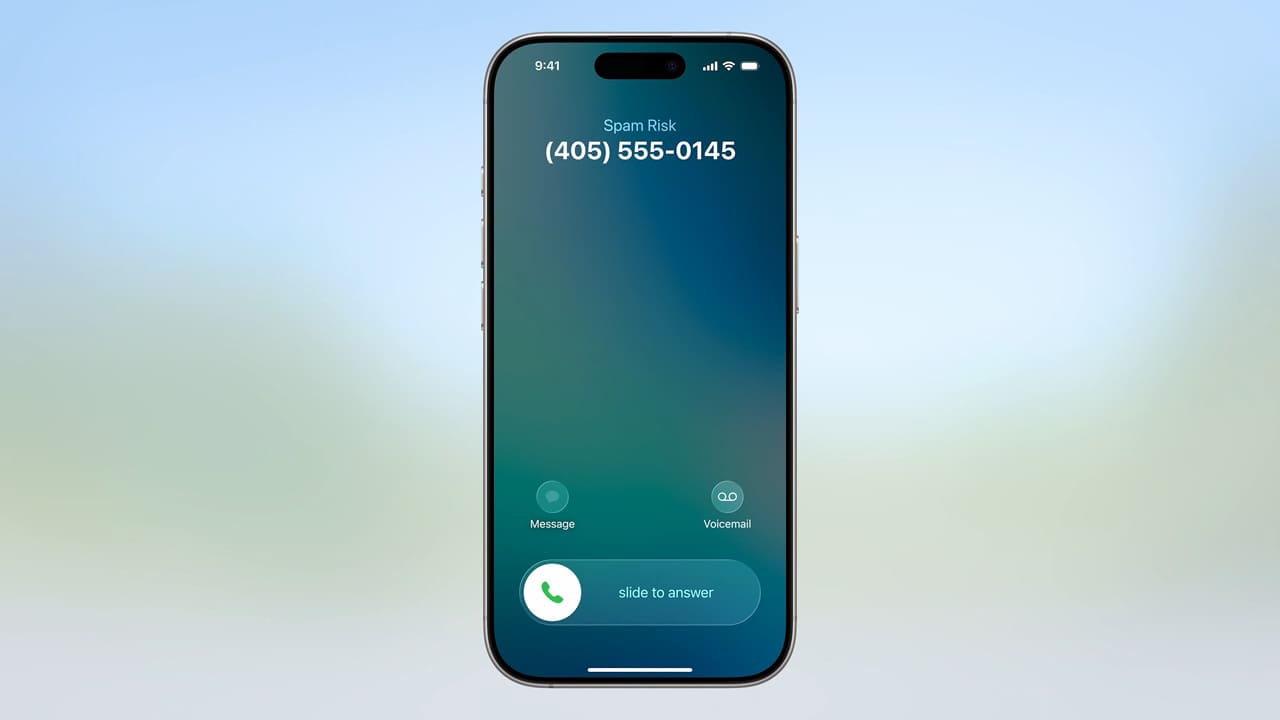
A common misconception is that call screening works for all incoming calls. However, it is specifically designed to activate only for callers who are not in your contacts list. Testing this correctly can confirm if the feature is working as intended.
To test it, have a friend call you after temporarily hiding their caller ID, or use another phone number that is not saved in your contacts. If the screening prompt appears, the feature is working correctly. If it doesn't, continue with the other troubleshooting steps.
Fix 6. Force Quit and Relaunch the Phone App
Sometimes, the Phone app itself can experience a temporary glitch or become unresponsive. Force quitting and restarting the app can clear its cache and resolve minor issues affecting the Apple calling screen.
Instructions:
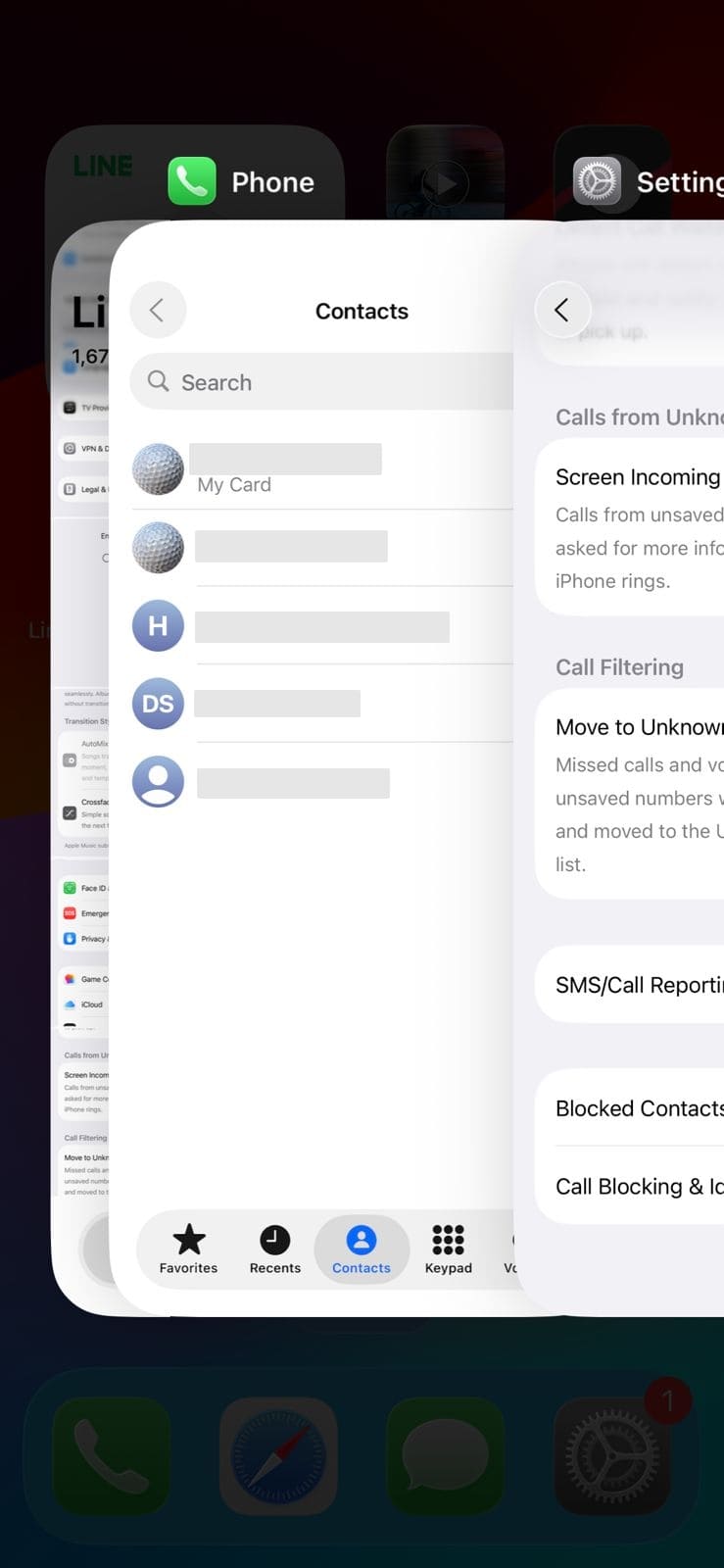
- On an iPhone with Face ID, swipe up from the bottom of the screen and hold to open the app switcher.
- Locate the Phone app preview card.
- Swipe up on the Phone app card to close it. Re-open the app from your Home Screen.
Fix 7. Update to the Latest iOS 26 Beta Version
If you're using a beta version of iOS 26, the Apple call screening feature issue might be a known bug that Apple has already addressed in a newer build. Beta software is constantly being updated to improve stability and fix problems.
Instructions:
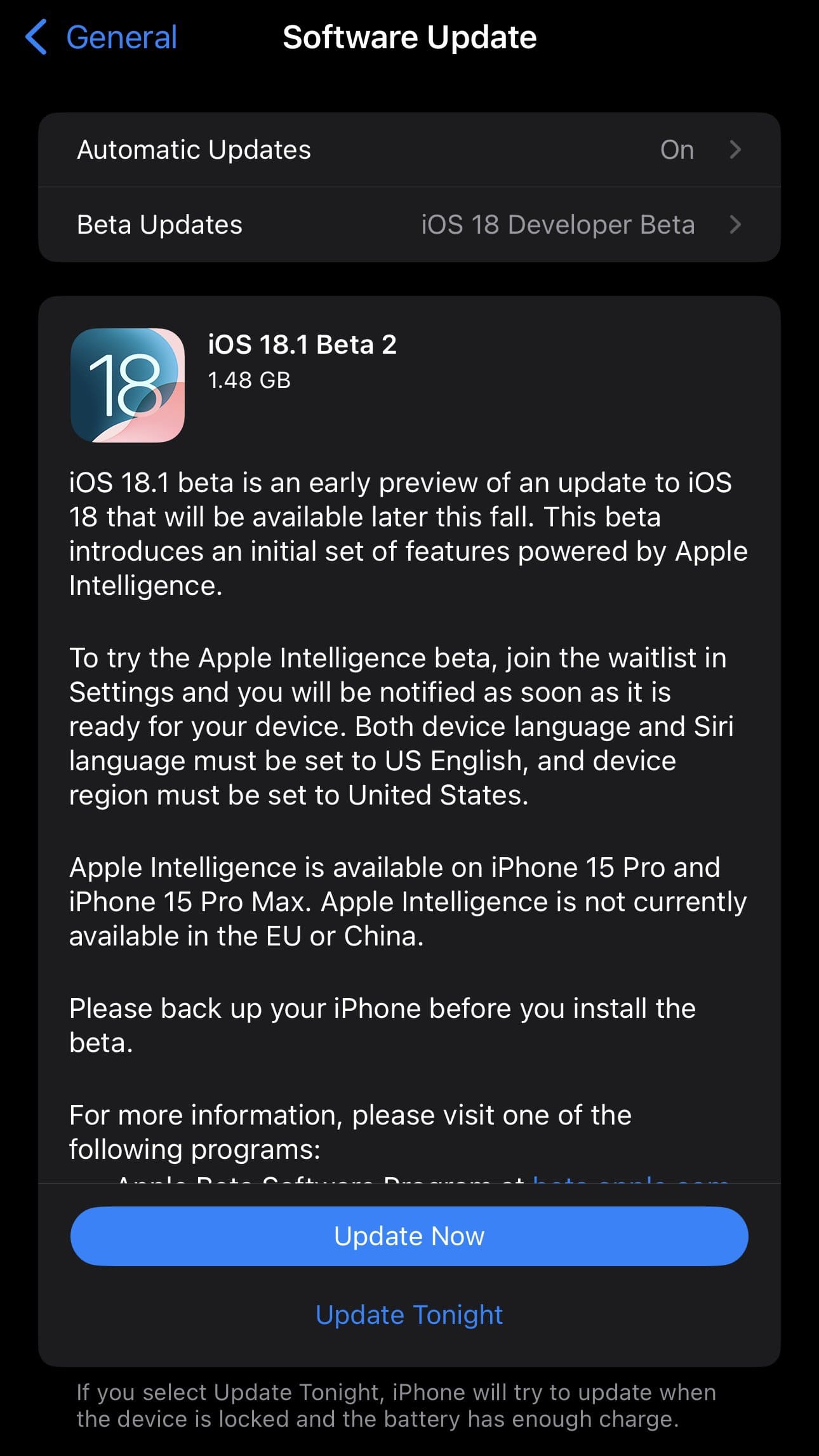
- Go to "Settings" > "General."
- Tap on "Software Update."
- If a newer version of the iOS 26 beta is available, tap "Update Now" to install it.
Bonus Tip: Exploring New Communication Features in iOS 26
Beyond the call screening feature, iOS 26 introduces several other exciting communication enhancements that are worth exploring:
- Hold Assist: This feature intelligently monitors a call when you're placed on hold and notifies you the moment a live person returns to the line, so you don't have to wait with the phone to your ear.
- Redesigned Call Management: The Phone app has been updated with a more intuitive interface that combines Favorites, Recents, and Voicemails into a unified view for easier access.
- Live Translation: Break down language barriers with real-time audio translation during calls, making international conversations smoother than ever.
- Messaging Enhancements: The Messages app receives significant upgrades, including the ability to create polls in group chats and personalize conversations with custom backgrounds.
Conclusion
In conclusion, while the iOS 26 call screening feature is a fantastic tool for combating spam, its functionality can be hampered by various factors, especially in a beta environment. By systematically working through the seven fixes outlined in this guide—from checking your settings and region to updating your software—you can often resolve the problem. For more stubborn issues rooted in the operating system, a dedicated tool like Dr.Fone - System Repair (iOS) provides a safe and effective way to restore your iPhone's functionality without risking data loss. With these solutions, you can get back to enjoying a more secure and convenient calling experience.
FAQ
-
1. Why is my iPhone's call screening not working after the iOS 26 update?
The issue can stem from several causes. The most common are that the feature is disabled in your settings, your region or language is not supported, there are conflicts with third-party call-blocking apps, or there's a bug in the current iOS 26 beta version. -
2. Is the iOS 26 call screening feature available worldwide?
No, the feature is currently limited to specific countries and regions. To use it, your iPhone's region must be set to a supported location, such as the United States, and the primary language should be set to English. -
3. Can a third-party app prevent the Apple Call Screening feature from working?
Yes. Other call-blocking or spam-filtering apps installed on your iPhone can interfere with the native iOS call management system. Disabling or uninstalling these apps can often resolve the conflict and allow the built-in screening feature to work correctly. -
4. Will I lose my data if I use a software tool to fix the call screening issue?
Not necessarily. Professional repair tools like Dr.Fone - System Repair (iOS) offer a "Standard Repair" mode specifically designed to fix most system issues without deleting any of your personal data, ensuring a safe and secure repair process.
 Add Wondershare Dr.Fone as a preferred source on Google