How to Downgrade iOS 26 in 2026: A Step-by-Step Guide to Revert Your Update

Selena Lee
Selena Lee Published May 14, 2026, updated May 15, 2026
clock :
robot TL;DR:

You can downgrade iOS 26, but only to a version that Apple is still digitally 'signing,' such as iOS 18.5. This process will erase all data, so a full backup is essential before you begin.

  • Use Dr.Fone - System Repair for a simple, automated downgrade process that doesn't require you to find firmware files manually.
  • Alternatively, you can use iTunes or Finder for a manual downgrade, but this method is more complex and carries a higher risk of errors.
  • Always back up your device with a tool like Dr.Fone - Phone Backup, as an iOS 26 backup is not compatible with an older iOS version.

Ask AI for a summary

Updating to the latest firmware, like iOS 26, often promises exciting new features and enhancements. However, sometimes these updates can introduce unexpected bugs, performance slowdowns, or rapid battery drain, leaving you frustrated. If you're experiencing these issues, you're not alone, and many users look for a reliable way to downgrade iOS 26 to a more stable, familiar version.

This comprehensive guide is designed to walk you through the entire process of reverting your iOS update. While the term "downgrade" might sound intimidating, we've broken down each step into clear, manageable instructions. Follow along to discover the safest and most effective methods to downgrade your iPhone and restore its optimal performance.

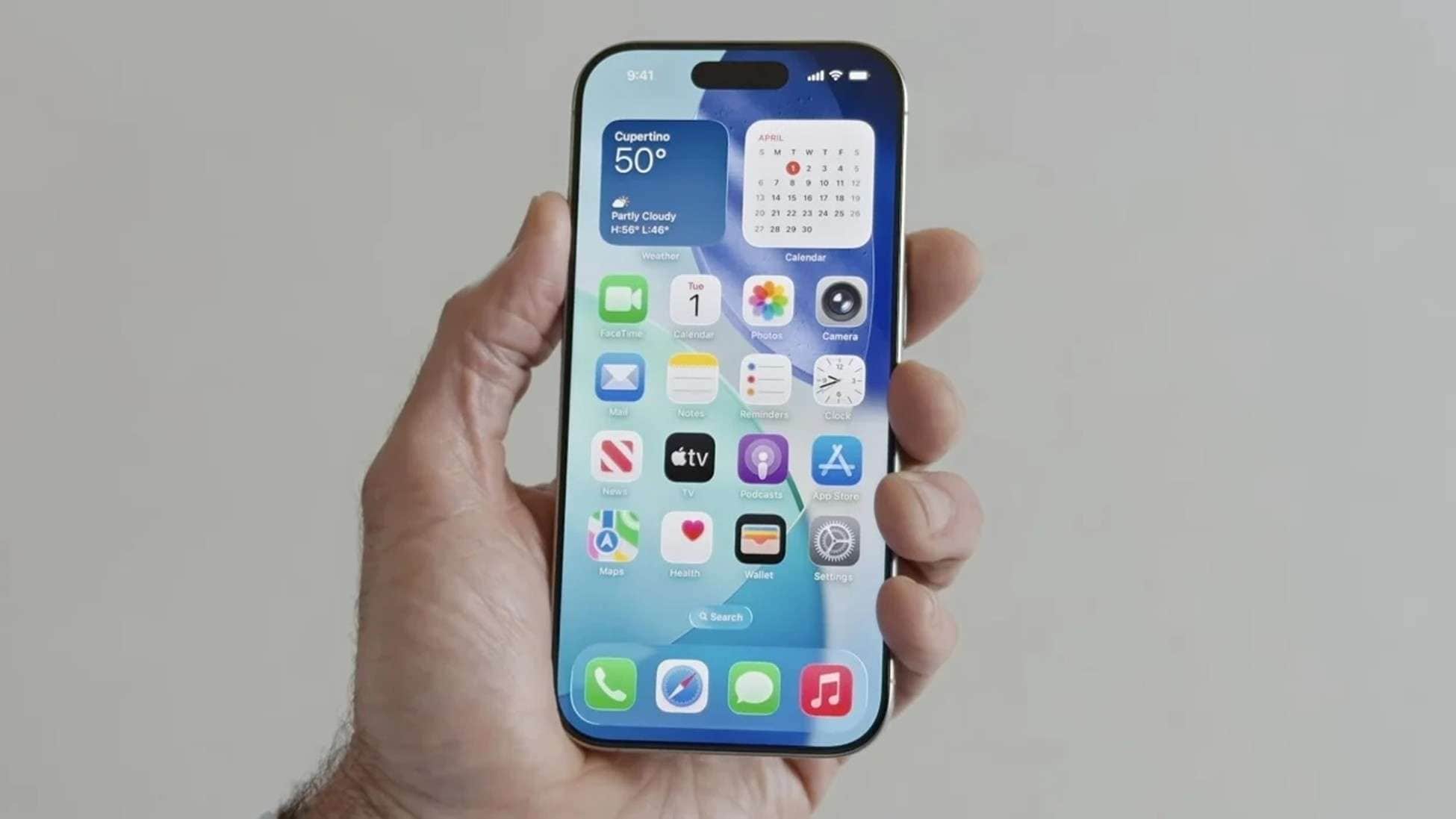
A smartphone displaying the iOS 26 update screen, with an arrow pointing backwards to an older iOS version
In this article
  1. Part 1. Is It Possible to Downgrade from iOS 26 to an Earlier Version?
  2. Part 2. Essential Step: Back Up Your Device to Avoid Data Loss
  3. Part 3. The Easiest Method: Downgrade iOS 26 with Dr.Fone - System Repair (iOS)
  4. Part 4. The Manual Approach: Downgrading iOS 26 via iTunes/Finder

Part 1. Is It Possible to Downgrade from iOS 26 to an Earlier Version?

Before you begin the downgrade process, it's crucial to understand what's actually possible. You can typically downgrade from a new version like iOS 26 to a recent older version, such as iOS 18.5. However, there's a critical condition: Apple must still be digitally "signing" the older firmware version (IPSW file). Once Apple stops signing a version, you can no longer install it using standard methods like iTunes or Finder.

A graphic showing a checkmark for downgrading to a signed iOS version and a cross for an unsigned version

This signing window is usually short, so time is of the essence. If the version you want to revert to is no longer signed, downgrading becomes significantly more complex and may require advanced techniques like jailbreaking. Here are the most common reasons why users want to learn how to downgrade iOS 26:

  • Worsened Battery Life: A common complaint after a major update is that the battery drains much faster. Reverting to a previous, more optimized version can often restore predictable battery performance.
  • Performance Lags and Freezing: New iOS versions can be more resource-intensive, causing older iPhones to slow down, lag, or freeze. A downgrade can make your device feel snappy and responsive again.
  • Application Incompatibility: Some of your essential apps may not be updated immediately for the latest iOS, leading to crashes or glitches. The previous iOS version often offers better stability for your current app library.
  • Unfamiliar User Interface: Major updates can introduce significant design changes. If you find the new layout confusing or less efficient, downgrading allows you to return to a familiar and comfortable interface.
  • System Instability and Bugs: Early releases of a new iOS can have unforeseen glitches that disrupt daily use. Rolling back to a more mature and stable version provides a more reliable user experience.
A user looking confused at the new iOS 26 interface on their iPhone

Part 2. Essential Step: Back Up Your Device to Avoid Data Loss

Before you attempt to downgrade from iOS 26 beta or the public version, there is one step you absolutely cannot skip: backing up your device. The downgrade process completely erases your iPhone's data, so having a secure backup is your only safeguard against losing photos, messages, and other important files. A key thing to remember is that a backup made on iOS 26 cannot be directly restored to a device running an older version like iOS 18.

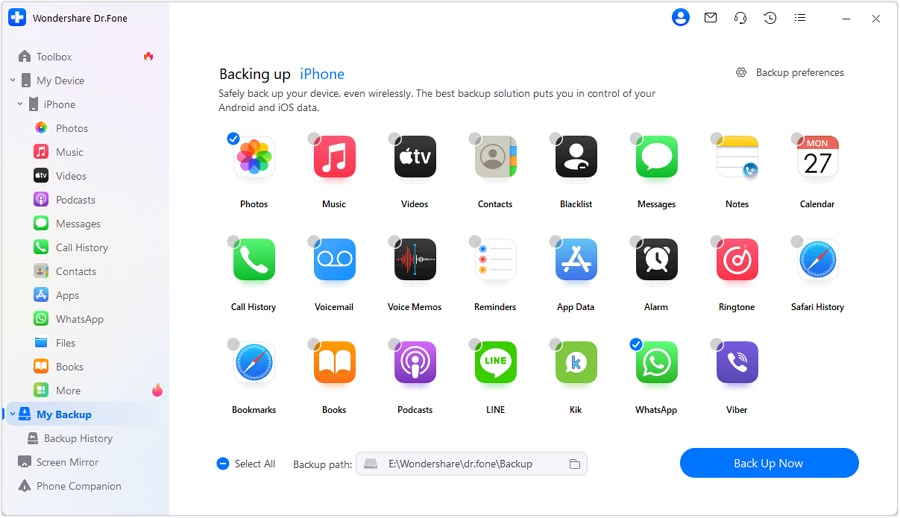
For a seamless and reliable backup solution, we recommend using the Phone Backup feature in Dr.Fone. This tool simplifies the process, allowing you to save a complete backup of your device to your computer with just a few clicks. It even supports wireless backups, so you can protect your data without fumbling with cables. Follow these steps to secure your data before downgrading.

  1. Step 1 Select Data Categories for Backup

    Launch Wondershare Dr.Fone on your computer and connect your iPhone. From the main toolbox, navigate to the "My Backup" section. Here, you can select the specific types of data you want to save. Choose a destination folder on your computer under "Backup Path" and then click the "Backup Now" button to begin.

    Dr.Fone interface showing data selection for backup
  2. Step 2 Complete and Verify the Backup

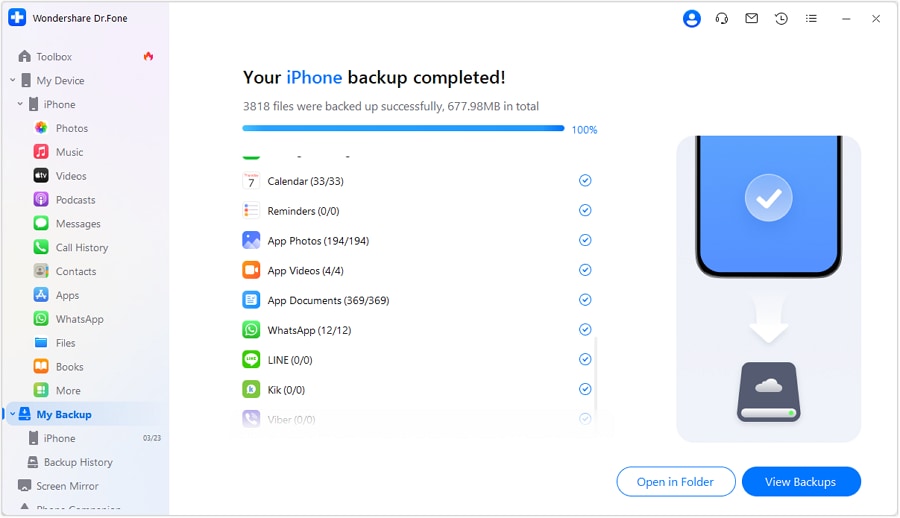
    Dr.Fone will now back up your selected data. Wait for the process to complete. Once finished, you can confirm the backup was successful by clicking "View Backups." For added convenience, you can also configure automatic, incremental backups from the "Backup Preferences" menu to ensure your data is always protected.

    Backup completion screen in Dr.Fone
google play button app store button

Part 3. The Easiest Method: Downgrade iOS 26 with Dr.Fone - System Repair (iOS)

With your data safely backed up, it's time to downgrade your iOS. While manual methods exist, they can be complex and risky. For a straightforward and reliable solution, Dr.Fone - System Repair (iOS) is the ideal choice. This powerful tool is designed to resolve over 200 different iOS system issues, including the need to upgrade or downgrade your firmware, without causing data loss during the repair process.

What makes Dr.Fone stand out is its user-friendly approach. It eliminates the need to manually search for and download the correct IPSW firmware files, a step where many users encounter errors. The software automates this process, guiding you through each stage of the iOS 26 downgrade. It even lets you upgrade to beta versions if you wish to test new features. It's the perfect tool for a stress-free downgrade.


Dr.Fone - System Repair (iOS)

Repair iOS System Errors
  • gouFix iOS issues, no data loss.
  • gouOne-click repair for all iOS problems.
  • gouSolve recovery mode, Apple logo, black screen, etc.
  • gouUpgrade or downgrade iOS without iTunes
Try It Free Try It Free Try It Free Try It Free
Dr.Fone iOS System Repair tool showcase
Watch this video to learn how to downgrade iOS 26 easily.

Follow these detailed steps to safely downgrade your iOS in minutes:

  1. Step 1 Navigate to the System Repair Module

    Open Dr.Fone on your computer and select "System Repair" from the "Toolbox" section. On the next screen, choose "iOS" as your device platform and then click on "iOS Upgrade/Downgrade" to proceed.

    Dr.Fone Toolbox with System Repair highlighted
  2. Step 2 Choose 'Downgrade iOS' and Connect Your Device

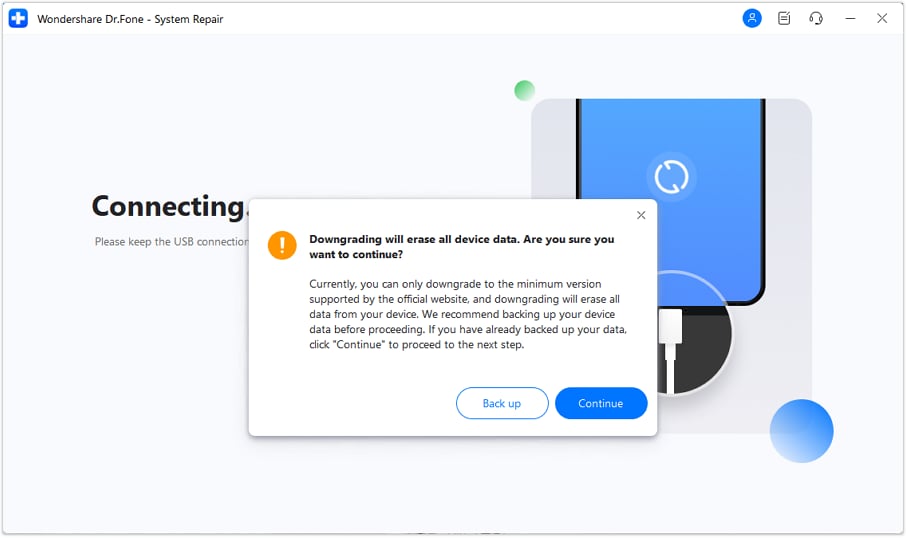
    Select the "Downgrade iOS" option. Now, connect your iPhone to the computer. Dr.Fone will prompt you to back up your device. If you've already completed the backup as described in Part 2, you can click "Continue."

    Selecting the Downgrade iOS option in Dr.Fone
  3. Step 3 Download the Correct Firmware

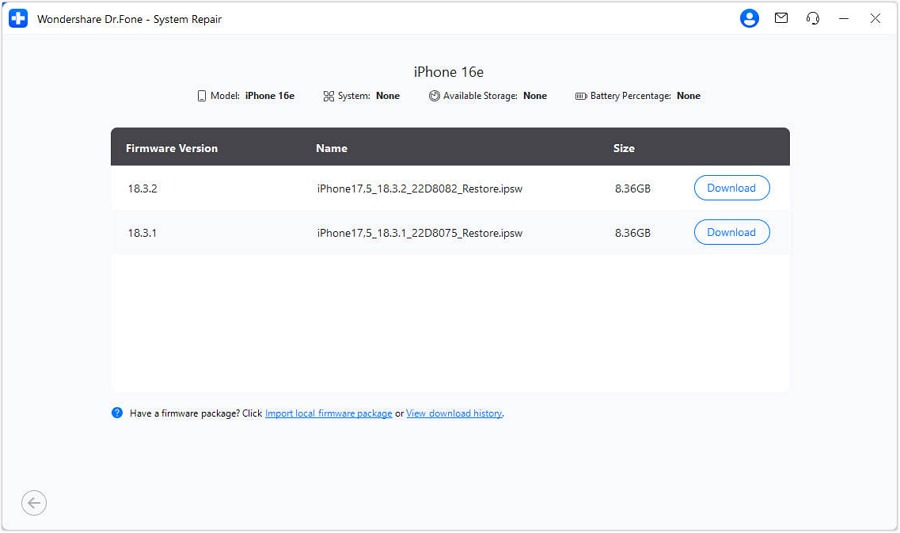
    Once your device is detected, Dr.Fone will display a list of available (and signed) iOS firmware versions you can downgrade to. Select the desired version and click "Download." The software will handle the download and verification process automatically.

    Firmware selection and download screen in Dr.Fone
  4. Step 4 Start the Downgrade Process

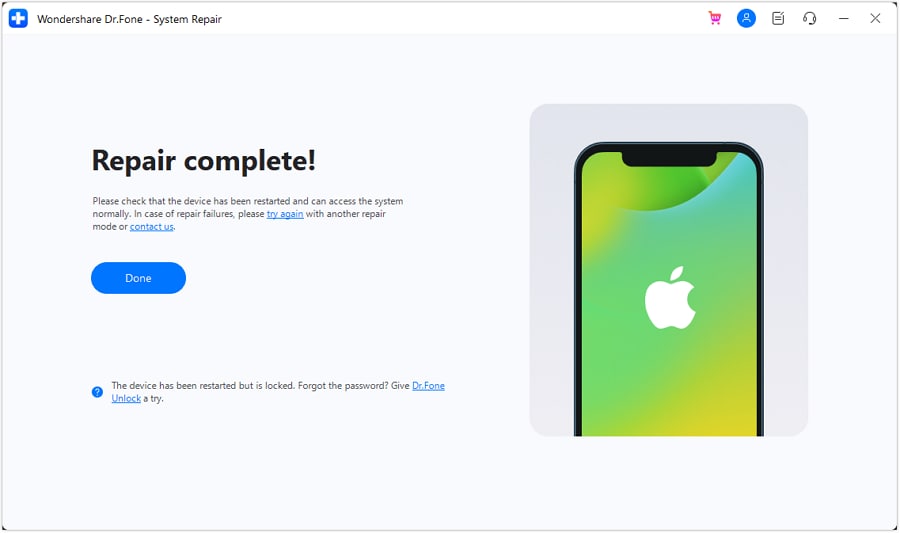
    After the firmware is downloaded and verified, click the "Repair Now" button. Dr.Fone will begin the downgrade process. Keep your device connected and wait for it to finish. Once you see the completion message, click "Done" to finish.

    Initiating the downgrade with the Repair Now button

Part 4. The Manual Approach: Downgrading iOS 26 via iTunes/Finder

For those who prefer a more hands-on approach, it's possible to downgrade iOS using Apple's native tools: iTunes on Windows or Finder on a Mac. This method allows you to revert to the latest signed firmware, which is currently iOS 18.5. However, this process is more technical and carries higher risks, including potential data loss, as you cannot restore an iOS 26 backup onto an iOS 18.5 device.

shou
Note: This manual method is for advanced users. An incorrect step, such as using the wrong IPSW file, could potentially brick your device. Proceed with caution.

If you understand the risks, follow this guide to downgrade iOS 26 manually:

  1. Step 1 Download the Correct IPSW File

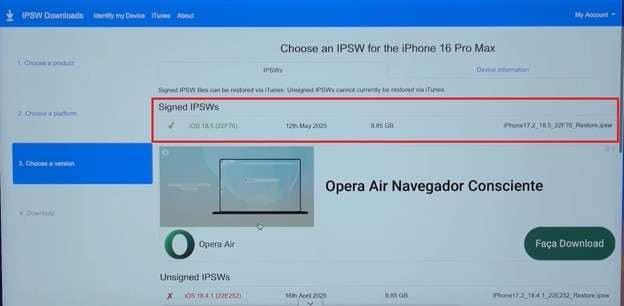
    First, ensure you have the latest version of iTunes or are running the latest macOS. Next, visit a reputable source like IPSW.me to download the correct iOS 18.5 IPSW file for your specific iPhone model. Crucially, ensure the file status is marked as "Signed."

    A screenshot of an IPSW download website showing a signed firmware file
  2. Step 2 Disable 'Find My' and Enter Recovery Mode

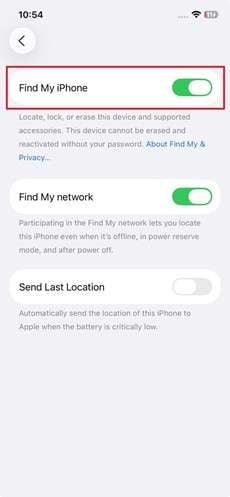
    On your iPhone, go to Settings > [Your Name] > Find My, and turn off "Find My iPhone." Now, connect your device to your computer. To enter Recovery Mode, quickly press and release the Volume Up button, then the Volume Down button, and finally, press and hold the Side button until the Recovery Mode screen appears.

    An iPhone screen showing the Find My feature being disabled
  3. Step 3 Initiate the Restore Process in iTunes/Finder

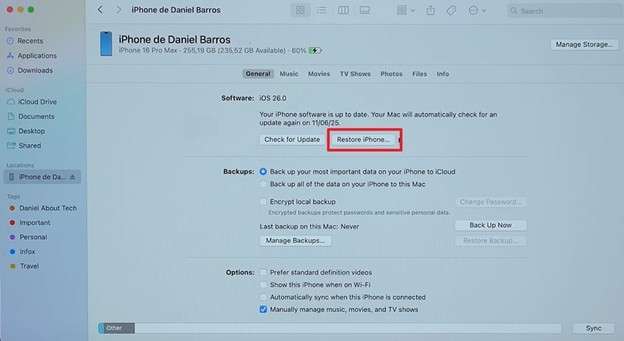
    Once your device is in Recovery Mode, iTunes or Finder will detect it and show a prompt. Hold down the Shift key (on Windows) or the Option key (on Mac) and click the "Restore iPhone" button.

    iTunes or Finder window with the Restore iPhone button highlighted
  4. Step 4 Select the IPSW File to Begin Downgrading

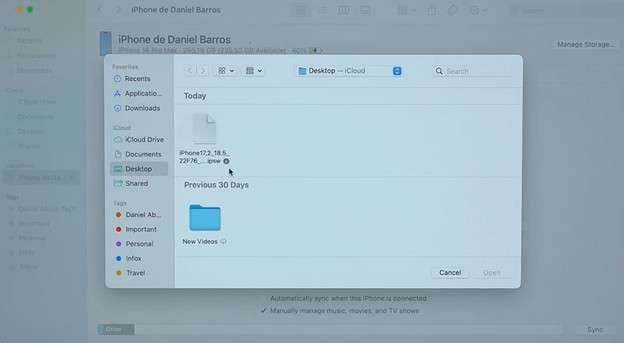
    A file browser window will open. Navigate to and select the iOS 18.5 IPSW file you downloaded in the first step. Confirm your selection to begin the restore process. iTunes/Finder will now erase your device and install the older iOS. Once complete, you will need to set up your iPhone from scratch.

    A file selection dialog box showing the downloaded IPSW file

Conclusion

In conclusion, downgrading from iOS 26 to iOS 18 is a viable solution for users facing performance issues, bugs, or other frustrations with the latest update. It can restore the smooth and reliable experience you're accustomed to. However, the process requires careful preparation, especially backing up your data to prevent permanent loss. A single misstep during a manual downgrade can lead to significant problems.

While the iTunes/Finder method is an option, its complexity and risk make Dr.Fone - System Repair (iOS) the highly recommended choice. By automating the difficult steps and providing a guided, user-friendly interface, Dr.Fone makes the entire process safer and stress-free. It's the perfect tool for anyone who wants to complete the iOS 26 downgrade successfully without technical confusion.

google play button app store button

Frequently Asked Questions

  • 1. Can I downgrade from an iOS 26 beta version?
    Yes, the process for downgrading from a beta version is the same as downgrading from a public release. You can use either Dr.Fone or the manual iTunes/Finder method. However, you must act quickly, as Apple's signing window for previous versions applies to beta downgrades as well.
  • 2. Is it possible to downgrade iOS 26 to iOS 19?
    No, it is not possible to downgrade to iOS 19 because that version was never released by Apple. The iOS versioning jumped from iOS 18 directly to iOS 26 in this hypothetical sequence, so there are no versions in between to downgrade to. You can only downgrade to an official, signed version like iOS 18.5.
  • 3. Will downgrading iOS affect my eSIM?
    Generally, your eSIM profile should remain intact during a downgrade. The eSIM data is stored on a separate chip from the operating system. As long as you do not manually delete the cellular plan from your settings before downgrading, it should reactivate automatically after you set up your device.
  • 4. Does downgrading my iPhone's iOS void the warranty?
    Downgrading your iOS using official methods (like iTunes/Finder or tools that use the official firmware) does not void your Apple warranty. The warranty is only affected by unauthorized modifications, such as jailbreaking, which is not required for this process.
OUR EXPERT
Selena Lee

Selena Lee

chief editor

Chief Editor of the Dr.Fone team since 2012, Selena is a veteran technology editor known for turning complex iOS and Android topics into clear, user-focused guidance.

Get Dr.Fone Get Dr.Fone