Move contacts, messages, photos, videos, app data, and more between iOS and Android.

 100% Security Verified | No Subscription Required | No Malware

 :
: 
 ChatGPT
 Perplexity
 Gemini
 Claude
 Grok
Grok
Samsung Kies is a dedicated utility developed by Samsung to streamline data management between its devices and a computer. It serves as a comprehensive phone management application, enabling users to transfer files, sync data, and create backups with ease. Although it has been largely succeeded by Samsung Smart Switch, many users still rely on Kies for specific tasks.
However, installing Samsung Kies on Windows 10 can often present challenges, with many users encountering unexpected errors or installation blocks. If you're facing these difficulties, you've come to the right place. This guide provides a detailed walkthrough to help you successfully download, install, and troubleshoot Kies 3 on your Windows 10 system.
In this article
Part 1. Where to Download Samsung Kies for Windows 10
Samsung Kies is the official software from Samsung Electronics designed to help users manage their devices. It allows for seamless data transfers and device synchronization for backups. While Samsung now promotes Smart Switch as its primary migration tool, Kies remains a viable option for many. The latest version, Kies 3.2, was released to ensure compatibility with Windows 10 and supports most major Samsung Galaxy and Note devices running Android 4.3 or later.
You can find the official installer for Kies 3 for Windows 10 from these reliable sources: Download from FileHippo or Download from TechSpot.
Before proceeding with the installation, ensure your system meets the following requirements:
- Operating System: Windows 10, 8, 7 (32 or 64 bit)
- Processor: Intel Core 2 Duo 2.0GHz or higher
- Minimum RAM: 1 GB
- Free Hard Disk Space: At least 500 MB
- Screen Resolution: 1024 x 768 (32 bit or higher)
- Required Software: .Net Framework 3.5 SP1 or above, DirectX 9.0C or above, Windows Media Player 10 or above.
Once you have downloaded the Kies 3 installer and verified the system requirements, you can move on to the installation process outlined in the next section.
Part 2. Step-by-Step Guide to Installing Samsung Kies on Windows 10
After downloading the Kies 3 setup file from one of the links provided, you are ready to install it. To ensure a smooth process, it's crucial to follow the steps carefully and make sure all prerequisites are met. Here is a simple guide to installing Kies for Windows 10.
-
Step 1Run the Installer as Administrator
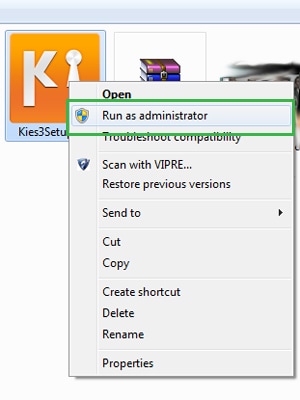
Navigate to the location where you saved the downloaded Kies 3 setup file. Right-click on the file and select "Run as administrator" from the context menu. This grants the necessary permissions for the installation to proceed without issues. If you are the only user on the PC, a simple double-click should also work.
-
Step 2Configure Installation Settings
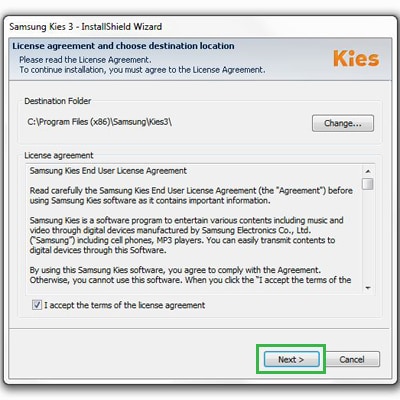
The installation wizard will now launch. The first screen will show the default destination folder for the software. If you wish to install it in a different location, click the "Change" button and select a new directory. Once satisfied, accept the terms and conditions and click "Next" to continue.
-
Step 3Complete the Installation
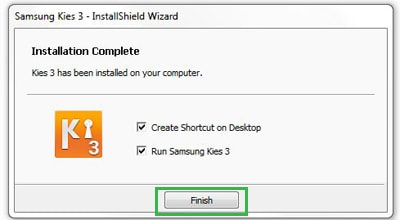
The installer will begin copying files to your system. Allow the process to complete without interruption. You may see some pop-up messages requesting permissions; agree to them to continue. If no errors occur, the installer will finish and display a completion message.
-
Step 4Launch Kies and Connect Your Device
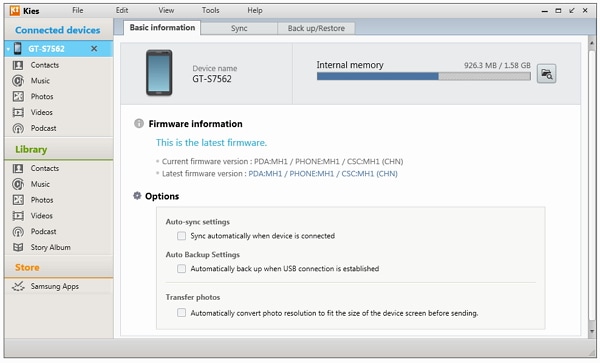
With the installation complete, you can now open Samsung Kies. Connect your Samsung phone or tablet to your computer using a compatible USB cable. The software should automatically detect your device, allowing you to begin managing your files, contacts, and backups.
Part 3. How to Fix Samsung Kies Being Blocked on Windows 10
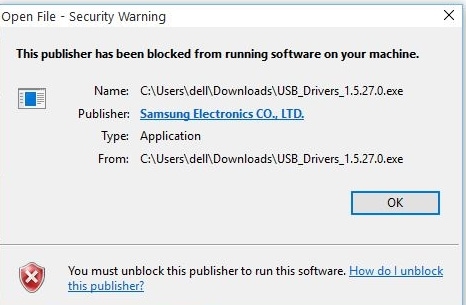
A common issue users face is Windows 10 blocking the Kies installation. You might see an error message stating, "This Publisher has been blocked from running software on your machine." This happens due to Windows' security protocols. but thankfully, there are several effective workarounds.
If you encounter this problem, try the following solutions in order.
Solution 1: Check the Untrusted Publishers List
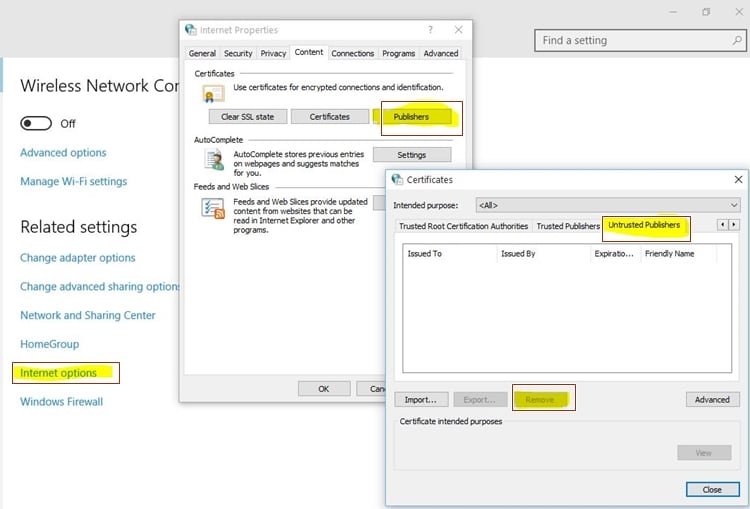
Windows maintains a list of publishers it deems untrusted. First, ensure Samsung Electronics hasn't been accidentally added to this list. To check, go to Internet Options > Content > Certificates > Publishers. Look for the "Untrusted Publishers" tab. If "Samsung Electronics" is listed, select it and click the "Remove" button.
Solution 2: Temporarily Disable the Windows Firewall
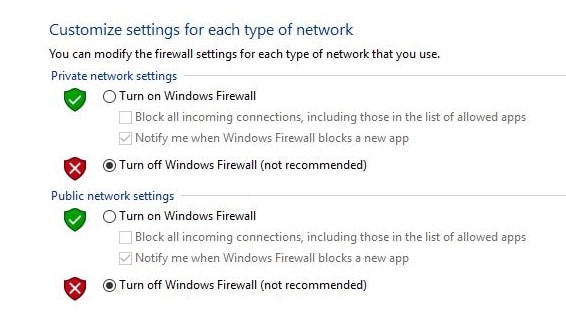
The system's firewall can sometimes interfere with software installations. You can temporarily disable it to allow Kies to install. Navigate to Control Panel > System and Security > Windows Defender Firewall. From there, you can turn off the firewall for private and public networks. Remember to re-enable it once the installation is complete.
Solution 3: Adjust Security Warning Settings
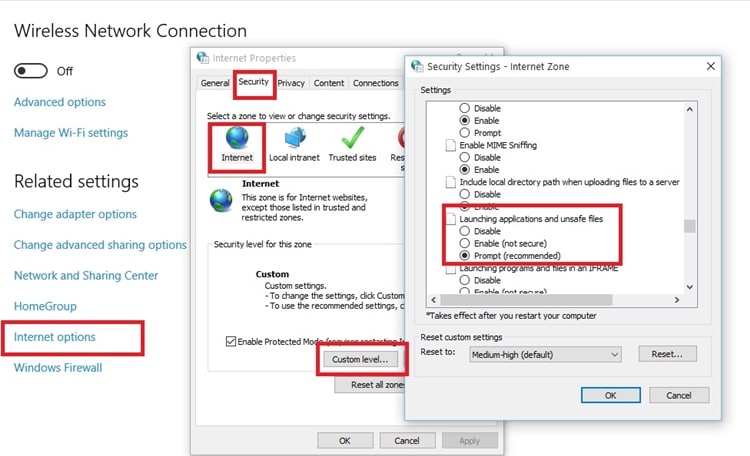
If the block persists, you may need to adjust your internet security settings. Open Internet Options and go to the "Security" tab. Select "Internet" and then click the "Custom Level" button. Scroll down to the option "Launching applications and unsafe files" and set it to "Enable (not secure)". Apply the changes, restart your PC, and try installing Kies again.
Solution 4: Run the Installer via Command Prompt
As a final resort, you can execute the installer directly from the Command Prompt. Open Command Prompt as an administrator. Use the 'cd' command to navigate to the folder where the Kies installer is saved (e.g., `cd C:\Users\YourUsername\Downloads`). Once in the correct directory, type the full name of the setup file and press Enter to run it.
 Effortlessly manage data through preview, delete, export, etc.
- Transfer all data between devices.
- Robust backup solutions for reliable data protection.
- Mirror screens to PC for meetings, teaching, and control.

Conclusion
By following the steps and troubleshooting solutions outlined in this guide, you should be able to successfully install and run Samsung Kies on your Windows 10 computer. While Kies is an older program, it remains a useful tool for managing data on certain Samsung devices. These in-depth instructions for installation and troubleshooting are designed to help you overcome common hurdles and get the software working smoothly to manage your phone's content.
FAQ
-
1. Is Samsung Kies still supported on Windows 10?
Yes, Samsung Kies 3.2 is designed to be compatible with Windows 10. However, it is older software and has been largely replaced by Samsung Smart Switch, which is the company's currently supported tool for data migration and management. -
2. What is the main difference between Samsung Kies and Smart Switch?
Samsung Kies is a comprehensive device management suite for backups, synchronization, and firmware updates. Samsung Smart Switch is primarily focused on making it easy to transfer contacts, photos, messages, and other data from an old phone to a new Galaxy device. Smart Switch is the more modern and recommended application. -
3. Why does Windows 10 block the Samsung Kies installation?
Windows 10 often blocks Kies due to its security features. The software's publisher certificate might be considered untrusted by default, or the system's firewall may flag it as potentially unsafe. Following the troubleshooting steps, such as unblocking the publisher and temporarily disabling the firewall, can resolve this issue. -
4. What should I do if Kies doesn't recognize my Samsung phone?
If Kies fails to detect your device, first ensure you are using an official Samsung USB cable and that it's properly connected. You should also check if the correct USB drivers are installed on your PC. On your phone, make sure USB debugging is enabled in the Developer Options, and try connecting in MTP (Media Transfer Protocol) mode.
 Add Wondershare Dr.Fone as a preferred source on Google