

How to Backup Contacts to Google Drive for Complete Data Protection [2026 Guide]
Android Backup
- Backp Android
- 1. Backup Android to PC
- 2. Backup Android Photos
- 3. Android Wifi Backup
- 4. Backup Phone with Broken Screen
- 5. Backup Android Rom/Firmware
- 6. Backup SD Card on Android
- 7. Backup Android SMS
- 8. Backup Android Phone With Root
- 9. Backup Android to Mac
- 10. Backup Viber Messages
- Android Restore
- 1. Guide to Restore Android Phone
- 2. Backup and Restore Android Phone
- 3. 2 Ways to Restore Contacts on Android: Step-by-Step Guide
- 4. Restore WhatsApp from iCloud
- Backup Apps
- 1. Android Backup Apps to Backup Files
- 2. 6 Apps to Backup Bookmarks
- 3. Top 10 Contacts Backup App
- 4. Backup Android App and App Data
- 5. The Best Android Backup Extractor
- 6. Top 5 Android Backup Softwares
- 7. 6 Best Android Backup Softwares
- 7. 7 Android Fastboot Reset Tools
- Samsung Backup
- 1. Back Up Samsung to Google Drive
- 2. Backup Contacts on Samsung
- 3. Backup Text Messages on Samsung
- 4. Backup and Restore Samsung Galaxy
- 5. Backup Everything on Samsung
- 6. Backup Samsung Galaxy to PC
- 7. 10 Samsung Cloud Backup Services
- 8. Solution For Samsung Message Backup
- 9. 5 Samsung Photo Backup Solutions
- 10. Backup Samsung S10 to PC
- ● Manage/transfer/recover data
- ● Unlock screen/activate/FRP lock
- ● Fix most iOS and Android issues
- Free Download Free Download Free Download


Oct 24, 2026 • Filed to: Backup & Restore Solutions • Proven solutions
 TL;DR:
Syncing your Google account on Android automatically backs up contacts to Google Drive, but this process strictly excludes contacts saved solely on your SIM card or phone memory.
● iOS devices lack native automatic Google Drive contact syncing and require manually adding the Google account through the device settings to enable the sync.
● To recover deleted or modified entries, you can use the Undo changes feature in Google Contacts to revert your list to a previous timeframe or restore them directly during a new phone setup.
● Dr.Fone – Phone Backup provides an alternative for Windows and Mac users to selectively back up and restore data offline, though including text messages requires setting the Dr.Fone Link app as the default SMS app.
Ask AI for a summary
 ChatGPT
 Perplexity
 Gemini
 Claude
 Grok
Grok
Dr.Fone Basic:
Better Control for Your Phone
Manage, transfer, back up, restore, and mirror your device
Contacts are important data, and it's easy to lose them accidentally. Phones can be lost, reset, or replaced, putting your contacts at risk. Learning how to backup contacts to Google Drive helps keep them safe and accessible. Google Drive provides a simple cloud solution for storing all your contacts securely.
For users who want more control over their backups, tools like Dr.Fone – Phone Backup can be helpful. This article will guide you on how to save contacts in Google Drive step by step. It will also include exporting and restoring them. Following these tips ensures your contact information stays safe and easy to recover.
- Part 1. How Google Drive Backs Up Contacts (Important Clarification)
- Part 2. How to Backup Contacts to Google Drive Automatically
- BONUS TIP: Backup & Restore Contacts with Full Control Using Dr.Fone – Basic

- Part 3. How to Save, Upload, or Export Contacts to Google Drive Manually
- Part 4. How to Restore Contacts From Google Drive
Part 1: How Google Drive Backs Up Contacts (Important Clarification)
Google Drive automatically stores your contacts in the cloud for easy access. When you sync your phone with Google Drive, it saves names, phone numbers, and emails. This ensures that even if your phone is lost, reset, or replaced, your contacts remain safe. Understanding how to backup contacts to Google drive helps prevent accidental data loss and keeps your important connections secure.
It's important to note that Google Drive only backs up contacts linked to your Google account. Contacts saved on SIM cards or phone memory may require manual syncing. Regularly checking your backup ensures all contacts are up to date and ready to restore when needed.
Part 2: How to Backup Contacts to Google Drive Automatically
Google Drive offers several ways to protect your contacts and keep them safe. One of the easiest methods is automatic backup, which keeps your contacts up-to-date in real time. This ensures that any changes or new contacts are saved immediately without extra effort.
Here's how to enable automatic backup on Android:
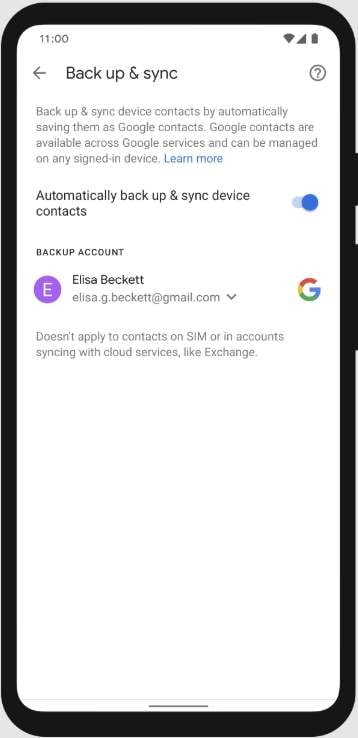
- Step 1: Open Settings on your Android device.
- Step 2: Tap Google, then select Settings for Google apps.
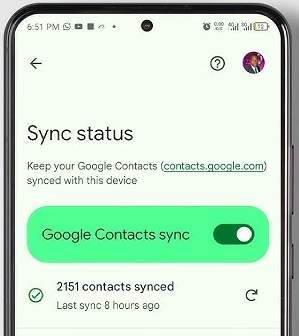
- Step 3: Choose Google Contacts sync from the list.
- Step 4: Turn on Automatically back up and sync device contacts.
- Step 5: Select the Google account you want to use for backup.
- Step 6: Enable Also sync device contacts to save contacts to your Google Account.
Notes:
- Make sure your device is connected to Wi-Fi to avoid using mobile data.
- Automatic backup only syncs contacts saved to your Google account, not SIM-only contacts.
For iPhone users:
- iOS devices do not natively sync contacts to Google Drive automatically.
- You can add your Google account under Settings > Contacts > Accounts, then enable Contacts to sync manually.
BONUS TIP: Backup & Restore Contacts with Full Control Using Dr.Fone – Basic
Aside from learning how to upload contacts to Google Drive, it is also important to learn about this powerful tool. For users who want full control over their contacts, Dr.Fone – Phone Backup is a reliable tool to backup and restore contacts. This gives you more flexibility than standard cloud backups.

Wondershare Dr.Fone
Flexibly Backup and Restore Android Data
- Selectively backup Android data to the computer with one click.
- Preview and restore the backup to any Android device.
- Supports 8000+ Android devices.
- There is no data lost during backup, export, or restoration.


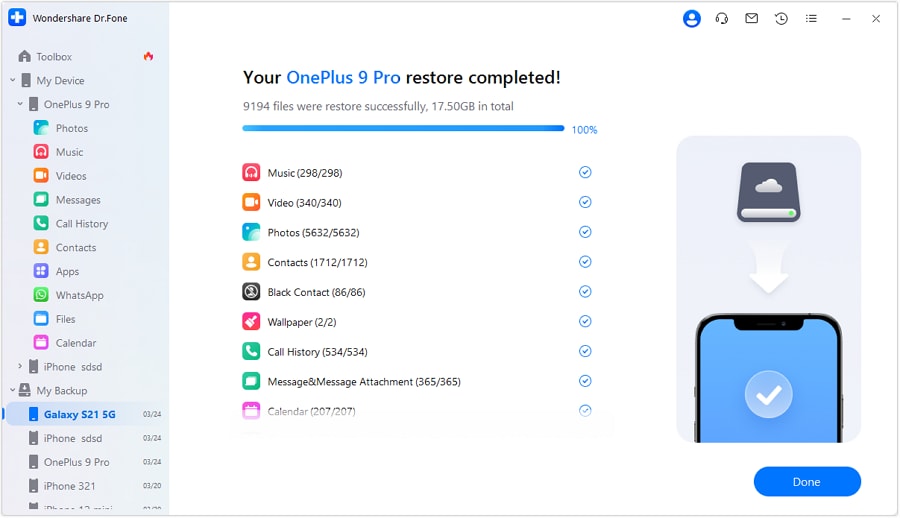
With Dr.Fone, you can select specific contacts to backup or restore anytime without losing data. If you're wondering how to use this tool, here's how to get started:
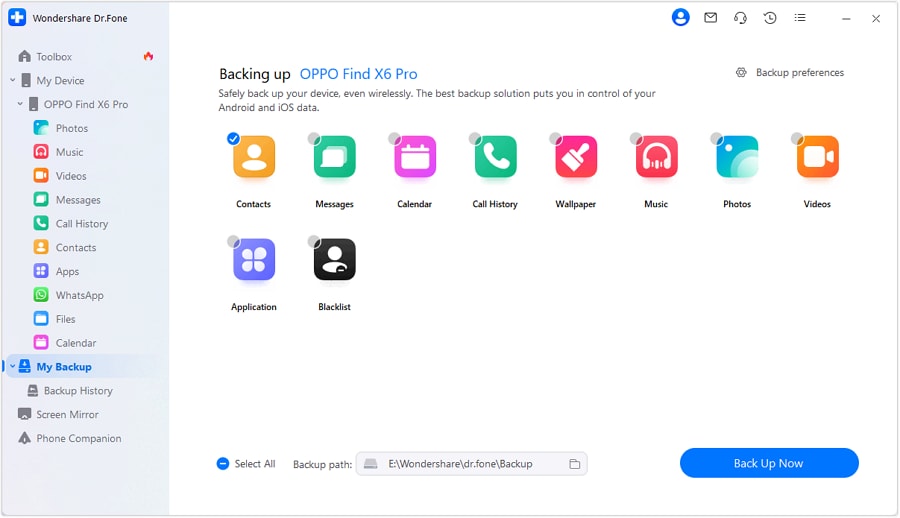
- Step 1: Connect and Start Backup
Launch Dr.Fone on your computer and connect your Android device. Go to My Backup > Back Up Now to begin the process.
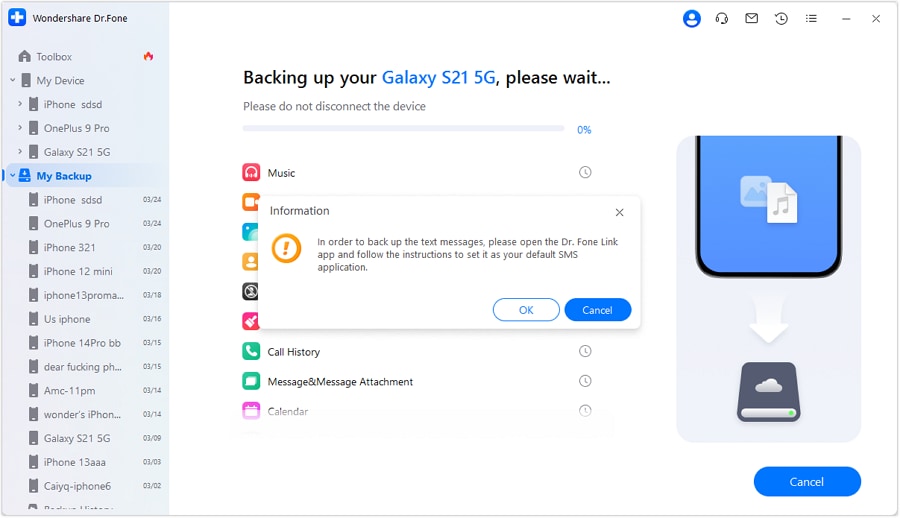
- Step 2: Set Dr.Fone Link as the Default SMS App
To include text messages in the backup, open the Dr.Fone Link app and set it as the default SMS app. Confirm by tapping OK.
- Step 3: Complete the Backup Process
Wait for the backup to finish. A progress bar will show the status, and once done, click Open in Folder to view your backup on the PC.

- Step 4: Restore Backup to Android or iOS Device
Connect your device and go to My Backup. Select the backup file, choose the data to restore, and click Restore to Device. Wait for completion and tap Done.
 safe & secure
Part 3: How to Save, Upload, or Export Contacts to Google Drive Manually
Sometimes, automatic backup isn't enough, and you may want more control over your contacts. Learning how to save contacts in Google Drive manually allows you to choose which contacts to store safely. This method is helpful when you want to backup only important or selected contacts.
Additionally, knowing how to export contacts to Google Drive helps create backup files for safe storage. Here are some options you can try:
Option 1: How to Save Contacts in Google Drive Manually
Manually saving contacts gives you complete control over which contacts are stored securely in Google Drive. This method allows you to select specific contacts instead of saving all automatically, which reduces unnecessary clutter. The following are the steps to save contacts in Google Drive manually:
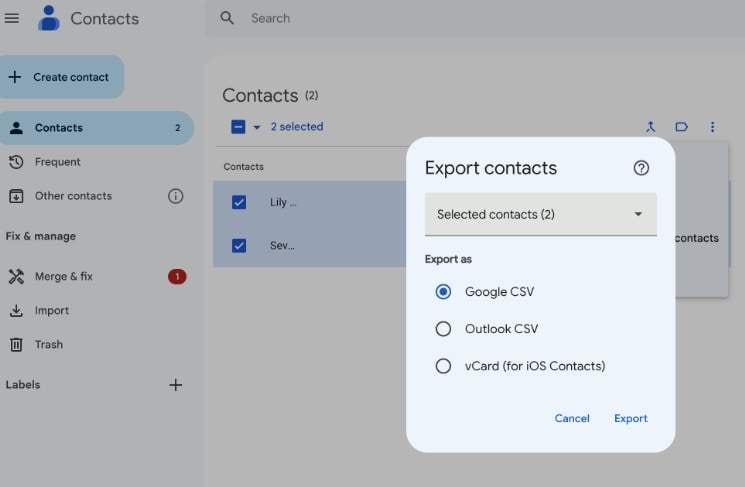
- Step 1: Open Google Contacts on your device or computer to begin managing your contacts.
- Step 2: Select the contacts you want to save and ensure they are marked for backup.
- Step 3: Click More > Export, then choose the format that best fits your specific needs.
- Step 4: Click Save or Move to Drive to store the contacts for future use.
Option 2: How to Export Contacts to Google Drive
Exporting contacts is helpful for creating backup files or transferring them between multiple accounts. This method is ideal for storing all contacts as a single file or sharing them. Here are the steps to export contacts to Google Drive:
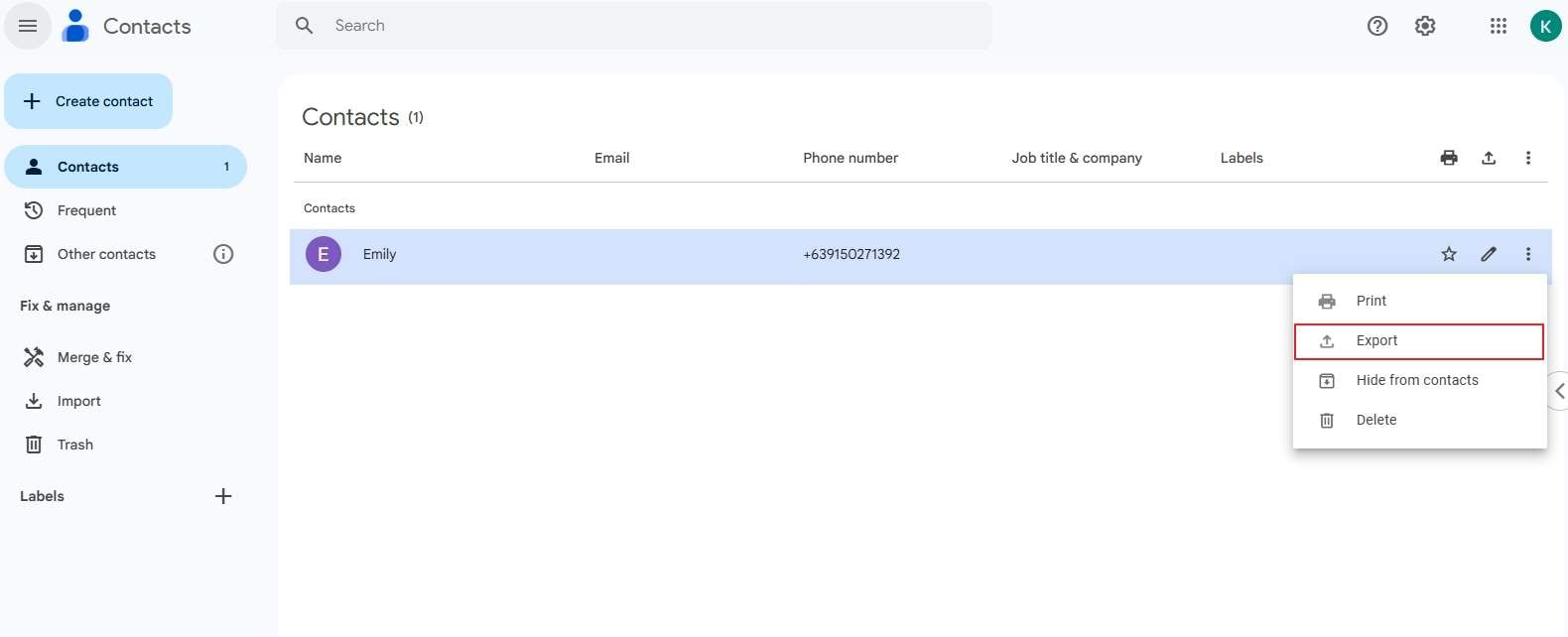
- Step 1: Open Google Contacts and select the contacts you want to export for backup.
- Step 2: Click Export and choose either CSV or vCard format for your preferred use.
- Step 3: Open Google Drive and navigate to the folder where you want to store the file.
- Step 4: Click Upload and select the exported file to save it in Google Drive.
Part 4: How to Restore Contacts From Google Drive
Restoring contacts ensures you recover important information after changing devices or accidental deletion. Learning how to restore contacts from Google Drive helps you keep your contacts safe. This process allows you to quickly recover lost contacts anytime from your backup. Here are some methods you can try:
Method 1: Restore During Phone Setup
When setting up a new phone, signing in to your Google account restores contacts. Here's how to restore contacts from Google Drive during phone setup:
- Step 1: Turn on your new device and start the initial setup process.
- Step 2: Sign in to your Google account linked to your previous device.
- Step 3: Ensure Google Contacts sync is turned on to retrieve all saved contacts.
- Step 4: Complete the setup, and all your contacts will appear on the device.
Method 2: Restore Using Google Contacts
Google Contacts allows undoing changes or restoring contacts from a previous backup efficiently. Here's how to restore contacts from Google Drive using Google Contacts:
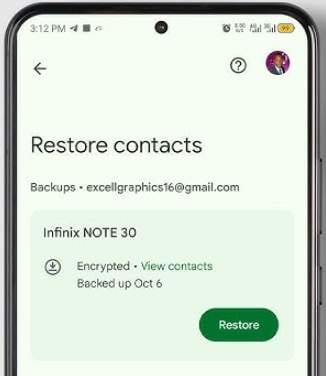
- Step 1: Open Google Contacts on your computer or mobile device carefully.
- Step 2: Click Settings > Undo changes to revert contacts within a selected timeframe.
- Step 3: Choose the timeframe or select Restore from backup if available.
- Step 4: Confirm your selection, and Google Contacts will restore the chosen contacts.
Conclusion
Backing up, saving, uploading, exporting, and restoring contacts are essential for protecting your data. Learning how to backup contacts to Google Drive helps keep your contacts safe across devices. These methods ensure your contacts remain accessible after accidental deletion or device changes.
As a bonus, Dr.Fone – Phone Backup provides full control over backing up and restoring contacts securely. Regular backups using Google Drive or Dr.Fone help maintain complete contact protection.
safe & secureFAQs
 Q1. Is Dr.Fone – Basic safe for backing up contacts?Q2. Will my contacts sync across all my devices when using Google Drive backup?Q3. Can I restore only selected contacts instead of all contacts at once?
Dr.Fone Basic:
Better Control for Your Phone
Manage, transfer, back up, restore, and mirror your device


 > How-to > Backup & Restore Solutions > How to Backup Contacts to Google Drive for Complete Data Protection [2026 Guide]
Sandra
staff Editor