

How to Restore SMS from Google Drive on Android: Google SMS Backup Explained & Better Alternatives (2026)
Android Backup
- Backp Android
- 1. Backup Android to PC
- 2. Backup Android Photos
- 3. Android Wifi Backup
- 4. Backup Phone with Broken Screen
- 5. Backup Android Rom/Firmware
- 6. Backup SD Card on Android
- 7. Backup Android SMS
- 8. Backup Android Phone With Root
- 9. Backup Android to Mac
- 10. Backup Viber Messages
- Android Restore
- 1. Guide to Restore Android Phone
- 2. Backup and Restore Android Phone
- 3. 2 Ways to Restore Contacts on Android: Step-by-Step Guide
- 4. Restore WhatsApp from iCloud
- Backup Apps
- 1. Android Backup Apps to Backup Files
- 2. 6 Apps to Backup Bookmarks
- 3. Top 10 Contacts Backup App
- 4. Backup Android App and App Data
- 5. The Best Android Backup Extractor
- 6. Top 5 Android Backup Softwares
- 7. 6 Best Android Backup Softwares
- 7. 7 Android Fastboot Reset Tools
- Samsung Backup
- 1. Back Up Samsung to Google Drive
- 2. Backup Contacts on Samsung
- 3. Backup Text Messages on Samsung
- 4. Backup and Restore Samsung Galaxy
- 5. Backup Everything on Samsung
- 6. Backup Samsung Galaxy to PC
- 7. 10 Samsung Cloud Backup Services
- 8. Solution For Samsung Message Backup
- 9. 5 Samsung Photo Backup Solutions
- 10. Backup Samsung S10 to PC
- ● Manage/transfer/recover data
- ● Unlock screen/activate/FRP lock
- ● Fix most iOS and Android issues
- Free Download Free Download Free Download


Oct 22, 2026 • Filed to: Backup & Restore Solutions • Proven solutions
 TL;DR:
To restore SMS from Google Drive using Android's official method, you must perform a complete factory reset, as Google stores backups as unreadable metadata that cannot be previewed or selectively recovered.
● Automatic Google SMS backups trigger silently when an Android device is idle, charging, and on Wi-Fi, creating a risk that newer syncs will permanently overwrite older deleted messages before recovery.
● The third-party SMS Backup & Restore app is best for users needing to bypass the factory reset requirement, allowing selective backup retrieval from Google Drive by temporarily setting it as the default SMS manager.
● Dr.Fone – Phone Backup serves as an offline alternative for Android and iOS, saving messages locally to a computer so users can preview and selectively restore specific SMS threads anytime without overwriting existing device data.
Ask AI for a summary
 ChatGPT
 Perplexity
 Gemini
 Claude
 Grok
Grok
Dr.Fone Basic:
Better Control for Your Phone
Manage, transfer, back up, restore, and mirror your device
It's never good to lose data. When you transfer to a new Android phone, do a factory reset, or get a system update, that data becomes even more at risk. There are always important messages you don't want to lose. When these conversations are lost, people often need to restore missing SMS from Google Drive.
Every Android device is set to, by default, back up SMS messages to Google Drive. Oftentimes text messages do not get restored, and no one ever knows where Google stores them. There are primary recovery techniques that Google offers, but there are limitations.
Most Android users do not know that there are more efficient options out there. With Dr.Fone – Phone Backup, one can back up and restore text messages that do not solely rely on the backup behavior of Google Drive.

Part 1: Google SMS Backup Explain — Where Messages Are Stored and How to View Them
What Is Google SMS Backup on Android?
Google backup text messages refers to Android's built-in system that automatically saves SMS data to a Google account. When Google backup is enabled, text messages are included along with other app data and device settings.
Backups usually happen automatically when:
- The phone is connected to Wi-Fi
- The device is charging
- The phone is idle for a period of time
This background process helps users restore messages later, but it works silently, which can cause confusion about whether SMS messages were actually saved.
Where Are Google Backup Text Messages Stored?
Google does not store SMS backups as readable files. Instead, Google backup text messages are linked directly to the user's Google account and device ID. This means the messages cannot be downloaded, opened, or viewed individually.
Imagine setting up a new phone and expecting every message to return—only to find entire conversations missing. This situation often leads users to search for restored messages from Google backup, especially when the backup exists but does not fully restore.
What You Can and Can't See in Google Drives
Many users expect to open Google Drive and read their backed-up messages, but that is not how Google SMS backup works. When checking Google Drive, only limited backup information is visible, such as:
- Backup date
- Device name
- Total app data size
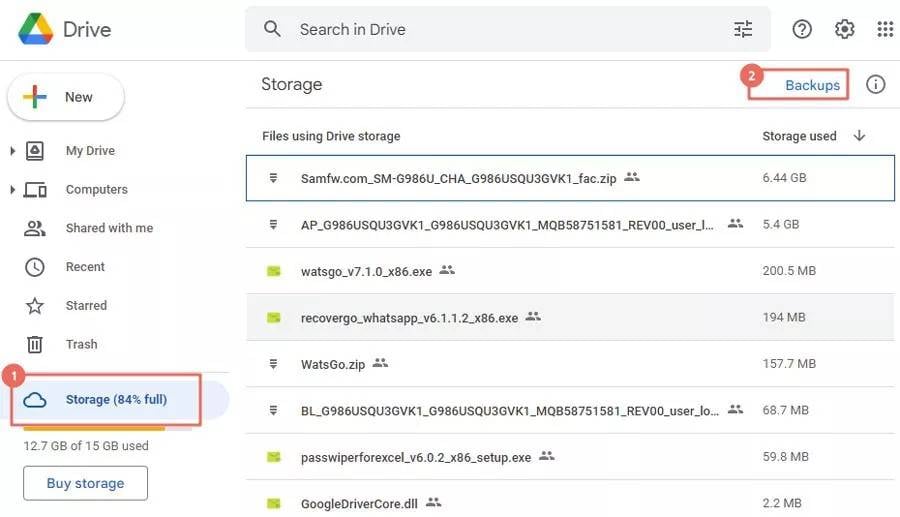
You cannot open or preview SMS content. This limitation explains why searches like how to view SMS backup on Google drive are so common. Google also does not allow selective SMS restoration—messages can only be restored during setup.
How to View SMS Backup on Google Drive
You can verify the existence of a Google Drive SMS backup, even if you read nothing from it:
- Open the Google Drive app.
- Tap the menu icon ☰ > Backups.
- Look for your device name and the latest backup date.
- Messages are included if SMS backup was enabled prior to loss.
Even though you can see backup metadata, you still can't preview messages inside it. This step simply confirms that a backup exists before attempting a restore.
Part 2: How to Restore SMS from Google Drive: 4 Methods
Despite most would expect "Restore SMS from Google Drive" feature on Android there is actually none. There instead exists multiple workflows people try to get text messages back.
These workflows depend on:
- Messages being backed up prior to deletion
- Whether you're setting up a brand new device
- If you're attempting to use third-party applications to get around some limitations set by Google
Highlighted below are the primary methods most Android recovery guides span out to, each with their own systems and requirements.
Method 1: Restore SMS During Factory Reset Setup (Official Google Method)
This is the only official means by which Google Drive will restore the text messages saved in its backup.
How it Works:
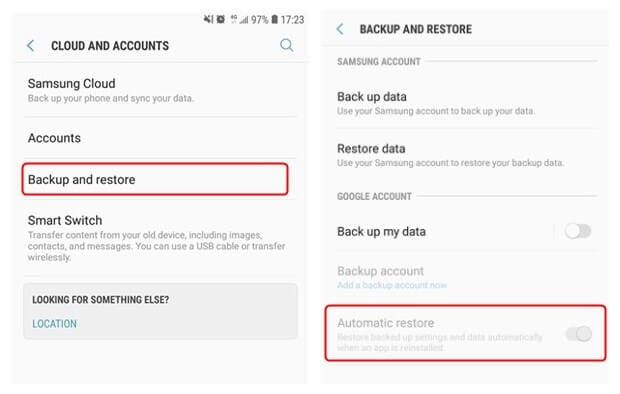
Restoration of Google SMS backups only gets triggered when the device is reset to factory defaults for the first time (new Android OS setup). If your phone is already set up, and if, in the past, you've logged into your Google account, this option will later not appear.
How to restore
- Factory reset your Android device or begin the setup of a new phone.
- Sign in with the Google account that corresponds to the Google SMS backups.
- When prompted, restore from a Google backup.
- Allow sufficient time for the setup to complete. SMS messages get restored, but not before other backed up data is restored.
Method 2: Use SMS Backup & Restore App (Third-Party with Google Drive)
Other users would rather use an SMS-specific backup tool that integrates with Google Drive storage and that bypasses using the Automatic Restore feature within Android.
How it works:
Apps such as SMS Backup & Restore synchronize your Google Drive account and permit selective backup retrieval without a phone reset.
How to restore
- Install SMS Backup & Restore directly from the Google Play Market.
- Provide the app with required SMS and Drive permissions.
- Locate Restore within the app.
- Choose the required backup and initiate the restore procedure.
- Complete instructions to set the app as the temporary default SMS manager.
Method 3: Contact Google Support for Recovery Assistance
If backups are present but restoration fails, you may try contacting Google Support directly.
How it works:
Google support might help check backup status or provide guidance on visibility issues, but this is not guaranteed and often only works in select cases.

Method 4: Alternative Tools for SMS Extraction (Third-Party Software)
Besides Google and apps on the phone, desktop recovery systems can sometimes get SMS backups on Drive and retrieve messages from old backup files.
Such instruments are able to:
- Reviewing backups prior to restoration
- Selectively restoring different SMS threads
- Avoiding factory reset requirements
Top articles can list multiple tools with similar capabilities, but the reliability varies, and the results are not guaranteed.
Summary: Method Comparison
| Method | Requires Reset? | Can View Messages? | Works Anytime? |
| Official Google Restore | ✔ | ❌ | ❌ |
| SMS Backup & Restore App | ❌ | ✔ (via backup file) | ✔ |
| Contact Google Support | ❌ | Possible | Possible |
| Desktop Restore Tools | ❌ | Possible | Possible |
Part 3: Why Google SMS Restore Often Fails
Even when everything seems set up correctly, restoring SMS from Google Drive does not always work as expected. Google SMS backup runs automatically in the background, which means users have very little control over what gets saved and restored. As a result, message recovery can fail or feel incomplete for several common reasons.
Common reasons include:
- Backup overwritten - New backups may replace older ones, removing deleted messages permanently.
- Partial restores - Some conversations may be missing after setup, especially older threads.
- Wrong Google account - Using a different email during setup means the correct backup will not be found.
- Messages excluded or removed - Very old SMS or temporary messages may not be saved at all.
These limitations explain why Google SMS restore often feels unreliable and why many users look for more flexible alternatives.
Part 4: A More Flexible Way to Back Up and Restore SMS Anytime — Dr.Fone
Sometimes Google backup is not enough. Users may want more control over how to backup text messages to Google Drive alternatives or restore them later without resetting their phones.
Dr.Fone – Phone Backup works differently by allowing:
- Selective data backup
- Preview before restoring
- Restore anytime without factory reset
- Supports both iOS and Android devices
This makes it a practical option for users who want reliable SMS protection.

Wondershare Dr.Fone
Flexibly Backup and Restore Android Data
- Selectively backup Android data to the computer with one click.
- Preview and restore the backup to any Android device.
- Supports 8000+ Android devices.
- There is no data lost during backup, export, or restoration.


How to Back Up and Restore SMS with Dr.Fone (4 Steps)
(Steps shown for Android; iOS backup is also supported where applicable.)
- Step 1: Install and Launch Dr.Fone
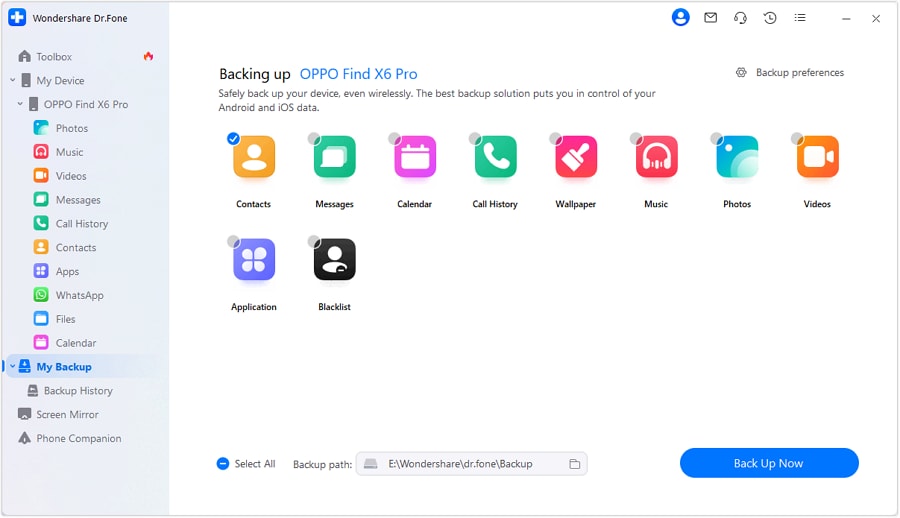
Download and install Dr.Fone on your computer. Launch the program and select Android Backup & Restore from the main dashboard. This module is designed to back up and restore phone data safely without overwriting existing files.
- Step 2: Connect Your Android Device
Use a USB cable to connect your Android phone to the computer. Once the device is detected, navigate to My Backup and click Back Up Now to begin preparing your data for backup.
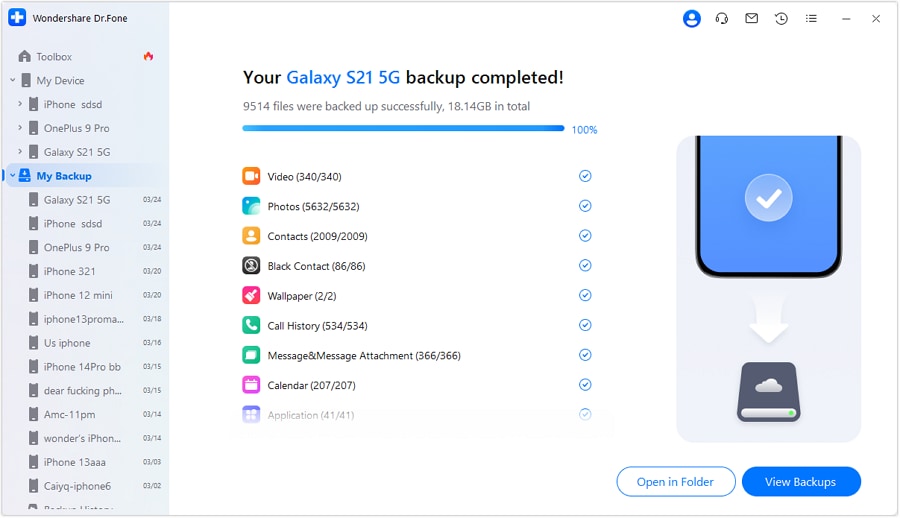
- Step 3: Select Messages (SMS) for Backup or Restore
Dr.Fone displays all supported data types. Select Messages (SMS) to back up or restore text messages only, without including other device data.

- Step 4: Start Backup or Restore Securely
Click Start to back up SMS to your computer, or choose Restore to recover previously saved messages to your phone. Dr.Fone completes the process without requiring a factory reset.
This method offers far more flexibility than Google backup text messages, especially for long-term SMS storage and recovery.
 safe & secure
Conclusion
Understanding how Google SMS backup works helps prevent frustration when messages disappear. While Google offers a basic way on how to restore SMS from Google Drive, it comes with strict limitations, including setup-only restoration and no message preview.
For users who want full control over how to backup text messages to Google Drive alternatives and restore them anytime, Dr.Fone – Phone Backup provides a safer, more reliable solution.
safe & secureFAQs
 Q1. Can you restore SMS from Google Drive without resetting your phone?Q2. Where are Google backup text messages stored?Q3. How often does Google SMS backup update?Q4. Is Dr.Fone safe for backing up text messages?Q5. Can Dr.Fone restore SMS if Google backup fails?
Dr.Fone Basic:
Better Control for Your Phone
Manage, transfer, back up, restore, and mirror your device


 > How-to > Backup & Restore Solutions > How to Restore SMS from Google Drive on Android: Google SMS Backup Explained & Better Alternatives (2026)
Julia Becker
staff Editor