
Discord Stuck on Checking for Updates [Top Fixes for Update Issues]

Sep 10, 2026 • Filed to: Mobile Tips & Tactics • Proven solutions
 TL;DR:
Discord gets stuck on "Checking for Updates" primarily due to temporary network restrictions, antivirus conflicts, or corrupted local files blocking the updater from downloading new versions.
● To force a clean update on Windows, launch Discord via "Run as Administrator" to bypass system restrictions, or rename the Update.exe file in the %localappdata%\Discord directory so the app ignores the damaged executable.
● Deleting the Cache, Code Cache, and GPUCache folders within the %appdata% directory acts as a soft reset that clears corrupted files without deleting your account information or messages.
● If update loops occur on mobile devices due to deeper OS glitches, Dr.Fone - System Repair resolves Android and iOS system errors, requiring iOS users to specifically select Standard Repair mode to maintain existing data.
Ask AI for a summary
 ChatGPT
 Perplexity
 Gemini
 Claude
 Grok
Grok
Have you ever been on Discord and watched it hang at "Checking for Updates"? This is frustrating, particularly when you are on the verge of joining friends, playing games, or controlling servers. Nonetheless, the issue is typically related to network problems, infected files, or collisions with your computer configuration.
Regardless of the reason, users are demanding a smooth resolution to fix the discord stuck on checking for updates. This guide explains the most common causes of this issue and provides simple, complete fixes anyone can follow. If similar system glitches appear on your Android or iPhone, you will explore Dr.Fone - System Repair, which offers a safe and reliable way to fix underlying device issues.

Part 1. Why Discord Update Fails or Gets Stuck
As you are determined to resolve the discord stuck checking for updates issue, let's learn why this problem occurs and if the app installs updates automatically.
Does Discord Install Updates on Its Own?
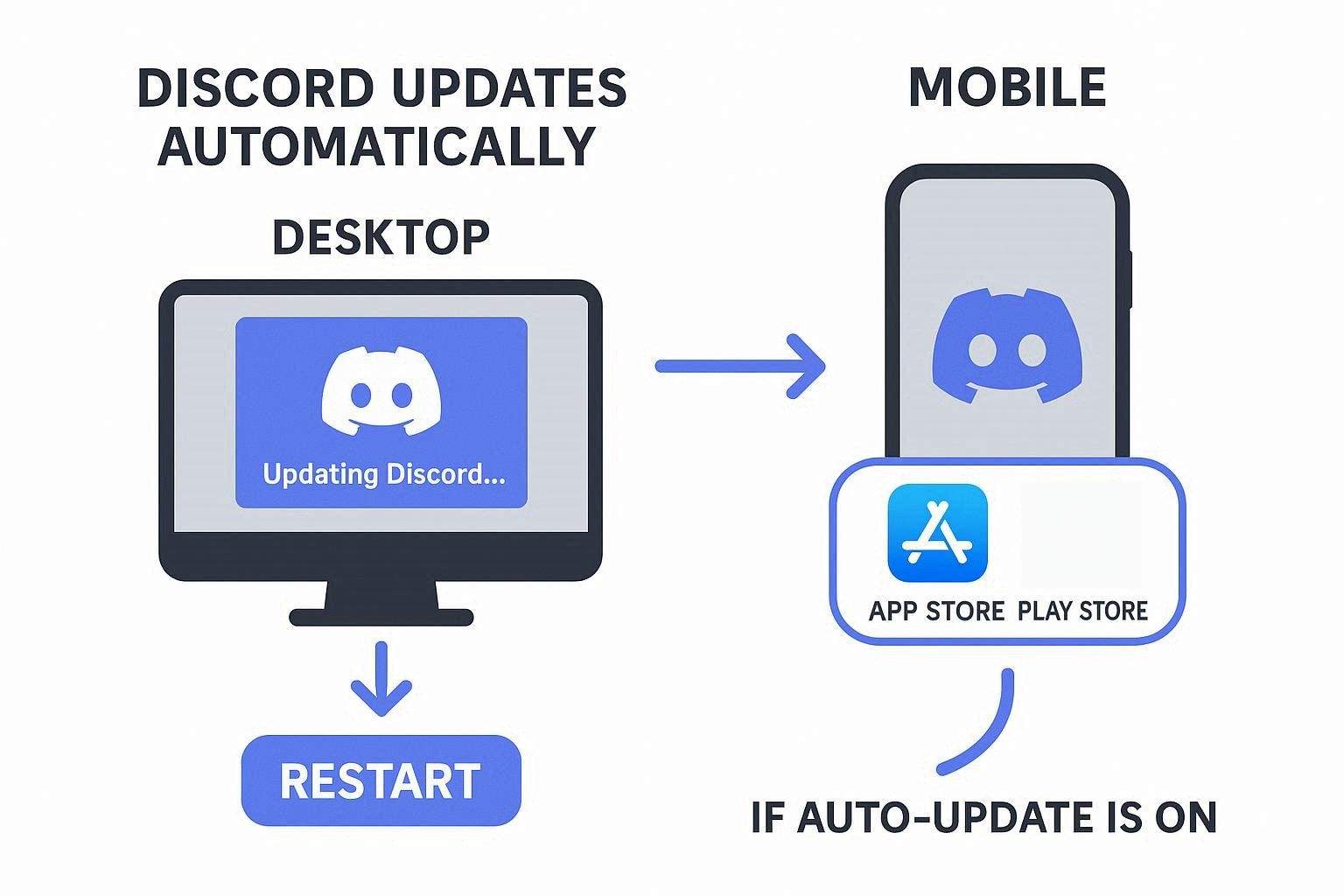
Yes, Discord generally updates automatically, although it is determined by the device you are using. When opening it on Windows or Mac, the app will update itself automatically. In case there is an update, it checks and installs it, and then the main window is displayed. An updater screen might briefly appear, and Discord will restart with the new version without any input on your part.
On mobile devices, such as iPhone or Android devices, Discord does not automatically update within the app. Updates come from the App Store or Play Store, which can install them automatically if your device settings allow it.
Common Reasons Discord Update Fails or Gets Stuck
Having the update process clear, explore these 5 reasons, and learn why the discord stuck at checking for updates issue appears:
- Unstable or Slow Internet Connection: Discord requires a stable, reliable internet connection to download updates. Hence, weak Wi‑Fi or drops can stop downloads and cause "checking for updates" or "update failed" loops.
- Corrupted Update or Installation Files: Partial or damaged files in Discord's AppData folder can prevent new updates from applying. Additionally, the app may repeatedly retry the same failed update and cause the stuck update issue.
- Lack of Required Permissions: On Windows, Discord needs administrator rights to replace or add necessary files. Therefore, without these permissions, updates can fail silently or show errors.
- Firewall, Antivirus, or Software Conflicts: Security software or other programs can block Discord's internet access or lock its files. Thus, this prevents the app from downloading or writing the update.
- Outdated or Problematic Discord Install: Old or broken Discord installations can conflict with the updater. As a result, this may cause installation loops or repeated "installation failed" messages.
Part 2. Resolve Discord Update Issues Quickly: Complete Troubleshooting Guide
To know how you can get out of the discord update failed loop, review the 7 given solutions:
Way 1: Restart Your Computer or Router
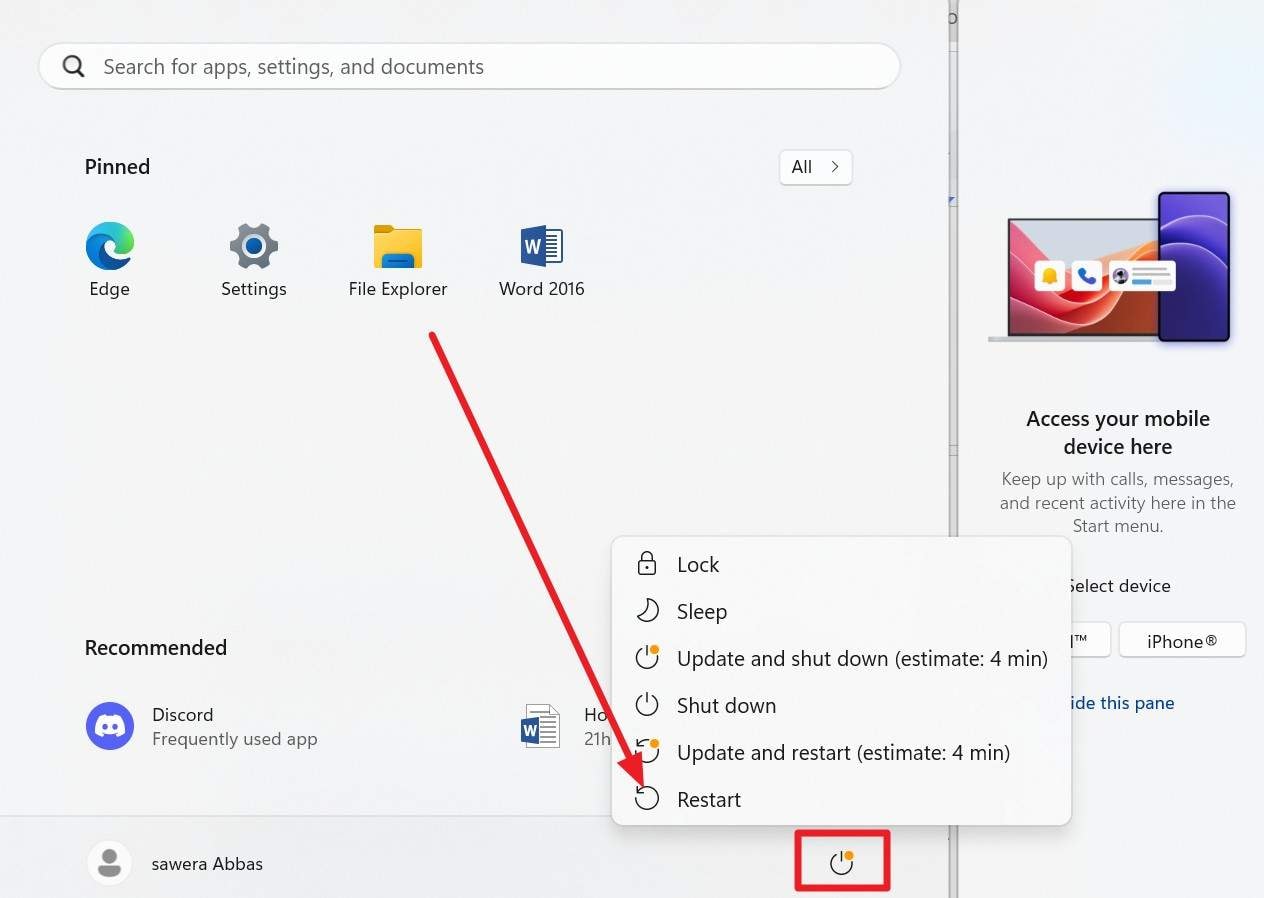
A computer restart can remove temporary application or system glitches, hanging processes, and network driver resets, and can reestablish a connection otherwise blocked by the updater. It also fixes slow or unstable connections or clears cached routing or DNS problems when putting the router back online. Hence, these steps give Discord a clean system and network to reach its update servers, and steps for restarting are given below:
Instructions: Within the "Start" menu, tap the "Power" icon and choose the "Restart" option. After it restarts, open Discord as usual and check whether the update proceeds.
Way 2: Run Discord with Administrator Permissions
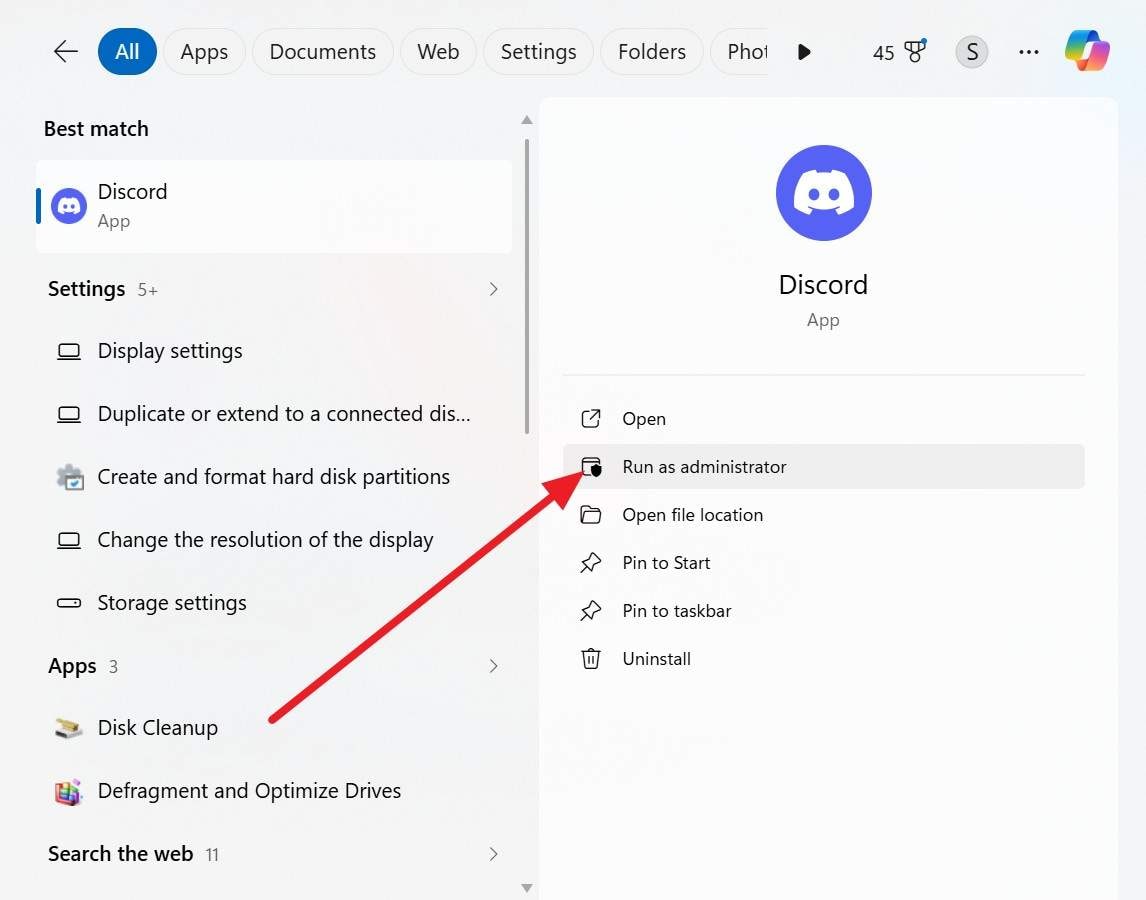
For the discord failed to update issue, admin rights allowed the app to write to and replace files that Windows might otherwise block. Thus, this allows the updater to apply downloaded updates rather than fail silently. Additionally, it helps break the endless "checking for updates" loop by granting Discord the necessary access to complete installation. Once done via the given guide, it also bypasses security or UAC restrictions that prevent file changes.
Instructions: Close the Discord app completely, then locate Discord in the Start menu and select the "Run as Administrator" option. When prompted, press the "Yes" option on the popup menu to confirm.
Way 3: Temporarily Turn Off Windows Defender Antivirus
Once the discord failing to update indicator shows, this solution can be used to make the update complete and to know whether the antivirus is the cause of the issue. It also allows Discord to connect without any interruption to its servers. Thus, it is compatible with other solutions, like using Discord as an administrator or reinstalling the program. To find out how you can do that, review the outlined steps:
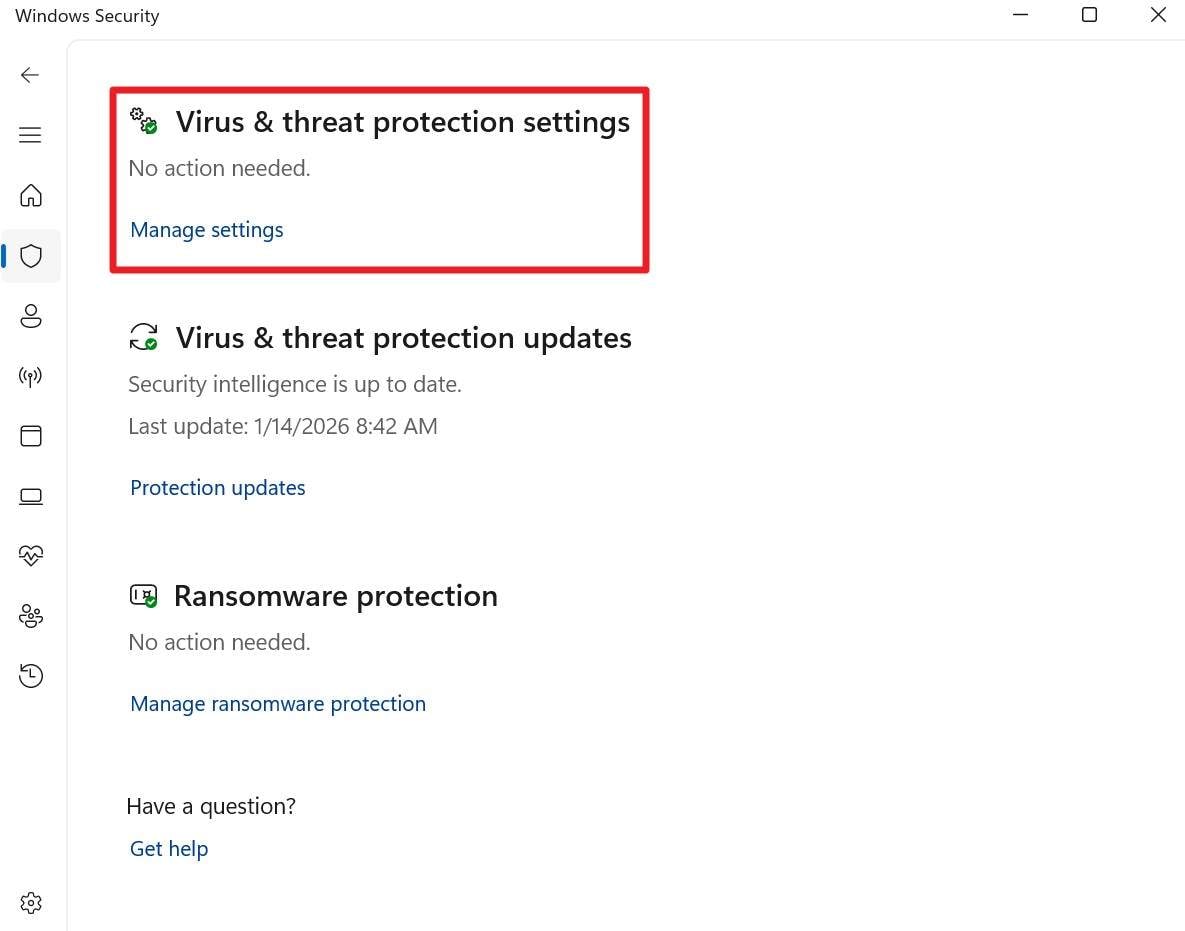
- Step 1. In the "Windows Security" app, locate the "Virus & Threat Protection" section to locate the "Virus & Threat Protection Settings" section. There, choose the "Manage Settings" option to access the new interface.
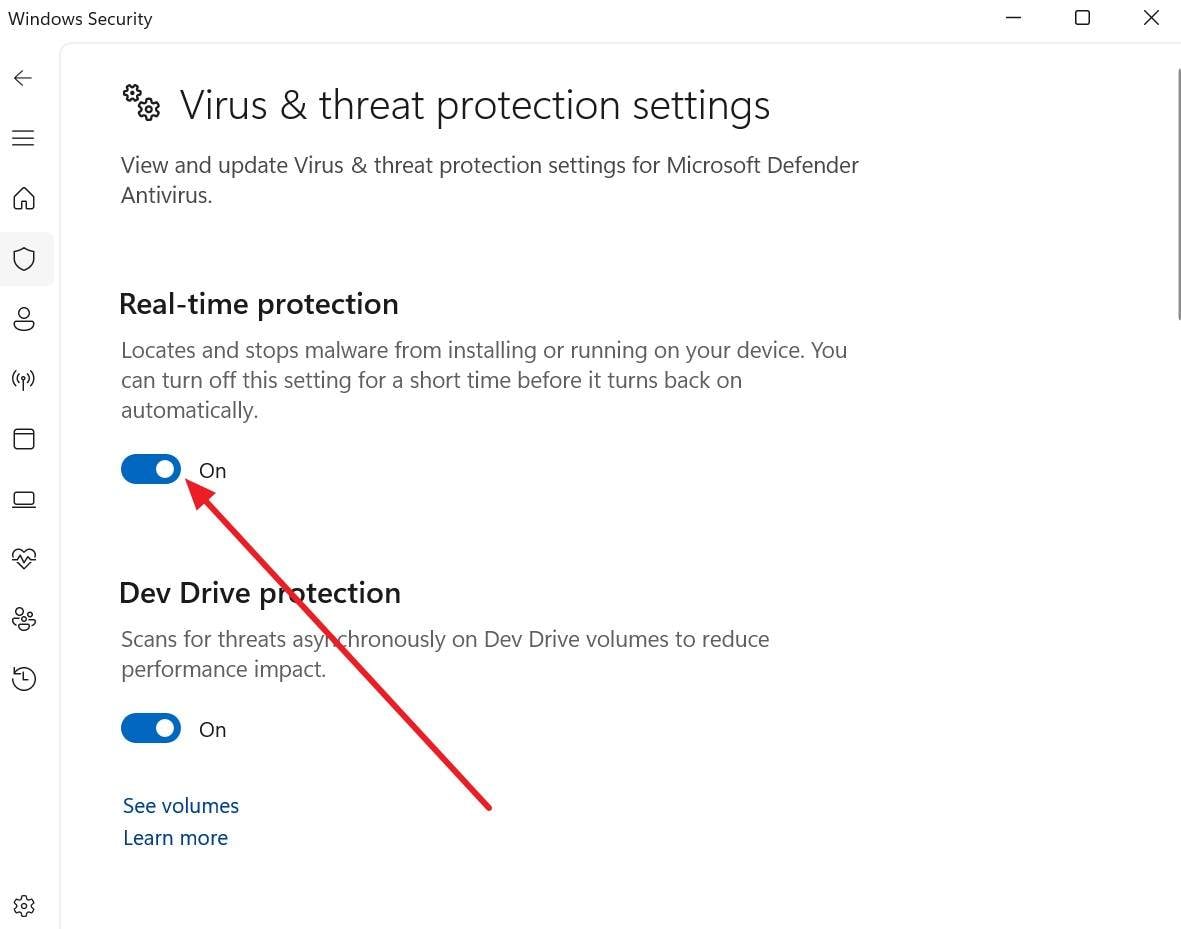
- Step 2. Turn off the "Real-Time Protection" option, then select "Yes" when prompted.
Way 4: Disable Any Proxy Server Settings
To fix the discord update stuck issue, turning the proxy off lets Discord connect directly and download updates without interference. A direct connection avoids delays, reduces errors, and often stops the update loop immediately. Hence, if the Discord works after disabling the proxy, you know the proxy was the problem. Thus, to turn it off, simple instructions are given ahead for guidance:
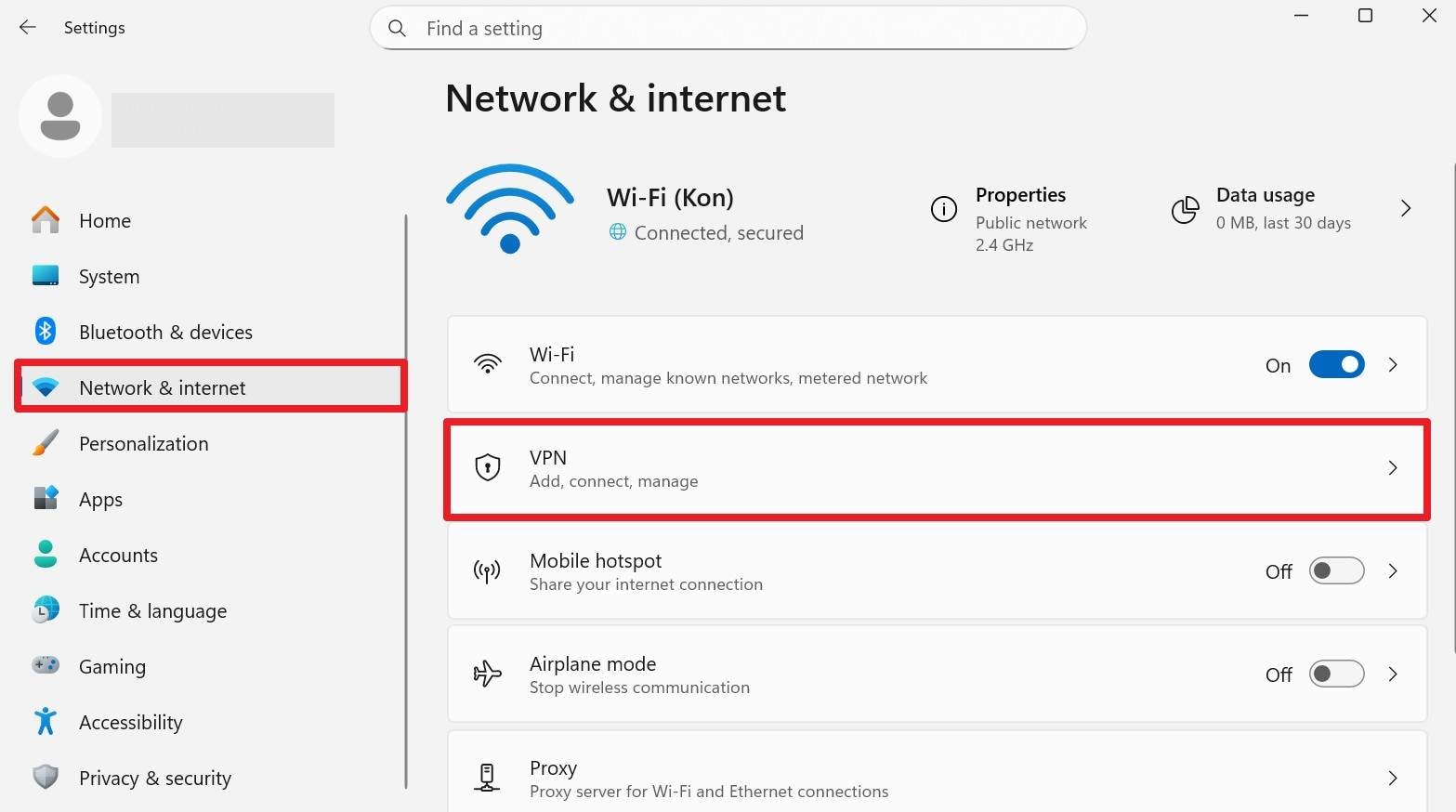
- Step 1. Go to the "Network & Internet" settings to choose the "VPN" option.
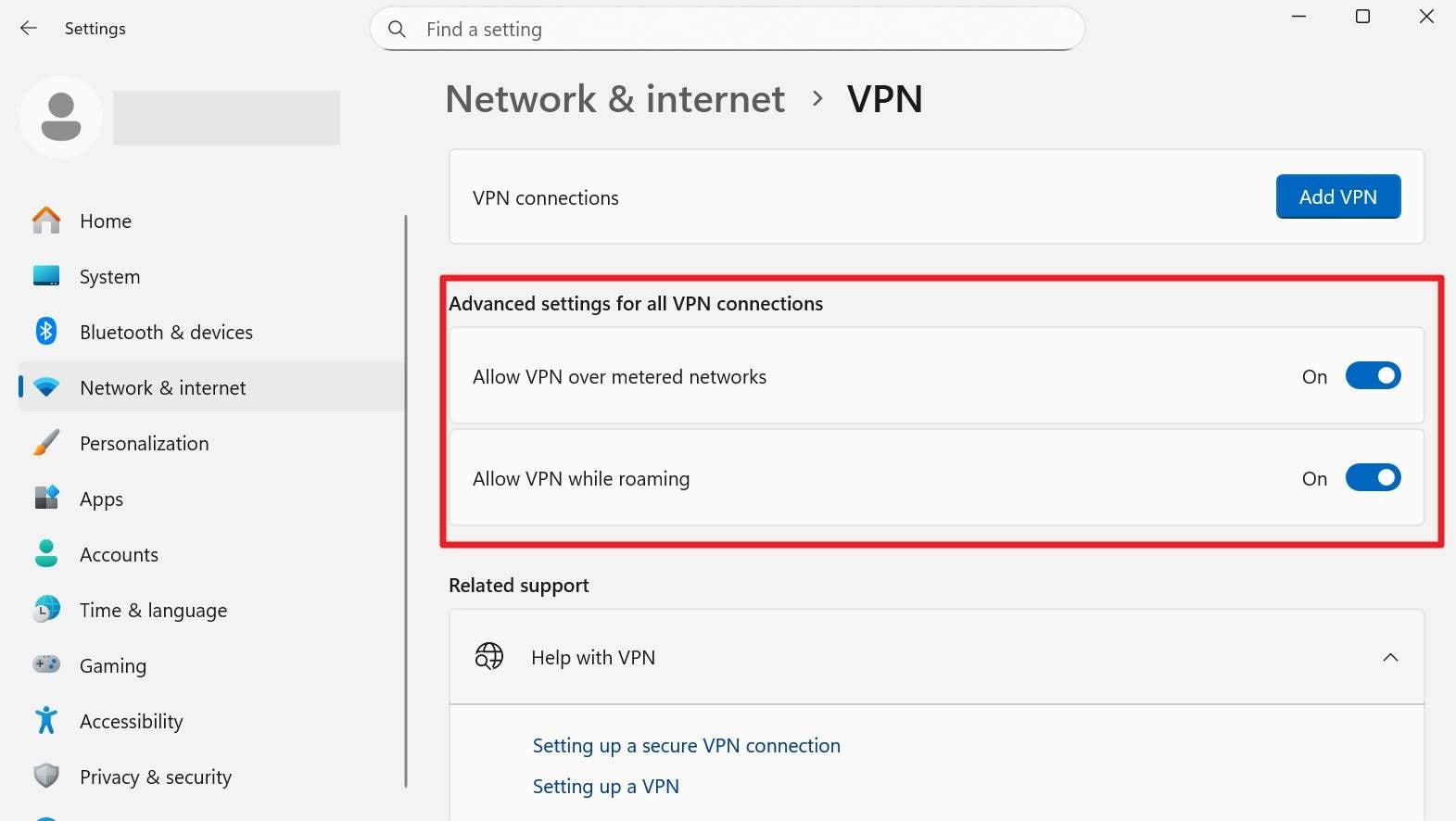
- Step 2. Here, disable the given VPN options under the "Advanced Settings For All VPN Connections" section.
Way 5: Delete Discord App Data and Cache
If the discord stuck on checking for updates issue persists, removing cache folders forces Discord to create fresh files and download a clean copy of the app and updater. It also resolves glitches or stale data that slow down startup or updates. Thus, this method works like a soft reset because it removes temporary files without affecting your account, servers, or messages, as guided below:
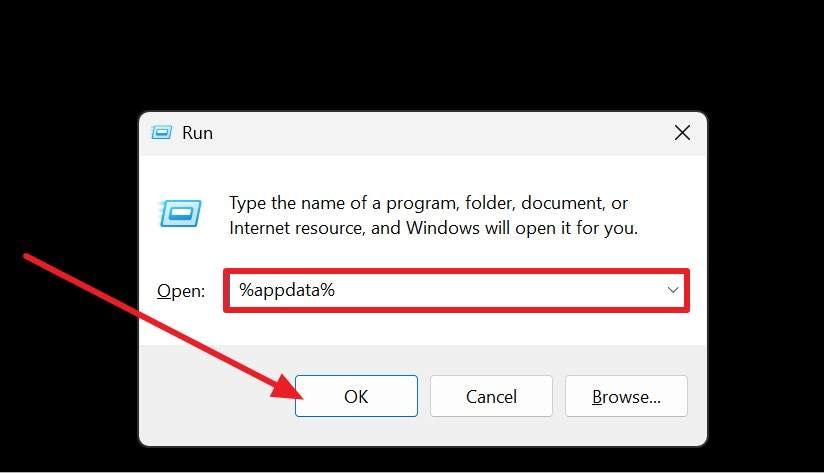
- Step 1. Upon pressing "Windows + R," type "%appdata%" and press the "Ok" option.
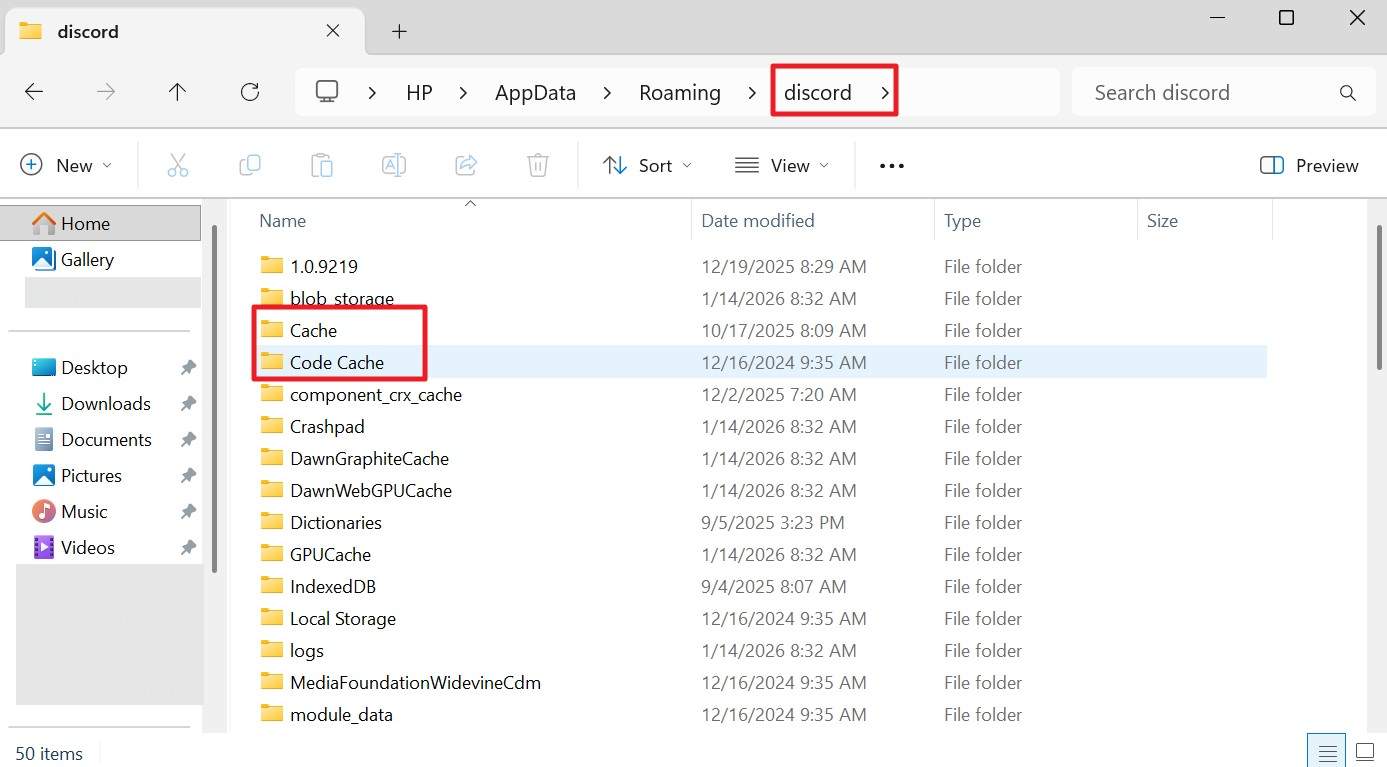
- Step 2. Locate the Discord folder and search for folders like "Cache, Code Cache, and GPUCache."
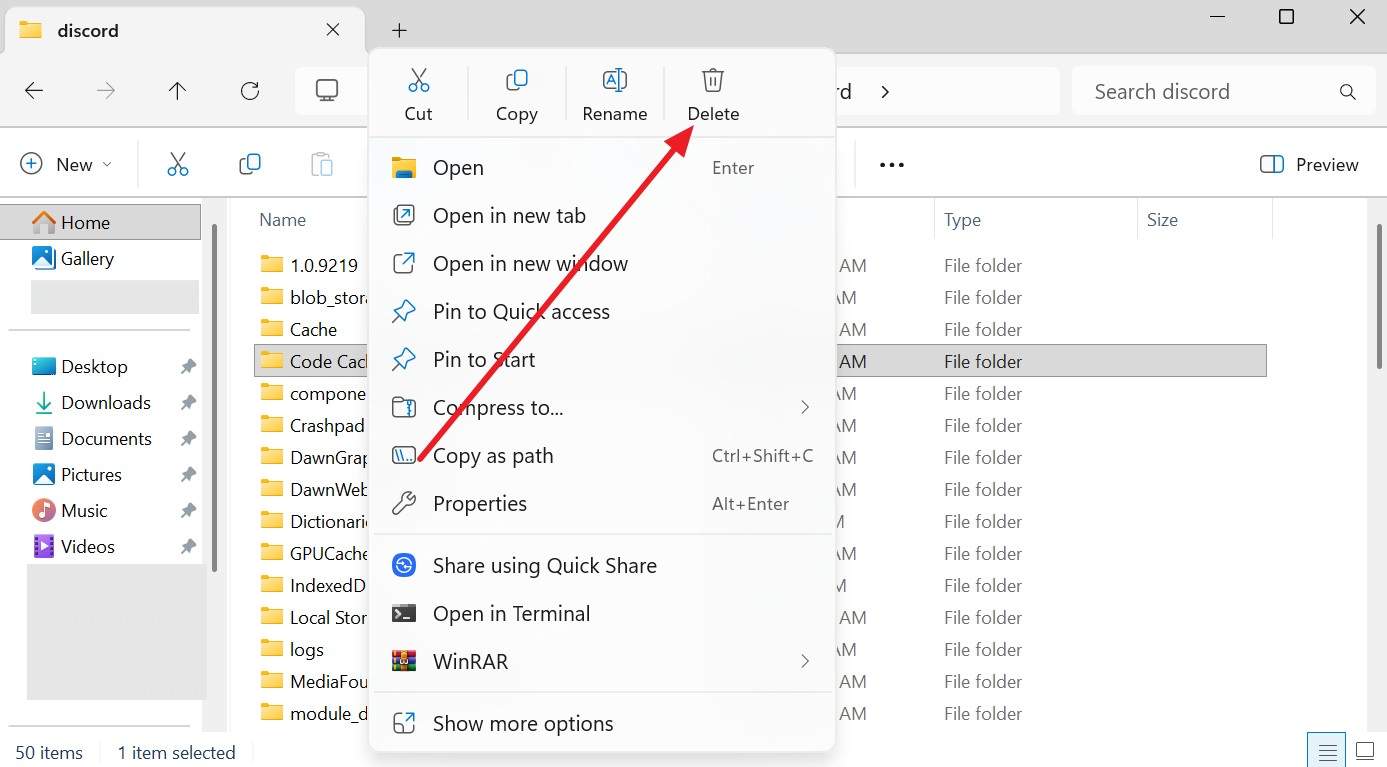
- Step 3. Right-click on each other and pick the "Delete" option.
Way 6: Rename the Discord Update File
Users who face the discord stuck checking for updates problem can rename the Discord update file. By changing the name of Update.exe, Discord ignores the damaged file and creates a fresh one on the next launch. However, doing this keeps the old file safe, so you can restore it if needed. Besides, the process is quick and simple and does not affect your account, servers, messages, or Windows settings, as guided:
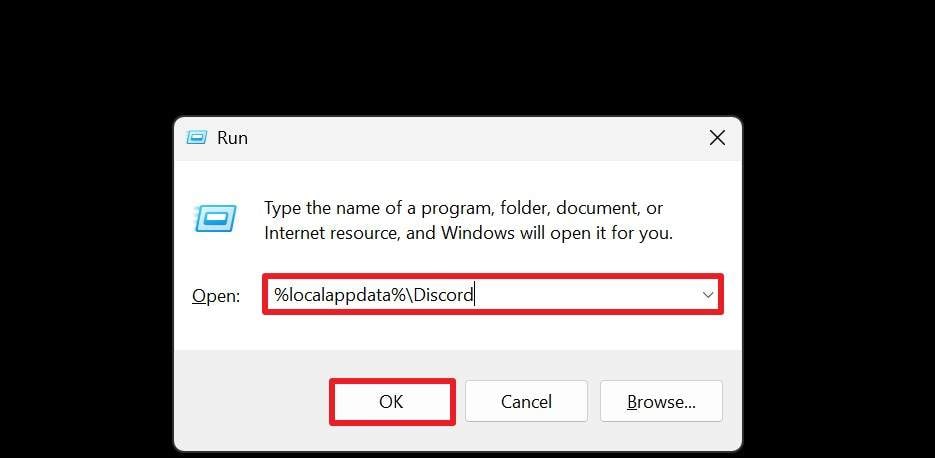
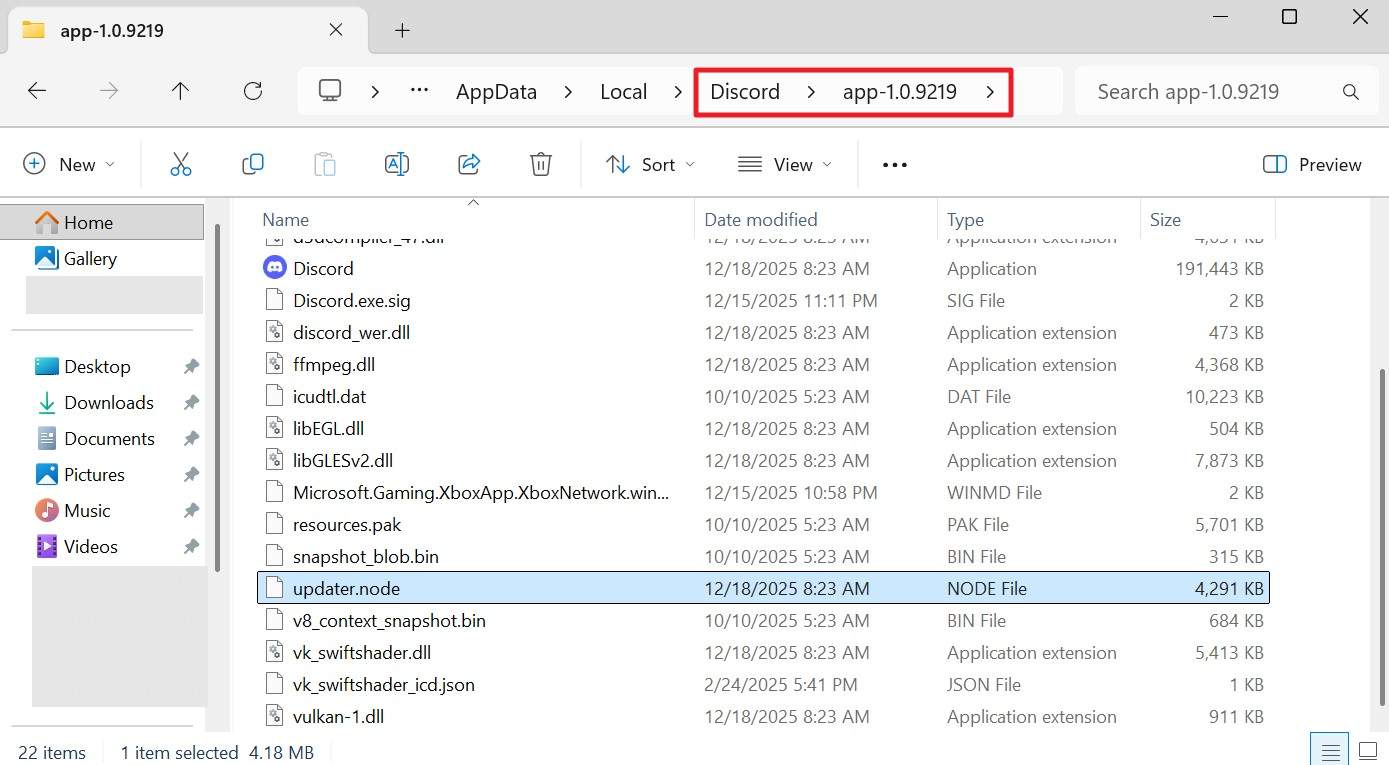
- Step 1. Type "%localappdata%\Discord" as you press "Windows + R" and press the "Ok" option.
- Step 2. In the File Explorer, locate a folder like app-1.0.xxxx, and rename the Update.exe file.
Way 7: Reinstall the Discord App Completely
To get out of the discord update failed loop, uninstall the app and see if this works. This solution removes corrupted files, old executables, and bad settings that block the updater. So, when you download a fresh copy from the official website, you install the latest version with all the required files. This also resets hidden local settings that smaller fixes cannot reach, and is guided ahead:
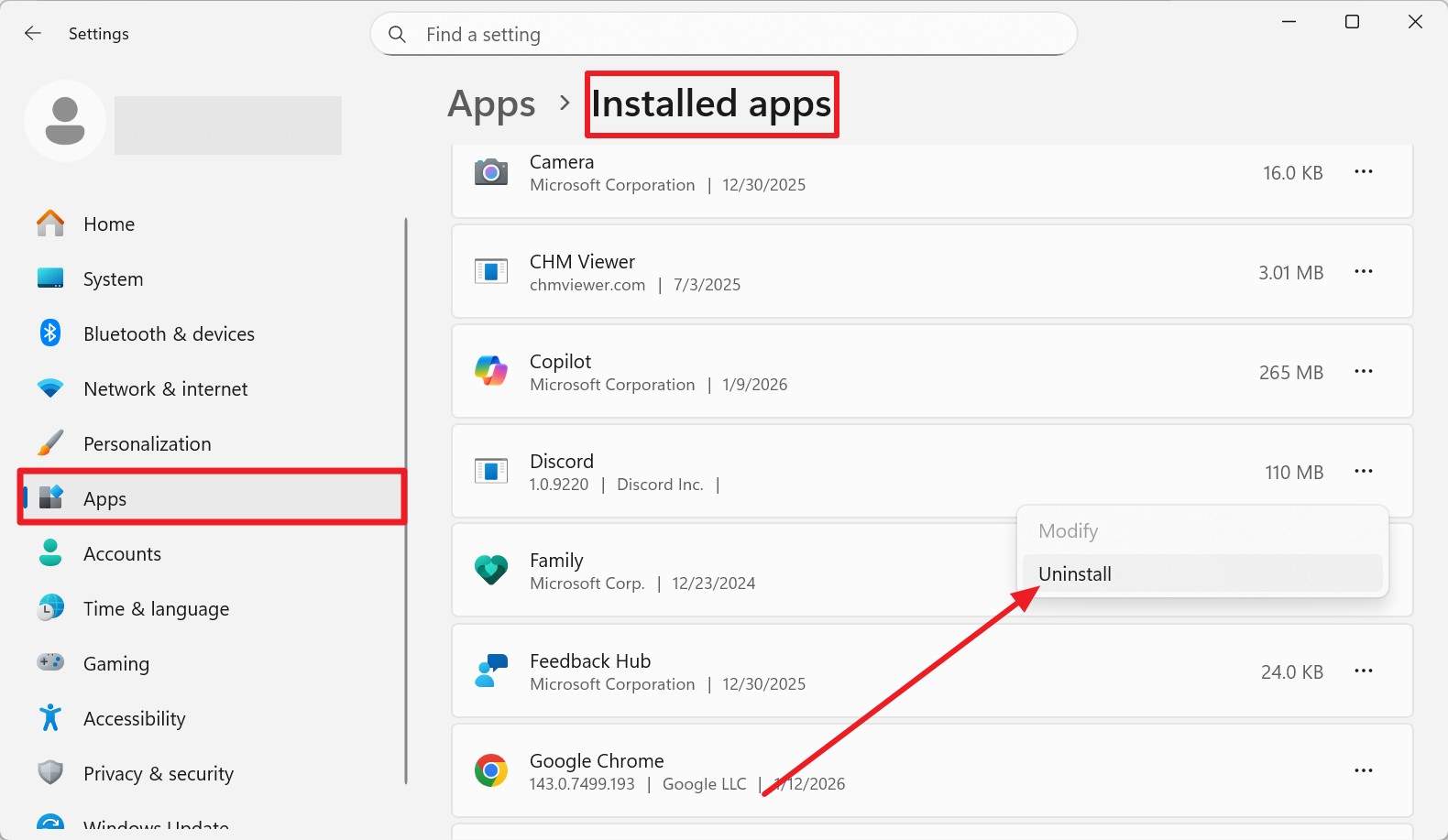
- Step 1. In the "Apps" and "Installed Apps" settings, choose Discord and pick the "Uninstall" option.
- Step 2. After uninstalling, visit the official site at Discord to download the Windows installer.

Pro Tip: Fix iOS/Android Stuck Problems with Dr.Fone - System Repair
Other than computers, if you face the discord update stuck problem on phones, Dr.Fone - System Repair can help. For Android users, Dr.Fone - System Repair (Android) can cater to various Android system issues like black screen of death, boot loop, etc. Whereas Dr.Fone - System Repair (iOS) can deal with the 150+ iOS system issues in mere seconds.
Regardless of the tool one opts for based on needs, the tool guarantees a 100% success rate and zero data loss. Android users can get updates and repair solutions for Samsung, Xiaomi, Redmi, and POCO phones, with the option to access Download Mode for free on Samsung devices. On the contrary, iOS users can reset their iPhone without a passcode/iTunes/Finder, with no technical skills required.

Dr.Fone - System Repair (iOS)
Repair iOS System Errors Without data loss.
- Only fix your iOS to normal, no data loss at all.
- Fix various iOS system issues stuck in recovery mode, white Apple logo, black screen, looping on start, etc.
- Upgrade and Downgrade iOS without iTunes at all.
- Work for all iPhone/iPad/iPod Touch, running on all iOS versions


Guide to Fix Android or iPhone System-Level Issues Using Dr.Fone
To know how you can get out of the discord update failed loop on iPhones, dive into the given detailed guide:
- Step 1. Access the System Repair Tool for iOS
As you connect your iPhone to the computer, choose the "iOS System Repair" tool from the System Repair iOS tool. Here, you need to pick the "Standard Repair" mode to avoid data loss.

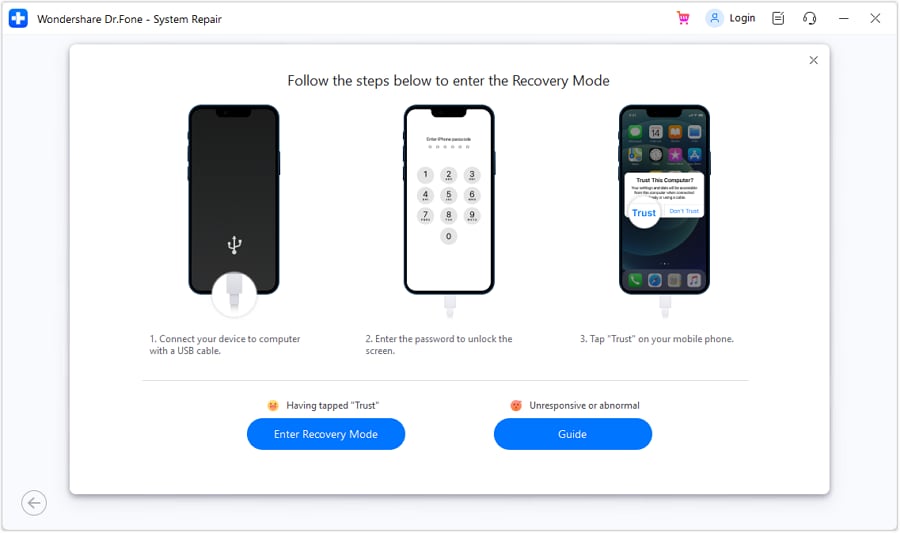
- Step 2. Access the Recovery Mode or Follow the Guide
Following this, press the "Enter Recovery Mode" button or choose the "Guide" button to follow the on-screen instructions to access the Recovery Mode.
- Step 3. Choose to Download the iOS Firmware
When the tool displays the iOS firmware, click the "Download" button to install it. As the installation ends, press the "Repair Now" button to let the tool fix the system-level issues.

 safe & secure
4,624,541 people have downloaded it
Part 3. Preventive Tips to Avoid Discord Update Failures
If you want to avoid the discord failing to update issue in the future, follow the given helpful tips and tricks:
| Habit To Adopt | How It Helps Your Updates |
|---|---|
| Keep your internet "clean and stable" (no heavy downloads, avoid flaky Wi‑Fi during updates). | Reduces corrupted update downloads and prevents endless "checking for updates" caused by timeouts or packet loss. |
| Add Discord as allowed in the firewall/antivirus once it is working. | Stops security tools from randomly blocking future update traffic or quarantining new Discord files as false positives. |
| Avoid VPNs/proxies when updating. | Direct connections to Discord's servers are less likely to get throttled, filtered, or broken by misconfigured VPN/proxy routes. |
| Occasionally, clear the Discord cache and restart your PC. | Removes stale temp files and minor system glitches that can build up over time and interfere with the updater. |
| Update Discord regularly instead of skipping many versions. | Smaller, more frequent updates are quicker and less error‑prone than huge jumps from very old builds to the latest release. |
Conclusion
To sum up, this guide has addressed the discord stuck on checking for updates issue with 7 possible solutions. Additionally, the reasons for this issue are discussed, along with 5 tips to avoid it again. However, if you encounter the update loop on mobile phones, using Dr.Fone - System Repair for Android and iOS is recommended due to its extensive device and repair support.
safe & secure4,624,541 people have downloaded it
FAQs
 1.
Does Discord lose my data if it gets stuck on updates?2.
Can this issue delay notifications or chats?3.
Does Discord alert me if the update fails?4.
Will the update finish if I leave Discord open?
1.
Does Discord lose my data if it gets stuck on updates?2.
Can this issue delay notifications or chats?3.
Does Discord alert me if the update fails?4.
Will the update finish if I leave Discord open?



 > How-to > Mobile Tips & Tactics > Discord Stuck on Checking for Updates [Top Fixes for Update Issues]
Ahmed Absal
contributor Editor
Generally rated4.5(105participated)