How to Enter and Exit Fastboot Mode on Android for Free?
Is your Android phone stuck in a boot loop, showing a black screen, or refusing to start after a failed update? Or perhaps you need to flash firmware, unlock the bootloader, or install a custom recovery — but struggling with complicated hardware button combinations that vary across brands? Getting into Fastboot Mode manually can be frustrating, especially when your device's physical buttons are unresponsive or you're unsure of the exact key sequence for your model.
Wondershare Dr.Fone - System Repair (Android) helps you enter and exit Fastboot Mode in a more direct way. Whether your device is functioning normally and you need to access Fastboot for advanced maintenance, or your phone is stuck and you need a reliable way to get in and out safely, this tool handles the entire process with just a few clicks — no ADB commands, no confusing button combos, and no risk of getting trapped in the bootloader.
This guide walks you through how to use the Fastboot Mode and get your Android device into and out of Fastboot Mode quickly, safely, and without hassle.
Supported Devices:
- Samsung: Compatible with all major Samsung devices, including both phones and tablets, such as the Samsung Galaxy S26 and S25 series.
Manage Your Phone Wherever You Go
Part 1: Step-by-Step Guide to Enter Fastboot Mode
Launch Wondershare Dr.Fone on your computer and open the Toolbox section from the left panel. Connect the phone or tablet that needs repair, then choose System Repair from the available tools.

When Dr.Fone moves to the next screen, choose Android to continue with the repair workflow for your device.

On the feature screen, select Fastboot Mode and click Enter to start putting the device into Fastboot Mode.

Note: Before clicking Enter, make sure the device is connected to the computer and already unlocked.
Dr.Fone will begin the Fastboot Mode process automatically. Please remain patient and keep your device connected throughout this process.
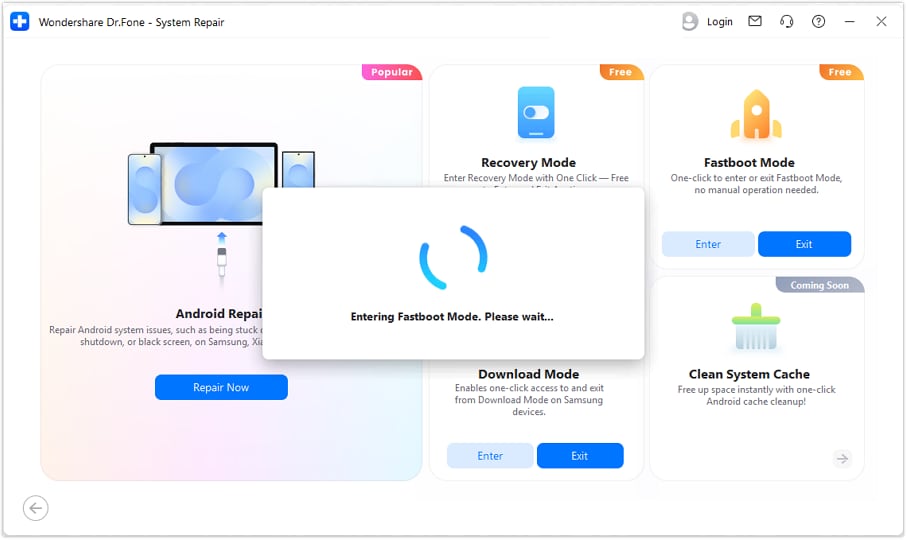
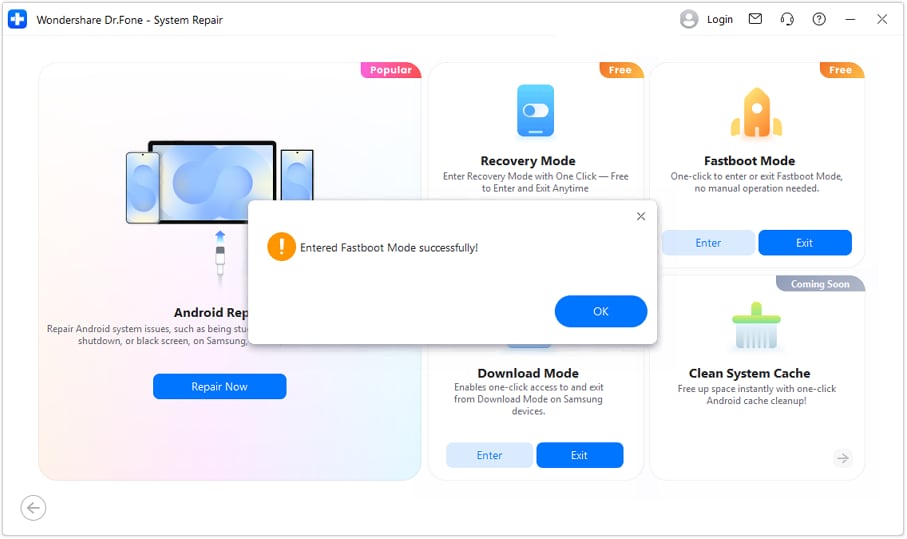
Once your device has successfully entered Fastboot Mode, you will see a message: "Entered Fastboot Mode successfully!" Click the OK button to acknowledge the confirmation and proceed with your tasks.
Part 2: Step-by-Step Guide to Exit Fastboot Mode
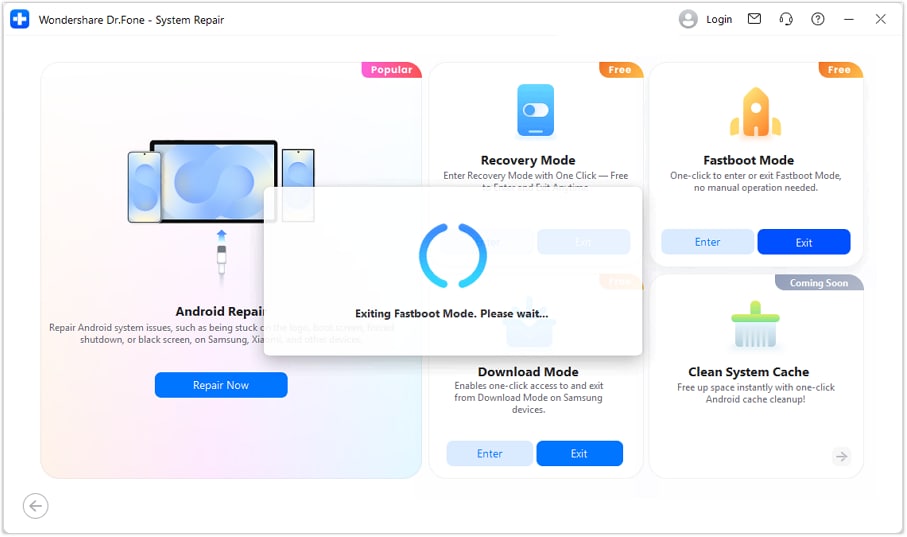
When you have completed your work in Fastboot Mode and are ready to return your device to normal operation,you can select Fastboot Mode on the feature screen,and click Exit to start exitting the device from Fastboot Mode.
Follow the on-screen prompt to begin exiting Fastboot Mode. Dr.Fone will handle the process automatically.
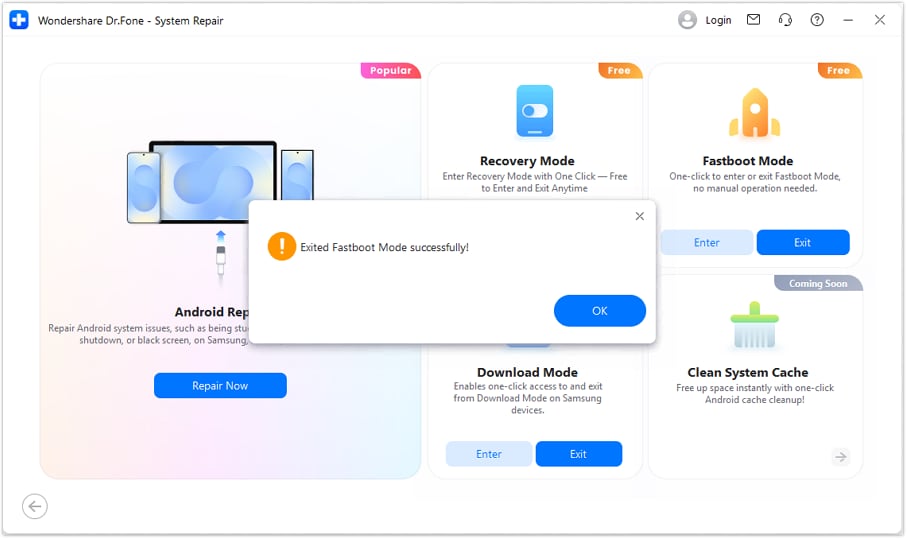
When the success pop-up appears, it means the device has exited Download Mode successfully.Click the OK button to close the confirmation dialog. Your device should now restart normally.
WHAT YOU'LL NEED

Dr.Fone provides a complete set of tools for solving all iOS/Android phone problems.
Need help?
You might find the answer to your question in the FAQ or additional information below:
FAQs
 How long does it take to enter or exit Fastboot Mode using Dr.Fone?Can I get stuck in Fastboot Mode if something goes wrong during the process?Will entering Fastboot Mode erase my data?Can I use Dr.Fone to enter Fastboot Mode if my phone's buttons are broken?What's the difference between Fastboot Mode and Recovery Mode?