How to Fix Xiaomi, Redmi, and POCO Phones and Tablets System Issues– No Root, No Data Loss?
Struggling with a Xiaomi device won’t boot, keeps restarting, shows a black screen, or gets stuck on the MIUI logo? Many Xiaomi/Redmi/POCO users run into common system issues such as boot loops after an update, firmware mismatch after an unsuccessful flash, system crashes, or MIUI lock problems that prevent normal use.
Dr.Fone - System Repair (Android) offers a focused Xiaomi system repair workflow that automatically detects compatible firmware, helps with firmware download, and reinstalls the system to recover devices. This Dr.Fone Android repair feature works without requiring Root access and ensures your data remains safe, simplifying Redmi/POCO firmware recovery and restoring devices without complicated manual flashing tools.
Follow this step-by-step guide to perform a Xiaomi/Redmi/POCO system repair with Dr.Fone, recover from crashes, and complete firmware download and reinstall processes quickly and securely.
Manage Your Phone Wherever You Go
How to Repair Xiaomi/Redmi/POCO Phones and Tablets Without Root or Data Loss?
Open Wondershare Dr.Fone on your computer and connect the device you want to repair using a USB cable. Choose System Repair to start.

* Dr.Fone Mac version still has the old interface, but it does not affect the use of Dr.Fone function, we will update it as soon as possible.
As you progress to the next screen, select Android to continue repairing the particular device type.

Choose the Android Repair feature. Click the Repair Now button to enter the Android repair progress.

When prompted, select the specific brand of your device — choose Xiaomi, Redmi, or POCO as applicable — then click Start. Selecting the correct brand directs the tool to scan for compatible firmware packages and device-specific repair options.

Dr.Fone will automatically search and present available firmware packages that match your Mi phone’s model and current system. Review the matched firmware options and select the appropriate firmware package. Click Download to proceed.
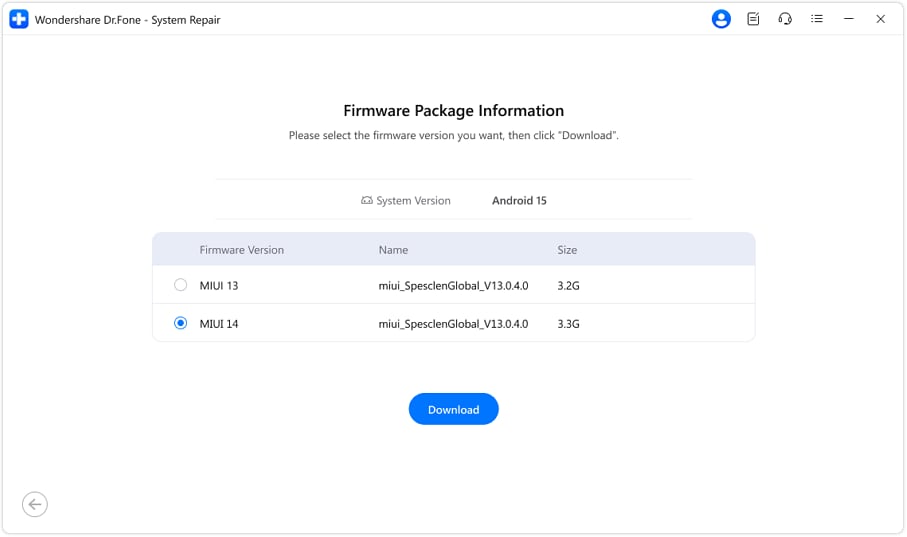
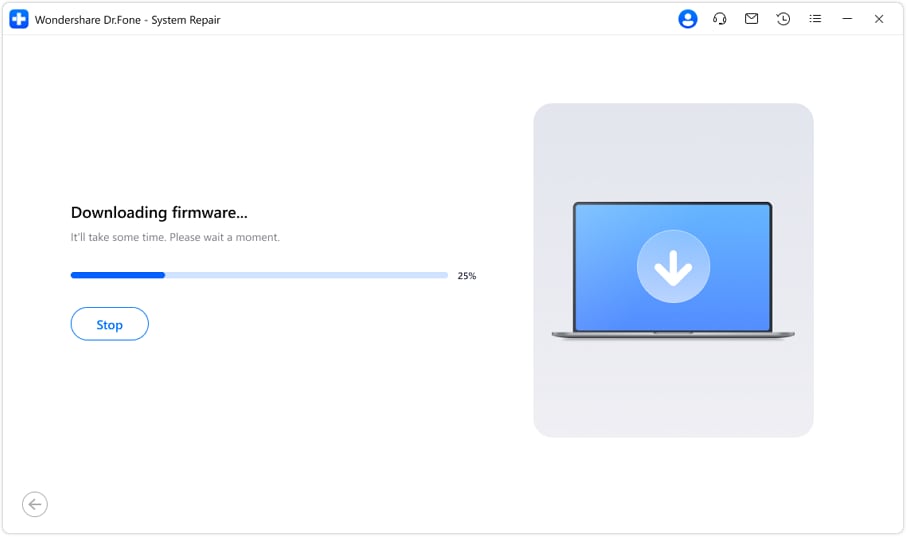
The firmware download screen will show progress for downloading the selected package. Download times vary by file size and internet speed. It will then unpack and prepare the firmware for installation and move you to the repair interface.
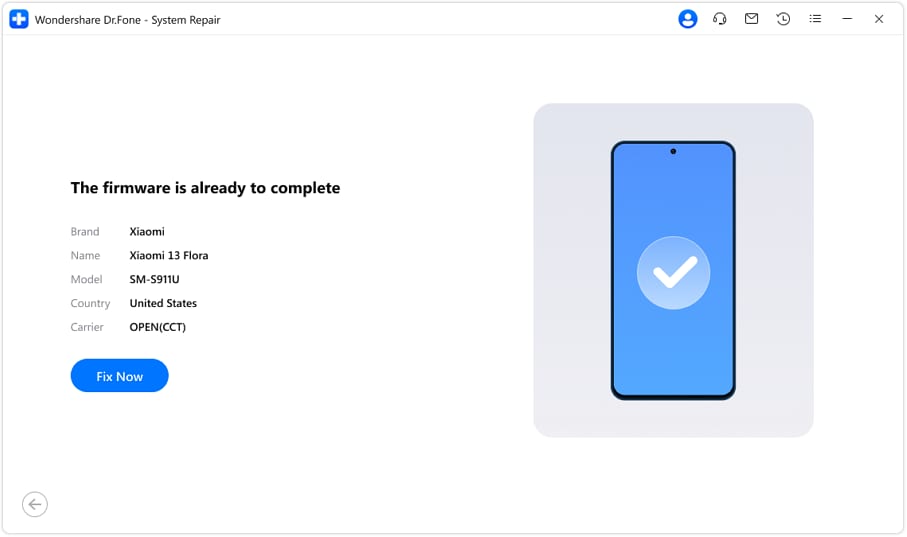
After the firmware package has been downloaded and prepared, Dr.Fone will display detailed device and firmware information. Confirm the details and click Fix Now to begin the system repair.
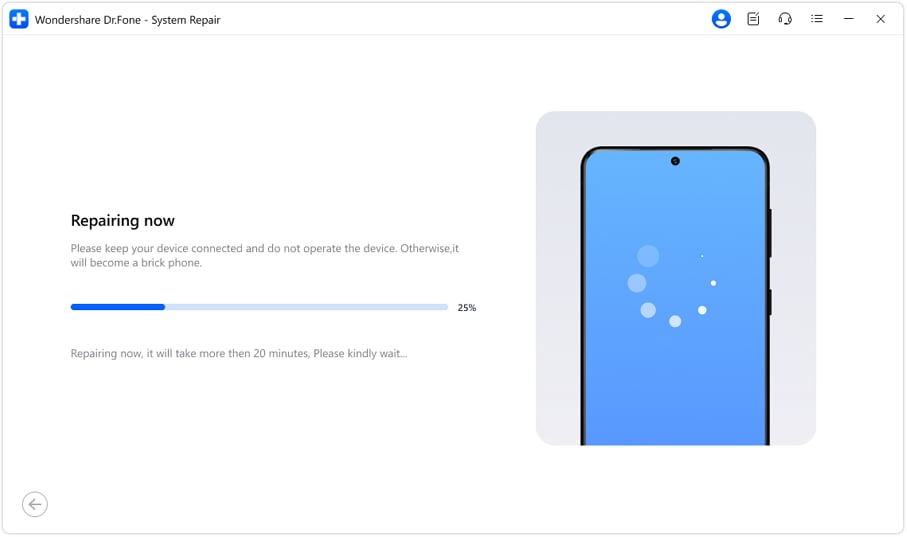
The repair process will run and show real-time progress. Do NOT disconnect or operate the Mi phone while the repair is in progress.
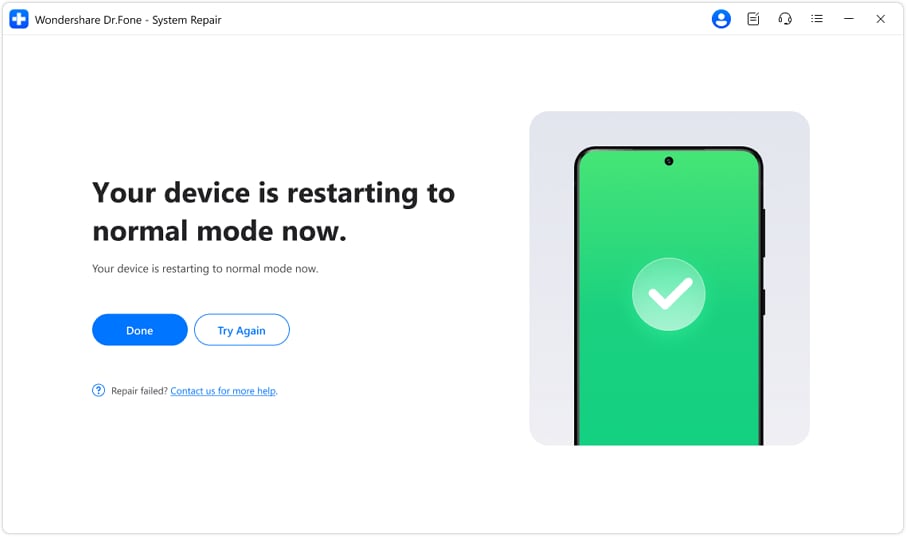
When the repair finishes, Dr.Fone will report success. Your device will reboot into the repaired system and should now function normally.
WHAT YOU'LL NEED
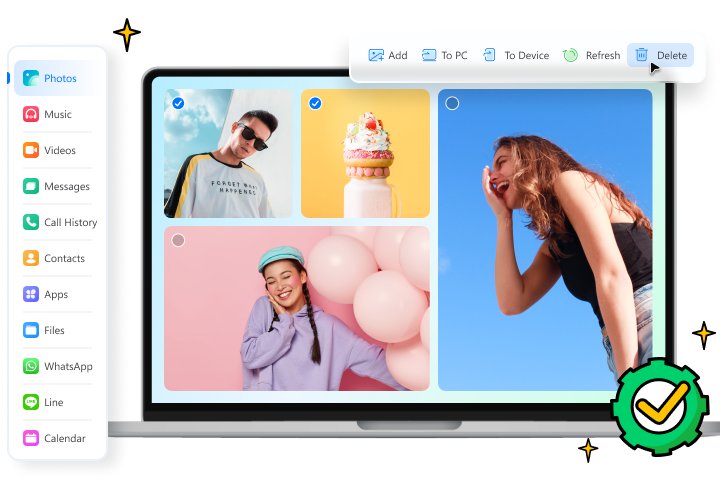
Dr.Fone provides a complete set of tools for solving all iOS/Android phone problems.
Need help?
You might find the answer to your question in the FAQ or additional information below: