How to Enter and Exit Android Recovery Mode for Free?
Is your Android stuck in a boot loop, freezing for no reason, or acting glitchy? Don’t panic.Recovery Mode is a built-in diagnostic environment that lets you troubleshoot and fix problems like app crashes, performance lag, and system freezes—all without wiping your personal data. Whether it's a black screen or forced shutdown, accessing Recovery Mode can restore your device to normal operation.
With Wondershare Dr.Fone - System Repair (Android) you can enter this diagnostic space with just one click—no need to memorize complex button combinations that differ across Samsung, Xiaomi, OPPO, and other devices. Best of all, this feature is completely free.Dr.Fone makes it equally simple to safely exit when you're done.
This guide walks you through the complete process step by step. Before you begin, make sure you are using the latest Dr.Fone version and connect your device to the computer
Supported Devices:
- Samsung: Compatible with all major Samsung devices, including both phones and tablets, such as the Samsung Galaxy S26 and S25 series.
Manage Your Phone Wherever You Go
Index
Part 1: Step-by-Step Guide to Enter Android Recovery Mode
Launch Wondershare Dr.Fone on your computer and open the Toolbox section from the left panel. Connect the phone or tablet that needs repair, then choose System Repair from the available tools.

When Dr.Fone moves to the next screen, choose Android to continue with the repair workflow for your device.

On the feature screen, select Recovery Mode and click Enter to start putting the device into Recovery Mode.

Note: Before clicking Enter, make sure the device is connected to the computer and already unlocked.
Dr.Fone will begin the Recovery Mode process automatically. Keep the device connected and wait for the process to finish.
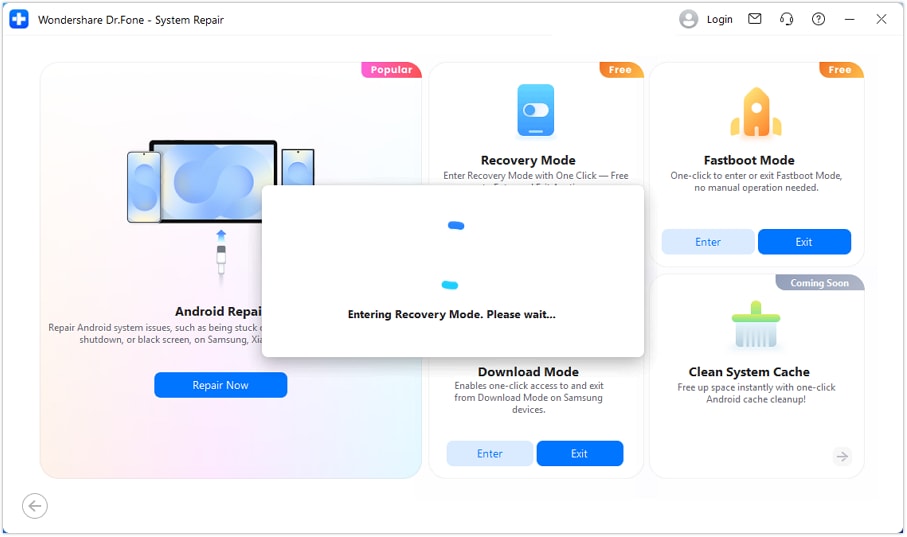
When the success pop-up appears, it means your device has entered Recovery Mode successfully and your device is now ready for troubleshooting.

Part 2: Step-by-Step Guide to Exit Android Recovery Mode
On the feature screen, select Recovery Mode and click Exit to start exitting.
When finished,follow the on-screen prompt to begin exiting Recovery Mode. Dr.Fone will handle the process automatically.Wait for the boot process to fully complete before using your device.

WHAT YOU'LL NEED

Dr.Fone provides a complete set of tools for solving all iOS/Android phone problems.
Need help?
You might find the answer to your question in the FAQ or additional information below:
FAQs
 Do I need to restart my device after the process completes?Is it safe to use Recovery Mode?What happens if I don't exit properly?Will my device settings be affected?What should I do if my device gets stuck during the process?