 Teleport your device anywhere instantly with one click.

 100% Security Verified | No Subscription Required | No Malware

 :
: 
 ChatGPT
 Perplexity
 Gemini
 Claude
 Grok
Grok
A colored ring appears around a Life360 member, and the map feels like a code. Purple may show beside one person, green beside another, while a grey profile can raise concern. The problem is that many online guides give these colors fixed meanings that Life360 does not confirm. Some even call orange a low-battery warning, although the app normally uses a battery icon or alert for that issue.
This guide explains the Life360 circle colors' meaning, why statuses change, what to check when sharing stops, and how to control your device’s location for testing or privacy.
In this article
Part 1. What Is Life360 Circle?
Life360 is a family safety app that helps you stay connected. Life360 Circle is a group that family members can create for sharing their live location. It becomes easier to clarify the whereabouts of anyone, whether he is at home or not.
In 2014, the service was launched. Although it is nothing new, it is nevertheless useful for parents who want to keep an eye on their children from a distance.
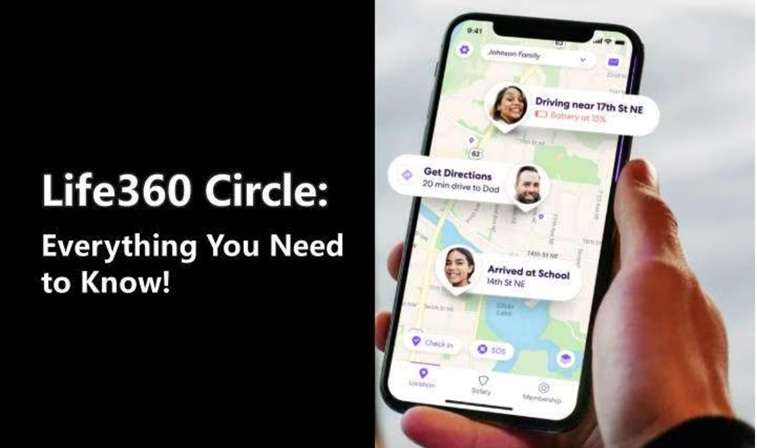
In addition to simple tracking, Life360 has more to offer. It can show driving details, including speed and other road activity. These updates give families a wider view of daily safety.
To read the map correctly, users also need to understand the Life360 circle colors' meaning. The next section explains what the different colors may show.
Part 2. Life360 Circle Colors Meaning: What Each Map Color Shows
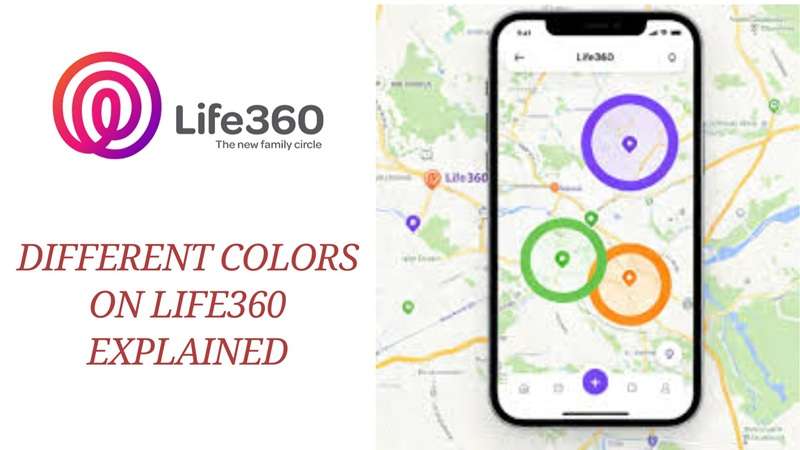
The different colors on Life360 are not linked to admin roles or Circle permissions. They act as changing status signs. Each color may reflect a member’s GPS signal, battery level, movement, or connection.
Purple Circle: Precise Location and Place Updates
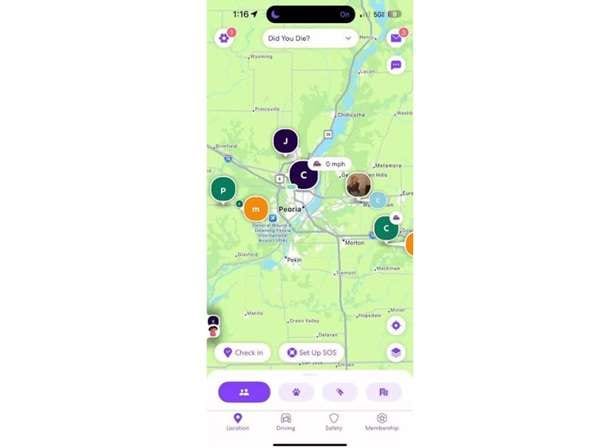
A Life360 purple circle shows that the device is sending a strong and precise GPS location. This usually gives the most accurate position on the map.
Purple may also appear around saved Places, such as Home or School, when an arrival or departure is recorded.

Green Circle: Active Location Sharing and Movement
The Life360 green circle meaning is simple: the phone is connected, active, and sharing location data. The app is also receiving regular updates.
A green circle may appear in different ways:
- Static green circle: The member is staying at one location.
- Green circle with a car icon: The member may be driving with Drive Detection turned on.
- Moving green circle: The person may be walking, biking, or traveling.
Orange Circle: Battery or Connection Warning
The Life360 orange circle meaning is usually linked to a low battery. It may appear when the phone’s battery drops below 20%.
A battery icon or low-battery alert may also appear. In some cases, orange can point to a weak network or a short GPS delay. On certain screens, the color may look yellow. Despite this, the same warning still appears.
Grey Circle: Location Unavailable or Sharing Paused
A grey circle means Life360 is not receiving fresh location data. The app may keep showing the member’s last known position and update time.
This may happen when:
- The phone is switched off.
- The battery has run out.
- Wi-Fi or mobile data is unavailable.
- Location sharing has been paused.
- Battery-saving settings have limited the app.
A grey circle that appears for a short time may only mean the phone entered an area with poor signal. If it stays grey, the device may be offline, or sharing may have stopped.
These colors provide a quick view of a member’s device status. The next section explains how Life360 collects and updates this information on the Circle map.
Part 3. How a Life360 Circle Keeps Members Connected
Life360 Circle helps parents and caregivers check where family members are. It shows each person’s position inside the shared Circle map.
Users can set alerts for important places. Life360 then sends a notice when someone arrives or leaves. This removes the need to watch the map all the time.
The app can also show a member’s location and speed while driving. You can tap their profile image to contact them or get directions to their position.
These updates help families stay informed. They also explain why the different colors on Life360 may change as a phone moves, connects, or stops sending data.
Part 4. Why Life360 Circle Colors Change in Real Time
A color change on the Life360 map does not always mean something is wrong. The colors might change based on the phone’s signal, battery, movement, or internet status.
Weak GPS Signal
When the GPS signal is weak, the purple circle may turn green. For example, when you’re in a parking garage or an area with tall buildings, you will see the change. In this instance, Life360 may use Wi-Fi or cellular data to determine the location.
Low Battery
A green circle may turn orange when the phone battery drops below 20%. This warns that the device may soon stop sending updates.
Driving and Movement
When a member starts driving, a car icon may appear inside the green circle. The circle may also pulse while the app refreshes the trip location.
Lost Connection
A circle may turn grey when the phone loses internet access, or the app is closed. Life360 may first try to reconnect before showing the member as offline.
These real-time changes explain why the Life360 color meaning can vary throughout the day. Users who need more control over the location shown on their own device can consider the option in the next section.
Part 5. [Pro Tip] Take Better Control of Your Life360 Location
After checking the different colors on Life360, you may also want more control over the location shown on your own device. Dr.Fone - Virtual Location offers a simple way to change GPS data on both iPhone and Android.
Dr.Fone - Virtual Location: Change GPS in One Click
Dr.Fone - Virtual Location lets you move your phone’s GPS position to another place. It is possible to choose virtually any location in the world.
This tool is also capable of copying real movement. You are able to set a route, add stops, and set a speed. The tool is compatible with a range of location-based applications like Life360, Snapchat, Instagram, Facebook, and Pokémon GO.
The software is compatible with both Windows and Mac computers, and iOS and Android systems.
Key Features of Dr.Fone - Virtual Location
- Change your GPS location with a few clicks.
- Select places from different parts of the world.
- Create routes with several stops.
- Set walking, driving, or custom movement speeds.
- Work with both iPhone and Android devices.
- Support popular social and location-based apps.
- Manage location privacy without changing your physical position.
 Set your map route to simulate GPS movement.
- Set your wanted movement speed.
- HD and large map view to check location.
- Fake GPS location to anywhere.
How to Change Life360 Location with Dr.Fone on a Computer
-
Step 1 Connect Your Phone
Download and install Dr.Fone - Virtual Location on your computer. Connect your iPhone or Android device with a cable. Open the tool and select Get Started.
-
Step 2 Open Teleport Mode
Wait for the map to appear. Select the third icon in the upper-right corner to open Teleport Mode.
-
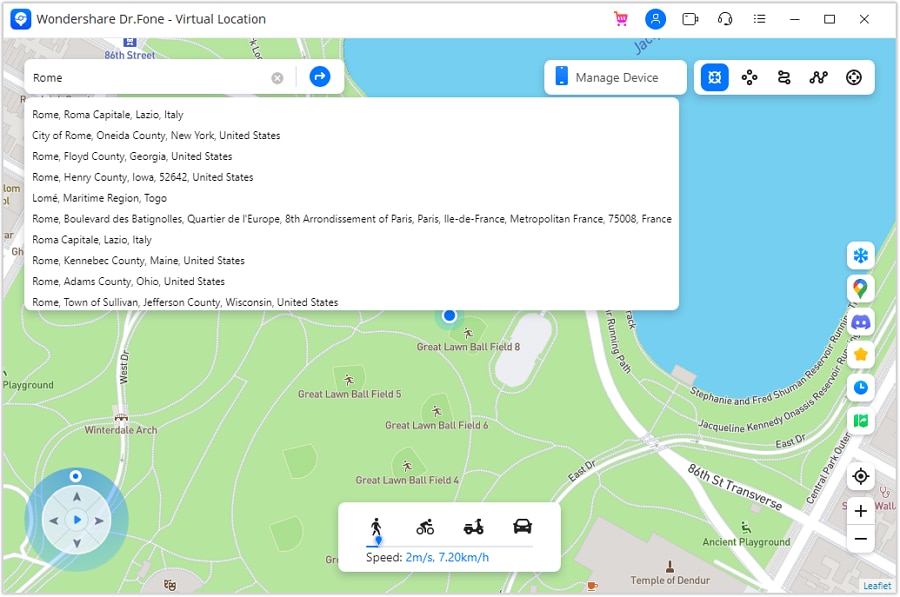
Step 3 Choose a New Place
Enter your preferred location in the search box. Select it and click Go.
-
Step 4 Apply the New Location
A box will appear with the selected location and distance. Click Move Here to update the GPS position on your phone.
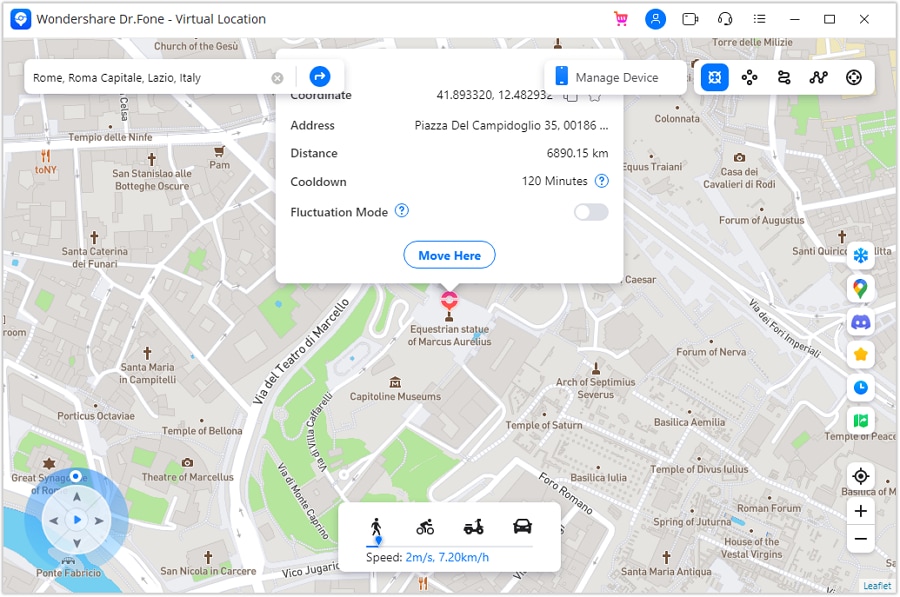
Your device will then show the chosen place instead of its current physical location.
Dr.Fone App - Change Location on Android
Android users can also change their GPS location without a computer. The Dr.Fone App - Change Location gives users direct control from their phones.
You can move your GPS coordinates to another place with one tap. The app also works with social platforms such as Facebook, Instagram, Twitter, Hinge, and MeetMe.
It can help users manage saved locations, reduce unwanted tracking, and control how their position appears in supported apps.




Conclusion
Life360 colors should never be read in isolation. A reliable reading of the Life360 circle colors' meaning comes from checking the color with the last update, battery icon, movement symbol, and connection message. This helps separate a weak signal from paused sharing, a dead phone, or a delayed refresh. The different colors on Life360 may change as the device moves or its network status shifts, so context matters more than any single shade. For controlled GPS testing or privacy on a device you own, Dr.Fone - Virtual Location offers a practical way to set a virtual point or simulate movement.
FAQ
-
1. What do the different colors on Life360 mean?
Purple means precise GPS, green means active sharing, orange indicates low battery or weak signal, and grey means location is unavailable or paused. -
2. Does orange mean low battery on Life360?
Yes, an orange circle usually appears when the device battery drops below 20%. It may also indicate a temporary GPS or network issue. -
3. Why is someone’s Life360 circle grey?
A grey circle means the app isn’t receiving live location data. This could be due to a dead battery, no internet, or location sharing being turned off. -
4. Can I change my Life360 location?
Yes, using tools like Dr.Fone - Virtual Location, you can simulate a different GPS location on your iPhone or Android device for testing or privacy.
 Add Wondershare Dr.Fone as a preferred source on Google



