
How to Record Instagram Live (Viewer & Host Guide for Desktop and Mobile)

Oct 24, 2026 • Filed to: Phone Mirroring Solutions • Proven solutions
 TL;DR:
Viewers can record Instagram Live broadcasts without triggering host notifications by using OS-level screen recording tools, while hosts can natively save their own completed sessions directly to their devices.
● Mobile viewers must use devices running Android 11 or iOS 11 and newer to access built-in screen recorders, and should activate Do Not Disturb mode to block intrusive notifications during the stream.
● The native Save option provided to hosts at the end of a broadcast strictly downloads the raw video, permanently discarding all live comments, audience reactions, and interactions while potentially compressing video quality.
● Lengthy broadcasts prone to mobile lag or dropped frames are better recorded via desktop environments using Windows Xbox Game Bar, Mac QuickTime Player, or Dr.Fone - Screen Mirror for enhanced hardware stability.
Ask AI for a summary
 ChatGPT
 Perplexity
 Gemini
 Claude
 Grok
Grok
Dr.Fone Basic:
Better Control for Your Phone
Manage, transfer, back up, restore, and mirror your device
Instagram Live is more about interacting now – interviews, product demos, Q&As, and casual chats that disappear as soon as the moment is gone. But the thing is, Instagram doesn't let fans record the Live directly. The only person capable of rescuing the Live from being completely lost is the host, who can do so by either downloading it to their device or, if allowed, posting it as a reply on their profile.
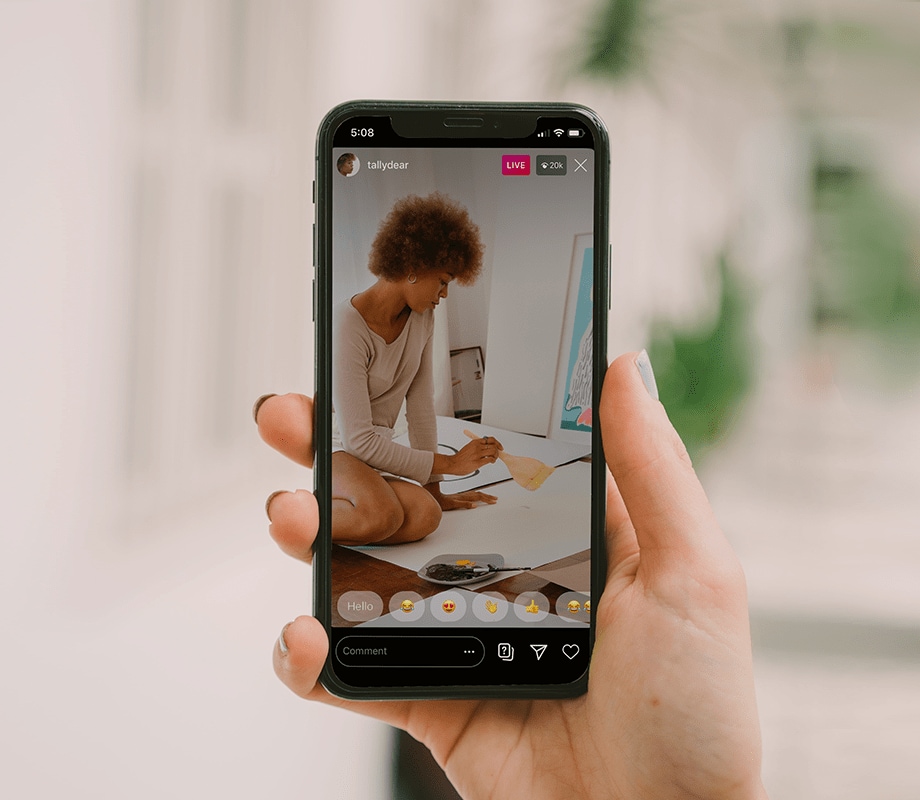
Because of this limitation, both viewers and hosts quite often resort to employing the native screen recording capabilities (Android, iPhone, Windows, Mac) or using professional third-party recording tools to record the stream. Here, you will learn the methods for recording Instagram Live.
 safe & secure
4,624,541 people have downloaded it
- Part 1. Can You Record Instagram Live as a Viewer?
- Part 2. Record Instagram Live on Mobile (Quickest Way)
- Part 3. Record Instagram Live on Desktop (More Control)
- Part 4. Record Instagram Live Using Dr.Fone - Screen Mirror (Best for Long or Professional
Use)

- Part 5. How to Record Your Own Instagram Live (For Host)
- Part 6. Common Problems When Recording Instagram Live (And Fixes)
Part 1. Can You Record Instagram Live as a Viewer?
Does Instagram notify the host if you record?
Instagram won't notify the host if you record their Live video by screen recording your device (phone, tablet, computer). Screen recording is an OS-level feature (Android, iOS, Windows, macOS), and Instagram is not currently sending any kind of alert for livestream recording purposes. This also applies to most of the standard posts, reels, and stories.
Screen recording vs screenshots on Instagram
As far as notifications are concerned, there is almost no difference; Instagram does not notify its users if they take screenshots or screen record Live videos. Both actions are saved in your device memory only. Since a screenshot only captures a single frame, a screen recording, on the contrary, captures the entire audio and video in real-time, thus being the most efficient method to record the whole Live session.
Myths vs facts about Instagram Live viewer recording
- Myth: Instagram gives notifications to those whose Live videos get recorded. Fact: No notification is made for Live screen recording.
- Myth: It is possible to detect recording a Live through third-party apps. Fact: Basically, apps don't have the capability to check for your phone's native screen record operation.
- Myth: It is impossible for viewers to keep Instagram Live recordings. Fact: Although Instagram has no saving feature for viewers, recording the screen is a way to keep the broadcast.
Privacy limitations you should know before recording
Technically, you can record Instagram Live. However, from an ethical point of view, you should probably not do that if the broadcaster has not given their consent. You could be infringing on their right to privacy, you could be committing copyright infringement, or you could be violating the platform's rules all these are real risks if you share or redistribute Live content recorded without the broadcaster's permission.
Part 2. Record Instagram Live on Mobile (Quickest Way)
If your goal is to record an Instagram Live on your phone, the simplest and fastest method is going to be screen recording, as both Android and iPhone devices have this feature built in. These native features not only allow you to capture the video but also the audio of your screen at a very good quality and you won't even have to install any third-party apps or sign into any extra software.
2.1 How to Record Instagram Live on Android
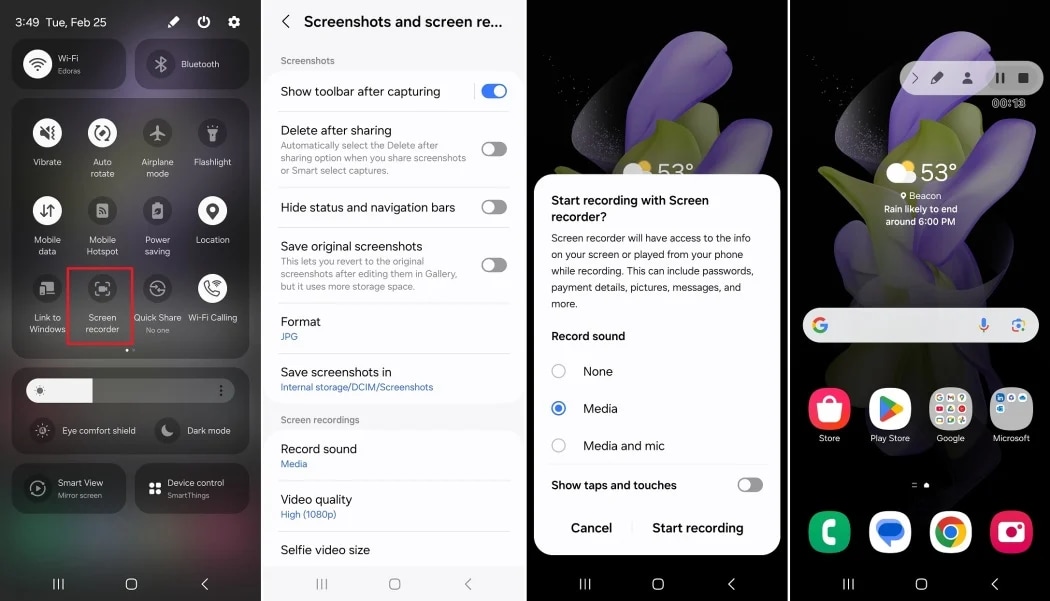
Most Android phones (Android 11 and later) include a default screen recording feature inside Quick Settings. Here's how to record an Instagram Live:
- Step 1. Open Instagram and join the Live video you want to record.
- Step 2. Swipe down from the top of your screen to access Quick Settings.
- Step 3. Tap Screen Recorder (swipe sideways if you don't see it immediately).
- Step 4. Select audio options (choose Device audio to record the Live sound).
- Step 5. Tap Start Recording and begin watching the Live.
2.2 How to Record Instagram Live on iPhone
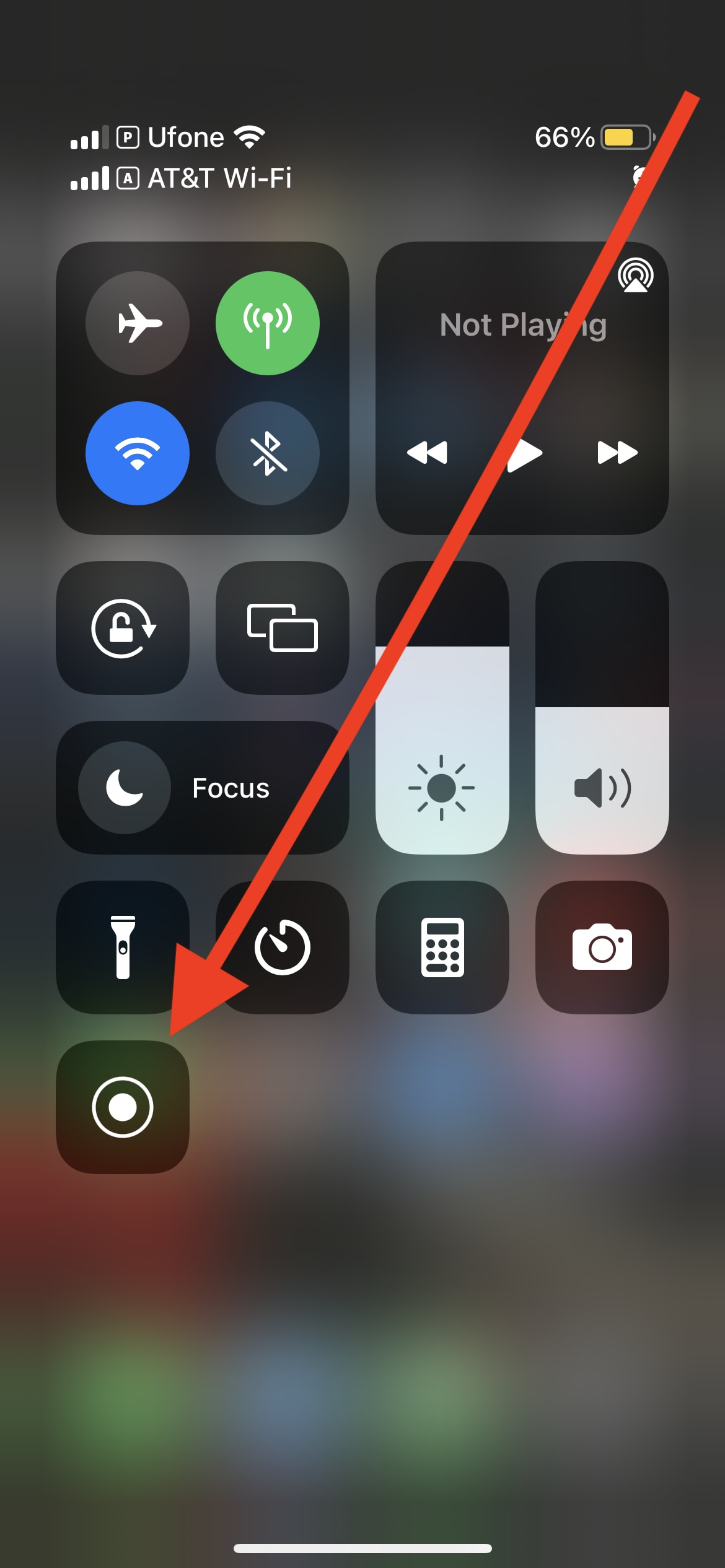
iPhones running iOS 11 or later have the nice feature of built-in screen recording, which you can easily access via Control Center.
- Step 1. Go to Settings > Control Center and add Screen Recording there if it's not already part of Control Center.
- Step 2. Launch Instagram and access the Live video. Bring up Control Center (on newer iPhones, swipe down from the top-right corner).
- Step 3. Press the Screen Record icon.
- Step 4. After the 3-second countdown, the recording will start by itself.
- Step 5. When you finish, tap the red recording sign at the top of the screen and choose Stop.
If you're using either an Android or iPhone, enabling the Do Not Disturb mode can be a great way to keep notifications away from your recording.
Part 3. Record Instagram Live on Desktop (More Control)
Recording Instagram Live via desktop offers more advantages than going through the phone. You can enjoy a bigger screen for viewing, have better control over the resolution, get a stable internet connection, and it is easier to manage files.
3.1 How to Record Instagram Live on Windows
If you're using Windows, you can simply view Instagram Live via a web browser and employ the Xbox Game Bar that comes with the OS to make a screen recording. No extra applications need to be downloaded with this approach, and it demonstrates that capturing video plus system audio can be quite easy and efficient.
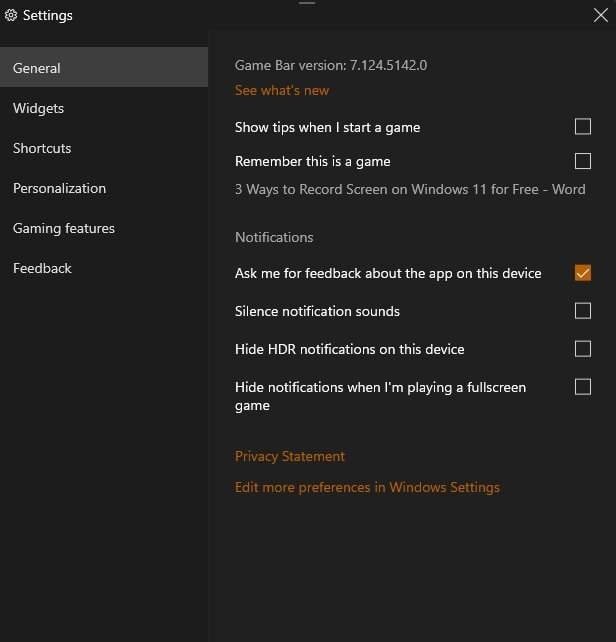
- Step 1. There are two ways you can open the Xbox Game Bar. For one, you can look up the tool in the Windows Search Bar. Second, you can use the shortcut keys, i.e., Windows key + G.
- Step 2. After starting the application, a toolbar will appear on the top of the screen. To change the recording settings, press "Settings".
- Step 3. Press the "Capture" tab and then initiate a recording. Alternatively, you may press the shortcut buttons, Windows key + Alt + G to begin recording instantly.
- Step 4. After stopping the recording, press "Show all captures" to open the folder where your screen recordings are kept.
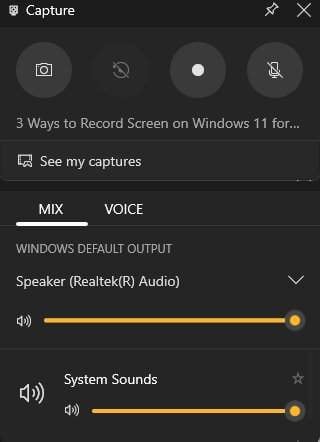
Note: Does the game Bar not appear on the screen? You can switch on the Xbox Game Bar by going to " Settings > Gaming". After that, click on "Xbox Game Bar" and toggle the switch to ON."
3.2 Recording Instagram Live on Mac
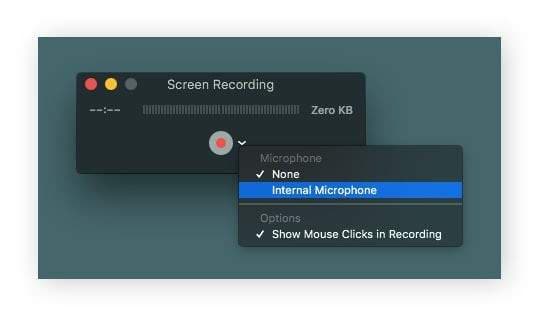
Mac owners can easily capture Instagram Live through the QuickTime Player's screen capture tool built into macOS. This default utility offers a neat recording quality and straightforward export options without any extra software. Here's how to record Instagram Live on Mac:
- Step 1. Open your Finder and go to Applications folder. Double-click QuickTime Player then drop down the File menu at the top of the screen and select New Screen Recording.
- Step 2. For recording of external sound not included, the user can press the arrow beside the Record button and choose None for the microphone.
- Step 3. Press the Record button if you want to start recording.
Part 4. Record Instagram Live Using Dr.Fone - Screen Mirror (Best for Long or Professional Use)
When it comes to extensive Instagram Live broadcasts or top-notch professional videos, native screen recording may not be enough and is likely to cause lag, dropped frames, or even limit the control over audio and video quality. This is where Dr.Fone - Screen Mirror excels. It offers you a desktop professional-grade setup for recording Instagram Live by providing features like stability, flexibility, and quality, which a mobile-only recording cannot achieve.

Wondershare Dr.Fone
Mirror iOS/Android Phone, Tablet & iPhone to Computer in Clicks
- Mirror iOS/Android screen to computers with a cable or Wi-Fi.
- Extend your device screen to your PC or Mac.
- Record iOS/Android screen and take screenshots from PC or Mac.
- Control your iOS/Android phone/tablet on a PC.


Brief Step by Step Method
Install Dr.Fone Link on your Android device, open Dr.Fone on your PC, go to My Device > Wireless > Screen Mirror, and connect both devices to the same Wi Fi network. Once mirrored, use your computer to record, take screenshots, rotate the screen, or disconnect when finished.

safe & secure4,624,541 people have downloaded it
Part 5. How to Record Your Own Instagram Live (For Host)
As the host of an Instagram Live, you have more options when it comes to saving your video than the viewers do. Once your Live is over Instagram gives the host a native download option at the point where the Live ends so the video can be saved to the device directly.
Using Instagram's native download option
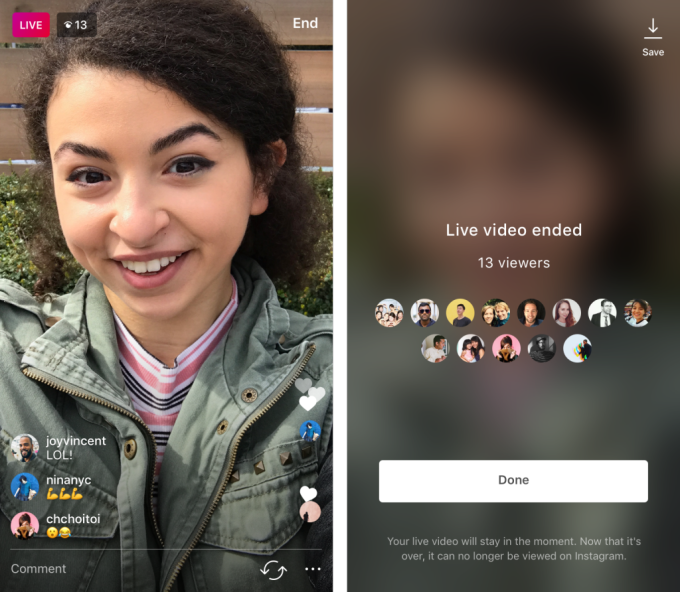
Step 1. End your Instagram Live as usual.
Step 2. Tap Save in the top-right corner of the screen before exiting.
Step 3. The video will be saved directly to your phone's gallery.
Note: This method may compress video quality and does not save comments, reactions, or live interactions.
Part 6. Common Problems When Recording Instagram Live (And Fixes)
- No sound is heard from the recording: On mobile, verify that Device audio is enabled or if you are recording on desktop, ensure that your recorder is set to capture system sound.
- Frozen screen: Give Instagram a restart or power your phone off and on again. Also, check if the screen recorder has the required permissions.
- Dropped frames or lag: Close the apps that you don't use if you have too many of them running in the background. Also, reduce the recording resolution and keep the Wi-Fi connection stable.
Conclusion
Knowing how to record Instagram Live, either as a host or a viewer, is easier than expected. Mobile built-in screen recorders are simple and quick solutions, whereas you can get higher quality, better stability, and more control for professional or long sessions with desktop tools and mirroring software like Dr.Fone - Screen Mirror.
If you comprehend the differences among native recording, external tools, and mirroring, and if you stick to the best practices for audio, video, and storage, you will be able to capture every Instagram Live in a smooth and reliable manner.
safe & secure4,624,541 people have downloaded it
Dr.Fone Basic:
Better Control for Your Phone
Manage, transfer, back up, restore, and mirror your device


Screen Recorder
- 1. Android Screen Recorder
- Best Screen Recorder for Mobile
- Samsung Screen Recorder
- Screen Record on Samsung S10
- Screen Record on Samsung S9
- Screen Record on Samsung S8
- Screen Record on Samsung A50
- Screen Record on LG
- Android Phone Recorder
- Android Screen Recording Apps
- Record Screen with Audio
- Record Screen with Root
- Call Recorder for Android Phone
- Record with Android SDK/ADB
- 10 Best Game Recorder
- Android Mp3 Recorder
- Free Android Voice Recorder
- Android Record Screen with Root
- 2 iPhone Screen Recorder
- How to Turn on Screen Record on iPhone
- Screen Recorder for Phone
- Screen Record on iOS 14
- Best iPhone Screen Recorder
- Screen Record on iPhone 11
- Screen Record on iPhone XR
- Screen Record on iPhone X
- Screen Record on iPhone 8
- Screen Record on iPhone 6
- Record iPhone without Jailbreak
- Screen Record on iPod
- iPhone Screen Video Capture
- Free Screen Recorder iOS 10
- Emulators for iOS
- Free Screen Recorder for iPad
- Free Desktop Recording Software
- Record Gameplay on PC
- How to Record Clash Royale
- How to Record Pokemon GO
- Geometry Dash Recorder
- How to Record Minecraft
- Record YouTube Videos on iPhone
- 3 Screen Record on Computer

 > How-to > Phone Mirroring Solutions > How to Record Instagram Live (Viewer & Host Guide for Desktop and Mobile)
Jane Lunes
staff Editor