
AOL Mail Password Reset: How to Change AOL Mail Password (2026)

Dec 31, 2025 • Filed to: Password Recovery Solutions • Proven solutions
An AOL Mail password change is a situation that should happen to any user, at least once. The company AOL has been existing for a very long time, and there are still a great number of people who use the same account on different devices like phones, laptops, and apps. With time if you are someone who keeps himself logged in for long intervals, it is quite easy to forget your login details. In such cases, you will be locked out from your important emails, contacts that you have saved, and services that you have linked.
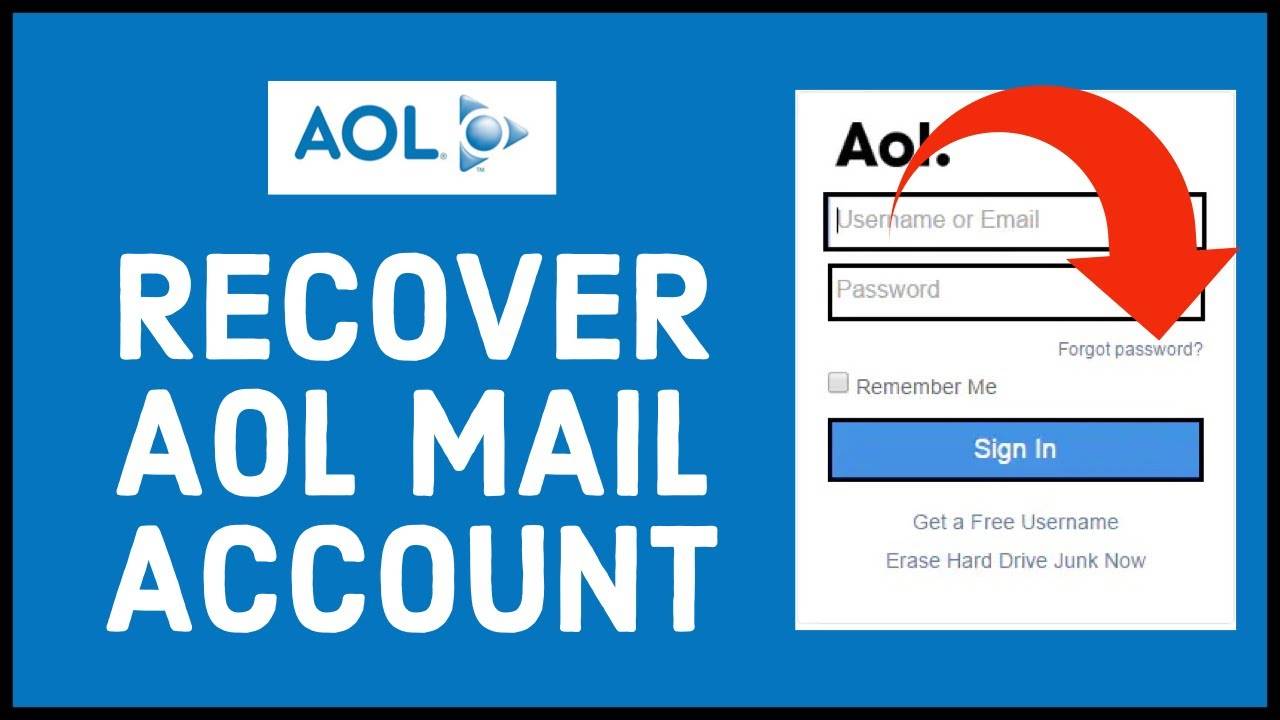
Many users search for terms like how to change password for AOL Mail or how can I get my AOL password because they suddenly get logged out or switch to a new device. Others face problems due to a hacked account or outdated recovery details. To make this easier, this guide provide multiple methods to reset, recover and change password for AOL Mail.

Part 1. What Is AOL Mail Password Reset?
An AOL Mail password reset is the process that helps you recover access to your email when you can't remember the login credentials or when your password no longer works. Many people need an AOL mail password reset because they have used AOL for years without changing anything. When the app logs out, they suddenly realize they don't remember the password.
There are many common reasons people search for how to reset AOL mail password.
- You may have forgotten your AOL mail password after a long time, or someone may have changed it without your permission.
- Sometimes, users lose access to their recovery email or phone number, which makes the process harder.
- Others try to use AOL on a new phone or computer and realize they don't remember the password at all.
In these cases, a tool like Dr.Fone - Password Manager (iOS) becomes very helpful. It can scan your iPhone and retrieve stored AOL login details. This means you can recover your AOL email password without guessing or resetting it. Dr.Fone also helps if you want to know how to find AOL password because it shows any saved credentials from your device.
By checking stored details first, you may avoid a reset completely. This keeps your account safe and saves time, especially if you also forgot the recovery email or number. Dr.Fone supports the main goal of this guide — helping you view, retrieve, and recover your AOL password most easily.
Part 2. How to Reset AOL Mail Password (Forgot Password Scenario)
It is really quick and easy to reset your AOL mail password if you cannot recall it. Simply go to AOL's official login recovery page and carry out the reset. The process is very straightforward and suitable for anyone who wants to regain access to their AOL email by using a phone number or a recovery email that is associated with their account.
-
Step 1: Open AOL.com and Start the Reset
-
Step 2: Verify Your Identity
-
Step 3: Create a New AOL Password
-
Step 4: Sign Back Into Your AOL Account
-
Step 5: Tips to Avoid Future AOL Password Reset Issues
- Use a strong, unique password.
- Store it in a password manager.
- Keep your recovery phone and email updated.
- Avoid sharing your login.
Open any browser and go to AOL.com. On the sign-in page, type your AOL username and click "Next." When the password box appears, select "Forgot password?" to begin the recovery process.

AOL will now ask you to confirm that the account belongs to you. Depending on your security settings, AOL may send a one-time verification code to your recovery email or phone number. Enter the code exactly as received and continue.

Once your identity is confirmed, AOL will take you to the password reset page. Enter a new, strong password that you haven't used before. This step completes the AOL password reset process.
After saving your new password, AOL will show a confirmation screen. You can now log back into your mailbox using your updated login details and regain full access to your emails.
To avoid another AOL Mail password reset, follow these tips:
These simple steps help prevent future problems with "how to find my AOL password".
Part 3. How to Recover or Find AOL Password
If you can't remember your AOL password, there are a few reliable ways to get back into your account. Start with simple options like checking Auto-Fill on your browser or iPhone. If that doesn't work, the most effective method is using Dr.Fone – Password Manager, which can retrieve your saved AOL password directly from your iPhone without needing your recovery email or phone number.
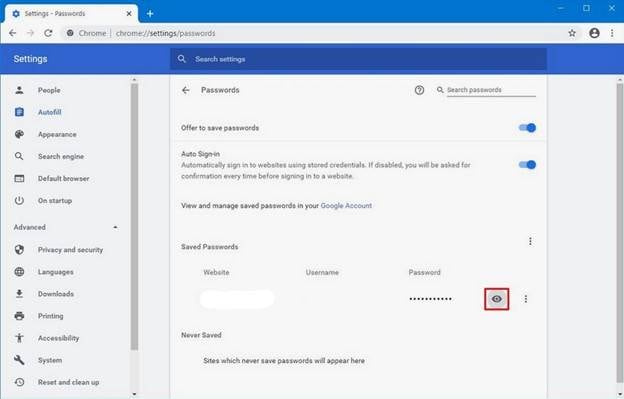
3.1 Try Auto-Fill (Browser / iPhone Saved Passwords)
Before moving to advanced tools, check whether your AOL login is already saved on your device:
Chrome / Edge:
Go to "Settings > Passwords" and search for "AOL".
Safari / iPhone:
Go to "Settings > Safari > Passwords" and search for your AOL email.

If the password was stored previously, you can view it instantly.
3.2 Retrieve AOL Password with Dr.Fone – Password Manager (Primary Method)
If Auto-Fill doesn't help — or if you forgot both your AOL password and the recovery email/phone number — the most effective solution is Dr.Fone - Password Manager (iOS) .
This tool securely scans your iPhone or iPad and recovers all saved passwords, including Gmail, Yahoo Mail, Zoho, Facebook, Instagram, Amazon, Reddit, TikTok, Netflix, and more. It works on iOS & iPadOS 26 and does not require jailbreaking. It can also retrieves app logins, Wi-Fi passwords, Apple ID , and Screen Time passcodes.

Dr.Fone - Password Manager (iOS)
Key Features of Dr.Fone- Password Manager
- Unlock and manage various passcodes, PINs, Face IDs, Apple ID, WhatsApp password reset, and touch ID without limitations.
- To find your password on an iOS device, it effectively functions without harming or leaking your information.
- Ease your job by finding any strong password across various platforms to manage multiple email accounts.
- The installation of Dr.Fone on your device won't take much space without any disturbing ads.


How to Recover Your AOL Password Using Dr.Fone (Step-by-Step)
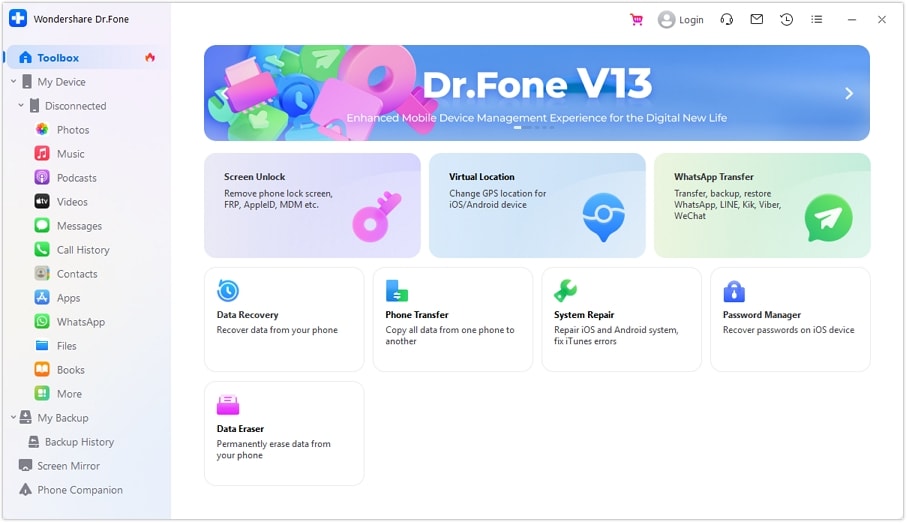
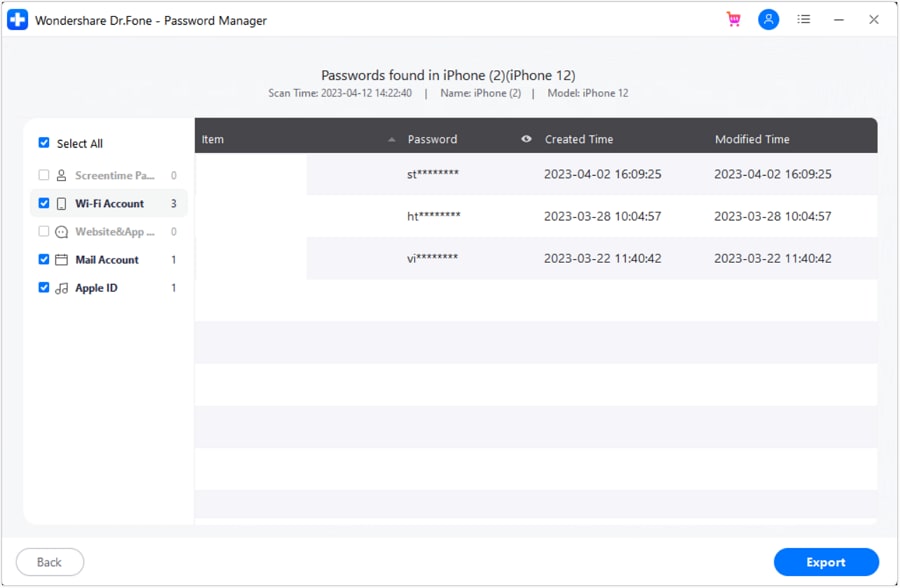
- Step 1. Open Dr.Fone on your computer, then select "Password Manager," then connect your iPhone/iPad using a USB cable.
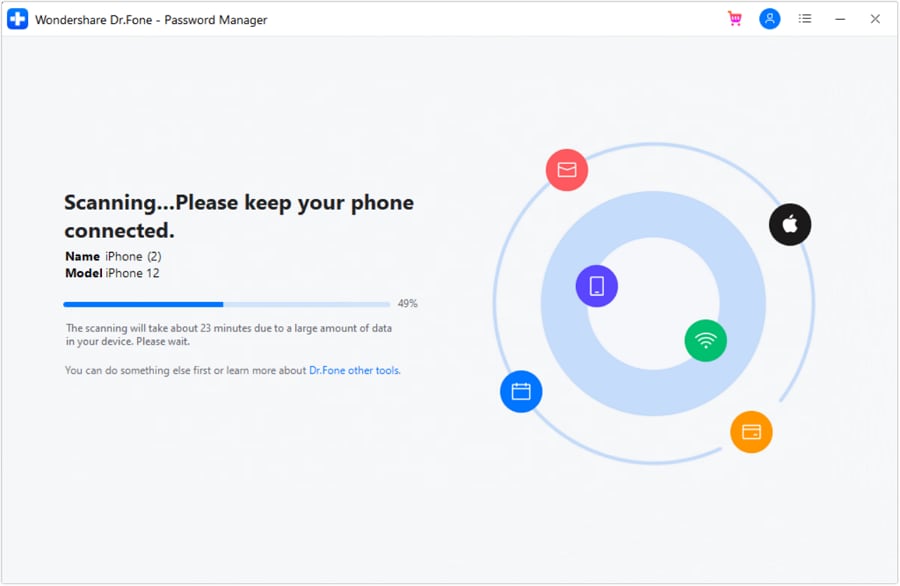
- Step 2. Click "Start Scan." Dr.Fone will begin scanning all saved passwords stored on your device — emails, apps, Wi-Fi, accounts, and AOL login details.
- Step 3. Once the scan finishes, navigate to the Email Accounts section. Find AOL, click View, and your saved AOL password or username will appear.
 safe & secure
3.3 Official AOL Recovery Options
If the above methods do not work, you can still reset your password using AOL's official methods:
- Reset via recovery email
- Reset via phone number
- Answer security questions
- Use the AOL Account Recovery page
These options require access to your registered recovery details — which is why Dr.Fone is often the easier choice.
3.4 Alternative Paths & Device-Based Reset Methods
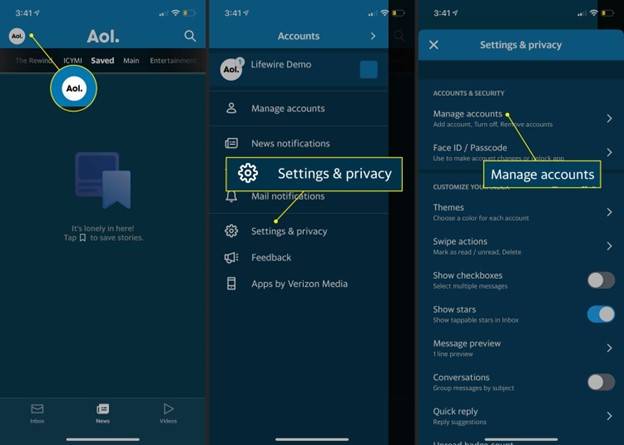
If the standard steps do not work, you can try different device-based methods. One simple way is to reset your login using the AOL mobile app. Just open the app, go to "Settings > Manage Accounts," and follow the forgot AOL mail password prompts.
You can also reset your login on any desktop browser. The steps are the same: open the sign-in page, choose AOL Mail password reset, verify your identity, and make your new password.
For accounts with two-factor authentication (2FA) enabled, AOL sometimes asks you to use an App Password. This special password helps you sign in on older apps that cannot handle 2FA. It's also helpful if you want to know "how can I get my AOL password" or sign in quickly on another device.
Part 4. How to Change AOL Mail Password (If You Still Know It)
Changing your AOL password could not be simpler if you still recall your login details. It is useful when you want more security or when you think that someone might know your old password. There is a large number of users who make it a habit of changing their passwords for AOL mail frequently in order to keep safe from hackers. The procedure you choose may be on your computer or on your mobile device and you can still carry out the task by using the steps below. These steps will work out perfectly for you even if at some point you forgot your AOL mail password and had to reset it.
-
Step 1: Log in to Your AOL Account
-
Step 2: Open Account Security Settings
-
Step 3: Select "Change Password"
-
Step 4: Set & Save a New Password
-
Step 5: Update Password on All Devices
Start by signing in to your AOL account. Open your browser and go to the AOL login page. Enter your email and your current password.

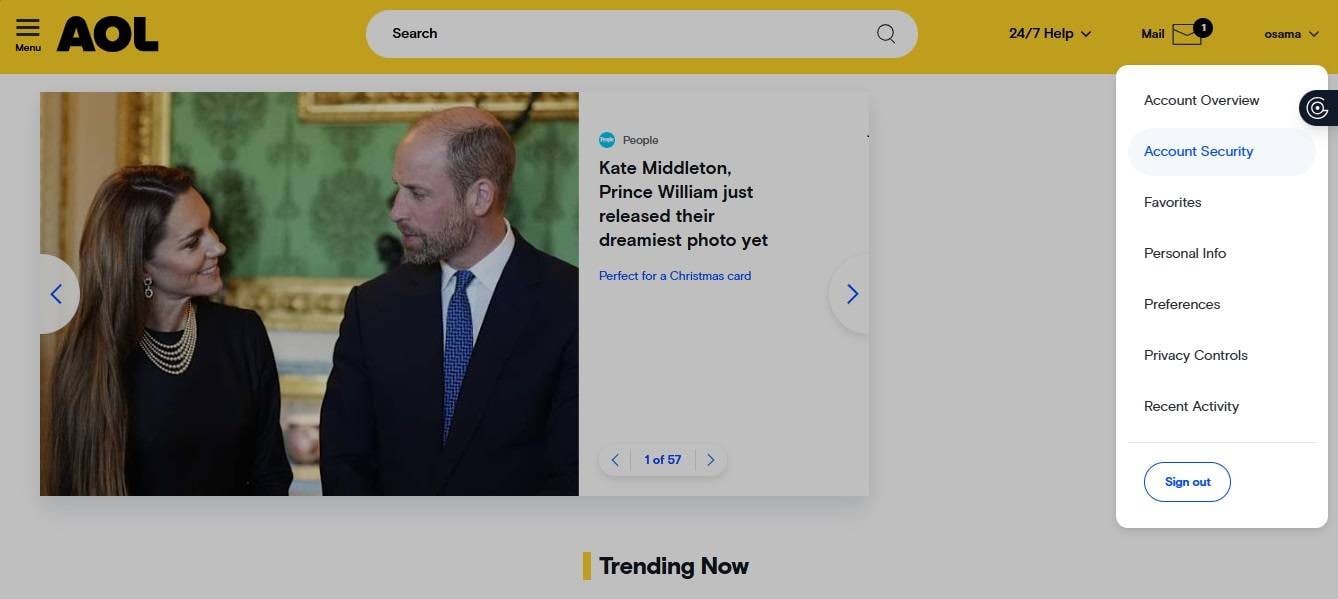
Once logged in, go to your "Account Security" page. This is where you manage how to change AOL mail password. You will see different options related to safety and login details.
Scroll until you find the "Change Password" option. Click on it. If you are using the AOL app on mobile, tap "More," then "Settings," then "Manage Accounts," and follow the steps until you reach Change Password.
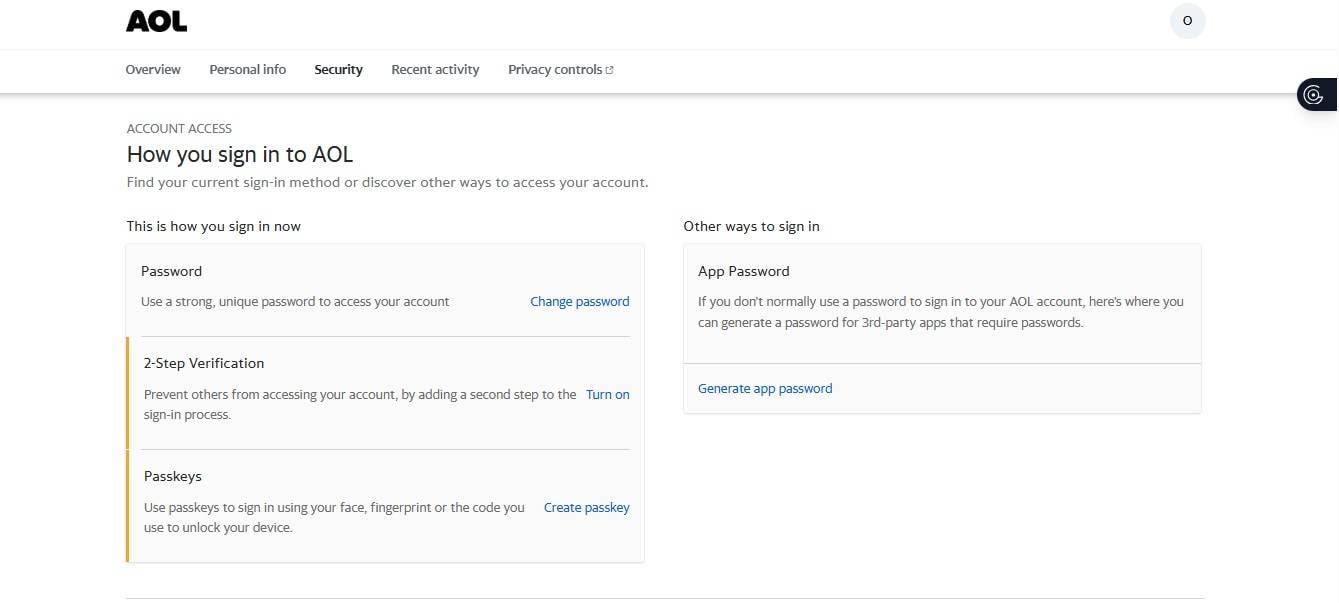
Type your new password. Make sure it is strong, unique, and not easy to guess. Avoid simple patterns or old passwords.
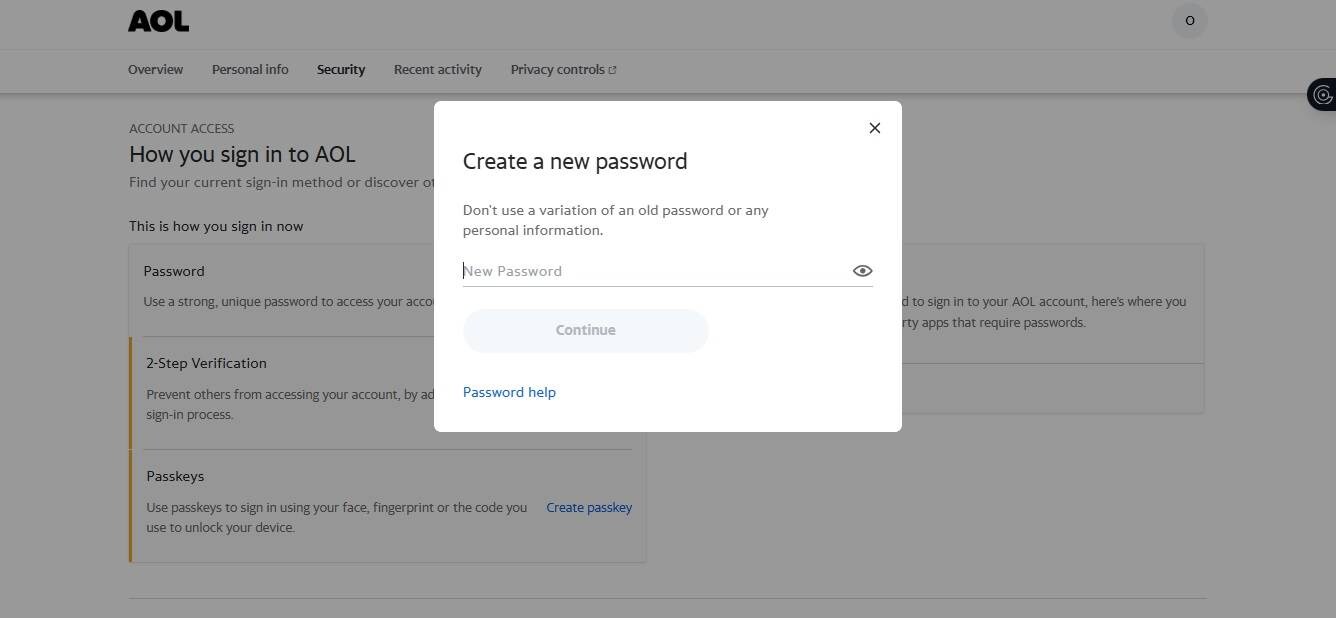
After saving your new password, update it on all devices where your AOL account is logged in—your phone, tablet, and computer. This helps prevent login errors and avoids future recovery of AOL email password issues.
Your new password is now active, and your account is safer.
Part 5. Prevent Future AOL Mail Password Reset Problems
It is easy to fix an AOL mail password reset issue once, but stopping it from happening again is even more important. A strong and simple routine can save you from stress, lost access, and repeated attempts to recover your AOL email password in the future.
First, always create strong and unique passwords. Do not reuse old passwords on different accounts. A complicated password is one of the ways that it will be very difficult for a hacker to gain access to your AOL account, thus the possibility of you requiring to perform an AOL mail reset password will be kept at a minimum. Incorporate letters, numbers, and symbols in your password, however, it is advisable that you keep it in a way that you can still remember.
Second, use a password manager. A tool like Dr.Fone - Password Manager is very helpful. It can safely store and organize all your AOL login details on your iPhone.
Next, always keep your recovery email and phone number updated. This is key for fast account recovery. If these details are outdated, you may not be able to reset your password on AOL email. Finally, check your recovery settings once in a while. Small updates can save you from bigger problems later.
Conclusion
Resetting or changing an AOL password is easy if you take the proper steps. If you want to change your AOL mail password, solve an AOL mail password reset problem, or recover your AOL email password, the operation is a lot more straightforward when you have clear recovery information and follow a secure routine. Always create strong passwords and change your recovery phone and email regularly. A password manager like Dr.Fone – Password Manager can keep your login details and get rid of the problem of forgetting your AOL mail password. By having the right tools, your AOL account can be safe and always available to you.
safe & secure
Password Manager
- App Password
- 1. Change Instagram Password
- 2. Find Facebook Password
- 3. Find Snapchat Password
- 4. Find Tiktok Password
- 5. Find Twitter Account
- 6. Find Instagram Password
- 7. Recover Facebook Password
- 8. Recover WhatsApp Password
- 9. Recover Instagram Password
- 10. Recover Microsoft Account
- 11. Recover iCloud Password
- Mail Account
- 1. Find Lost Gmail Password
- 2. Find Hotmail Password
- 3. Find Email Password on iPhone
- 4. Find Outlook Password
- 5. Reset Gmail Password
- 6. Recover iCloud Email Password
- Website Login
- 1. Manage Chrome Password
- 2. Import Passwords to Chrome
- 3. Manage Google Password
- 4. View Saved Passwords on Browser
- 5. Reset Yahoo Password
- Other iPhone Problems
- 1. Recover Apple ID
- 2. Recover Screen Time Passcode
- 3. Find Passwords On Android
- 4. Best Password Managers
- 5. Reset Password on Win 10
- 6. View Saved Browser Passwords
- 7. See Saved Passwords on iPhone
- 8. Access Saved Passwords on iPhone
- 9. Find iPhone Password
- 10. Fix 'Passcode Requirement' Pops
- 11. Crack Excel/Word/PPT Password
- ● Manage/transfer/recover data
- ● Unlock screen/activate/FRP lock
- ● Fix most iOS and Android issues
- Manage Now Manage Now


 > How-to > Password Recovery Solutions > AOL Mail Password Reset: How to Change AOL Mail Password (2026)
Ahmed Absal
contributor Editor
Generally rated4.5(105participated)