 Recover photos, messages, WhatsApp, and more — no backup
needed.
Recover photos, messages, WhatsApp, and more — no backup
needed.

 100% Security Verified | No Subscription Required | No Malware

 :
: 
 ChatGPT
 Perplexity
 Gemini
 Claude
 Grok
Grok

I was trying to download a new application when I was suddenly prompted to sign in. I quickly realized I forgot my Apple ID and password. What's the easiest way to retrieve my account details without losing my iCloud data?
iOS User
Forgetting your Apple credentials is a frustrating experience that instantly limits how you interact with your devices. We frequently hear users express concerns like, "I forgot my Apple ID and password," or "I can t remember my Apple ID." Because this single account is the master key to everything in the iOS ecosystem—from downloading apps and accessing iCloud backups to unlocking an Activation Lock—being locked out can feel incredibly stressful.
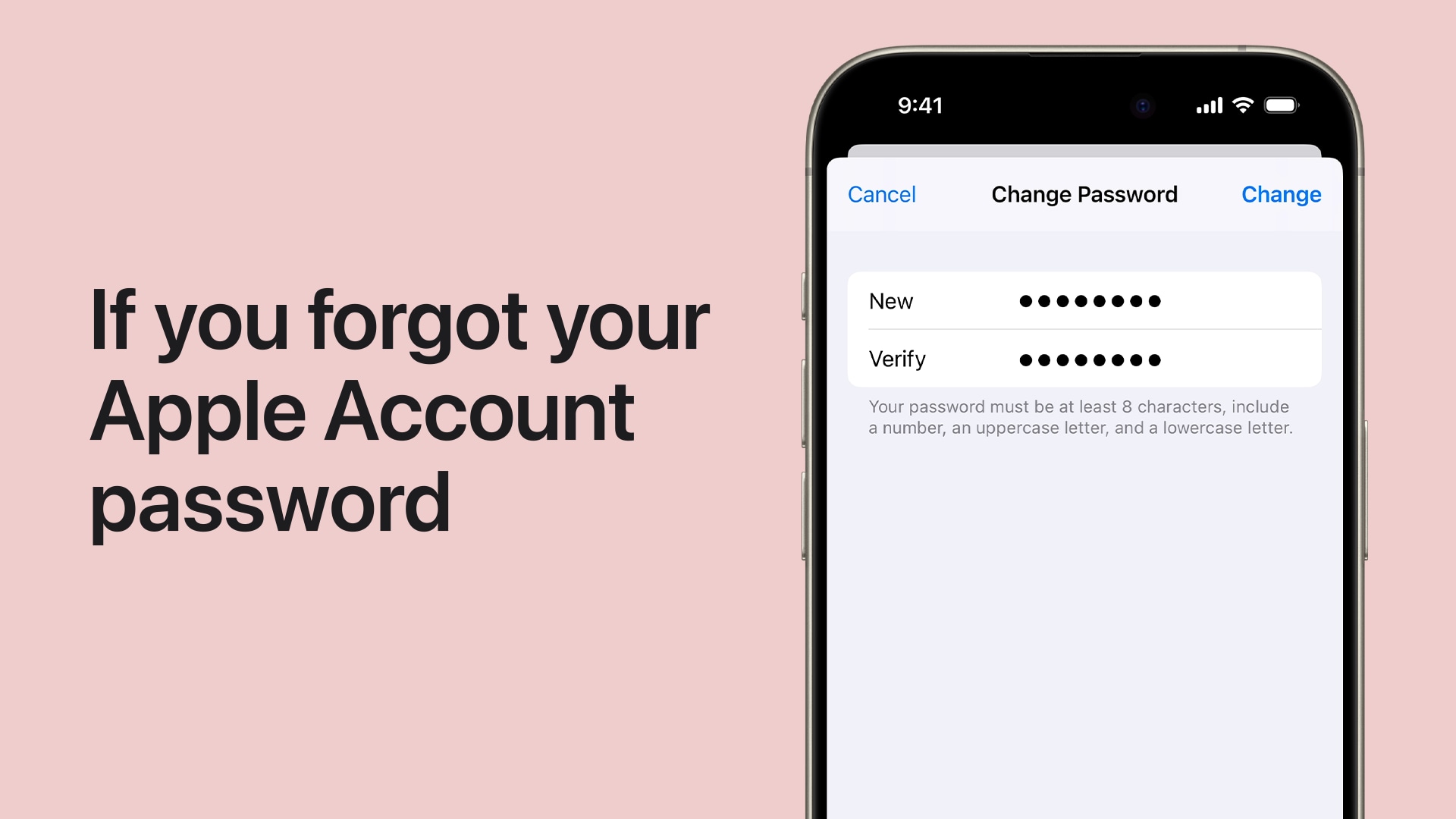
It is important to understand the distinction between forgetting your Apple ID email and forgetting your password. While both scenarios effectively disable your access, the recovery paths differ significantly. In this comprehensive 2026 guide, we will walk you through every reliable method to regain entry. Furthermore, we will demonstrate how robust tools like Dr.Fone – Password Manager can efficiently unearth saved Apple credentials hidden directly on your device, drastically reducing your recovery time.
In this article
- Part 1. How to Find Your Apple ID When You 'Forgot Apple ID'
- Part 2. Retrieve Your Apple ID Using Password Manager (Primary Method)
- Part 3. How to Reset Apple ID Password When You Forget It
- Part 4. What to Do If You Forgot Both Your Apple ID and Password
- Part 5. How to Avoid Future Apple ID Login Issues
Part 1. How to Find Your Apple ID When You 'Forgot Apple ID'
If you cannot remember the specific email address tied to your Apple account, there are numerous built-in pathways to locate it. Before attempting any complex recovery operations, you should verify if you are already signed into an Apple device. This straightforward check is the fastest remedy when you realize you forgot Apple ID email but still have active access elsewhere.
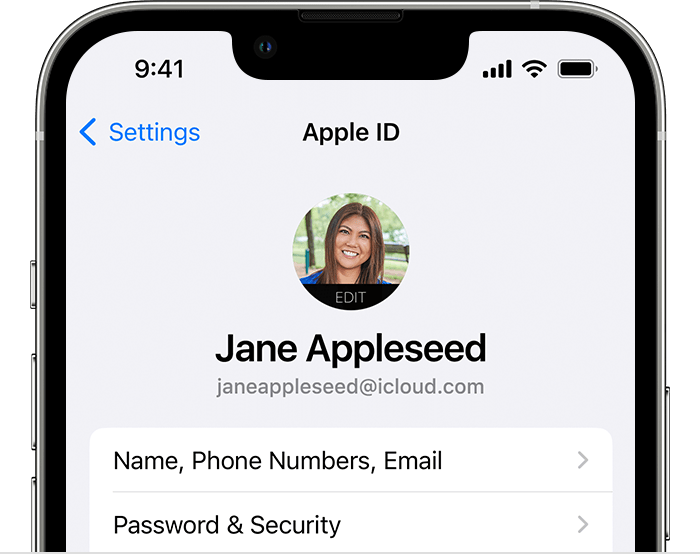
1-1. On iPhone or iPad
- Navigate to your device's Settings app.
- Tap on your name located at the very top of the screen.
- Look directly underneath your name to find the Apple ID email address associated with the device.
1-2. On Mac
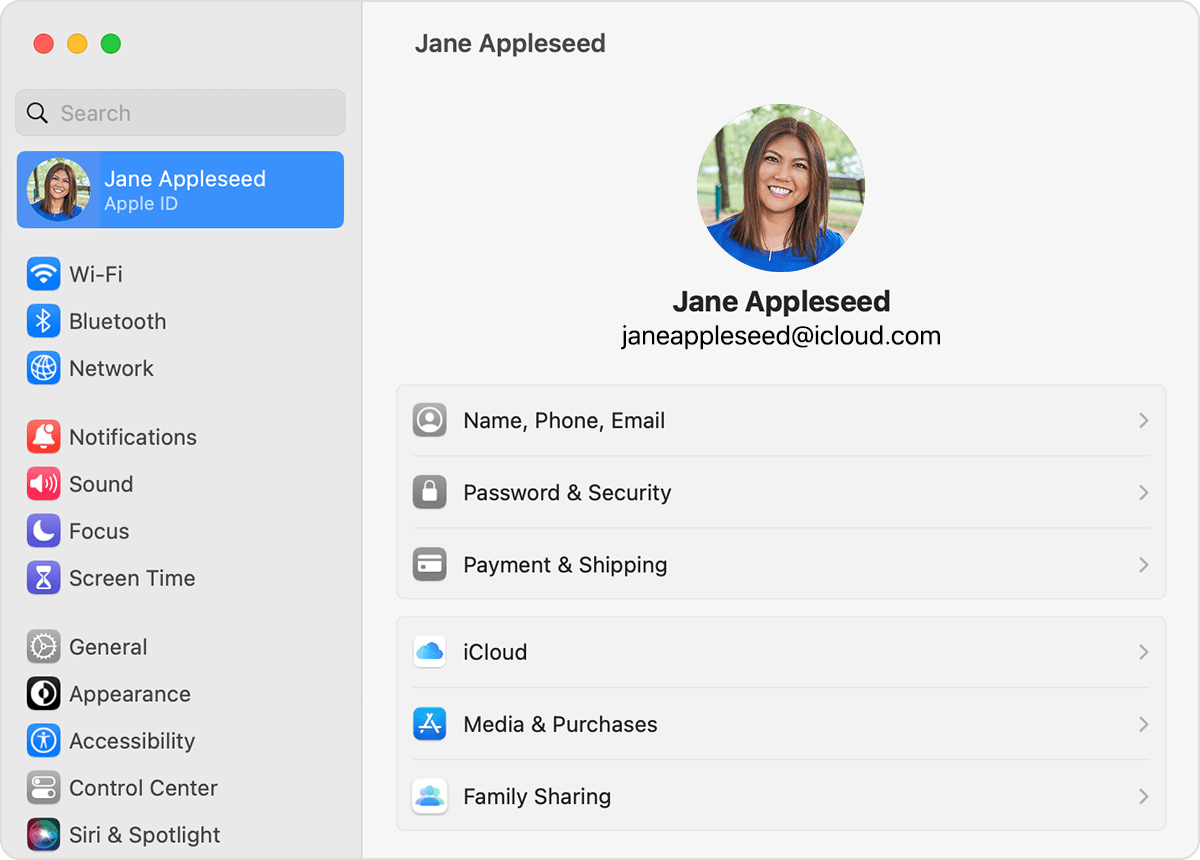
- Click the Apple logo to open the Apple Menu, then select System Settings (or System Preferences on older macOS versions).
- Click on your name or Apple ID at the top of the sidebar.
- Your complete Apple ID email will be clearly displayed in the main pane.
1-3. On iCloud.com
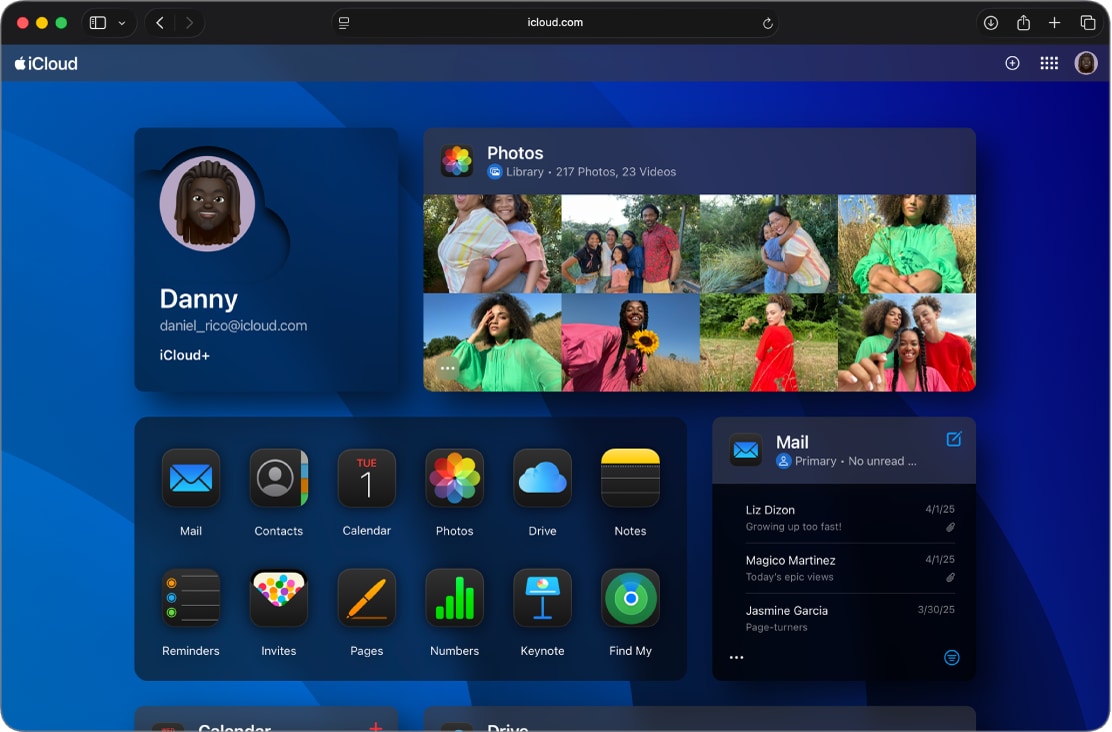
If you have previously accessed your iCloud storage through a web browser, your computer might have kept you signed in.
- Open a trusted web browser.
- Navigate to iCloud.com.
- If you are still logged in automatically, click on your Account Settings or profile picture to view your account details.
1-4. In the App Store or iTunes
- Launch the App Store application on your Mac.
- Click on your profile photo located in the bottom-left corner.
- Your Apple ID email will be showcased next to your username.
Part 2. Retrieve Your Apple ID Using Password Manager (Primary Method)
If checking your devices yields no results, or if you say, "i forgot my apple id password and email," the most robust workaround is using professional software. Dr.Fone - Password Manager is an all-in-one credentials extractor designed specifically for iOS devices. It allows users to securely view, recover, and organize saved passwords with minimal effort.
Whether you've lost Wi-Fi passcodes, locked yourself out of email clients, or completely misplaced your Apple ID details, this tool scans the depths of your device and uncovers them without requiring a jailbreak. Thanks to its secure scanning engine and high recovery success rate, you can easily export your credentials into mainstream managers like 1Password, making it a permanent fix for memory lapses.

Step-by-Step Guide to Retrieving Your Apple ID
-
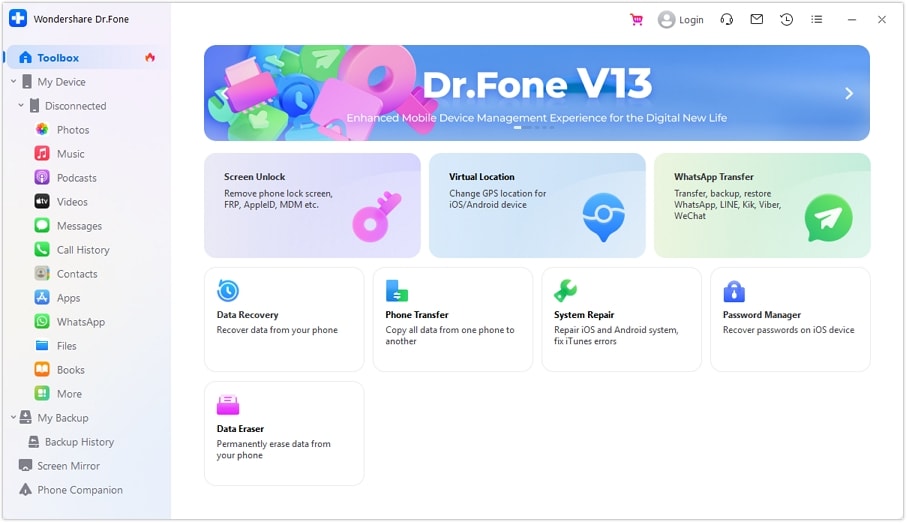
Step 1 Connect Your Device
Install Dr.Fone on your computer and connect your locked iPhone or iPad via a secure cable. From the main interface, navigate to the "Password Manager" module.
-
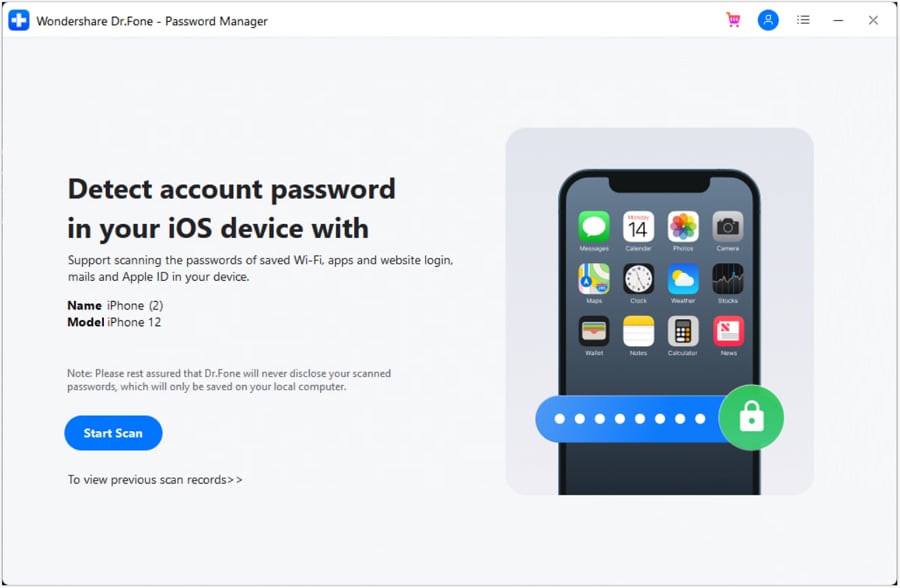
Step 2 Initiate the Deep Scan
Click on the "Start Scan" button. The software will meticulously read through your device's secure enclave to locate hidden login credentials, including your Apple ID.
-
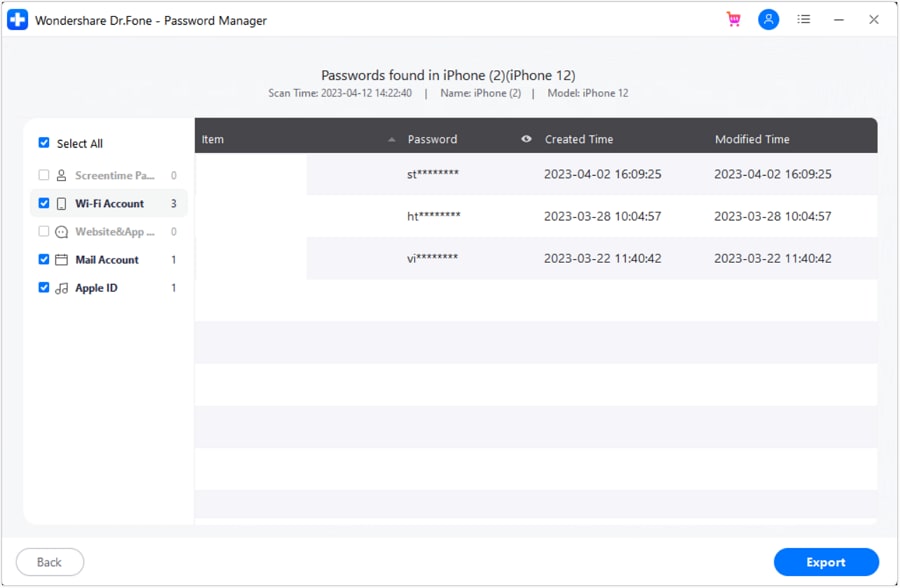
Step 3 Recover and Export Passwords
Once the progress bar completes, a categorized list of all recovered accounts will appear. You will be able to see your Apple ID email, your forgotten password (if saved), and various other digital keys.




Part 3. How to Reset Apple ID Password When You Forget It
After successfully locating your account email, you need to set up a new password if you still exclaim, "i forgot my apple id password." Apple offers multiple official avenues for a secure reset based on what trusted devices you currently hold.
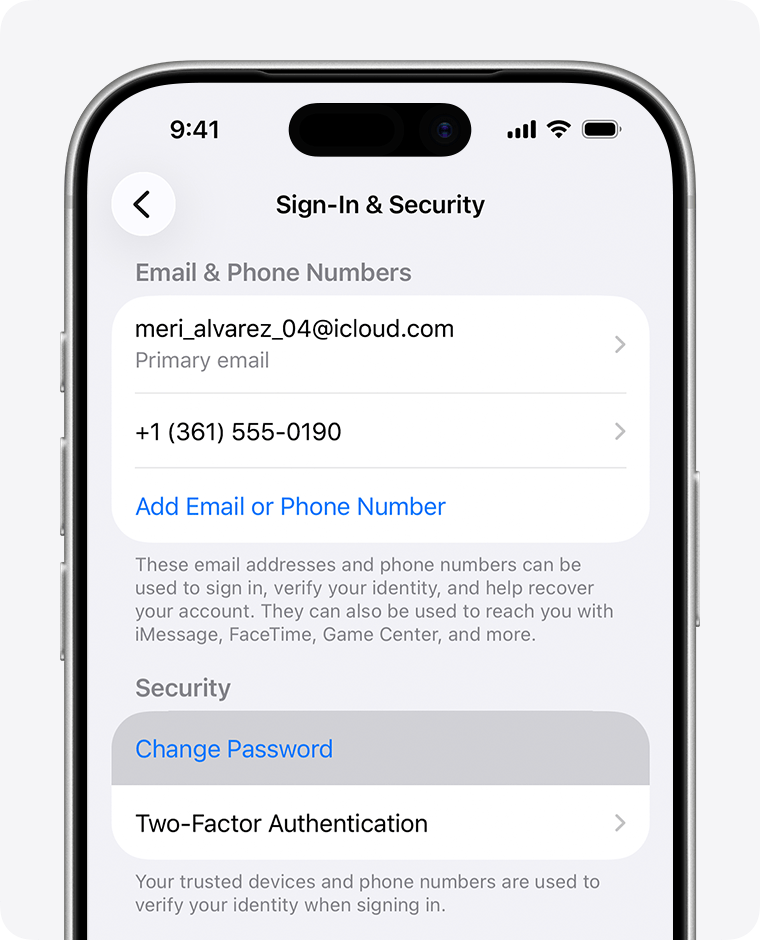
1. Reset Password From a Trusted iPhone or iPad
If you have an iOS device already signed into your Apple ID, the reset process is incredibly smooth:
- Open Settings and tap your Apple ID profile banner.
- Select Password & Security.
- Tap on Change Password.
- You will be prompted to enter your device screen passcode. After successful verification, input your new Apple ID password and confirm.
2. Reset Password From a Trusted Mac
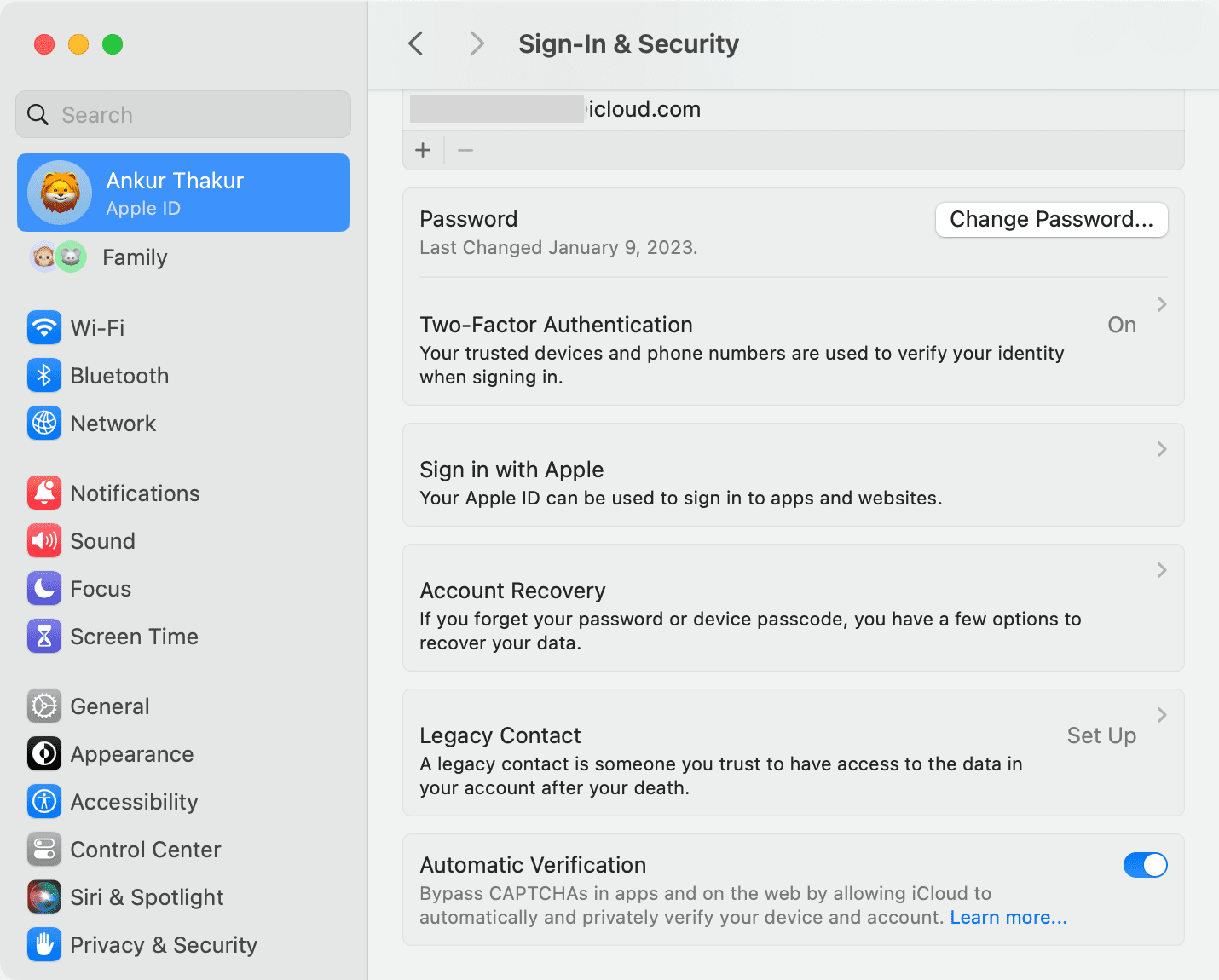
If you frequently ask, "i have forgotten my apple id password," but have full access to your MacBook or iMac, follow these steps:
- Launch System Settings from the Apple Menu.
- Click on your Apple ID name.
- Navigate to Password & Security.
- Click on the Change Password button. You will be required to authenticate using your Mac's login password before setting a new one.
3. Reset Password Using Any Web Browser
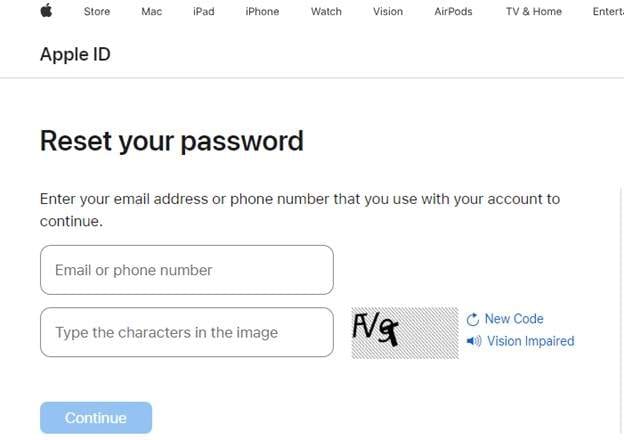
In scenarios where you are not logged into any trusted Apple hardware, the Apple iForgot portal is your best option.
- Open a browser and navigate to iforgot.apple.com.
- Type in your Apple ID email address.
- Apple will send a notification to your trusted devices or phone number. Click Allow on the prompt and follow the on-screen instructions to reset your account.
Part 4. What to Do If You Forgot Both Your Apple ID and Password
Losing track of both your Apple ID email and your password can feel like a total lockout. However, systematically combining the methods above can restore your access.
- Identify the Email: Begin by scanning your local devices for any traces of the account (via Settings or System Preferences).
- Utilize Account Recovery: If the password cannot be recalled, visit iforgot.apple.com using the newly found email to trigger the standard account recovery protocol.
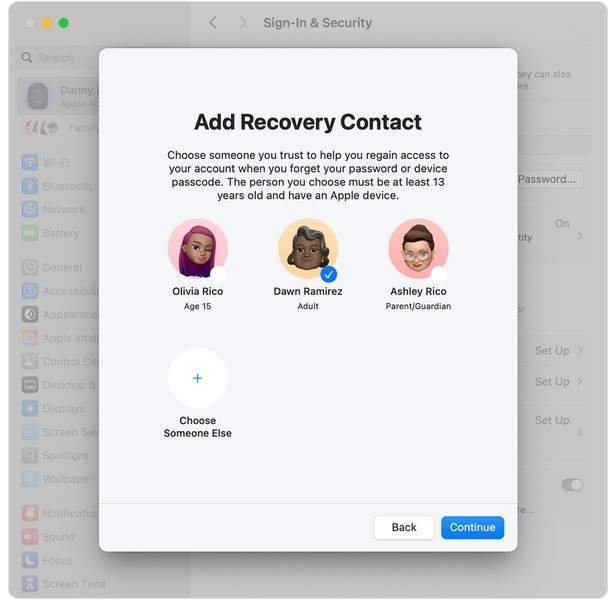
Use an Account Recovery Contact
If standard resets fail, Apple provides a feature known as the Account Recovery Contact—a designated friend or family member who can vouch for your identity.
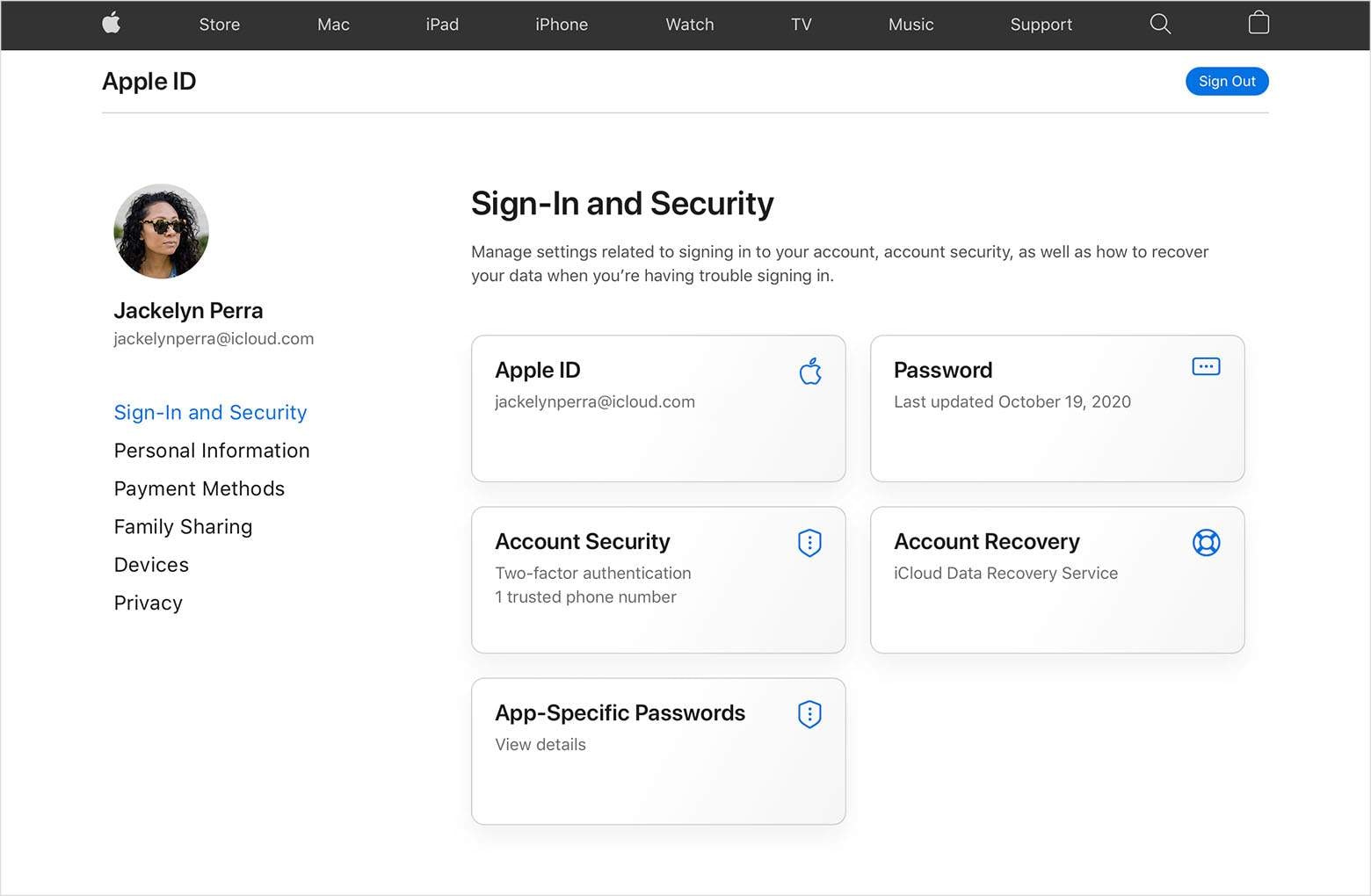
- On an accessible iPhone/iPad: Go to Settings > [Your Name] > Sign-In & Security > Account Recovery. Here, you can request help from your pre-established contact.
- On a Mac: Head to System Settings > [Your Name] > Sign-In & Security > Account Recovery and select your contact. They will receive a unique code that you can use to bypass the lock on your account.
Part 5. How to Avoid Future Apple ID Login Issues
It is surprisingly common for users to forget their Apple credentials. As our digital footprint expands, tracking dozens of online accounts becomes a heavy burden. People often create secondary Apple IDs by accident or stop using the primary one regularly, inevitably leading them to realize, "forgot my apple password." Additionally, changing main email addresses often disrupts account management habits.
To permanently solve this dilemma, adopting a dedicated password manager is vital. A specialized tool like Dr.Fone – Password Manager not only extracts your current details but keeps them securely organized in one place. By periodically backing up your credentials, you ensure you will never face a frustrating lock-out again.
Conclusion
Managing Apple accounts doesn't have to be confusing. Whether you are dealing with a scenario where you "forgot my apple id and password" or just need to reset your login to use iCloud again, there are straightforward paths to resolution. From checking basic device settings and using official recovery web portals, to utilizing trusted Recovery Contacts, your options are plentiful in 2026.
To eliminate these roadblocks entirely, implementing a robust extraction and management tool like Dr.Fone - Password Manager is highly recommended. It scans, recovers, and organizes your critical data, ensuring you never have to panic over a forgotten login again.
FAQ
-
1. What should I do if I completely forgot my Apple ID and password?
First, check your existing iPhone, iPad, or Mac for saved account information under your System Settings. Often, users remain logged in without realizing it. If that doesn't yield results, you can use specialized tools like Dr.Fone – Password Manager to scan your device for deeply stored Apple ID credentials, or visit iforgot.apple.com to initiate account recovery. -
2. What if I forgot my Apple ID password and email at the same time?
If both pieces of information are lost, you should start by scanning your devices using a reliable iOS password recovery tool. This will extract any previously used Apple ID emails. Once you have identified the correct email, proceed to Apple's Password & Security settings on a trusted device to initiate a safe password reset. -
3. Can I recover my Apple ID without access to a trusted device?
Yes, you can use the web portal iforgot.apple.com from any computer or mobile browser. You will be asked to verify your identity through your trusted phone number, backup email, or by employing an Account Recovery Contact if you have previously set one up. -
4. Will I lose my iCloud data if I reset my Apple ID password?
No, resetting your Apple ID password does not delete the data stored in your iCloud, such as photos, contacts, or backups. The reset strictly changes your login credentials to restore your access to that existing data.
 Add Wondershare Dr.Fone as a preferred source on Google


