Recover photos, messages, WhatsApp, and more — no backup
needed.
Recover photos, messages, WhatsApp, and more — no backup
needed.

 100% Security Verified | No Subscription Required | No Malware

 :
: 
 ChatGPT
 Perplexity
 Gemini
 Claude
 Grok
Grok
Panic strikes the moment you notice your favorite family memories are entirely missing. Losing precious memories feels terrible, but you can reverse this accidental mistake. A Market Biz research shows that accidental deletion causes 34% of all data loss incidents recorded in 2025. You might wonder how to get deleted photos from iCloud. Thankfully, Apple provides a few built-in safety approaches for forgotten media files.
Your images are likely hidden safely inside a hidden temporary storage folder. If those options fail, desktop recovery software like Dr.Fone - Data Recovery may rescue your data. Therefore, this complete stepwise tutorial will guide you through the restoration process.
In this article
- What Happens When You Delete Photos From iCloud?
- How Do I Recover Deleted Photos From iCloud on My iPhone or Mac?
- How to Recover Permanently Deleted Photos From iCloud
- Method 1. Restore Photos from an Older iCloud Backup
- Method 2. Recover Photos from iCloud Backup Without Resetting Your iPhone

- How Do You Prevent Accidental Photo Deletion in iCloud?
Part 1. What Happens When You Delete Photos From iCloud?
Deleting a picture moves the file to a temporary folder for specific days. Below, we break down exactly what happens to your photos and your connected devices.
How Long Deleted Photos Stay Recoverable
Your deleted images remain inside the Recently Deleted folder for 30 full days, according to Apple. During this month, learning how to recover deleted photos from iCloud is effortless. The system displays a small day count under each thumbnail showing remaining time. Once this specific counter hits 0, Apple completely wipes the data permanently. Thus, you must act immediately before the automated deletion system cleans the folder.
What Deleting on One Device Does to Other Devices
With iCloud Photos enabled, deletion syncs across connected devices once they connect and update through iCloud. Below are the main devices impacted, which matter greatly in how to recover deleted pictures from iCloud:
- iPhone Sync: Your iPhone immediately removes the deleted photo from its local gallery storage.
- iPad Sync: Your iPad mirrors the same deletion across the synced iCloud Photos library after syncing finishes.
- Mac Sync: Your Mac's Photos app automatically removes the deleted image from its entire library.
- Cloud Website: The iCloud website also reflects the deletion immediately across your entire online photo storage.
Part 2. How Do I Recover Deleted Photos From iCloud on My iPhone or Mac?
Several proven methods exist showing how to retrieve deleted photos from iCloud across devices. So, the following are the 3 best recovery methods working perfectly:
Method 1. Recover From Recently Deleted
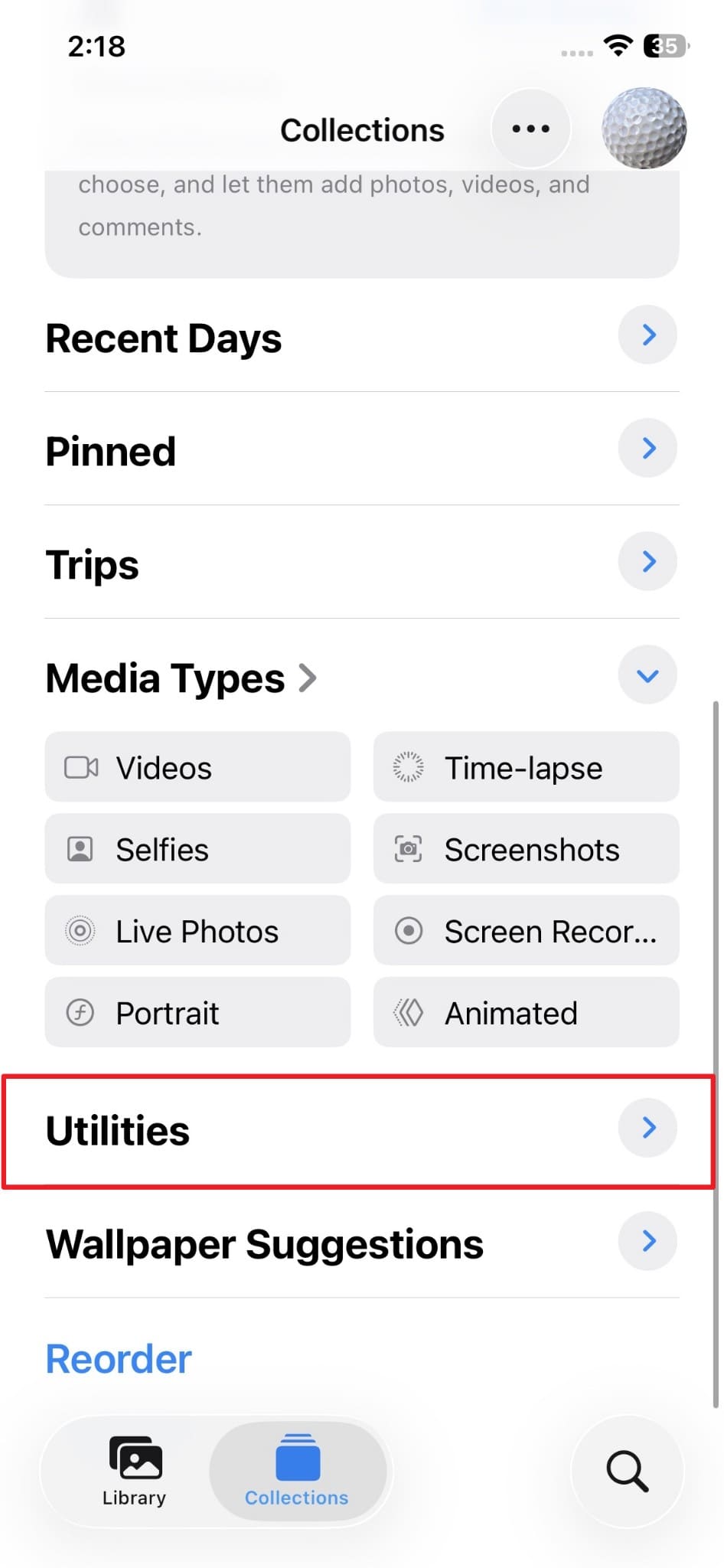
The Recently Deleted album is always your first stop for any deleted photos. This native Apple feature is the easiest answer to how to recover photos deleted from iCloud. Every deleted photo stays safely inside this album for exactly 30 days after deletion. Missing photos are often still here, letting you restore them. Hence, adhere to these simple steps below to recover your deleted photos via this approach:
-
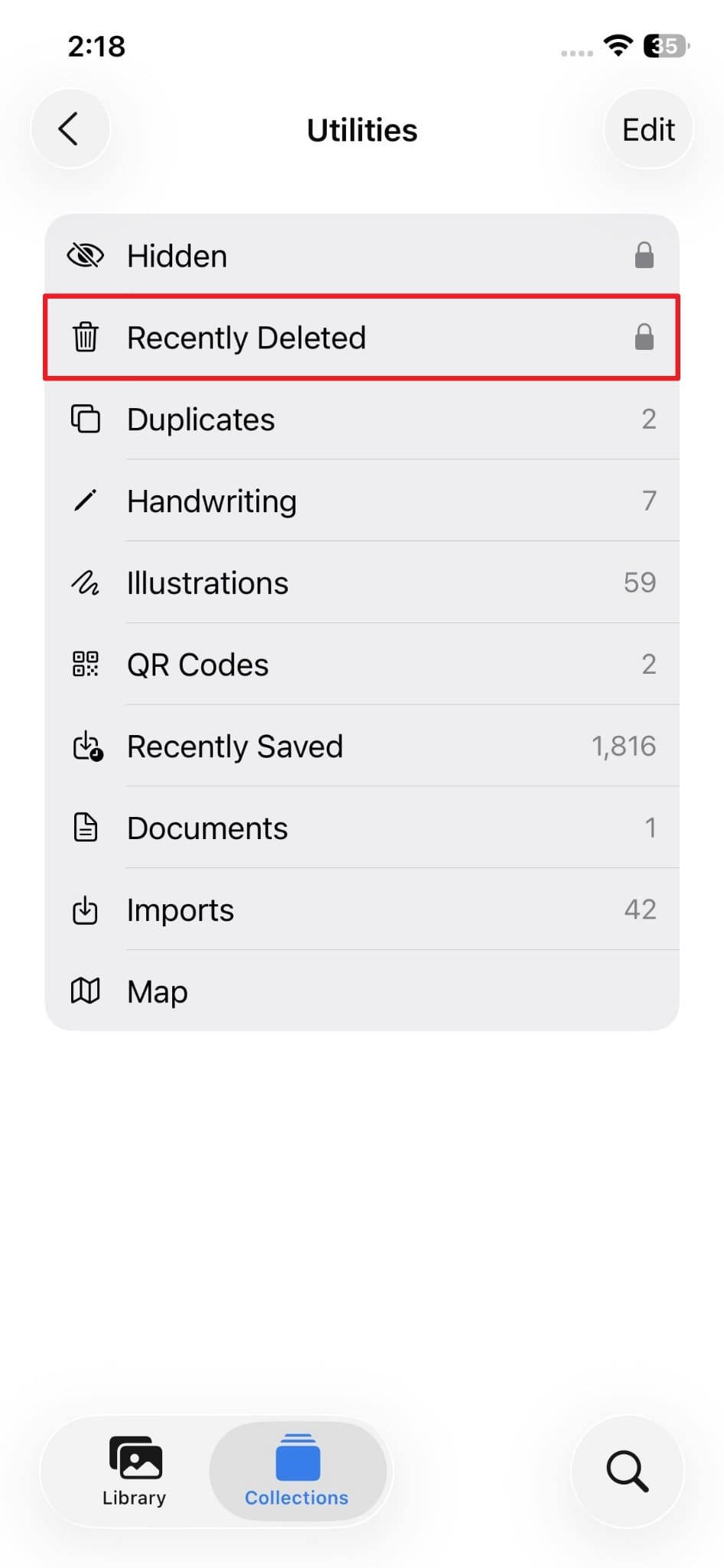
Step 1 When you run the "Photos" app, locate and access the "Utilities" category.
-
Step 2 From there, enter the "Recently Deleted" album to view the removed images.
-
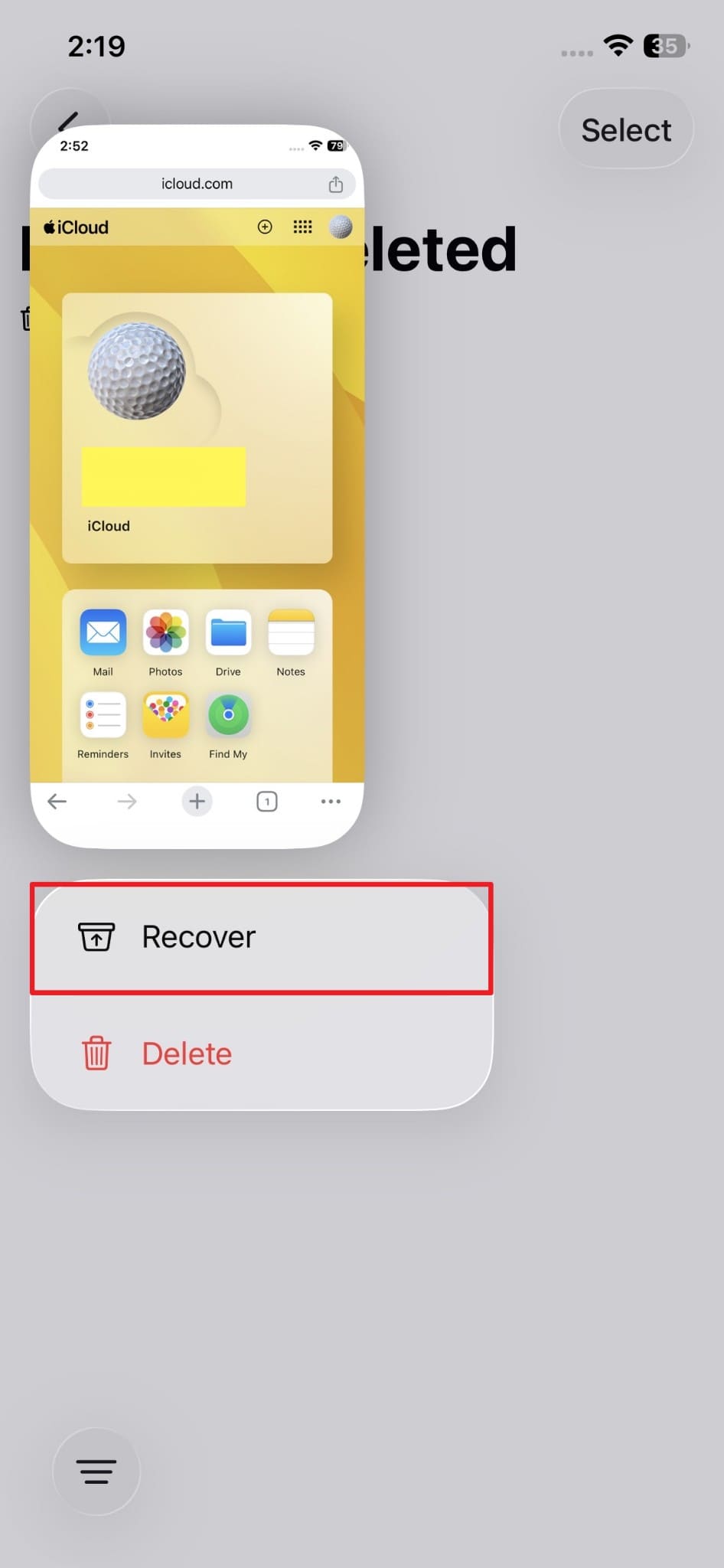
Step 3 Following that, tap "Recover" as you select the photo you wish to retrieve.
Method 2. Recover Deleted Photos from Another Synced Apple Device
Sometimes, a secondary device preserves your media files due to connection delays. If your primary device remains offline, the server deletion cannot trigger. This lag helps you learn how to get deleted photos from iCloud. Yet, you must disconnect the main device from which you deleted the photo from the internet before syncing occurs. Anyhow, review these simple instructions to restore images from your secondary Apple device:
-
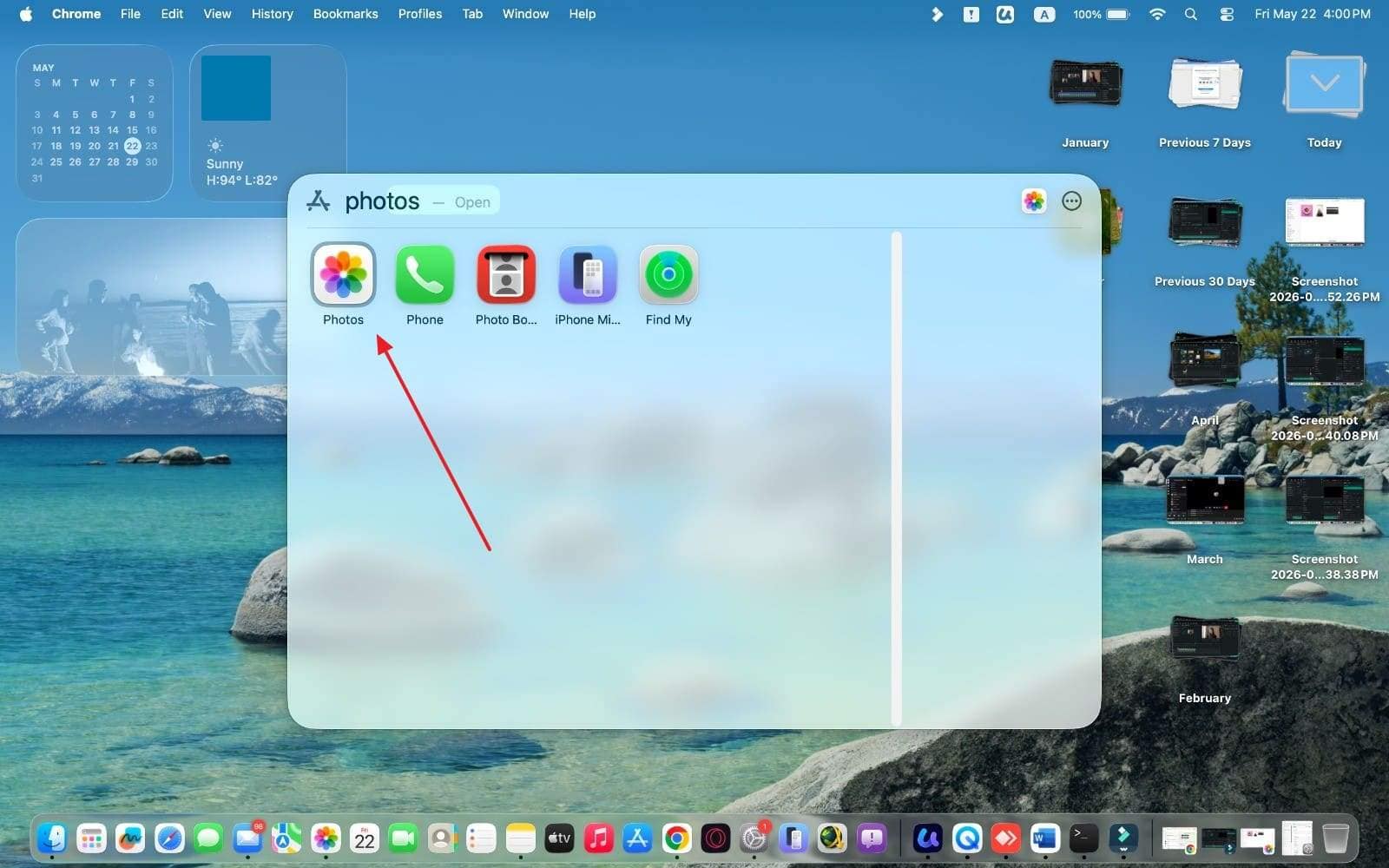
Step 1 On another Apple device, launch the "Photos" application to begin searching for your missing image.
-
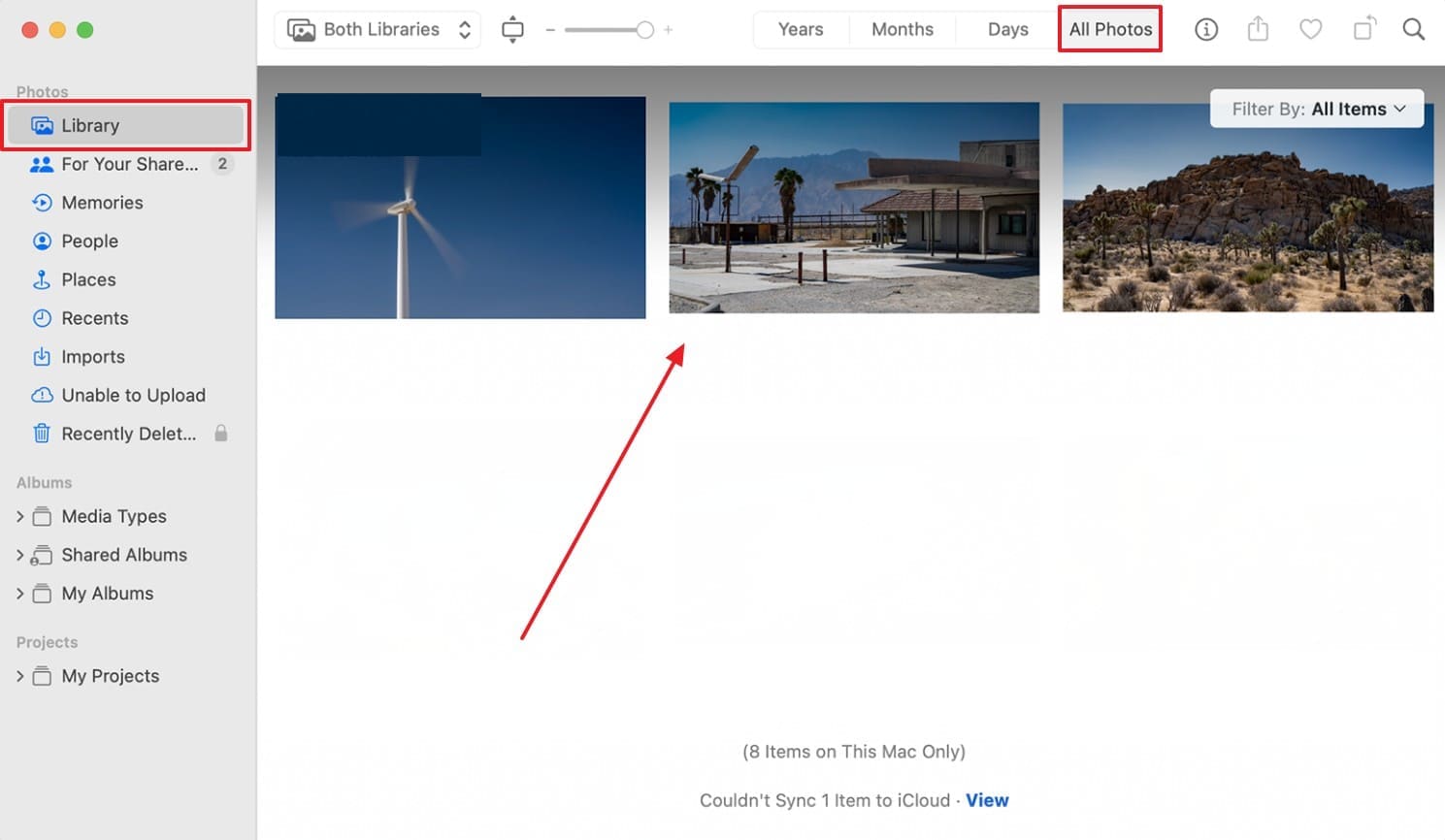
Step 2 Open the "Library" section and access "All Photos" until you locate the picture you want to recover.
Method 3. Download from iCloud Photos (iCloud.com)
This fallback strategy only works if you previously enabled the iCloud Photos feature. Moreover, it works when your primary device deletes photos while remaining completely offline. Since the device never reconnected, that deletion has not synced to iCloud servers yet. A Reddit user also said photos may vanish after sync, but still exist elsewhere. Thus, take guidance from the steps to learn how to retrieve deleted photos from iCloud this way:
-
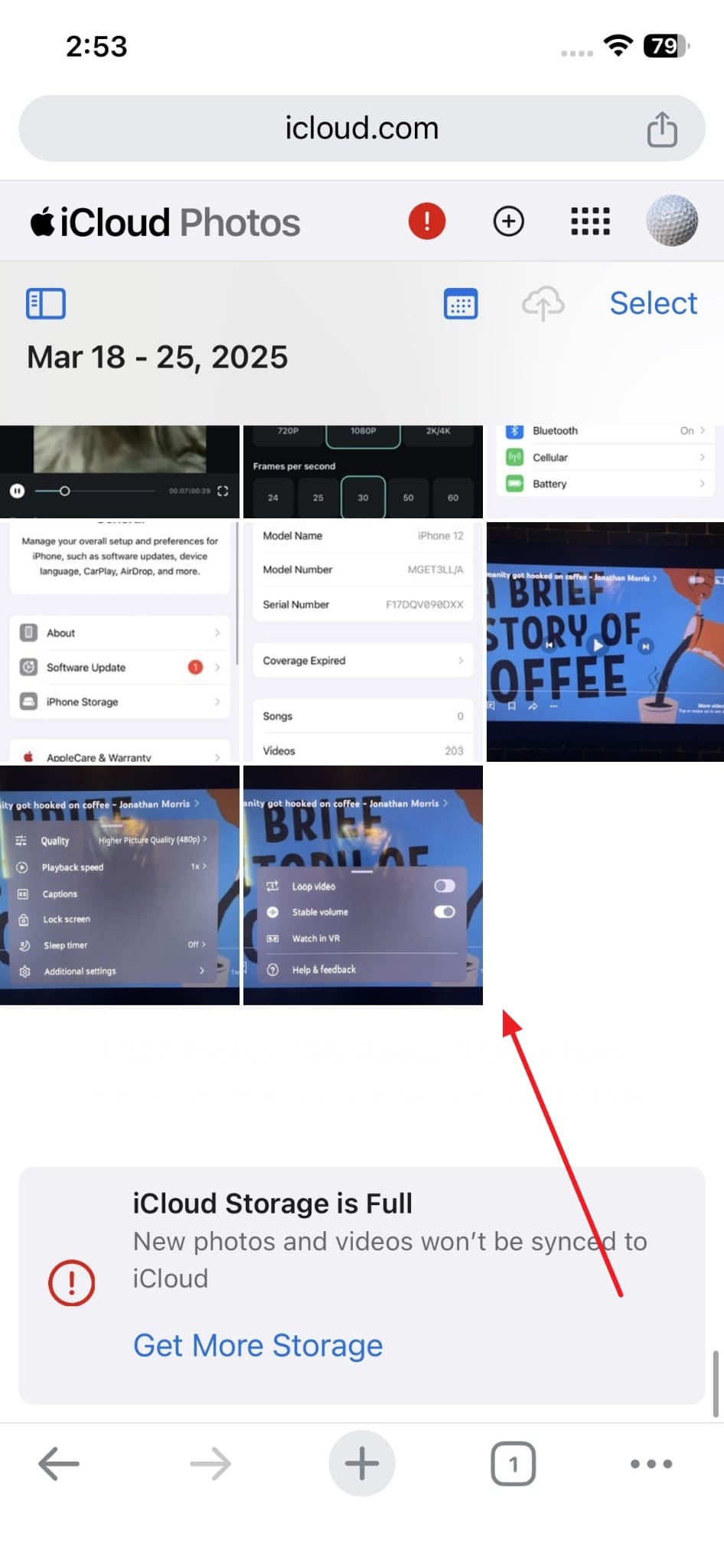
Step 1 On a different or the same Apple device, visit "iCloud.com" and log in using the same account to open "Photos."

-
Step 2 After that, browse through your library and find the photo you want to restore.
-
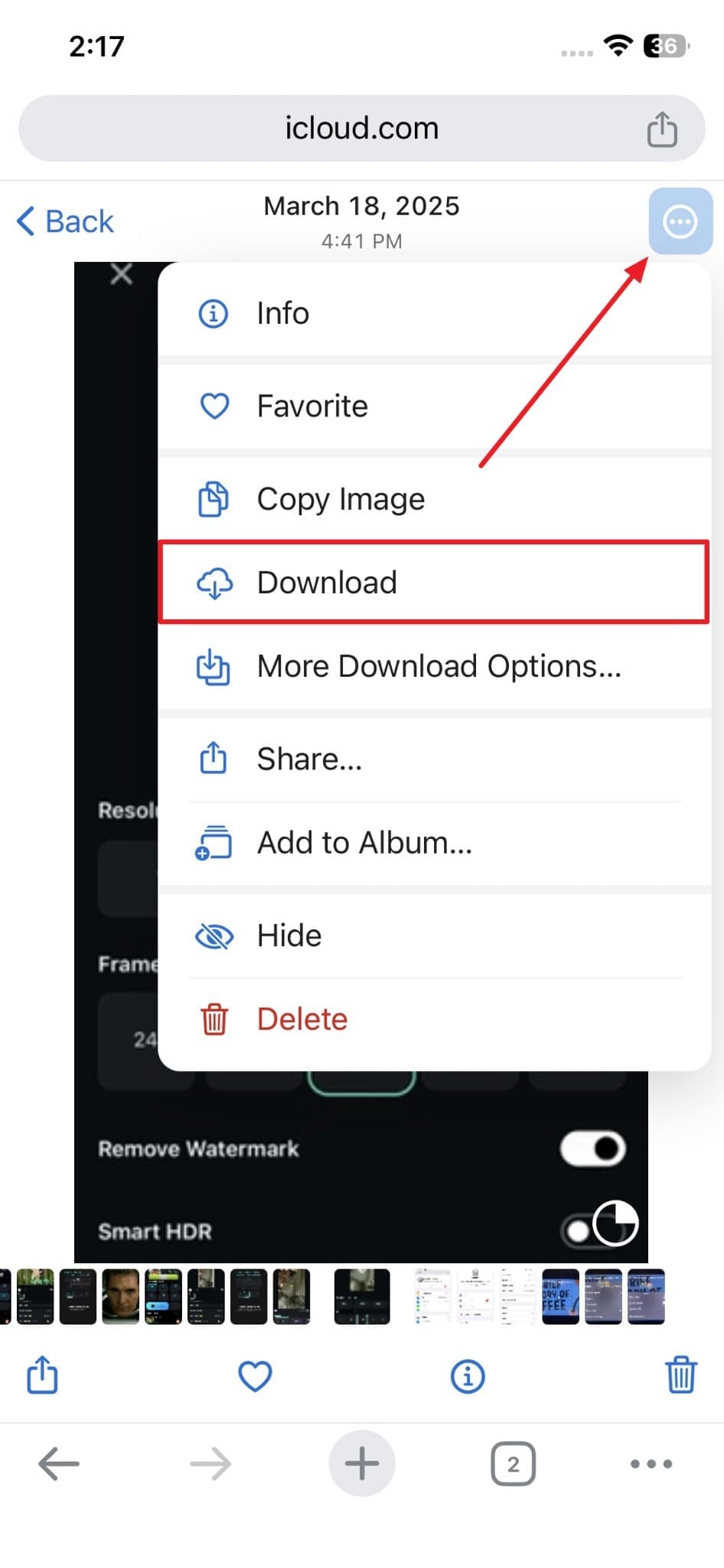
Step 3 Once selected, press the "Three Dots" icon and choose the "Download" option.
Part 3. How to Recover Permanently Deleted Photos From iCloud
Apart from the above methods, many users also seek ways to recover their permanently deleted photos. For that reason, this part helps you to learn how to get deleted photos from iCloud:
Method 1. Restore Photos from an Older iCloud Backup
Restoring an older backup is one reliable solution when your device is enabled for "iCloud Backup." Handy Recovery Advisor also reports that only 33% of users back up their data to prevent permanent loss. Nonetheless, it requires resetting your device to a previous state. This method rolls your entire device back to when your deleted photos still existed. Follow these steps below to restore your photos from an older backup:
-
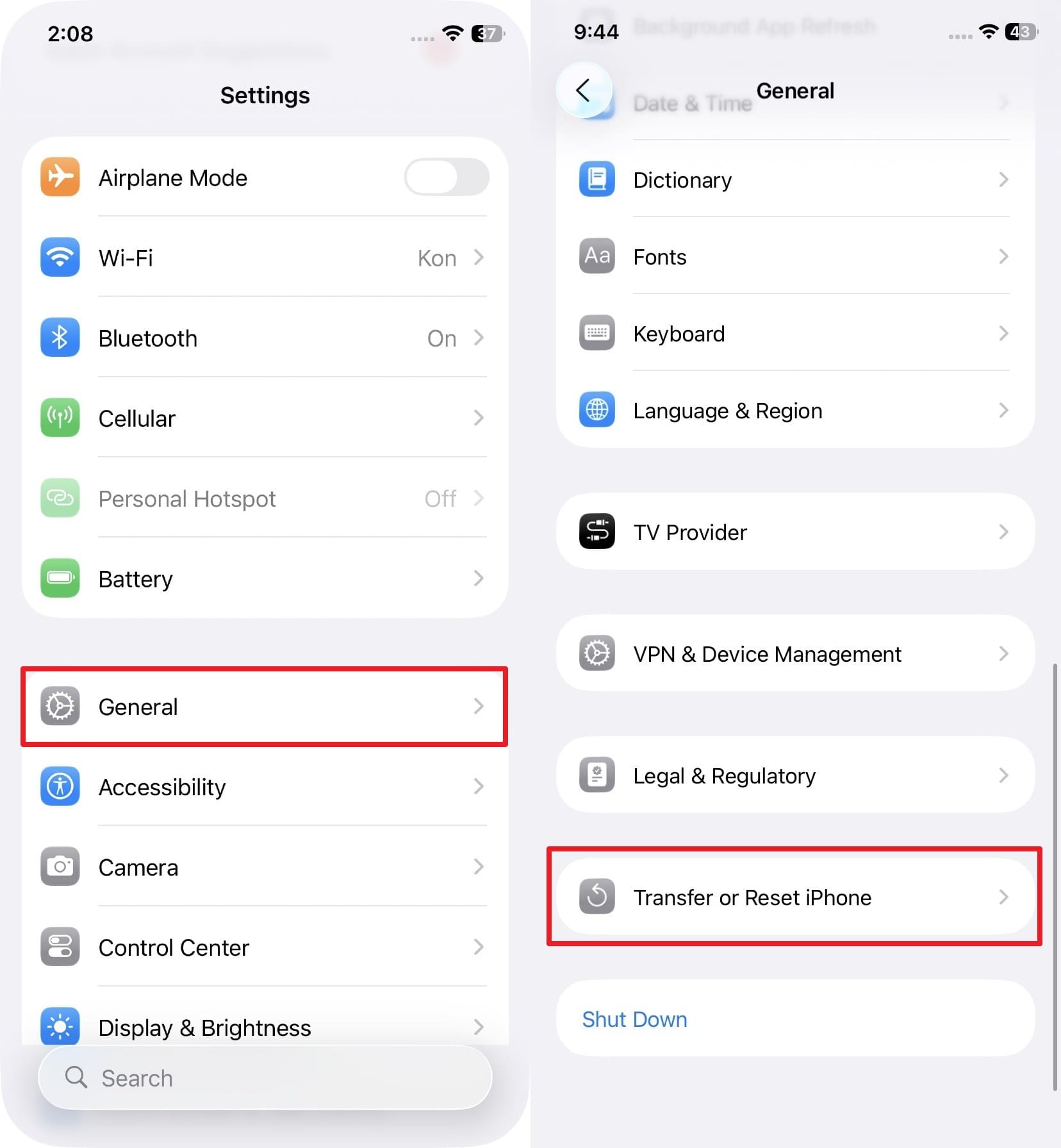
Step 1 You need to tap the "Transfer or Reset iPhone" option inside the "General" settings menu.
-
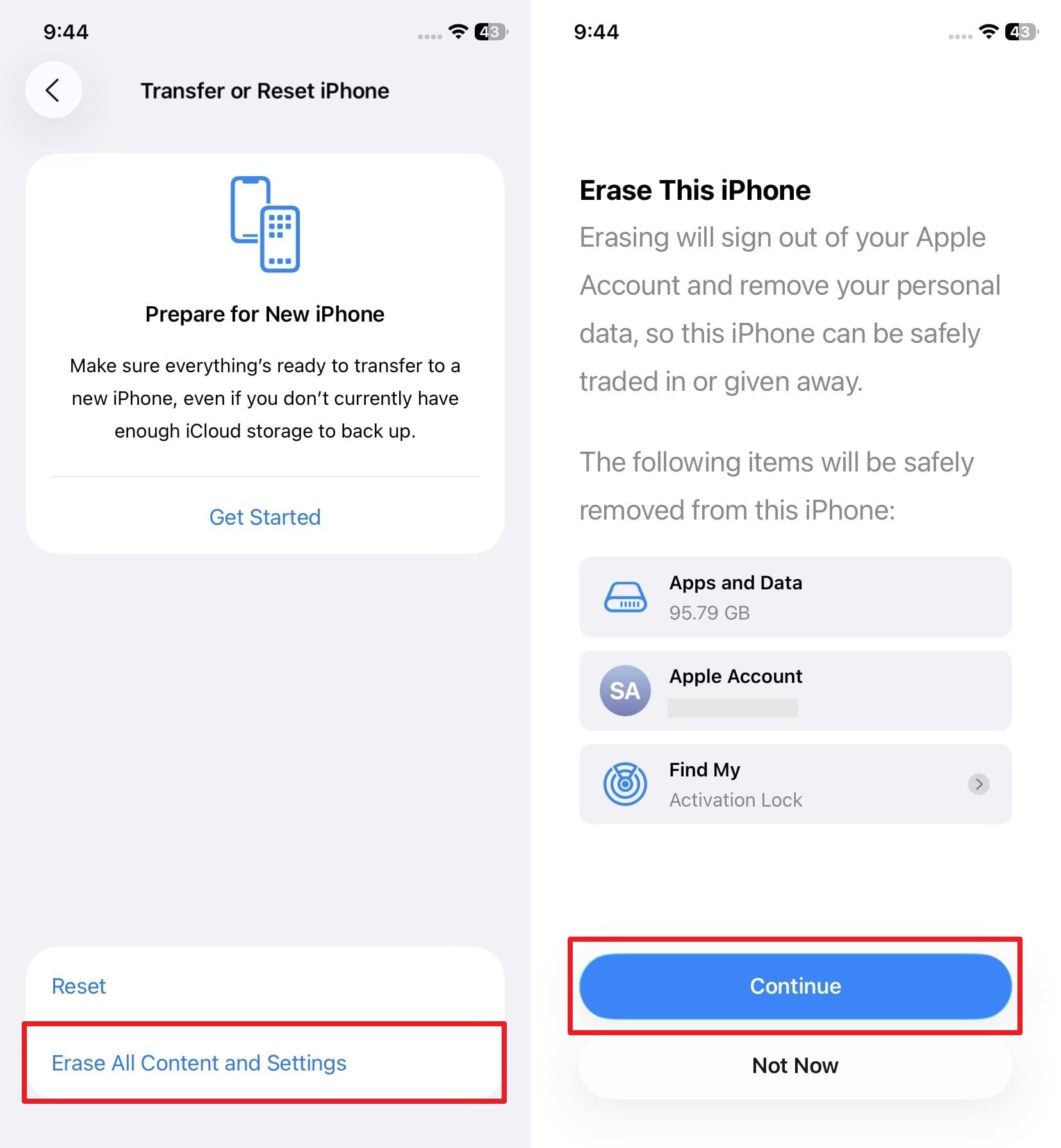
Step 2 Subsequently, choose "Erase All Content and Settings" and opt for "Continue."
-
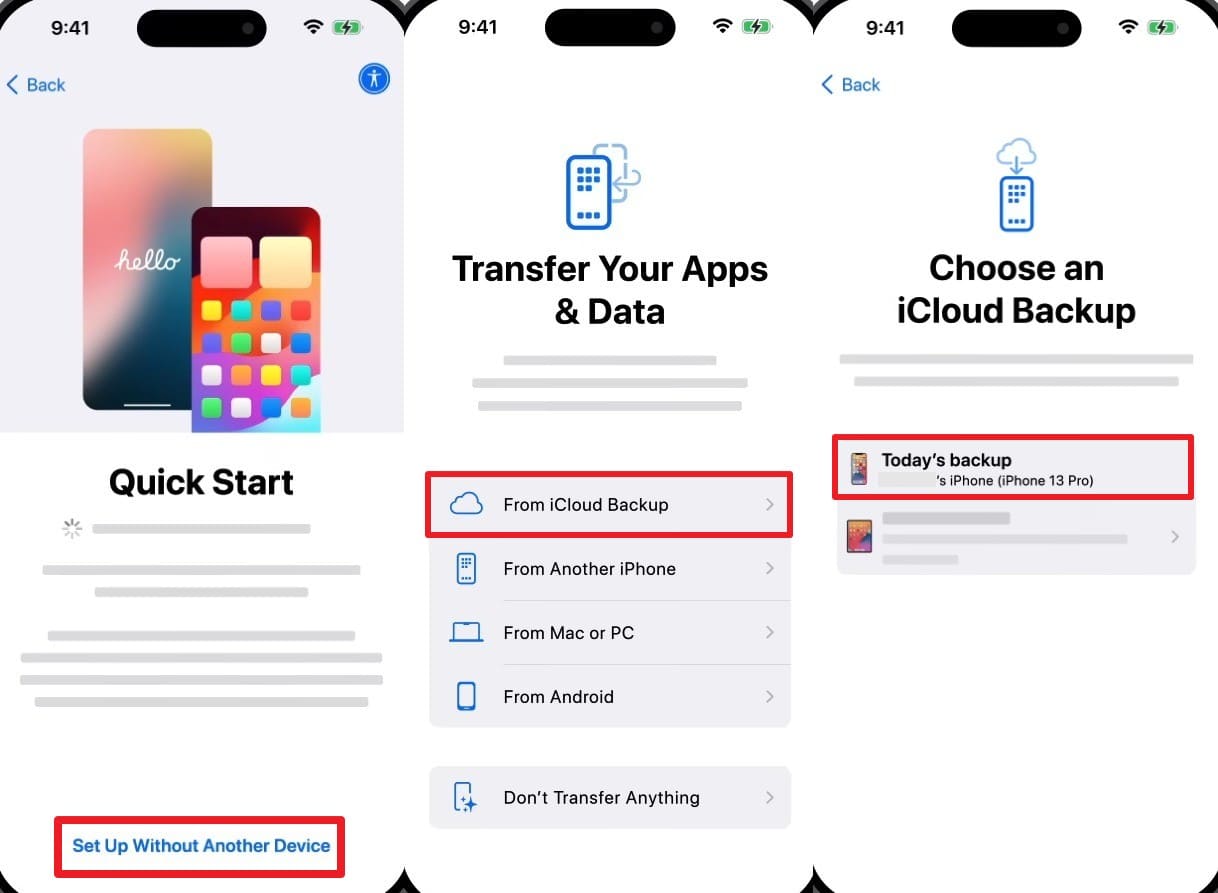
Step 3 During the device setup, you need to select "Set Up Without Another Device." Choose the "From iCloud Backup" option and log in to your account. Then, follow the displayed guide carefully and pick the latest backup file to restore your data.
Method 2. Recover Photos from iCloud Backup Without Resetting Your iPhone
A full device reset causes permanent loss of all data added after backup creation. This makes the above restore method risky when only specific photos need to be recovered. In such situations, software like Dr.Fone - Data Recovery can help with controlled recovery. It directly shows how to recover photos deleted from iCloud without any device reset.
During restoration, the tool connects to your iCloud account using your verified Apple ID credentials. Moreover, it supports 2FA authentication to keep your account access protected. You can also browse all available iCloud backups and select the most relevant one. The program even lets you preview recoverable photos before committing to any restoration action.
 Recovers data after deletion, crashes, or device damage.
- Supports photos, messages, contacts, WhatsApp, and more.
- Supports all major iPhone, iPad, and iPod models.
- Preview and recover only what you need.

Guide to Recover Photos from iCloud Backup Without Resetting Your iPhone
When you use this tool it can help you retrieve data without requiring a reset. Thus, go through the given stepwise guide to learn how to recover permanently deleted photos from iCloud from the cloud storage:
-
Step 1 Open the iOS Data Recovery Tool
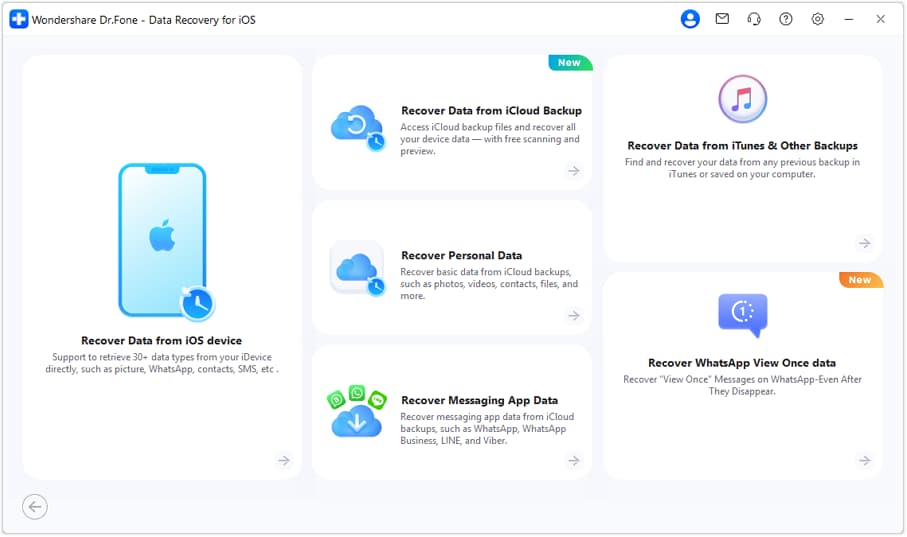
Access the software's "Toolbox" section and launch the "Data Recovery" feature for "iOS" devices. Then, continue by choosing the "Recover Data From iCloud Backup" option.
-
Step 2 Sign In and Download the iCloud Backup
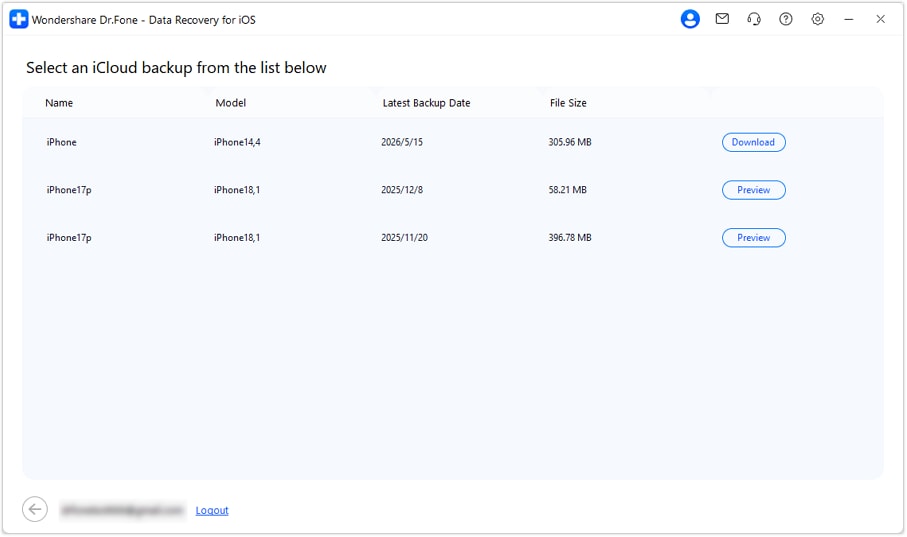
You will be asked to log in to your cloud account on the next screen and verify it. After verification, select the backup you need when Dr.Fone displays all backups and press "Download."
-
Step 3 Check and Retrieve Deleted Photos
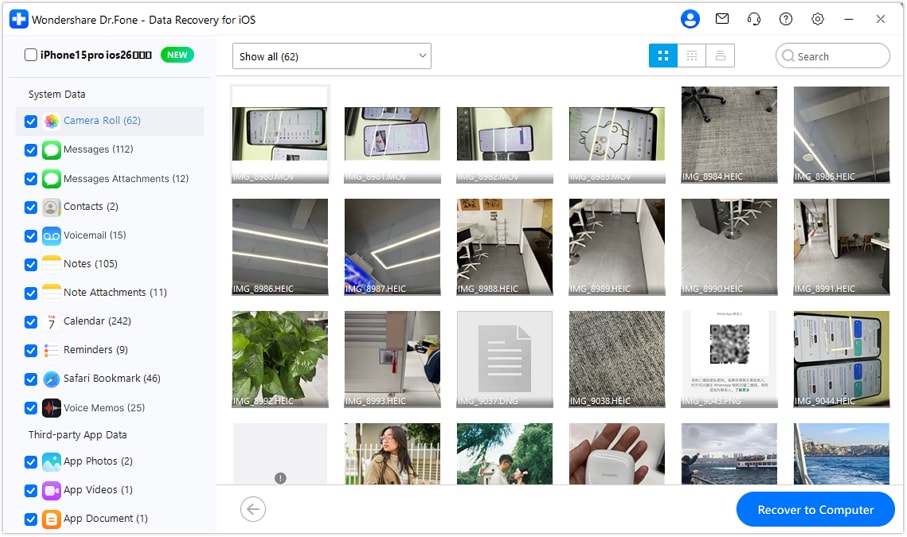
Once the backup is extracted, browse through the available data categories to preview photos. Subsequently, mark your desired photos and click "Recover to Computer" to save them.




Part 4. How Do You Prevent Accidental Photo Deletion in iCloud?
Upon answering, "how can I recover deleted photos from iCloud," securing your media is more important than restoring. So, the table below outlines key practices to protect your photos from deletion:
| Prevention Method | What to Do | Why It Helps |
|---|---|---|
| Enable iCloud Backup | Activate automatic iCloud Backup from your device settings. | Creates restore points only for photos not synced through iCloud Photos. |
| Review Before Deleting | Double-check selected images before deleting them. | Minimizes the removal of important memories. |
| Use Shared Albums | Store essential pictures in a dedicated shared album. | Maintains extra copies separate from the primary synced library. |
| Export Photos Locally | Save valuable images on a computer or external storage device. | Ensures an offline backup that remains safe from sync-related deletions. |
| Check Storage Regularly | Keep track of available iCloud storage space frequently. | Avoids sync failures caused by low iCloud storage capacity. |
| Disable Optimize Storage | Turn off the "Optimize Storage" option in iCloud Photos settings. | Keeps original high-quality photos stored directly on the device. |
Conclusion
In conclusion, you have now learned how to get deleted photos from iCloud. Quick action remains important because permanently deleted files become harder to recover after expiration. Native solutions like the recently deleted album efficiently restore your recent images.
When the native options don't help, you need to restore your iCloud backup, requiring a full device reset. To avoid this hassle, experts may find tools like Dr.Fone - Data Recovery to restore photos from backup without a device reset.
FAQs
-
Q1. Does iCloud automatically back up my photos every day?
The backup runs automatically when your device is connected to Wi-Fi overnight. It also requires your device to be plugged into a power source at the same time. However, this backup includes photos only when iCloud Photos is not enabled. -
Q2. Can I recover photos that were deleted from a shared iCloud album?
Photos shared in an album are stored separately from your personal iCloud Photos library. Deleting a photo from a shared album removes it from that album. Thus, you must ask the album owner or another member to share that picture again. -
Q3. What happens to my iCloud photos if I cancel my subscription plan?
Canceling the storage plan downgrades your account to the free 5GB storage tier. Photos exceeding that limit will no longer sync across your connected Apple devices. Hence, download all the photos in advance so that there is no loss of data during cancellation. -
Q4. How do I recover photos from an old iCloud backup after buying a new iPhone?
When setting up a new device, it is necessary to have "Restore from iCloud Backup" checked. Choose the backup that you made before you mistakenly deleted your photos forever. If you prefer selective recovery without resetting, tools like Dr.Fone can extract photos from that specific backup.
 Add Wondershare Dr.Fone as a preferred source on Google