Recover photos, messages, WhatsApp, and more — no backup
needed.
Recover photos, messages, WhatsApp, and more — no backup
needed.

 100% Security Verified | No Subscription Required | No Malware

 :
: 
 ChatGPT
 Perplexity
 Gemini
 Claude
 Grok
Grok
With over 3 billion users, WhatsApp is definitely one of the most popular instant messaging apps. It keep records of chatting, photo & video sharing, document exchange, and so much more. If you change your iPhone, reset it, or uninstall WhatsApp, you might lose all your data unless you have backed it up. Luckily, Apple gives you iCloud, which is a very handy and safe platform where you can upload WhatsApp data for restoration later. By doing iCloud backup, you are simply saving your chat history along with the media files and can be accessed anytime for the first time or on a newly reset device.
Through this article, you will understand the easiest step-by-step ways on how to backup WhatsApp to iCloud, how to retrieve your data, and how to resolve commonly encountered backup issues in the simplest possible manner.
In this article

Part 1. Before You Backup WhatsApp to iCloud
WhatsApp iCloud backup cannot be done in one simple click. First, you have to learn what is being backed up and what requirements your iPhone should meet. Once you have organized everything, it will be highly unlikely that the backup issue or the loss of your messages and media will happen.
What WhatsApp iCloud Backup Includes
A WhatsApp iCloud backup is a cloud copy of your WhatsApp data stored in your iCloud account. It helps you restore chats and media. Your WhatsApp iCloud backup can include:
- Chat history
- Photos
- Videos
- Voice messages
- Documents
- WhatsApp settings and account data
Requirements for WhatsApp iCloud Backup
- First, you need to be signed into iCloud using the same Apple ID on your iPhone.
- iCloud Drive must be turned on in iCloud settings.
- Access to WhatsApp should be allowed under iCloud permissions.
- You also need to have Wi-Fi connection that is both updated and working.
- To get through the process, you must have enough free space on the iCloud storage.
- Your iPhone should be running the latest update of iOS.
- WhatsApp should also be updated to its latest version.
How Much iCloud Storage Does WhatsApp Backup Use?
The amount of storage a WhatsApp backup will take up is mostly determined by how you use the app. A message takes up only a very small amount of space, but photos, videos, and voice messages can be the major contributors to the size of the Backup.
Part 2. How to Backup WhatsApp to iCloud
Backing up WhatsApp to iCloud is simple and the process takes only few minutes if the iPhone is prepared properly. The chats, media, and settings are backed up to iCloud thus you can get them back whenever you want a new phone or after resetting an old one.
Method 1. Enable iCloud Backup for WhatsApp (One-Time Setup)
This method enables you to turn on WhatsApp backups via the iCloud settings on your iPhone.
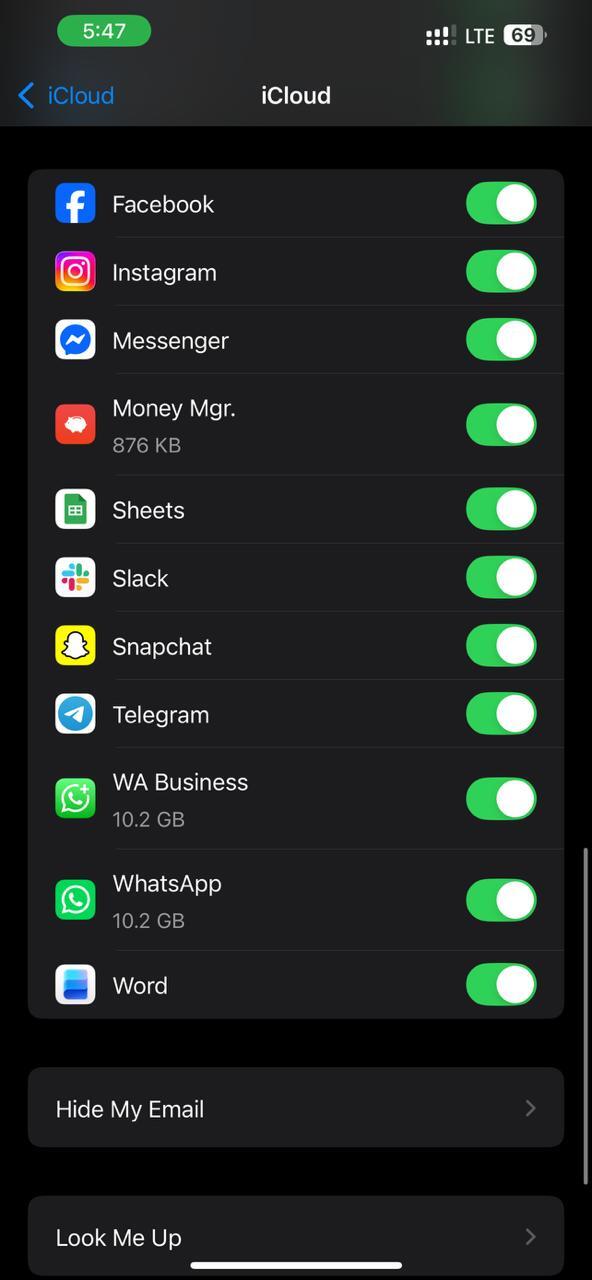
Step 1 Open "Settings" on your iPhone and tap your Apple ID name at the top.
Step 2 Tap "iCloud" from the menu.
Step 3 Scroll down and find WhatsApp in the list of apps. Toggle WhatsApp ON to allow iCloud access
Method 2. Manually Back Up WhatsApp Chats to iCloud
You can do this anytime you want to back up your WhatsApp data on your phone without having to wait. It's a handy feature especially if you are planning to get a new phone, update your iOS or get rid of some files without deleting your chat history in iCloud.
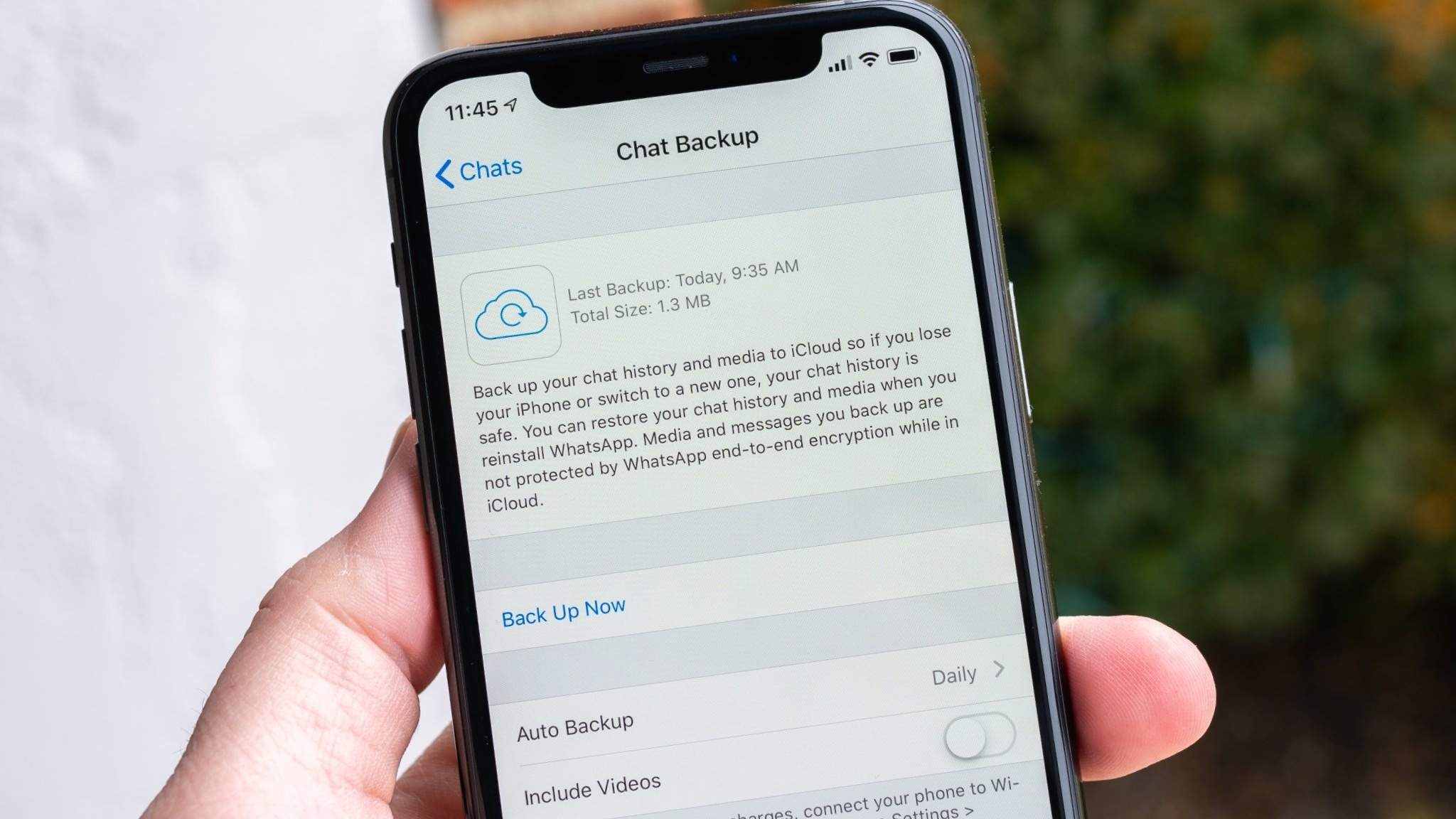
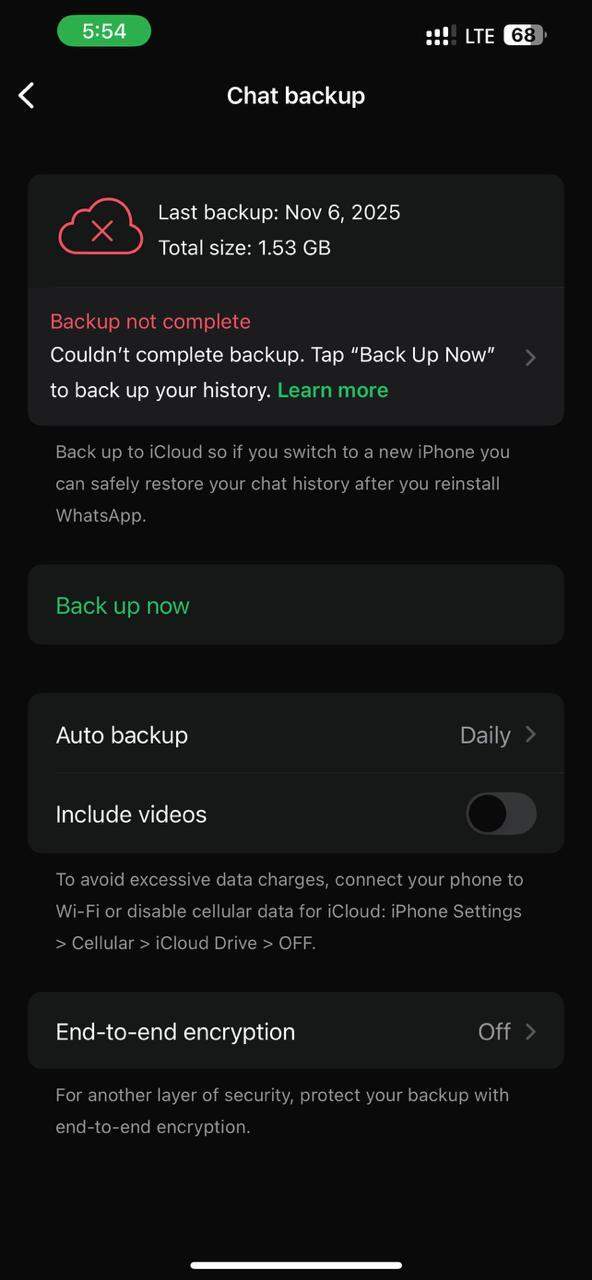
Step 1 Launch WhatsApp on your iPhone. Then, inside WhatsApp, go to Settings .
Step 2 Tap Chats > Chat Backup. Tap Back Up Now if you want to do an iCloud backup right away.
Step 3 Don't close the app and wait until the Backup is done.
Method 3. Set Up Automatic iCloud WhatsApp Backup
By implementing this technique, you get your WhatsApp information backed up automatically at regular intervals without doing anything. It keeps your chats continuously protected in iCloud. Here's how to back up WhatsApp to iCloud:
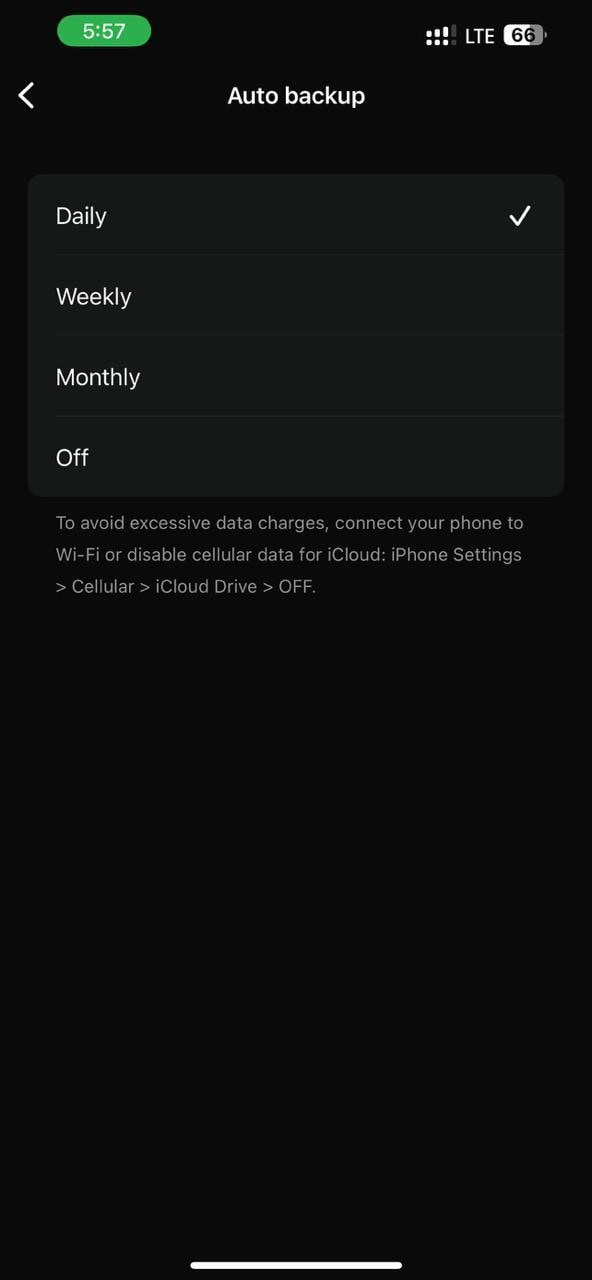
Step 1 Open WhatsApp and go to Settings. Tap Chats > Chat Backup.
Step 2 Select Auto Backup. Choose your preferred backup frequency (Daily, Weekly, or Monthly).
Step 3 Make sure iCloud Drive and WhatsApp access are enabled in iPhone iCloud settings. Ensure your device is connected to Wi-Fi and has enough iCloud storage for smooth automatic backups.
Part 3. How to Check If the Backup Was Successful
Check from WhatsApp
Once you've done a WhatsApp backup to iCloud, it's very important to double-check if your data has been properly saved.
Step 1 Open WhatsApp on your iPhone.
Step 2 Go to Settings > Chats > Chat Backup.
Step 3 Check the Last Backup date and time, and verify backup size.
Verify Backup in iCloud Storage
This method helps you confirm that WhatsApp data is included in your iCloud Backup and properly stored under your Apple ID account.
Step 1 Open Settings and tap your Apple ID name
Step 2 Go to iCloud > Manage Account Storage > Backups
Step 3 Select your device and confirm WhatsApp appears in the backup list
Confirm iCloud Backup Readiness
Before you rely on backing up your WhatsApp data, make sure that your iCloud account is correctly configured so that the backup process can be done smoothly in the future without any problem. start by turning on iCloud Drive feature on your iPhone, then verify that you have enough iCloud storage space left for your backups.
Part 4. How to Restore WhatsApp from iCloud Backup
Previously saved your WhatsApp data to iCloud? Restoration is simple. This method allows you to get back the entire history of your conversations, provided the backup still exists and you are using the same phone number and Apple ID.
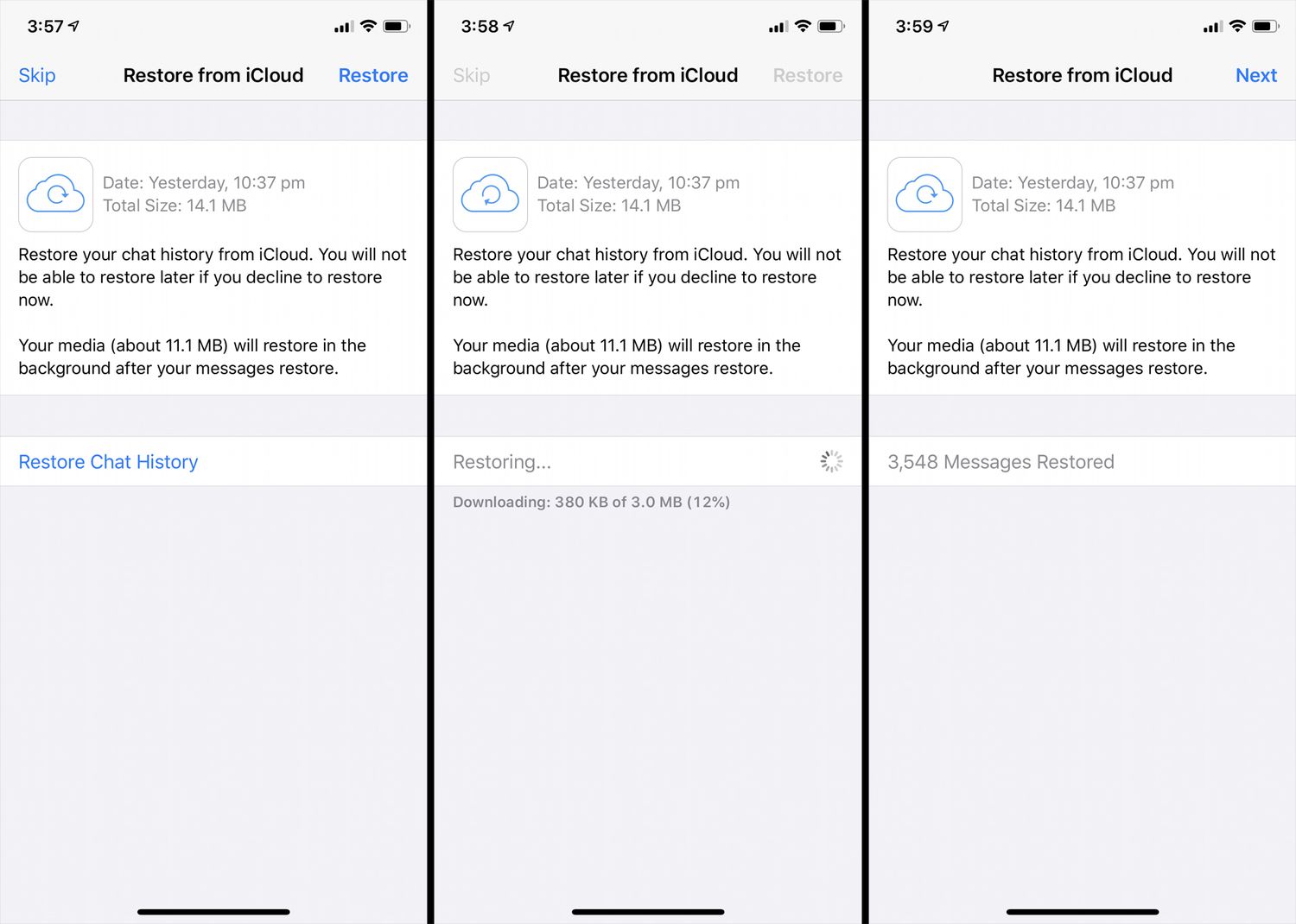
Step 1 Download WhatsApp from the App Store. Launch WhatsApp and confirm your phone number.
Step 2 Connect with the Apple ID that your iCloud backup is linked to. Press "Restore Chat History" once the option comes up.
Limitations of Native iCloud Restore
Even though restoring from iCloud backup is a very handy feature, there are still quite a few things that come with it, which are not that great. Here are some limitations iCloud restorations have to offer regarding restoring WhatsApp data.
- It is not possible to restore individual chats or the media files (photos, videos, and documents) selectively.
- A good internet connection is a must throughout the restoration process.
- Usually, restoration would mean you have to be on the same or a higher iOS version that you used to make the backup.
- If your backup is quite large, then restoration can be very time-consuming. It all depends on how fast your Internet is and the size of the backup.
Part 5. How to Selectively Recover WhatsApp Data from an iCloud Device Backup
One of the options to restore WhatsApp backups is iCloud; however, there's a catch. Apple's restoration method will only allow you to bring back the entire Backup but no separate elements from it. Under such a scenario, external third-party software becomes preferable since these tools permit you to conduct a selective recovery of the data needed without having to reboot your iPhone.
Why Use Dr.Fone — Recover iCloud Backup Data?
Dr.Fone - Data Recovery is a professional iOS data recovery tool that not only recovers deleted/lost WhatsApp data on iPhone but also can extract deleted WhatsApp messages from iCloud without factory reset. Users can also selectively recover WhatsApp data and preview the files before recovery.
Key Features
- Option to selectively recover specific items instead of restoring the whole Backup
- Ability to preview the files that can be recovered
- No need to erase or overwrite the current iPhone data
- Support for recovery from iCloud, iTunes, local backups, and iOS devices
- Works with the latest iOS and iPhone models
- Can recover data due to accidental deletion, iOS crashes, factory reset, water damage, and other data-loss cases
- Read-only scan to prevent changes to existing data during recovery
 Recovers data after deletion, crashes, or device damage.
- Supports photos, messages, contacts, WhatsApp, and more.
- Supports all major iPhone, iPad, and iPod models.
- Preview and recover only what you need.

Steps to Selectively Recover WhatsApp Data from iCloud Backup
Step 1 Download and install Dr.Fone. Click Toolbox > Data Recovery from the main dashboard.

Step 2 On the recovery screen, click iOS Data Recovery, then select Recover data from iCloud Backup from the available options.
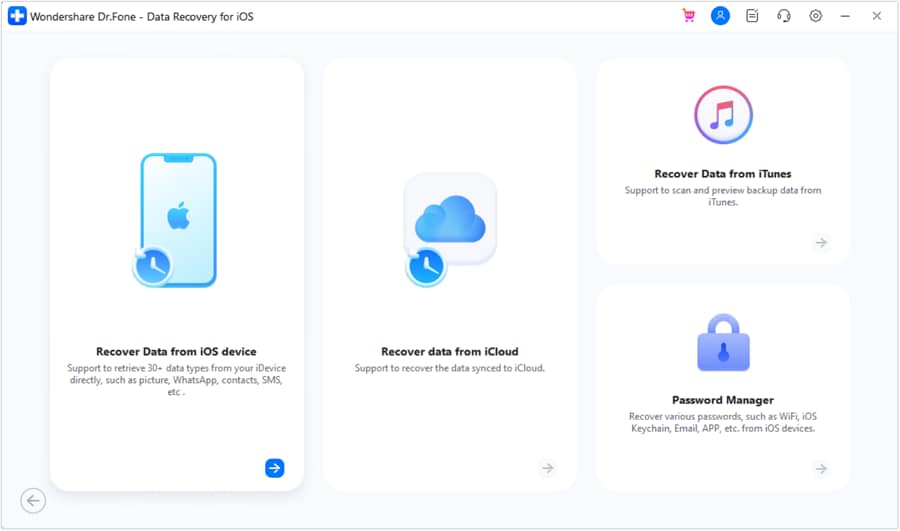
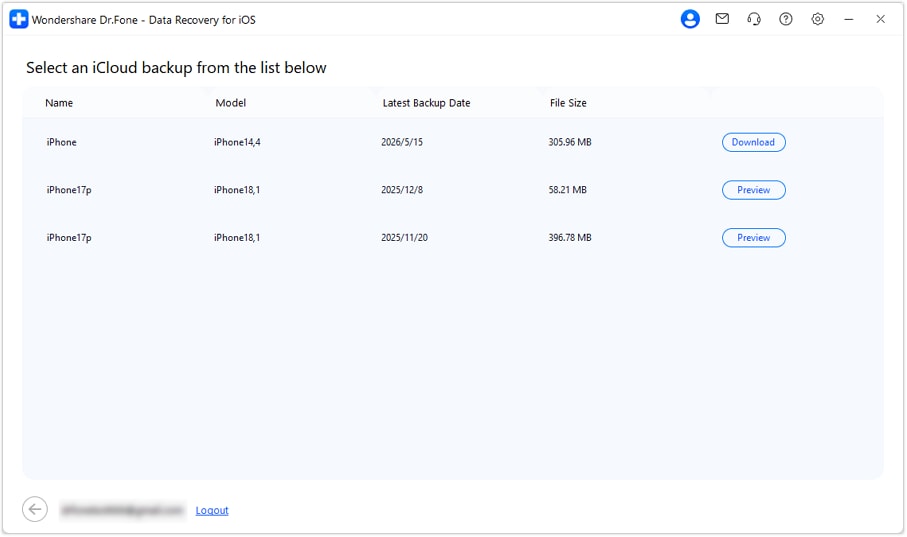
Step 3 After login, wait for the software to load backup files, then click to select the required Backup and press Download.
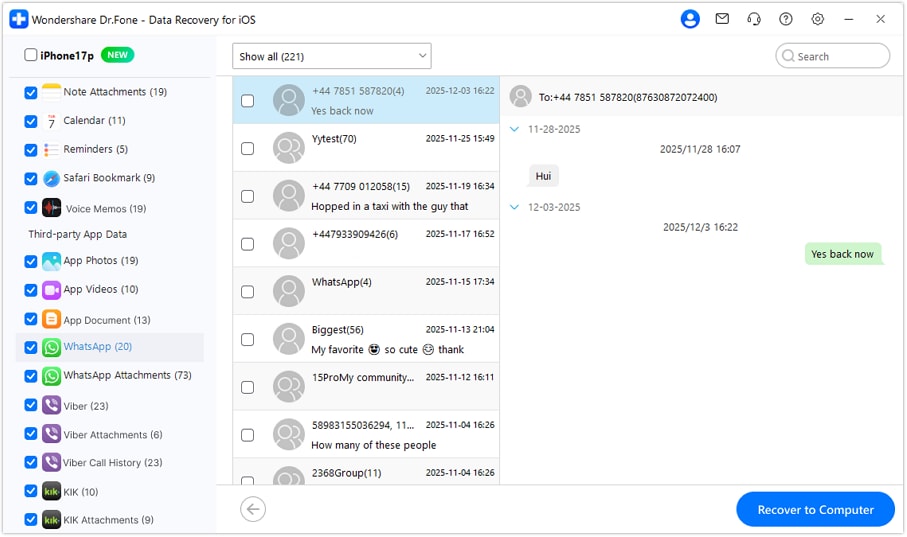
Step 4 Once downloaded, open WhatsApp Attachments or related categories, preview files, select items, and click Recover to Computer to save them locally.




Part 6. Common WhatsApp iCloud Backup Problems and Fixes
| Error / Issue | Fix |
|---|---|
| "iCloud account not signed in" | Go to Settings > [Your Name] and sign in with your Apple ID |
| Backup stuck or spinning | Check Wi-Fi connection, restart WhatsApp, force close and retry backup |
| "Not enough iCloud storage" | Free up iCloud space or upgrade your iCloud storage plan |
| WhatsApp toggle missing in iCloud | Update iOS and WhatsApp to the latest version |
| Backup size unexpectedly large | Disable Include Videos option in WhatsApp Chat Backup settings |
Conclusion
Want to secure your chat history, media files, and other types of conversations on iPhone? Back up WhatsApp to iCloud. However, regularly checking storage, settings, and backup status is equally necessary to avoid failures or incomplete backups.
If native iCloud Backup or restore fails, one can also use advanced tools like Dr.Fone - Data Recovery will be to allow the users to access, preview, and selectively recover WhatsApp data from iCloud backups, even if they have lost their existing information.
FAQs
-
How long will a WhatsApp iCloud backup last?
The time of a backup mainly depends on your internet speed, the size of the Backup, and which types of media are being stored. A text-only backup, which is very small can be done in a few minutes whereas big backups with photos and videos can take 10 to 30 minutes or even more. -
Can I get an old WhatsApp iCloud backup?
Unfortunately, iCloud only stores the latest backup of WhatsApp. Every time a new backup gets made, the old one gets deleted automatically. -
Is Dr.Fone - Data Recovery a safe software to use for recovering iCloud backup?
Yes, generally, it is quite safe especially if you only get the download from the official Wondershare site. Plus, it uses a secure read-only recovery way that lets the users see and pick out the data they want to recover without the risk of erasing the files that already exist on the device.
 Add Wondershare Dr.Fone as a preferred source on Google