Recover photos, messages, WhatsApp, and more — no backup
needed.
Recover photos, messages, WhatsApp, and more — no backup
needed.

 100% Security Verified | No Subscription Required | No Malware

 :
: 
 ChatGPT
 Perplexity
 Gemini
 Claude
 Grok
Grok
Photos quickly fill iCloud storage across multiple connected Apple devices every year. According to Apple, they give every iCloud user only 5GB of free storage. Many users mistakenly remove images and later lose important memories forever. Others also ask, how do I delete photos from iCloud safely online without hassle?
The confusion starts because iCloud automatically syncs photos across Apple devices everywhere. That's the reason this guide explains safe deletion methods. If you need help with recovery after deletion, tools like Dr.Fone - Data Recovery will also be discussed in this article.
In this article

Part 1. What Happens When You Delete Photos From iCloud?
Deleting photos or items from the cloud alters how files behave across devices. Apple uses a unified system that connects your account to every gadget. MacRumors also claims that almost 64% of Apple users in the U.S. use paid iCloud storage. Let us analyze how this system change affects your smartphone photo gallery:
Will Photos Be Deleted From iPhone Too?
Yes, photos will be deleted from your iPhone too if iCloud Photos is on. Your iPhone shows the same synced library that lives inside iCloud. When you delete a photo anywhere, it vanishes from all synced devices. Apple also reports that iCloud Photos deletion affects all synced devices when enabled. Therefore, many users ask, "How do I delete photos from the iCloud without affecting their iPhone storage?"
Difference Between Deleting From iCloud vs Turning Off iCloud Photos
Deleting photos removes them from your entire synced library across devices. Nonetheless, disabling "iCloud Photos" stops syncing but keeps existing photos on your device. So, the table below shows the key differences between the two actions:
| Factor | Deleting from iCloud | Turning Off iCloud Photos |
|---|---|---|
| Photos Removed from iPhone? | Yes, if sync is on | No, existing photos stay |
| Affects All Devices? | Yes, all synced devices | No, only stops future sync |
| Storage Freed Immediately? | Yes, after 30 days (Or immediately delete them from the Recently Deleted album) | No, iCloud copy remains |
| Photos Recoverable? | Yes, within 30 days | Yes, photos stay untouched |
| Recommended For? | Removing unwanted photos | Switching storage methods |
What Happens in Recently Deleted
When you delete a photo, Apple moves it to the Recently Deleted folder. This folder holds deleted photos for 30 days before permanent removal occurs. Many users searching for how to delete photos from iCloud do not realize this folder exists at all.
During those 30 days, photos still count toward your total iCloud storage space. After 30 days, Apple permanently removes them, and that storage space becomes fully available.
Part 2. How Do You Delete Photos from iCloud on iPhone, Mac, and PC?
You might wonder, how do I remove photos from iCloud storage across platforms? Thus, you will discover a few methods below according to your specific device type:
1. Delete Photos from iCloud on iPhone or iPad
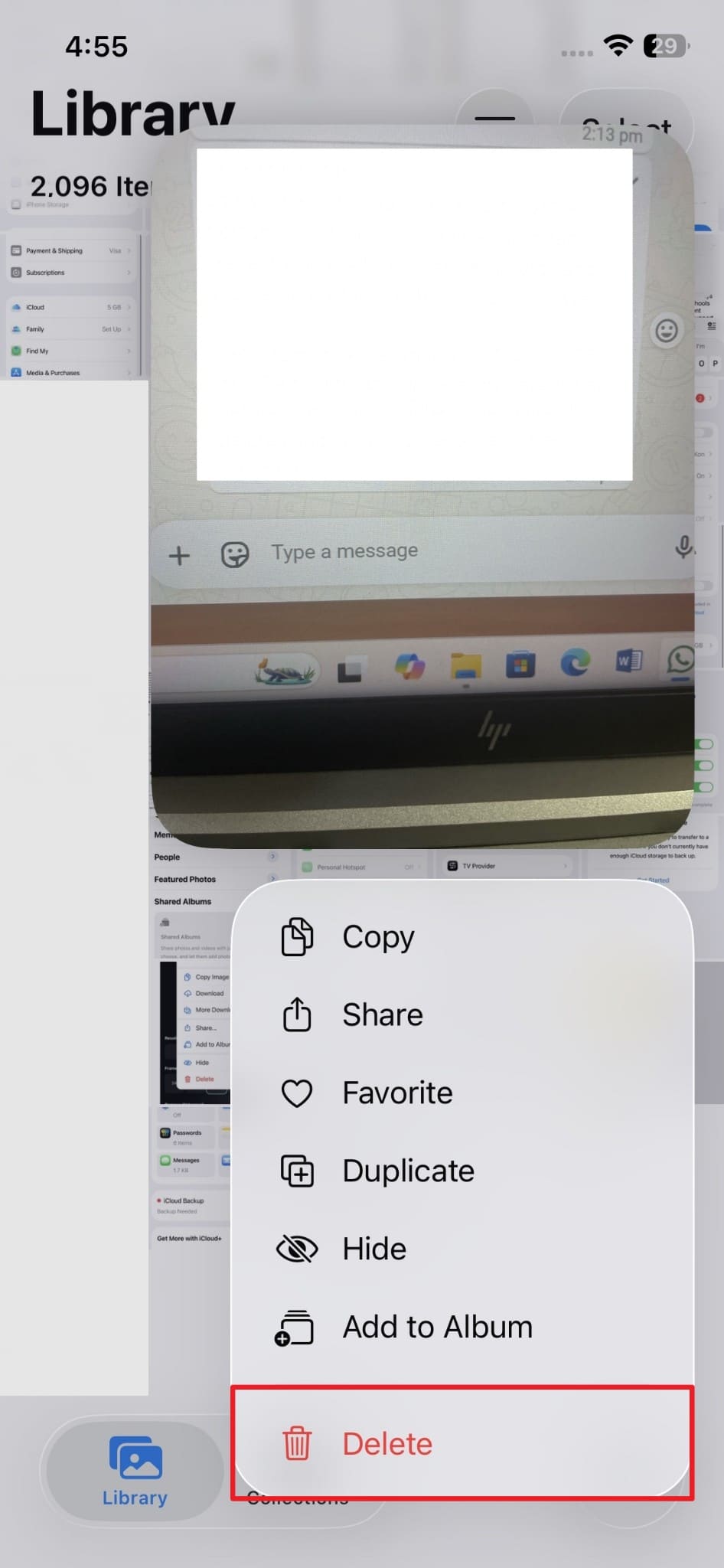
This method removes unwanted photos from your phone without additional software. Many users searching "how to delete pictures from iCloud" prefer this simple native Apple solution. Changes sync across connected Apple devices using the same iCloud account information. Moreover, storage frees up after 30 days when Recently Deleted empties. So, follow the steps below to learn how you can delete photos from your cloud storage:
-
Step 1 Upon running the "Photos" app, locate any desired or unnecessary photo you want to delete.

-
Step 2 When you select the photo, opt for "Delete" from the upcoming menu.
2. Delete Photos from iCloud on Mac
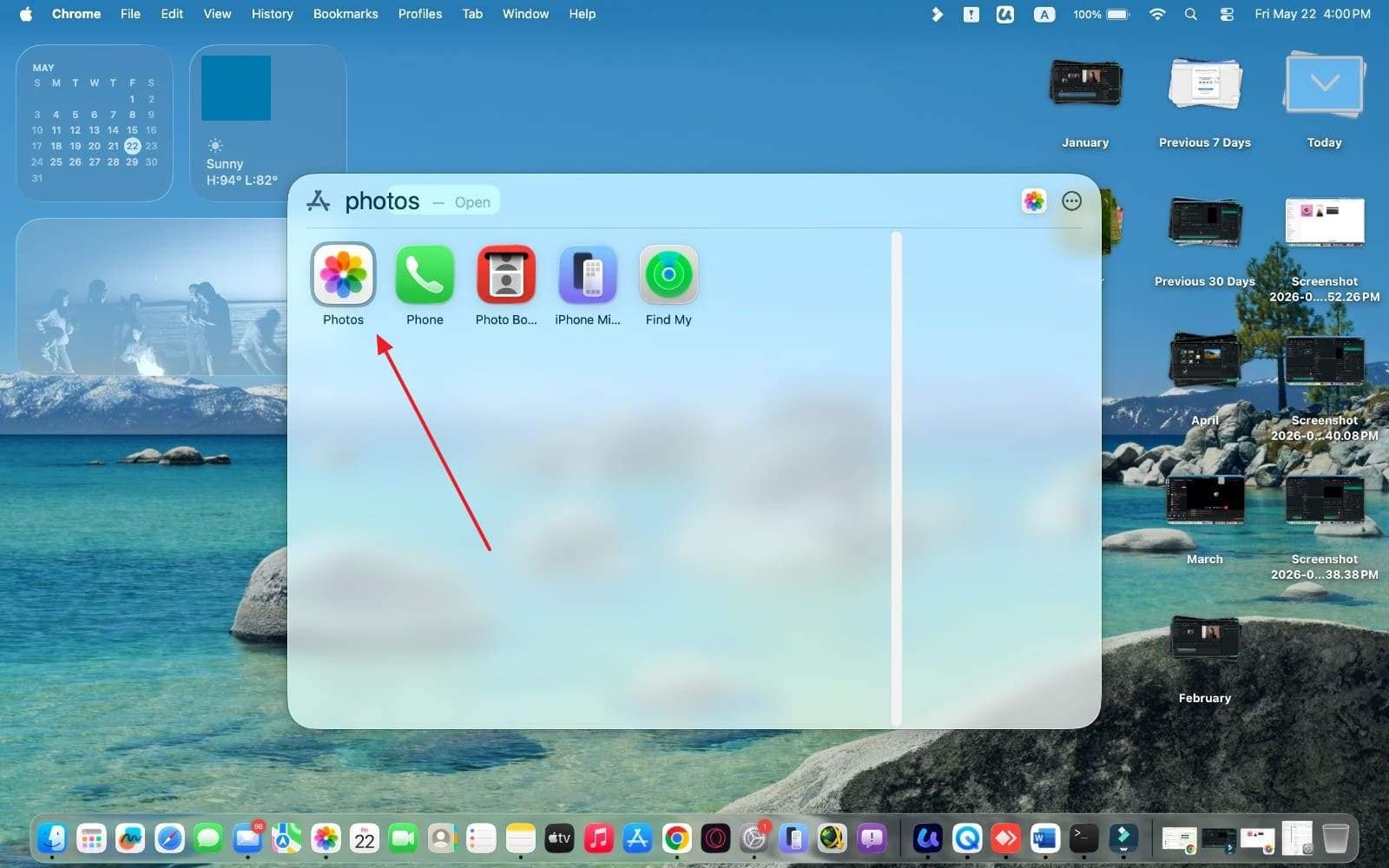
Mac users can delete iCloud photos directly through the native Photos app on the desktop. Yet, you need to make sure the "iCloud Photos" is enabled to remove photos from your cloud storage. Upon deleting your desired photos, you can confirm the deletion by signing in to your account. Anyhow, when someone asks, "how do you delete photos from iCloud storage," adhere to these steps:
-
Step 1 To initiate, you need to search for and run the "Photos" app.
-
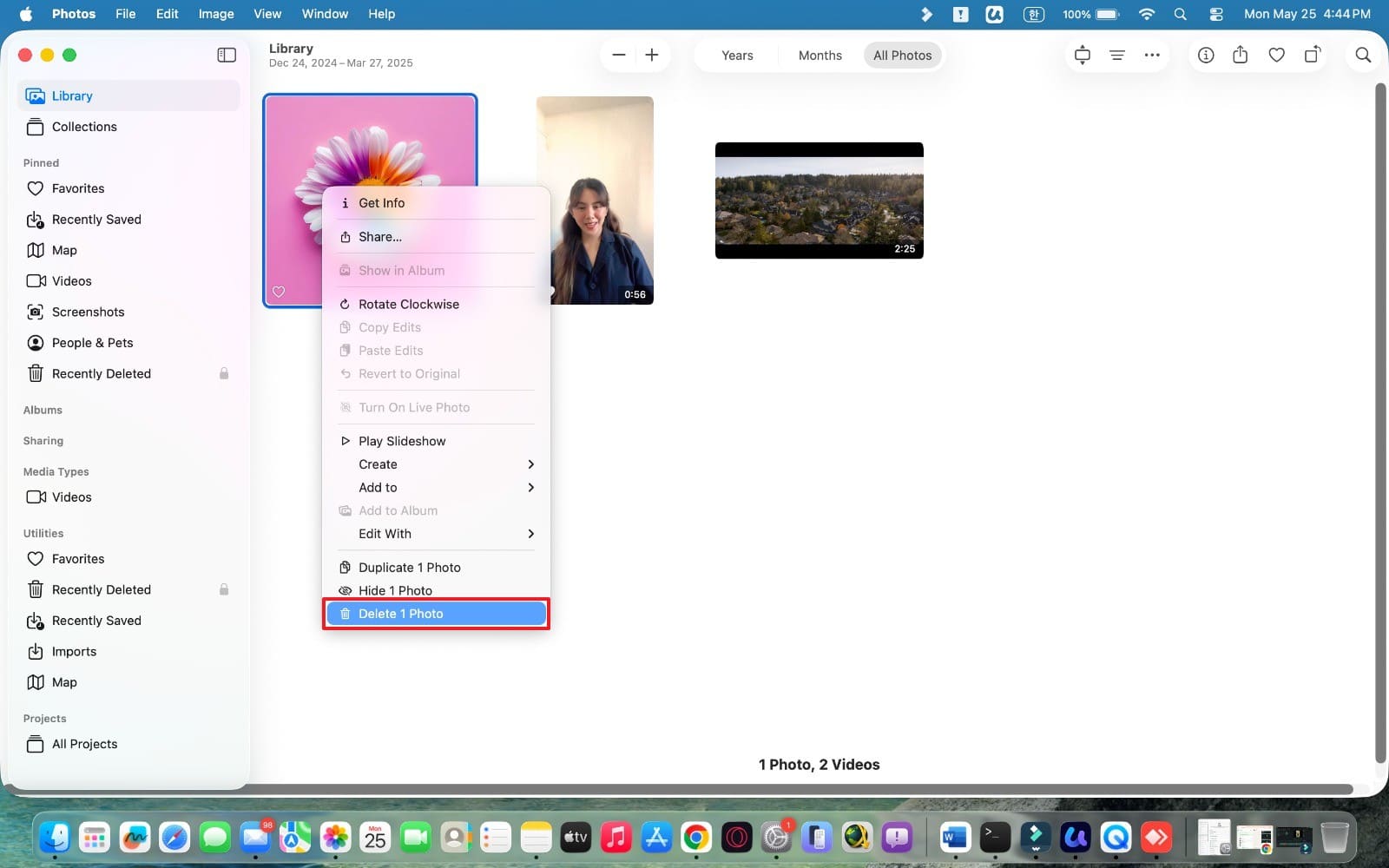
Step 2 From the "Library" tab, locate and select any preferred photo to delete. Finally, choose the "Delete X Photo" option to move forward.
-
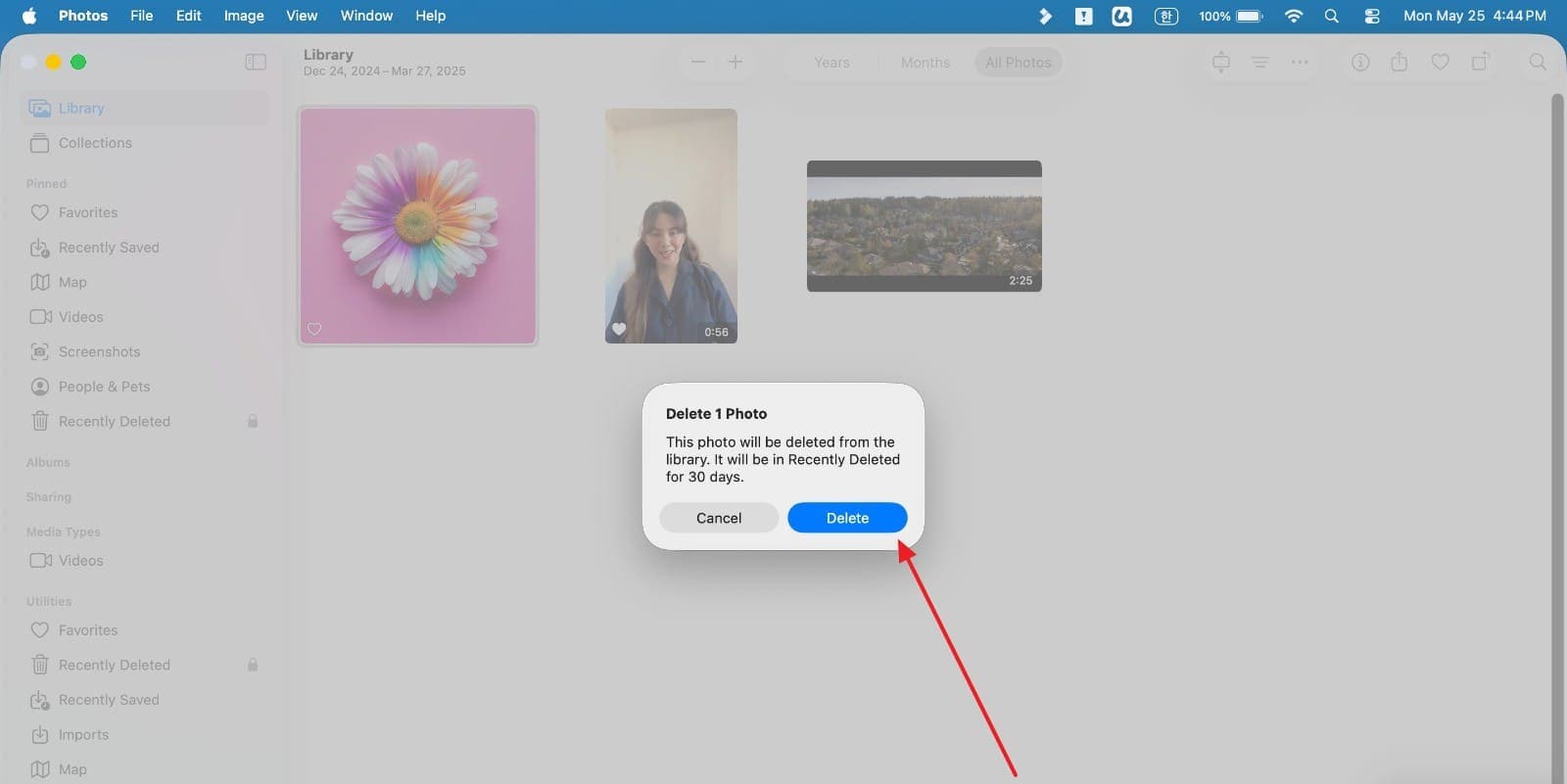
Step 3 Going ahead, press "Delete" when you see a small prompt to confirm deletion.
3. Delete Photos from iCloud.com in a Browser
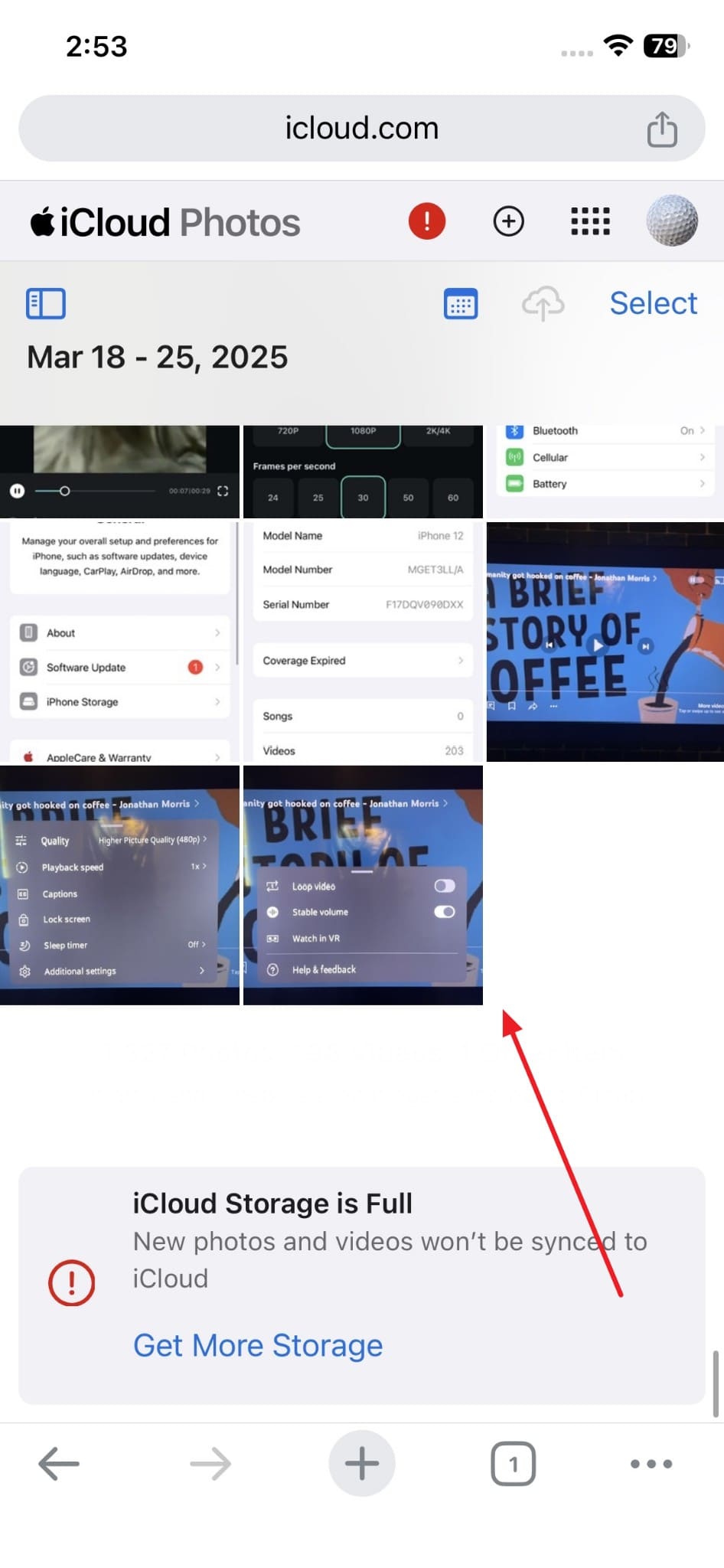
This method lets you delete iCloud photos from any computer using just a browser. It is useful when you cannot access your Apple devices. However, users must keep their information in mind to log in to their cloud account. Otherwise, changes get synced across all the devices attached to the same account instantly on deletion. Review the given steps to find out how to delete photos from iCloud storage online:
-
Step 1 As you sign in to the "iCloud" website on your preferred device, tap the "Photos" app.

-
Step 2 Following that, scroll through the vast library to find and select your desired photo.
-
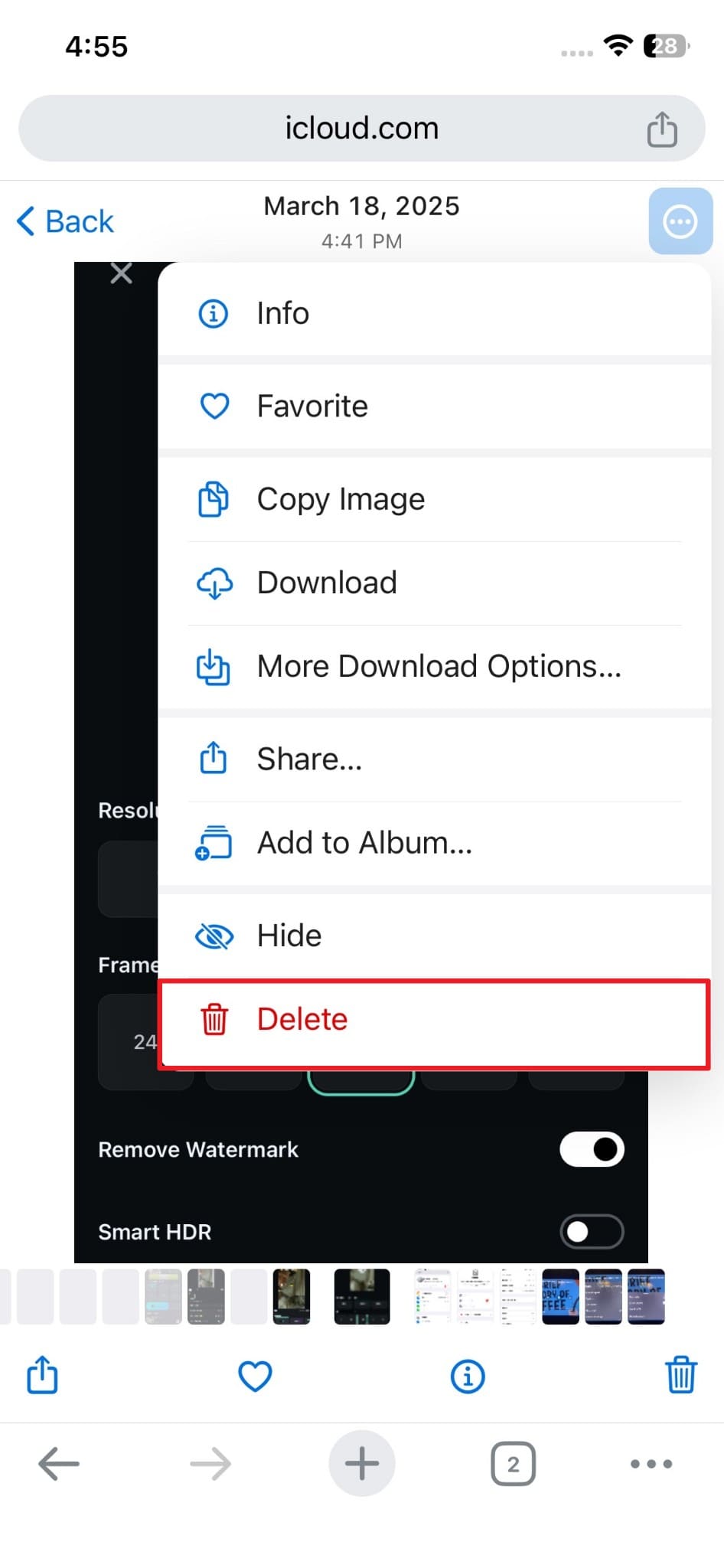
Step 3 Moving forward, tap the "Three Dots" icon and opt for the "Delete" option.
4. How to Empty Recently Deleted to Free Space Faster
As mentioned before, removing images does not grant you instant storage space relief. The items linger inside a safety repository folder for an entire month. During that time, those photos still occupy your total iCloud storage space. That's the reason it is especially helpful when your iCloud storage is completely full. Take guidance from the given steps to answer how do I delete photos from iCloud storage:
-
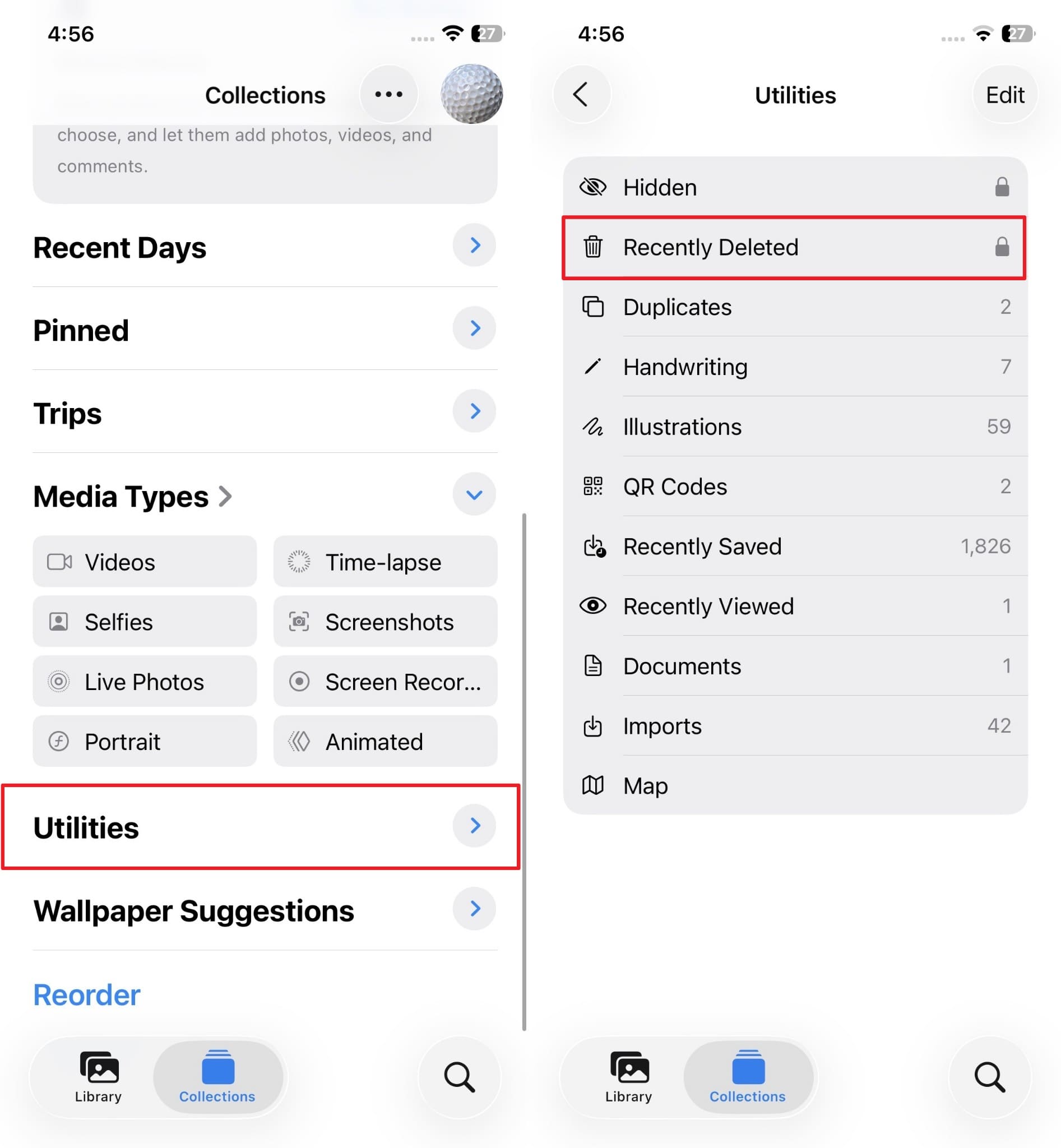
Step 1 From the "Photos" app, navigate to the "Utilities" section and access "Recently Deleted."
-
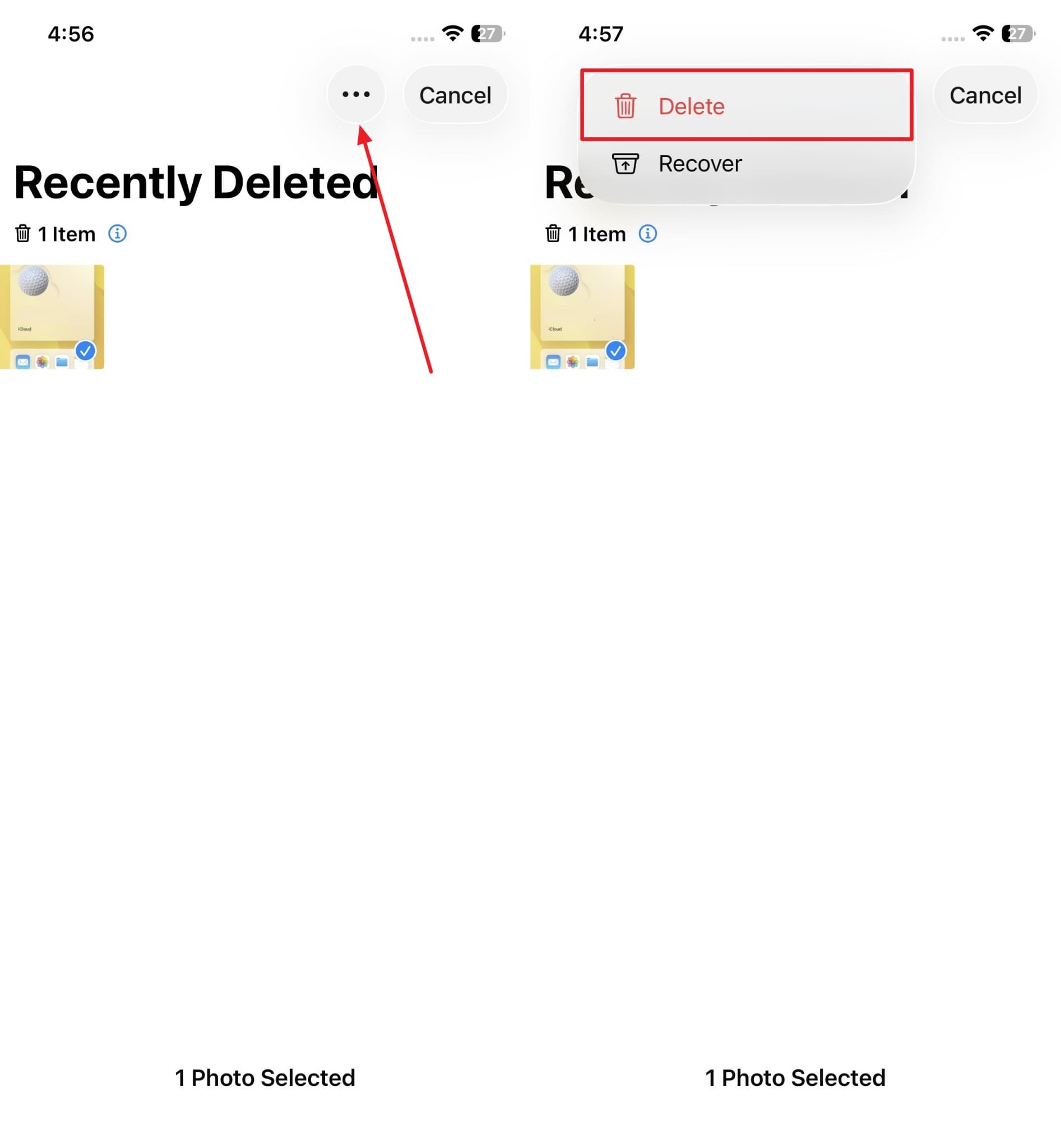
Step 2 Upon accessing this particular folder, select the images to remove. Tap the "Three Dots" icon at the top and select the "Delete" option.
Part 3. How Can You Free iCloud Storage Without Deleting Important Photos?
Freeing cloud storage does not always mean you have to delete your important photos. Upon asking, "how do I delete my photos from iCloud," many users also seek ways to manage their storage. For that reason, the three methods below show safer alternatives to free up iCloud storage:
1. Use Optimize Storage on iPhone and Mac
It is a native Apple feature that helps you save space automatically. Optimize Storage keeps full-resolution photos in iCloud while storing smaller versions on your smartphone. This means your device storage stays free without deleting any important photos. However, you will need a stable internet connection to access full-resolution photos later. While learning how to delete photos from iCloud storage on iphone, follow this method:
For iPhone
-
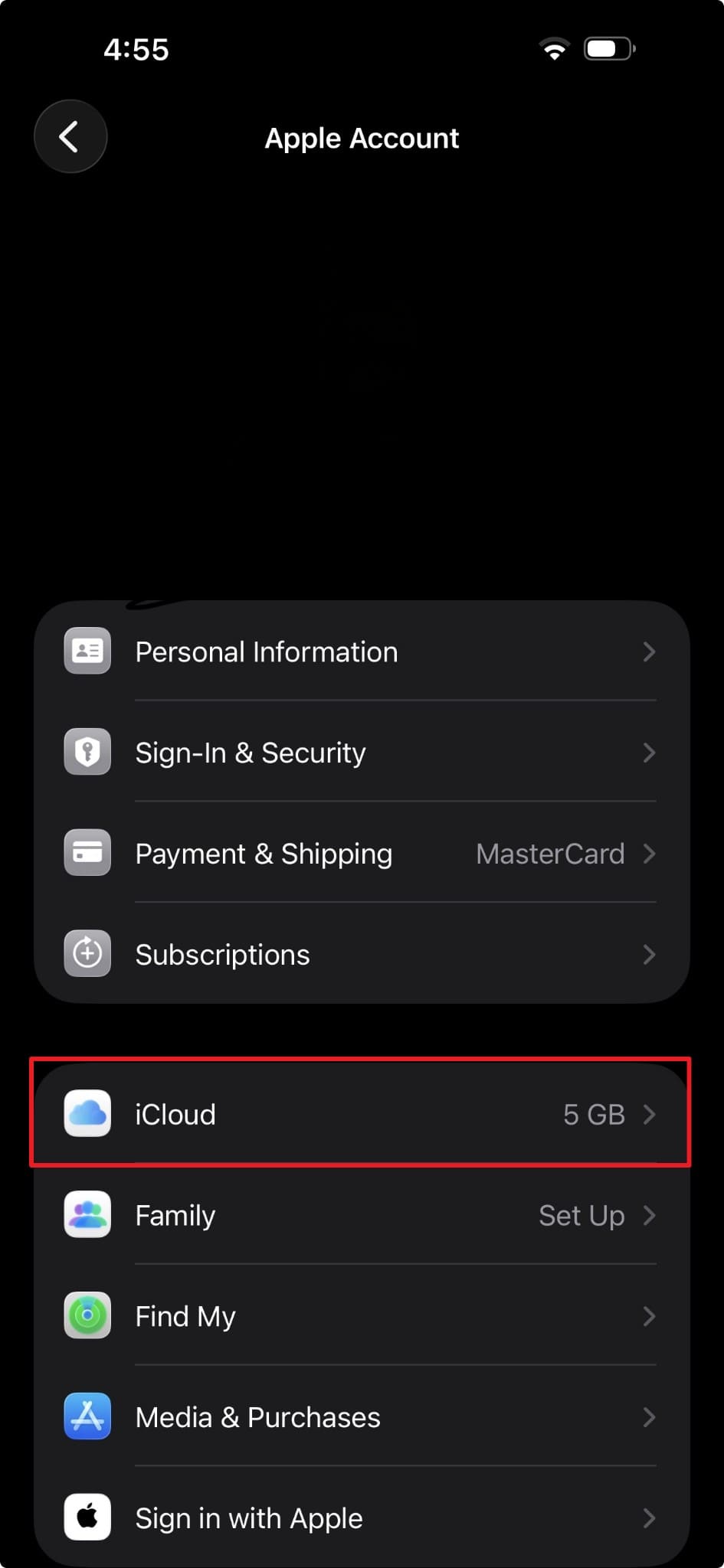
Step 1 As you head to the "Apple Account" section from your settings, tap "iCloud."
-
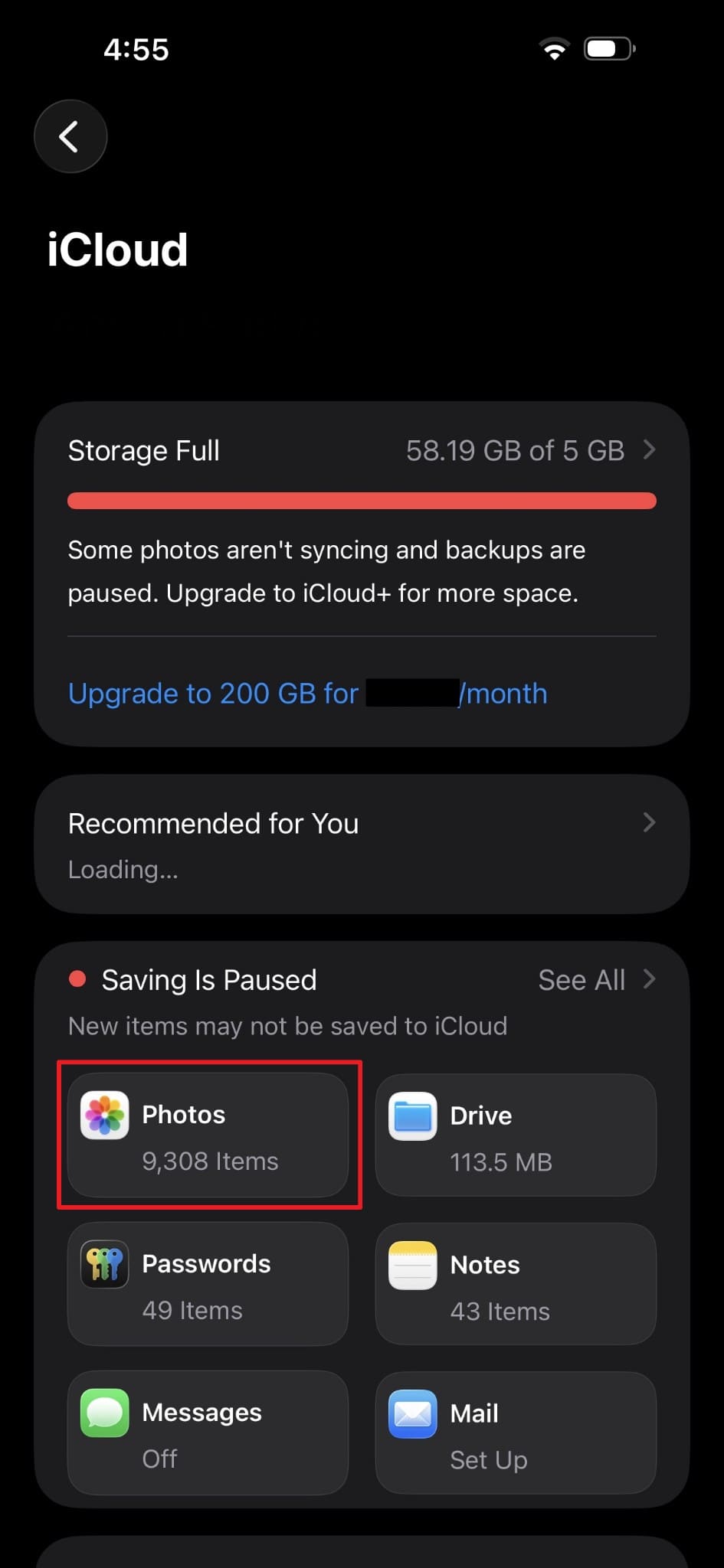
Step 2 After going to the next screen, swipe up and navigate to the "Photos" section.
-
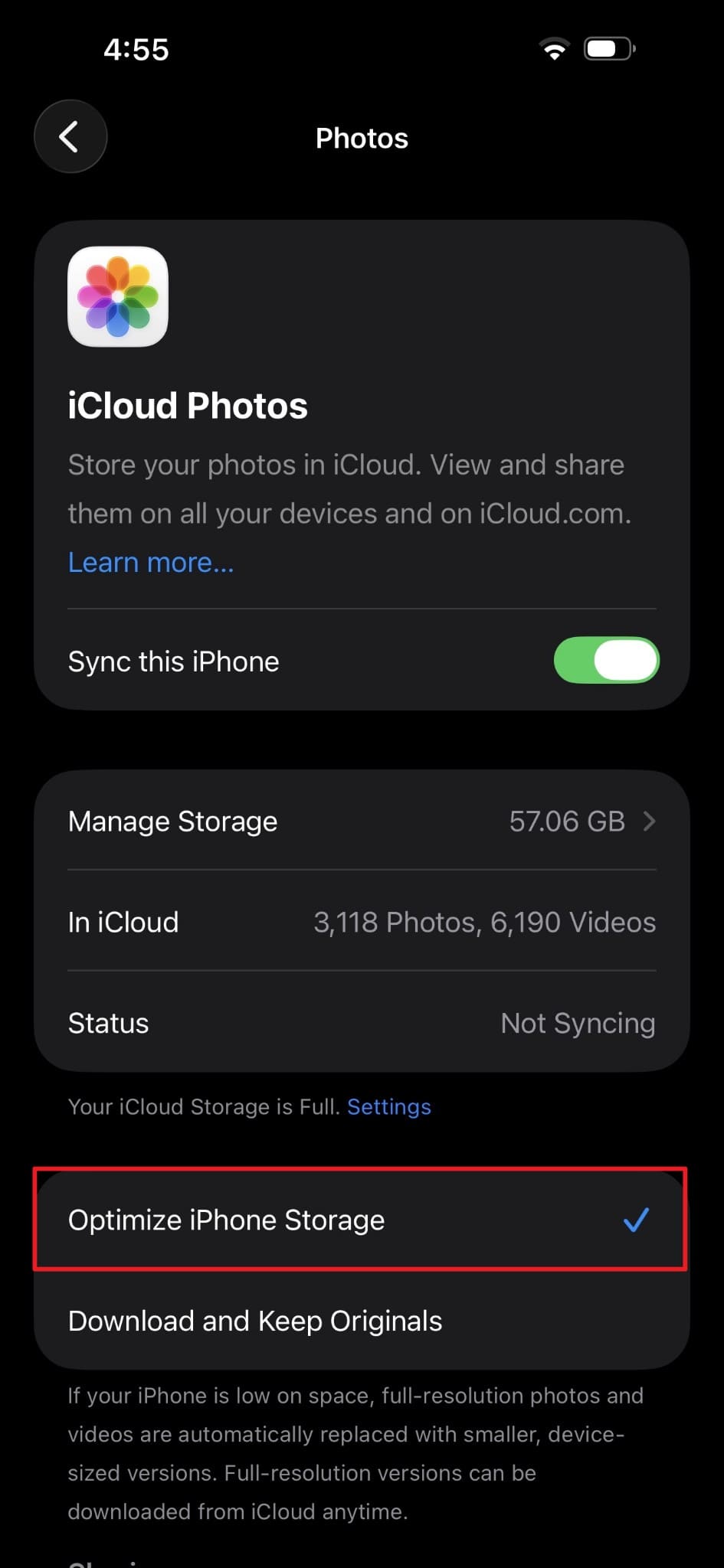
Step 3 When "Sync This iPhone" is enabled, you need to tap the "Optimize iPhone Storage" option.
For Mac
-
Step 1 Upon pressing the "Apple" menu, go to the "System Settings…" section.

-
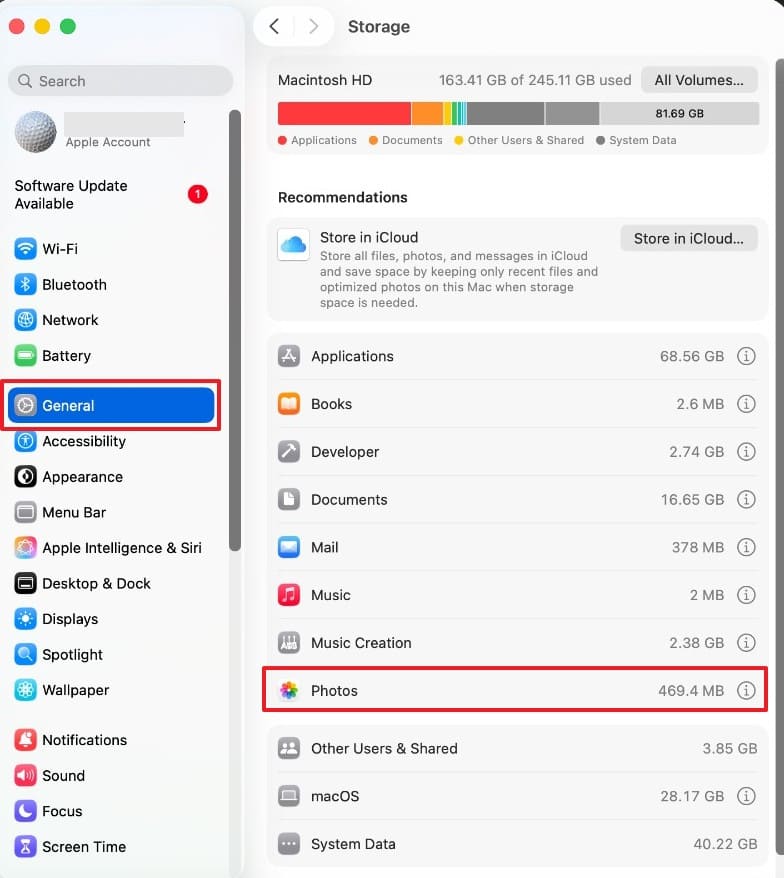
Step 2 Following that, access the "General" tab and opt for "Photos."
-
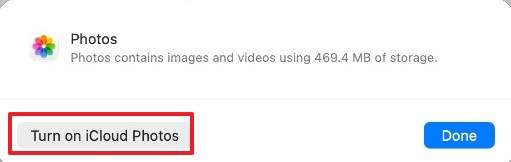
Step 3 When prompted, you need to press the "Turn On iCloud Photos" option.
-
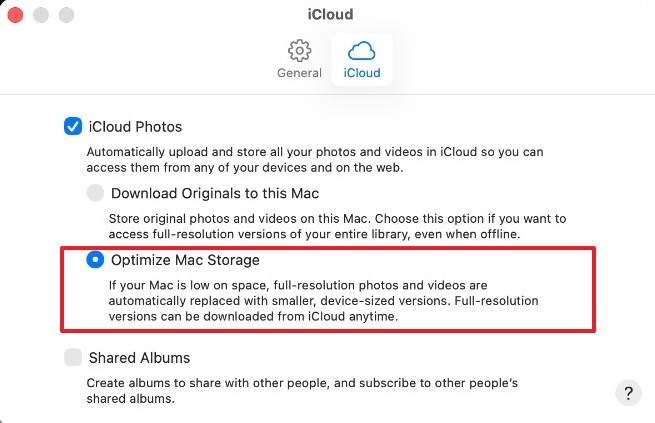
Step 4 Upon heading forward, select the "Optimize Mac Storage" option to complete the task.
2. Back Up Photos to Computer or External Drive Before Deleting
It's always best to back up photos before deleting them from the cloud. This way, you will have a copy, stored on your computer or external drive. For that, you can use Apple's native Finder on Mac to back up your entire iPhone library. Moreover, Windows users can use iTunes to create a full local backup of their device.
Moreover, some software, such as Dr.Fone, allows you to back up only photos to your computer. It gives you more control over exactly which files get saved locally. Whenever you need to free up space without losing photos, this is the best way to do it. After you have backed it up, you can effortlessly delete photos from your cloud storage.
3. Move Old Photos to Other Cloud Services
Moving old photos to another cloud service is a smart way to free iCloud space. Services like Google Drive offer generous free storage for transferred images. Furthermore, this method lets you keep all your photos accessible without requiring more storage. So, follow these steps whenever someone asks how do I clear photos from iCloud:
-
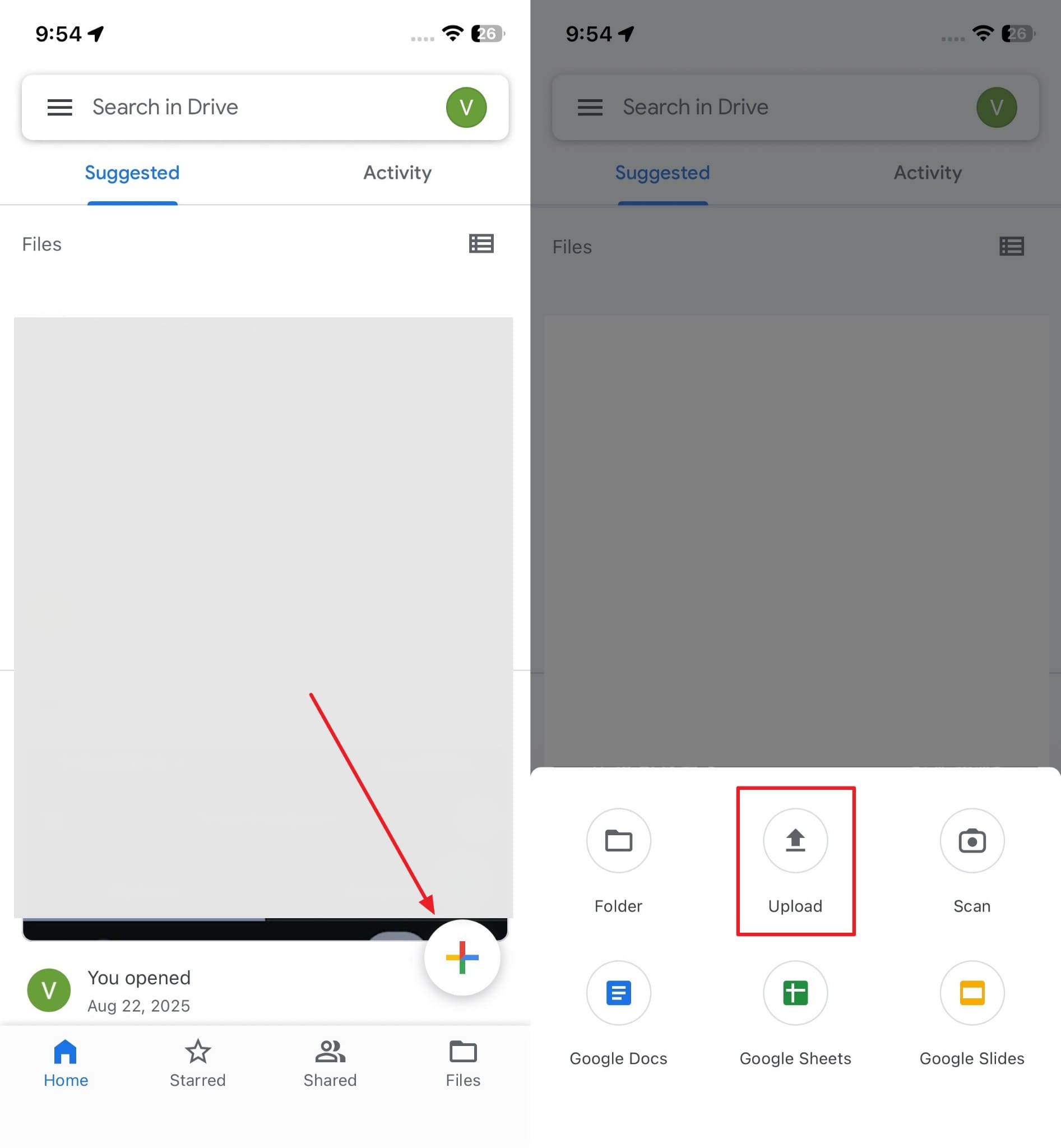
Step 1 When you run the other cloud storage app, like "Google Drive," tap the "+" button. As the menu appears from the bottom, you need to opt for "Upload."
-
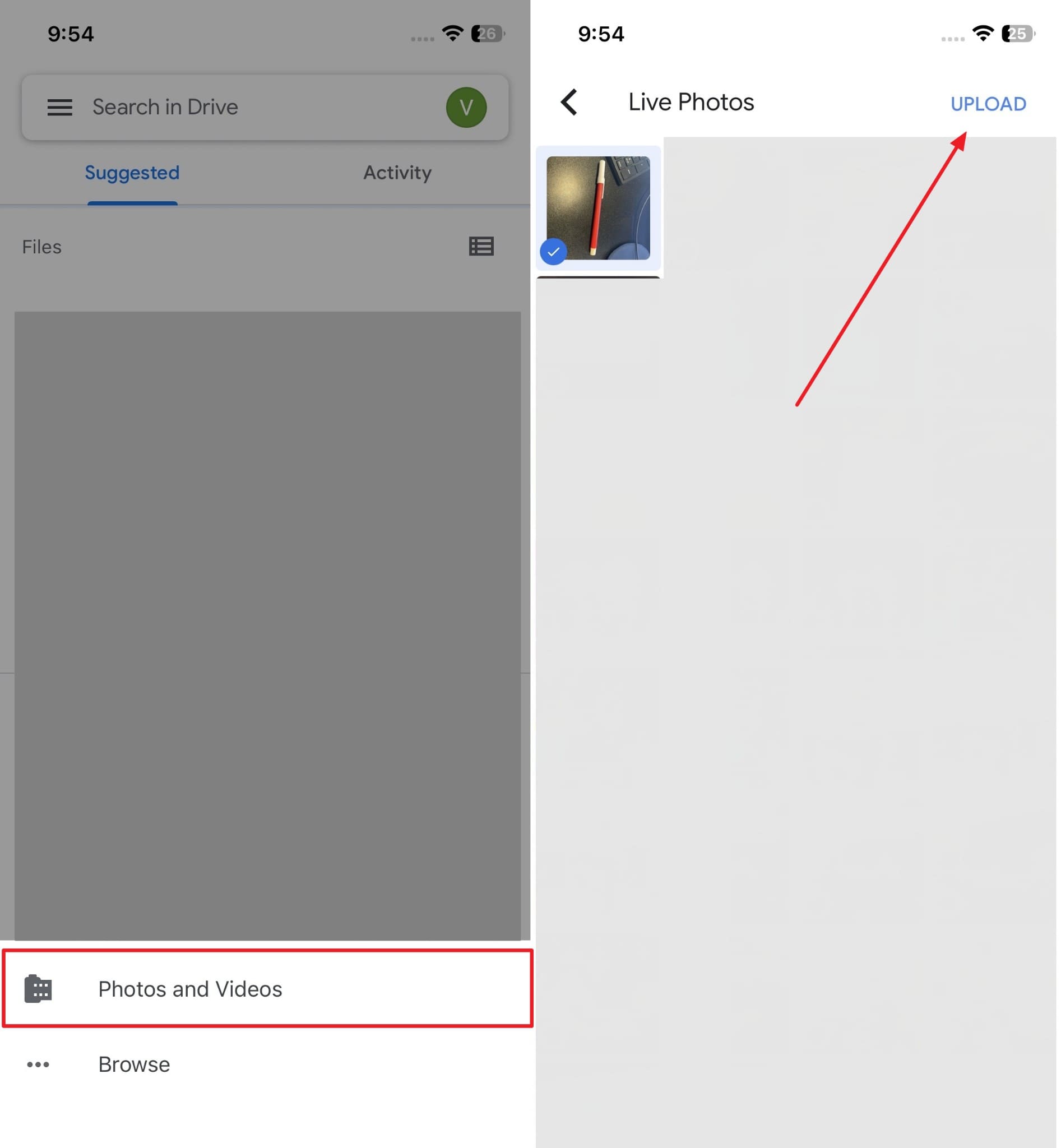
Step 2 Tap "Photos and Videos" and access your phone storage to choose old photos. Upon selecting them, press the "Upload" option to send them to this cloud storage.
Pro Tip. Accidentally Deleted Photos? How to Recover Photos from iCloud Backup
Accidental photo deletion happens more often than most iPhone users actually expect. Many people learn how to delete photos from iCloud and remove important memories forever by mistake. To overcome this mistake, you need a tool such as Dr.Fone - Data Recovery. However, this particular tool only works when you previously enabled "iCloud Backup" on your device.
During usage, it may let you recover photos from iCloud backup without resetting your entire device. We also tested this tool, and we can selectively recover only the photos we need from the available backup. Along with photos, you can even recover 20 data types, including messaging apps' data. The tool works with all iOS and iPadOS devices, including the latest available iOS 26 versions.
 Recovers data after deletion, crashes, or device damage.
- Supports photos, messages, contacts, WhatsApp, and more.
- Supports all major iPhone, iPad, and iPod models.
- Preview and recover only what you need.

Guide to Recover Photos from iCloud Backup via Dr.Fone
Restoring your lost data files requires using a systematic step-by-step extraction method. The upcoming steps will help you recover deleted photos from your cloud backup:
-
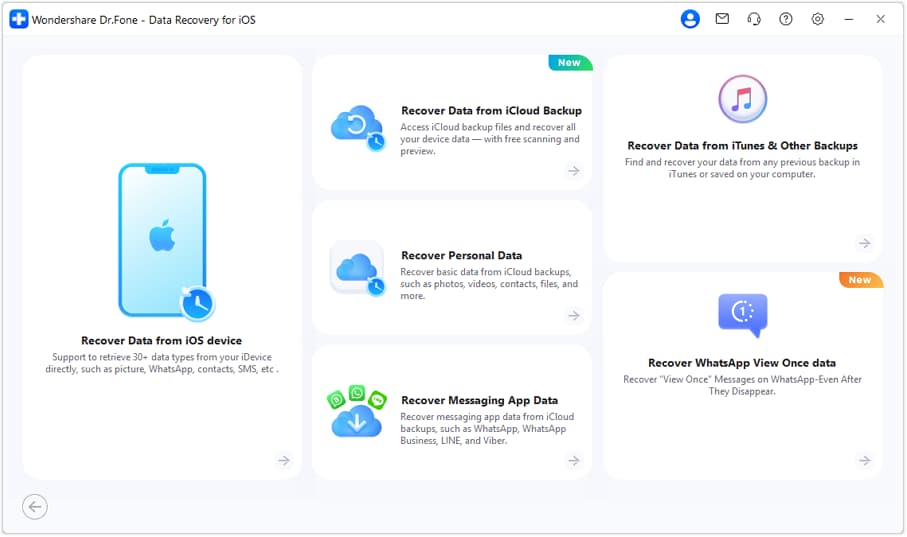
Step 1 Open the iOS Data Recovery Section
Within Dr.Fone, navigate to the "Toolbox" tab and access the "Data Recovery" feature. Subsequently, opt for the "Recover Data from iCloud Backup" option upon clicking "iOS" as your device.
-
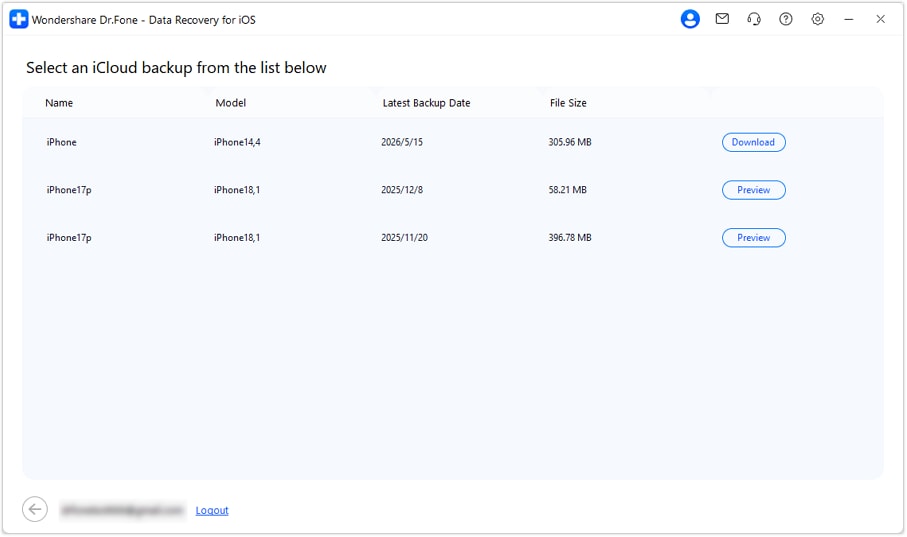
Step 2 Log in to iCloud and Download the Backup
Enter your iCloud account credentials and complete the verification process on the next screen. After Dr.Fone displays the available backups, choose the required one and click "Download."
-
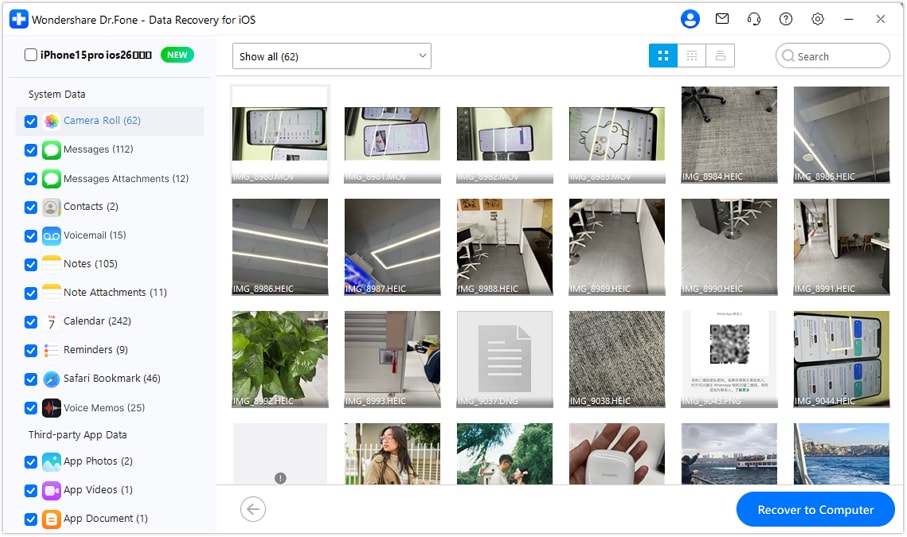
Step 3 Check the Data and Restore Deleted Photos
Once it extracts the backup content, browse the photo categories and preview the recoverable images. Going ahead, mark the photos you need and press "Recover to Computer" to save them locally.




Conclusion
In summary, iCloud Photos can be managed when users understand the syncing behavior. Deleting images affects all connected Apple devices when iCloud Photos remains enabled. Many users still ask, how do I delete photos from iCloud without losing memories? The safest approach includes careful deletion and using the Recently Deleted recovery period.
Apart from that, users should always check device sync settings before deleting any media files. Plus, tools like Dr.Fone - Data Recovery may help when photos are accidentally deleted but are available in cloud backups. Overall, careful steps ensure storage is managed without permanent photo loss risks.
Frequently Asked Questions
-
Does deleting photos from iCloud delete them from all Apple devices?
Yes, deleting photos removes them from all devices when "iCloud Photos" sync is enabled. Every connected device shares one unified photo library stored inside your iCloud account. Yet, when you turn off "iCloud Photos Sync" before deleting, it prevents removal from other Apple devices. -
What happens if I sign out of my Apple ID before deleting photos?
Signing out of your account breaks the active connection to the cloud database. Any images you delete from the web interface will not disappear from your phone. Therefore, the local media files remain untouched on your phone until you reconnect later. -
Is it safe to delete photos directly from iCloud.com in a browser?
If you understand how the sync works, it's safe to delete photos from a website. On deleting a file, it will be deleted from all synced devices. That's the reason you should always have a backup before you try to delete photos from the cloud platform. -
What happens if I accidentally delete photos I still need from iCloud?
Photos deleted go to "Recently Deleted," where they will be available for a month. Therefore, you can find and recover them in that folder from your Photos application. When that specific time period exceeds, and you have a cloud backup, then tools like Dr.Fone may help. It enables users to access their backups and choose the desired photo to recover.
 Add Wondershare Dr.Fone as a preferred source on Google