Recover photos, messages, WhatsApp, and more — no backup
needed.
Recover photos, messages, WhatsApp, and more — no backup
needed.

 100% Security Verified | No Subscription Required | No Malware

 :
: 
 ChatGPT
 Perplexity
 Gemini
 Claude
 Grok
Grok
According to DemandSage, there are more than 1.56 billion active iPhone users. In case you delete important items from iCloud Drive, it could disrupt your workflow. Most people assume the only fix is a full iPhone restore. That assumption leads to unnecessary data loss and wastes hours.
To overcome this challenge, knowing how to recover files from iCloud Drive saves you time. Apple actually gives you multiple targeted ways to get files back. Thus, this guide provides step-by-step methods to pinpoint and extract specific missing items.
In this article

Part 1. Can You Recover Deleted Files from iCloud Drive?
Yes, you can retrieve lost data from your cloud account, but timing matters most. In case you delete a file, the platform moves it to a "Recently Deleted" folder. That particular folder retains your deleted files for up to 30 days. Hence, it is crucial to know this particular limit while learning how to recover files from iCloud Drive.
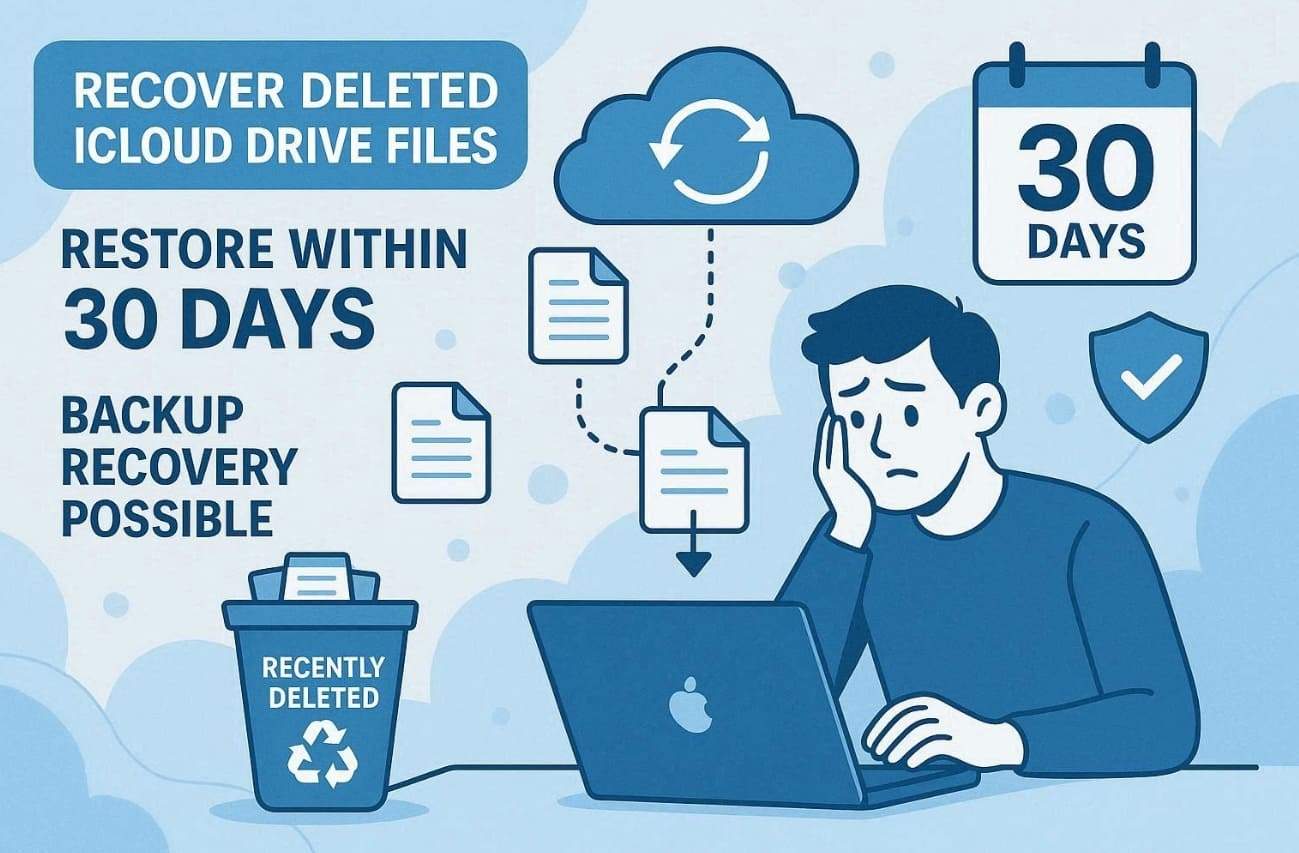
As the 30 days pass, the platform will permanently remove your files from all its servers. After that, recovery usually depends on iCloud recovery options and third-party tools, not standard iPhone backups. The method you choose depends entirely on when the file was deleted.
Part 2. What Should You Check Before Attempting File Recovery?
A few quick checks can save significant time before jumping into recovery methods. So, checking these basic conditions will prepare you for the specific steps listed below:
1. Check Recently Deleted in the Files App
As explored above, whenever you delete any file from Drive, it doesn't disappear from your device. Apple automatically moves every deleted file into a dedicated "Recently Deleted" folder instead. That’s the reason you should check this folder when you recently delete files and want to recover them. While learning how to recover files from iCloud Drive, you should start by checking this folder.
2. Check iCloud.com
Occasionally, your device and cloud servers may not delete files simultaneously. When you delete files offline, the deletion may not have synced to the cloud. The file may still be found within your cloud storage account. You should check your cloud website directly to catch files that your device doesn't show. Thus, poor network conditions often create this gap between your device and cloud storage.
3. Confirm You're Signed In to the Right Apple ID
A lot of users actually manage two or more separate Apple ID accounts together. Yet, your Drive files are tied to the Apple ID that created them. If you recently switched accounts, your files just moved to a different cloud space. This is a commonly missed step when learning how to recover files from iCloud Drive. Hence, verifying your active Apple ID first eliminates unnecessary confusion during the recovery process.
4. Search Files Across Devices
A file that seems deleted may actually be available on another synced device. iCloud Drive syncs your content across every Apple device sharing the same account. That document missing from your iPhone might still exist on your iPad or Mac. Sync delays can sometimes make a file invisible on one device but not another. So, always search across all your connected devices before starting any formal recovery process.
Part 3. How Can You Recover Files from iCloud Drive?
There are several ways of recovering, and each one is for a different situation. Therefore, check this comparison table to find the best option for you:
| Recovery Method | Selective Recovery | Requires Device Reset | Best For |
|---|---|---|---|
| Recently Deleted (Files App) | Yes | No | Files deleted within 30 days |
| Dr.Fone – Data Recovery (iOS) | Yes | No | Selective recovery from iCloud-synced data |
| iCloud.com Portal | Yes | No | Files deleted offline that haven't synced to the cloud yet |
Once you identify your method above, follow its dedicated step-by-step process below:
Method 1. Recover from Recently Deleted in iCloud Drive (30-day Limit)
Only files deleted in the last 30 days will work with this approach. That folder acts as a buffer between mistaken deletion and permanent data loss. If the file appears, you can restore it without any device reset. This makes it the quickest option for how to recover files from iCloud Drive. Thus, go through the following steps to help you recover deleted files within a month:
-
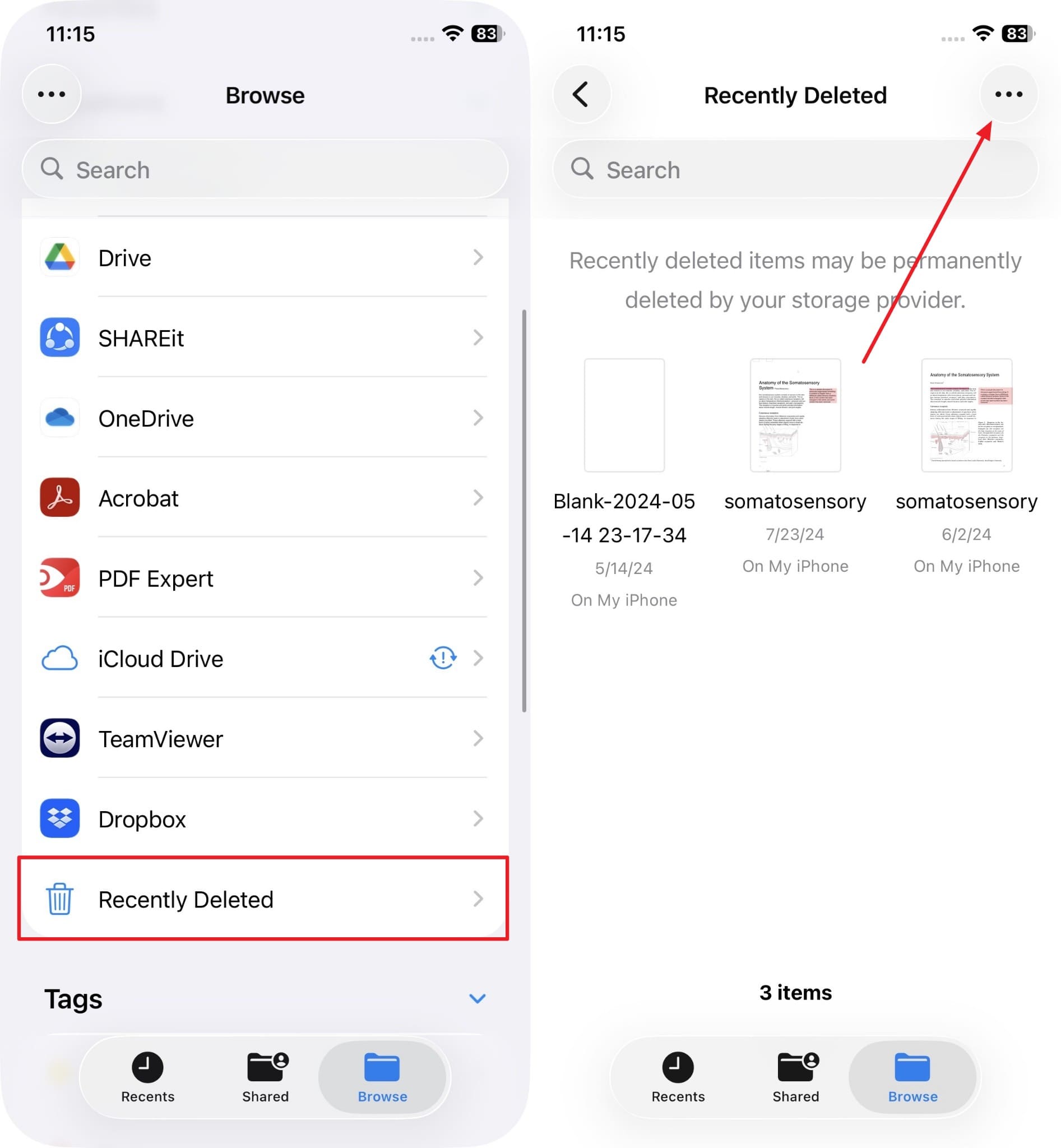
Step 1 When you run the "Files" app, swipe up and head to the "Recently Deleted" folder.
Upon seeing your deleted files within a month, tap the "Three Dots" icon.
-
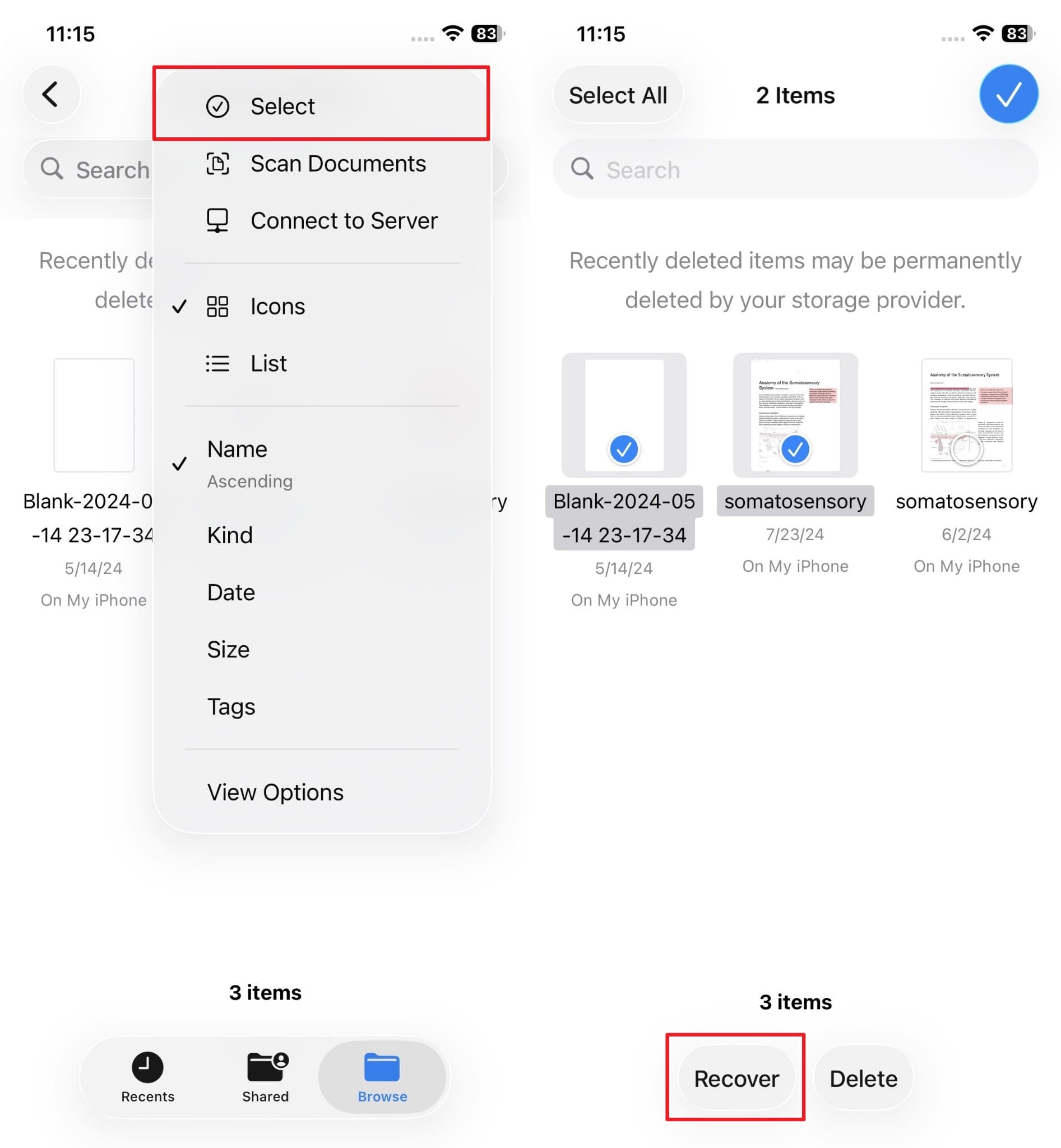
Step 2 Choose the "Select" option to opt for your desired files.
Press "Recover."
Method 2. Recover Deleted Files Selectively from iCloud Drive
When native folder retention parameters expire, users face critical data access challenges. Standard native pathways cannot reach files that fall outside the 30-day period. To solve this specific problem, utilizing a data extraction software like Dr.Fone - Data Recovery may help. The software supports recovering multiple data types, including photos, messages, contacts, WhatsApp, and more. Users can restore iWork documents from iCloud drive, such as Pages, Numbers and Keynote files.
Furthermore, the tool supports deep extraction for secondary messaging backups like LINE. It verifies your cloud storage account through 2FA before loading data. Alongside that, there is an embedded visual preview screen for checking items. Users can browse through organized categories before finalizing their recovery. Dr.Fone supports direct file restoration back to your connected phone. Alternatively, you can save the extracted document to your PC using the Recover to Computer function.
 Recovers data after deletion, crashes, or device damage.
- Supports photos, messages, contacts, WhatsApp, and more.
- Supports all major iPhone, iPad, and iPod models.
- Preview and recover only what you need.

Guide to Recover Deleted Files Selectively from iCloud Drive
While testing this tool, experts claim that it can help recover selective files and documents. So, take guidance from the following guide to recover your deleted drive files:
-
Step 1 Access the Program to Recover Deleted Files
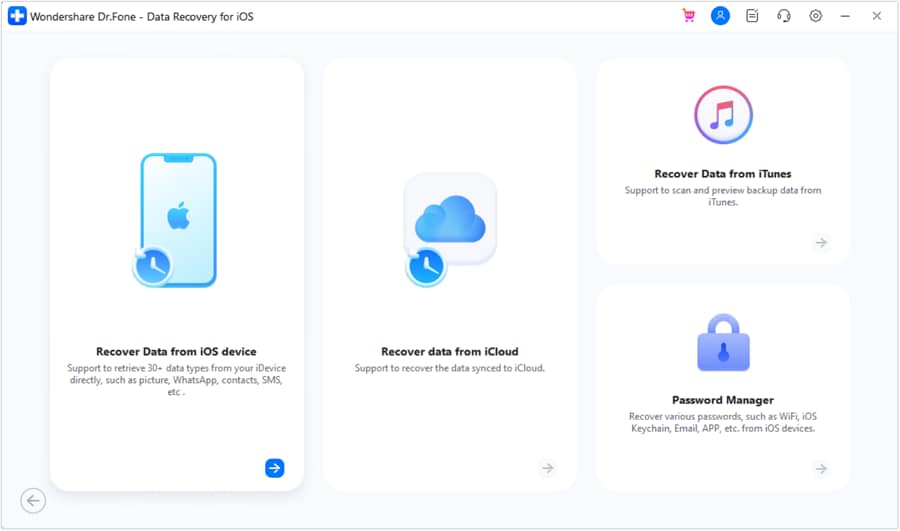
As you open the "Toolbox" tab, navigate to the "Data Recovery" feature. After that, click "iOS" as your targeted device and then choose "Recover Personal Data."
-
Step 2 Sign in to the Account and Choose Files
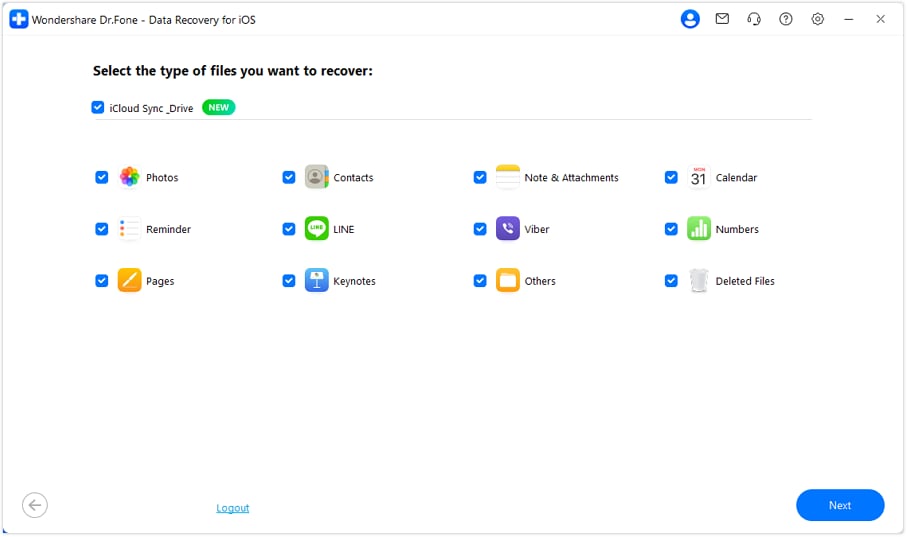
Moving forward, you need to sign in to your iCloud account for further processing. When done, tick the data type category like "Keynotes" and press the "Next."
-
Step 3 Select and Restore Deleted Files via Dr.Fone
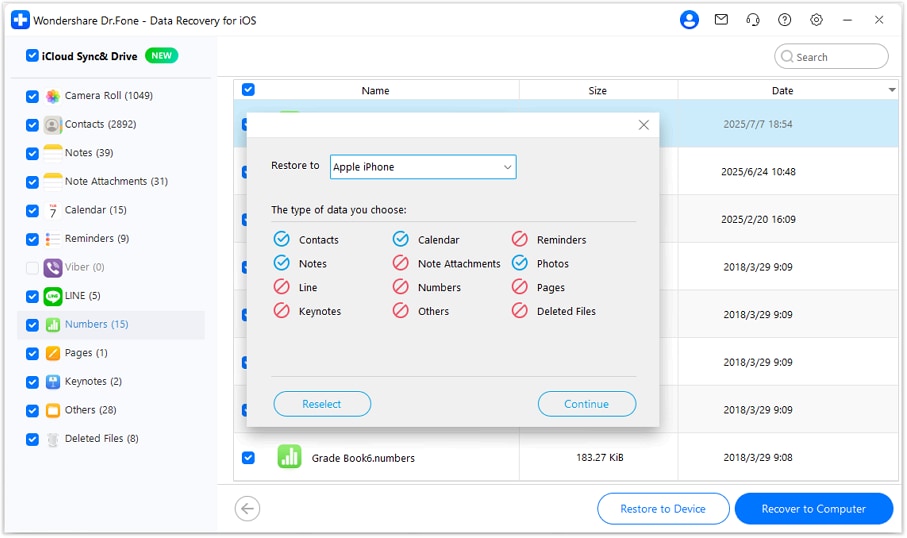
Enter the received 2FA code to verify your identity. Subsequently, connect your iPhone to the computer and then choose your desired files to cover. Next, press the "Restore to Device" button to select your phone from the "Restore To" box before clicking "Continue."




Method 3. Restore Deleted Files via iCloud.com
It is also possible that you delete a file on your iPhone while being offline at that time. Since there is no network connection, the delete command does not reach the cloud servers. So, the file remains available inside your cloud storage without any interruption. This makes it a reliable place to check before trying other methods. So, adhere to the guide to learn how to recover files from iCloud Drive:
-
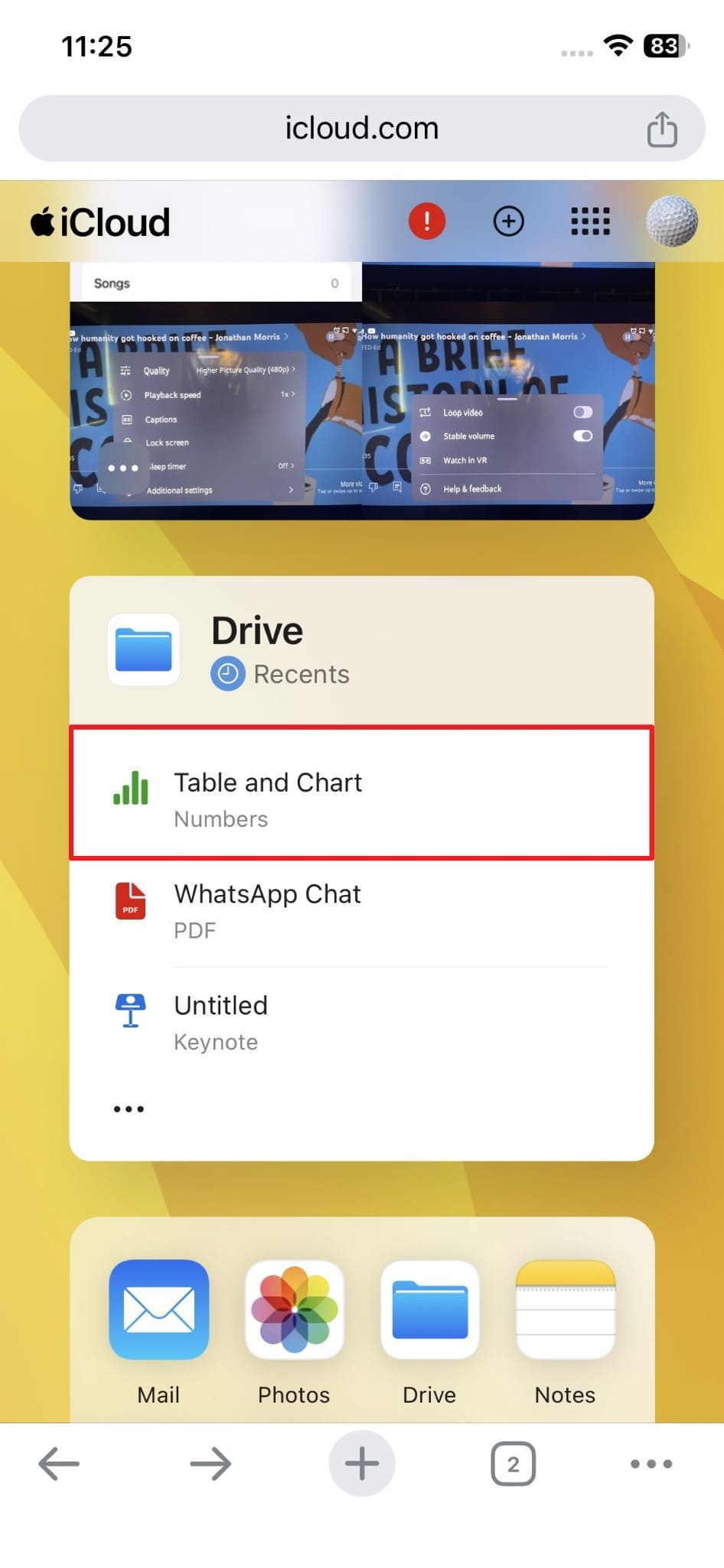
Step 1 In order to access the "Drive" app and select a file
You must be signed in to your cloud account.
-
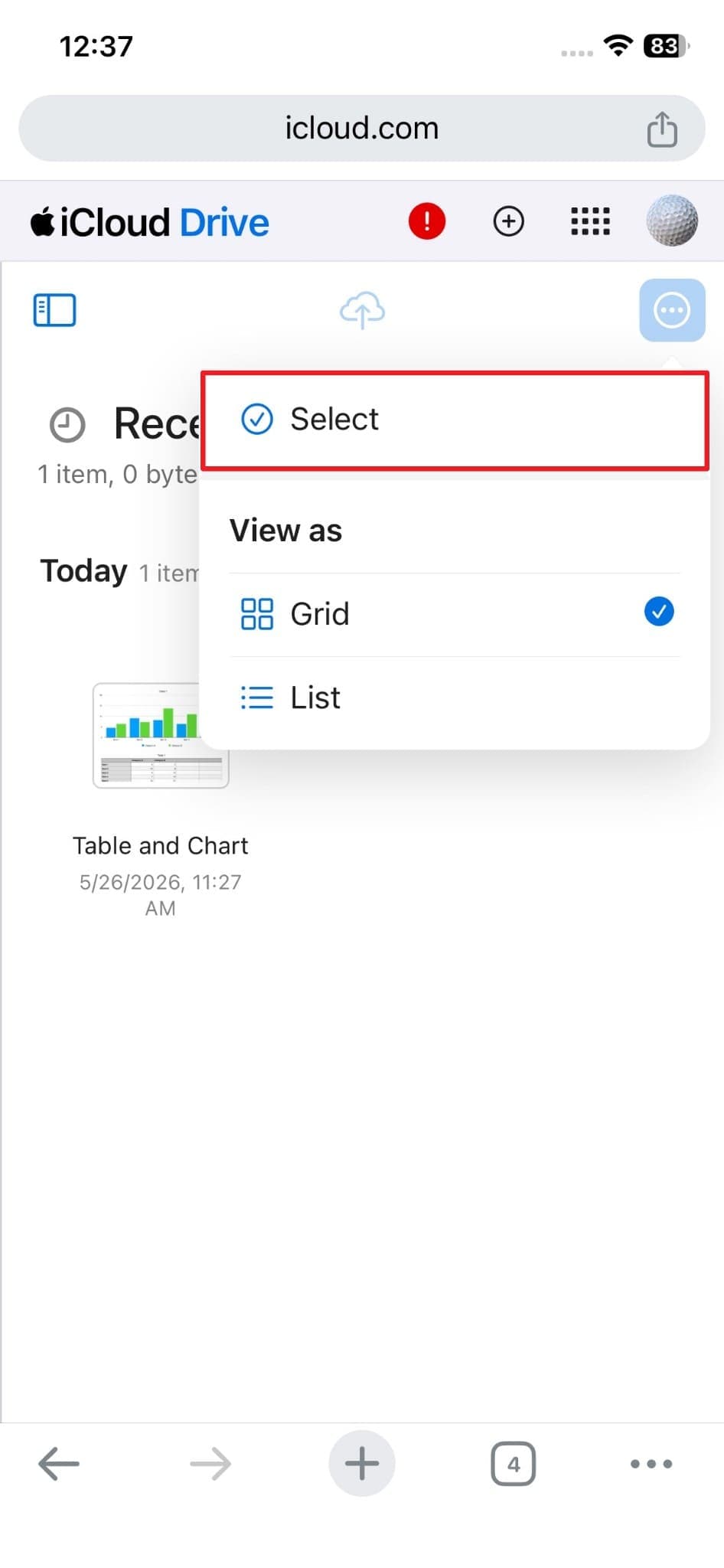
Step 2 To see a new screen
Tap the "Three Dots" icon and select "Select."
-
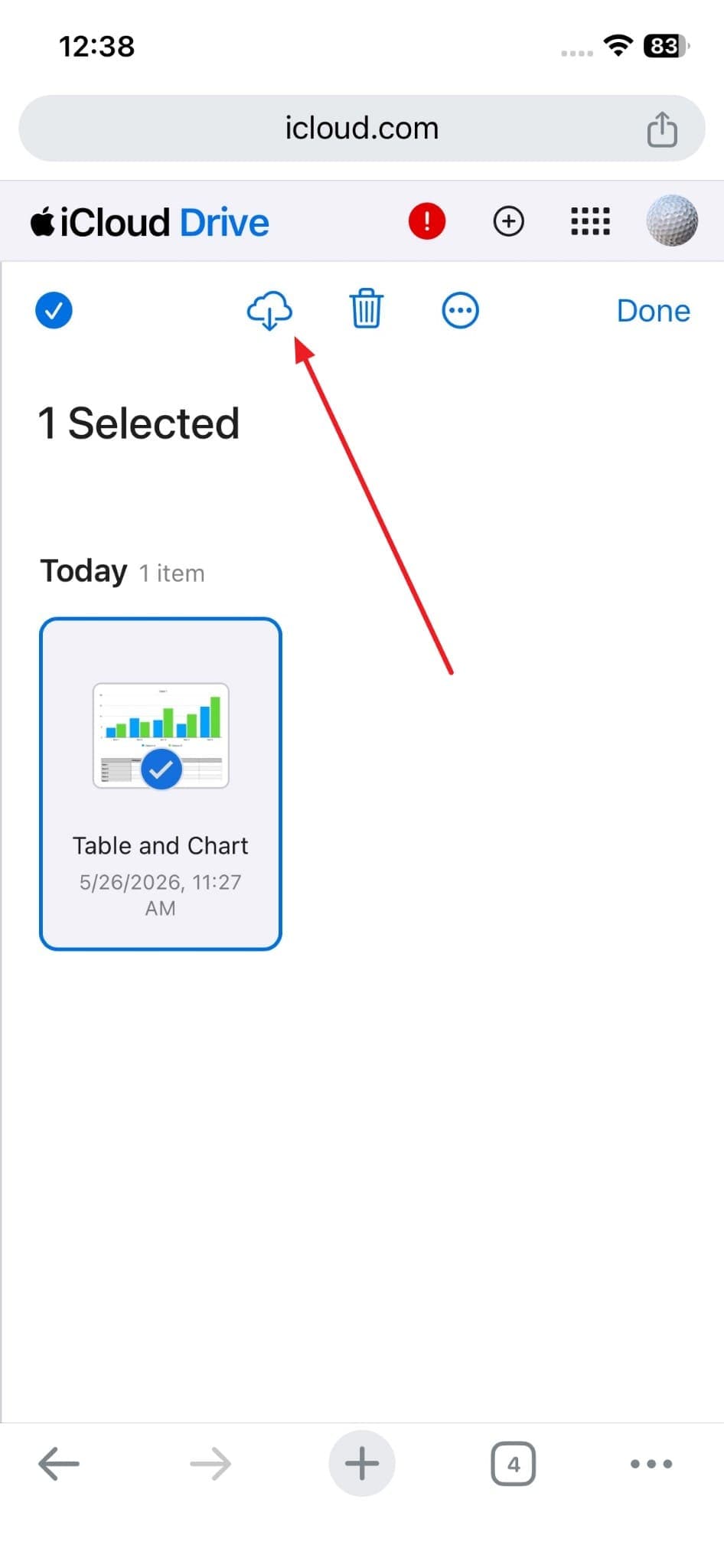
Step 3 Going ahead
Choose the files deleted from your primary device and tap the "Download" icon.
Part 4. How Can You Prevent File Loss in iCloud Drive? 5 Tips
File loss from cloud storage drives is far more preventable than most iPhone users realize. These 5 practical tips will help you avoid file loss situations in the future:
- Enable Auto-Sync: Always keep "iCloud Drive" auto-sync turned on across every Apple device. This ensures your files are uploaded without requiring any manual intervention.
- Organize Files Clearly: Keep important documents in dedicated folders with consistent names. Organized storage reduces the risk of accidentally moving, overwriting, or deleting files.
- Use Favorites Folder: Pin your most critical folders to Favorites inside the Files app for better visibility. Favorited folders are easier to monitor and far less likely to be deleted by mistake.
- Download Local Copies: Store offline copies of your most important files on your computer. This means that if you have a syncing problem with your account, then a local copy is still available.
- Use Secondary Cloud: Back up your critical Drive files to a second cloud service as well. Services like Google Drive may also work as a reliable safety option alongside your existing storage.
Conclusion
To summarize, losing an iCloud Drive file does not always mean that the file is gone forever. This guide covered multiple ways to understand how to recover files from iCloud Drive.
Apple provides built-in recovery options for recently deleted files, while iCloud.com can help locate files that may still be available in cloud storage. If those options fail, selective recovery tools like Dr.Fone - Data Recovery may help restore specific files without affecting other data.
FAQs
-
Does iCloud Drive automatically back up all files on my iPhone?
The drive syncs files stored within its dedicated folder across all your Apple devices. However, it does not automatically back up every single file located on your iPhone. To protect files that are not in the Drive folder, you need to turn on "iCloud Backup." -
Can I recover iCloud Drive files if my iPhone is broken or damaged?
A broken phone does not necessarily mean your Drive files are lost forever. Since files sync to the servers, you can access them from any other device. Thus, sign in to iCloud.com or another Apple device using your existing Apple ID credentials. -
What happens to my iCloud Drive files when I cancel my iCloud storage plan?
Apple gives you a grace period of 30 days after your storage plan expires or gets canceled. During this period, your files remain accessible, but new uploads and syncing will stop. If storage stays over the free limit too long, Apple may eventually delete your data. -
Is it possible to recover older versions of a file from iCloud Drive?
Your drive does not natively support version history for files the way some services do. However, some Apple apps like Pages and Numbers can save previous document versions automatically. If version history is available, you may be able to browse and restore an earlier copy of the file directly within the app.
 Add Wondershare Dr.Fone as a preferred source on Google