
Top 8 YouTube to WAV Converters with a Bonus Data Backup Guide
Android Backup
- Backp Android
- 1. Backup Android to PC
- 2. Backup Android Photos
- 3. Android Wifi Backup
- 4. Backup Phone with Broken Screen
- 5. Backup Android Rom/Firmware
- 6. Backup SD Card on Android
- 7. Backup Android SMS
- 8. Backup Android Phone With Root
- 9. Backup Android to Mac
- 10. Backup Viber Messages
- Android Restore
- 1. Guide to Restore Android Phone
- 2. Backup and Restore Android Phone
- 3. 2 Ways to Restore Contacts on Android: Step-by-Step Guide
- 4. Restore WhatsApp from iCloud
- Backup Apps
- 1. Android Backup Apps to Backup Files
- 2. 6 Apps to Backup Bookmarks
- 3. Top 10 Contacts Backup App
- 4. Backup Android App and App Data
- 5. The Best Android Backup Extractor
- 6. Top 5 Android Backup Softwares
- 7. 6 Best Android Backup Softwares
- 7. 7 Android Fastboot Reset Tools
- Samsung Backup
- 1. Back Up Samsung to Google Drive
- 2. Backup Contacts on Samsung
- 3. Backup Text Messages on Samsung
- 4. Backup and Restore Samsung Galaxy
- 5. Backup Everything on Samsung
- 6. Backup Samsung Galaxy to PC
- 7. 10 Samsung Cloud Backup Services
- 8. Solution For Samsung Message Backup
- 9. 5 Samsung Photo Backup Solutions
- 10. Backup Samsung S10 to PC
- ● Manage/transfer/recover data
- ● Unlock screen/activate/FRP lock
- ● Fix most iOS and Android issues
- Free Download Free Download Free Download


Sep 12, 2026 • Filed to: Backup & Restore Solutions • Proven solutions
 TL;DR:
Extracting uncompressed, lossless audio from YouTube requires selecting a converter based on your specific volume needs, followed by securing the large exported files using selective iOS and Android backup tools like Dr.Fone - Phone Backup.
● Use web-based tools like OVC, YTMP3, or ConverterBear for free, no-install, single-file conversions on mobile or desktop, but switch to desktop apps like 4K Video Downloader or MediaHuman for batch processing entire playlists and channels.
● Power users requiring high-speed downloads across 900+ websites must use the paid SnapDownloader application, whereas users needing to trim audio before conversion can utilize the built-in browser editing tools of VEED.io.
● To protect large WAV recordings from device resets or storage issues, connect your iOS or Android device to a Windows or Mac computer to selectively extract and save the Music/Audio folders using Dr.Fone, noting that converting YouTube audio is legally restricted to copyright-free, open-licensed, or personally owned content.
Ask AI for a summary
 ChatGPT
 Perplexity
 Gemini
 Claude
 Grok
Grok
Dr.Fone Basic:
Better Control for Your Phone
Manage, transfer, back up, restore, and mirror your device
If you prefer raw, uncompressed audio, WAV is one of the best formats available. Creators use it for podcasts, vocal editing, remastering music, or archiving clean audio from tutorials and speeches. That's why many people search for YouTube to WAV converters — to extract the highest-quality audio possible from YouTube content.
There are dozens of free and paid converters online, but not all of them are safe, reliable, or capable of producing clean WAV audio. Along with that, users often need a simple way to keep their exported WAV files backed up.
Later in this guide, will show how Dr.Fone – Phone Backup helps you store your WAV files securely on iOS or Android. For now, let's start with why WAV matters.

Part 1: Why Use WAV Instead of MP3?
WAV is uncompressed, while MP3 is compressed. This difference affects audio quality, editing flexibility, and overall loudness accuracy.
Quick Comparison: WAV vs. MP3
| Feature | WAV | MP3 |
| Compression | None (lossless) | Lossy compression |
| Editing Quality | Excellent for detailed edits | Lower fidelity for mixing |
| File Size | Large | Small |
| Use Cases | Podcasts, music editing, archiving | Streaming, casual listening |
Imagine a creator who wants raw, uncompressed vocals for a podcast episode. MP3 won't give the same detail and clarity. That's why many users choose to convert YouTube videos to WAV — especially for music covers, speeches, interviews, and commentary tracks.
Part 2: 8 Best YouTube to WAV Converters (2026 List)
Below are the best YouTube to WAV converters you can use this year. Each one includes easy pros and cons, plus a note on whether it can download YouTube audio to WAV.
Comparison Table: YouTube to WAV Converters
| Tool | Formats | Batch Conversion | Free/Paid | Speed | Safety |
| OVC | WAV, MP3 | No | Free | Fast | Ad-supported |
| YTMP3 | WAV | No | Free | Medium | Safe but basic |
| 4K Downloader | WAV, MP3, FLAC | Yes | Free/Paid | Fast | Very safe |
| AVC | WAV, MP3 | Yes | Free | Medium | Safe |
| MediaHuman | WAV, MP3, AAC | Yes | Free/Paid | Fast | Safe |
| SnapDownloader | WAV, FLAC, MP3 | Yes | Paid | Very fast | Very safe |
| VEED.io | WAV, MP3 | No | Free/Paid | Medium | High |
| ConverterBear | WAV, MP3 | No | Free | Medium | Safe but simple |
1. OnlineVideoConverter (OVC)

A free website where you can paste a YouTube link and quickly turn it into a WAV file. No downloads needed.
Supports YouTube → WAV: Yes
Best For: Users who want a quick, no-install YouTube to WAV conversion on any computer.
2. YTMP3 WAV Converter
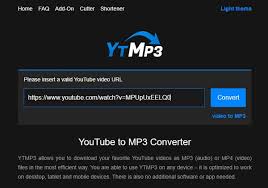
A super simple, free YouTube WAV converter. Great for short videos, music clips, or voice recordings.
Supports YouTube → WAV: Yes
Best For: Beginners and mobile users who want a fast, simple YouTube WAV converter with no learning curve.
3. 4K Video Downloader
A powerful desktop app that can even convert big playlists and entire channels into WAV.
Supports YouTube → WAV: Yes
Best For: Creators who need to download playlists or large amounts of YouTube audio in WAV format.
4. Any Video Converter (AVC)

A well-known converter for Windows and Mac. Works for many video and audio formats.
Supports YouTube → WAV: Yes
Best For: Users who want an all-in-one desktop converter for YouTube and other video files.
5. MediaHuman YouTube to WAV

Perfect for people who want to download many YouTube videos at the same time.
Supports YouTube → WAV: Yes
Best For: Podcasters and music collectors who need batch YouTube to WAV downloads.
6. SnapDownloader
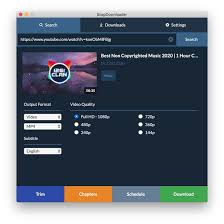
A premium converter that works with tons of websites and many audio formats besides WAV.
Supports YouTube → WAV: Yes
Best For: Power users who want fast, high-quality audio downloads from many platforms, not just YouTube.
7. VEED.io

An online editor where you can trim your video and export the audio as a WAV file.
Supports YouTube → WAV: Yes
Best For: Users who want to edit and convert YouTube audio in one place without installing software.
8. ConverterBear
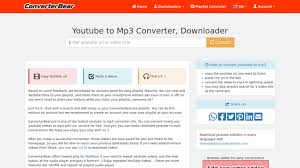
A small and simple online converter for quick YouTube-to-WAV tasks.
Supports YouTube → WAV: Yes
Best For: People who need a quick, hassle-free YouTube to WAV conversion once in a while.
Bonus Tip: Back Up Your Converted WAV Files Safely with Dr.Fone
After you convert YouTube into WAV, it's easy to lose files due to phone resets, deleted folders, or storage issues. That's why many creators back up their WAV recordings — especially large ones — using Dr.Fone – Phone Backup.
Dr.Fone allows selective backup and restore on both iOS and Android, making it easy to store only the WAV files you need.
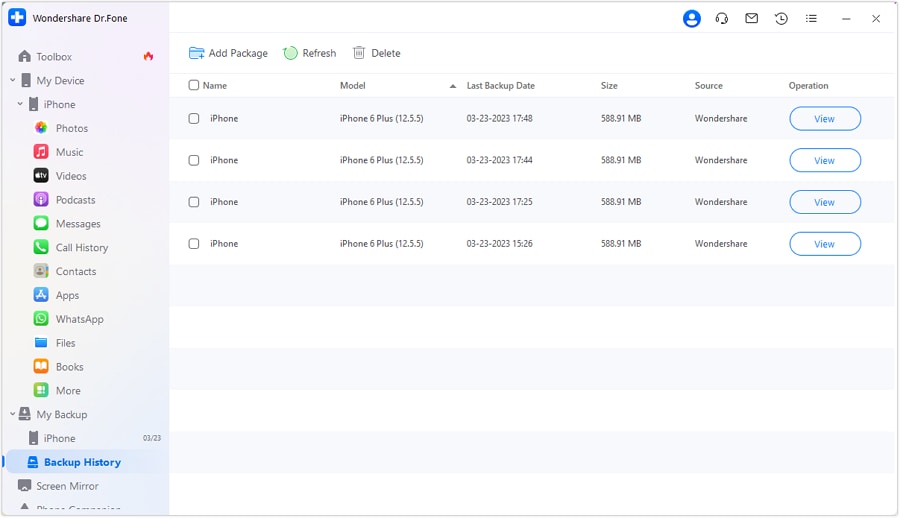
How to Back Up WAV Files with Dr.Fone (4 Steps)
These steps follow the actual Dr.Fone – Phone Backup workflow shown in the official Wondershare guide.

Wondershare Dr.Fone
Flexibly Backup and Restore Android Data
- Selectively backup Android data to the computer with one click.
- Preview and restore the backup to any Android device.
- Supports 8000+ Android devices.
- There is no data lost during backup, export, or restoration.


- Step 1: Install and Open Dr.Fone – Phone Backup
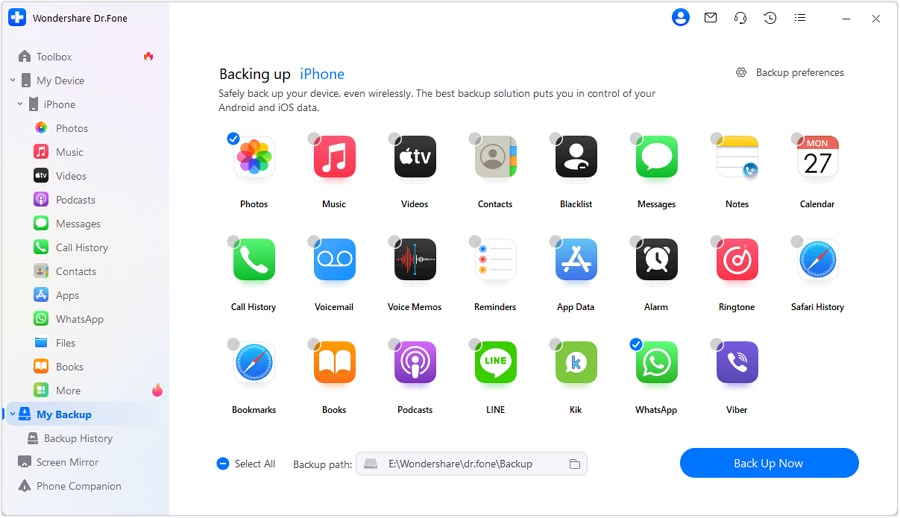
Download and launch Dr.Fone on your computer. From the main dashboard. Navigate to the My Backup > Back Up Now
- Step 2: Connect Your Android or iPhone Device
Use a USB cable to connect your iPhone. Dr.Fone will automatically detect your device and prepare it for backup.

- Step 3: Choose the Audio Folder Containing Your WAV Files
When the data selection screen appears, choose Music / Audio. This ensures your WAV files are included in the backup.
- Step 4: Wait For the Backup Process to Complete
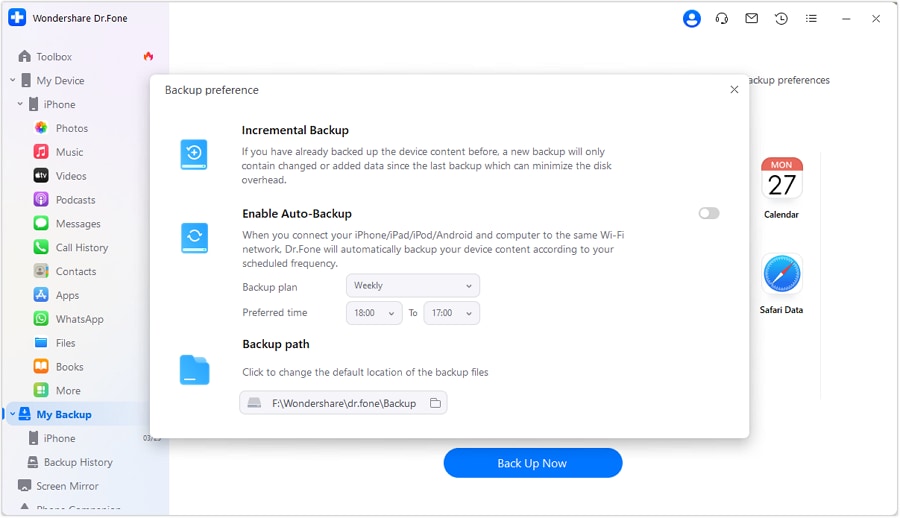
Dr.Fone securely saves your selected WAV files to your computer, keeping them safe even if your phone data is lost.
 safe & secure
Conclusion
WAV remains the best format for creators who need the highest possible audio quality. With the right YouTube to WAV converter, you can extract clean, detailed audio for podcasts, commentary, music editing, or archiving. Whether you choose an online tool, a desktop converter, or a professional downloader, this list gives you reliable options for 2026.
And once you've converted your audio, backing up WAV files with Dr.Fone – Phone Backup ensures you never lose your downloads — no matter which device you use.
safe & secureFAQs
 Q1. What is the best free YouTube to WAV converter?Q2. Is converting YouTube videos to WAV legal?Q3. Can I download a YouTube video as WAV on mobile?Q4. How do I back up WAV files safely?Q5. Does Dr.Fone support both iOS and Android audio backups?
Dr.Fone Basic:
Better Control for Your Phone
Manage, transfer, back up, restore, and mirror your device


 > How-to > Backup & Restore Solutions > Top 8 YouTube to WAV Converters with a Bonus Data Backup Guide
Daisy Raines
staff Editor