

How to Save Photos in Google Drive: Your Ultimate Backup Guide
Android Backup
- Backp Android
- 1. Backup Android to PC
- 2. Backup Android Photos
- 3. Android Wifi Backup
- 4. Backup Phone with Broken Screen
- 5. Backup Android Rom/Firmware
- 6. Backup SD Card on Android
- 7. Backup Android SMS
- 8. Backup Android Phone With Root
- 9. Backup Android to Mac
- 10. Backup Viber Messages
- Android Restore
- 1. Guide to Restore Android Phone
- 2. Backup and Restore Android Phone
- 3. 2 Ways to Restore Contacts on Android: Step-by-Step Guide
- 4. Restore WhatsApp from iCloud
- Backup Apps
- 1. Android Backup Apps to Backup Files
- 2. 6 Apps to Backup Bookmarks
- 3. Top 10 Contacts Backup App
- 4. Backup Android App and App Data
- 5. The Best Android Backup Extractor
- 6. Top 5 Android Backup Softwares
- 7. 6 Best Android Backup Softwares
- 7. 7 Android Fastboot Reset Tools
- Samsung Backup
- 1. Back Up Samsung to Google Drive
- 2. Backup Contacts on Samsung
- 3. Backup Text Messages on Samsung
- 4. Backup and Restore Samsung Galaxy
- 5. Backup Everything on Samsung
- 6. Backup Samsung Galaxy to PC
- 7. 10 Samsung Cloud Backup Services
- 8. Solution For Samsung Message Backup
- 9. 5 Samsung Photo Backup Solutions
- 10. Backup Samsung S10 to PC
- ● Manage/transfer/recover data
- ● Unlock screen/activate/FRP lock
- ● Fix most iOS and Android issues
- Free Download Free Download Free Download


Sep 12, 2026 • Filed to: Backup & Restore Solutions • Proven solutions
 TL;DR:
Backing up photos involves manually uploading files to Google Drive, toggling automatic background syncs in Google Photos within the shared 15 GB account limit, or using Dr.Fone – Phone Backup for local computer storage.
● Google Photos automates background uploads on iOS and Android devices once the backup toggle is enabled, whereas Google Drive requires manual file selection via the upload button on mobile or desktop.
● Dr.Fone – Phone Backup allows Windows and Mac users to create local backups over USB or Wi-Fi, supporting selective restoration of over 10 data types without overwriting the entire smartphone.
● When uploading directly through the Google Drive mobile application, Android devices lack the specific photos shortcut and will route users directly into system folders to locate their media.
Ask AI for a summary
 ChatGPT
 Perplexity
 Gemini
 Claude
 Grok
Grok
Dr.Fone Basic:
Better Control for Your Phone
Manage, transfer, back up, restore, and mirror your device
Our smartphones and cameras capture countless moments every day, from daily celebrations to adventures. With so many emotions stored digitally, keeping them safe and organized is even more important. For this, you'll need a complete understanding of how to save photos in Google Drive, ensuring they're protected from accidental deletion.
Whether for personal pictures or professional projects, Google Drive's search feature makes finding a photo from years ago easy. Additionally, the following guide outlines several reasons to choose Google Drive for backing up photos. You will also be guided through step-by-step tutorials on saving photos to Google Drive or Google Photos on all devices.

Part 1. Why You Should Back Up Photos to Google Drive
For a better learning of how to back up photos on Google Drive, explore the provided reasons for its importance first:

- Protect Photos from Accidental Loss: Pictures stored only on your phone or PC are always at risk of being deleted or lost due to device damage. When you back them up to Google Drive, your images remain safe even if your device is lost or reset.
- Access Your Photos Anytime, Anywhere: Once you understand how to back up pictures on Google Drive, your images are no longer tied to a single device. You can access them from your phone or computer by simply signing in to your Google account.
- Saves Device Storage Space: Google Drive backup for pictures allows you to free up space without permanently deleting your files. You can safely remove photos from your device, while knowing they're securely stored online and ready to download whenever needed.
- Easy Sharing & Organization Purpose: With a complete understanding of Google Drive backup, you can organize photos into folders and share them with others. This way, users can collaborate with family and share albums with friends without worrying about file-size limits.
- Additional Security with Google's Protection: Back up of photos to Google Drive adds an extra layer of protection through encryption and account security features. A complete backup of pictures on Google Drive ensures they remain private and protected from unauthorized access.
Part 2. How to Save Photos in Google Drive [All Devices]
The process of storing photos is much simpler when you follow the correct steps for every device. With the Google Drive app, you can upload pictures directly from your phone's gallery or your PC's storage once signed in. After upload, these images are stored securely in the cloud and can be accessed from any device. Regardless of your device, the following section explains how to save photos in Google Drive for better organization:
On Smartphone
- Step 1. Access the Google Drive app, press the "+" icon button, and choose the "Upload File" option. After this, tap the "Photos and Videos" option (this option isn't available on Android; you're taken directly to the folders).
- Step 2. Next, choose a photo from your phone's photo library and press the "Upload" option. Here, review your file name, then tap the "Upload" option to save your picture to Google Drive.


On Desktop (Computer)
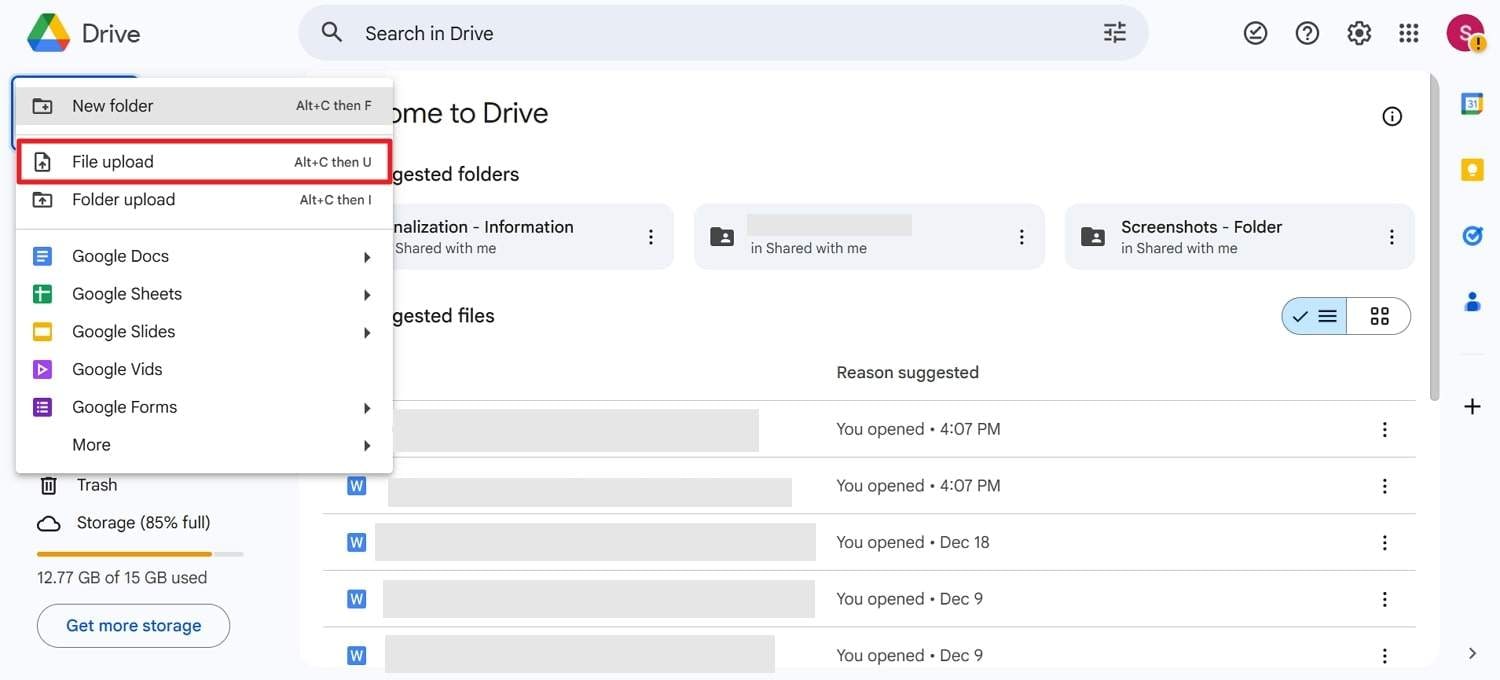
- Step 1. Sign in to your Google Drive via a web browser, and click the "+New" option.
- Step 2. Now, select the "File Upload" option to browse for the image on your computer and upload it.

Pro Tip. Securely Back Up Photos to Your Computer with Dr.Fone – Phone Backup
If you're wondering how to back up your Google Photos for a secure local copy, Dr.Fone – Phone Backup is a dependable option. It allows you to back up and restore full device data or only selected items on both Android and iOS devices. Besides this, the platform supports social app backups, including WhatsApp data, ensuring your important conversations stay protected.
You can back up more than 10 data types to your computer, including photos, messages, contacts, call logs, and media files. It also supports both USB and wireless connections, allowing Wi-Fi backups without relying on cables. Besides, you can preview backup content on your computer and restore only selected files instead of overwriting the entire device.

Wondershare Dr.Fone
Flexibly Backup and Restore Android Data
- Selectively backup Android data to the computer with one click.
- Preview and restore the backup to any Android device.
- Supports 8000+ Android devices.
- There is no data lost during backup, export, or restoration.


Guidelines to Back Up Android Photos to Your PC Using Dr.Fone
With the provided simple guidelines, back up your Android pictures and ensure they're always available whenever needed:
- Step 1. Open the Dr.Fone Backup Tool & Connect Devices
Access the "My Backup" section and press "Back Up Now" once you connect your Android smartphone to the PC or MacBook.
- Step 2. Follow the Instructions & Choose Data Types
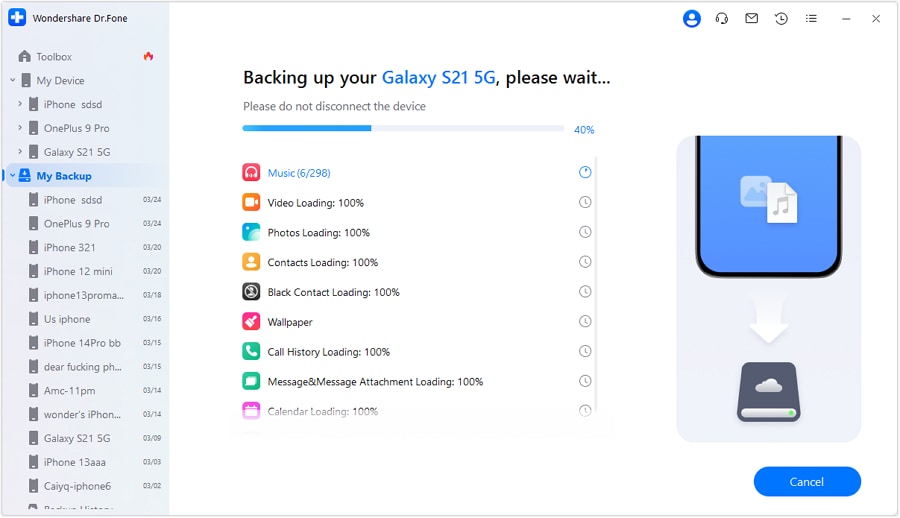
- Step 3. Wait for the Android Backup Process to Complete
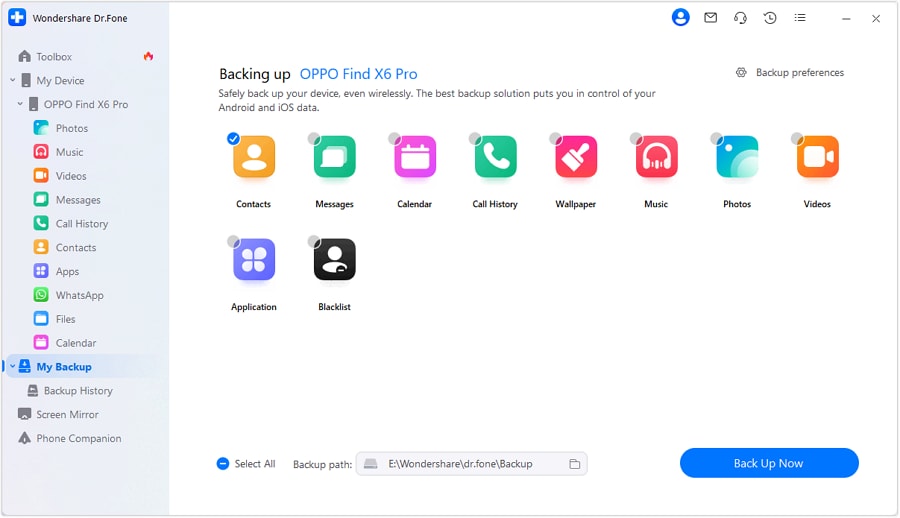
After this, select the listed data types, including photos, and follow the guidelines in the pop-up menu if you are backing up texts. Move forward and press the "OK" button to let the tool begin the backup process.
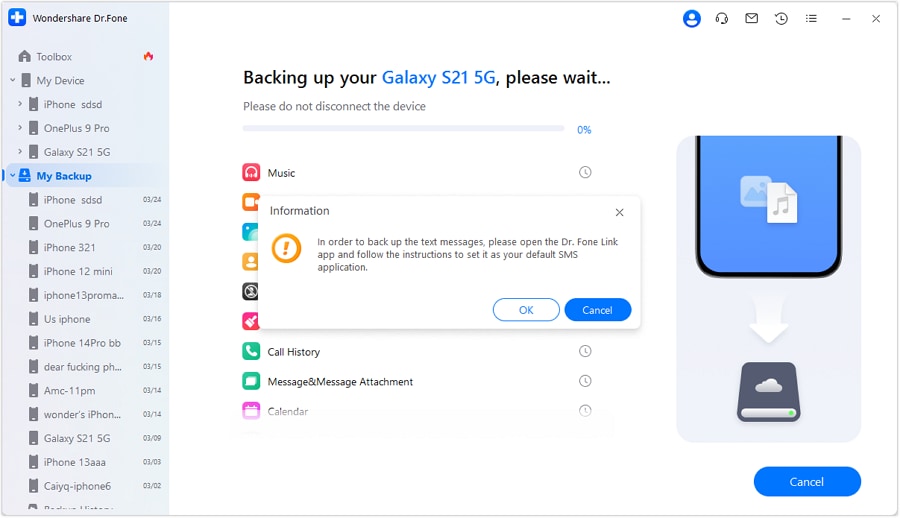
The backup process will now start automatically, with an ongoing progress bar showing backup completion.
 safe & secure
Part 3. How to Back Up My Photos to Google Photos
Soon, when your photos are organized, using Google Photos is one of the easiest ways to keep them safe. A brief understanding of how to back up my photos on Google Photos ensures continuous protection across all devices.
Once the backup is enabled, your pictures are automatically backed up in the background whenever you're connected to Wi-Fi or mobile data. For more clarity, follow the tutorial to back up photos on Google Photos on Android/iOS:
On Android
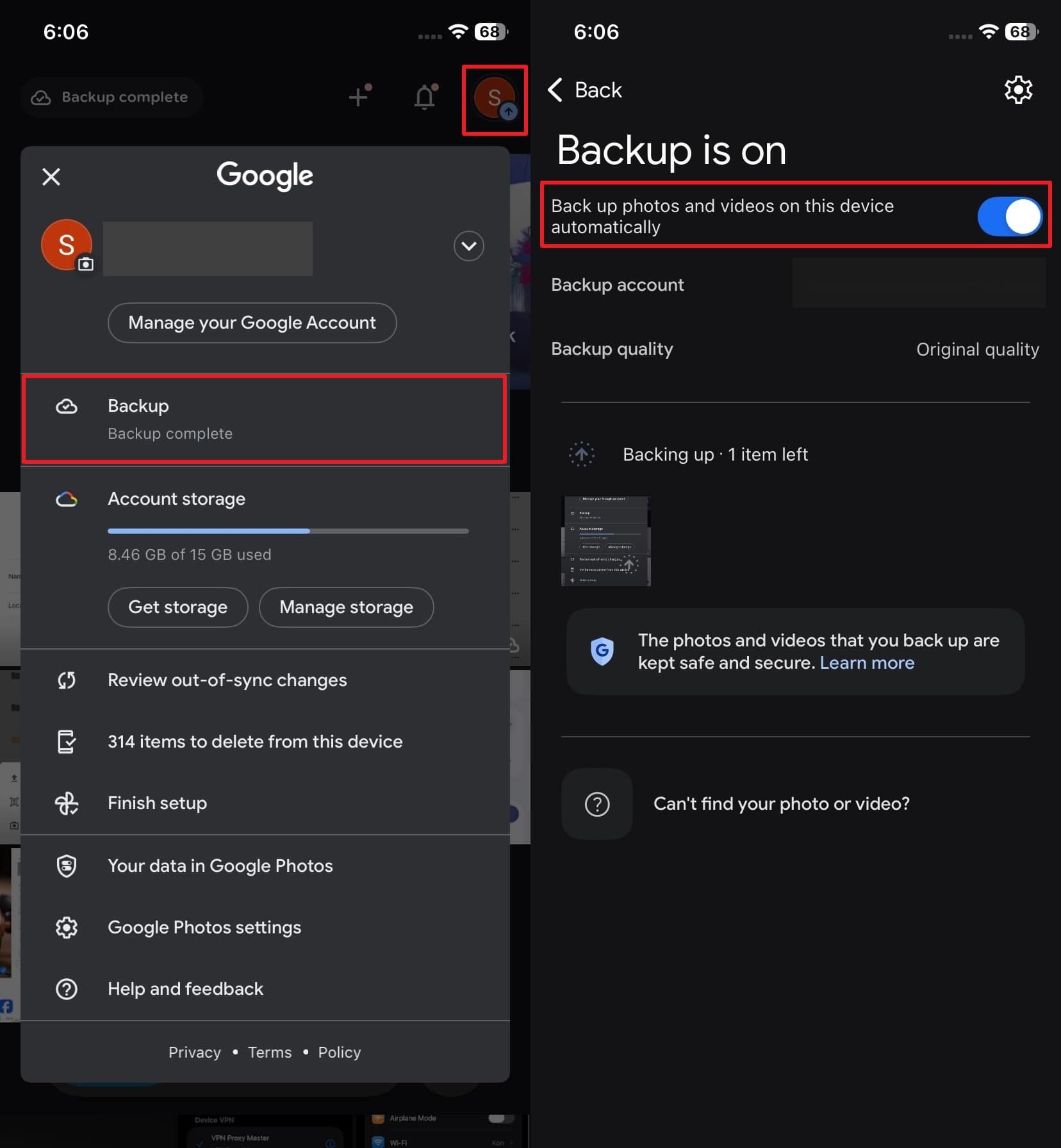
- Step 1. Enter the Google Photos app on Android, locate the "Profile" icon, and press the "Back Up" option.
- Step 2. Here, toggle the "Back up photos and videos on this device automatically" option. After this, your photos will automatically start backing up to Google Photos when captured.

On iPhone
Instructions: Access the "Profile" icon and choose the "Backup" option from the menu. Proceed and toggle the "Back up photos and videos on this device automatically" option to automate the backup process.
Conclusion
In conclusion, with a brief knowledge of how to save photos in Google Drive, you can securely preserve countless photos in the cloud. For your reference, the article above covers all reasons you might need a Google Drive backup, including tutorials for all devices. To improve protection, you're introduced to Dr.Fone – Phone Backup tool that allows you to maintain a safe local copy on your PC.
safe & secureFAQs
 Q1. How to view backed-up photos on Google Photos?
Q2. How to get photos from Google Backup on
Android?Q3. Is there a storage limit for photos on Google Photos?
Q1. How to view backed-up photos on Google Photos?
Q2. How to get photos from Google Backup on
Android?Q3. Is there a storage limit for photos on Google Photos?Dr.Fone Basic:
Better Control for Your Phone
Manage, transfer, back up, restore, and mirror your device


 > How-to > Backup & Restore Solutions > How to Save Photos in Google Drive: Your Ultimate Backup Guide
Ahmed Absal
contributor Editor