
How to Back Up Contacts to Gmail to Keep Your Contacts Safe: Complete Guide
Android Backup
- Backp Android
- 1. Backup Android to PC
- 2. Backup Android Photos
- 3. Android Wifi Backup
- 4. Backup Phone with Broken Screen
- 5. Backup Android Rom/Firmware
- 6. Backup SD Card on Android
- 7. Backup Android SMS
- 8. Backup Android Phone With Root
- 9. Backup Android to Mac
- 10. Backup Viber Messages
- Android Restore
- 1. Guide to Restore Android Phone
- 2. Backup and Restore Android Phone
- 3. 2 Ways to Restore Contacts on Android: Step-by-Step Guide
- 4. Restore WhatsApp from iCloud
- Backup Apps
- 1. Android Backup Apps to Backup Files
- 2. 6 Apps to Backup Bookmarks
- 3. Top 10 Contacts Backup App
- 4. Backup Android App and App Data
- 5. The Best Android Backup Extractor
- 6. Top 5 Android Backup Softwares
- 7. 6 Best Android Backup Softwares
- 7. 7 Android Fastboot Reset Tools
- Samsung Backup
- 1. Back Up Samsung to Google Drive
- 2. Backup Contacts on Samsung
- 3. Backup Text Messages on Samsung
- 4. Backup and Restore Samsung Galaxy
- 5. Backup Everything on Samsung
- 6. Backup Samsung Galaxy to PC
- 7. 10 Samsung Cloud Backup Services
- 8. Solution For Samsung Message Backup
- 9. 5 Samsung Photo Backup Solutions
- 10. Backup Samsung S10 to PC
- ● Manage/transfer/recover data
- ● Unlock screen/activate/FRP lock
- ● Fix most iOS and Android issues
- Free Download Free Download Free Download


Sep 23, 2026 • Filed to: Backup & Restore Solutions • Proven solutions
 TL;DR:
Securing your phone contacts to a Google account can be achieved continuously via Android's automatic sync feature or as one-time vCard exports from iCloud and the Android Contacts app.
● Android's automatic sync continuously updates device and SIM contacts to Google across multiple linked phones, while manual vCard exports are recommended for safe offline snapshots or switching from an iPhone to Android without merging iCloud and Google data.
● If you prefer local computer storage over cloud syncing, Wondershare Dr.Fone - Phone Backup offers selective, incremental backups of contacts and media to Windows or Mac computers for over 8000 compatible Android and iOS devices.
● Contact synchronization can be completely paused by disabling "Sync Contacts" in your device's account settings, and accidentally deleted numbers are only recoverable through the web-based Google Contacts interface within a limited time frame.
Ask AI for a summary
 ChatGPT
 Perplexity
 Gemini
 Claude
 Grok
Grok
Dr.Fone Basic:
Better Control for Your Phone
Manage, transfer, back up, restore, and mirror your device
Contacts matter more than you think, and phone loss, reset, or damage can erase years of phone numbers in seconds. This risk feels scary, but a smart fix exists, and that is Gmail, which offers a safe place for your contacts. With Gmail, your numbers stay online and ready on any phone, and no fear of sudden loss remains.

So, if you question how to back up contacts to Gmail, this guide offers the need for this action and 3 simple ways on how to do it. Besides, learn how you can protect contacts with a phone backup solution and what to do when you don't want to sync contacts anymore.

Part 1. Why Backing Up Contacts to Gmail is Important
Before you know how to back up contacts to Google, do you know why it matters? To answer that, this section lists 5 reasons that highlight the importance and need to back up the contacts:
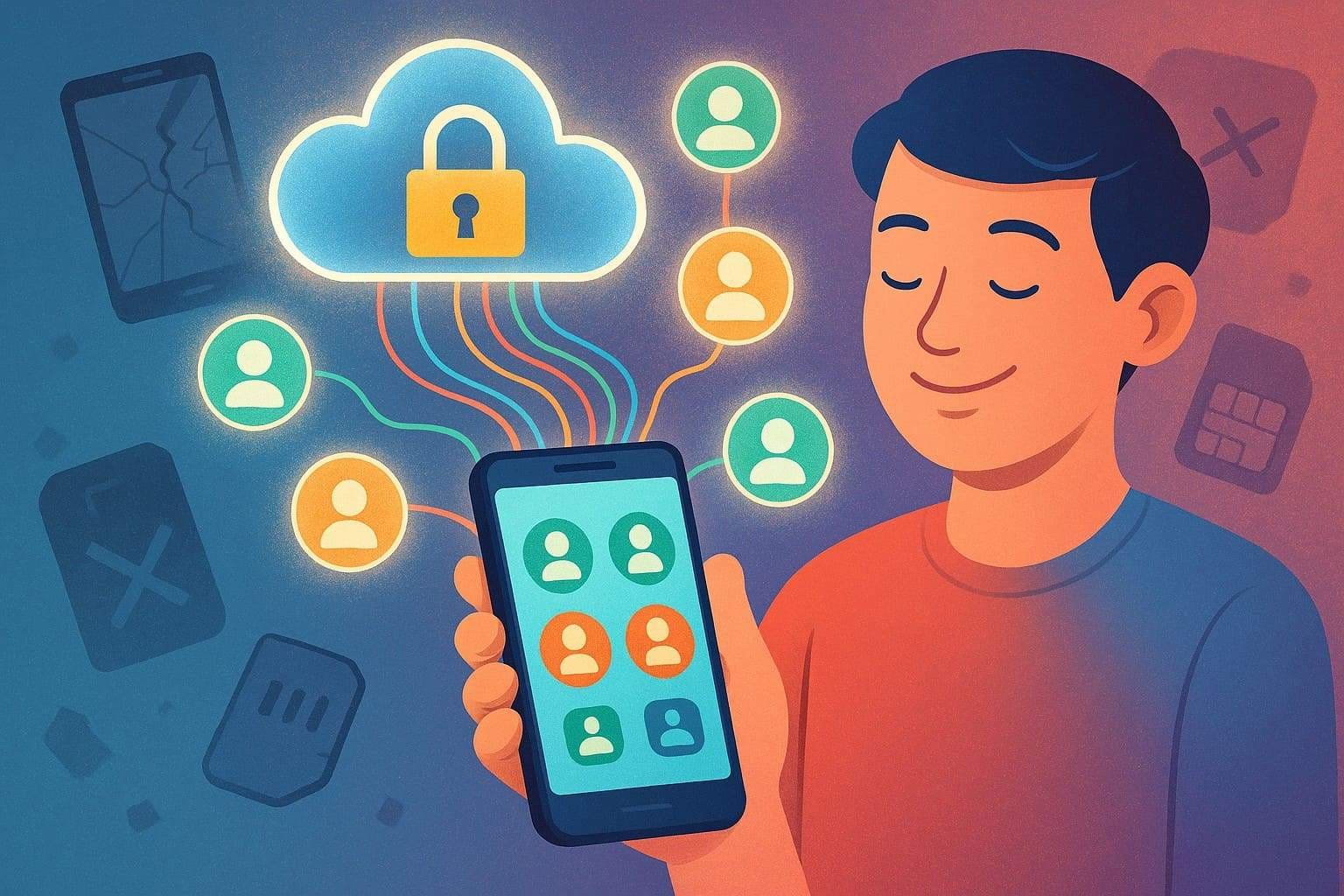
- Protection Against Data Loss: When the phone is lost, damaged, or reset, Gmail backup keeps a secure copy online. Thus, this saves personal, work, and emergency numbers that took years to collect.
- Easy Restore on New or Reset Phones: After contact backup to Gmail, you can sign in to the same Google account on a new or reset phone. So, all the contacts appear on their own, and there will be no need to retype and save each contact. Additionally, this saves time and effort, even with an extensive contact list.
- Same Contacts on All Devices: Gmail backup keeps a single contact list across phone, tablet, and computer, and any change on one device is reflected on all others. Hence, this avoids old or repeated numbers, and you always see the latest details.
- Access from Anywhere: This backup solution stores contacts online, not on one phone, and you can open them from any device with internet and a browser. Hence, this helps during travel, work, or phone trouble, and important numbers stay within reach.
- Better Control and Order: Google Contacts helps sort contacts with labels, search, and duplicate removal. So, all contacts stay in one place, and this makes contact search fast and easy for daily and work use.
Part 2. How to Back Up Contacts to Gmail (with All Methods)
For those who want to know how to back up contacts to a Google account, review the 3 listed ways for Android and iOS users:
Method 1: Automatic Sync (Recommended for Android Users)
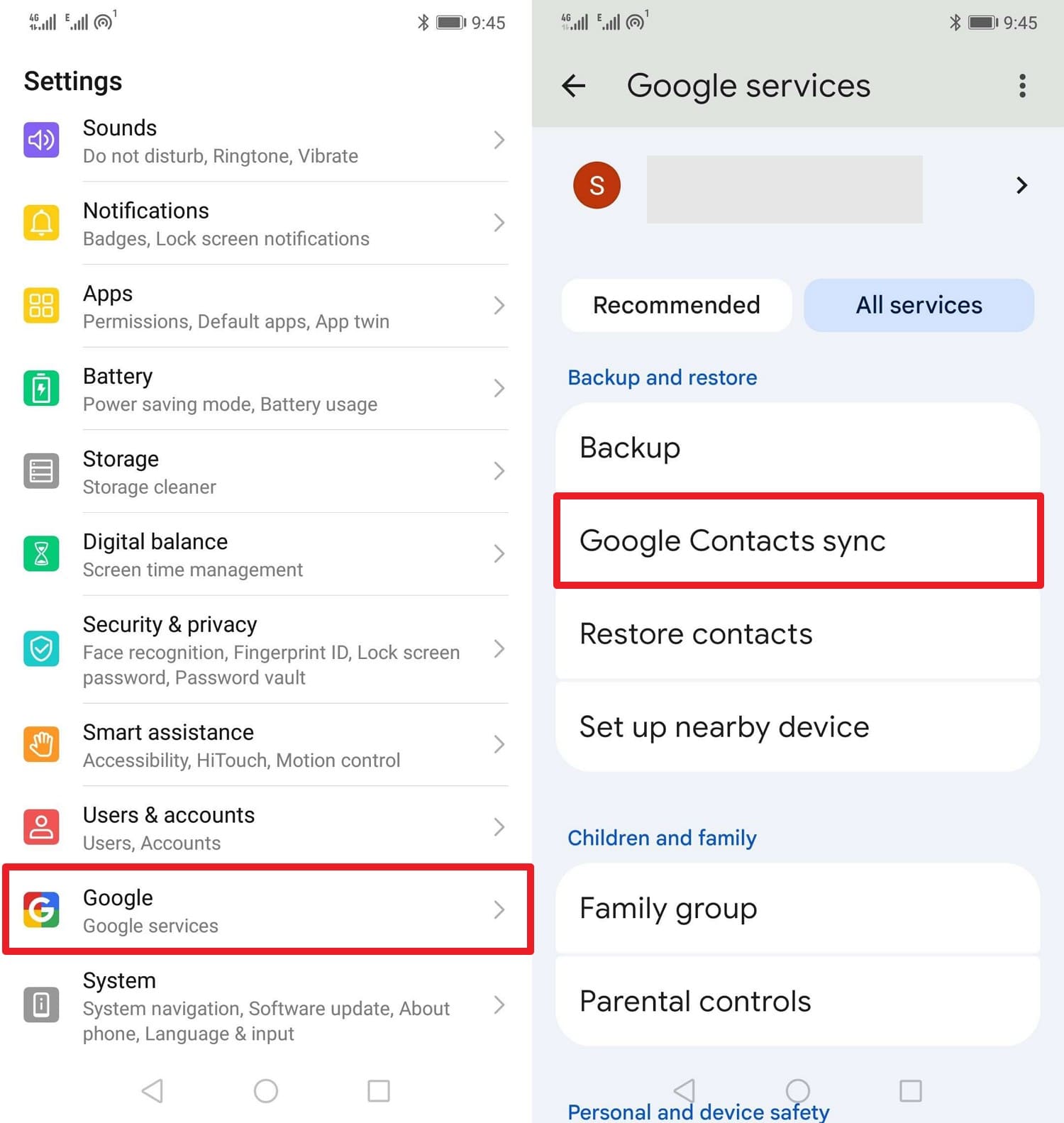
After setup, this solution automatically saves every new or edited contact to your Google account. Hence, the same contact list appears on phone, tablet, and computer without any mismatch. So, if a phone gets lost or reset, sign in to the same Google account and all contacts return at once. This avoids missing recent numbers that manual backup can skip, and is easy to perform, as guided below:
- Step 1. Within the Settings app, go to the "Google" option and choose the "Google Contact Sync" option in the "All Services" tab.
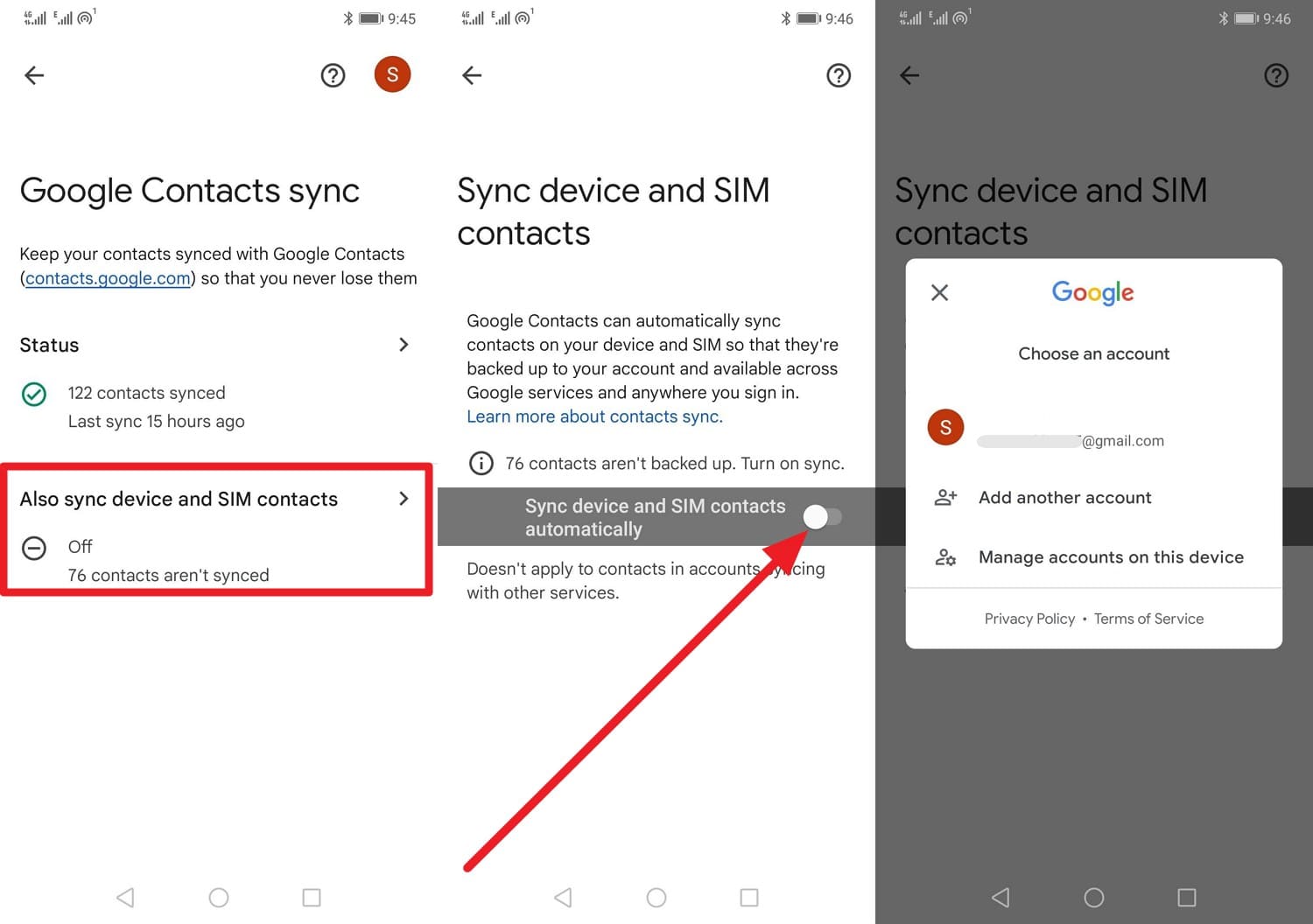
- Step 2. After that, expand the menu for the "Also Sync Device and SIM Contacts" option and enable the "Sync Device and SIM Contacts Automatically" option. From the pop-up menu that appears, make sure to select the relevant Google Account for saving.
Method 2: Manual Export (For Desktop & Specific Files)
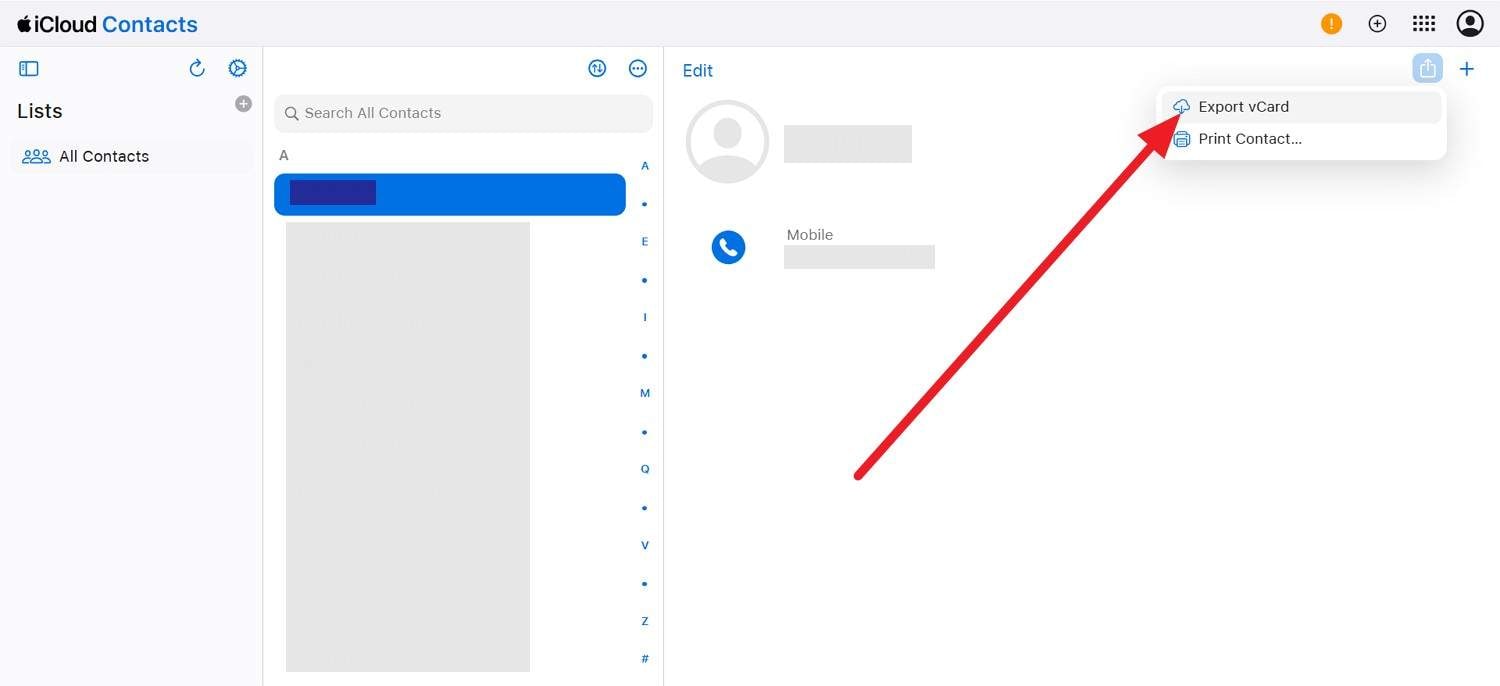
While learning how to back up contacts on Google accounts, iCloud gives complete control via manual export. You can choose which contacts or groups to copy and skip old or unwanted ones. Additionally, it works well when you want a safe snapshot or plan a switch from iPhone to Android. Besides, iCloud and Google stay separate, which lowers the risk of unwanted edits or deletes, as performed via the given guide:
- Step 1. On iCloud.com, choose the "Contacts" option as you sign in and press the "Share" icon on a certain contact to tap the "Export As vCard" option.
- Step 2. To save it to Gmail, choose the "Import" option on the Google Contacts and pick the "Select File" option to import the downloaded vCard file from iCloud.

Method 3: Export from Android Contacts App
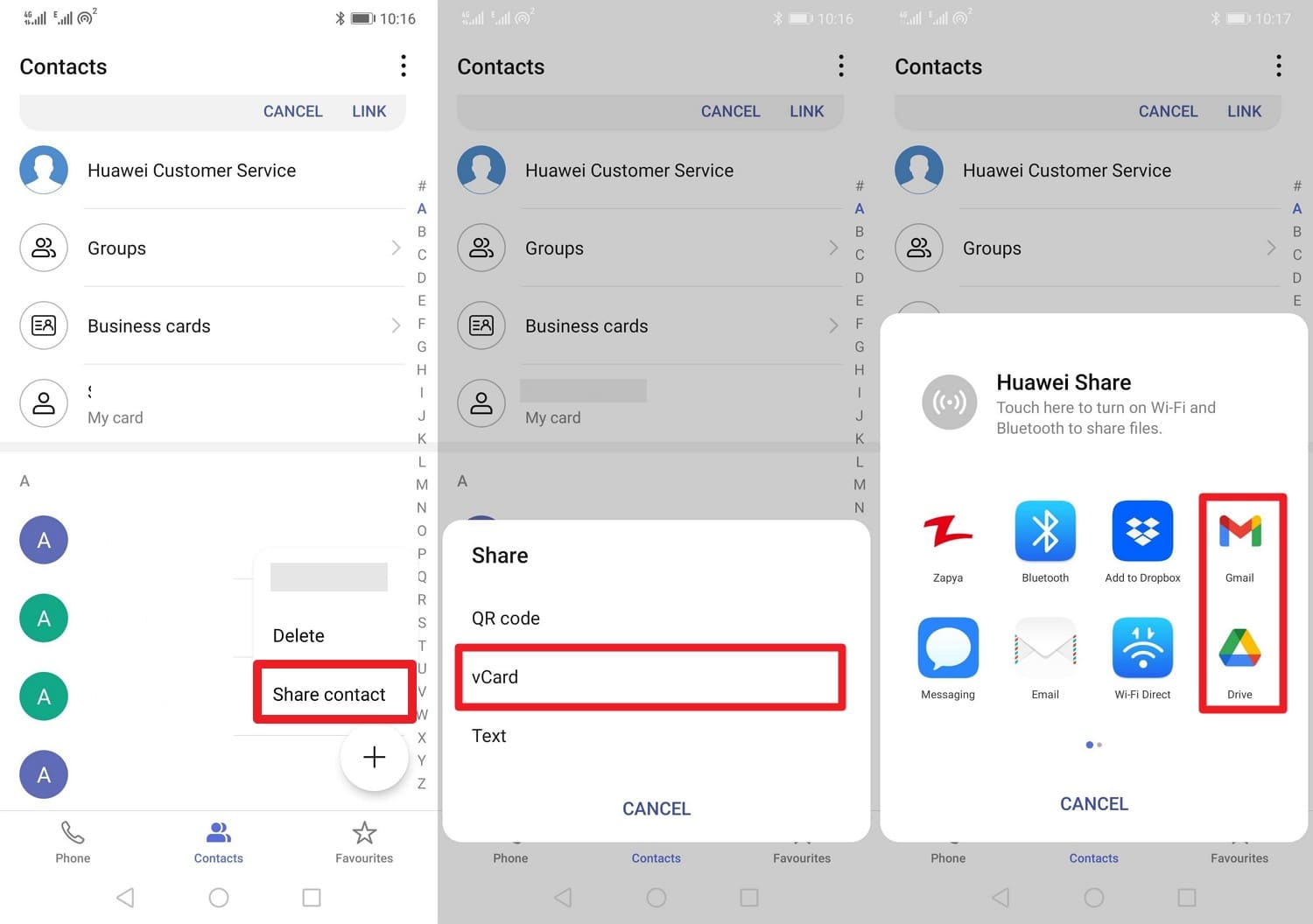
It's another solution if you ask how to back up my contacts to my Gmail, because you can save contacts as a VCF file. This file acts as a one-time copy that stays unchanged, and you can later upload it to Gmail or Drive when online. Moreover, the VCF file works on many phones and services, so it helps during a phone change or data move, once performed through the given ways:
Instructions: In the Contacts app, long-press the contact you want to export and select the "Share Contact" option. From the menu, select a format such as "vCard," then choose "Gmail" or "Drive" to save the contacts to Google.
Bonus Tip. Protect Your Contacts Effortlessly with Dr.Fone - Phone Backup
While learning how to back up contacts from phone to Gmail, you can rely on Dr.Fone - Phone Backup solution. It allows you to back up contacts and other data types, such as call history, wallpaper, photos, and videos, in just a few clicks. This tool suits those who want to back up data to a PC while leveraging Dr.Fone's compatibility with both android and iOS devices.
Additionally, it allows users to selectively choose the data they want to back up or restore, with the option to select the desired path. Beyond basic backups, you can use it to restore data to Android or iOS, including from iCloud or iTunes backups, with no additional skills required. Overall, the usage of this tool is seamless, and all the steps are fully guided to back up Android data wirelessly with incremental updates.

Wondershare Dr.Fone
Flexibly Backup and Restore Android Data
- Selectively backup Android data to the computer with one click.
- Preview and restore the backup to any Android device.
- Supports 8000+ Android devices.
- There is no data lost during backup, export, or restoration.


Guide to Back Up Android Data to PC with Dr.Fone - Phone Backup
As you are out to learn how to sync contacts to a Google account, review the listed guidelines and understand how to back up Android data with Dr.Fone:
- Step 1. Access the Phone Backup Tool & Connect the Device
- Step 2. Select the Required Data Types for Backup
- Step 3. Choose the Option to View Backup or Open the Folder
Within the "My BackUp" tab, press the "Back Up Now" button as you connect your Android smartphone to the PC.
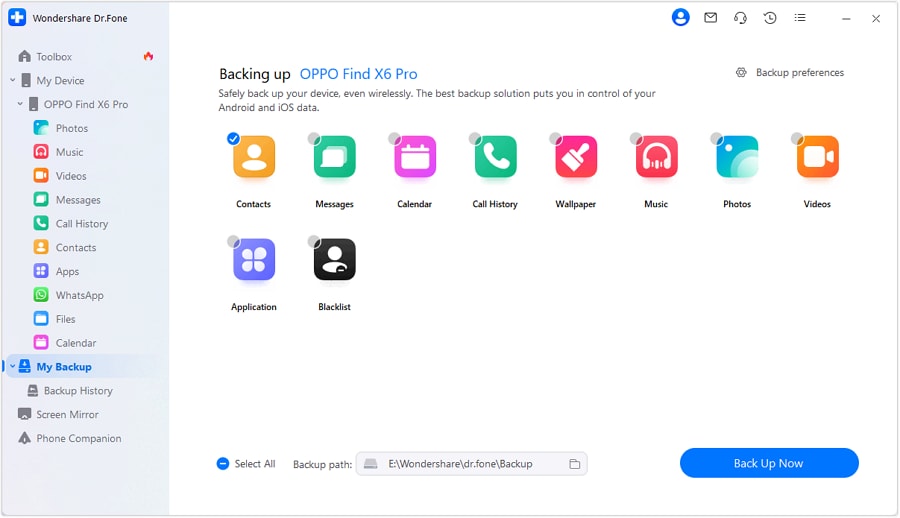
After that, select the listed data types like contacts, and if you need to back up text messages, follow the guidelines in the pop-up. Then, press the "OK" button, and the tool will initiate the backup process.
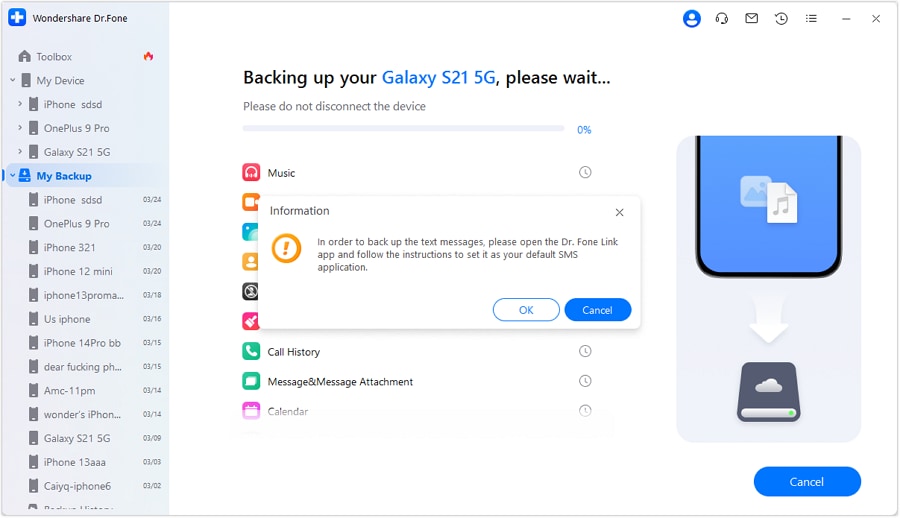
Once it's ongoing, another pop-up will be listed to users who are backing up the text messages. So, set the required SMS application, press the "OK" button, and tap the "Open in Folder" or "View Backups" option as the process concludes.

 safe & secure
Part 3. Pause or Stop: How to Unsync Contacts from Google
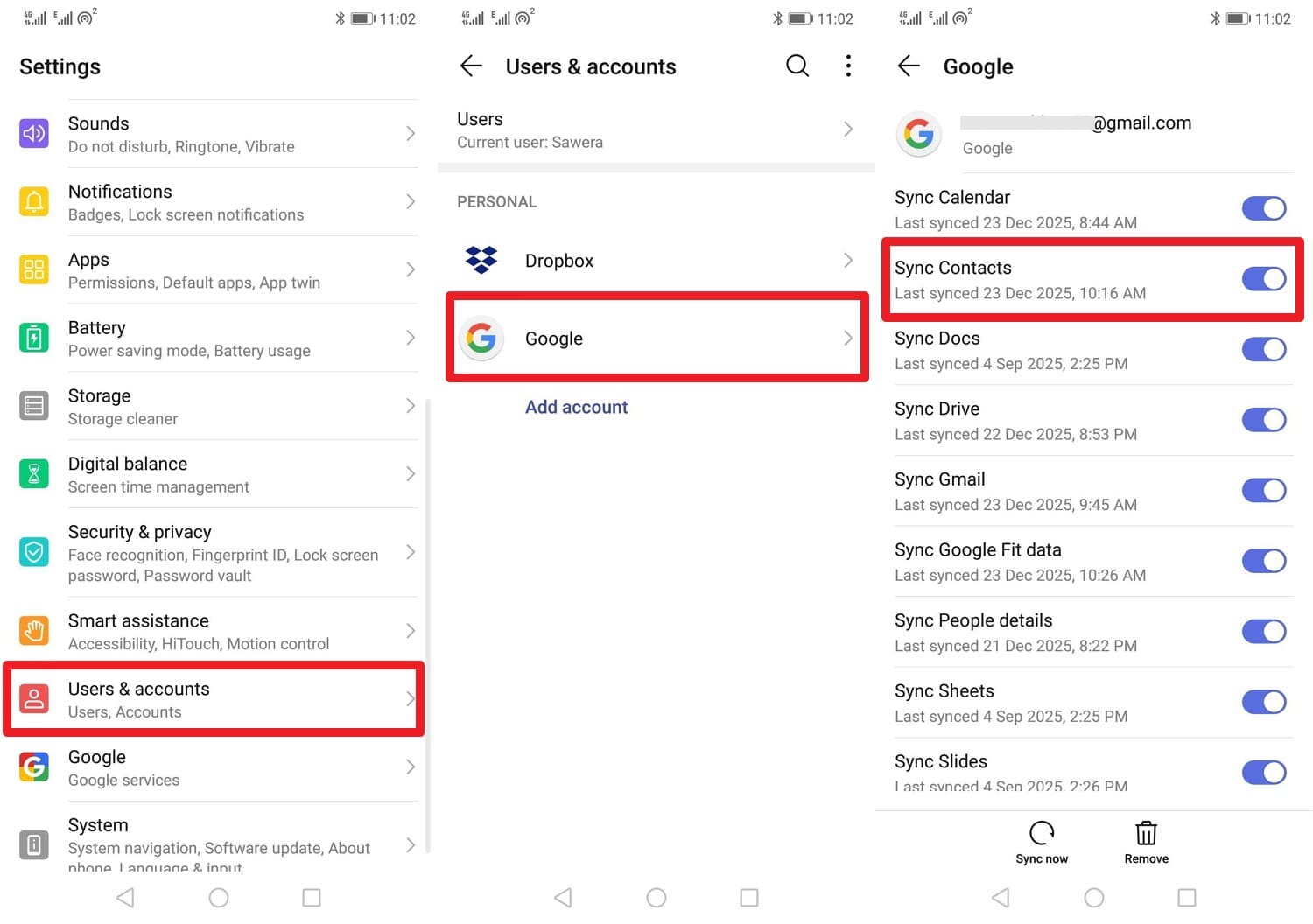
After getting answers on how to save contacts to a Google account, there comes a time when one wants to unsync the contacts. This helps cut contact clutter, protect privacy, and avoid unwanted changes. When sync stays off, new contacts on the phone do not go to Google, and Google Contacts do not show on that device. Regardless of the reason, doing this is seamless and is illustrated in the given steps:
Instructions: Press the "User & Accounts" option from the settings to pick the "Google" option. After that, disable the "Sync Contacts" option to stop automatic contact sync with your Google account.
Conclusion
To wrap up, many users wonder how to back up contacts to Gmail in multiple ways. For that, this guide has reviewed 3 simple and effective ways, with an additional option to unsync the contacts in exceptional cases. However, if you want to back up other Android data besides contacts with a simple and preview facility, Dr.Fone - Phone Backup (Android) is suggested.
safe & secureFAQs
 Q1.
Can I access backed-up contacts without my phone?Q2.
Can I back up contacts to Gmail from multiple phones?Q3.
What happens if I delete a contact by mistake?
Q1.
Can I access backed-up contacts without my phone?Q2.
Can I back up contacts to Gmail from multiple phones?Q3.
What happens if I delete a contact by mistake?Dr.Fone Basic:
Better Control for Your Phone
Manage, transfer, back up, restore, and mirror your device


 > How-to > Backup & Restore Solutions > How to Back Up Contacts to Gmail to Keep Your Contacts Safe: Complete Guide
Ahmed Absal
contributor Editor