

Xiaomi Backup: How to Back Up Your Phone to Cloud, PC, & Local Storage
Android Backup
- Backp Android
- 1. Backup Android to PC
- 2. Backup Android Photos
- 3. Android Wifi Backup
- 4. Backup Phone with Broken Screen
- 5. Backup Android Rom/Firmware
- 6. Backup SD Card on Android
- 7. Backup Android SMS
- 8. Backup Android Phone With Root
- 9. Backup Android to Mac
- 10. Backup Viber Messages
- Android Restore
- 1. Guide to Restore Android Phone
- 2. Backup and Restore Android Phone
- 3. 2 Ways to Restore Contacts on Android: Step-by-Step Guide
- 4. Restore WhatsApp from iCloud
- Backup Apps
- 1. Android Backup Apps to Backup Files
- 2. 6 Apps to Backup Bookmarks
- 3. Top 10 Contacts Backup App
- 4. Backup Android App and App Data
- 5. The Best Android Backup Extractor
- 6. Top 5 Android Backup Softwares
- 7. 6 Best Android Backup Softwares
- 7. 7 Android Fastboot Reset Tools
- Samsung Backup
- 1. Back Up Samsung to Google Drive
- 2. Backup Contacts on Samsung
- 3. Backup Text Messages on Samsung
- 4. Backup and Restore Samsung Galaxy
- 5. Backup Everything on Samsung
- 6. Backup Samsung Galaxy to PC
- 7. 10 Samsung Cloud Backup Services
- 8. Solution For Samsung Message Backup
- 9. 5 Samsung Photo Backup Solutions
- 10. Backup Samsung S10 to PC
- ● Manage/transfer/recover data
- ● Unlock screen/activate/FRP lock
- ● Fix most iOS and Android issues
- Free Download Free Download Free Download


Oct 22, 2026 • Filed to: Backup & Restore Solutions • Proven solutions
 TL;DR:
You can back up your Xiaomi phone using Xiaomi Cloud or Google Drive for automatic online syncing, MIUI Local Backup for offline system data, or Wondershare Dr.Fone for encrypted PC storage.
● MIUI Local Backup stores contacts, SMS, installed apps, and system settings in the device folder at Internal Storage → MIUI → Backup → AllBackup → [date], but it typically excludes gallery photos and videos which must be saved manually.
● Backing up to a PC using the Wondershare Dr.Fone Basic software supports cross-platform restoration but requires you to temporarily set the Dr.Fone Link application as your default SMS app during the procedure.
● To prevent complete data loss if the device is damaged, combine backup methods by enabling automatic Xiaomi Cloud syncs over Wi-Fi and manually copying the offline MIUI backup folder to an external computer.
Ask AI for a summary
 ChatGPT
 Perplexity
 Gemini
 Claude
 Grok
Grok
Dr.Fone Basic:
Better Control for Your Phone
Manage, transfer, back up, restore, and mirror your device
Creating a Xiaomi backup protects your photos, contacts, apps, and settings in case your phone is lost, reset, or damaged. Xiaomi devices support several backup options, including Xiaomi Cloud, Google Drive, PC backup, and MIUI local backup.
Many users also ask what MIUI local backup includes and whether it saves photos, videos, apps, and system settings. In this guide, you will learn how to create a Xiaomi backup to PC or cloud and how to restore it safely.
Quick Answer: Xiaomi phones can be backed up through Xiaomi Cloud, Google Drive, or MIUI Local Backup. You can also copy the backup folder to a PC to create an extra Xiaomi backup to PC for better protection.
So, if you want to have peace of mind and full control over your personal files and settings, review this guide to create a backup. From uploading data to Xiaomi Cloud to generating a Google Drive Backup, you will learn all the methods. If all the solutions seem hectic, the article will introduce you to the most intuitive backup tool of all.

- Part 1. Top 4 Ways to Create a Xiaomi Backup on Your Phone [Comparison Table]
- Part 2. How to Create a Xiaomi Cloud or PC Backup [Tested Tutorials]
- Way 1. Upload All Data to Xiaomi Cloud
- Way 2. Generate a Google Drive Backup
- Way 3. Create a Xiaomi Local Backup
- Way 4. One-Click PC Backup Using Dr.Fone Basic

- Part 3. Tips to Create a Perfect Mi Backup to Avoid Data Loss
Part 1. Top 4 Ways to Create a Xiaomi Backup on Your Phone [Comparison Table]
Xiaomi phones provide multiple backup methods depending on your storage needs. You can use cloud backup, Google backup, MIUI local backup, or export data to a computer. Each option offers different levels of speed, control, and security.
If you plan to backup Xiaomi phone to PC, local backups and Dr.Fone PC backup tools usually provide the fastest and most reliable solution.
To find the best solution for the Mi backup, check the quick comparison of all listed solutions in this guide:
|
Method |
Ease of Use |
Restore Simplicity |
Speed |
Data Safety |
Best For |
| Upload All Data to Xiaomi Cloud | Easy | Easy (Mi Account) | Moderate | Good | Daily auto-backup on Xiaomi devices |
| Google Drive Backup | Easy | Easy | Moderate | Good | Android users with a Google account |
| Create a Xiaomi Local Backup | Moderate | Manual restore | Moderate | Good | Full device backup, no internet needed |
| Dr.Fone One-Click PC Backup | Very Easy | One-click restore | Fast | Excellent (encrypted) | Best overall: full, fast, encrypted backups, cross-device restore |
Part 2. How to Create a Xiaomi Cloud or PC Backup [Tested Tutorials]
For those who seek to back up their Xiaomi phone to a PC, this section has you sorted. Explore the 4 given solutions along with a detailed guide and determine which one suits you best:
Way 1. Upload All Data to Xiaomi Cloud
This solution keeps all your data in Xiaomi Cloud and keeps all the information safe if your phone gets lost or damaged. Moreover, Xiaomi Cloud can save contacts, messages, photos, and other data, and you can easily restore it on any device by logging in to your Mi account. Above all, cloud storage is encrypted for security and offers free and paid plans, as you upload data via the listed steps:
Step 1. Connect the phone to a stable internet connection, then in settings choose the “Xiaomi Account” option. Log in with your Mi credentials, or create an account if you don’t have one.
Step 2. After that, press the “Xiaomi Cloud” option and choose the “Sync” option within the Xiaomi Cloud screen. Once enabled, Xiaomi Cloud will automatically sync supported data whenever it is connected to Wi-Fi or mobile data.

Way 2. Generate a Google Drive Backup
To back up a Xiaomi phone, you can also use the Google Drive backup facility since it's secure. It stores all types of data that can be easily accessed from any device with an internet connection. Users can restore all data to a new phone or after a reset by signing in to their Google account. Backups stay encrypted and include previous versions for safety, once made via the given steps:
Instructions: From the "About Phone" settings, press the "Backup and Restore" option to pick the Backup My Data" menu. On the new interface, toggle the "Turn on Backups" option, and your data will be backed up on Google.

Way 3. Create a Xiaomi Local Backup
A MIUI local backup saves data directly to your phone storage and can also be copied to a PC for extra safety. Many users ask what MIUI local backup includes.
Typically, MIUI local backup stores:
- Contacts and call history
- SMS messages
- Installed apps
- System settings and home screen layout
- Some app data
However, users often wonder: does MIUI local backup include photos and videos? In most cases, media files stored in the gallery are not included automatically and should be backed up separately through cloud storage or copied to a PC.
Other than general data, it also stores app data, system settings, and home screen layout. Users can easily restore it after a reset or data loss, and the backup can be moved to a PC or USB for extra protection. It works better than cloud solutions and gives complete control, as illustrated:
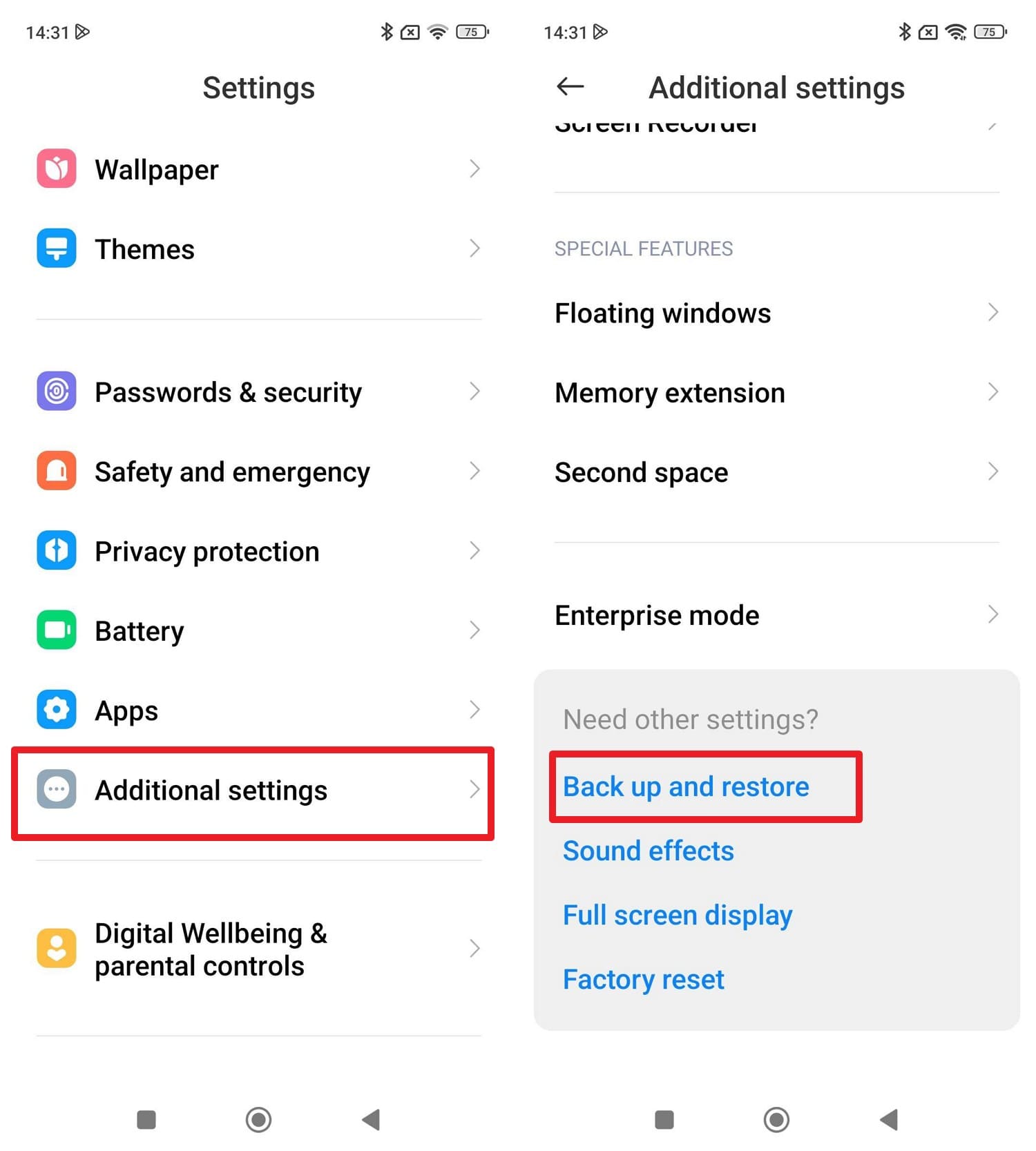
Step 1. As you pick the "Additional Settings” option from the settings, choose the “Backup and Restore” option after connecting the devices.
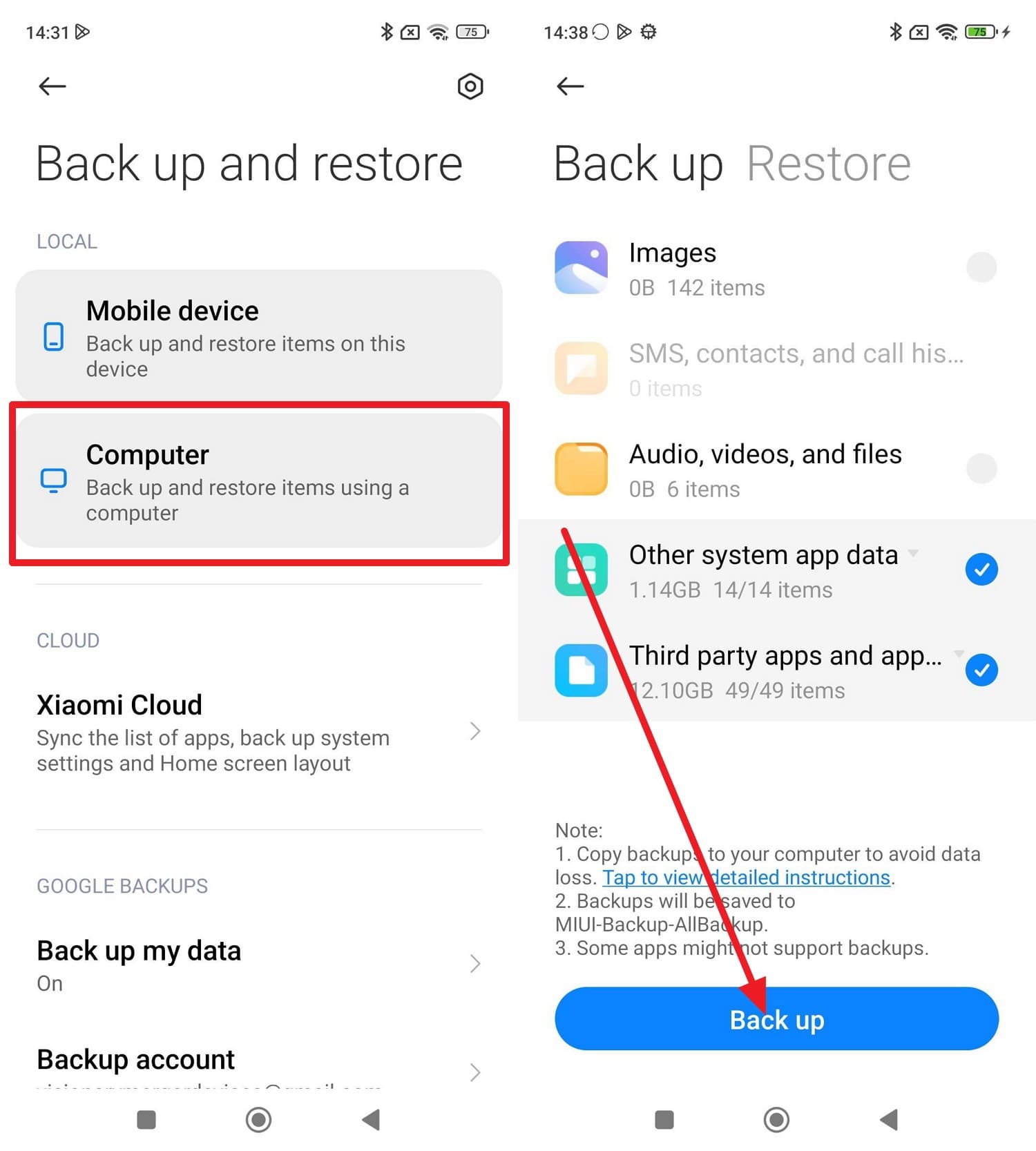
Step 2. Press the “Computer” option to create a backup, then press the “Backup” option and wait for the process to complete. To locate the backup on the PC, follow the given directions: “Internal Storage → MIUI → Backup → AllBackup → [date]” You can find this folder in File Manager, or connect your phone to a PC via USB and locate it for copying.
Way 4. One-Click PC Backup Using Dr.Fone Basic
Wondershare Dr.Fone is a preferred choice for Xiaomi phone backup when other general methods seem daunting. It offers the ability to back up and restore selected data on certain Android devices. Other than basic data, it also allows you to back up and restore social apps data, including WhatsApp. For backup, users can wirelessly back up Android data with incremental updates.
Additionally, the tool supports 8,000 Android devices and gives you complete control over the data you want to back up to a PC. During the restoration or backup process, you can preview all procedures and verify accuracy in real time. Unlike other solutions, it also supports cross-platform backups, meaning users can back up or restore data from Android to Windows, Android to Mac, Android to Android, and so on.

Wondershare Dr.Fone
Flexibly Backup and Restore Android Data
- Selectively backup Android data to the computer with one click.
- Preview and restore the backup to any Android device.
- Supports 8000+ Android devices.
- There is no data lost during backup, export, or restoration.


Guide to Create a Xiaomi Backup in a Single Click with Dr.Fone Basic
To backup Xiaomi phone to PC, Dr.Fone Basic provides a simple one-click solution. This method allows you to create a full Xiaomi backup to PC, including contacts, messages, photos, and app data.
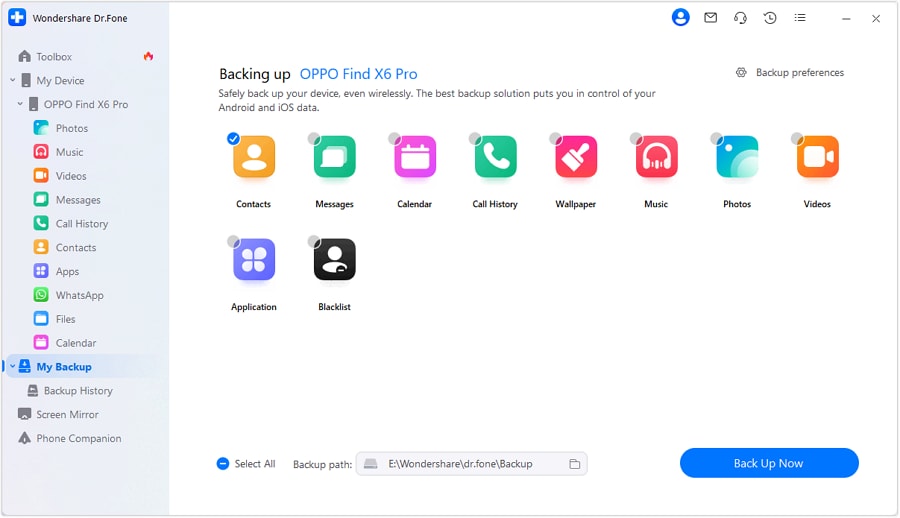
Step 1. Access the Tool and Connect Xiaomi with PC
Within the “My Backup” tab, click the “Back Up Now” button as you connect your Xiaomi smartphone and launch the tool.
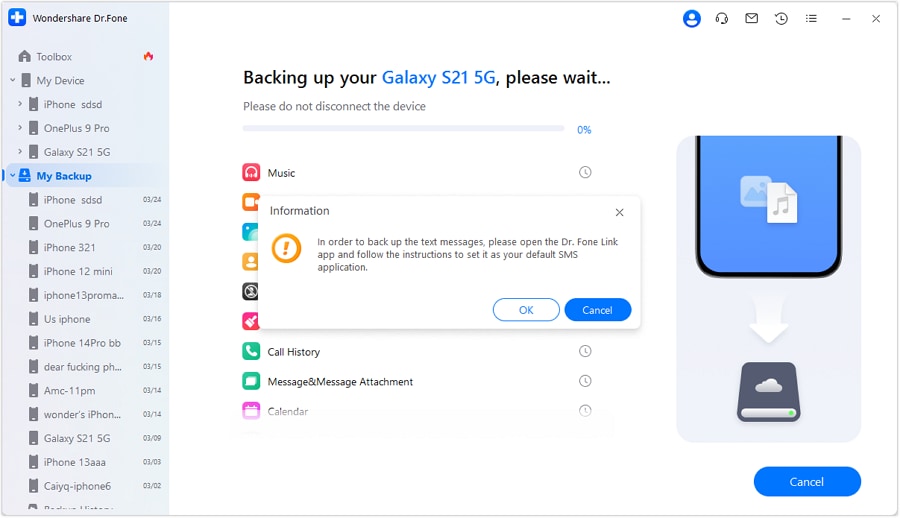
Step 2. Set Dr.Fone Link as the Default SMS Application
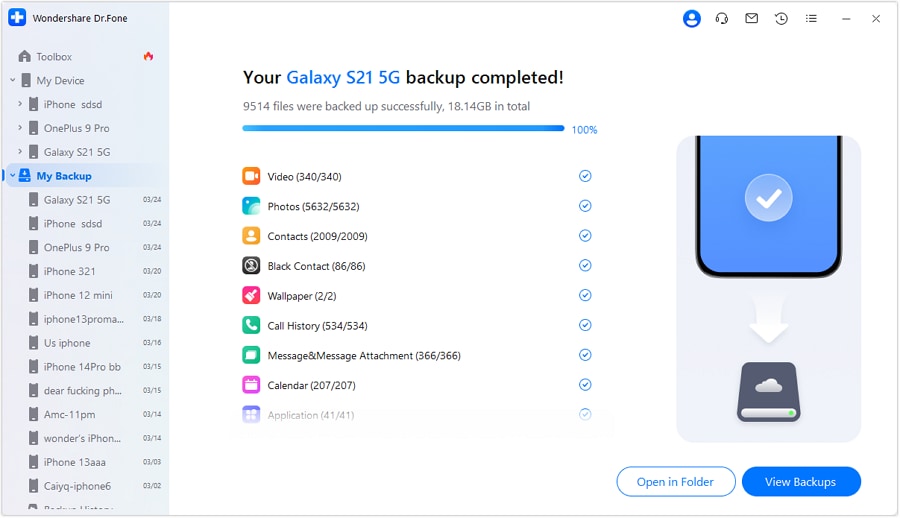
While backing up the data, including SMS, open the Dr.Fone Link app on Xiaomi and set it as the default SMS application. This will automatically initiate the backup process when you press the “Ok” option in the pop-up menu.
Step 3. Preview the Xiaomi Backed Up Data on PC
When the process ends, preview the backed-up data on the PC by picking the “Open in Folder” option.
Part 3. Tips to Create a Perfect Mi Backup to Avoid Data Loss
As you create the Xiaomi backup to PC, make sure to follow the listed tips to ensure data stays safe and easy to restore:
|
Tip |
Purpose/Benefit |
How to Implement |
| Use Multiple Backup Methods | Redundancy and extra safety | Combine Xiaomi Cloud, Google Drive, local, and PC backups |
| Schedule Regular Backups | Keeps backup current and comprehensive | Set auto-backup in Xiaomi Cloud; manually back up weekly |
| Include All Data Types in Backup | Avoid missing apps, messages, or system settings | Check all categories: Contacts, SMS, apps, photos, etc. |
| Validate Backup Completeness | Ensure restorable and usable backup files | Restart phone, check accessibility and integrity |
| Store Local Copy on External Device | Protection against device loss or damage | Copy backup to PC or USB drive after creation |
| Use Stable Wi-Fi for Online Backups | Prevent incomplete or corrupt uploads | Connect to secure Wi-Fi when backing up to the cloud |
Conclusion
In summary, creating a Xiaomi backup ensures that your data stays protected even if your device is reset or lost. Xiaomi phones allow backups through Xiaomi Cloud, Google Drive, MIUI local backup, or a PC.
If you want maximum control and security, creating a Xiaomi backup to PC is often the safest option because your files remain stored offline and can be restored anytime.
 safe & secure
4,624,541 people have downloaded it
FAQs
 Q1. What does MIUI local backup include?Q2. Does MIUI local backup include photos and videos?Q3. How can I backup my Xiaomi phone to a PC?Q4. How do I restore Xiaomi backup after resetting the phone?
Dr.Fone Basic:
Better Control for Your Phone
Manage, transfer, back up, restore, and mirror your device


 > How-to > Backup & Restore Solutions > Xiaomi Backup: How to Back Up Your Phone to Cloud, PC, & Local Storage
Daisy Raines
staff Editor