

How to Back Up Contacts on Android [EASY & SECURE METHODS]
Android Backup
- Backp Android
- 1. Backup Android to PC
- 2. Backup Android Photos
- 3. Android Wifi Backup
- 4. Backup Phone with Broken Screen
- 5. Backup Android Rom/Firmware
- 6. Backup SD Card on Android
- 7. Backup Android SMS
- 8. Backup Android Phone With Root
- 9. Backup Android to Mac
- 10. Backup Viber Messages
- Android Restore
- 1. Guide to Restore Android Phone
- 2. Backup and Restore Android Phone
- 3. 2 Ways to Restore Contacts on Android: Step-by-Step Guide
- 4. Restore WhatsApp from iCloud
- Backup Apps
- 1. Android Backup Apps to Backup Files
- 2. 6 Apps to Backup Bookmarks
- 3. Top 10 Contacts Backup App
- 4. Backup Android App and App Data
- 5. The Best Android Backup Extractor
- 6. Top 5 Android Backup Softwares
- 7. 6 Best Android Backup Softwares
- 7. 7 Android Fastboot Reset Tools
- Samsung Backup
- 1. Back Up Samsung to Google Drive
- 2. Backup Contacts on Samsung
- 3. Backup Text Messages on Samsung
- 4. Backup and Restore Samsung Galaxy
- 5. Backup Everything on Samsung
- 6. Backup Samsung Galaxy to PC
- 7. 10 Samsung Cloud Backup Services
- 8. Solution For Samsung Message Backup
- 9. 5 Samsung Photo Backup Solutions
- 10. Backup Samsung S10 to PC
- ● Manage/transfer/recover data
- ● Unlock screen/activate/FRP lock
- ● Fix most iOS and Android issues
- Free Download Free Download Free Download


Sep 12, 2026 • Filed to: Backup & Restore Solutions • Proven solutions
 TL;DR:
Android contacts can be backed up automatically to the cloud via Google Sync, exported manually as portable CSV or vCard files, or saved completely offline to a computer using Dr.Fone - Phone Backup.
● Google Sync continuously updates your contact list online and permits the recovery of deleted entries through the Google Contacts app strictly within a 30-day window.
● Exporting a CSV or vCard file provides a standalone backup that can be stored offline on local storage or manually uploaded to Google Drive for users who prefer avoiding automatic background synchronization.
● Backing up through Dr.Fone requires connecting the Android device to a Windows or Mac computer and temporarily designating the Dr.Fone Link tool as the default SMS application to complete the process.
Ask AI for a summary
 ChatGPT
 Perplexity
 Gemini
 Claude
 Grok
Grok
Dr.Fone Basic:
Better Control for Your Phone
Manage, transfer, back up, restore, and mirror your device
Knowing how to back up contacts on Android is essential for everyone. Contacts can be lost due to phone loss, accidental deletion, or device change. Backing up ensures you never lose important numbers or personal information.

Many users wonder how do you backup contacts on Android effectively. Android offers several built-in options to save contacts. Using reliable tools like Dr.Fone – Phone Backup makes backing up contacts easier. This article covers simple, secure methods to protect contacts on Android. Follow these steps to ensure your contacts stay safe anytime, anywhere.

Part 1: Where Android Contacts Are Stored & How Android Contact Backup Works
Android contacts are primarily stored in your Google account by default. Some contacts may also be saved directly on the device or SIM card. Understanding where contacts are stored helps you choose the most secure backup method.
Backing up contacts ensures you can restore them after accidental deletion, phone loss, or switching devices. Android offers several built-in ways to back up contacts safely. Here's how Android contact backup works:
- Google Account Sync – Contacts stored in your Google account are automatically synced online.
- Local Device Backup – Android can save contacts to internal storage or SD cards.
- SIM Card Storage – Some contacts can be copied directly to the SIM card.
- Restoration – Backed-up contacts can be easily restored to the same or a new device.
Part 2. How to Back Up Contacts on Android (All Reliable Methods)
Backing up contacts is essential to prevent accidental loss, phone damage, or device changes. Many users search "How do you backup contacts on Android?" to ensure their phone numbers remain safe. Android provides several reliable methods, from automatic cloud sync to manual export. Below are the most effective ways to back up contacts, with detailed descriptions and step-by-step instructions:
Method 1: Back Up Your Android Device with Dr.Fone
Dr.Fone – Phone Backup allows you to create a complete backup of your Android device, including contacts, messages, and other data. It is ideal for users who want full control over their device backup without relying on cloud services.

Wondershare Dr.Fone
Flexibly Backup and Restore Android Data
- Selectively backup Android data to the computer with one click.
- Preview and restore the backup to any Android device.
- Supports 8000+ Android devices.
- There is no data lost during backup, export, or restoration.


Here's how to back up your Android device with Dr.Fone:
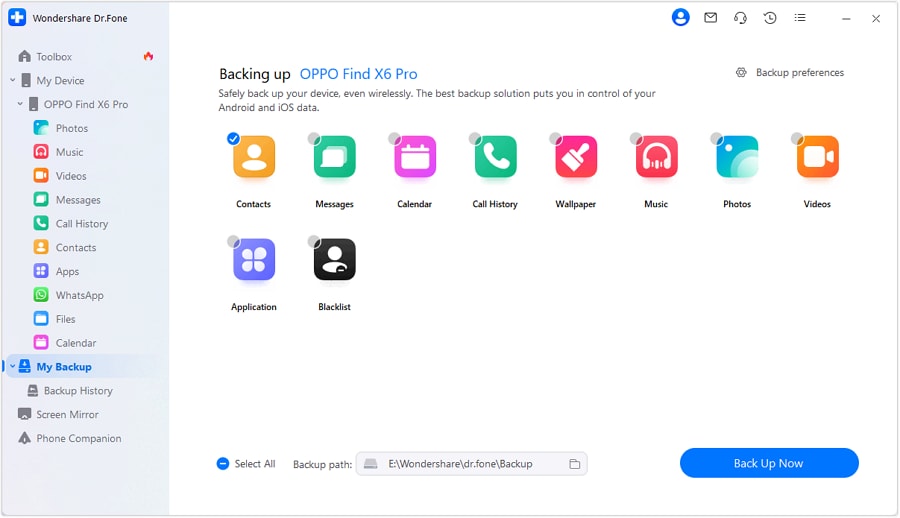
- Step 1: Start Backing Up Your Android Device
Launch Dr.Fone on your computer and connect your Android device. Navigate to My Backup > Back Up Now to initiate the backup process.
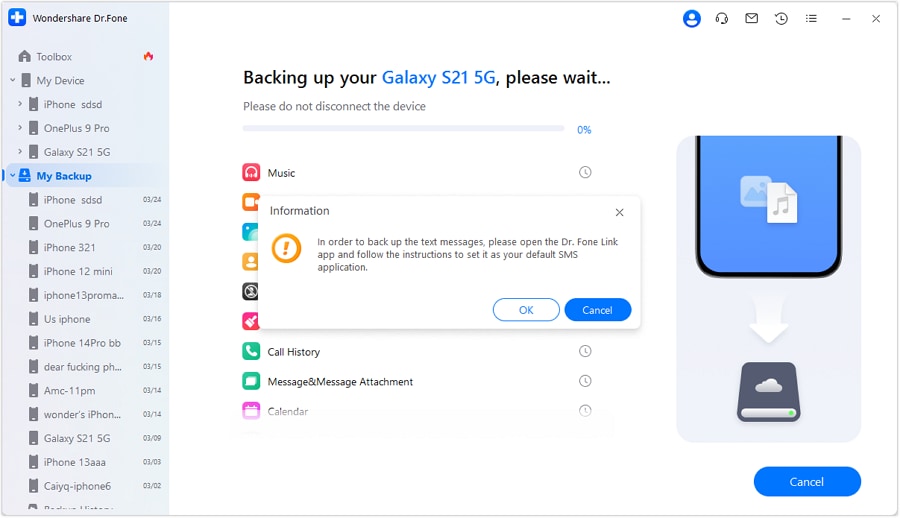
- Step 2: Set Dr.Fone Link as the Default SMS App
Open the Dr.Fone Link app on your Android device and set it as the default SMS application. Click OK to continue.
- Step 3: Wait for the Backup Process to Complete
The backup will start automatically. Monitor the progress using the on-screen progress bar until it finishes.

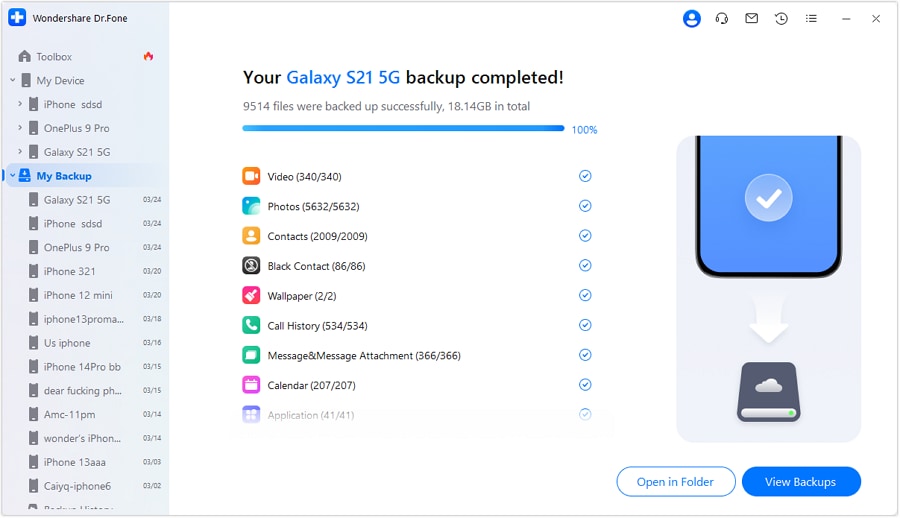
- Step 4: Complete the Backup
Once finished, you can view your backup in Dr.Fone. Click Open in Folder to see the files on your computer or select View Backups to see all saved backups.
 safe & secure
Method 2: Back Up Contacts on Android Automatically with Google Sync
Google Sync provides an effortless way to back up contacts online. Once enabled, all new and updated contacts are automatically saved to your Google account, ensuring easy restoration on any device. Here's how to back up contacts on Android automatically with Google Sync:
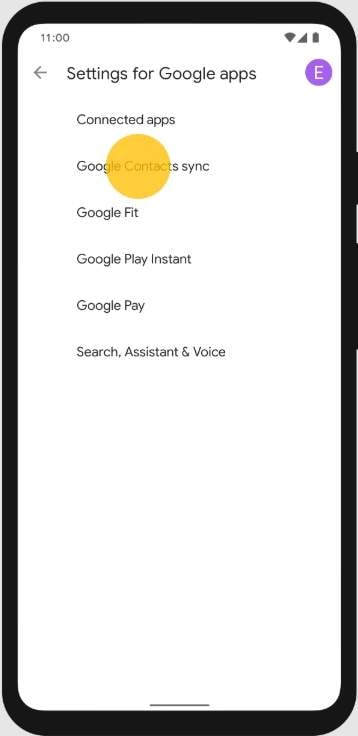
- Step 1: Open Settings on Your Android Device
Go to your device's Settings to access account and sync options.
- Step 2: Select Your Google Account
Navigate to Accounts > Google and choose the account where you want to back up contacts.
- Step 3: Enable Contact Sync
Make sure the Contacts option is toggled on to allow automatic syncing.
- Step 4: Backup Completed Automatically
Google will continuously back up and sync your contacts online, keeping them safe.
Method 3: Manually Export Android Contacts (CSV / vCard)
Does the question "How do I backup contacts on Android?” still bother you? Manually exporting contacts lets you create a portable backup file in CSV or vCard format. This method is perfect if you want to transfer contacts to another device or store them offline. Here's how to manually export Android contacts to CSV or vCard:
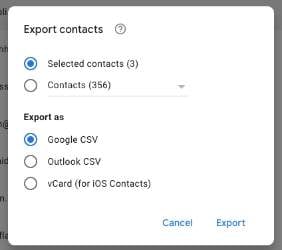
- Step 1: Open the Contacts App
Launch the Contacts app on your Android device.
- Step 2: Select Export Option
Tap the menu (three lines or dots) and choose Export.
- Step 3: Choose Export Format
Select CSV or vCard (VCF) as the file format for your backup.
- Step 4: Save the Backup File
Save the exported file locally or to your preferred storage location for safekeeping.
Method 4: Back Up Contacts to Google Drive via Manual Export
This method allows you to back up contacts to Google Drive for secure cloud storage. It ensures you can access your contacts anytime from any device connected to your Google account. Here's how to back up Android contacts to Google Drive via manual export:
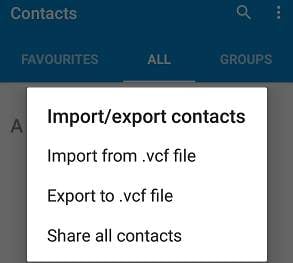
- Step 1: Open the Contacts App
Launch the Contacts app on your Android device.
- Step 2: Export Contacts as CSV
Tap the menu option and select Export, saving the contacts as a CSV file.
- Step 3: Upload to Google Drive
Open the Google Drive app and upload the CSV file to your cloud storage.
- Step 4: Access Contacts Backup Anytime
You can access your uploaded contacts backup from any device connected to your Google account.
This section guides you on how to back up contact on Android using simple, secure, and reliable methods. By following these steps, your important contacts remain safe and easy to restore whenever needed.
Part 3: How to Restore Contacts on Android (Quick Overview)
Aside from learning how to backup contacts on Android, it's also important to know how to restore them. Restoring contacts ensures you can recover lost phone numbers after switching devices or accidental deletion. Android offers several reliable ways to restore contacts. Here are some:
Method 1: Restore During Phone Setup
You can restore your contacts while setting up a new Android device or after a factory reset. This method allows your contacts to sync automatically from your Google account. Here's how to restore contacts during phone setup:
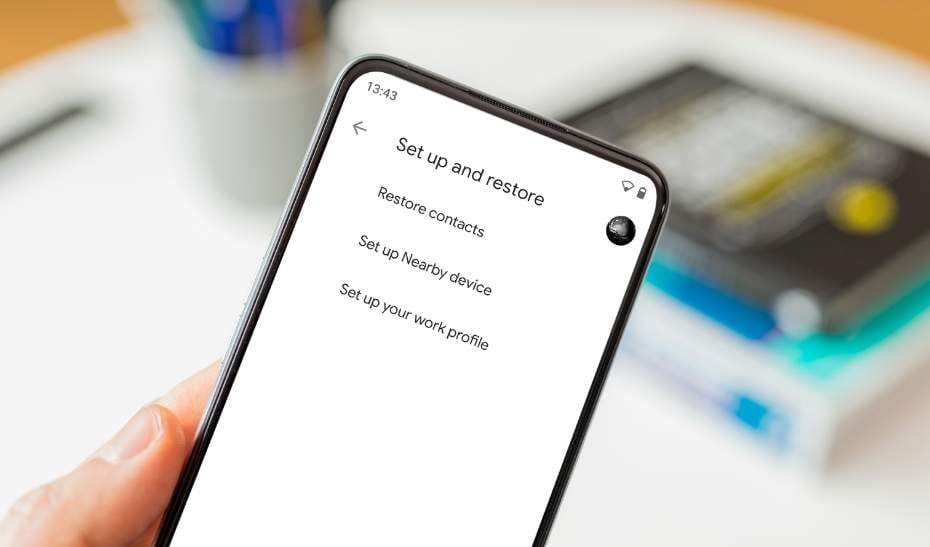
- Step 1: Start Phone Setup
Turn on your new or reset Android device and begin the setup process.
- Step 2: Connect to Wi-Fi
Ensure your device is connected to a stable Wi-Fi network for syncing contacts.
- Step 3: Sign in to your Google Account
Log in using the same Google account that holds your contacts backup.
- Step 4: Enable Contact Sync
During setup, make sure the Contacts option is selected to automatically restore saved contacts.
Method 2: Restore Using the Google Contacts App
The Google Contacts app allows you to restore contacts at any time, even after the initial setup. This method is convenient for users who want to recover deleted or missing contacts without resetting their device. Here's how to restore contacts using the Google Contacts app:
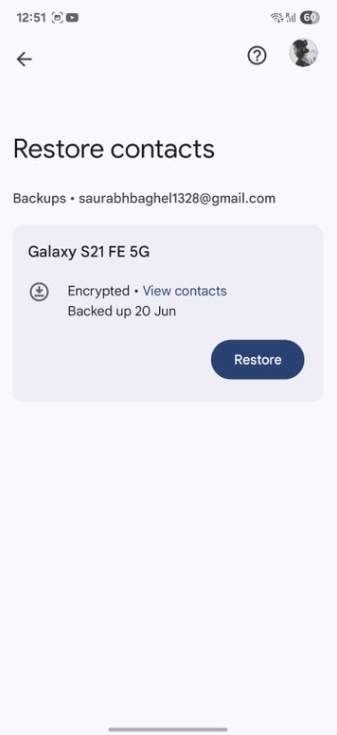
- Step 1: Open the Google Contacts App
Launch the Google Contacts app on your Android device.
- Step 2: Go to Settings
Tap the menu and select Settings to access restore options.
- Step 3: Select Restore Contacts
Choose the Google account you want to restore contacts from.
- Step 4: Confirm Restore
Select a backup date (up to 30 days) and tap Restore to recover your contacts.
Method 3: Restore from Dr.Fone Backup
If you previously backed up your Android device using Dr.Fone – Basic, you can restore contacts directly from the backup. This method is fast and reliable. This powerful tool allows you to recover all saved contacts without using Google services.
Conclusion
Knowing how to back up contacts on Android is essential for data safety. Regular backups prevent accidental loss when switching devices or after device damage. Methods include automatic backup with Google Sync, manual export, and Google Drive storage. Restoring contacts ensures you can recover important numbers anytime without unnecessary stress.
Dr.Fone – Phone Backup provides a secure and convenient way to back up contacts. Performing backups regularly keeps all important contacts safe and easy to restore. Taking time to back up contacts protects your data and provides peace of mind.
safe & secureFAQs
 Q1: Can I back up only selected contacts instead of my entire list?Q2: Can Dr.Fone – Basic save contacts offline on my computer?Q3: Can I restore my contacts to a new Android device?
Dr.Fone Basic:
Better Control for Your Phone
Manage, transfer, back up, restore, and mirror your device



Selena Lee
chief Editor