



 TL;DR:
WhatsApp mobile lacks a native logout button, requiring iPhone and Android users to uninstall, offload, or clear app data to sign out, whereas Web and Desktop versions feature a built-in logout option and can be disconnected remotely via your primary phone.
● To sign out on a primary mobile device, iPhone users must either Delete the app or Offload it to retain data, while Android users can navigate to system settings and select Clear Data or Clear Storage to reset the account without uninstalling.
● You can instantly secure an account left on a shared computer or browser by accessing Linked Devices on your primary phone and remotely terminating the connection, though this action only logs out secondary devices and keeps the main phone active.
● Terminating a session does not delete your account or groups, allowing chat restoration via iCloud, Google Drive, or Dr.Fone Data Recovery upon re-login, while separate tools like Tracover WA Tracker can be utilized to monitor a contact's real-time online status and activity patterns.
Ask AI for a summary
 ChatGPT
 Perplexity
 Gemini
 Claude
 Grok
Grok
Many people want a way to log out of WhatsApp – especially when they change phone, want to protect their privacy, or use shared devices. But you could be really surprised when you discover the truth. While most of the apps feature a "log out" button, WhatsApp mobile is the only one that doesn't have it at all.
The method of logging out may vary according to what device you are using. For instance, on iPhone and Android, you can do clearing of data and device unlinking, but the login/logout capabilities of WhatsApp on the Web and desktop are more convenient for you in that they even offer you a straightforward logout button. Here we discuss how to log out from WhatsApp on iPhone, Android, Web, and all linked devices.
In this Article

Part 1. How to Log Out of WhatsApp from All Devices at Once
You might want to get rid of WhatsApp account on all devices. If so, below are some methods to do so.
How WhatsApp Logout Works on Different Devices
It's crucial to know that signing out of WhatsApp differs based on the device you are using. Here is how it varies:
- Mobile (iPhone/Android): Unfortunately, there's no direct logout button feature.
- Web/Desktop: Logout option is readily visible and can be used from the user interface.
- Linked devices: You can remove any connected device from your phone remotely, and it will immediately end that session.
Knowing these differences can be of help to you in deciding a suitable way for you. Now, let's find out how to log out WhatsApp from all devices:
Steps to Log Out of WhatsApp from All Linked Devices
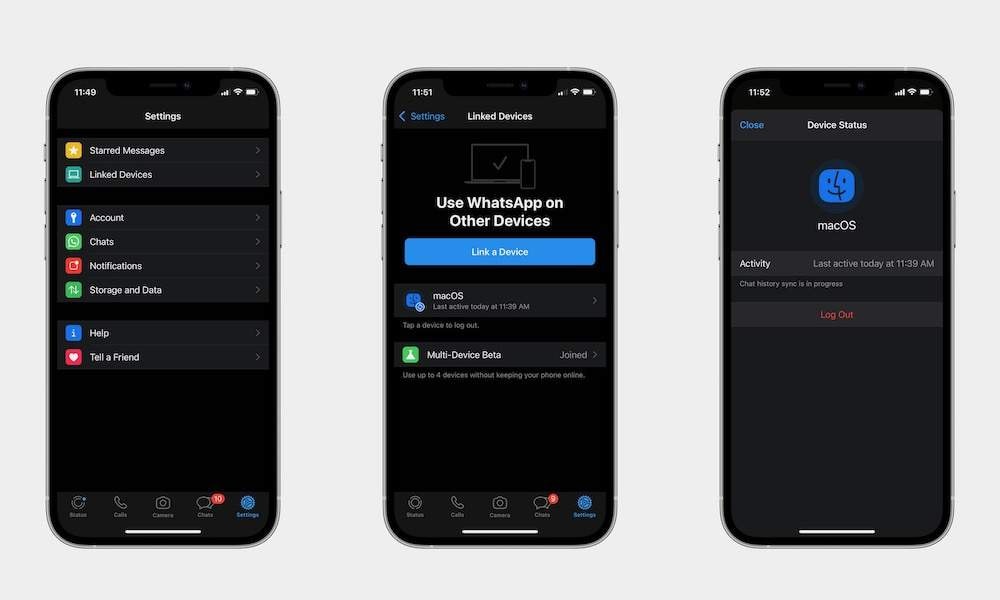
WhatsApp has a 'Linked Devices' feature that allows you to see every device that is currently connected to your account. It is from this section that you can easily log out of all your active sessions. Here is how to sign out of WhatsApp:
- Step 1. Launch WhatsApp.
- Step 2. On iPhone, tap Settings or on Android, tap the three-dot menu at the top-right corner.
- Step 3. Tap Linked Devices to see all the active sessions that are presently connected to your account.
- Step 4. Go through the list of devices and tap on the device you want to remove.
- Step 5. Just tap Log out to end the selected session.
Note: Doing this will log you out only from secondary devices, such as browsers or computers; your main phone will still be logged in.
Part 2. How to Log Out of WhatsApp on iPhone
People who have iPhones will find out that there is no logout button inside the app.
Steps to log out of WhatsApp on iPhone
- Step 1. Find WhatsApp on your iPhone home screen. Press and hold the WhatsApp icon.
- Step 2. Tap Remove App.
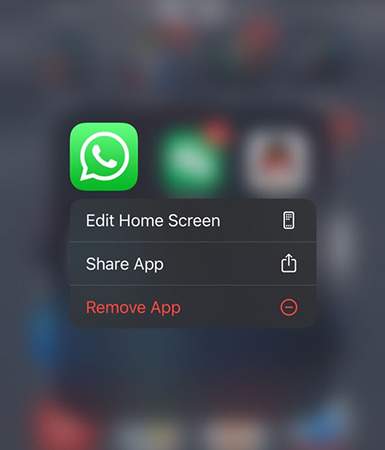
- Step 3. Select Delete App, then confirm to remove it from your iPhone.
Once the app is removed, you are effectively logged out of WhatsApp on that device.
Alternative: Offload The App Instead of Deleting It
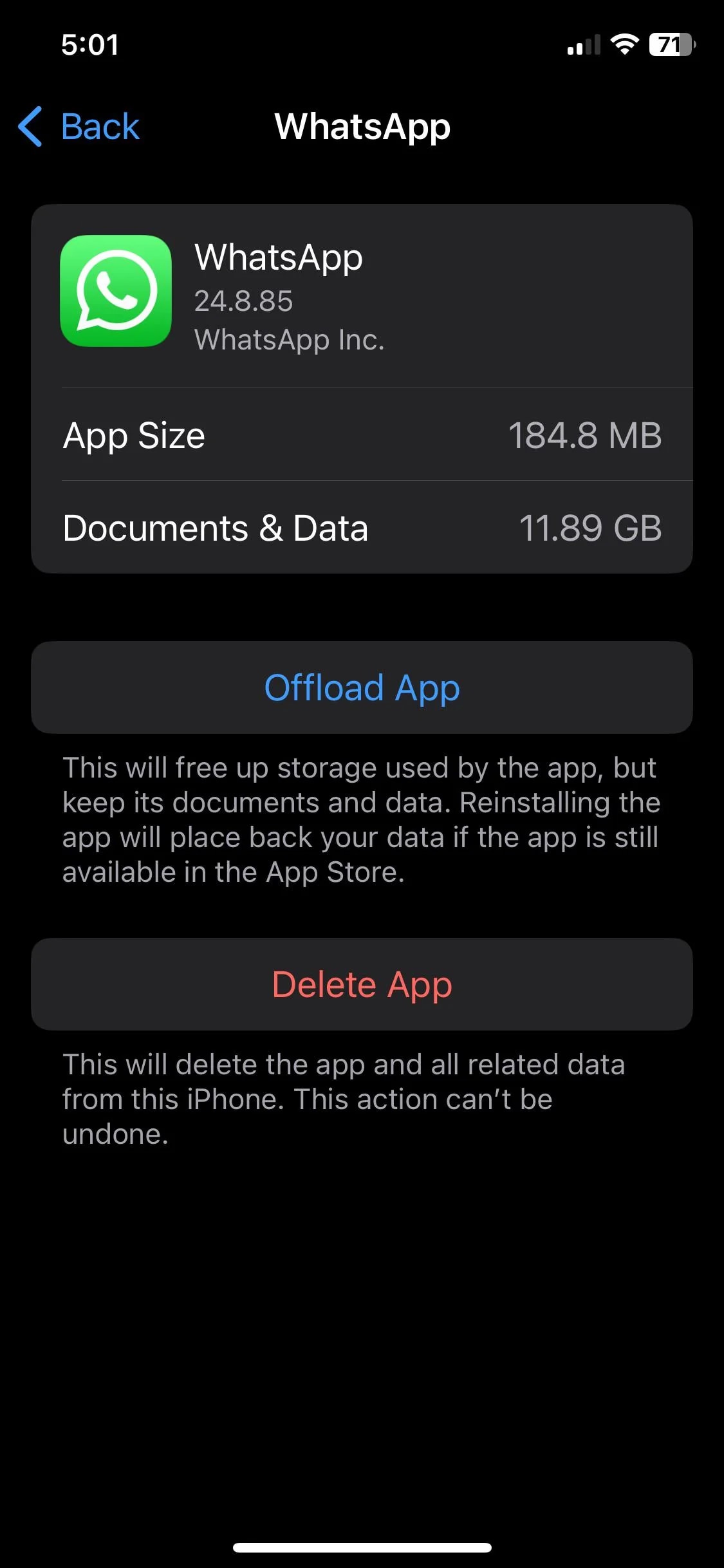
However, if you do not want to completely remove WhatsApp from your iPhone, then Offload App is a great option. It just removes the app, but keeps all data, documents, and chats that the app has. Here is how to offload WhatsApp to your iPhone:
- Step 1. First open Settings on your iPhone. Next go to General, where you can see the options of the device at the system level.
- Step 2. Choose iPhone Storage.
- Step 3. Choose WhatsApp. Tap Offload App button. Then, tap OK to send confirmation that you want to delete the app while keeping its data untouched.
Part 3. How to Log Out of WhatsApp on Android
In contrast to the web version, WhatsApp for Android really does not have a logout button. Nevertheless, Android users can still log out employing two handy methods: clear the app data or uninstall the app. These two methods will log you out of your account on that device, they will, however, handle the app differently. Here are the two most common methods you can use.
Method 1. Clear WhatsApp app data (log out without uninstalling)
Deleting app data is the most similar thing to a logout feature on Android. This way you remove your account details, and the app will revert to its initial setup.
- Step 1. Access Settings on your Android smartphone. Tap Apps or Apps & Notifications, depending on your phone.
- Step 2. Keep scrolling the list of apps till you find WhatsApp. To get to WhatsApp storage features, tap Storage & Cache.
- Step 3. Choose Clear Storage or Clear Data, then accept the operation.
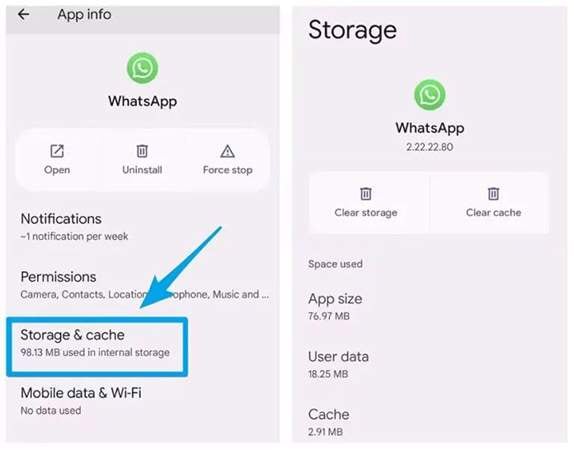
After that, WhatsApp will start over, and you will be signed out of your account on this device.
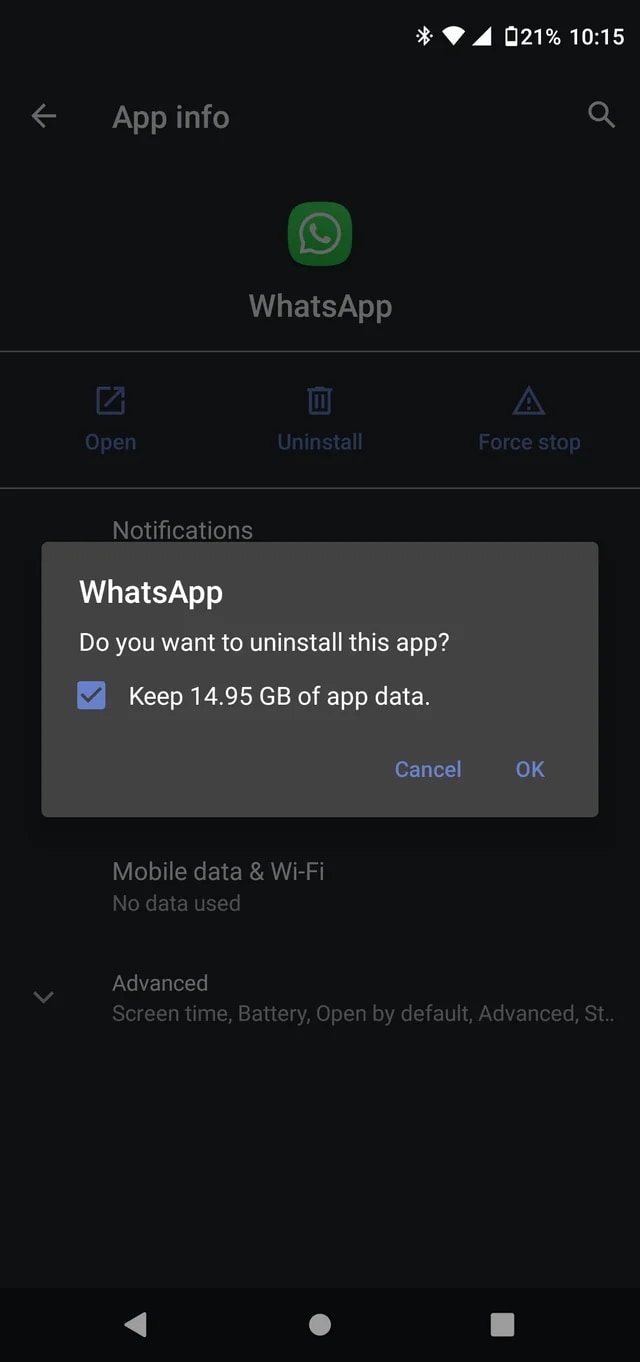
Method 2. Get rid of WhatsApp on your Android phone
If you want to go a step further and log out of all of it at once, the easiest way is to completely uninstall the app.
- Step 1. Find WhatsApp on your phone's home screen or application drawer. Hold the app icon down until more options pop up.
- Step 2. Select Uninstall from the list.
- Step 3. Agree to the removal when asked.
Part 4. How to Log Out of WhatsApp Web and Desktop
Unlike the mobile app, WhatsApp for Web and desktop offer you the real logout button feature to facilitate signing out after using the service on a computer, making it easier. You can log out of a WhatsApp Web browser session or WhatsApp Desktop app either from the device or remotely from your phone. Here are the two top methods you can use.
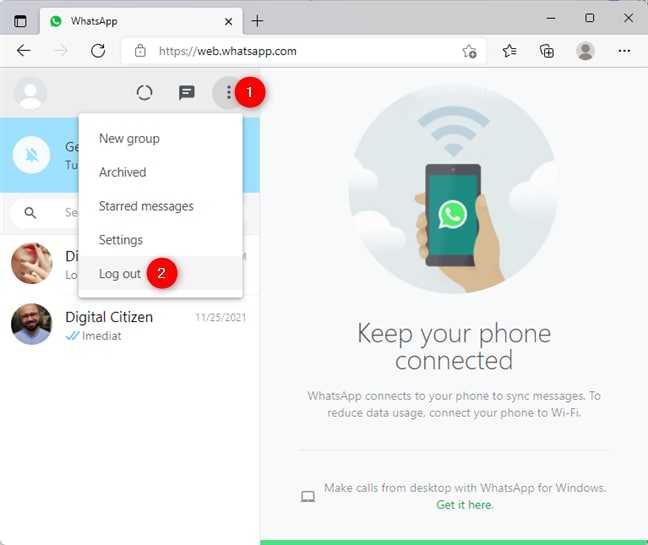
Method 1. Sign out straight from the web or desktop app
It's simplest thing to do if you are using the WhatsApp PC version is to log out directly from the WhatsApp Web or Desktop app interface. This would stop the session immediately on that device.
- Step 1. Visit WhatsApp Web in your browser or open WhatsApp Desktop on your PC.
- Step 2. Tap the three-dot menu (⋮) that is near the top of the chat list.
- Step 3. Pick Log out in the dropdown menu.
- Step 4. Click OK if you get a confirmation prompt.
After that, the session that was running on that computer will be terminated, and the WhatsApp window will show the sign-in screen again.
Method 2. Remotely log out via your phone (most effective)
What if you couldn't log out on the shared, public, or office computer? You can terminate the session remotely through your phone. This is the safest and most convenient method because it lets you disconnect any device connected to your account.
- Step 1. Launch WhatsApp on your phone.
- Step 2. Press Settings (iPhone) or the three-dot menu (Android).
- Step 3. Pick Linked Devices where you will get to see all active sessions. Choose the device or browser session that you intend to remove. Hit Log out to immediately disconnect that device.
This can be a helpful solution if, by mistake, you leave WhatsApp on a public computer, a shared laptop, or someone else device and you want to secure your account at once.
Bonus: Monitor Someone's WhatsApp Activity Using WA Tracker
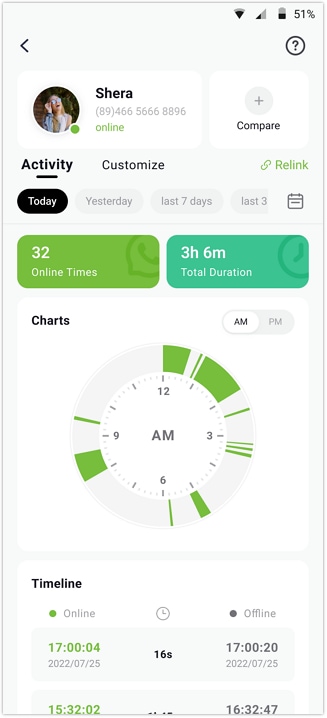
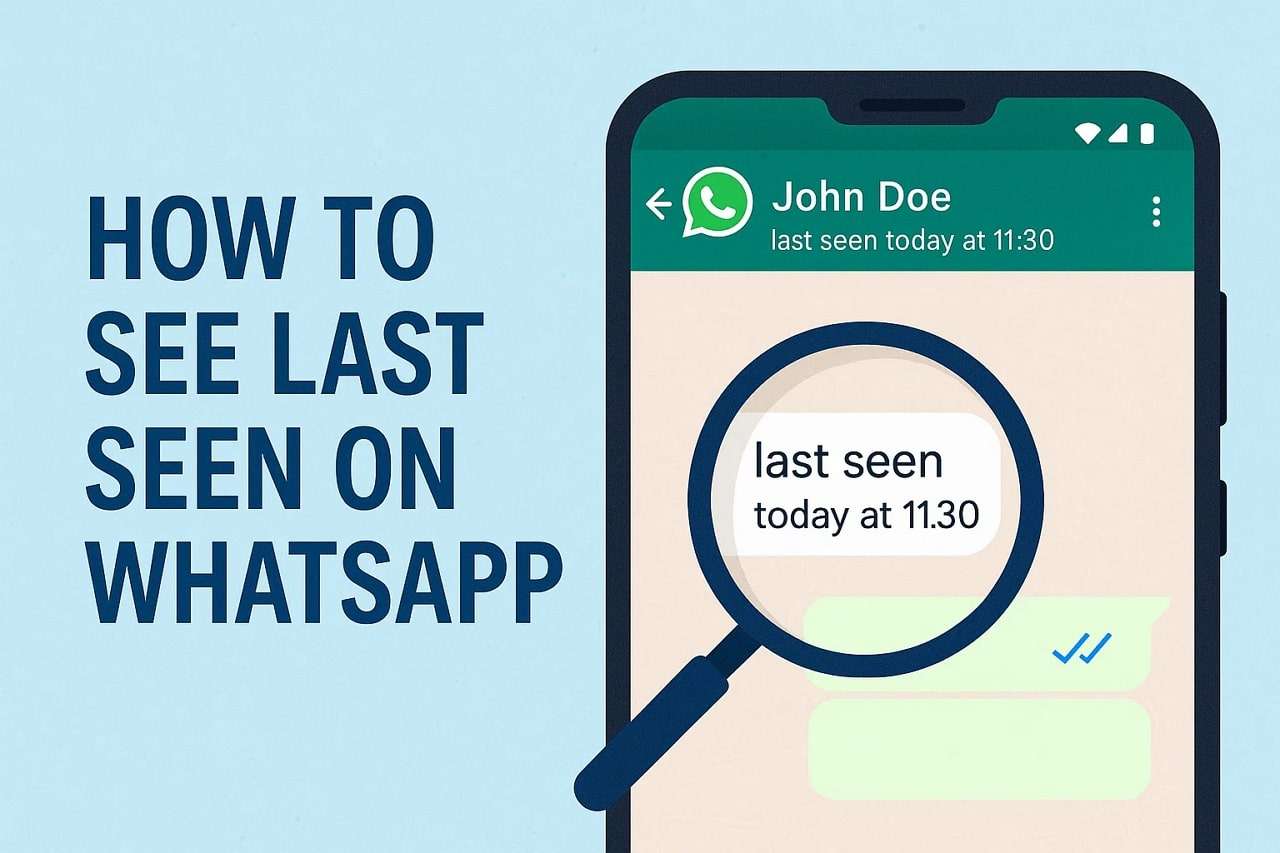
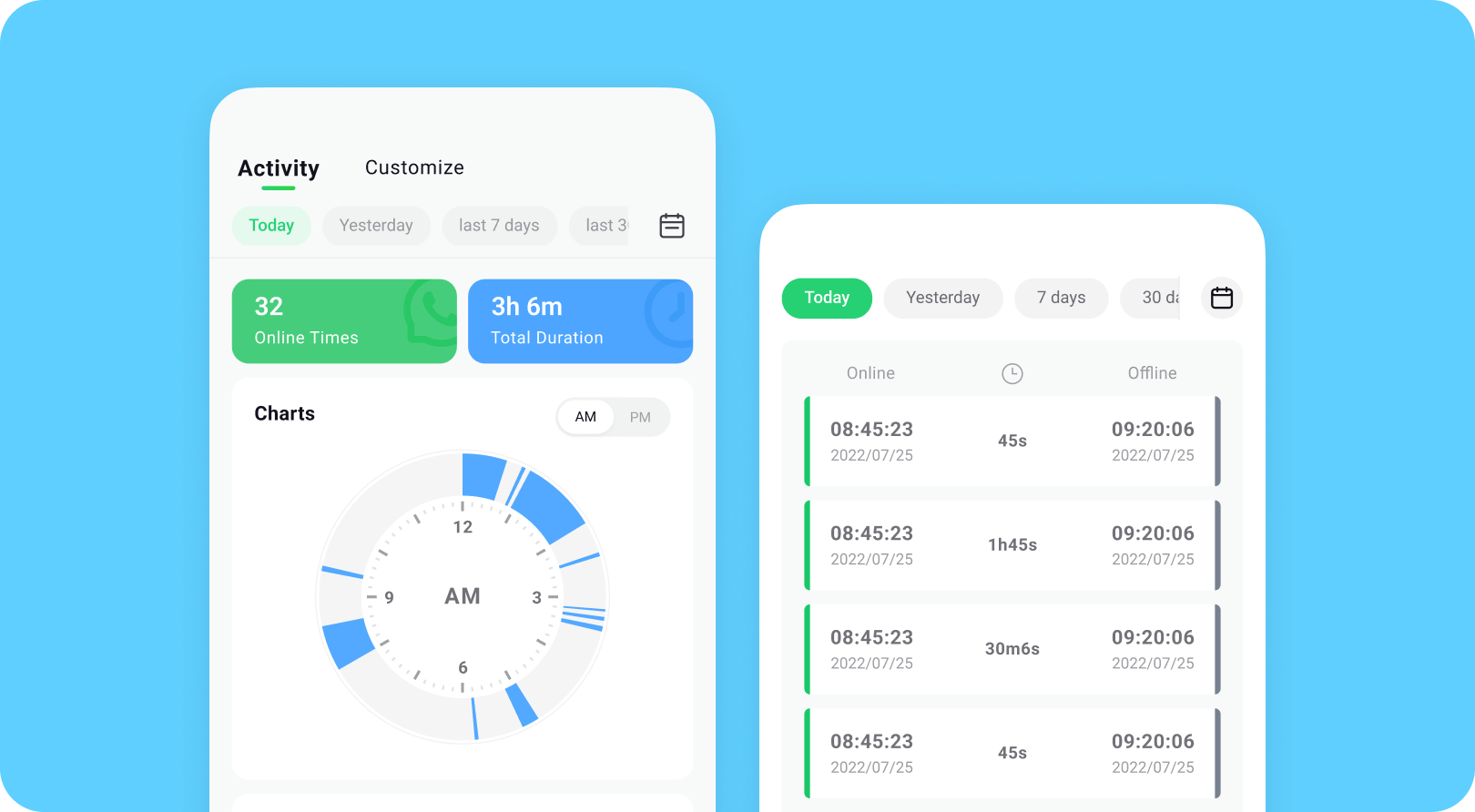
One of the solutions can be Tracover WA Tracker, which is intended to follow up on WhatsApp online activities and last-seen habits. Using Try It Free, for example, users can find out when a person is online or goes offline, and they can also get notifications in real-time whenever a contact they are tracking becomes active. Besides this feature, it even facilitates users in analyzing the daily activity patterns or just "at a glance" understanding the usage trends or overlapping online times of contacts.
What makes Tracover your WhatsApp status tracker?
Below are some features of Tracover that make it an attractive tool for monitoring WhatsApp activity:
Tracover App - WA Tracker
Track WhatsApp Online Activites Automatically
- Instant Alerts: Real-time notifications for user sign-ins.
- Custom Schedule: Set precise tracking hours and days.
- Chat Compare: Reveals shared online patterns between users.
- Weekly Trends: Visualizes user activity in simple charts.
- Status History: Stores online logs for review and comparison.


How to Use Tracover's WA Tracker:
To use Tracover WA Tracker, open the app and tap WA Tracker, then click Add Contact. Tap Start Tracking > Link WhatsApp. Once the linking is finished, open the contact's Activity tab to view their online/offline status and receive real-time activity notifications.
Part 5. What Happens When You Log Out of WhatsApp?
Signing out leads to the following changes:
- When you sign out WhatsApp, it doesn't imply that you are deleting your WhatsApp account.
- Groups, contacts, and account settings are still there.
- Restoring backed-up chats is quite straightforward. When you are using Google Drive or iCloud for backups, you can easily restore your messages after logging in next time.
Besides, if you want to get to your chat history after logging out, then you can still recover it by using Dr.Fone Data Recovery which is able to recover WhatsApp data on both iOS and Android devices.
Conclusion
Wondering how to log out from WhatsApp? Mobile versions do not have a log out button obviously, however, you have the option to sign out by clearing app data, uninstalling the app, or removing linked devices. Conversely, WhatsApp Web and WhatsApp Desktop offer a log out feature built in.
If you want to keep an eye on WhatsApp activity, Try It Free is capable of tracking one's online status, observing their activity habits, and issuing real-time notifications, so you will have a better understanding of WhatsApp usage.










Jane Lunes
staff Editor
Generally rated4.5(105participated)