


 TL;DR:
To restore missing WhatsApp notifications on Android or iPhone, you must actively configure your device's system settings to allow background data usage and disable battery optimization features that suspend the app's connectivity.
● On Android, turn off Battery Saver and enable Background Data under the Mobile Data & Wi-Fi settings; on iPhone, disable Low Power Mode and activate WhatsApp within the Background App Refresh menu.
● Verify that your device's Do Not Disturb mode is disabled and individual chats are not manually muted, as these specific configurations will silently override general system notification permissions.
● If utilizing the third-party Tracover app to monitor a contact's real-time online and offline timestamps, you must first scan a generated QR code to link your active WhatsApp account before tracking can begin.
Ask AI for a summary
 ChatGPT
 Perplexity
 Gemini
 Claude
 Grok
Grok
Not getting WhatsApp notifications on your phone? When WhatsApp notifications are not showing, messages may arrive without sound, vibration, or pop-ups. This can cause missed chats, delayed replies, and communication problems.
Fortunately, most notification issues happen because of simple settings like disabled alerts, muted chats, battery restrictions, or network problems. In this guide, you’ll learn how to fix WhatsApp notifications not showing using 10 easy solutions for Android and iPhone.
Quick Fix: Check your internet connection, enable WhatsApp notifications in device settings, disable battery saver mode, and allow background data to restore alerts instantly.
In this Article

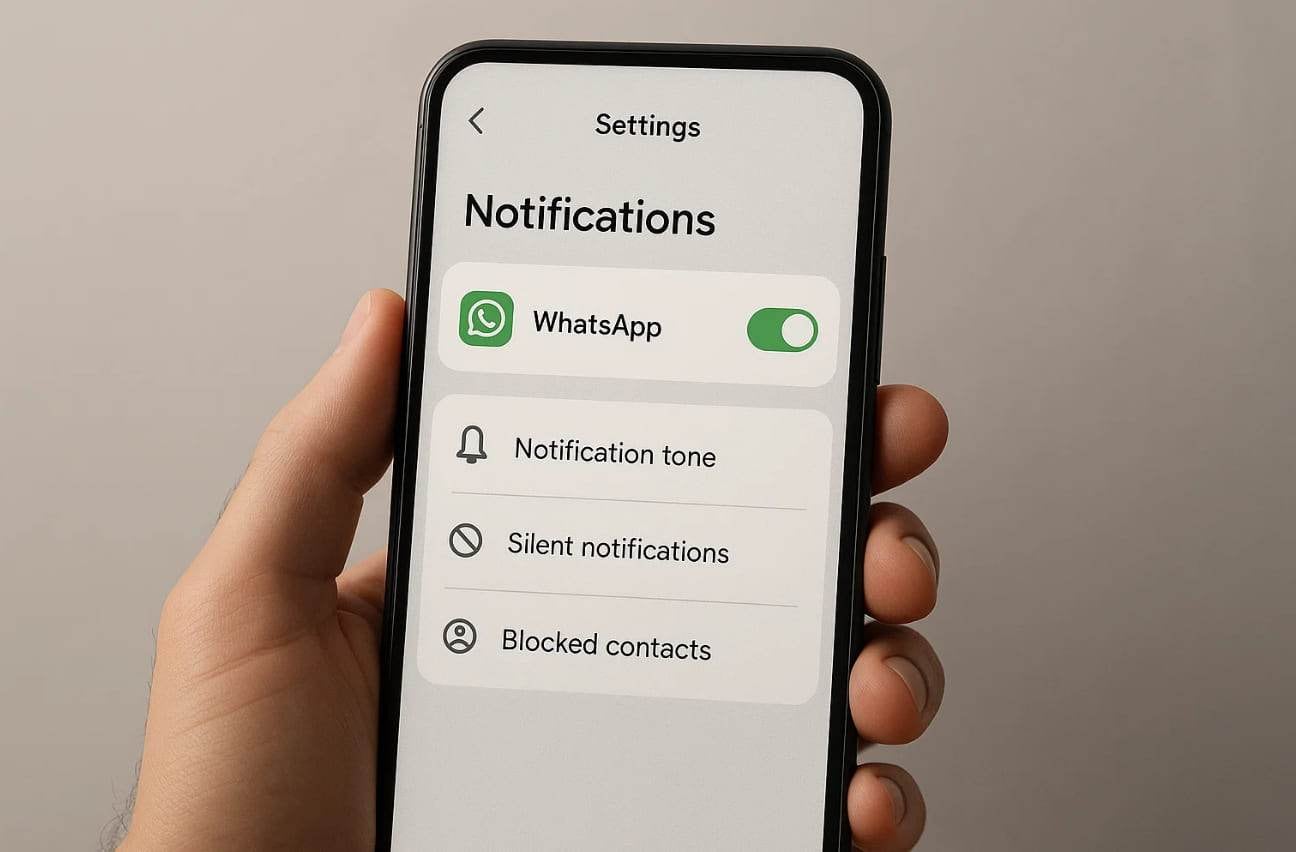
Part 1. Why WhatsApp Notifications Are Not Showing or Working
Many times, it's confusing to understand why WhatsApp notifications are not working correctly. Before trying any fix, here are a few reasons to know what really causes this problem:
Application Level
- An app update missing may cause bugs that stop message alerts from showing.
- Muted chats prevent notifications and banners for selected contacts or groups.
- Disabled permissions stop WhatsApp from sending alerts on the lock screen.
- Cache overload makes app performance unstable and delays notifications.
System Level
- Battery saver mode limits app background activity, stopping message alerts.
- Notification settings disabled in the device block WhatsApp alerts without warning.
- Time zone errors lead to delayed notifications that appear hours after message arrival.
- Outdated system software can conflict with app functions and affect notifications.
Network Level
- Weak internet signals stop WhatsApp servers from pushing live message notifications.
- Background data restriction limits connectivity and affect message alerts.
- VPN usage may block communication with WhatsApp servers, leading to missed alerts.
- Router cache issues delay notification delivery despite having an active internet connection.
Server Side
- WhatsApp server outages temporarily block alerts and message notifications from reaching devices.
- Regional maintenance updates can pause alert syncing for users in certain areas.
- Server response delays create a timing mismatch between message sending and notification arrival.
- Overload on WhatsApp servers during peak hours slows prompt alert delivery.
User Settings
- Custom alerts are disabled, remove unique tones, and cause unnoticed new message arrivals.
- Blocked contacts stop alerts entirely for messages sent from restricted users.
- Profile privacy restricts visibility, limiting notification pop-ups from specific user groups.
- Notification tone changed to none leads to silent alerts that go unnoticed.

How to Get WhatsApp Notifications Working Again
If you are not getting WhatsApp notifications, the problem usually comes from system settings or network issues. Checking a few basic options can quickly restore alerts.
- Make sure WhatsApp notifications are enabled in phone settings.
- Check that chats are not muted inside the app.
- Disable battery saver or background restrictions.
- Allow WhatsApp background data and app refresh.
- Update the WhatsApp app to the latest version.
These simple checks solve most cases where WhatsApp alerts stop working.
Part 2. 10 Quick Fixes for WhatsApp Notifications Not Showing
When you are not getting notification on WhatsApp, various effortless and quick solutions are available. The following quick fixes will help restore message alerts and keep notifications working:
Fix Common WhatsApp Notification Issues (iPhone & Android)
Many times, this issue occurs due to the app's notifications and its settings. So, this section covers the top 6 solutions to resolve the issue when you notice not getting WhatsApp notification:
Way 1: Check Internet Connection
The primary cause of missed alerts is usually a weak internet connection. You need to verify your internet connection to ensure the app can receive and deliver messages. Test your connection by opening a webpage or any other application. Unless it does, turn off Wi-Fi and turn on mobile data or reboot your router. Once the connection is stable, WhatsApp notifications will start appearing instantly again.
Way 2: Restart Your Device
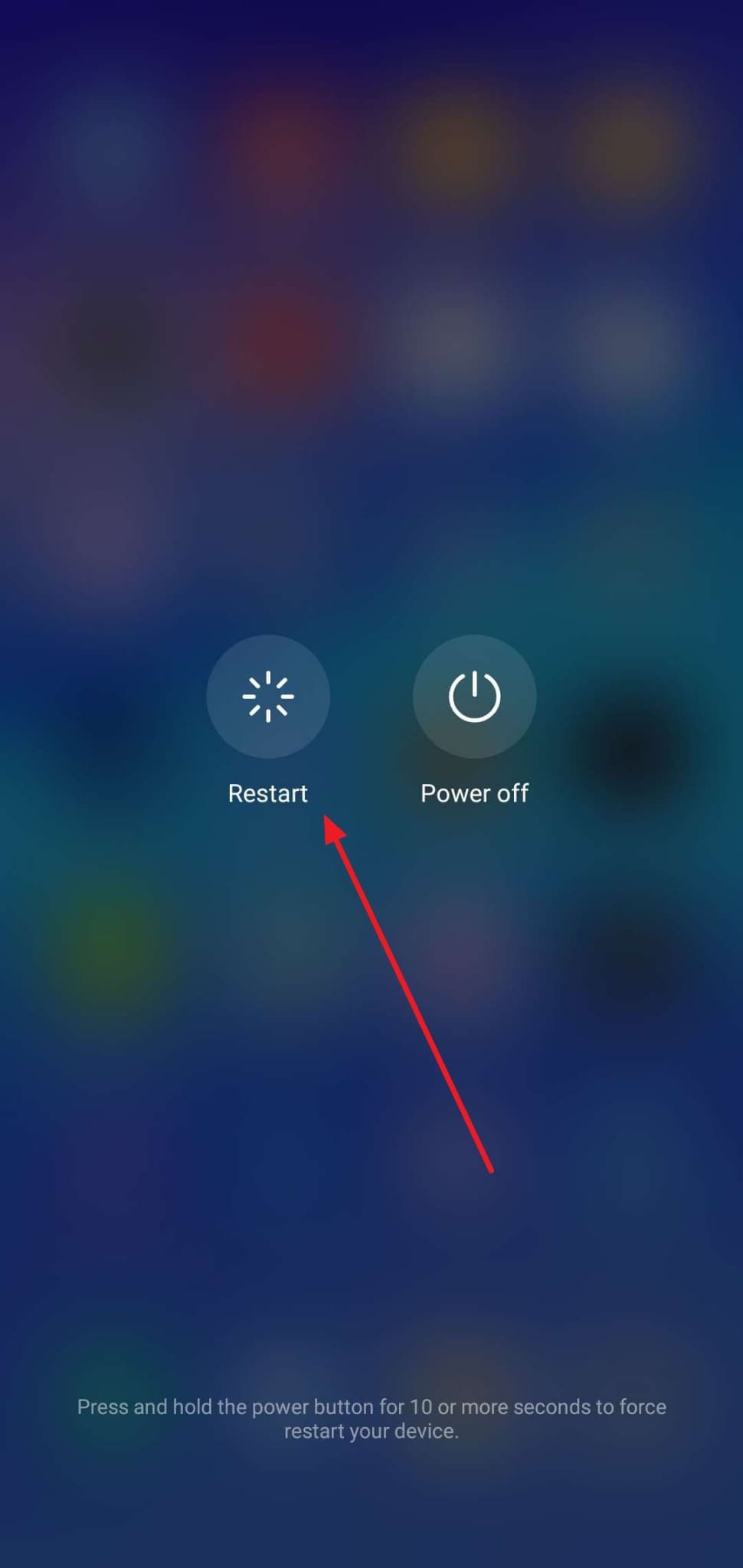
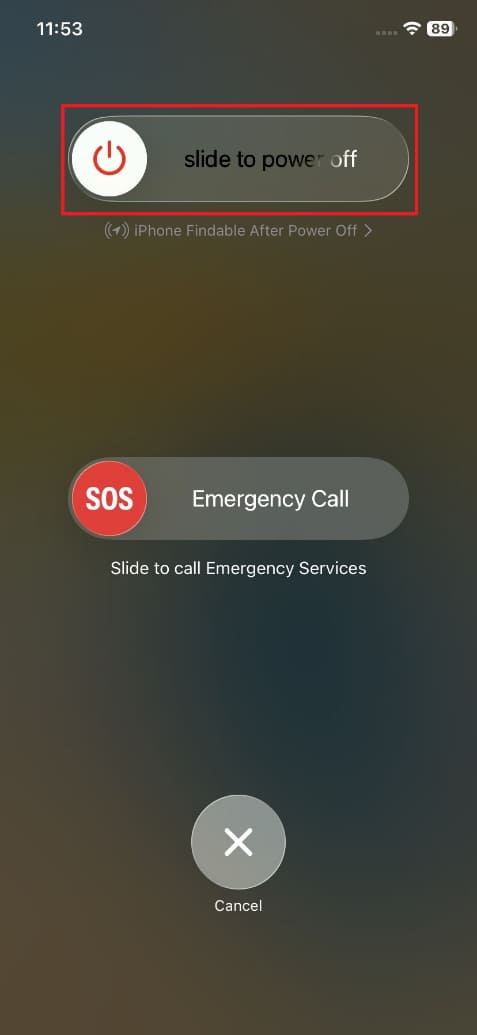
You should also try to restart your device to fix many minor issues, including notification errors. It clears temporary data and refreshes background services that might block alerts. When the iPhone WhatsApp notification is not working, a simple restart restores normal performance. It requires no special skills and solves alert problems without complicated steps. So, go through the given guide to restart your smartphone:
For Android:
Press the "Power" key for a few seconds and tap the "Restart" option on the following screen.
For iPhone:
Tap both the "Power" and "Volume Up" buttons together and swipe right the "Slide To Power Off" slider. Upon waiting for a few seconds, press the "Power" key again to restart it.
Way 3: Enable WhatsApp Notifications (App and Device Settings)
In case WhatsApp is not showing notifications, the problem might be hidden in your settings. Many times, alerts are turned off mistakenly and stop messages from appearing on time. Before you enable everything, enable the app to issue notifications immediately. Besides, it will make you no longer miss a crucial chat or a message. Anyhow, take guidance from the steps below to enable notifications from your device's settings:
For Android:
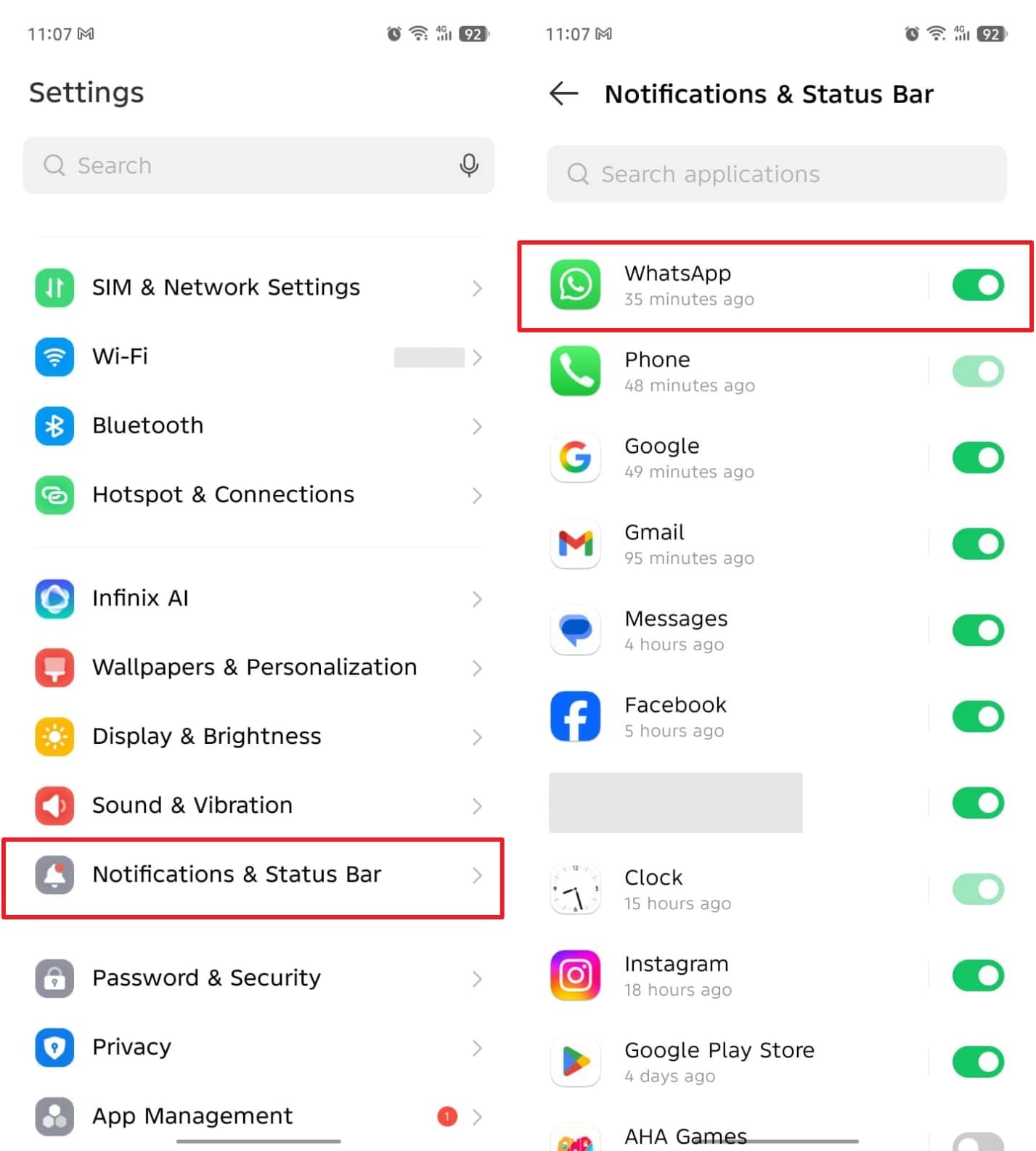
As you head to the "Notifications & Status Bar" from the settings, find and enable the "WhatsApp" toggle.
For iPhone:
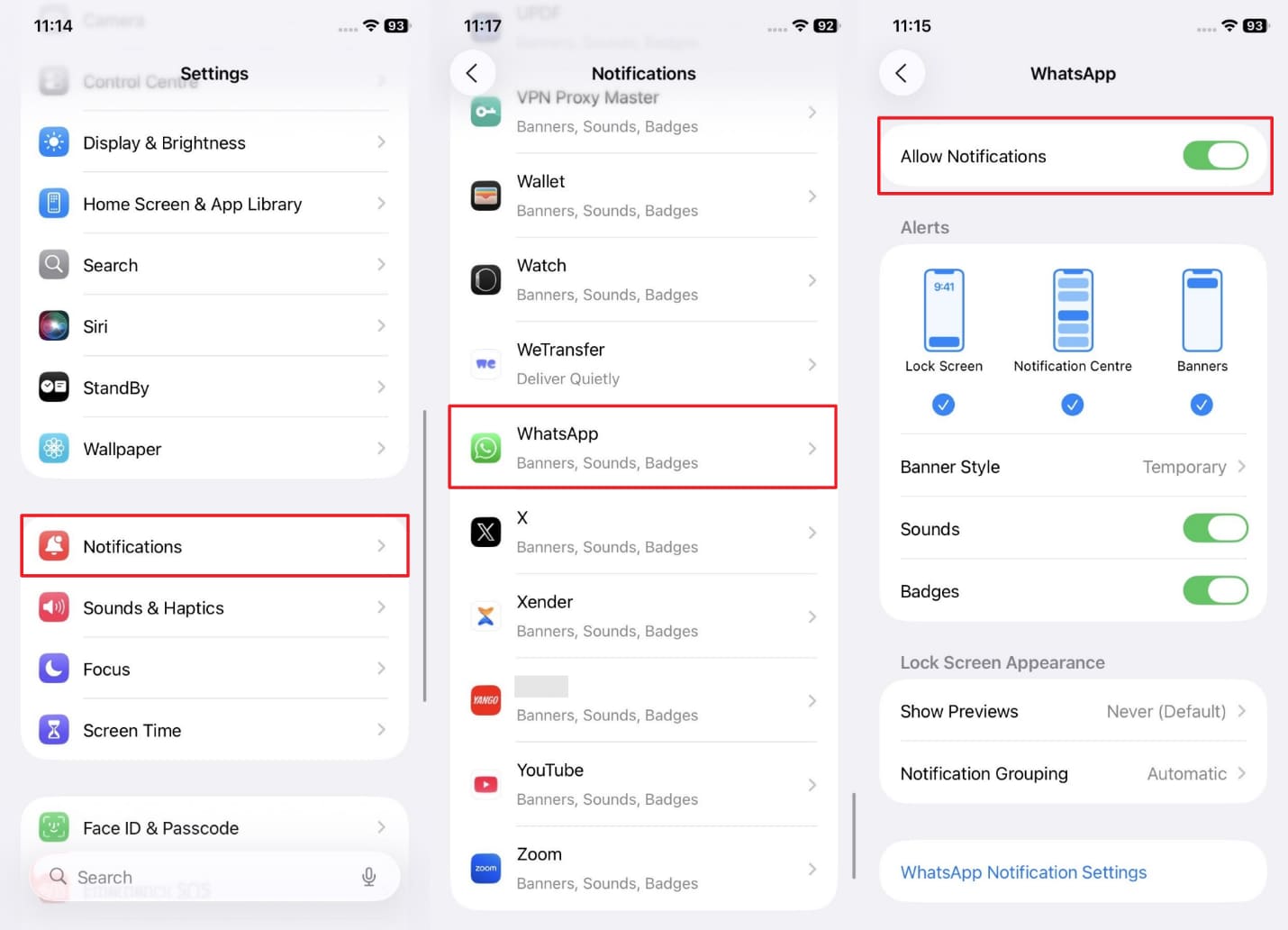
Upon accessing the "Notifications" settings, go to "WhatsApp" and turn on the "Allow Notifications" toggle.
Way 4: Check Notification Badge Settings
Your badge settings might also be disabled when you see no notification from WhatsApp. Notification badges show small dots or numbers on the app icon, signaling new messages. When this feature is off, you won't notice unread chats until the app is opened. It also helps you recognize new messages instantly without checking the app repeatedly. Thus, review the given instructions to enable badge settings on your phone:
For Android:
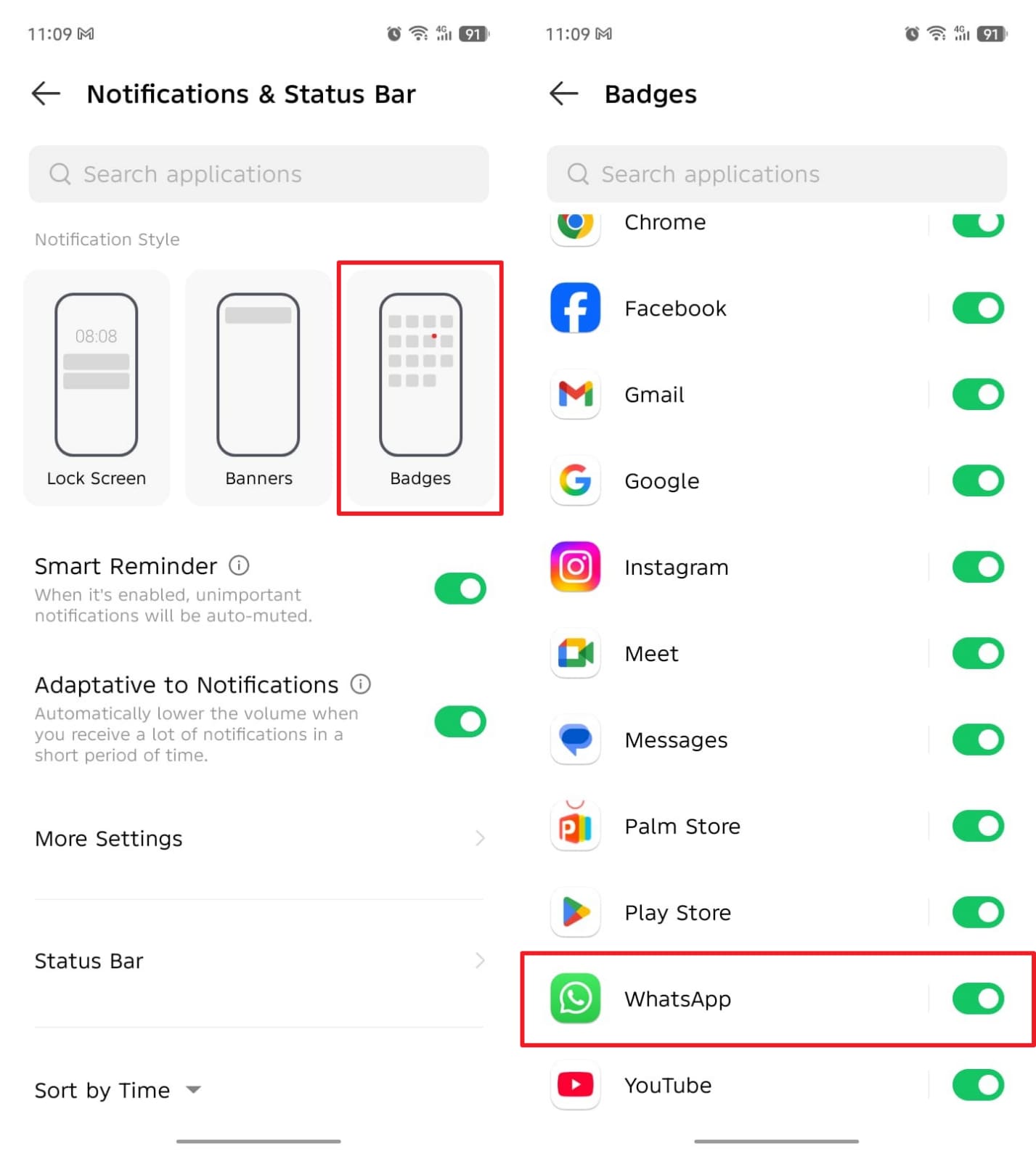
In the "Notifications & Status Bar" settings, tap the "Badge" option. After that, swipe up to locate and toggle on the "WhatsApp" app.
For iPhone:
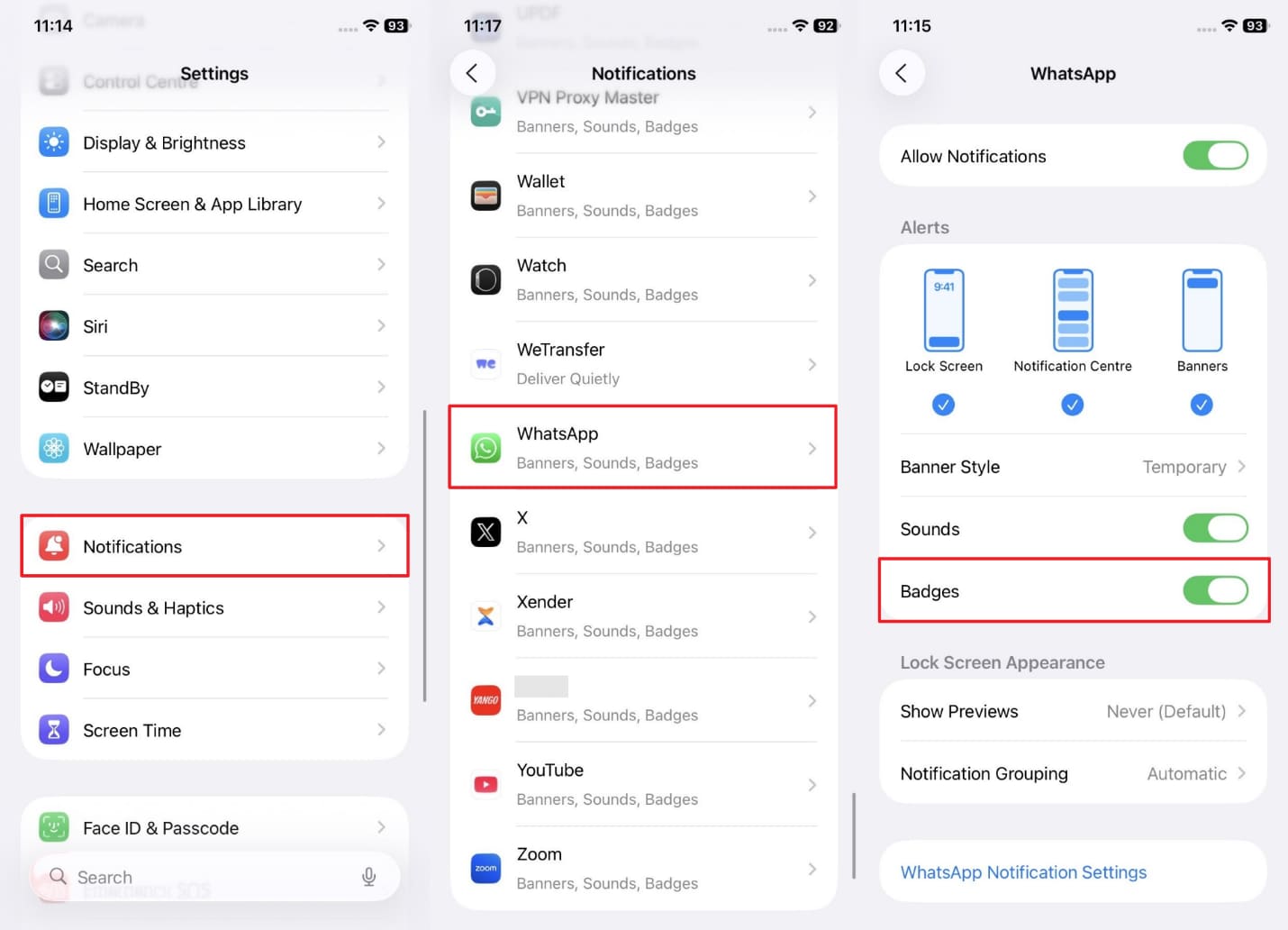
From the "Notifications" settings, navigate to the "WhatsApp" section and enable the "Badges" feature.
Way 5: Unmute Chats in WhatsApp
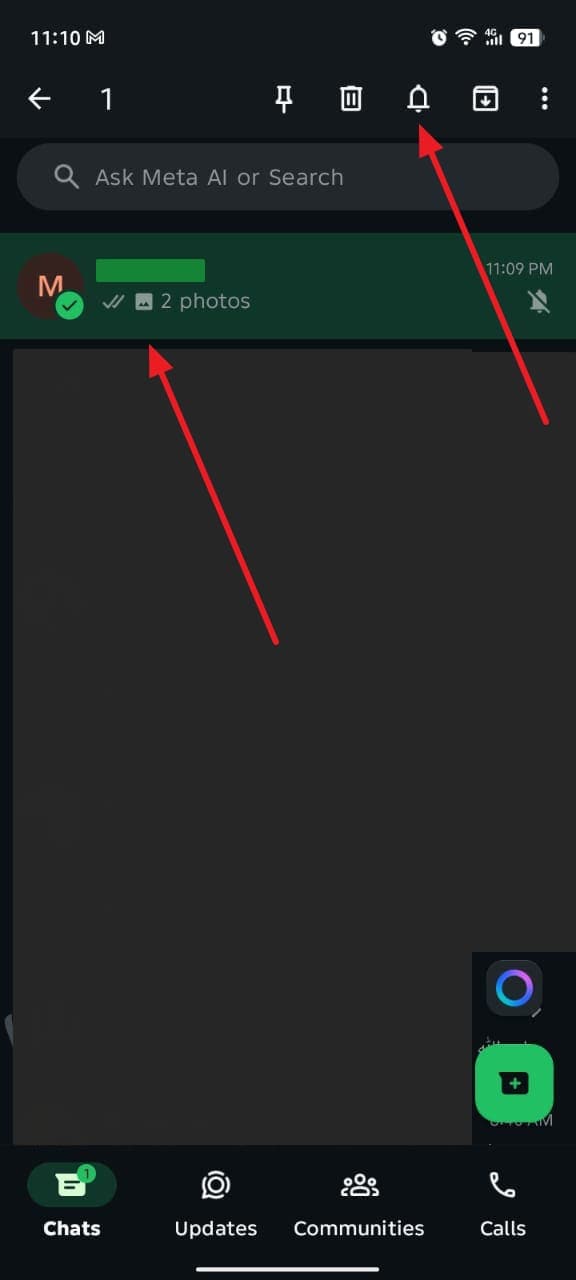
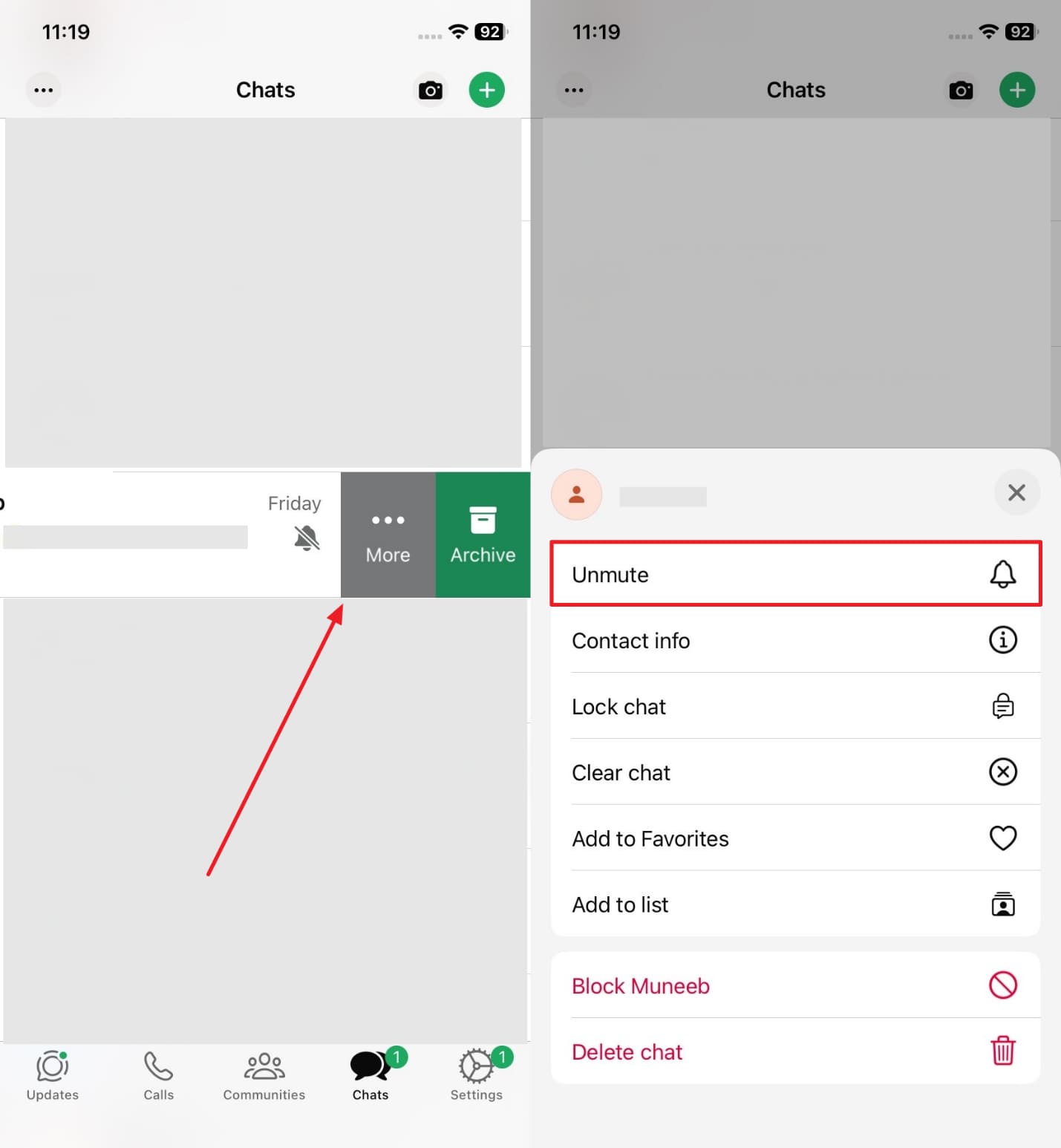
This issue may also occur because some chats are muted without the user's knowledge. In case of a muted chat, you will not hear any message alert sounds. At this particular period, you are supposed to unmute that chat. It ensures all notifications play correctly, keeping you informed about every incoming message. Adhere to the given guide to fix the WhatsApp notification sound not working on Samsung and other phones:
For Android:
Press the Individual's chat for a few seconds and tap the "Bell" icon to unmute it.
For iPhone:
Swipe left to the unmute chat and tap the "More" option. Upon seeing the options, opt for the "Unmute" choice.
Way 6: Turn Off 'Do Not Disturb' Mode
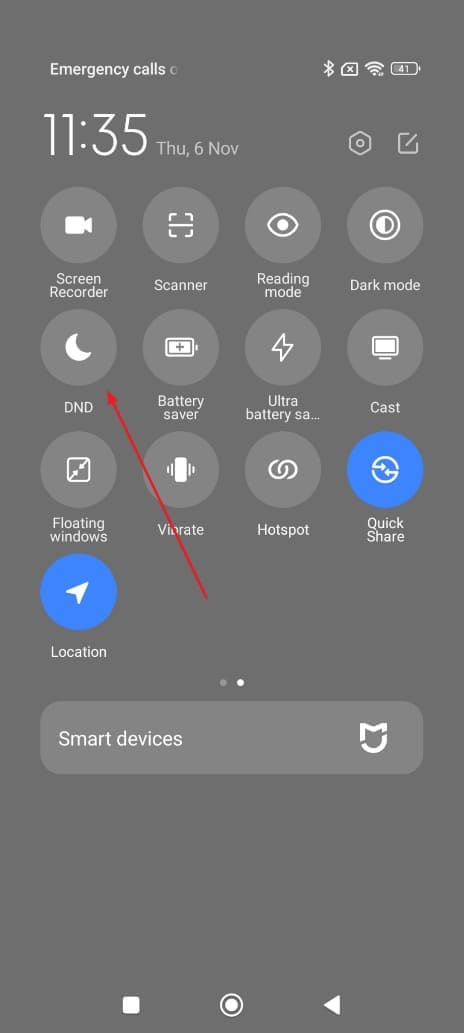
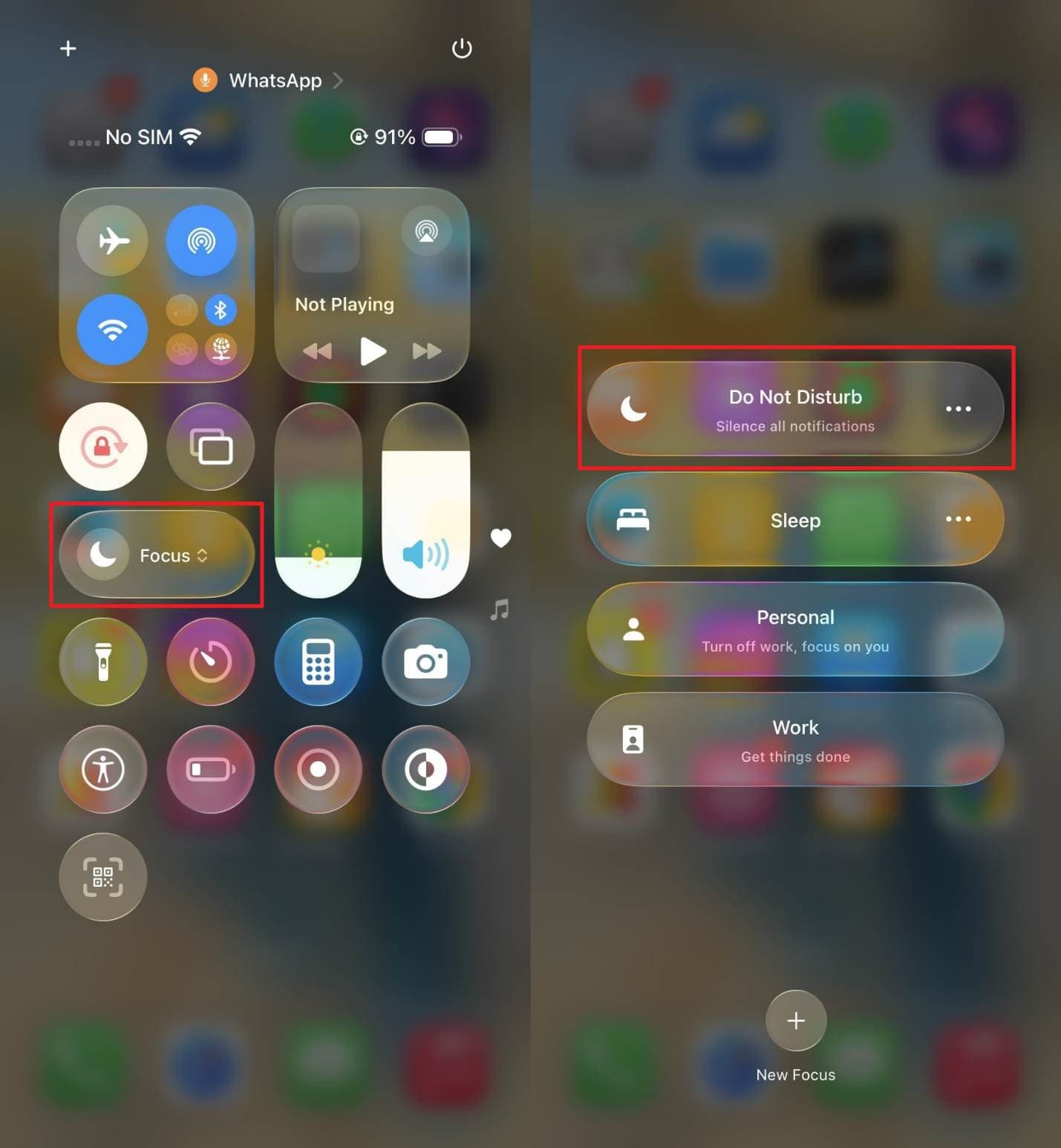
When WhatsApp notifications are not showing, it may be because 'Do Not Disturb' mode is active. This feature silences all alerts, including incoming WhatsApp messages and calls. Once turned off, notifications will appear and sound normally again. This simple change ensures you receive every WhatsApp alert and keeps you aware of all new updates. Hence, go through the following instructions to disable this particular feature effortlessly:
For Android:
Swipe down from the top of the screen and tap the "DND" feature to disable it.
For iPhone:
Access the "Control Center" by swiping down from the top right corner and tap the "Focus" feature. Afterward, opt for the "Do Not Disturb" option to turn it off.
Additional Quick Fixes if Notifications Still Don't Work
In case alerts are still missing, a few more quick fixes can help restore them. These additional methods focus on phone settings that delay notifications without you noticing:
Way 7: Check and Disable Battery Optimization/Power Saving Mode
Battery optimization or power mode can sometimes stop apps from sending timely alerts. It actually blocks background processes in an effort to increase battery life. Hence, you may notice WhatsApp notifications are not working even when the app is open. This ensures notifications arrive instantly without being delayed in the background. Review the solutions given below to help you turn off this feature:
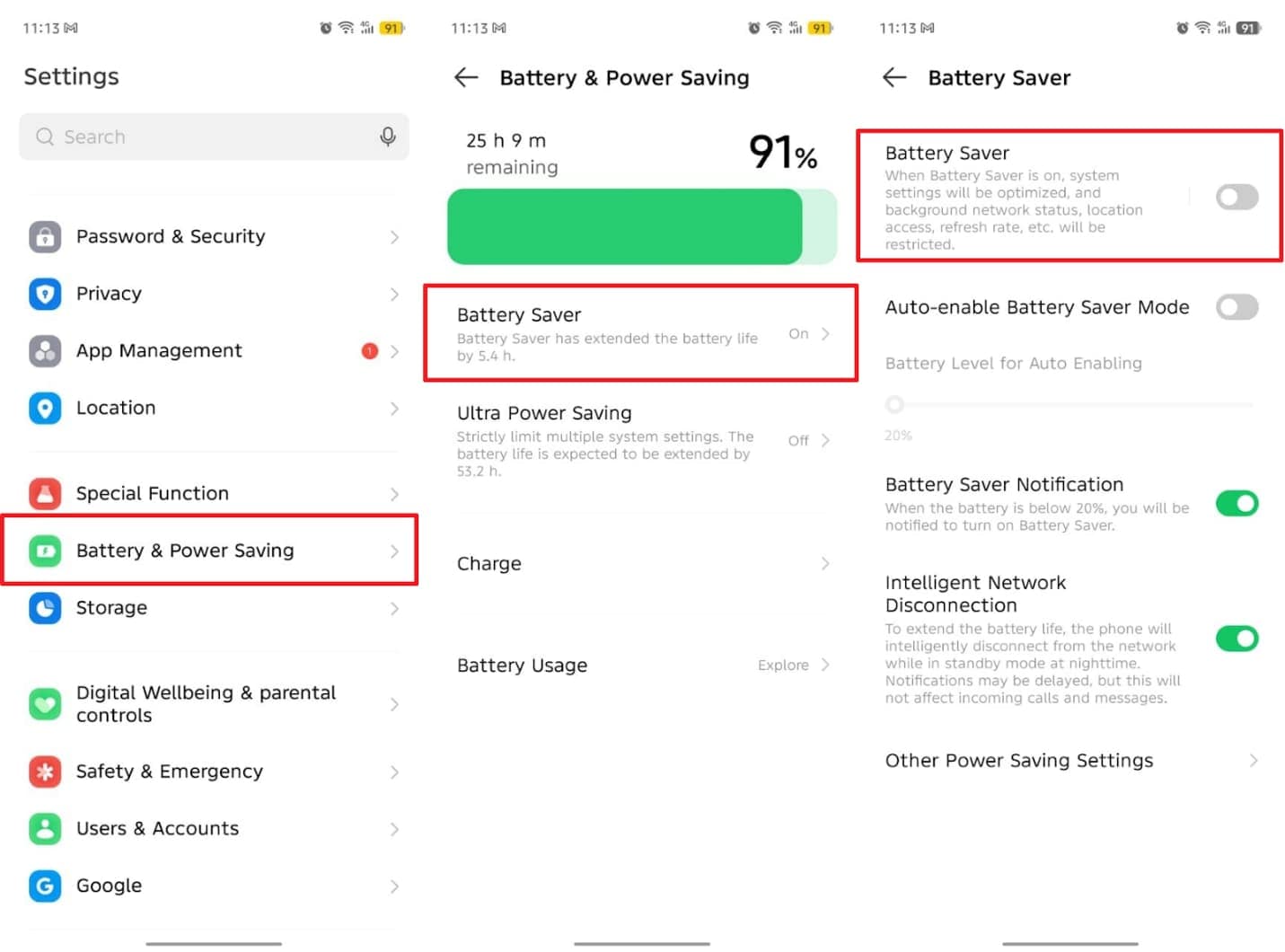
For Android:
Initially, head to the "Battery & Power Saving" option and access the "Battery Saver" section. Subsequently, you need to disable the "Battery Saver" toggle.
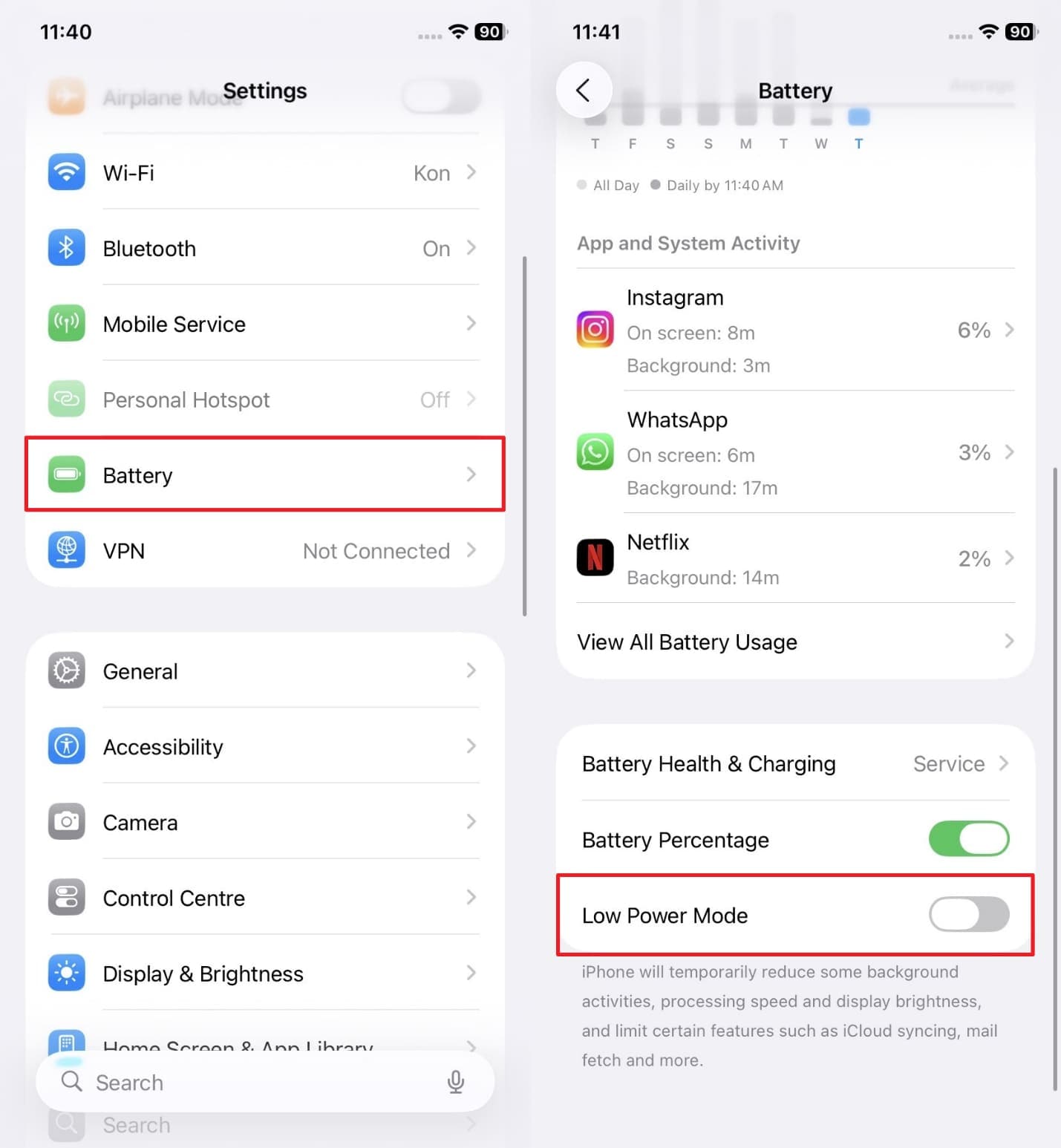
For iPhone:
Upon navigating to the "Battery" settings section, turn off the "Low Power Mode" feature.
Way 8: Allow Background Data Usage for WhatsApp
Apart from that, background data might also be restricted if you are not getting notifications on WhatsApp. This limitation stops the app from connecting to the internet when it is not open. Allowing background data ensures the app runs effortlessly and receives messages at any time. Once turned on, it will stay active in the background and deliver notifications instantly without any delay. Thus, let's explore how you can enable background data usage:
For Android
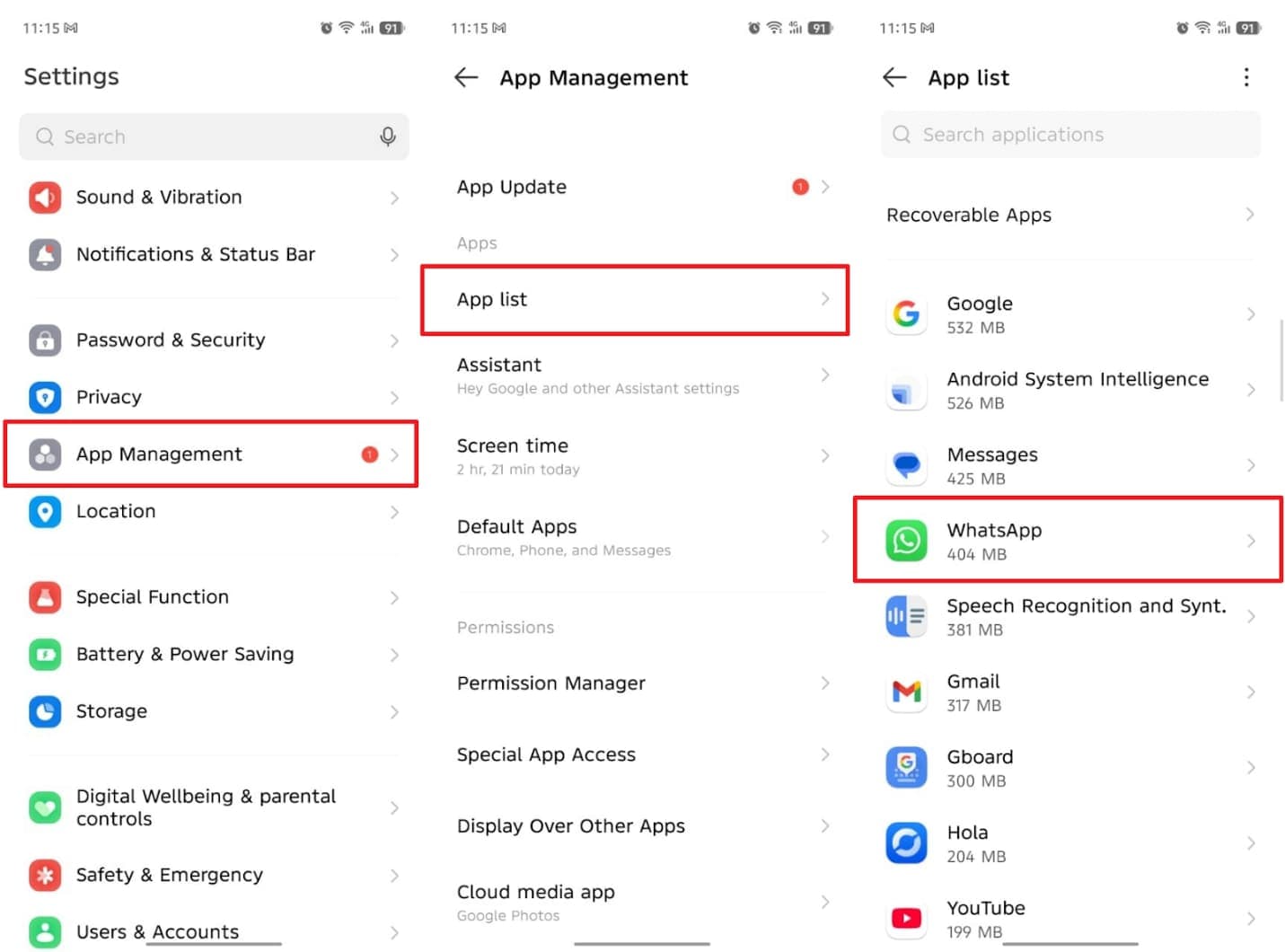
- Access WhatsApp App Settings
Go to the "App Management" section and access "App List" to choose the "WhatsApp" app.
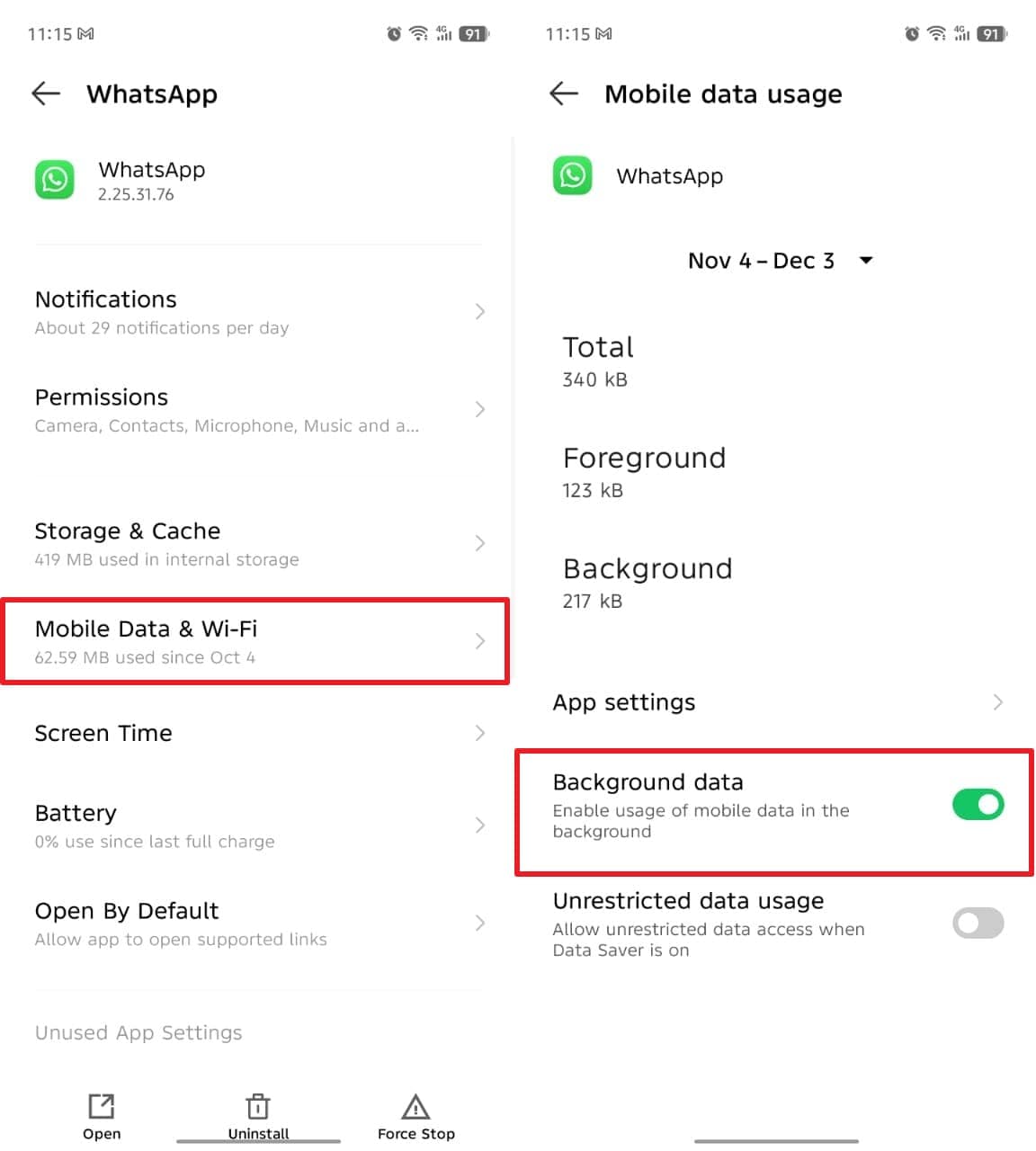
- Enable Background Data
Here, opt for the "Mobile Data & Wi-Fi" section and enable the "Background Data" toggle.
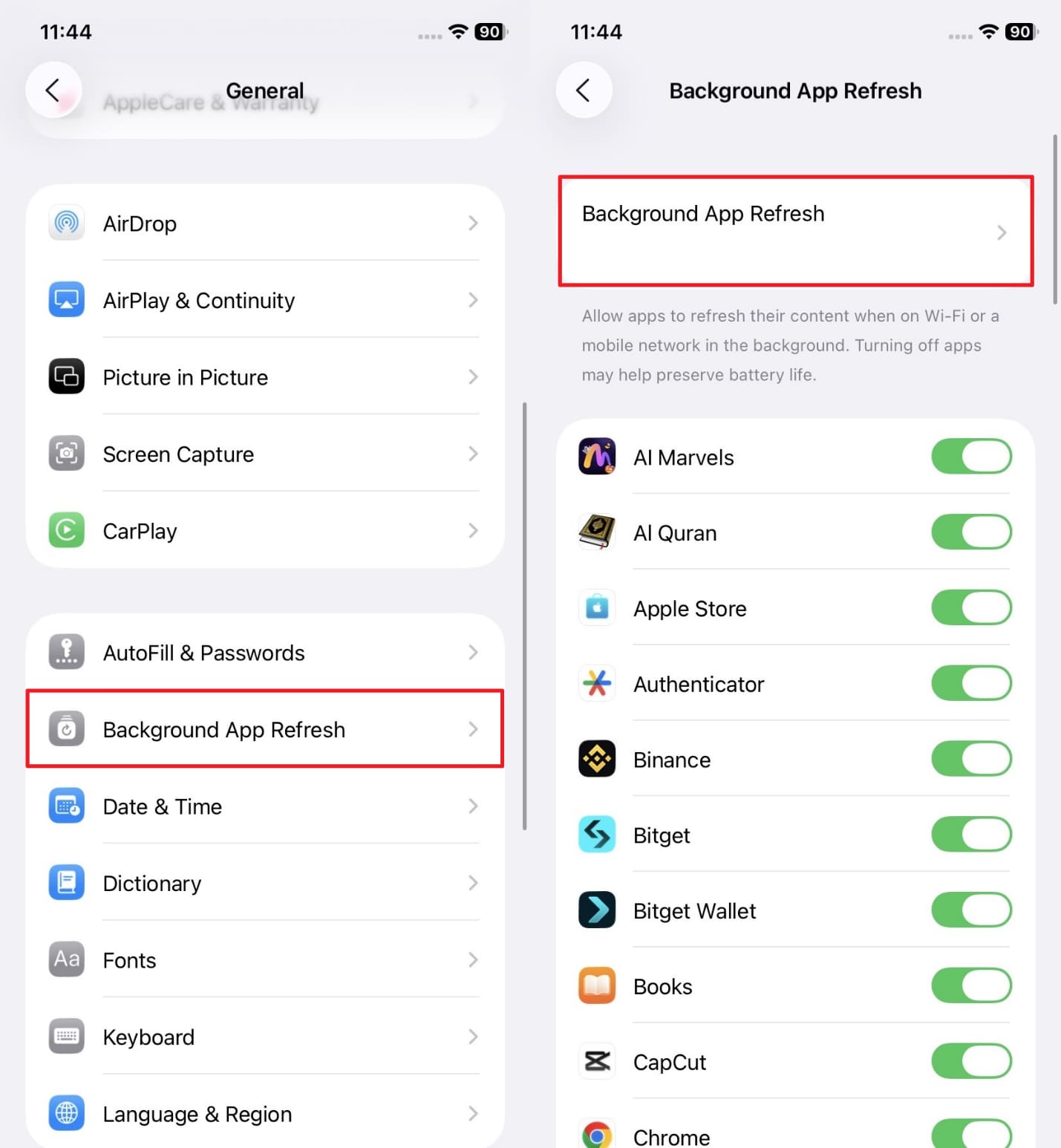
For iPhone
- Access Background App Refresh Settings
Head to the "Background App Refresh" section from the "General" settings and tap "Background App Refresh."
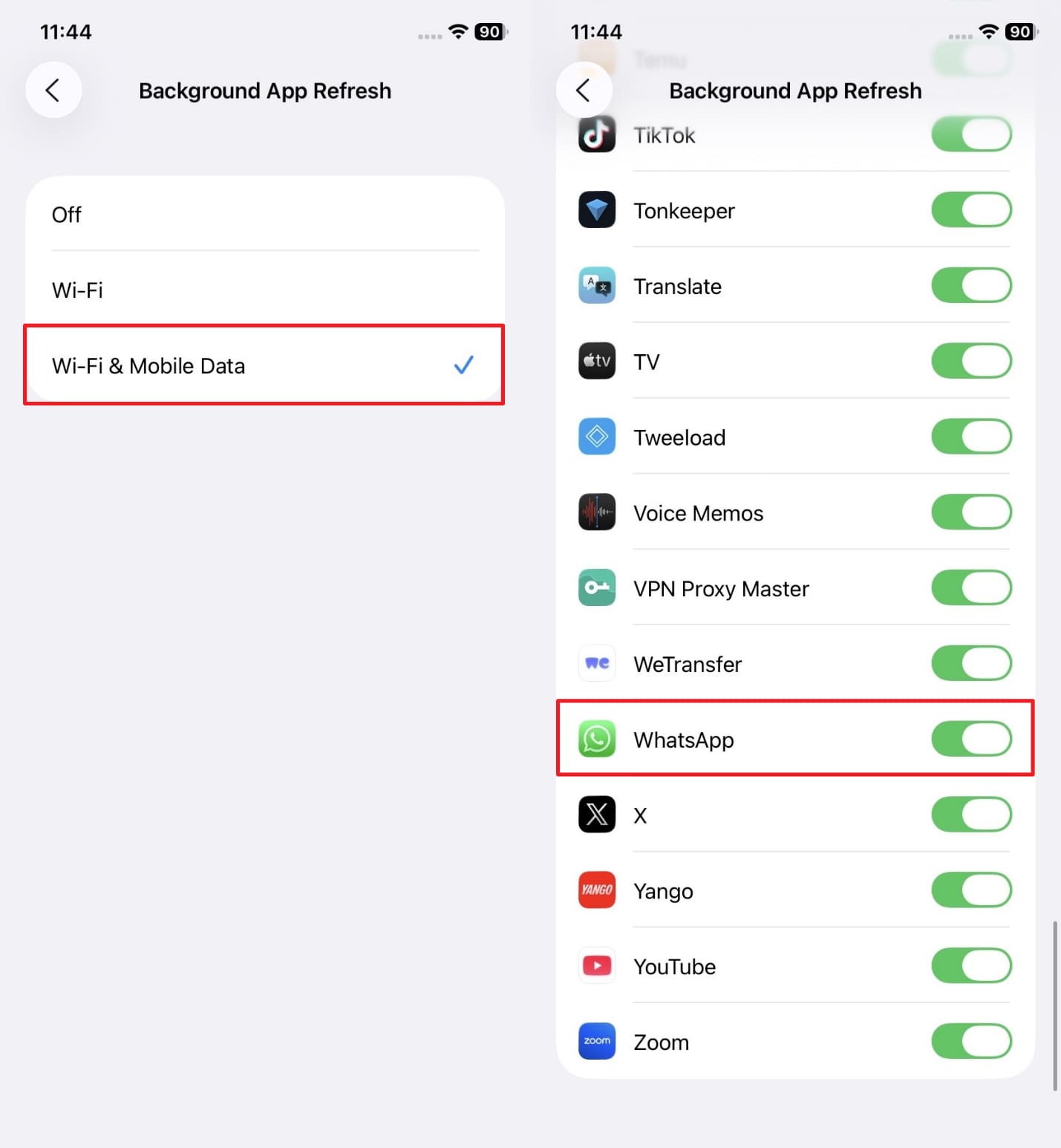
- Enable WhatsApp Background Data
Going ahead, choose the "Wi-Fi & Mobile Data" option and go back to check and enable the "WhatsApp" app toggle.
Way 9: Update WhatsApp to the Latest Version
It is also possible that your app version is outdated when you are not getting WhatsApp notifications. Older versions usually have bugs that affect message alerts and performance. Upon updating the app, it ensures you get the latest fixes and improved stability. Also, all notifications will appear correctly without any unnecessary delay or error. So, you should follow the steps below to know how to update an app:
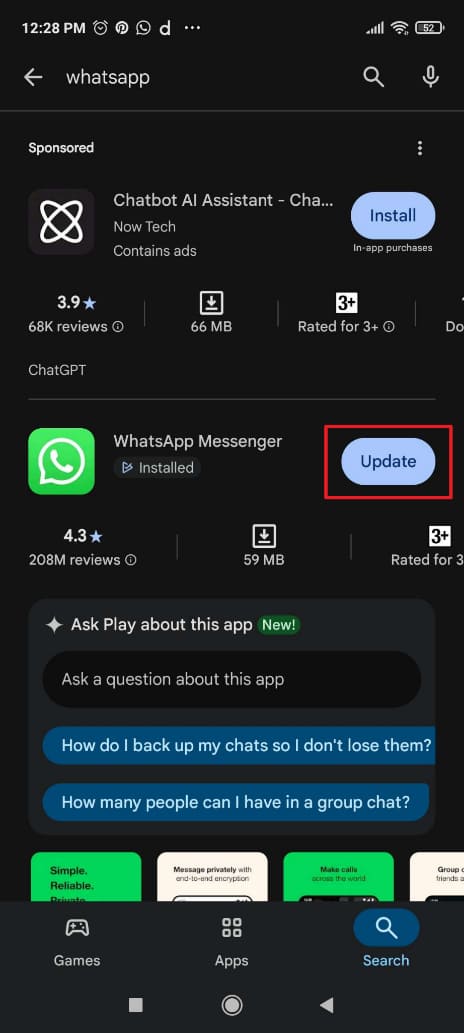
For Android:
Search for the "WhatsApp" app on the "Play Store" and tap the "Update" button.
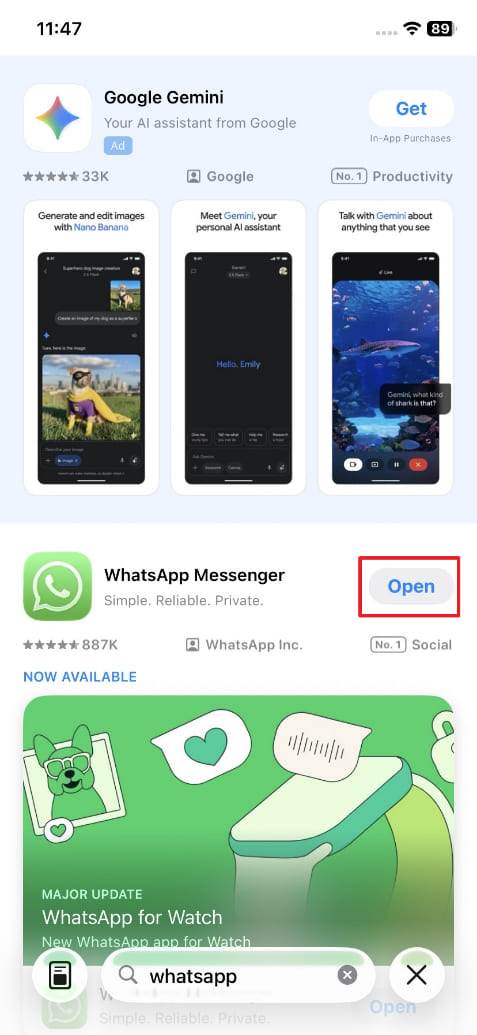
For iPhone:
Access the "WhatsApp" app on your "App Store" to hit "Update" if available.
Way 10: Uninstall and Reinstall WhatsApp
When all other fixes fail, reinstalling the app can help restore proper notification delivery. This method removes hidden glitches or corrupted files that stop alerts from appearing. Yet, back up your chats before uninstalling to avoid losing important messages. The app will start fresh with default settings, ensuring effortless performance. Anyway, go through the following guide to reinstall your messaging app without hassle:
For Android
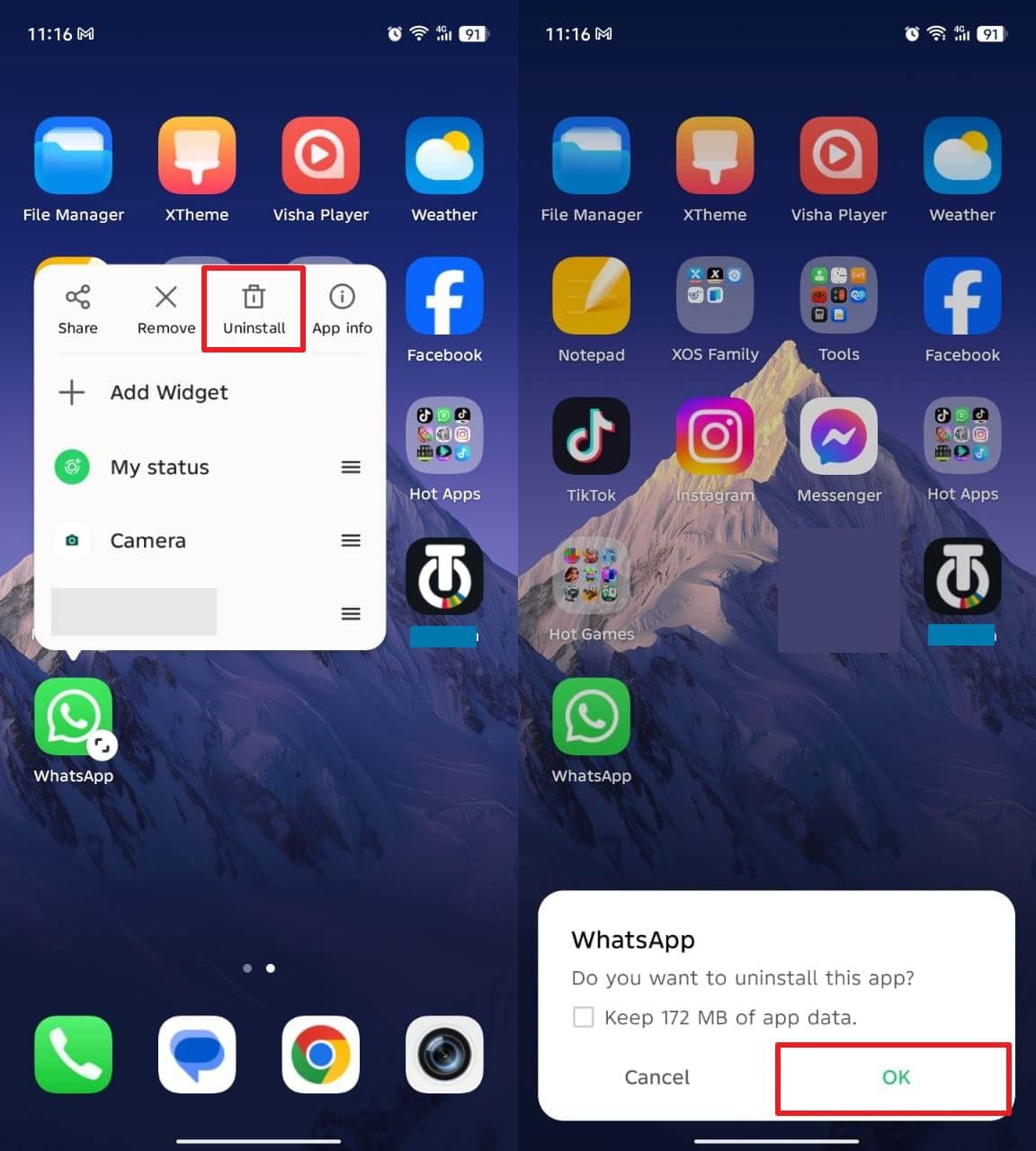
- Uninstall WhatsApp
To initiate, press the app icon to choose the "Uninstall" option and tap "OK" to confirm it.
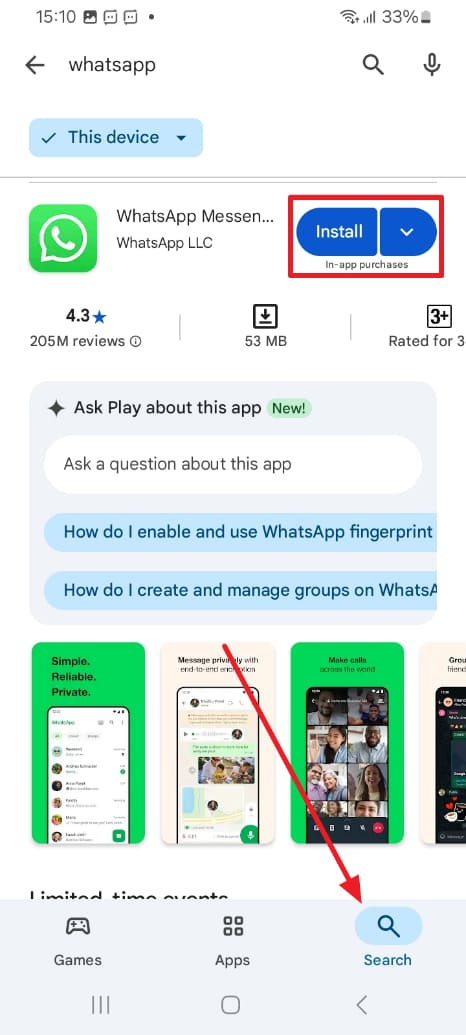
- Reinstall WhatsApp
Following that, access the app on the "Play Store" by searching for it and pressing the "Install" button.
For iPhone
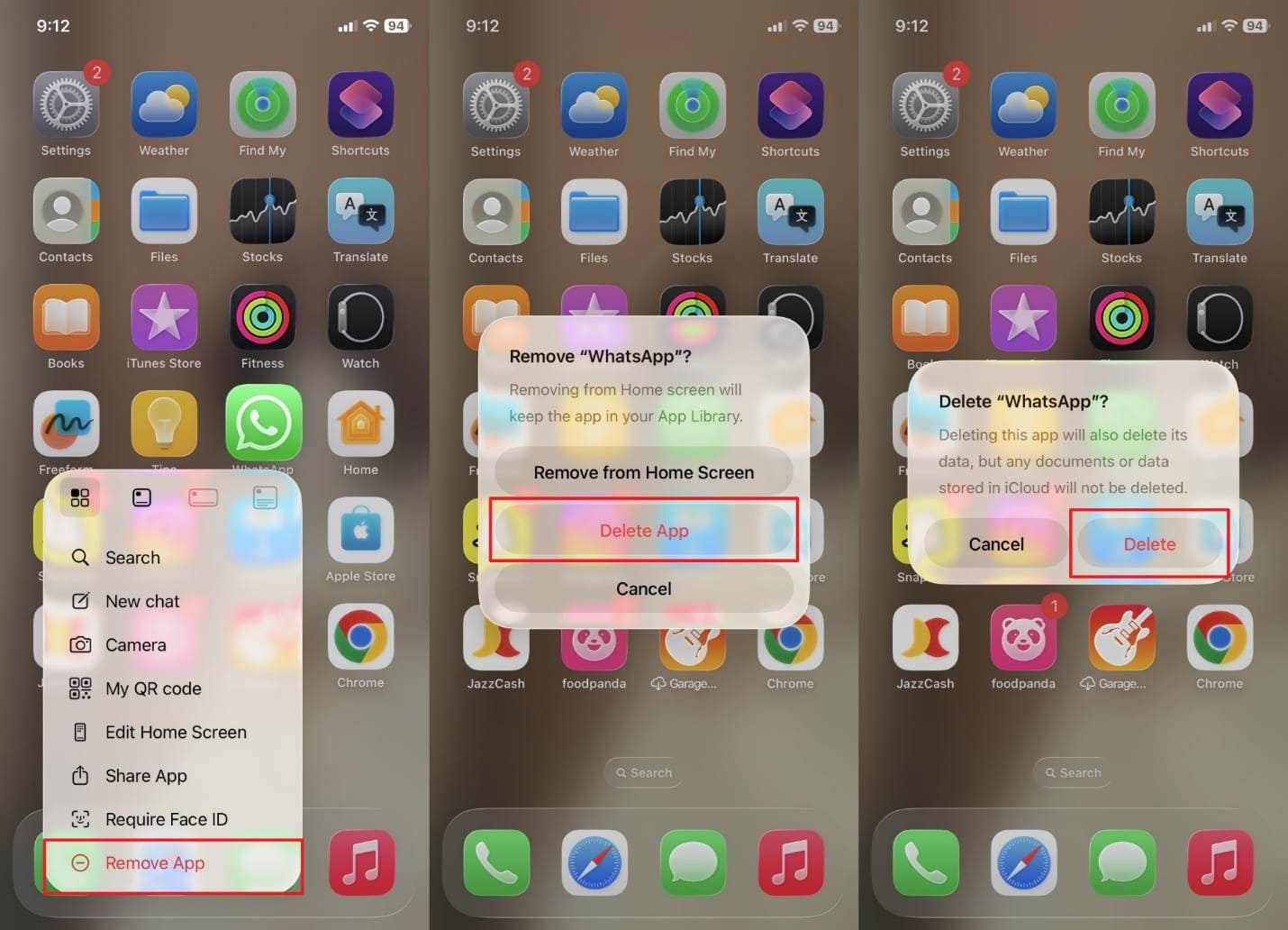
- Delete WhatsApp
You need to long-tap the app icon to select the "Remove App" option. Afterward, opt for the "Delete App" choice and then press "Delete" on the following prompt.
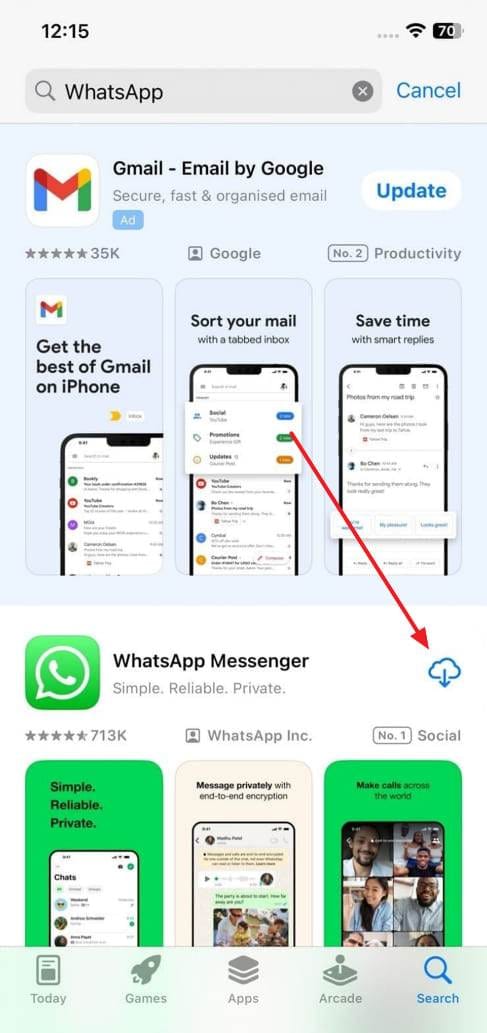
- Reinstall WhatsApp
Subsequently, navigate to the "App Store" to access the app and press the "Install" icon.
Part 3. Advanced Troubleshooting (For Persistent Issues)
In case notifications still fail after all fixes, advanced assistance becomes necessary. Many times, hidden system conflicts or account-level issues stop alerts from appearing correctly. In such situations, reinstalling isn't enough, and direct help is required. At this particular time, you need to contact the WhatsApp Support team for further solutions.
Plus, make sure to mention that WhatsApp is not showing notifications even after applying basic fixes. Also, include your phone model, OS version, and recent changes for faster response. The support team will analyze your account and provide personalized solutions.
Pro Tip: Track Someone's WhatsApp Online Activity with Tracover
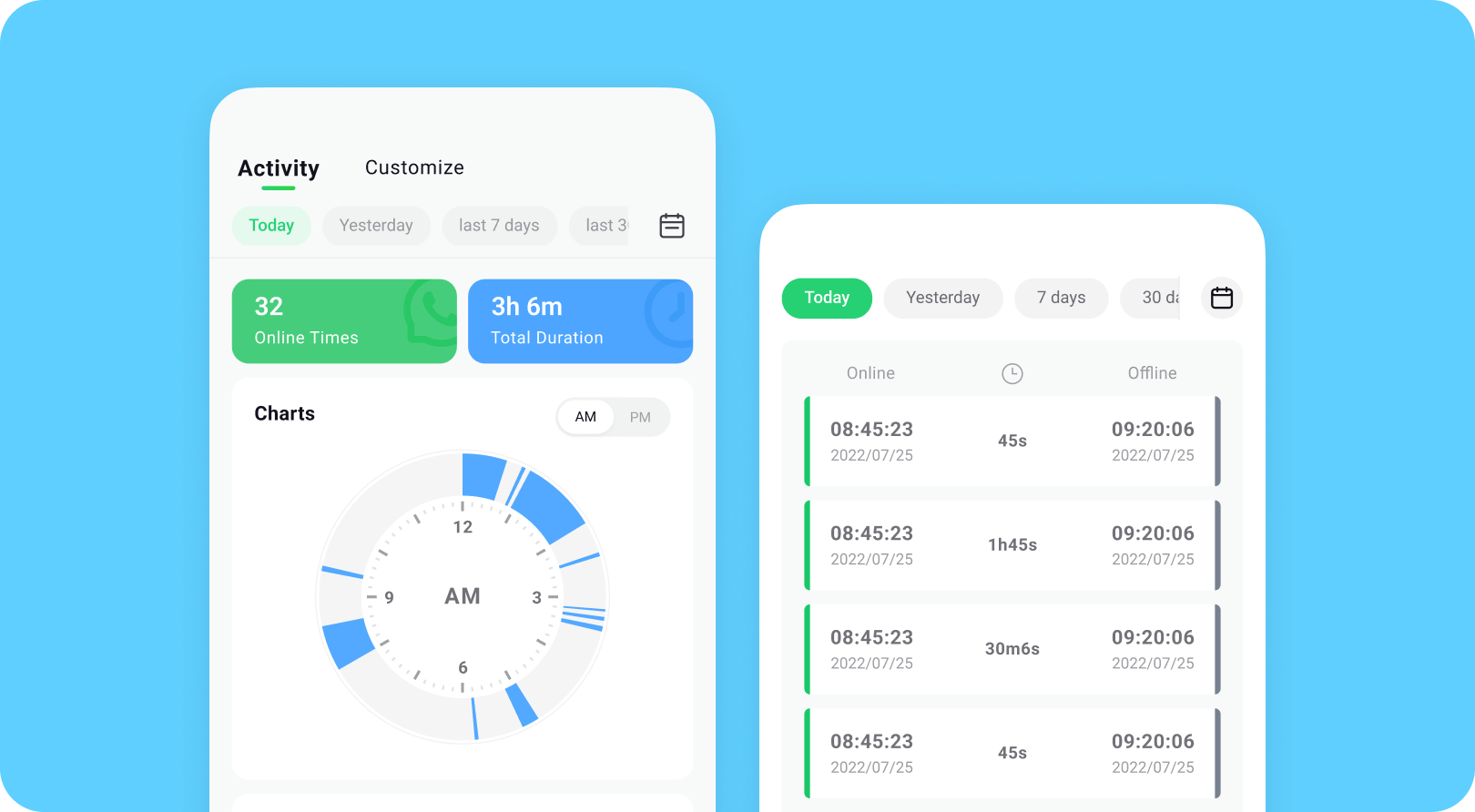
Sometimes users miss important updates when notifications fail to appear. In such cases, knowing when someone becomes active on WhatsApp can still help you stay informed. The Try It Free provides real-time tracking of WhatsApp online activity, allowing users to see when contacts go online or offline instantly.
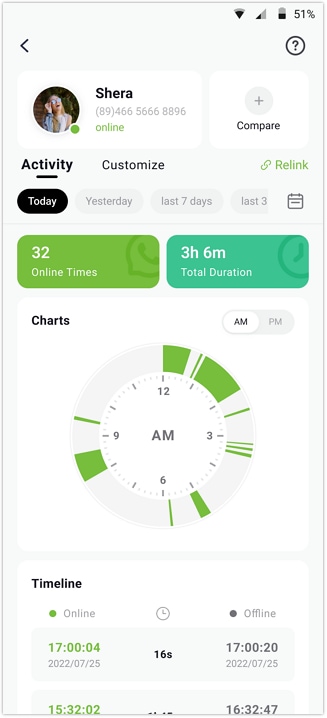
During tracking, the app shows timestamps for online and offline sessions, along with precise login and logout details. Users can analyze daily online duration automatically without checking the app. Plus, it even creates visual charts that display daily or weekly activity trends clearly. The app sends instant alerts whenever your monitored contact becomes active or inactive. Moreover, you can track multiple WhatsApp contacts at once with consistent accuracy.
Tracover App - WA Tracker
Track WhatsApp Online Activites Automatically
- Instant Alerts: Real-time notifications for user sign-ins.
- Custom Schedule: Set precise tracking hours and days.
- Chat Compare: Reveals shared online patterns between users.
- Weekly Trends: Visualizes user activity in simple charts.
- Status History: Stores online logs for review and comparison.


Guide to Track WhatsApp Online Activities with Tracover
To use this dedicated app, adhere to the following guide and monitor your preferred contact:
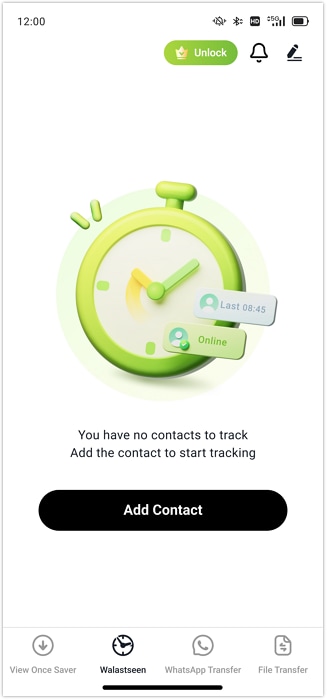
- Choose the Person You Want to Monitor
Start by tapping "Add Contacts" on the home screen to view all saved contacts inside the app. Subsequently, find the contact you want to track and hit the "Add" button next to their name.
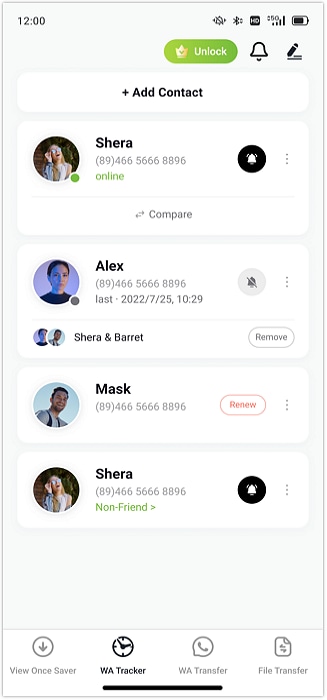
- Confirm Details to Begin Monitoring
Check the person's name and their country code and press "Start Tracking" to activate tracking. Next, select "Link WhatsApp" and scan the given QR code to connect your account with Tracover.
- Review WhatsApp Activity Updates Instantly
Once tracking begins, go to the contact's profile and open the "Activity" tab to see accurate online/offline records.
Conclusion
In summary, when WhatsApp notifications are not showing, it can lead to missed messages and delayed communication. By checking your notification settings, internet connection, battery restrictions, and app updates, you can quickly restore WhatsApp alerts on Android or iPhone.
FAQs
-
Q: Why am I not getting WhatsApp notifications?
A: You may not receive WhatsApp notifications if alerts are disabled in settings, chats are muted, battery saver mode is active, or background data is restricted.
-
Q: How can I get WhatsApp notifications working again?
A: Enable WhatsApp notifications in device settings, check your internet connection, disable Do Not Disturb mode, and allow background data for the app.
-
Q: Why do WhatsApp notifications not appear on the lock screen?
A: Lock screen notifications may be disabled in your phone settings. Enable lock screen alerts in both WhatsApp and device notification settings.
-
Q: Can WhatsApp notifications be customized for specific contacts?
A: Yes. WhatsApp allows you to set custom notification sounds, vibration patterns, and alert tones for individual contacts or groups.







James Davis
staff Editor
Generally rated4.5(105participated)