

![How to Hide Last Seen on WhatsApp and Appear Offline [2026 Guide]](https://images.wondershare.com/drfone/article/2025/11/how-to-hide-last-seen-on-whatsapp-01.jpg)

 TL;DR:
To hide your Last Seen and Online status on WhatsApp across all devices, navigate to Settings, select Privacy, choose Last Seen and Online, set your visibility to Nobody, and change your online status to Same as last seen.
● WhatsApp enforces a reciprocal privacy limitation where hiding your own Last Seen and Online statuses directly prevents you from viewing those exact metrics for any of your contacts.
● You can safely read and draft replies without triggering an active online status by enabling Airplane Mode before opening the app, typing your response, closing the app completely, and then reconnecting to the internet to send.
● Tracover's WA Tracker allows you to monitor contacts' real-time activity trends without exposing your own, requiring a one-time setup where you link your WhatsApp account and verify your phone number using an SMS code.
Ask AI for a summary
 ChatGPT
 Perplexity
 Gemini
 Claude
 Grok
Grok
There are times when you desire to operate WhatsApp in a confidential manner. WhatsApp shows two major signs - Last Seen and Online. "Last Seen" is the time when you were last active, and "Online" is the time when you are using the app. A lot of people hide this information in order to protect their privacy, not to be under the pressure of giving a quick answer, or to be able to concentrate without getting any kind of irritation. The regulation of the visibility of your activities is a way to maintain your privacy.
This guide covers how to hide last seen on WhatsApp, along with online and offline status. It also covers simple Android, iPhone, and WhatsApp Web procedures. Tracover's WA Tracker lets you check the activities. Explore WhatsApp's built-in privacy features using this guide.
In this Article

Part 1. Understanding WhatsApp's Native Privacy Controls
WhatsApp's privacy settings let you control who can see your last seen, online status, profile photo, and read receipts. These features are basic but powerful when applied properly. Here are WhatsApp's key visibility options:
| Privacy Option | What It Shows | Who Can See It | Can You Hide It? | Tip for Privacy |
|---|---|---|---|---|
| Last Seen | Shows when you were last active | Everyone, My Contacts, My Contacts Except…, or Nobody | Yes | Set to "Nobody" or "My Contacts Except…" to stay hidden. |
| Online Status | Shows when you're currently online | Same as Last Seen setting | Yes | Choose "Same as last seen" to hide your online status. |
| Read Receipts | Shows blue ticks when you've read a message | Only chats you enable | Yes | Turn off for more privacy, but you won't see others' receipts. |
| Profile Photo & About | Shows your photo and About info | Everyone, Contacts, or Nobody | Yes | Limit to Contacts for better privacy. |
| Status Updates | Shows your status stories | Contacts, Selected Contacts | Yes | Use "My Contacts Except…" to hide stories selectively. |
Manage who sees your WhatsApp activities with native controls. Hide your last seen or online status, but you can't see others'. All users are treated fairly.
Part 2. How to Hide Last Seen on WhatsApp
You can hide your Last Seen and Online status from everyone, specific contacts, or no one on Android, iPhone, and WhatsApp Web. Follow these steps to adjust your visibility and stay private effortlessly.
On Android
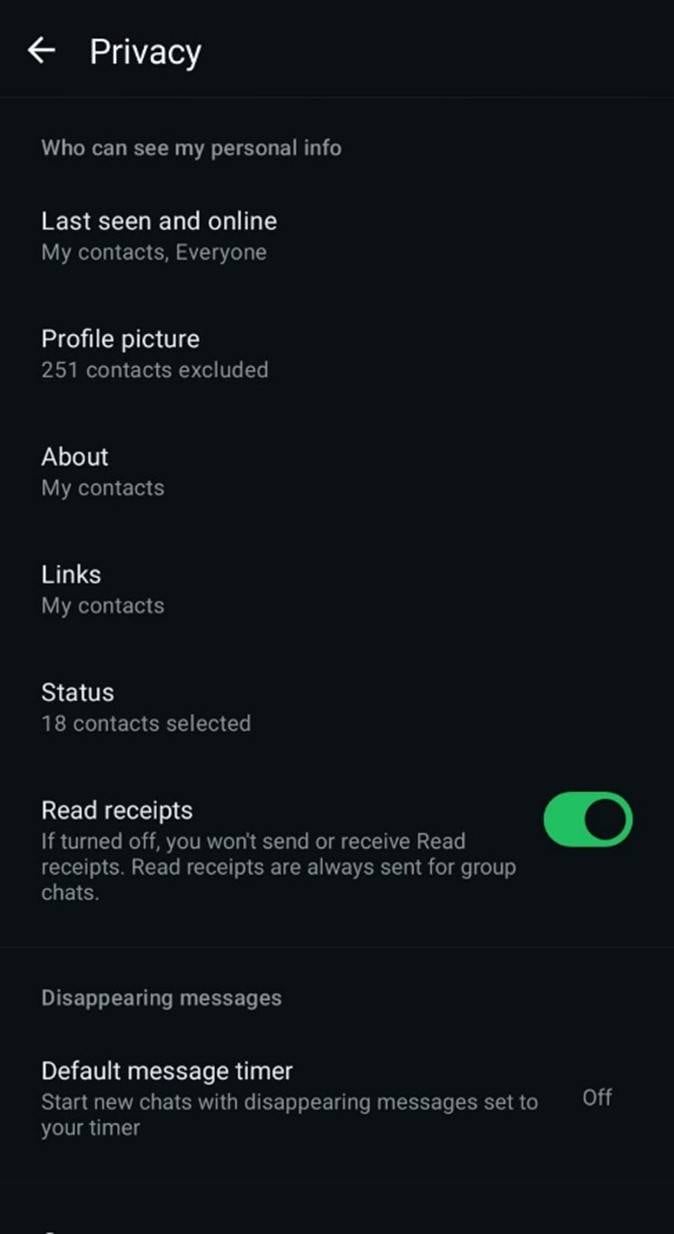
Android users can hide their last seen on WhatsApp with these steps:
- Step 1. Launch WhatsApp on Android.
- Step 2. Tap the "three dots (⋮)" in the top-right corner and select "Settings."
- Step 3. Select "Privacy" > "Last Seen and Online."
- Step 4. Choose from "Who can see my last seen":
- Everyone: Anyone can see your last online time.
- My Contacts: Only saved contacts can view it.
- My contacts Except: Exclude contacts from chosen people.
- Nobody: Doesn't reveal your last seen.
- Step 5. Scroll to "Who can see when I'm online," after choosing your preference. Select "Same as last seen."
On iPhone
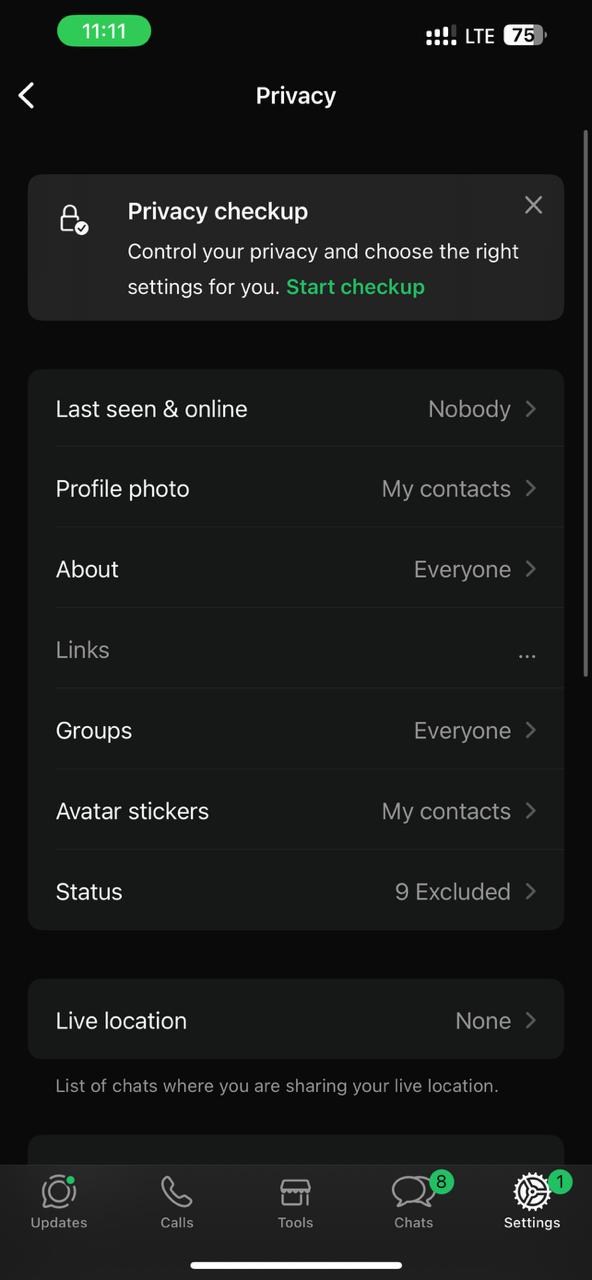
The processes are the same for iPhone users; however, the layout differs. How to hide online status on WhatsApp on iOS:
- Step 1. Start WhatsApp on your iPhone.
- Step 2. Select "Settings" in the lower right corner.
- Step 3. Select "Privacy," then tap "Last Seen and Online."
- Step 4. Choose one of the following under Last Seen:
- Users can see Everyone.
- Only your saved contacts can see My Contacts.
- With My Contacts Except, you can omit specific individuals.
- No one—completely hidden.
- Step 5. Tap Same as last seen under Who can see my online presence. Your "Online" status is hidden, as is your Last Seen setting.
On WhatsApp Web
You can control your privacy with WhatsApp on your PC. How to hide online on WhatsApp Web or appear offline on WhatsApp while online:
- Step 1. Launch WhatsApp Web on your PC. Choose "Settings > Privacy."
- Step 2. Adjust "Last Seen and Online" options like on your phone.
- Step 3. Set Last Seen to None or My Contacts Except. Select "Same as last seen" under "Who can see when I'm online."
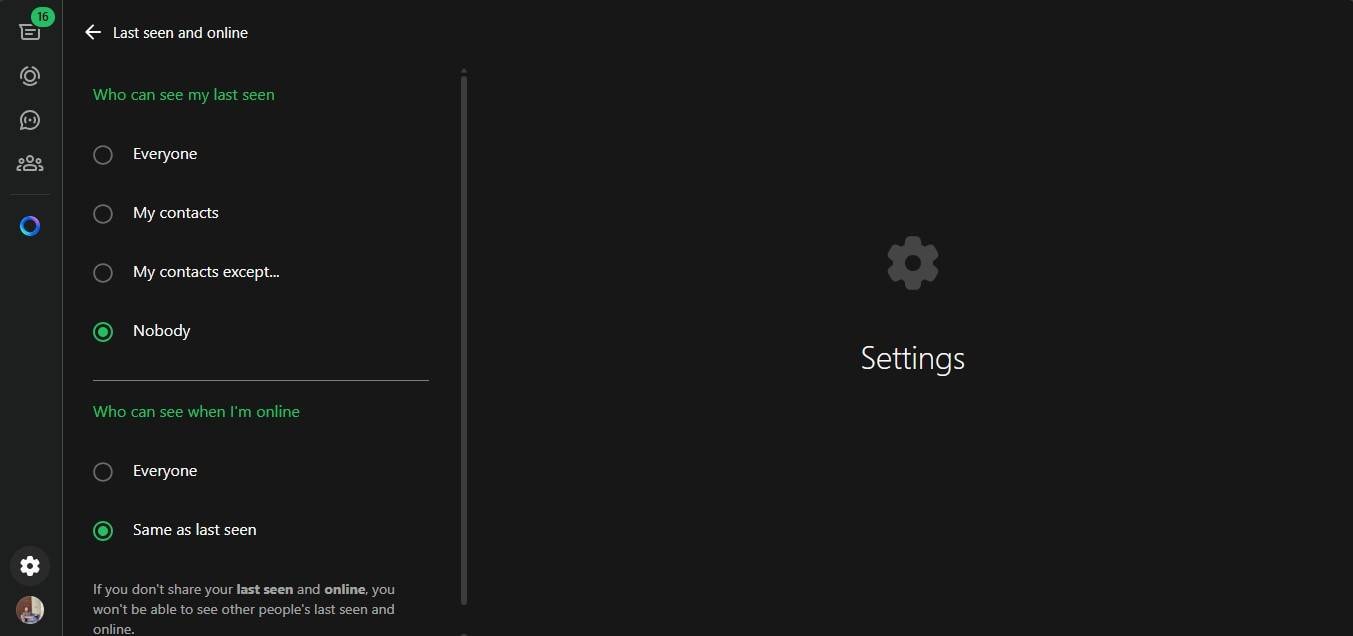
WhatsApp Web syncs all updates with your phone. Thus, hiding your online and last seen status on one device applies across all devices.
How to Adjust Online Visibility (All Devices)
Briefly, how to not show online on WhatsApp:
- Step 1. Visit "Settings > Privacy > Last Seen and Online."
- Step 2. Under "Who can see when I'm online", select "Same as last seen."
- Step 3. Someone won't see your online presence if your last seen is hidden.
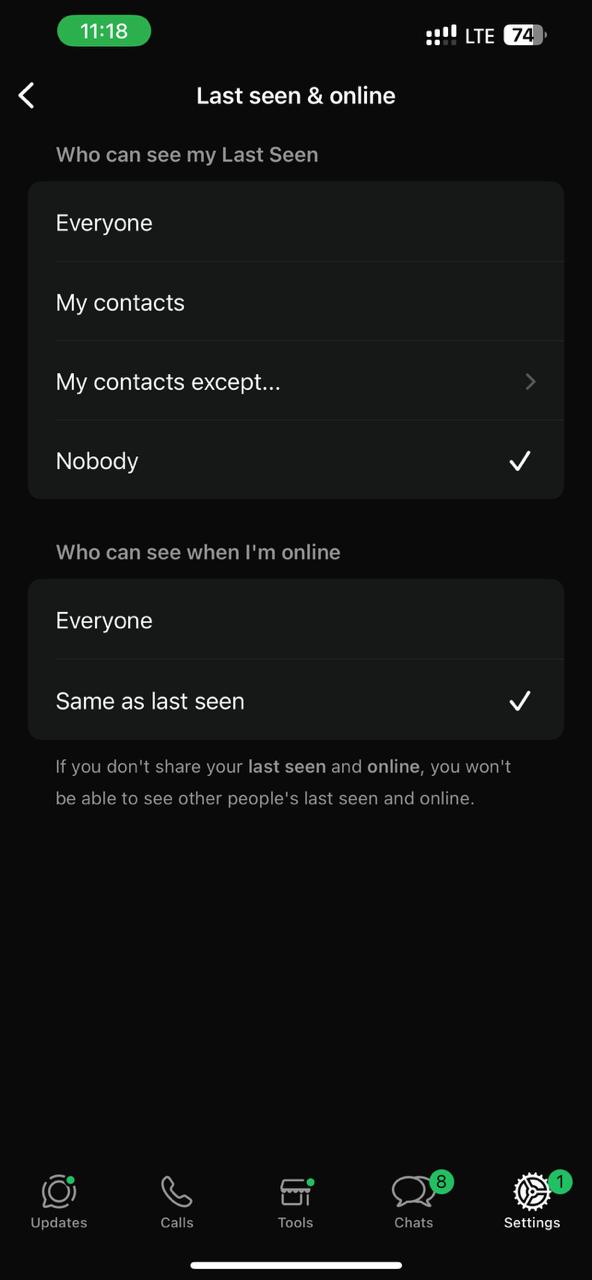
This easy method hides your WhatsApp activity, making you appear offline on WhatsApp while online.
Important Note & Pro Tip
Remember that hiding your last seen and online status prevents you from seeing others'. This ensures fairness for everybody.
Pro Tip: For absolute privacy:
- Stop blue ticks by disabling Read Receipts.
- Hide Profile Photo and About under Privacy.
- To converse privately, use Last Seen, Online, and Read Receipts.
Now you know how to hide your last seen and online status, and your status while conversing on WhatsApp. These settings let you control visibility, privacy, and offline appearance without hazardous third-party apps.
Bonus Tip: Use Tracover's WA Tracker to Track WhatsApp Online Activities
WhatsApp offers built-in options to hide last seen and online statuses, but sometimes you want a fuller picture of your own or others' usage trends. Tracover's WA Tracker is smart and privacy-safe here.
Try It Free enables users to track WhatsApp online/offline activity trends. It gives parents, team managers, and others who wish to balance knowledge and privacy insights and analytics, rather than disclosing personal data.
What is Tracover's WA Tracker?
Tracover: Chat Track & Recover is a very effective and secure way of recording your chat activities, handling the conversation history, and saving the media. WA Tracker, a unit that keeps a check on the online and offline status of WhatsApp in real time, is, by far, one of the most widely used features of the program.
It is true that WhatsApp privacy settings allow you to hide your last seen or online status, but with the help of Tracover you get to know the patterns - when the contacts are active, how long they stay online, and how their usage changes.
This tool raises awareness safely without affecting WhatsApp privacy settings.
Tracover App - WA Tracker
Track WhatsApp Online Activites Automatically
- Instant Alerts: Real-time notifications for user sign-ins.
- Custom Schedule: Set precise tracking hours and days.
- Chat Compare: Reveals shared online patterns between users.
- Weekly Trends: Visualizes user activity in simple charts.
- Status History: Stores online logs for review and comparison.


Step-by-Step Guide: Track WhatsApp Online Activity with Tracover
Tracover's WA Tracker lets you track WhatsApp activity and contacts' online status. Start with these four easy steps.
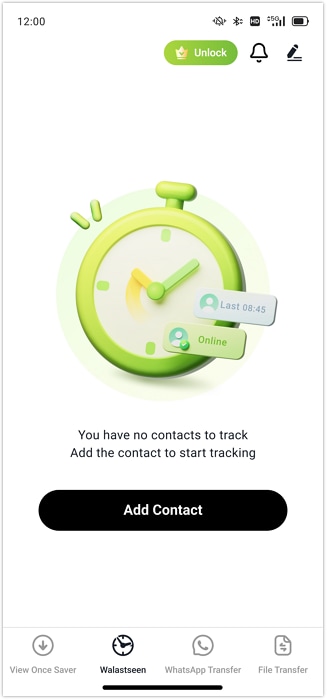
- Step 1. Launch Tracover on Android and tap WA Tracker. Include WhatsApp numbers to track by clicking "Add Contact." Choose from your contacts or input a number (including country code). After adding a person, tap "Start Tracking" to see when they're online and how long.
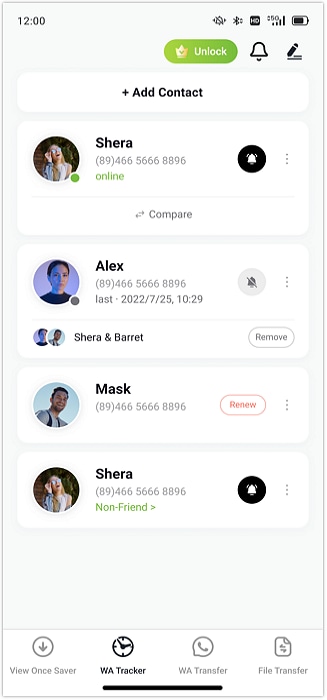
- Step 2. Tracover requests WhatsApp integration for accurate tracking. Tap "Link WhatsApp," verify your phone number using the SMS code, and accept secure access when required. This one-time connection keeps monitoring data private and synced in the background.
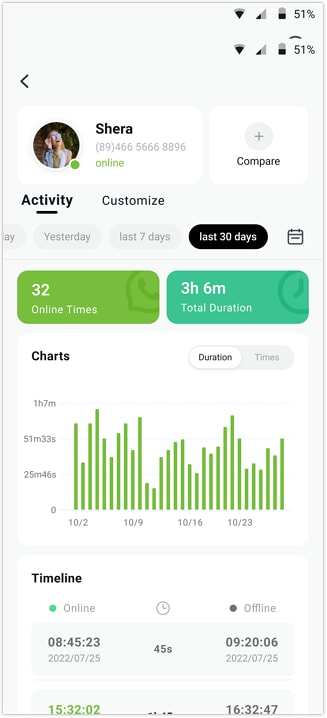
- Step 3. WA Tracker opens your contact list after connection. Tapping a name displays online/offline timestamps, daily usage length, and weekly trend charts. Tracking many persons lets you spot usage patterns over time.
Part 4. How to Appear Offline While Still Using WhatsApp
This section provides simple, step-by-step ways to hide online on WhatsApp, not display online status, and appear offline on WhatsApp while online in a safe way.
Method 1: Use the Airplane Mode Trick
This method works well for reading or replying to communications without appearing online. One of the easiest methods to get offline. Here's how:
- Step 1. Tap Airplane Mode on your phone's control panel after swiping down. This disconnects your internet and mobile data.
- Step 2. Open WhatsApp offline. All new communications can be read or replied to.
- Step 3. Type your message while still in Airplane Mode. Do not press Send yet.
- Step 4. Close the app from recent applications after typing.
- Step 5. Turn off the airplane mode and reconnect to the internet.
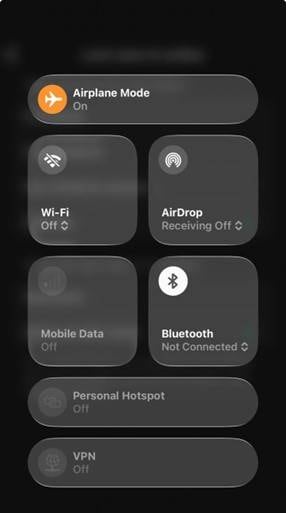
WhatsApp will immediately transmit your message, but it won't show "Online."
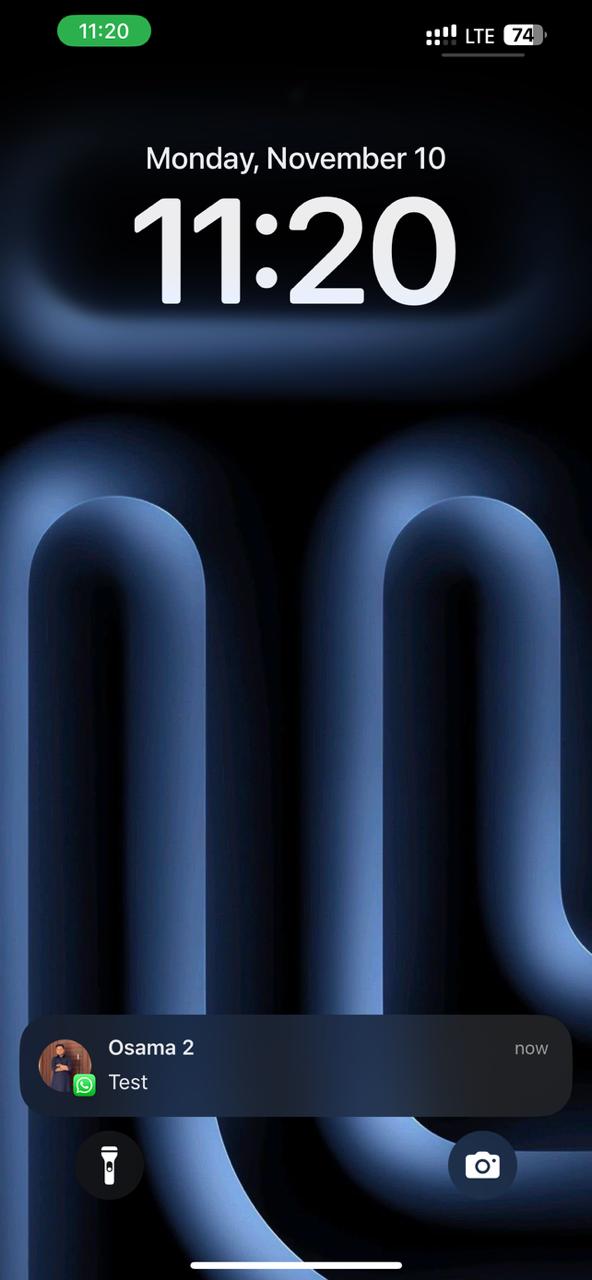
Method 2: Use Notification Previews
Notification previews are another easy way to hide WhatsApp online. This solution enables you to check messages without launching the app. Follow the steps below:
- Step 1. Enable WhatsApp notifications.
- Step 2. Read incoming messages from your phone's lock screen or notification bar.
- Step 3. Scroll or enlarge the notification to read it.
Method 3: Mute Chats for Privacy
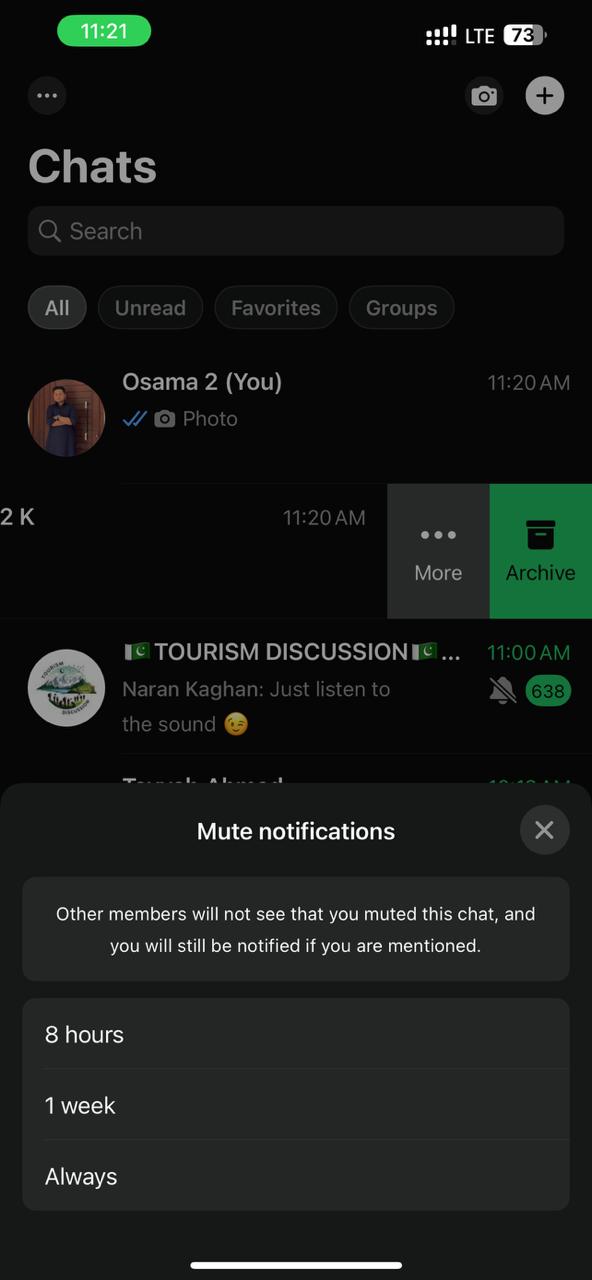
Mute discussions that pressure you to respond immediately. Muting calms you and decreases notifications without blocking. Let's see how:
- Step 1. Select the chat to mute in WhatsApp.
- Step 2. Tap and hold the chat. Select "Mute."
- Step 3. Choose "8 hours, 1 week, or Always."
Summary of Advanced Techniques
Let's recap how to appear offline on WhatsApp while online:
- Set Last Seen, Online, and Read Receipts for maximum privacy.
- Airplane Mode lets you read and react privately.
- Read messages in notification previews without opening conversations.
- Reduce stress by muting chats.
- Hide your profile and read receipts for stealth mode.
- Stay away from third-party mods to safeguard your account.
Combining these methods will teach you how to hide your last seen on WhatsApp, not display as online, and appear offline while conversing, while protecting your privacy.
Part 5. Advanced Privacy Techniques & Tips
Once you have figured out the way of hiding your last seen and online status on WhatsApp, you are capable of making your privacy level elevated. With such advanced options you can keep your private sphere intact and at the same time continue to appear invisible during your chat.
- Disable Read Receipts ("Blue Ticks")
- Hide "About" and Profile Photo
- Avoid Third-Party Mods
- Keep WhatsApp Updated
Disable read receipts to hide that you've read messages. Go to "Settings > Privacy > Read Receipts" and disable. This enables you to read messages discreetly without alerting senders.
Hide your profile picture and About info from strangers to protect your privacy. Visit “Settings > Privacy > Profile Photo/About > My Contacts or None.”
Avoid unauthorized WhatsApp modifications that claim to teach you how to hide your WhatsApp online status. Your account and privacy are at stake.
To get new privacy tools, like safer ways to mask your online status and appear offline on WhatsApp, update your app often.
Conclusion
To master privacy on WhatsApp, it is essential that one should be able to hide last seen on WhatsApp, make the online status unrecognizable, and look as if you are offline even though you are still connected. If you combine WhatsApp's own privacy settings with clever methods such as using Airplane Mode, notification previews, and muting chats, then you are able to safeguard your visibility and also have the serenity that comes with focus, which is not interrupted.
In case anyone wants to understand more deeply the habits without giving up privacy, then the Try It Free is a trustworthy and professional way. It provides the opportunity to observe the trends of online and offline activities, follow numerous contacts, and get insights through intelligent analytics.











James Davis
staff Editor
Generally rated4.5(105participated)