

 TL;DR:
WhatsApp popup notifications enable instant on-screen replies without opening the app, but because classic popups are natively unsupported on iOS and officially deprecated on Android 10 and above, users must utilize system alternatives like iOS Banners, Android 12 Bubbles, or fix device overlay permissions to restore message visibility.
● To replicate popup functionality on modern operating systems, iPhone users must configure top-of-screen Banners in iOS settings, while users on Android 12 and newer must explicitly enable WhatsApp Bubbles in their system notification menu.
● If on-screen alerts fail to appear on compatible Android devices, you must grant WhatsApp the display over other apps permission and select No Restrictions within battery settings to prevent power-saving modes from delaying push notifications.
● Users who need to monitor when specific contacts are active rather than just receiving message alerts can use the Tracover WA Tracker tool to log real-time online and offline timestamps locally without uploading privacy data to the cloud.
Ask AI for a summary
 ChatGPT
 Perplexity
 Gemini
 Claude
 Grok
Grok
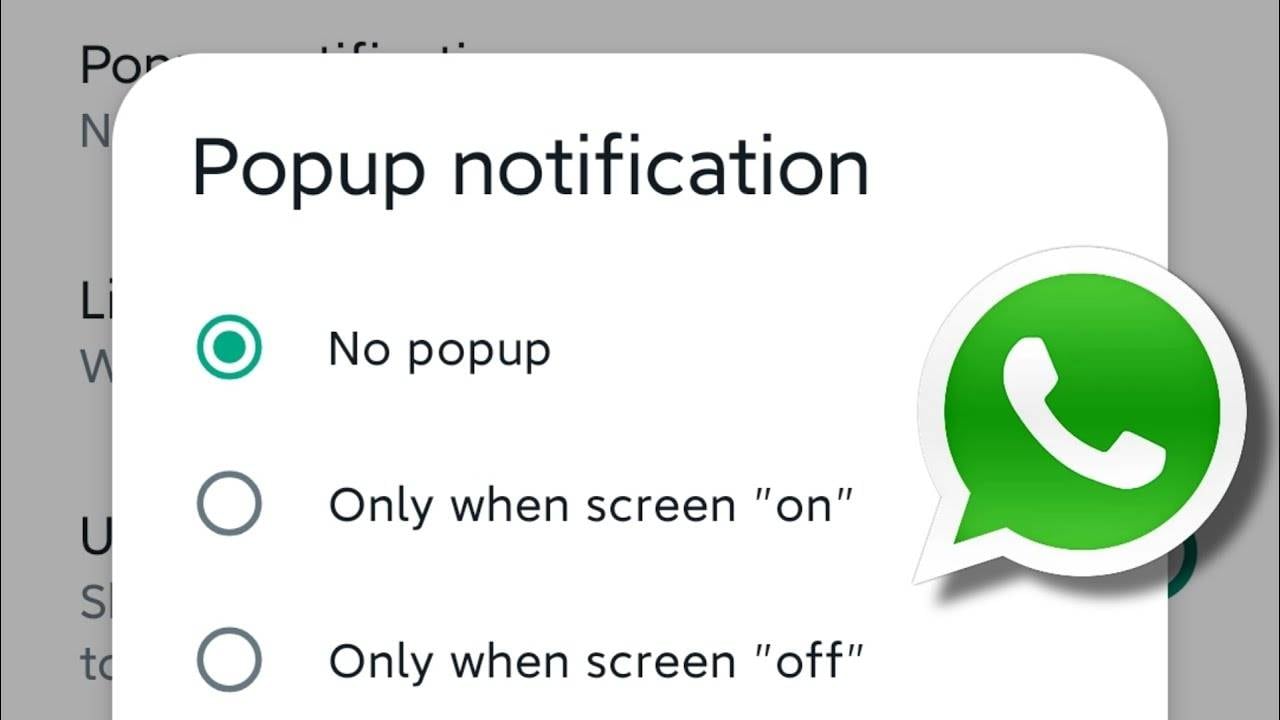
Have you missed a crucial WhatsApp message because your phone stopped alerting you? WhatsApp pop-up notifications appear on your screen when using other programs. It speeds up reading and replying without WhatsApp. The WhatsApp pop-up notification's purpose is simple: it displays messages front and centre so you never miss them, unlike notifications in the notification bar. This helps those who get several messages daily or use WhatsApp Business notifications to stay in touch with clients. However, WhatsApp pop-up notifications can sometimes be unavailable, making communication difficult. What are pop-up notifications, and what should you do if they stop? This article also introduces Try It Free, a smart WhatsApp activity awareness and notification tool.
In this Article

Part 1: What Is a Pop-up Notification in WhatsApp?
Understand a WhatsApp pop-up before enabling or fixing it. Even when using another app or locking your device, you can receive pop-up notifications. It displays WhatsApp messages instantaneously and allows replies. WhatsApp notifications pop up over everything so you never miss important messages. For quick reading or replying, the pop-up will display over a video or web browser if you get a text.
Here are WhatsApp pop-up notification features:
- You may see them even with your screen off or locked.
- They enable instant replies without opening WhatsApp.
- They evaporate after a few seconds if ignored.
WhatsApp push alerts appear just on your status bar or notification shade. Push notifications notify you of a message, but you must open the app to respond. Please note that Popup notifications aren't available on Android versions 10 and above.
Here's a quick comparison to help you understand the differences:
| Type | Description | Example |
|---|---|---|
| Popup Notification | The message appears directly on the screen, allowing a quick read or reply. | "New message from Ali: Hey, are you free?" (Reply option visible) |
| Push Notification | Appears in the top bar or notification panel with a summary. | WhatsApp icon + "1 new message" in the status bar |
Part 2: How to Enable Pop-up Notifications in WhatsApp
Popup alerts let you view or reply to communications without opening the app. This is useful when multitasking or waiting for urgent messages. Simple steps for each platform follow.
How to Enable WhatsApp Pop-up Notification on Android
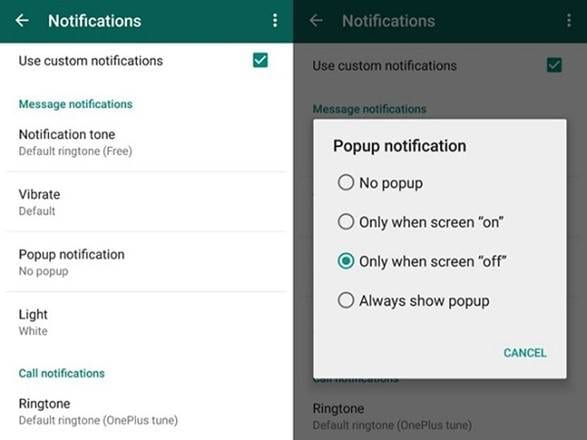
Android users can enable WhatsApp pop-ups:
- Launch WhatsApp on your phone.
- Touch the three dots in the upper right corner to enter "Settings."
- Select "Notifications."
- Tap the "Popup Notification" area and select "Always show pop-ups, Only When Screen on, or Screen off."
Note: Popup notifications aren't available on Android versions 10 and above.
How to Enable WhatsApp Pop-up Notification on iPhone
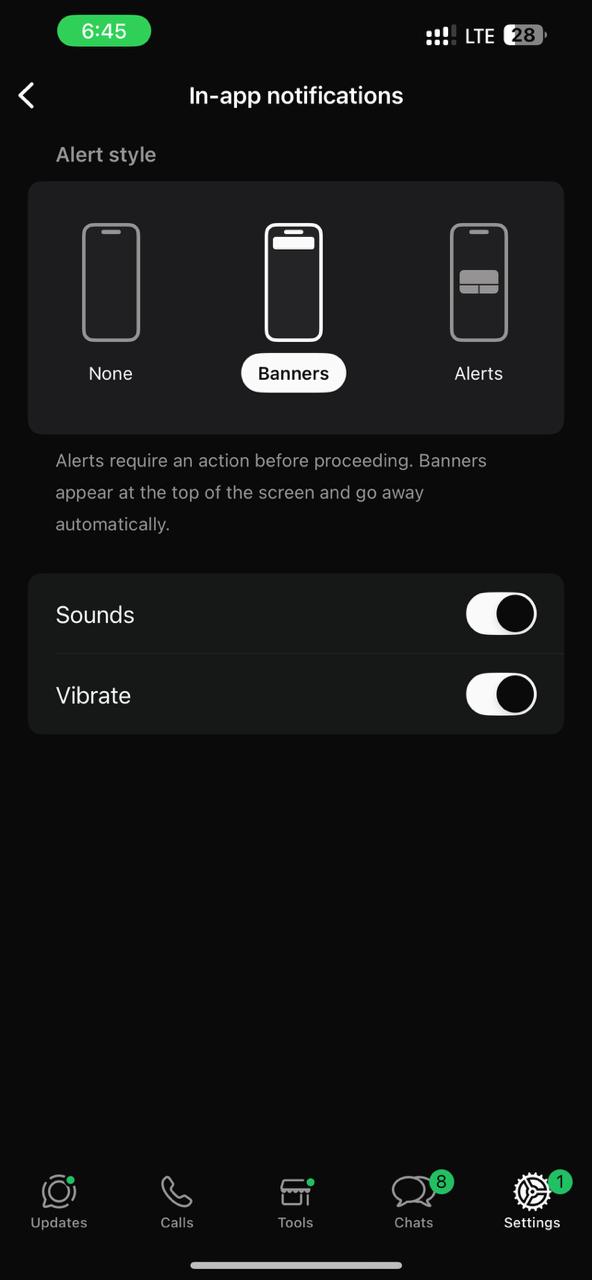
For iPhone users, things work differently. Android supports classic popups, but iOS does not. Instead, you'll see top-of-screen banner notifications. Like popups, these notify you immediately of messages. How to set up:
- Go to iPhone "Settings."
- Go to "Notifications," then pick "WhatsApp."
- Turn on "Notifications."
- Choose from "Banners, Lock Screen Appearences, or Notification Centre alerts."
- Set Show Previews to "Always" or "When Unlocked" to see message content.
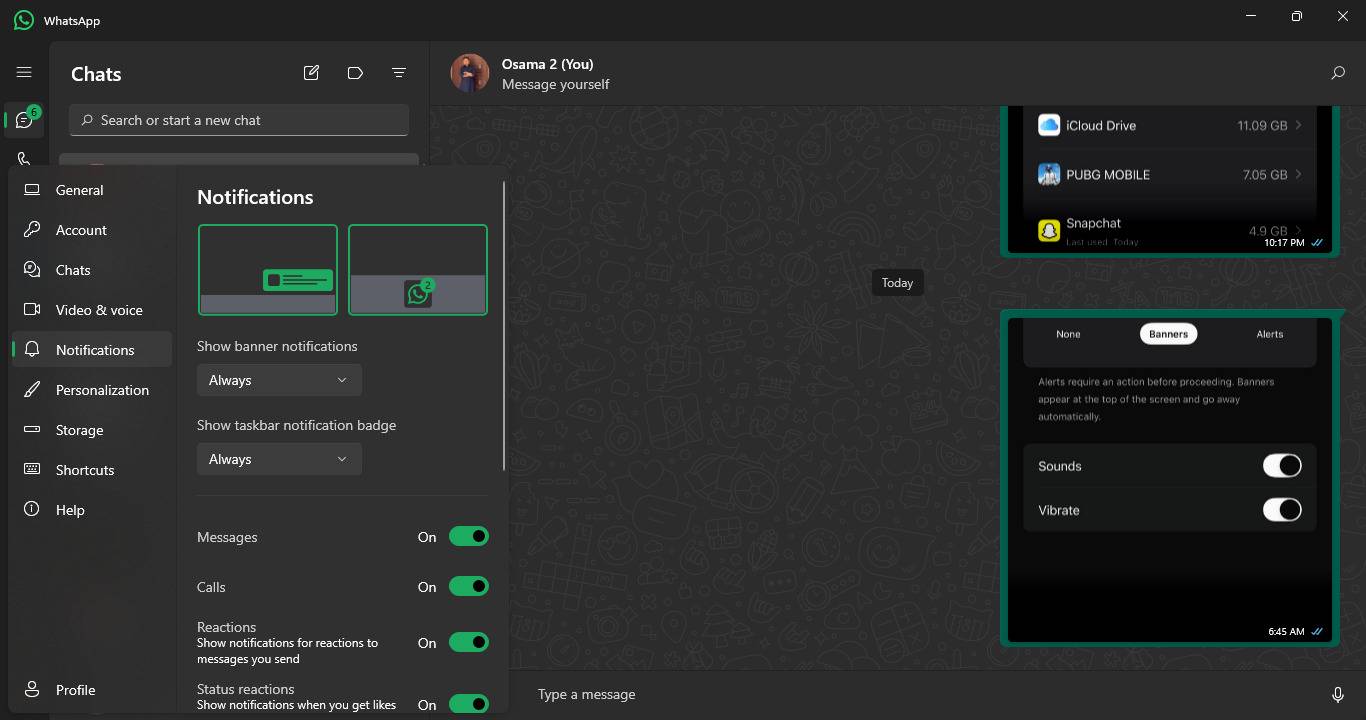
How to Enable Popup Notifications on WhatsApp Web or Desktop
WhatsApp push notifications behave like pop-ups in other tabs or programs on computers. Follow these steps:
- Launch WhatsApp Web or Desktop.
- Click on the "three dots (⋮) > Settings > Notifications."
- Turn on Taskbar notifications badge.
Part 3: Fix "WhatsApp Popup Notification Not Available" Issue
Let's go through all the possible reasons and their simple fixes to fix WhatsApp's pop-up notice.
System & Permission Issues
Problem 1: Do Not Disturb Mode is On
DND mode mutes all alerts, including WhatsApp push notifications. Pop-up WhatsApp messages are blocked, follow the steps below to unblock them:
Solution:
- Launch phone "Settings."
- Go to "Sounds & Vibration > Do Not Disturb."
- Either disable DND or exclude WhatsApp.
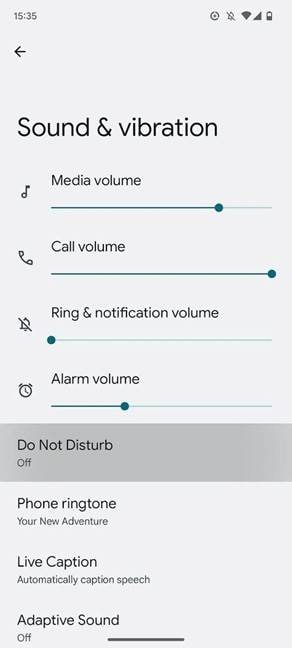
After this, WhatsApp pop-up alerts for messages will return.
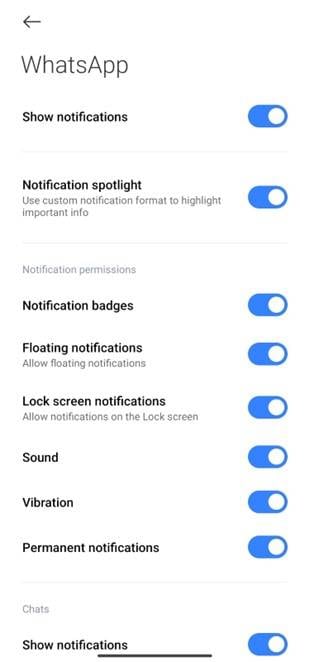
Problem 2: Notifications are Disabled for WhatsApp
System settings often turn off WhatsApp pop-up notifications, resulting in the message "not available". Even if you enable WhatsApp pop-ups, your phone may ban them globally.
Solution:
- Go to "Settings > Apps > Manage Apps > WhatsApp > Notifications."
- Enable "Show Notifications."
- Make sure Message, Group, and Popup Notifications are on.
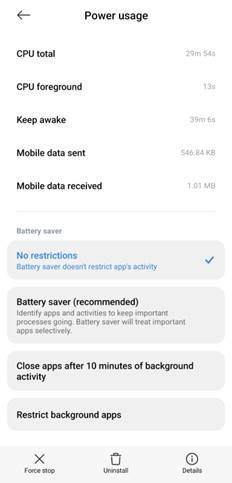
Problem 3: Power Saving Modes or Battery Optimization
Modern smartphones limit app usage to save power. Unfortunately, these modes can delay WhatsApp push notifications and message popups.
Solution:
- Select "Settings > Battery >WhatsApp."
- Select "No Restrictions" for WhatsApp.
Problem 4: App-Specific Permissions
WhatsApp needs permission to "display over other apps" to display message popups. With this permission off, WhatsApp pop-up notifications won't appear, regardless of settings.
Solution:
- Enter "Settings > Apps > Permissions > Other Permissions"
- Select "Display Pop-up Windows > WhatsApp."
- Allow WhatsApp popups by turning the option on.
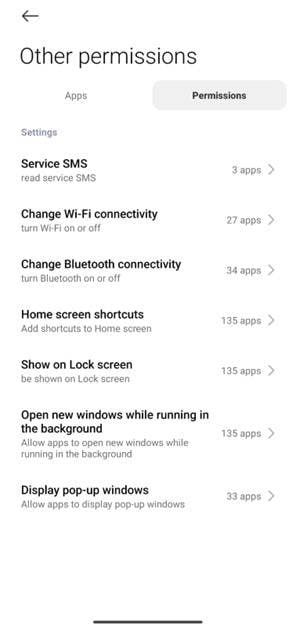
You can read or reply instantly from any screen once the WhatsApp pop-up notification setting is enabled.
App-Level Issues
Problem 5: Outdated WhatsApp Version
An outdated WhatsApp version may be inoperable. You may be using an outdated WhatsApp version if its pop-up notification vanishes after an upgrade.
Solution:
- Open Google Play or App Store.
- Find WhatsApp and tap "Update."
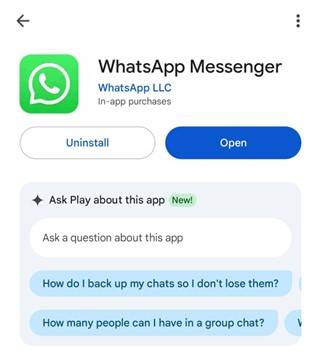
The latest WhatsApp push notifications and pop-up features operate well after updating.
Problem 6: Cache or Notification Glitch
Internal app data or a bug can stop WhatsApp pop-ups. Clearing the cache or reinstalling the software generally fixes this immediately.
Solution:
- Open "Settings> Apps>Manage Apps> WhatsApp> Storage."
- Tap "Clear Cache."
- If things fail, uninstall WhatsApp, restart your phone, and reinstall it.
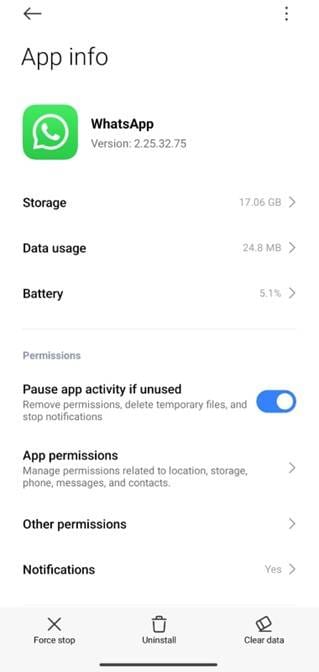
Compatibility & Version Issues
Problem 7: Android 12+ Uses Notification Bubbles Instead of Popups
Android 12 users may have lost WhatsApp pop-up notifications. Popups are replaced by Android "bubbles." Flying symbols on your screen are chat heads.
Solution:
- Select "Settings > Notifications > Bubbles."
- Allow "WhatsApp Bubbles."
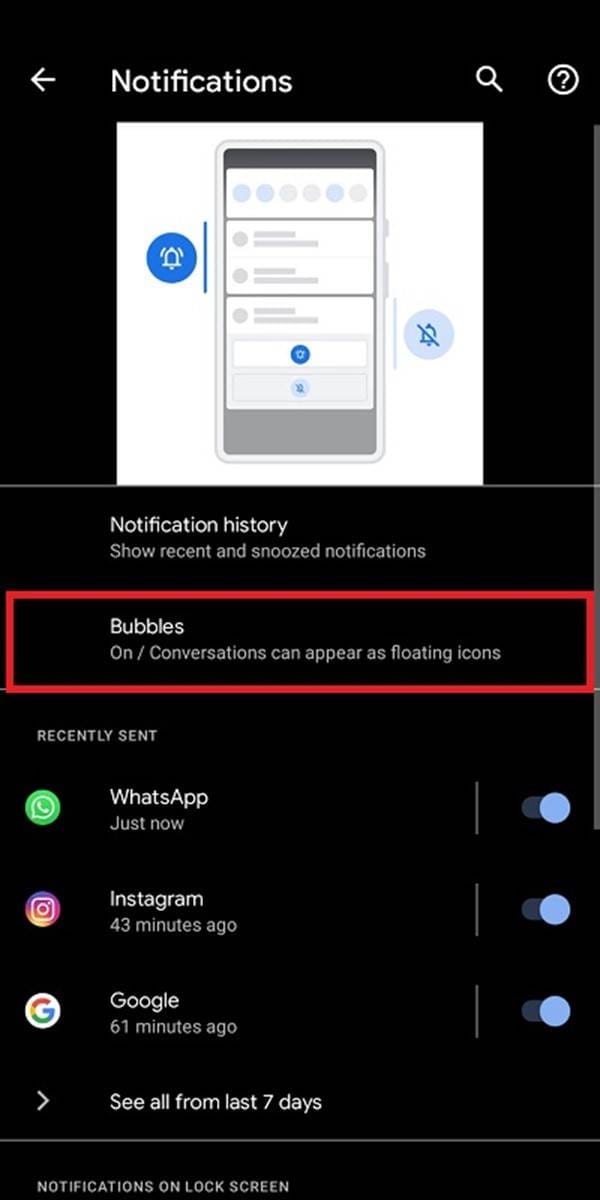
WhatsApp's pop-up notice can be restored with Play Store overlay apps.
Problem 8: Device-Specific Limits
MIUI, ColorOS, and EMUI are used in Xiaomi, Oppo/Realme, and Huawei phones. If you enable WhatsApp pop-up notifications in the app, it may not show since these systems handle notifications differently.
Your device-based solution:
- Xiaomi MIUI: Go to "Settings > Notifications > WhatsApp > Display Pop-ups > Enable."
- Oppo/Realme ColorOS: Go to "Settings > App Management > WhatsApp > Notifications." Allow pop-ups.
- Huawei EMUI: Start WhatsApp in the background and display on top in App Management.
WhatsApp message pop-ups should work after these adjustments.
Part 4: WhatsApp Business Notification Settings
WhatsApp Business may behave differently from typical WhatsApp pop-up notifications Message labels, auto responses, and customer filters can alter notifications in business accounts. Message labels or automated responses may rearrange messages, causing your WhatsApp pop-up notice to appear missing. WhatsApp pop-up notifications are still available, but business messages are handled separately.
Follow these steps to test functionality:
- Step 1. Go to WhatsApp Business "Settings > Notifications > Popup Notification."
- Step 2. Select "Always Show Popup or Only When Screen Is Off/On."
Bonus Tip: Use WA Tracker for Automatic WhatsApp Online Notification
WhatsApp push notifications remind you of new messages, but you may desire other information like online time and WhatsApp usage. Try It Free is ideal for that. Tracover WA Tracker tracks WhatsApp behaviour, both online and offline, in real time. Instead of only receiving message alerts, you can see when your contacts are online, offline, and active. This adds awareness to WhatsApp's pop-up notification meaning.
Tracover App - WA Tracker
Track WhatsApp Online Activites Automatically
- Instant Alerts: Real-time notifications for user sign-ins.
- Custom Schedule: Set precise tracking hours and days.
- Chat Compare: Reveals shared online patterns between users.
- Weekly Trends: Visualizes user activity in simple charts.
- Status History: Stores online logs for review and comparison.


Step-by-Step Guide to Using WA Tracker
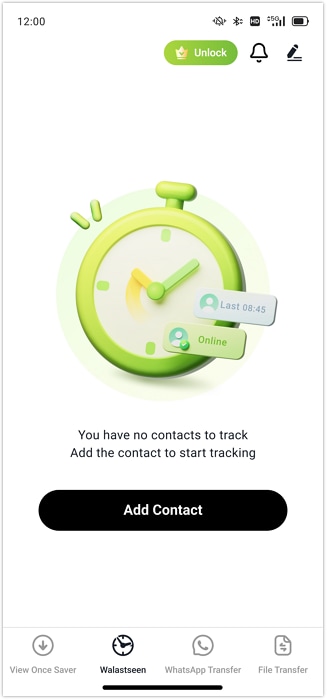
- Step 1. Launch the Tracover app on your Android phone. Select "Start Tracking" to track WhatsApp contacts with "WA Tracker." Select the person to track online behaviour under "Add Contact." Add and manage multiple users from a single dashboard.
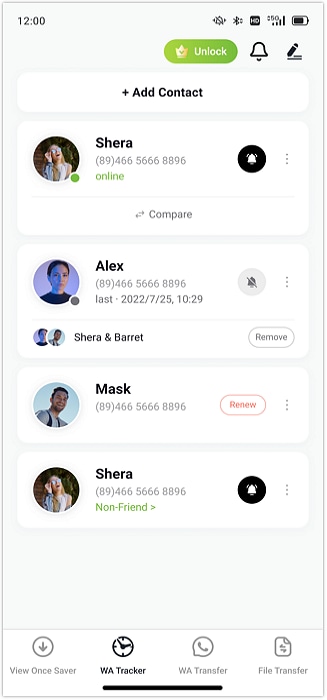
- Step 2. Tap "Link WhatsApp," verify your number, and grant rights. Tracover protects your privacy by not uploading data to the cloud.
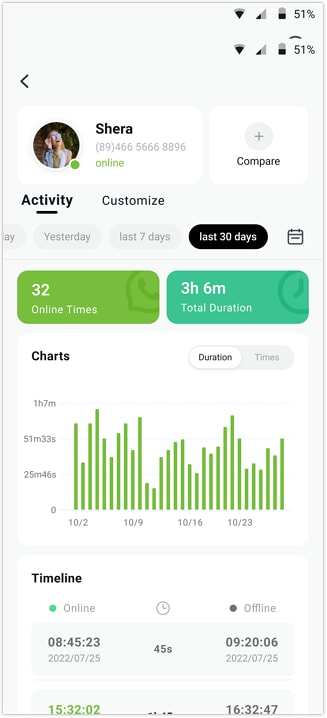
- Step 3. Tracover displays online/offline timestamps, daily use, and visual charts after linking. You can enable "Online and Offline Notifications" to warn you when someone comes online, like a smarter WhatsApp reminder.
WA Tracker works well with WhatsApp pop-up notifications for full control over chat awareness. WhatsApp notifies you when a message arrives, but WA Tracker shows when individuals are active, enabling you to decide when to message or respond.
Part 6: Advanced Notification Controls & Privacy Tips
WhatsApp notifications can preserve your privacy and prevent you from missing important messages if enabled properly. Customize WhatsApp pop-ups and alerts.
- Customize Notifications
Choose each contact's message layout. Click "Settings > Notifications" to change message tone, vibration, or silence. Instantly see who messaged you without opening the app.
- Turn Off Popups for Privacy
Eliminate popups for privacy. Go to "Settings > Notifications > Popup Notification > None." This hides message previews, keeping chats private when others are around. Lock screen message previews can be disabled. Give WhatsApp full notification access to allow pop-up notifications.
- Additional Tips
Allow WhatsApp background access to receive push notifications quickly. Avoid third-party "notification booster" programs that prevent WhatsApp pop-ups. Privacy settings and WA Tracker insights let you watch activity safely and keep alerts private for wiser control.
Conclusion
Managing WhatsApp pop-up notifications and privacy settings improves and secures chats. You can customise WhatsApp push notifications by learning the meaning of pop-up notifications and customising tones, banners, and alarms. Business users can carefully regulate WhatsApp Business notifications to maintain professionalism. You can balance privacy and rapid alerts with these methods. Use Try It Free to stay aware of your messages without jeopardising your privacy.








James Davis
staff Editor
Generally rated4.5(105participated)