
Reliable iPhone Data Recovery Software: Recover Deleted Data Without Backup
A secure iOS recovery tool trusted by millions to recover lost data from iPhone, iPad, and iPod touch — from your device, iCloud, iTunes, or local backups.
-
Free Scan & Preview: Check recoverable data for free before recovery.
-
iCloud Recovery: Recover what you need from iCloud Backup — no reset needed.
-
Recover Deleted Files: Retrieve photos, videos, messages, contacts, notes, and documents.
-
Social Media Recovery: Recover Viber, WhatsApp, LINE, Kik, Snapchat, and WhatsApp View Once.
-
Selective Restore: Recover selected data without overwriting existing files.
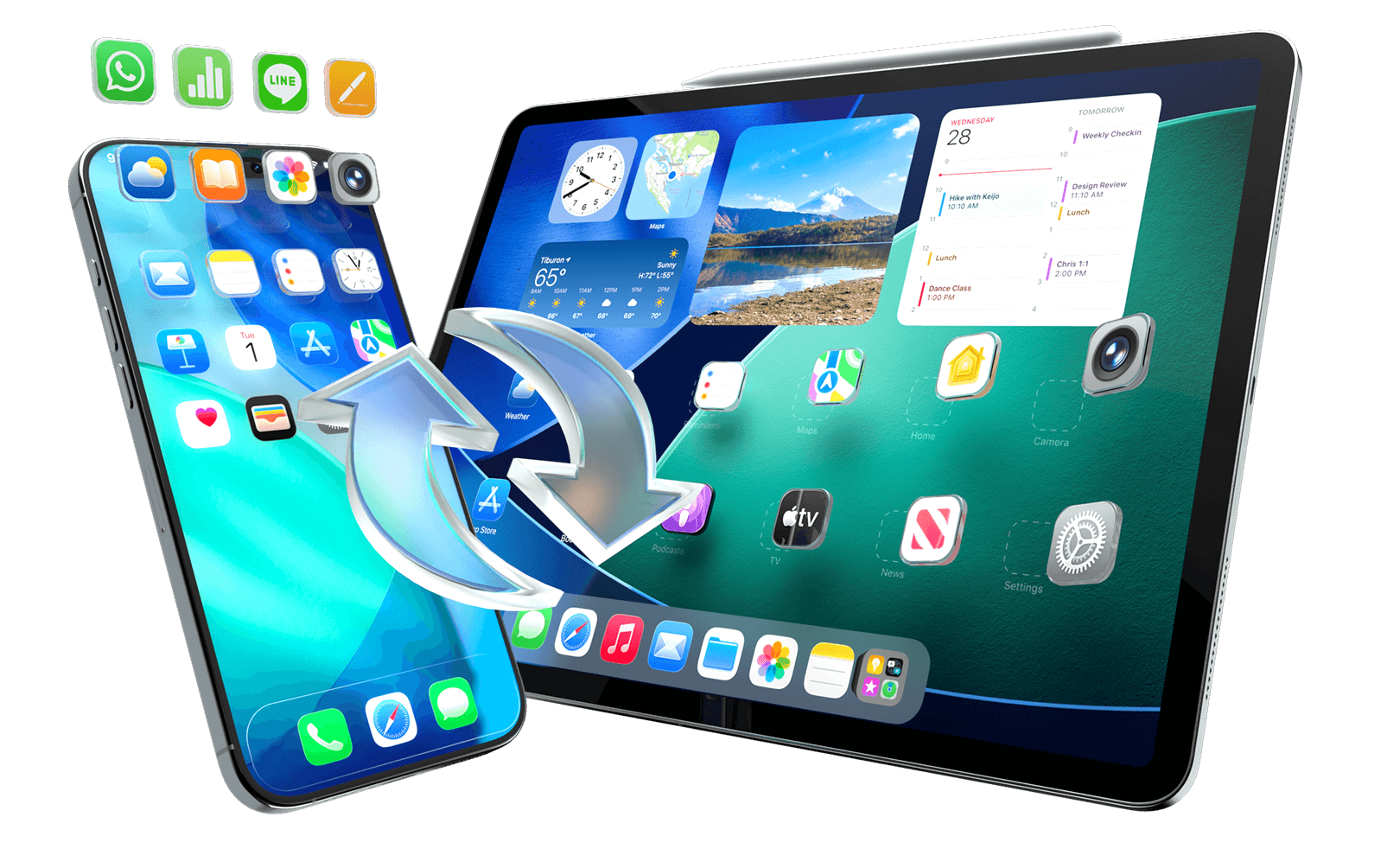

Lost iPhone Data?
Your Files May Still Be Recoverable
Even when your iPhone is broken, locked, or won’t turn on, recoverable data may still be available on the device or in a backup.
Dr.Fone is designed to scan in read-only mode and let you preview supported files before recovery.
Results vary by device condition, iOS version, recovery source, and whether deleted data has been overwritten.
Read-only scan · Preview before recovery · Selective export

Accidentally Deleted Data

No Backup Found

iOS Update/Upgrade Failure
Upgrade Failure

iOS System Malfunction
System Malfunction

Physical Damage

e.g., Broken Screen, Busted Parts

Water Damage

Factory Reset

Jailbreak or ROM Flashing
ROM Flashinge

Locked or Disabled Device
Locked Device

App Crashed / Data Missing

Lost or Stolen Device
Stolen Device

Malware Attack
Why Dr.Fone Works for Real iPhone Data Recovery
Built for common data-loss situations such as accidental deletion, unavailable backups, damaged devices, and selective recovery.
Preview supported recoverable files before deciding what to restore.
Dr.Fone is designed for everyday iPhone data recovery, focusing on accidental deletion, free scan and preview before recovery, broad compatibility across iOS versions and Apple devices, and read-only local scanning to protect existing data.
Optimized for Accidental Deletion Recovery
Recover photos, messages, contacts, notes, and app data deleted by mistake.
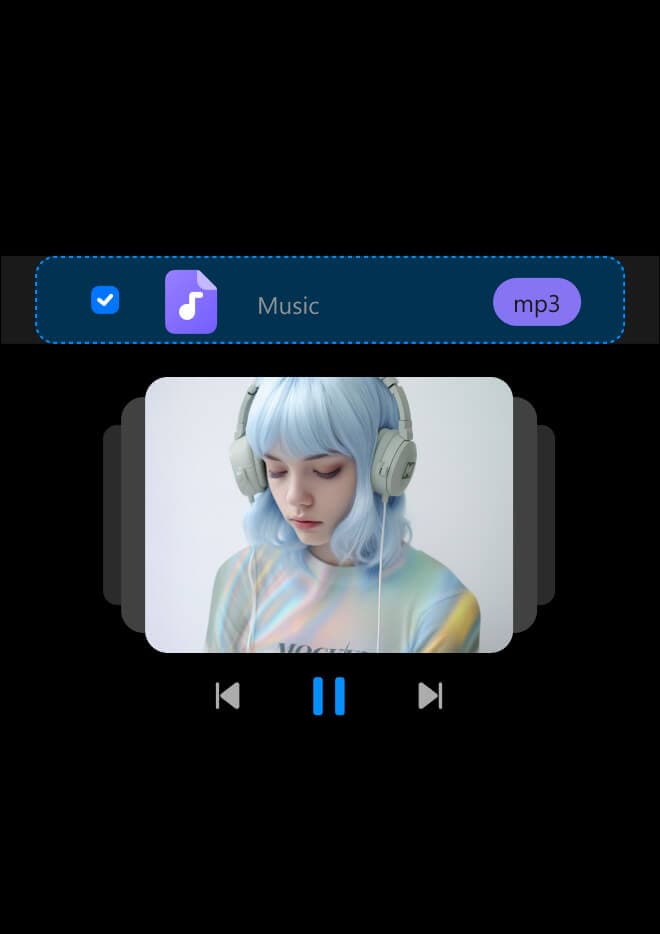
Scan & Preview Before Recovery
See what’s recoverable for free — restore only what you need, nothing more.
Works Across iOS
Versions & Apple Devices
Supports iPhone, iPad, and iPod touch — including iOS/iPadOS 27 and the latest Apple devices.

Read-Only, Local
Scanning by Design
Scans in read-only mode to avoid overwriting existing data — with all processing done locally.
Recover What Matters from iPhone, iPad,
and iPod Touch
35+ data types supported — including photos, messages, apps, and documents.
Restore data to your device or export it to your computer for safekeeping, transfer, or future use.


Personal Data
- Photos & Videos
- Contacts
- Messages & Attachments
- Call History
- Call Recordings
- Voicemail
- Voice Memos
- Alarms
- Calendar & Reminders

Social Apps
- WhatsApp Chats
- WhatsApp Attachments
- WhatsApp Business Chats & Attachments
- LINE Chats & Attachments
- Viber Chats & Attachments
- Viber Call History
- Kik Chats & Attachments
- Snapchat Chats & Attachments

Work, Notes & Files
- Notes
- iCloud Drive Files
- App Photos
- App Videos
- App Documents
- Safari Bookmarks & History
- Pages, Numbers, Keynote
- Gmail & Attachments

Photos

Contacts

Messages

Call
History


WhatsApp
Business

Viber

Line

Kik

Notes

Calendar

Safari
Bookmark
Safari
History

Voice
Memos

Voicemail

Reminders

Numbers

Pages

Keynote
Photos
Contacts
Messages
Call
History
WhatsApp
Business
Viber
Line
Kik
Notes
Calendar
Safari
Bookmark
Safari
History
Voice
Memos
Voicemail
Reminders
Numbers
Pages
Keynote
Photos
Contacts
Messages
Call
History
WhatsApp
Business
Viber
Line
Kik
Notes
Photos
Contacts
Messages
Call
History
WhatsApp
Business
Viber
Line
Kik
Notes
Calendar
Safari
Bookmark
Safari
History
Voice
Memos
Voicemail
Reminders
Numbers
Pages
Keynote
Calendar
Safari
Bookmark
Safari
History
Voice Memos
Voicemail
Reminders
Numbers
Pages
Keynote
Additional data types may be supported depending on device and iOS version.

Recover Messaging App Data & iWork Files — Privately
Preview and recover supported messaging app data and iWork documents from available devices, backups, and cloud sources.
Availability varies by app, device, iOS version, and recovery source.
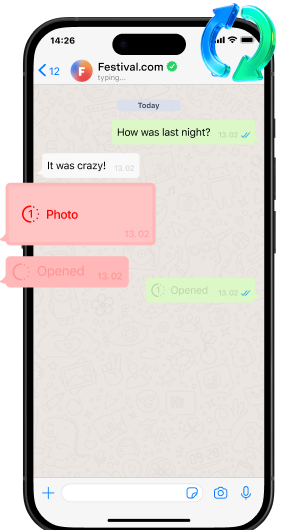
Recover WhatsApp “View Once” Media
Recover WhatsApp “View Once” Media
Securely capture and save WhatsApp View Once photos, videos, and audio while you can still view them. Preview and store the content locally, so it stays accessible even after the message expires.
Recover Messaging App Data on iOS
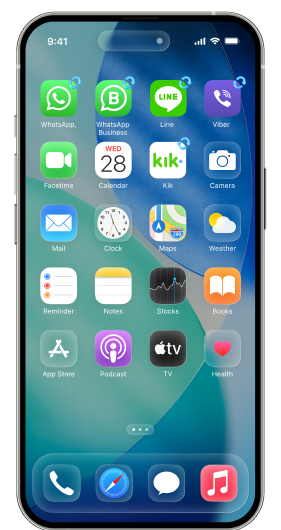
Recover Messaging App Data on iPhone & iPad
Recover WhatsApp messages, media, and attachments from WhatsApp, WhatsApp Business, LINE, Viber, Kik and Snapchat — then restore only what you choose.
Recover Apple iWork Files
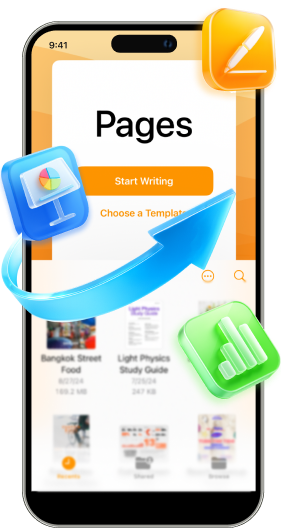
Recover Apple iWork Documents from iCloud Drive
Access Pages, Numbers, and Keynote files stored in iCloud Drive. Preview available documents and selectively recover the files you need without restoring your entire device.
Recover iPhone Data in 4 Ways — From Device, iCloud, and iTunes
Choose the recovery source that matches where your data may still be available. Scan a recognized iPhone directly,
check an available iTunes backup, or access supported data from iCloud Backup, iCloud-synced data, and iCloud Drive.
iOS Device
iCloud Backup
iCloud Sync & Drive
iTunes & Local Backups
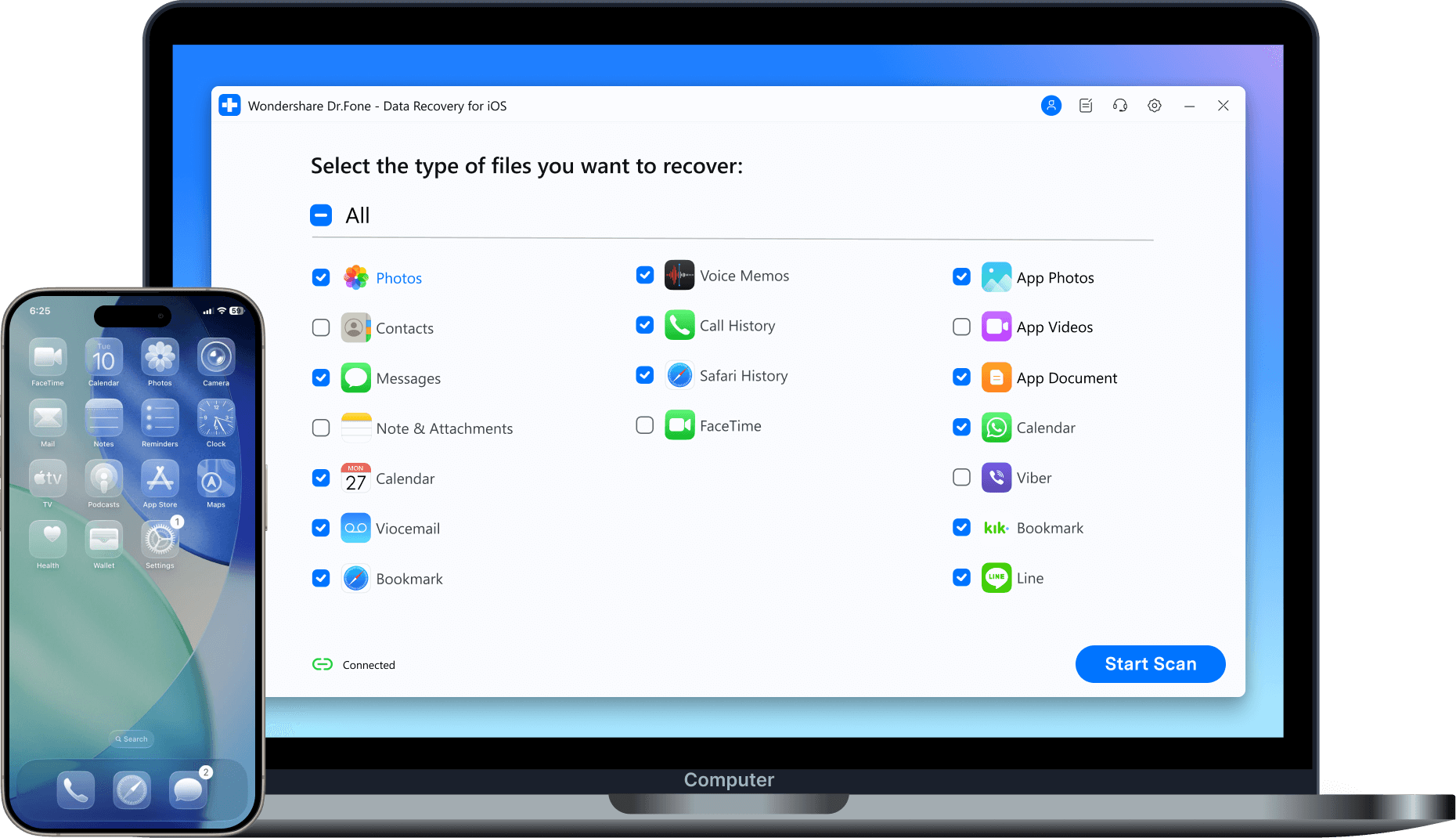
Recover Data Directly from iPhone — No Backup Needed
Scan iOS devices (iPhone, iPad, or iPod touch) to recover deleted data — even if no backup is available.
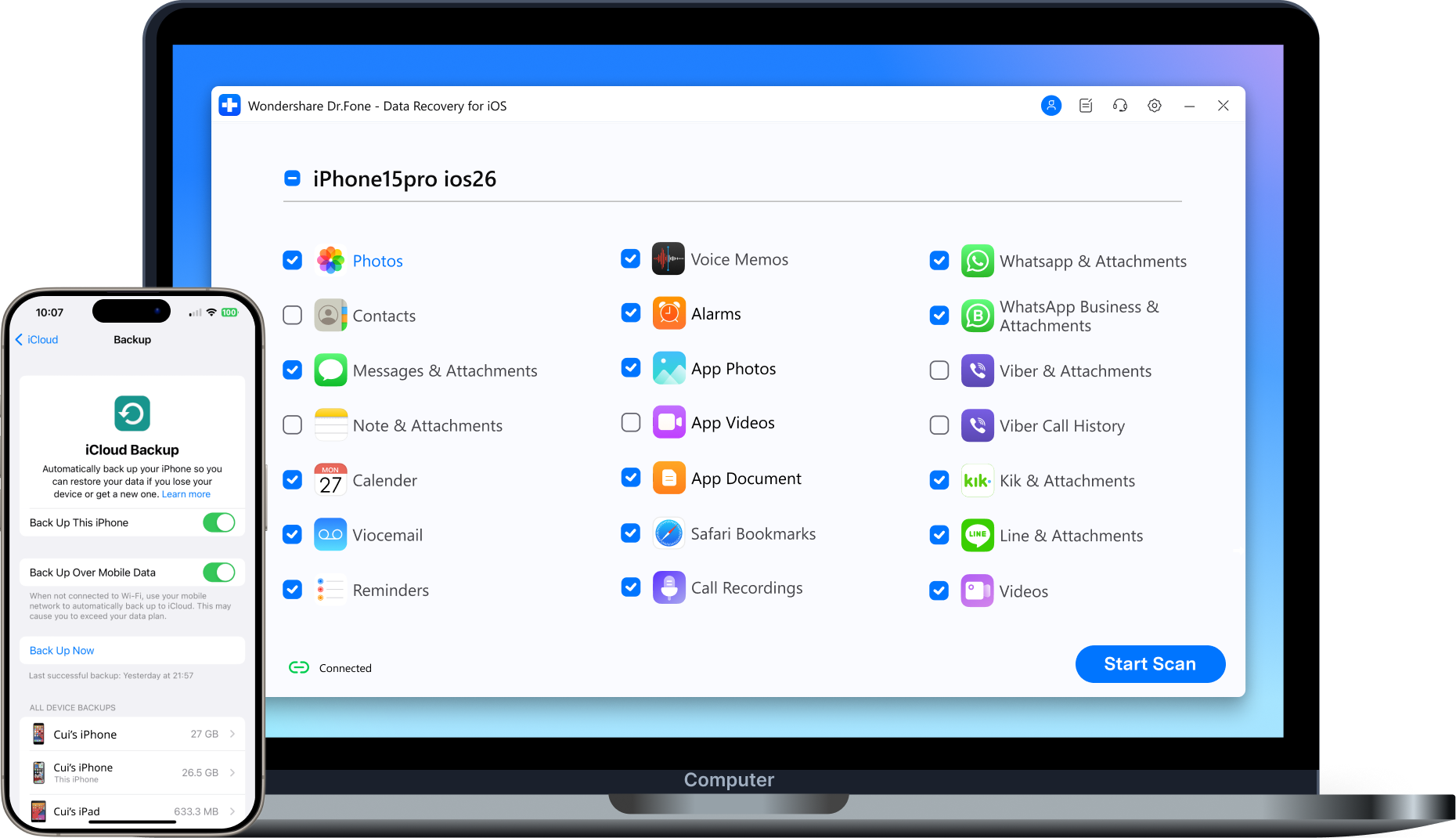
Recover Data from iCloud Backup — No Reset Needed
Choose an iCloud Backup and recover photos, messages, contacts, notes, WhatsApp data, and more without restoring the entire backup to your iPhone or iPad.
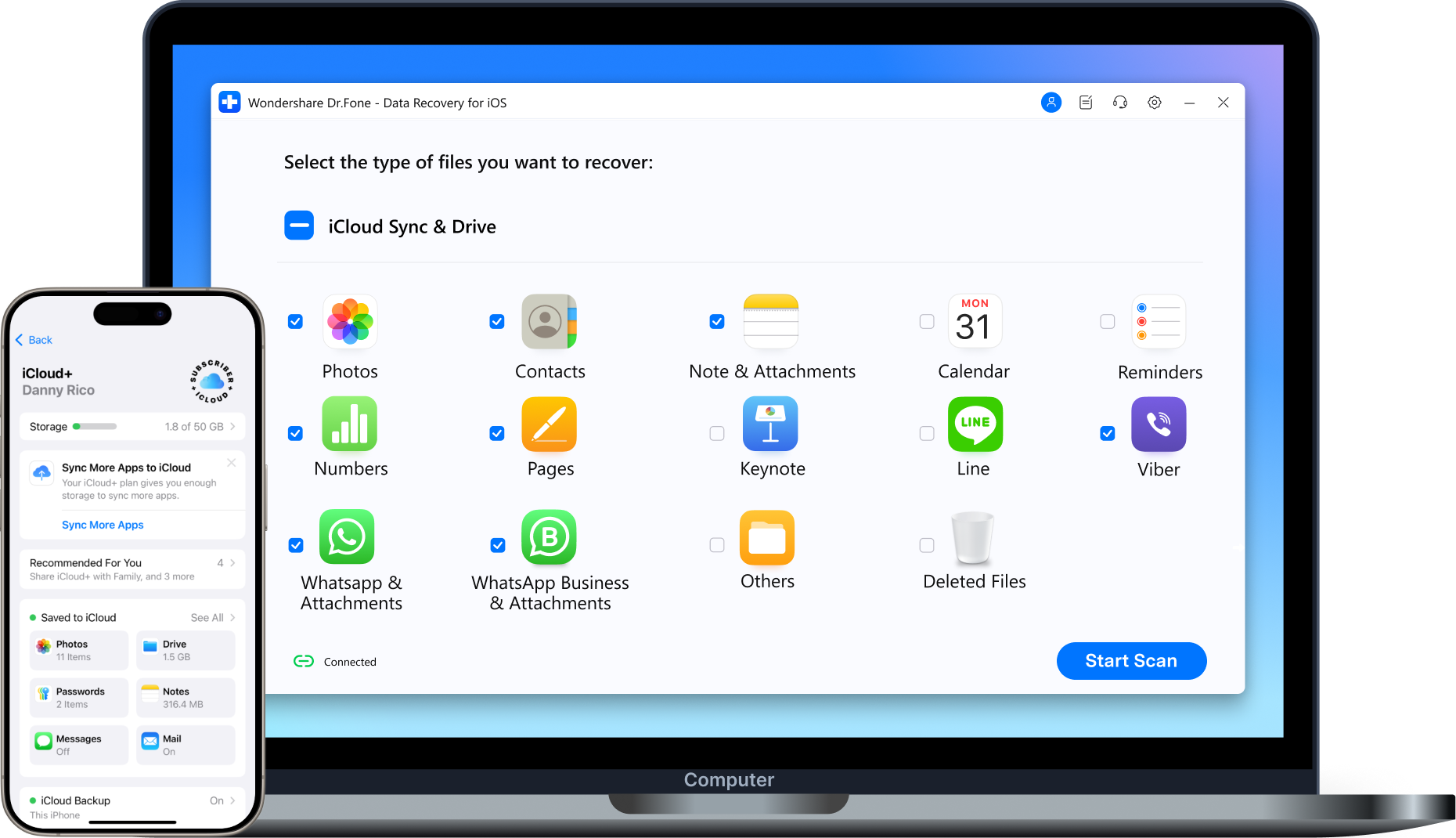
Recover iCloud-Synced Data & iCloud Drive Files
Sign in securely to access data already synced with iCloud and files stored in iCloud Drive, directly from your account — fast, simple, and device-safe..
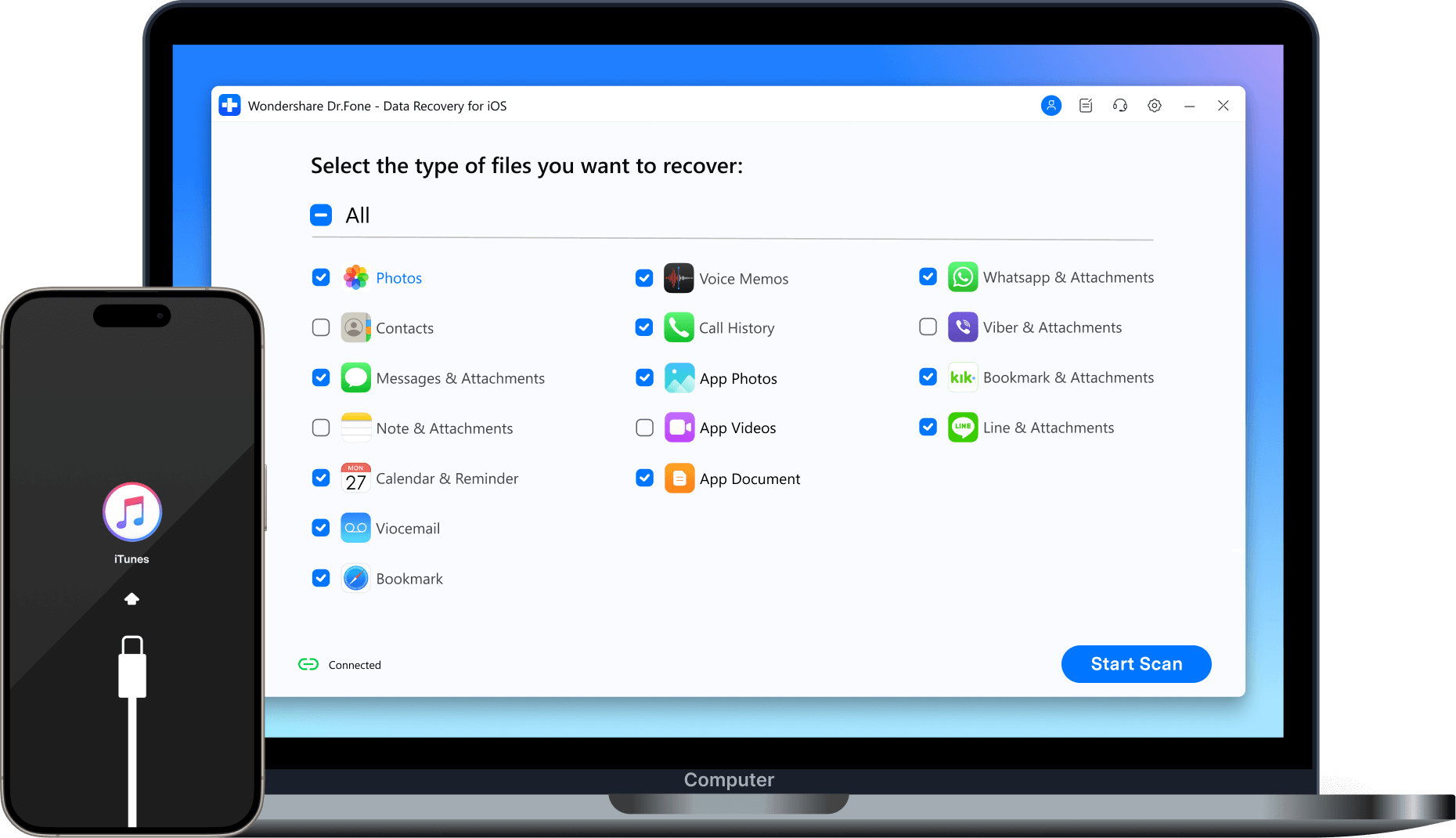
Extract Data from iTunes & Local Backups
Extract data from iTunes backups — including other supported backups saved on the computer — and export it without requiring a full system restore.

Recover Saved iPhone Passwords & Credentials
View and recover saved Wi-Fi passwords, app logins, websites, email accounts, and Apple ID credentials from your iPhone or iPad — directly on your computer.
iOS Data Recovery: Dr.Fone vs. iTunes & iCloud
Dr.Fone provides more flexible preview and selective recovery options, while Apple’s standard restore methods are designed primarily for full-backup restoration.
Available features depend on the selected recovery source.
| Recoverable Files |
Dr.Fone - Data Recovery (iOS)
|
iTunes | iCloud |
|---|---|---|---|
| Deep Scan iOS Devices | Scans internal storage directly to find deleted photos, messages, and 35+ file types for iOS data recovery without backups. |

|
|
| Free Preview Content | Selectively preview iOS data and deleted files for free before starting the recovery process. |
|
|
| Restore from iOS Device | Safely restores lost data back to your iPhone/iPad or exports files directly to your computer. |

Full Restore Only
(No preview; erases current data) |
|
| Restore from iTunes Backup | Selectively recover data from iTunes backups and transfer files to your iOS device or computer without overwriting existing data. |
|
|
| Restore from iCloud Backup | Download iCloud backups directly to preview and selectively restore files and messaging app data (e.g., WhatsApp) without a factory reset. |
|
Full Reset Required
(No preview; erases all settings) |
| Extract iCloud Sync & Drive | Selectively extract iCloud-synced data and iCloud Drive files (e.g., Photos, Contacts, WhatsApp, LINE) directly to your iOS device or computer. |
|
Raw Files Only
(No preview, cannot extract app data) |

| Dr.Fone - Data Recovery (iOS) |
|---|
| Scans internal storage directly to find deleted photos, messages, and 35+ file types for iOS data recovery without backups. |
| Selectively preview iOS data and deleted files for free before starting the recovery process. |
| Safely restores lost data back to your iPhone/iPad or exports files directly to your computer. |
| Selectively recover data from iTunes backups and transfer files to your iOS device or computer without overwriting existing data. |
| Download iCloud backups directly to preview and selectively restore files and messaging app data (e.g., WhatsApp) without a factory reset. |
| Selectively extract iCloud-synced data and iCloud Drive files (e.g., Photos, Contacts, WhatsApp, LINE) directly to your iOS device or computer. |
Why Choose Dr.Fone?


System Repair by Wondershare Dr.Fone is an excellent alternative to iTunes for fixing iOS issues. It resolves many problems by re-installing the latest package, which doesn't wipe out your iPhone's data.

With its new powerful desktop and online solution, Wondershare Dr.Fone offers a complete mobile device solution for Android and iOS devices, with useful how-to guides and technical fixes for a wide variety of mobile issues.

Wondershare's Dr.Fone offers iPhone and iPad users a full software suite that goes beyond the iOS management that's possible with iTunes/Finder in macOS. Features include data recovery, erasing/restoring all or just parts of your data, system repair, restoring social media apps, getting around your device's lock screen, and more.

If your iPhone is not responding or turning on, then this is probably one of the best tools to fix it. The tool guarantees that during the recovery process, none of your data will be lost.

Dr.Fone can help you with your smartphone in many ways. It can recover deleted data, back up and transfer files, unlock screens, repair your OS, switch between different types of smartphones, transfer WhatsApp chats between iOS and Android, and more.

Dr.Fone is a comprehensive software suite developed by Wondershare that addresses a wide range of needs for smartphone and computer users. When transferring data between Android devices, Dr.Fone offers a mix of ease, efficiency, and security, making it a preferred choice for many.
System Repair by Wondershare Dr.Fone is an excellent alternative to iTunes for fixing iOS issues. It resolves many problems by re-installing the latest package, which doesn't wipe out your iPhone's data.
With its new powerful desktop and online solution, Wondershare Dr.Fone offers a complete mobile device solution for Android and iOS devices, with useful how-to guides and technical fixes for a wide variety of mobile issues.
Wondershare's Dr.Fone offers iPhone and iPad users a full software suite that goes beyond the iOS management that's possible with iTunes/Finder in macOS. Features include data recovery, erasing/restoring all or just parts of your data, system repair, restoring social media apps, getting around your device's lock screen, and more.
If your iPhone is not responding or turning on, then this is probably one of the best tools to fix it. The tool guarantees that during the recovery process, none of your data will be lost.
Dr.Fone can help you with your smartphone in many ways. It can recover deleted data, back up and transfer files, unlock screens, repair your OS, switch between different types of smartphones, transfer WhatsApp chats between iOS and Android, and more.
Dr.Fone is a comprehensive software suite developed by Wondershare that addresses a wide range of needs for smartphone and computer users. When transferring data between Android devices, Dr.Fone offers a mix of ease, efficiency, and security, making it a preferred choice for many.


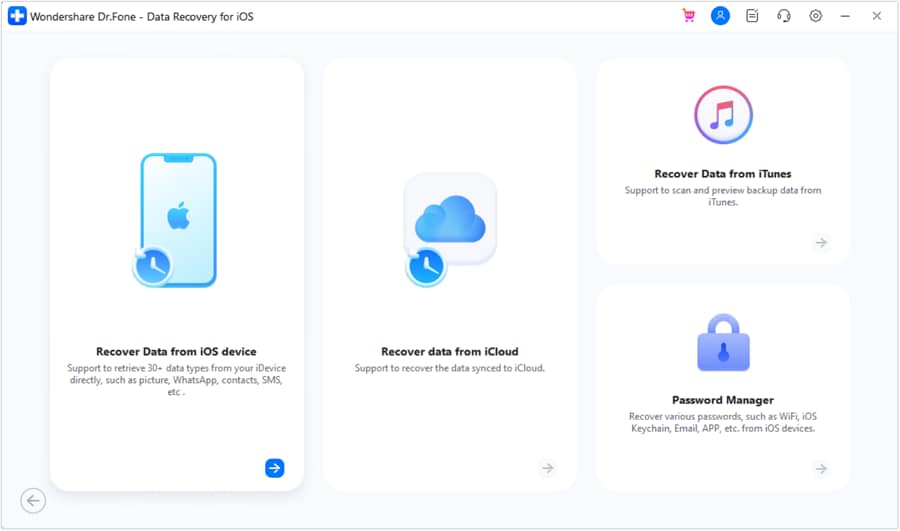
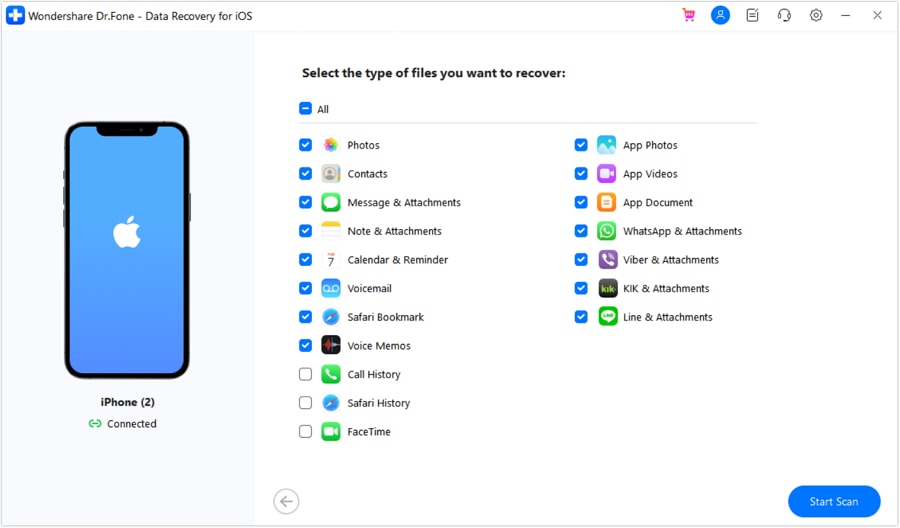
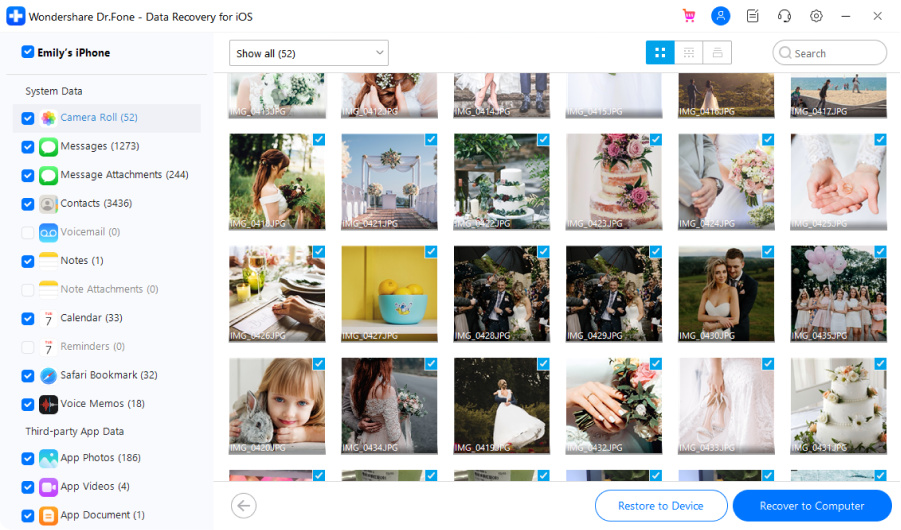
3 Steps to Recover iPhone Data
Scan your iPhone, preview what’s recoverable, and recover only what you need.
Try the free scan and preview before you purchase.
Dr.Fone - Data Recovery (iOS) Technical Specifications

Processor
1 GHz or faster (Intel or AMD)

Hard Disk Space
7 GB of available hard disk space

RAM
1 GB of free RAM (2 GB or higher recommended)

iOS
iOS 5.0 and later

Operating System
- Windows 11, 10, 8.1, 8, 7
- macOS 10.13 or later
Processor
Hard Disk Space
RAM
iOS Compatibility
Operating System
- macOS 10.13 or later
iPhone Data Recovery – FAQs
Yes, iPhone data recovery is achievable provided the deleted data hasn't been overwritten.
Professional iPhone data recovery software like Dr.Fone – Data Recovery (iOS) operates by conducting deep scans of the device's internal storage, iTunes backups, and the entire iCloud ecosystem (Sync Data, iCloud Drive, and iCloud Backups). Crucially, unlike official Apple methods that force a full device wipe, Dr.Fone allows users to preview and selectively extract specific files or messaging app data directly from these backups without a factory reset.
Unlike many low-quality tools, Dr.Fone runs read-only scans, never modifies device data, and processes everything locally on the computer—files are never uploaded to any server. This is why it’s widely trusted by millions of users and frequently recommended in Apple user communities and recovery forums.
Yes. Dr.Fone is designed for safe, read-only iPhone data recovery.
Dr.Fone is developed by Wondershare, a long-established software company with millions of users worldwide. It does not contain malware or harmful components. During the recovery process, it does not write to or overwrite existing data, and all recovery processing happens locally — nothing is uploaded to external servers. As a premium iOS data restoration tool, it ensures privacy is fully protected and the device isn’t modified by the scanning.
- Read-only scanning: Device data is never altered or overwritten.
- Local processing: Recovery tasks run entirely on the local PC or Mac, not in the cloud.
- Privacy-focused: When accessing an iCloud account and its associated data layers, Apple ID credentials are encrypted and used strictly for authentication.
Unlike tools that rely on cloud processing, Dr.Fone performs recovery locally and collects no personal data, making it a highly secure solution for iOS data extraction.
Yes. Data recovery is often possible even without a traditional iTunes or iCloud backup image.
Beyond scanning the device's internal storage directly, Dr.Fone can interface with the associated iCloud account to retrieve synchronized data (like photos and messages) that may still be available in the cloud. Many users discover that while they lacked a formal "Backup", their iCloud Sync remained active, preserving critical database fragments.
For the best chance of success, immediate cessation of device usage is recommended after noticing data loss – avoiding new app downloads or photo captures prevents the system from overwriting the unallocated space where deleted data resides. Dr.Fone will locate any recoverable data and allow it to be saved directly to a computer without needing a prior backup.
If any form of cloud archive or local backup exists, Dr.Fone provides a pathway to selectively extract those files without requiring a full system restore.
Absolutely. Dr.Fone provides a free scanning and preview feature for all recoverable data.
Users can preview photos, messages, videos, notes, and other files to confirm exactly what can be retrieved prior to making any commitment.
A license is only required to export the recovered files back to an iOS device or a local computer, ensuring the evaluation process is entirely transparent and risk-free.
Hot Topics

Trusted iPhone Data Recovery, Built for Safer Results.
Recover lost photos, messages, and essential iPhone data with a recovery tool designed for selective preview, read-only device scanning, and multiple recovery sources.