
[100% Working] How to Save a View Once Photo on WhatsApp: 2026 Guide

Nov 20, 2026 • Filed to: Data Recovery Solutions • Proven solutions
 TL;DR:
WhatsApp natively blocks screenshots and saving of View Once media, but users can retain these temporary files using desktop data recovery software, modified Android clients, or a secondary camera.
● Desktop tools like Dr.Fone - Data Recovery and MobileTrans recover disappeared media by syncing your WhatsApp account to a computer via a QR code scan, allowing cross-platform export for iOS and Android devices.
● Android users can bypass the restriction entirely by enabling the Anti-View Once toggle in GBWhatsApp to save full-resolution files, but this carries strict penalties including malware exposure and permanent account bans.
● Taking a photograph of the screen with a secondary device provides an immediate workaround to the strict in-app screenshot block without third-party tools, though it inherently degrades image quality through glare and distortion.
Ask AI for a summary
 ChatGPT
 Perplexity
 Gemini
 Claude
 Grok
WhatsApp View Once lets someone open a photo or video a single time. If you are wondering how to save a View Once photo on WhatsApp, the first thing to know is that WhatsApp has no built-in save option for received View Once media. Here are four approaches people ask about, what they can and cannot do, and the privacy risks to consider.
We will start with WhatsApp's built-in limits, then walk through available recovery tools and practical options. For personal photos or memories, asking the sender to share a regular copy is usually the simplest choice.

Part 1. Can I Save a View Once Photo on WhatsApp? Is There a Native Feature?
WhatsApp does not offer a native way to save or forward received View Once photos or videos. They are not added to your gallery, and WhatsApp normally blocks screenshots and screen recording within the app. Once opened, the media is not included in a WhatsApp backup. If you need a lasting copy, ask the sender to resend it as a regular photo or video.
Part 2. How to Save a View Once Photo on WhatsApp? Effective Tools and Practical Methods
There are two recovery tools and two practical options worth comparing. These are not built-in WhatsApp features, and results can vary by device, WhatsApp version, permissions, and whether the content is still accessible.
2 Professional Recovery Tools to Download WhatsApp View Once Content
If you have permission to keep the media, start by checking whether your device and software support the recovery workflow. No tool can guarantee every View Once item will be recoverable.
Tool 1. Dr.Fone - Data Recovery
Dr.Fone - Data Recovery offers a dedicated WhatsApp View Once recovery workflow for supported Android devices, with options to preview and export accessible media. An iOS recovery product is also available, but the Android workflow shown below should not be assumed to work identically on iPhone. Compatibility and results depend on the device and the data available to the tool.

Dr.Fone - Data Recovery (Android)
Preview and export supported WhatsApp data on compatible Android devices.
- Scan supported Android phones and WhatsApp data for recoverable content.
- Preview accessible items before selecting files to export.
- Supports several WhatsApp data types, with availability varying by recovery mode.
- Check model, Android version, and recovery-mode compatibility before starting.

Step 1. Launch the Data Recovery Tool
Open Dr.Fone on a Windows computer, choose Toolbox > Data Recovery, and select Android. The View Once recovery workflow is not currently available on Mac.
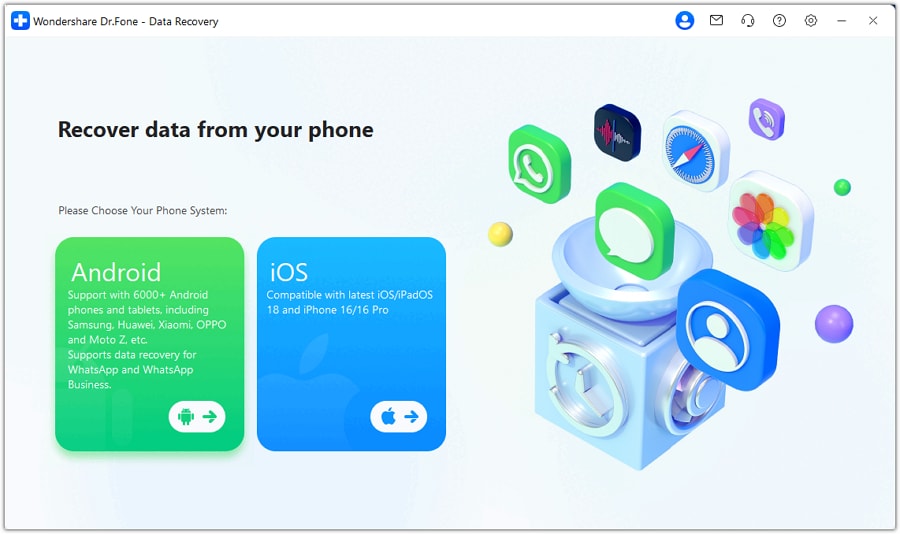
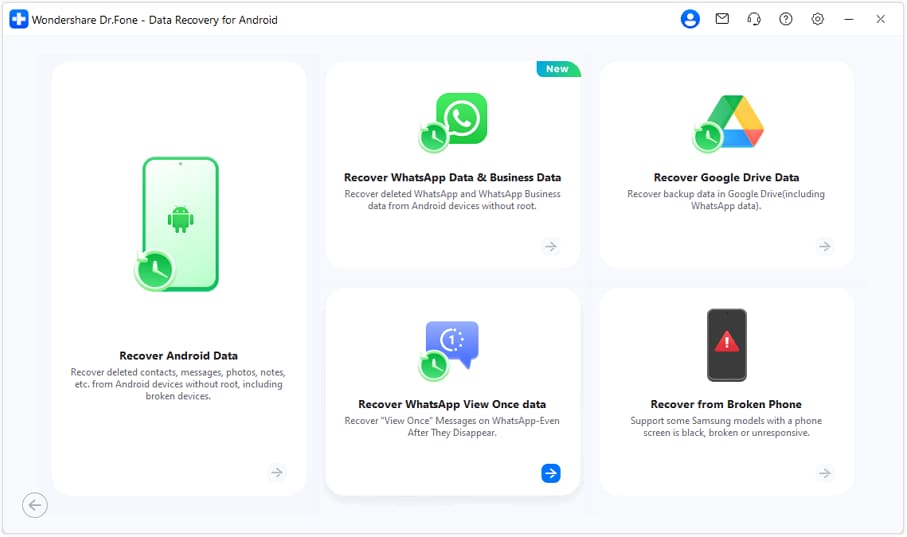
Step 2. Select Recover WhatsApp View Once
Choose Recover WhatsApp View Once Data and follow the on-screen prompts to start the supported recovery process.
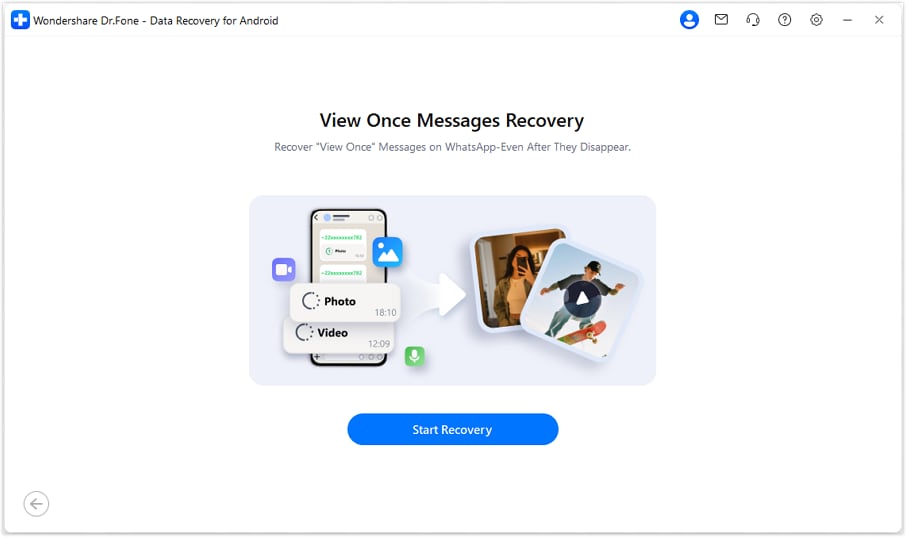
Step 3. Link Your WhatsApp Account
When prompted, open WhatsApp on your Android phone, select Link a Device, and scan the QR code displayed in Dr.Fone. Only link an account you own or are authorized to use.
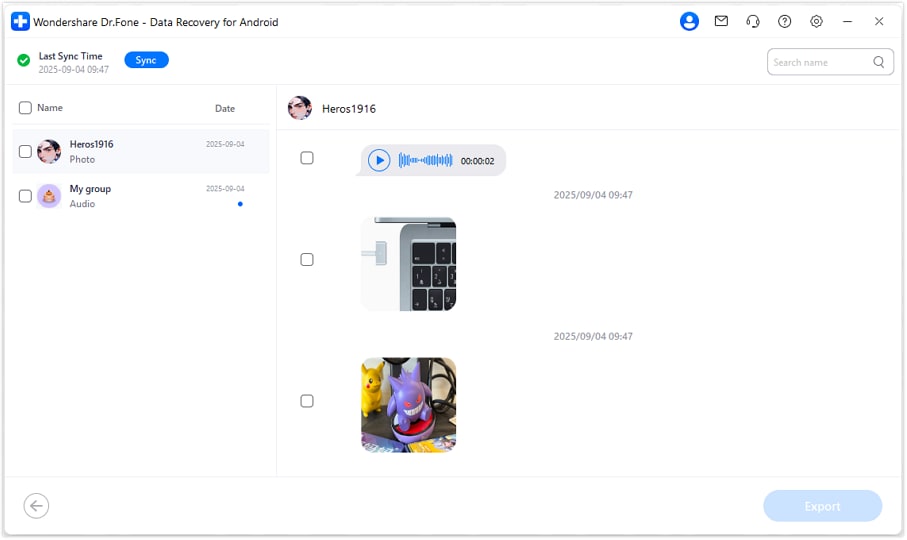
Step 4. Select and Export View Once Messages
After linking, review the items that Dr.Fone can access. Select supported View Once media and click Export. Some opened or expired items may not be recoverable.
 safe & secure



Tool 2. MobileTrans View Once Recovery
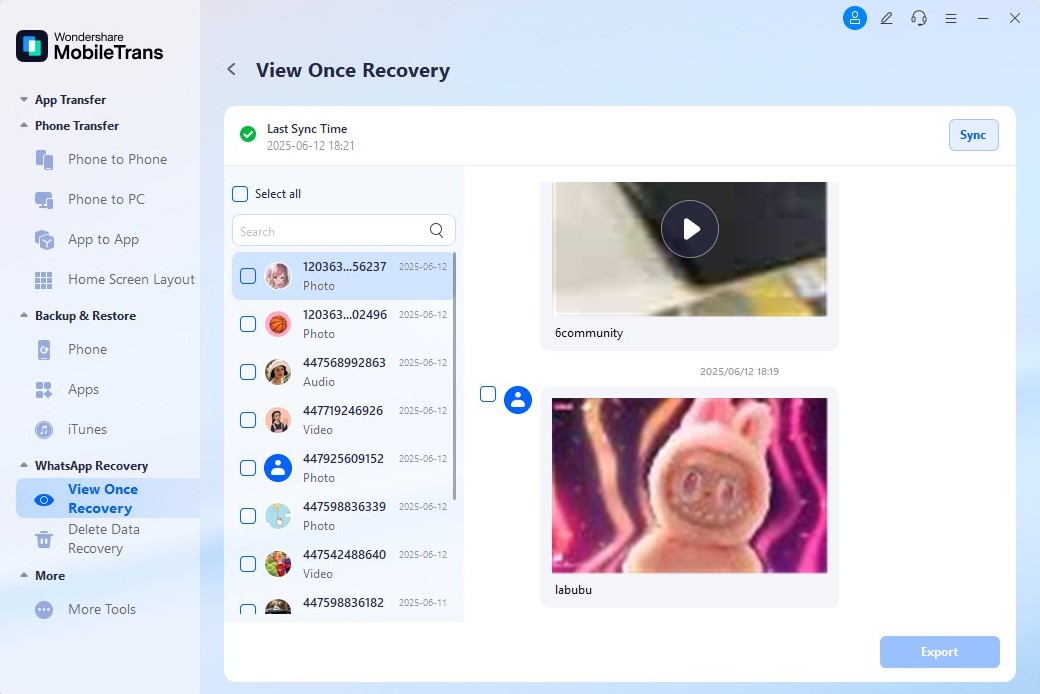
MobileTrans includes a WhatsApp View Once Recovery feature that can preview and export supported photos, videos, and voice messages. It requires linking your WhatsApp account, and availability may vary by software version and session status.
If you choose this option with the sender's permission, use the dedicated recovery workflow below. Check current platform support and permissions first.
Step 1. In MobileTrans, open WhatsApp Recovery > View Once Recovery, then start the workflow.
Step 2. Follow the prompts to link your own WhatsApp account by scanning the QR code.
Step 3. Review any available View Once media, select the items you have permission to keep, and choose Export.
2 Practical Ways to Save View Once Photos
If recovery software is not appropriate, consider these two practical paths and their limitations.
Way 1. Ask Permission Before Making a Copy with Another Phone
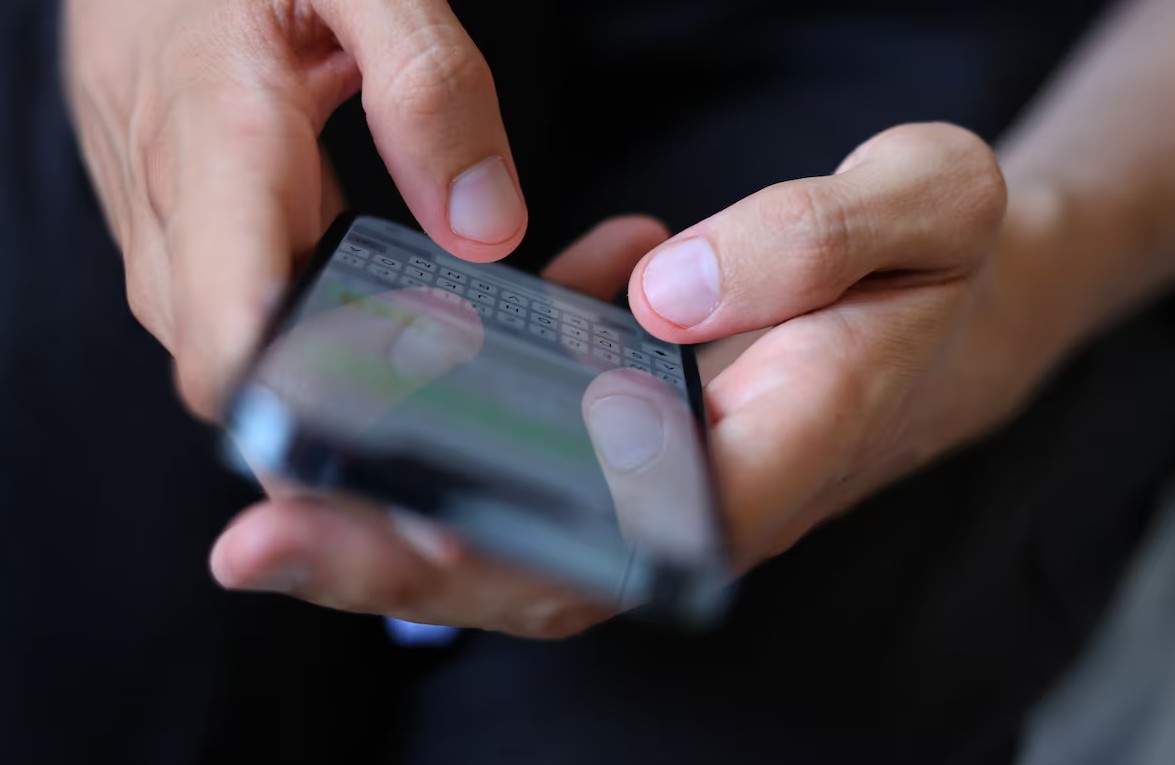
A second camera may be able to photograph a screen while a View Once image is open, but this does not override the sender's expectations. Ask for their permission first. Image quality may be lower, and the simplest option is often to request a standard, non-View Once copy instead.
Way 2. Understand the Risks of Modified WhatsApp Apps
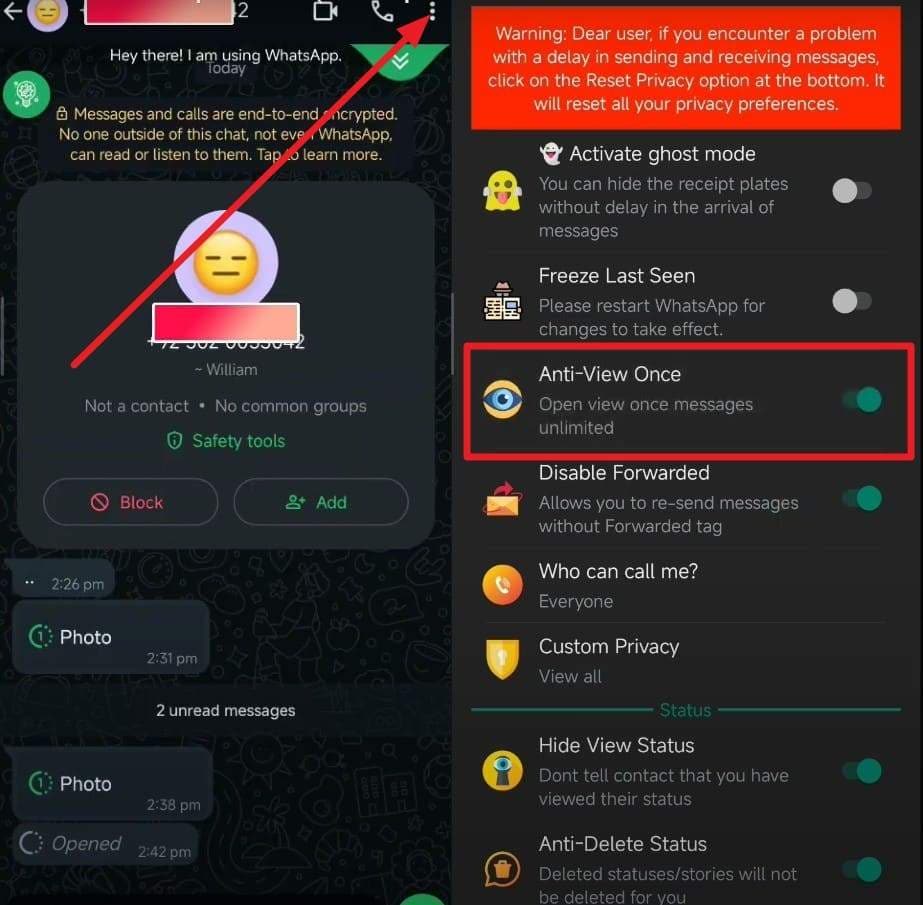
Some unofficial WhatsApp modifications, including versions marketed as GBWhatsApp, advertise options to retain View Once media. Their behavior is not guaranteed, and installing an unofficial client can put messages and account access at risk. We do not recommend relying on these apps to save private media.
Step 1. Avoid downloading unofficial APKs from unverified sites or granting them access to private chats.
Step 2. If you need a copy of a View Once image, ask the sender to resend it as a regular attachment, or use a supported recovery option only with permission.
Part 3. Risks and Ethical Concerns: Think Twice Before Saving View Once Media
Before trying to save a View Once photo or video, consider the sender's consent, the security of any connected account, and whether you really need to keep a permanent copy.

| Risk/Ethical Concern | Explanation |
|---|---|
| Privacy Violations and Consent | Saving or exporting content intended for one-time viewing without consent can violate the sender's expectations and trust. |
| Security Flaws and "False Sense of Privacy" | WhatsApp uses capture restrictions, but they cannot prevent every external recording method. Do not assume a View Once message is permanently protected from copies. |
| Legal and Policy Exposure | Saving or distributing private media without permission can create privacy, contractual, or legal issues depending on the circumstances and region. |
| Data Leakage and Misuse | Once a copy exists, it can be forwarded or leaked beyond the original conversation. Keep authorized copies private and secure. |
| Ethical Duty of Care | If the sender wants a message to remain temporary, respect that choice and request a regular copy before preserving it. |
Conclusion
WhatsApp does not let you save received View Once photos or videos directly in the app. If you want to keep something, the most straightforward option is to ask the sender to share a normal copy. For supported recovery cases, Dr.Fone - Data Recovery provides an Android View Once workflow, while iOS Data Recovery has different capabilities. Always check compatibility and respect the sender's consent.
safe & secureFAQs
 Q1. Does WhatsApp block screenshots for View Once media?Q2. Is there a legal way to save View Once photos?Q3. Are third-party apps like GBWhatsApp safe for saving View Once?


WhatsApp Content
- 1 WhatsApp Backup
- Backup WhatsApp Messages
- WhatsApp Online Backup
- WhatsApp Auto Backup
- WhatsApp Backup Extractor
- Backup WhatsApp Photos/Video
- 2 Whatsapp Recovery
- Android Whatsapp Recovery
- Restore WhatsApp Messages
- Restore WhatsApp Backup
- Restore Deleted WhatsApp Messages
- Recover WhatsApp Pictures
- Free WhatsApp Recovery Software
- 3 Whatsapp Transfer
- Copy WhatsApp to PC
- Backuptrans Alternative
- Transfer WhatsApp Messages
- Transfer WhatsApp from Android to Anroid
- Export WhatsApp History on iPhone
- Print WhatsApp Conversation on iPhone
- Transfer WhatsApp from Android to iPhone
- Transfer WhatsApp from iPhone to Android
- Transfer WhatsApp from iPhone to iPhone
- Transfer WhatsApp from iPhone to PC
- Transfer WhatsApp from Android to PC
- Transfer WhatsApp Photos from iPhone to Computer
- Transfer WhatsApp Photos from Android to Computer
 > How-to > Data Recovery Solutions > [100% Working] How to Save a View Once Photo on WhatsApp: 2026 Guide

James Davis
staff Editor